Scalefusion offers you a couple of mechanisms to install applications remotely on managed tvOS devices.
If you have an in-house application, you can upload the IPA file to our servers and deploy it from the Scalefusion Dashboard.
If your organization has enrolled in the Apple VPP program, you can use Scalefusion to distribute your VPP applications. Volume Purchase Program helps in the silent installation of applications without any user interaction.
Before You Begin
Complete the APNs set up.
Complete the VPP Setup.
Note:
Please note that some reference links may point to iOS or macOS articles, but the steps are identical for tvOS.
Install VPP Applications
Once you have completed the VPP Setup and synced the required apps with the Scalefusion dashboard, you can deploy the VPP apps to your managed devices.
Refer to our guide on deploying VPP apps.
Install Enterprise Applications
This option is useful where you have the IPA file, but it is not hosted on any of your servers. Using this method, you can upload the IPA files to the Scalefusion dashboard.
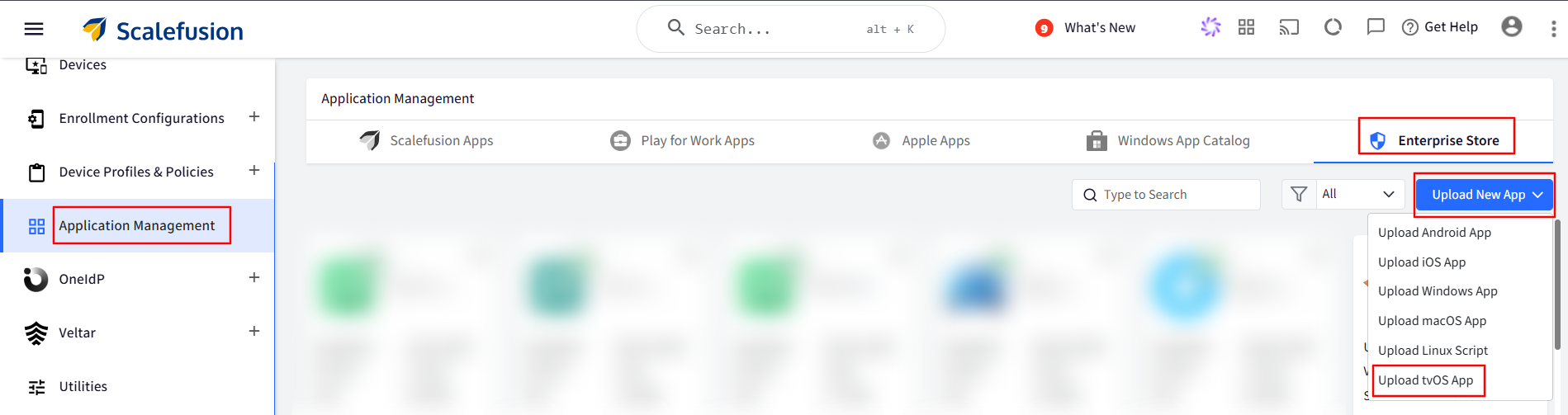
Navigate to Application Management > Enterprise Store > click Upload New App > click Upload tvOS App.
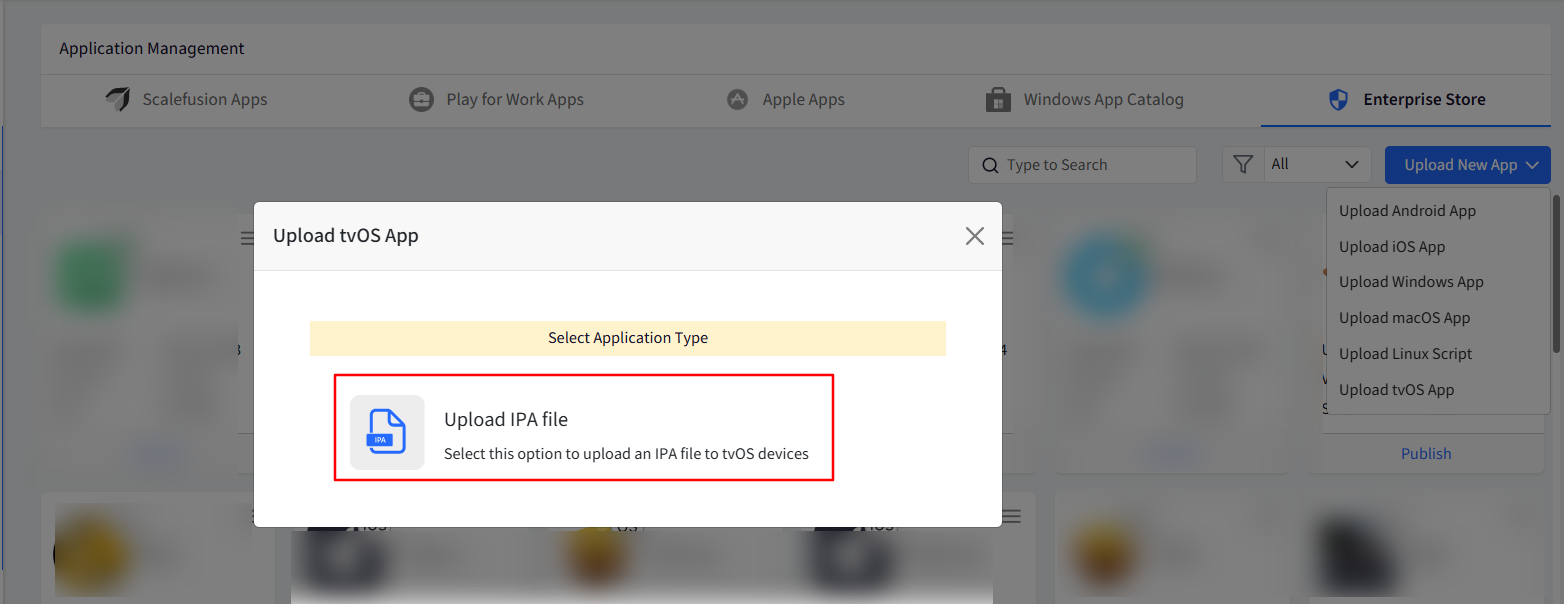
Click Upload IPA file. You will be shown 2 options to upload the file:
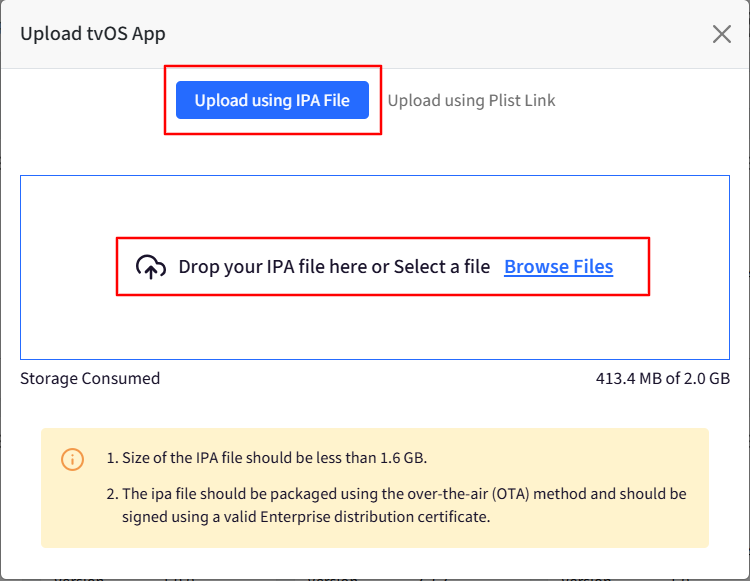
Upload using an IPA file:
Either drag and drop the IPA file or click on Browse Files to search for the file on your machine.
Once you upload the file, Scalefusion checks the validity of the IPA file to make sure that it is an Enterprise application. This process will take around 3-5 minutes, depending on the size of the application being uploaded.
If the application verification succeeds, then you will be shown a dialog with the App Information, with the list of Device Profiles where it can be published.
If you want to publish this application now, select the Device Profiles where you want to publish this and click PUBLISH.
If you want to publish it later, close the dialog box.
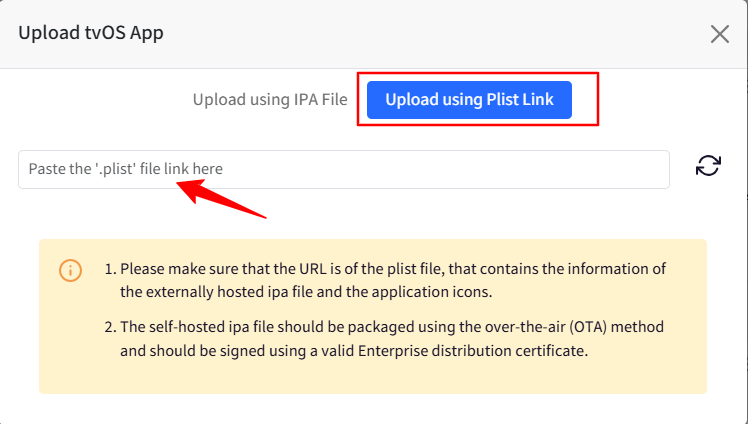
Upload using the Plist link:
You will see a text box to enter the link of your manifest .plist file. Please copy/paste the link to your manifest file here.
Scalefusion will now start reading the plist file, validating the IPA file, and other entries. Note: Scalefusion does not store the IPA file; it just downloads it temporarily to validate it.
If the application verification succeeds, you will be shown a dialog with the App Information, with the list of Device Profiles where it can be published.
If you want to publish it later, close the dialog box.
Publishing Enterprise app
Refer to our guide to know more about how to publish enterprise apps.
Configuring the Enterprise app configuration
Refer to our guide to know more about creating enterprise app configurations.