When you have multiple devices, it becomes imperative to see the list of devices, their current status, view device-level information, and perform device-level operations. Scalefusion offers a comprehensive set of features that help you to view and manage your device inventory.
Device Details
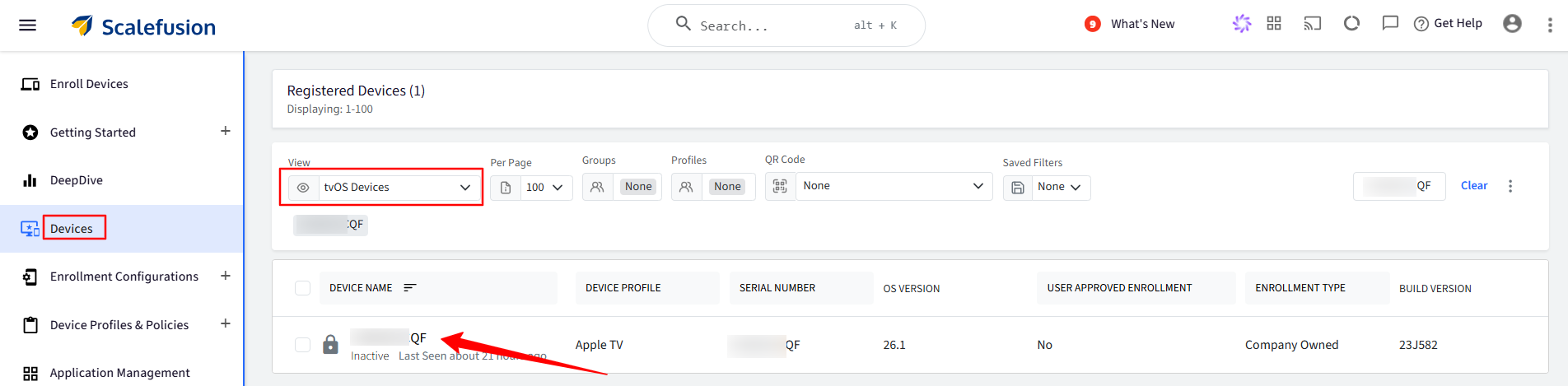
Navigate to the Devices section.
The Devices screen offers you some quick filters. Filter by Device Type and select tvOS Devices.
You will see the list of your enrolled tvOS devices.
Click the device name to view the device details. This will open a Device-specific page with a snapshot of device information in a card view.
The Device Information card view provides an overview of the enrolled device, including details such as Serial Number, OS Version, Enrollment Mode, and more.
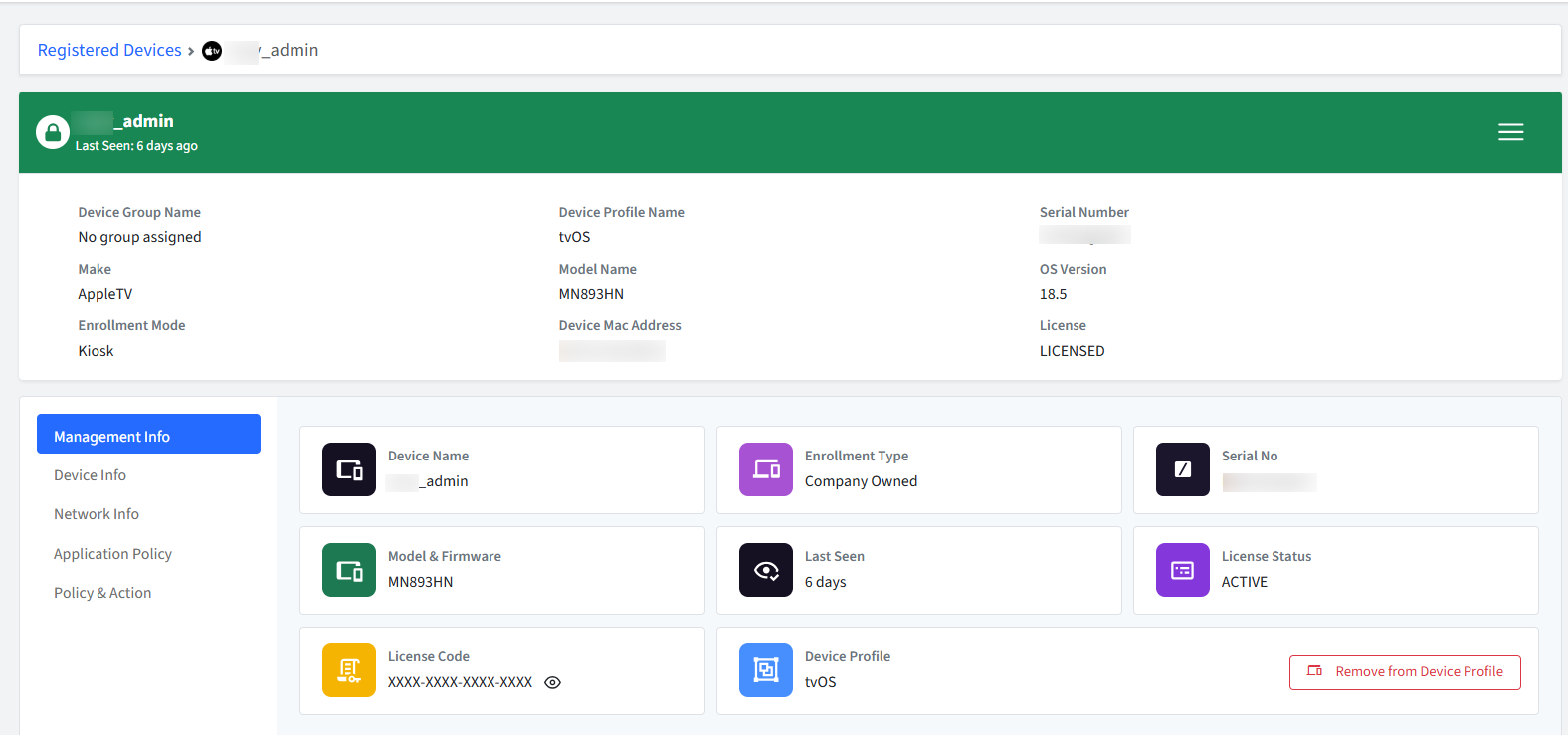
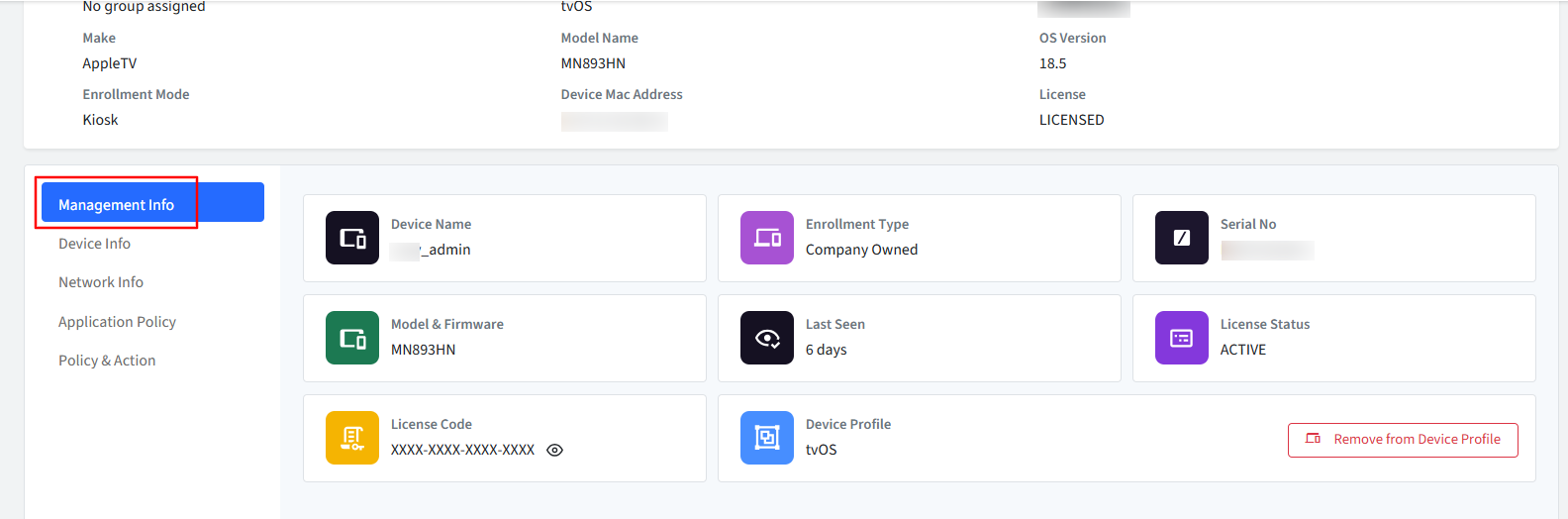
Management Info: Contains details such as device name, model & firmware, license status, Device group name, etc.
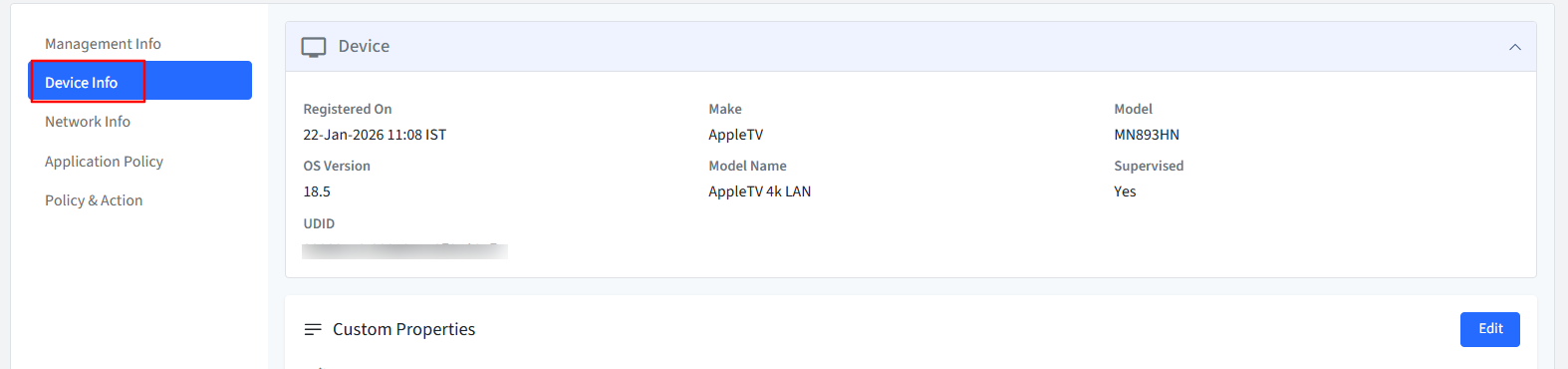
Device Info: Contains more device details like OS version, UDID, etc.
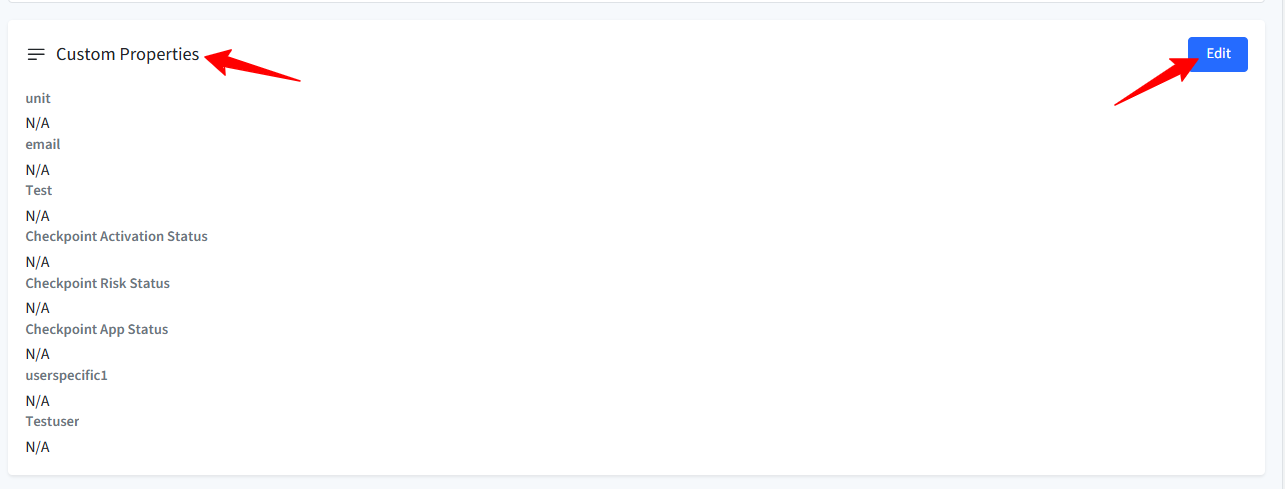
Custom Properties: You will see all the custom properties that you have created here and can edit the values in this tab itself.
Device Notes: You can add internal notes related to the device. Click Edit to enter the note and Save.

Network info: Provides the device’s network information like Bluetooth Mac Address, Device Mac Address, and Public IP Address.

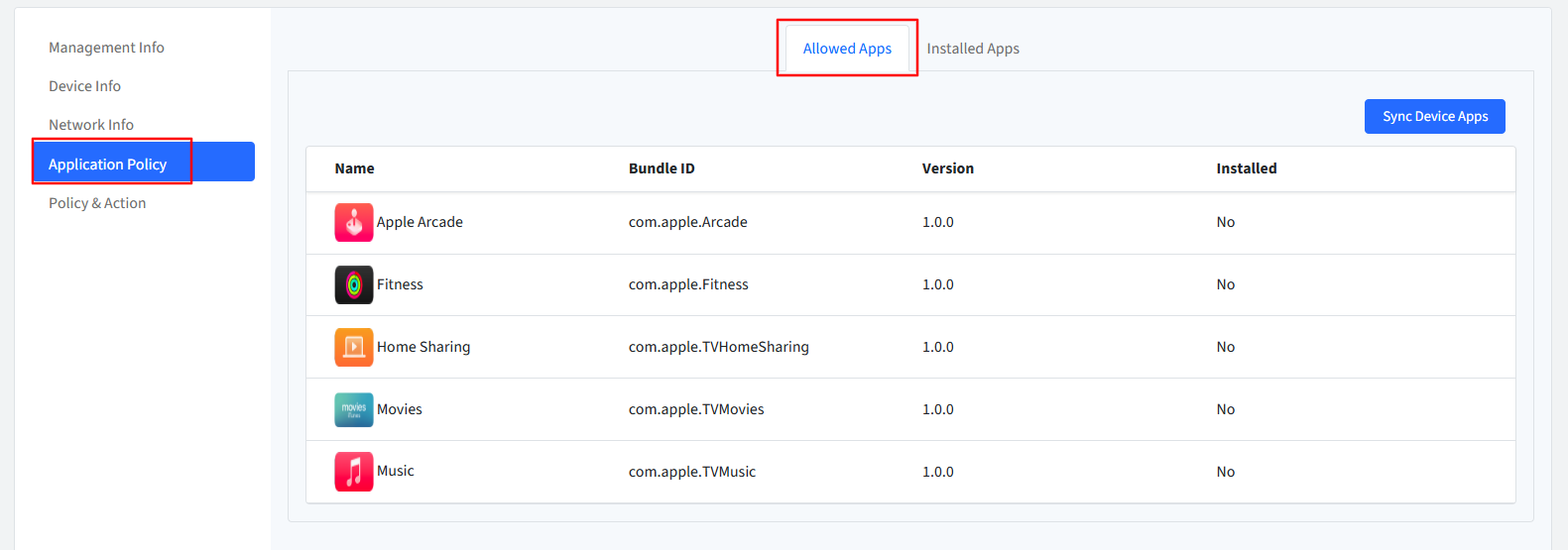
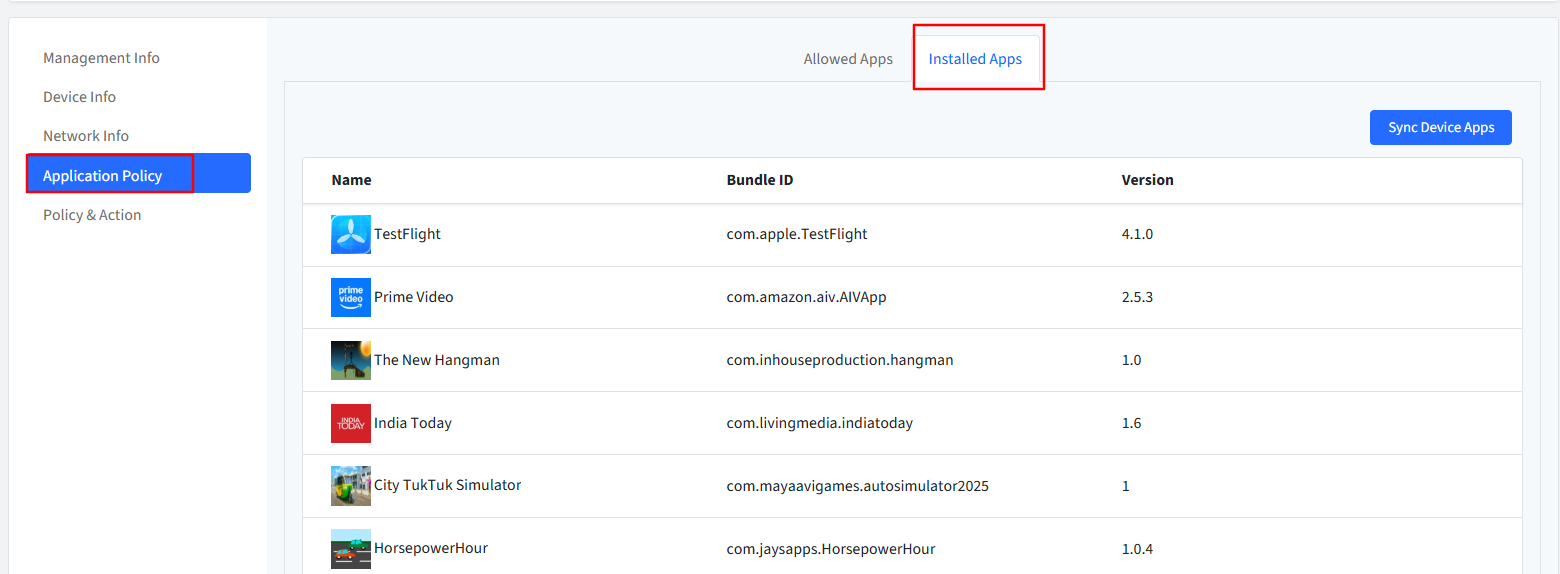
Application Policy: This section will show the app details of the device.
Allowed Apps: This will show the list of Allowed Apps as per the device profile.
Installed Apps: This will show the list of apps that have been published from the Scalefusion dashboard.
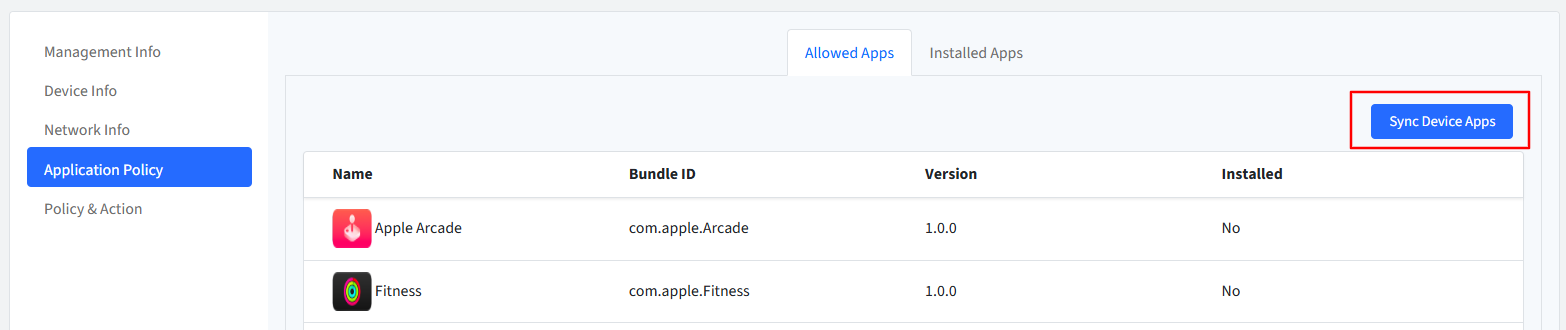
Sync Device Apps: Scalefusion periodically syncs the device apps; however, you can also sync them with the dashboard if needed, especially if it's urgent.
Policy & Actions: This section provides a concise overview of applied policies and actions taken on Scalefusion-managed devices.
You can view a summary of the last five events performed on a device.
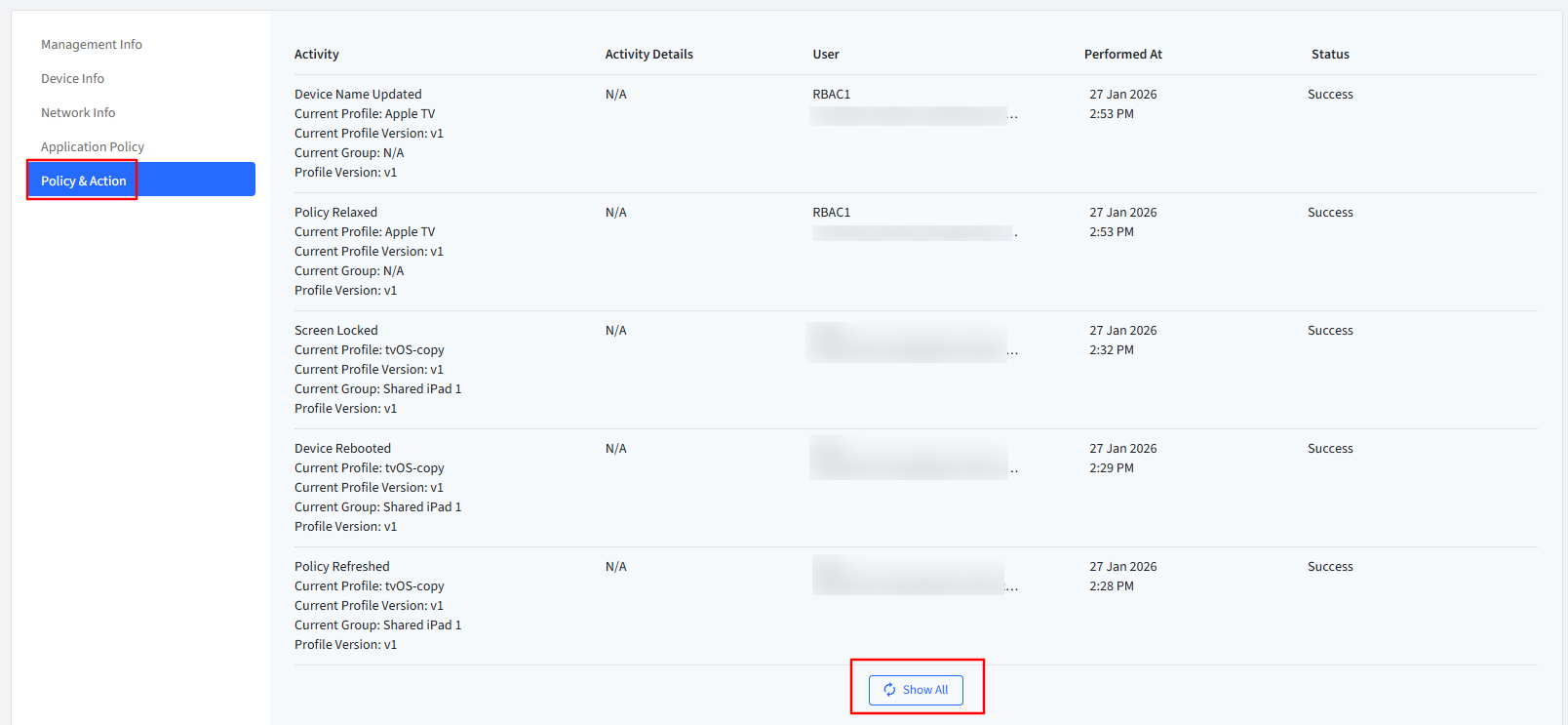
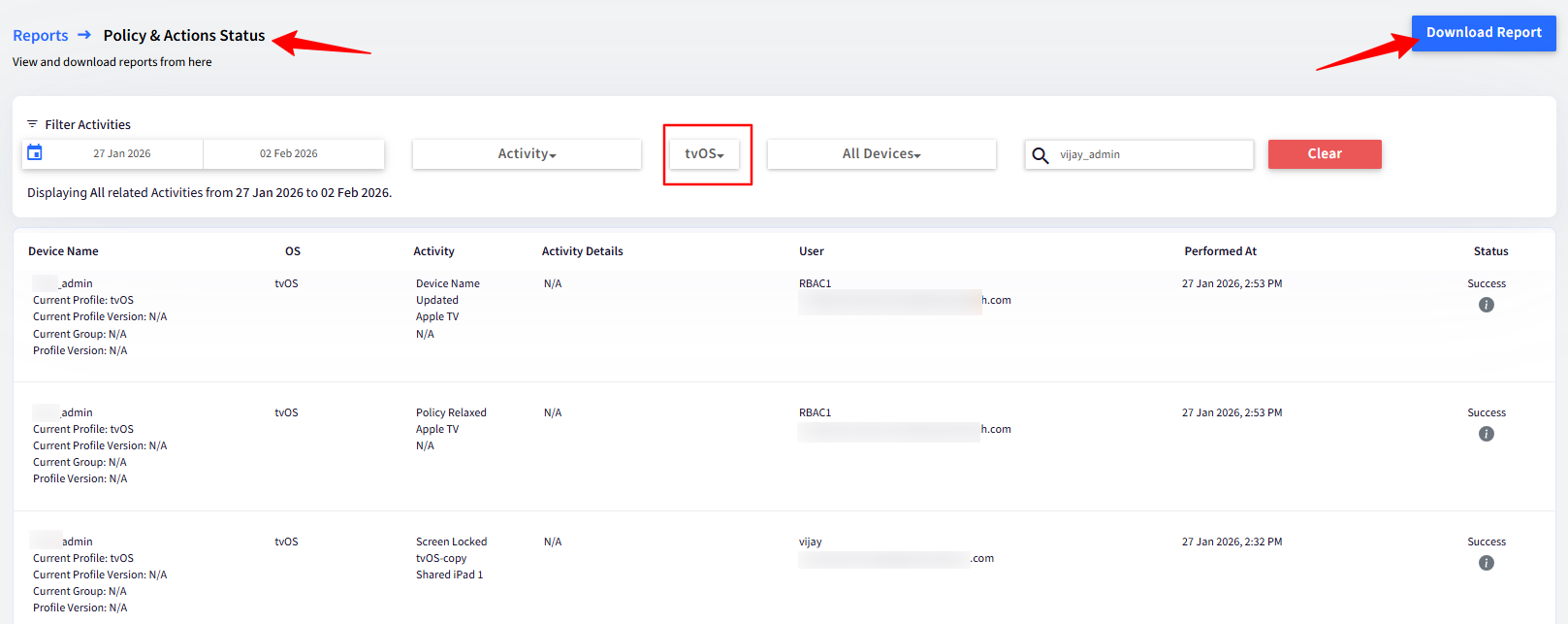
Clicking the Show All button opens the Policies & Action Report, providing a detailed view and an option to download the report.
Device Level Actions
Click the hamburger icon to display the list of actions available for the managed device.
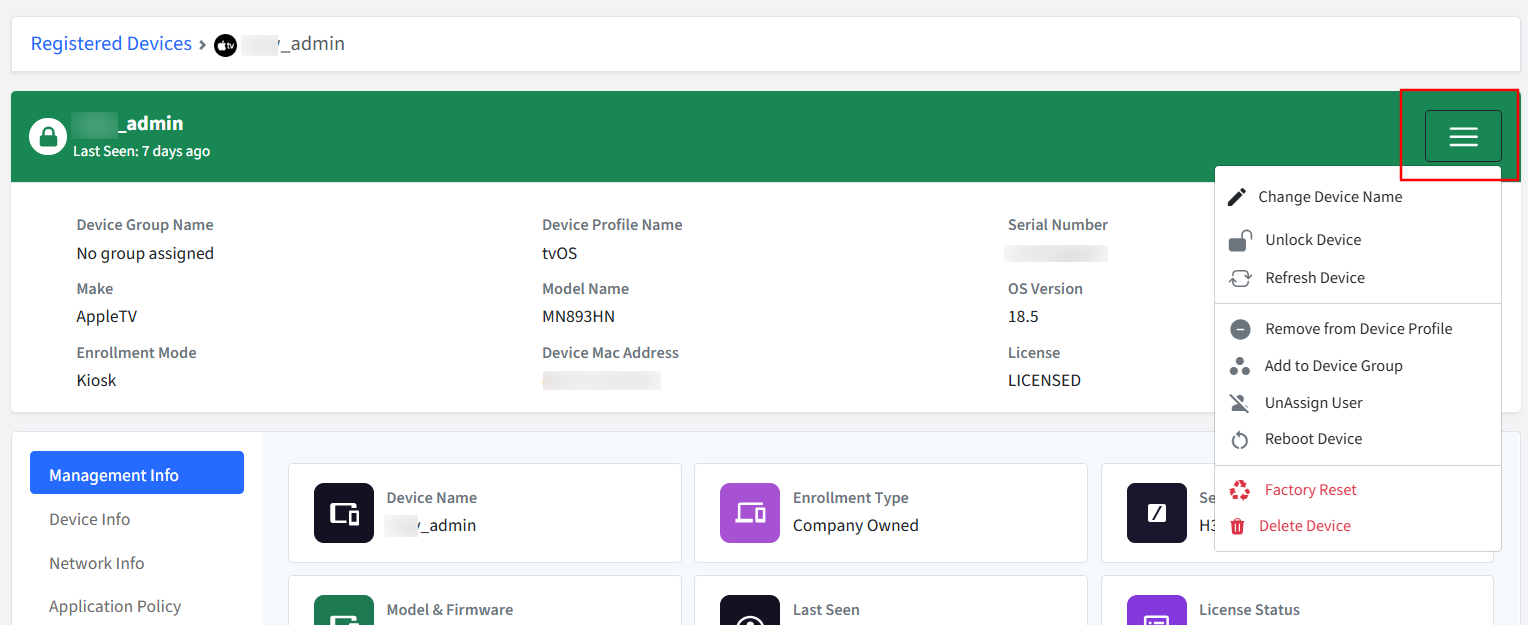
Change Device Name: Use this option to change the name as displayed on the Dashboard.
Lock/Unlock Device: Use this option to apply or relax the policies on the managed device. This command works only if the device is online.
Refresh Device: Use this option to send a command to the device to update/sync the policies. This command works only if the device is online.
Remove from Device Profile: Use this option to remove the device from its profile.
Add/Remove to Device Group: Use this option to add or remove a device from a group.
Assign User: Assign a user to tvOS devices using this option. This enables IT Admins to pre-enroll and distribute devices to users/employees, and assign a user for internal tracking. It also makes it easier to identify the device ownership in cases where a large number of devices are distributed among employees. A few prerequisites to assign a user:
User(s) should be added/imported in the User Enrollment section.
The user should belong to a user group with a tvOS Device Profile applied to it.
Unassign User: Removes the assigned user.
Reboot Device: Sends a command to reboot the device. This command works only if the device is online.
Factory Reset: You can remotely reset the device using this option.
Delete Device: Use this option to un-enroll/un-manage the device and delete it from the Scalefusion Dashboard. Note that this action is irreversible.