Microsoft Active Directory Federation Services or ADFS is a Microsoft technology that enables single sign-on (SSO) to applications across different organizational boundaries. It allows users to authenticate once with their on-premises credentials to access various resources, both on-premises and in the cloud, by creating a trust relationship between systems and issuing security tokens.
Scalefusion’s OneIdP can be used to be configured as an IdP for Microsoft ADFS to add an extra layer of security where access to the applications can be made conditional with OneIdP’s conditional SSO and Extended Access Policies.
Pre-requisites
An existing setup of Microsoft ADFS configured as the claims provider for Microsoft 365 or Microsoft On-Prem applications.
A Scalefusion account with a valid subscription to OneIdP and access to SSO configuration section.
If using Microsoft ADFS for Microsoft 365 then an Entra Admin account that can grant the required permissions to Scalefusion OneIdP.
Step 1: Setup User management
Basing on your current IdP please configure the user management. You can choose to import the users from Microsoft Entra or configure Scalefusion On-Prem Connector.
Step 2: Configure a Directory and Migrate Users
The next step is to configure a OneIdP directory for your users by adding your domain and configuring the migration rules. Please refer to the Directory configuration guide.
Step 3: Create a Microsoft ADFS SSO Configuration
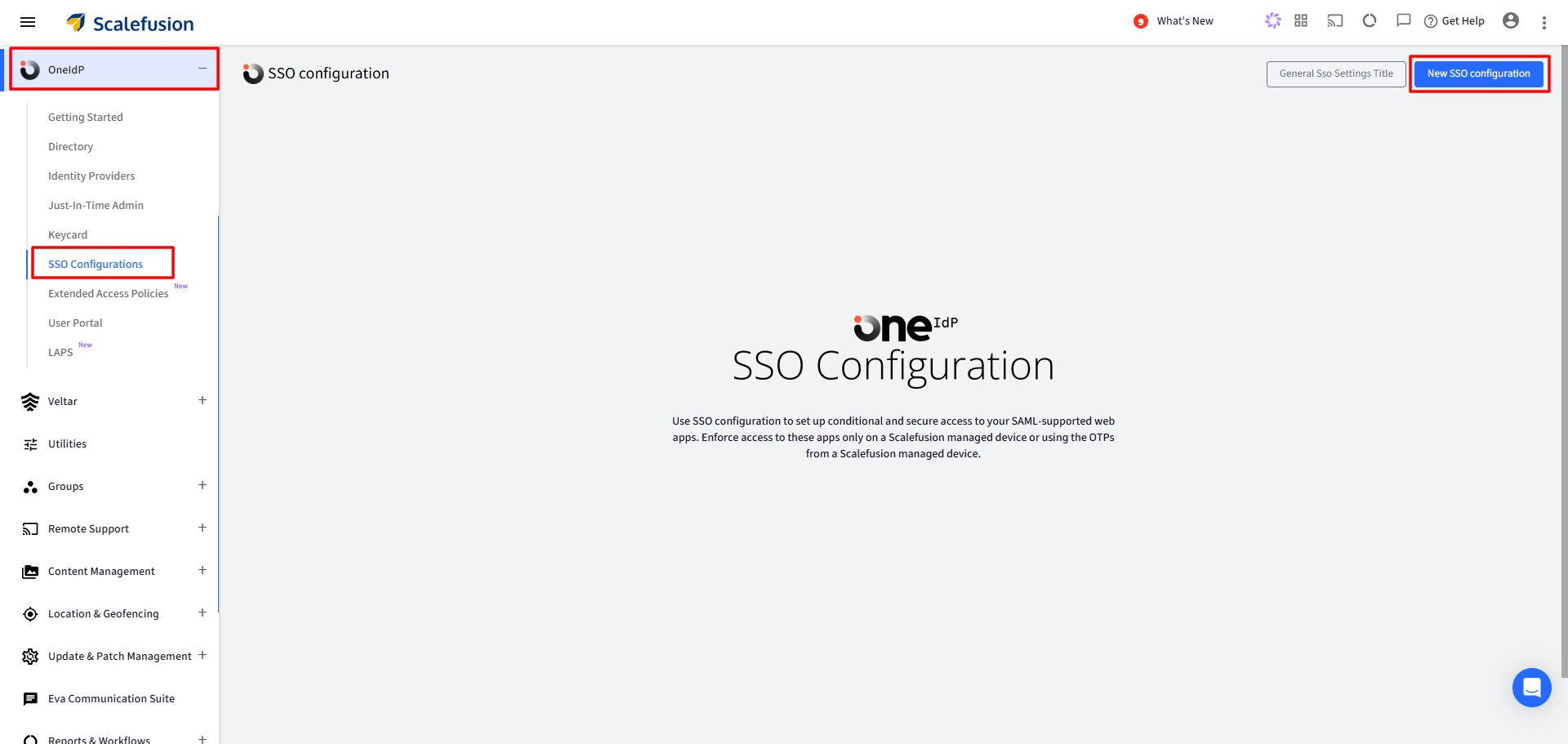
Sign in to Scalefusion Dashboard and navigate to OneIdP > SSO Configuration
Click on New SSO Configuration button on top right.
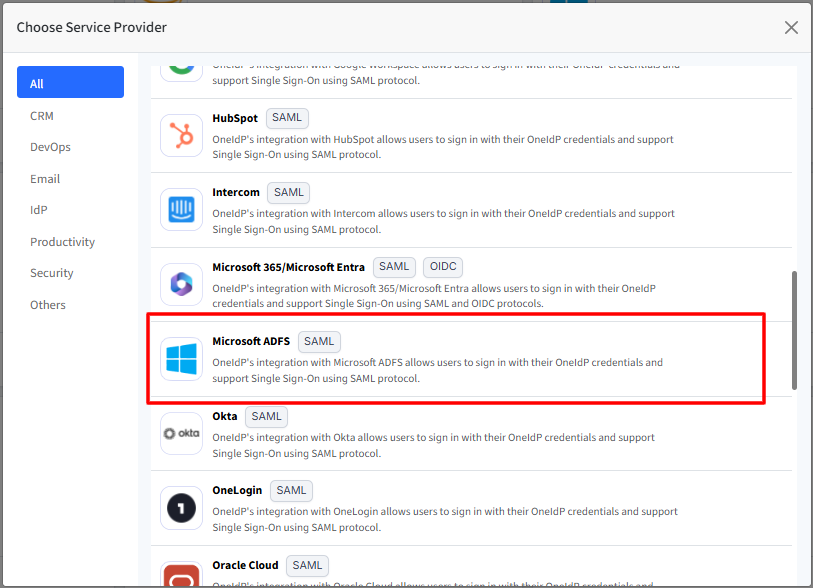
After clicking New SSO Configuration, a window will appear. Search for Microsoft ADFS in the list, select it, and then click Configure.
This opens the SSO Configuration wizard with following tabs on the left panel:
User Facing Messages
Navigate to each tab and enter required details. You can navigate to next tab only after you have entered complete details in the current section. All are explained in detail below.
Application Basics
Configure basic application details by entering the following:
Enter Application Name: Enter a name for your App which will be an identifier for your configuration. The name must be at-least 5 characters long. The maximum allowed length is 128 characters.
Select Hosting Type: This will be pre-selected as Cloud
Configuration Type: Select the following:
Microsoft Cloud Services with Hybrid Connector: Those who have migrated to cloud M365 but still use AD as their source of users
Select Domains: All the custom domains you have configured and verified using OneIdP, will be listed here. Select the domain(s) which you want to be SAML SSO enabled.
Select Authentication Type: This will be pre-selected as SAML.
Enter Login URL: Provide URL that you use to sign in to that service. For Hybrid, bydefault it is pre-filled.
Once you have entered all details click Next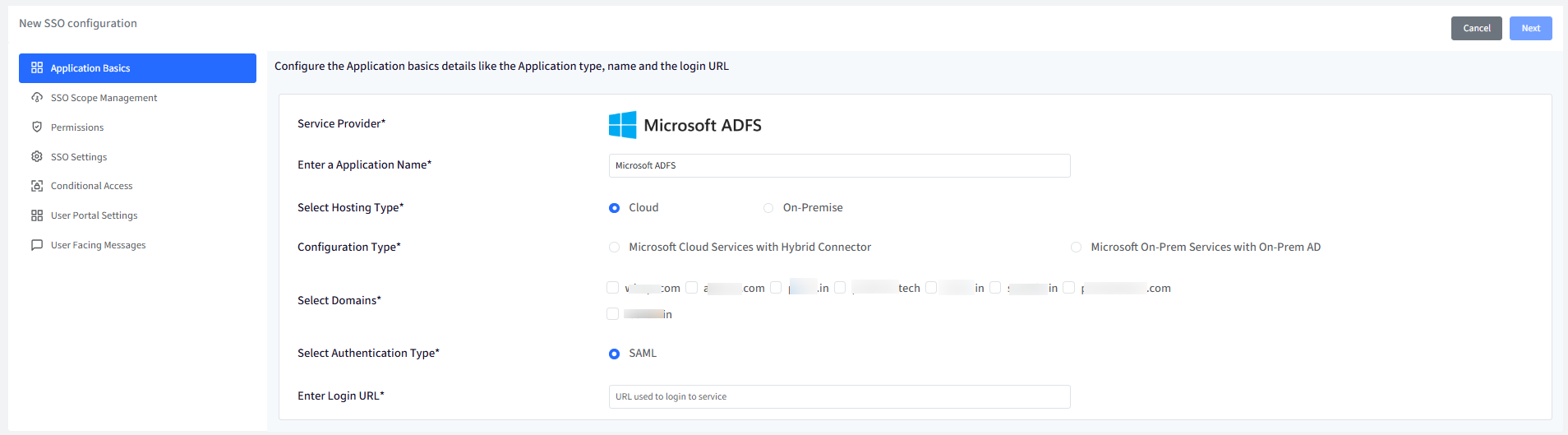
SSO Scope Management
With SSO scope management you can configure the procedure for managing the users who will be accessing this application. It basically allows how SAML settings for the users are going to be managed. Following are the settings:
Configure User Management
This section is shown if configuration type is Microsoft Cloud Services with Hybrid Connector
This section defines how user lifecycle actions in Scalefusion should affect user accounts in Microsoft ADFS when SSO is enabled. Scalefusion can act as the source of truth for users and groups, and ADFS will authenticate those users.
Create users in Microsoft ADFS based on user management actions in Scalefusion:
When this option is enabled: If a new user is created in Scalefusion,
→ A corresponding user account is automatically created in Microsoft Active Directory (used by ADFS).Delete users in Microsoft ADFS based on user management actions in Scalefusion
When enabled: If a user is deleted or deactivated in Scalefusion,
→ The corresponding AD user account is deleted or disabled.Prevents former users from authenticating via SSO.
Configure Name Mapping
Name mapping defines how Scalefusion identifies the user coming from ADFS during authentication. ADFS sends identity attributes (claims) during SSO, and Scalefusion must match them to its user records. This ensures the authenticated AD user matches the correct Scalefusion account. Name mapping can be configured with
Username
First Name & Last Name

Group-based SSO Profiles
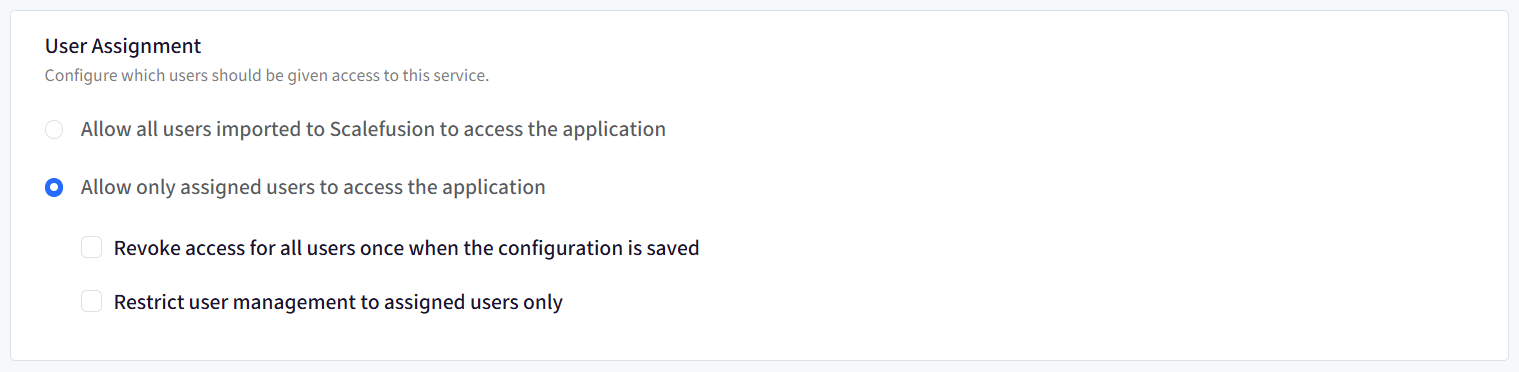
User assignment
SSO Configuration would allow only assigned users to access the app. Choose one from the following options:
Allow all users imported to Scalefusion to access the application: All users (belonging to the domain) imported to Scalefusion and migrated to OneIdP will be allowed to access the application.
Allow only assigned users to access the application: Only the user(s) whom you have assigned the SSO configuration, will be allowed to access the application. With this option, after SSO configuration is created, you need to manually select and assign the users.
Revoke access for all users once when the configuration is saved: If this is checked, the access is revoked from the users who are currently assigned with the configuration. As a result, it will invalidate all user sessions and logout users from their current running session.
Restrict user management to assigned users only: If this option is enabled, only users assigned to the SSO configuration can be created, edited, or deleted through user management. These changes will be applied to the IdP console side, only for users assigned to the SSO configuration.
Enforcement Rules
From here, you can configure and enforce users that at what point of time SSO Configuration should invalidate the current session and logout users. Following options can be selected:
Immediately on User Assignment and post grace period if applied: Once SSO configuration is assigned to user
Immediately on User Un-Assignment: When user is unassigned the SSO configuration
Immediately on Deleting this configuration: When SSO configuration is deleted from Scalefusion Dashboard

Permissions
If the configuration type is Microsoft Cloud Services with Hybrid Connector then following permissions need to be granted. Click on Grant Permissions as shown below.

SSO Settings
This section allows admins to configure the Service Provider (ADFS) settings and obtain the SSO URLs that will be added to the ADFS server.
OneIdP SSO Settings
Download the OneIdP Metadata by clicking on Download Metadata, from Scalefusion Dashboard (SSO Settings) and remember the location where it was downloaded to. This will be used to configure the ADFS.

Service Provider Settings
Service Provider Entity ID: If your service provider has given you an Entity ID, also known as an audience or identifier, please enter it here.
Service Provider ACS URL: If your service provider has provided an ACS URL, sometimes also called a destination or recipient, then please enter it here.
The Entity ID and ACS URL should be set to the URL of your ADFS Login page which may be in the format of https://<adfs.your domain>/adfs/ls/idpinitiatedsignon.htm
Step 4: Create a Microsoft ADFS SSO Configuration
There are two ways to configure OneIdP as Claims Provider Trust:
Conditional Access
From this section you can define the additional conditions on the basis of which users will be allowed/disallowed from accessing the application on device. This is divided into following sections:
Conditional Access Settings
Access Exceptions
Conditional Access Settings
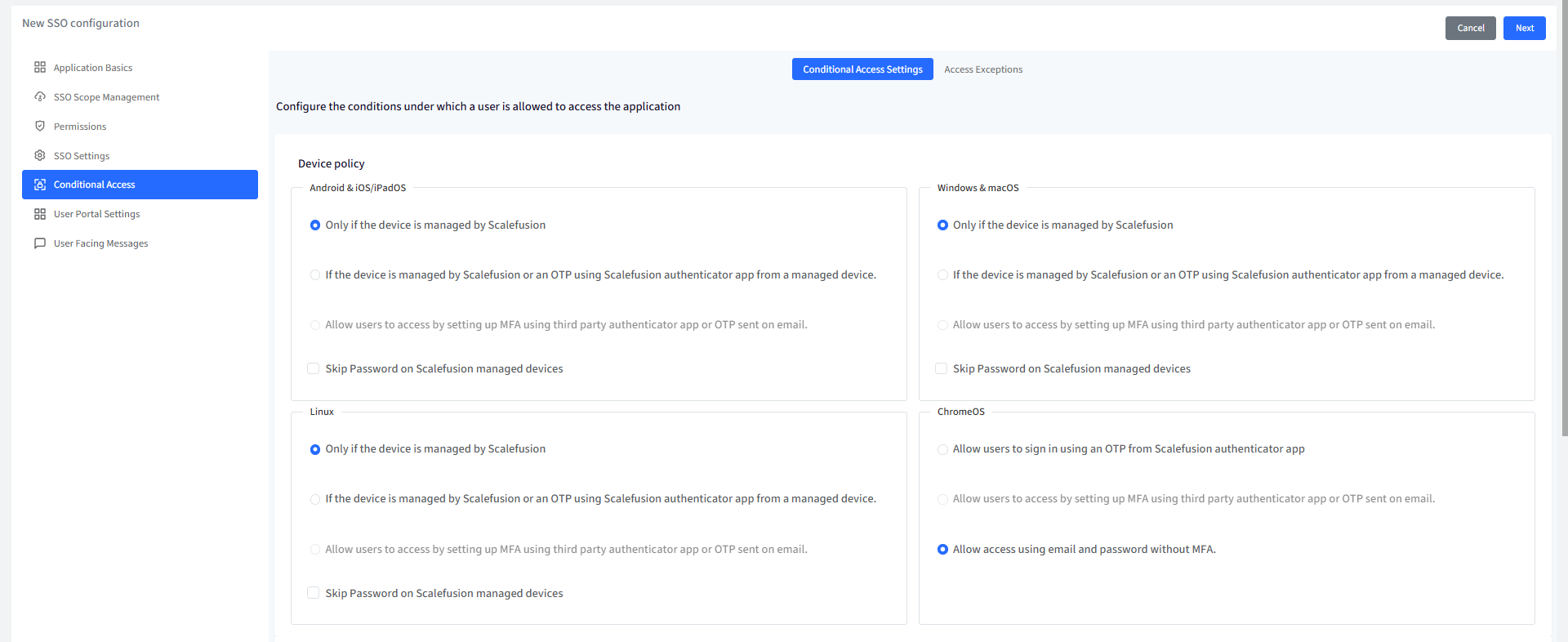
Device Policy
For Android, iOS/iPad OS, Windows & macOS, Linux, Chrome OS: Choose one from the following two conditions:
Only if the device is managed by Scalefusion: The application will be accessible only on devices managed (enrolled) by Scalefusion.
If the device is managed by Scalefusion or an OTP using Scalefusion Authenticator app from a managed device: The application is accessible if any of the following conditions is met:
Device is managed by Scalefusion: If device is managed you will not be asked to enter OTP for authentication, or
If device is unmanaged, OTP is required for authentication. OTP can be taken from Authenticator app installed on a Scalefusion managed device.
Allow users to access by setting up MFA using third party authenticator app or OTP sent on email: This option is activated only when Multi-factor Authentication is enabled in Directory Settings.
Note: The left side panel is for configuring Device Policy on Android & iOS/iPad OS and right side is for Windows & macOS and Linux, ChromeOS below them. Hence, you can configure separate device policies based on platform.Skip Password on Scalefusion managed devices: When enabled, this option allows users to access applications on managed devices without the need to enter a password during sign-in.
Browser Policy
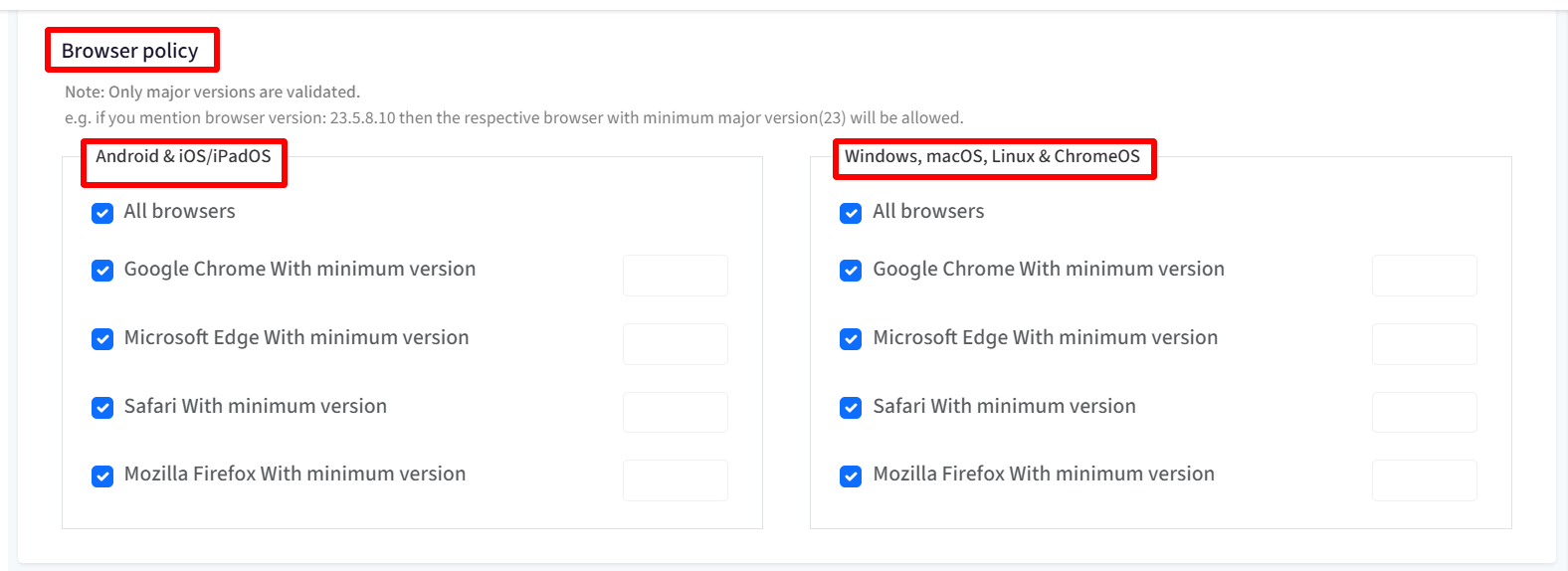
From here, you can select one or more browsers and specify minimum versions on which you want to allow the access to the application. Following are the options:
All Browsers
Google Chrome with minimum version
Microsoft Edge with minimum version
Safari with minimum version
Mozilla Firefox with minimum version
Important Points on Browser Policy:
By default all browsers are allowed.
Only major versions are validated. For eg. if you mention browser version: 23.5.8.10 then the respective browser with minimum major version(23) will be allowed. After configuring Device Policy and Browser Policy, click Next
Access Exceptions
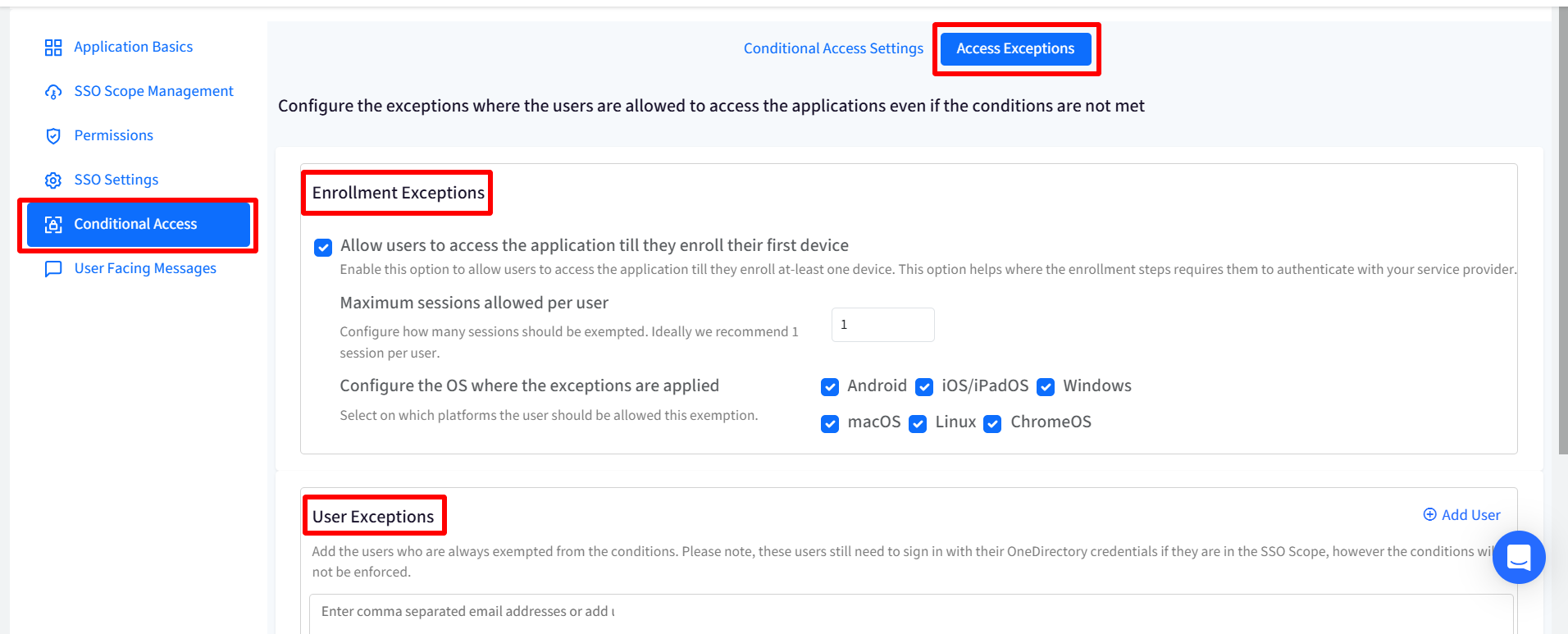
From this section you can configure the exceptions where the users are allowed to access the applications even if the conditions are not met. In general, these exceptions will be useful or addresses scenarios where :
IT Admins have setup Android Enterprise using Google Workspace Or
IT Admins have setup Apple User Enrollment with ABM/ASM federated to Google Workspace
Following are the exceptions that can be configured:
Enrollment Exceptions
Allow users to access the application till they enroll their first device: Allows users to access the application till they enroll at-least one device. This option is helpful in conditions where the enrollment steps requires them to authenticate with the service provider. With this, you can also configure the following:
Maximum sessions allowed per user: Configure no. of sessions that should be exempted. It can range from 1 to 3. Ideally 1 session per user is recommended.
Configure the OS where the exceptions are applied: Select the platform(s) on which this exemption would be allowed to users.
User Exceptions
Here you can add the users who are always exempted from the conditions and will never be asked to manage their device. Enter comma separated email addresses of users or click on Add Users on the right and in the new window, select the users who should be exempted.
Note: These users still need to sign in with their OneDirectory credentials if they fall under the SSO Scope, however the conditions will not be enforced.User Group Exceptions
Here you can add the user groups which will always be exempted from the conditions and will never be asked to manage their device. Enter comma separated User Groups or click on Add User Groups on the right and in the new window, select the user groups which should be exempted.The users belonging to such user groups still need to sign in with their OneDirectory credentials if they fall under the SSO Scope, however the conditions will not be enforced.
User Facing Messages
User Facing Messages helps admins configure messages that end users may be shown when they are unable to access the application if any of the compliance conditions are not met. You can configure messages under following:
Configure Instructions for a Non-Compliant Device: This message is shown when the device is not compliant and needs to be enrolled to Scalefusion
Configure Instructions for a Non-Compliant Browser: Shown when the browser is not compliant as per configurations
Configure a Message to be displayed when Access is Denied: Any other cases where access to application is denied.
There are some pre-configured messages displayed on Dashboard which you can edit as per requirement.
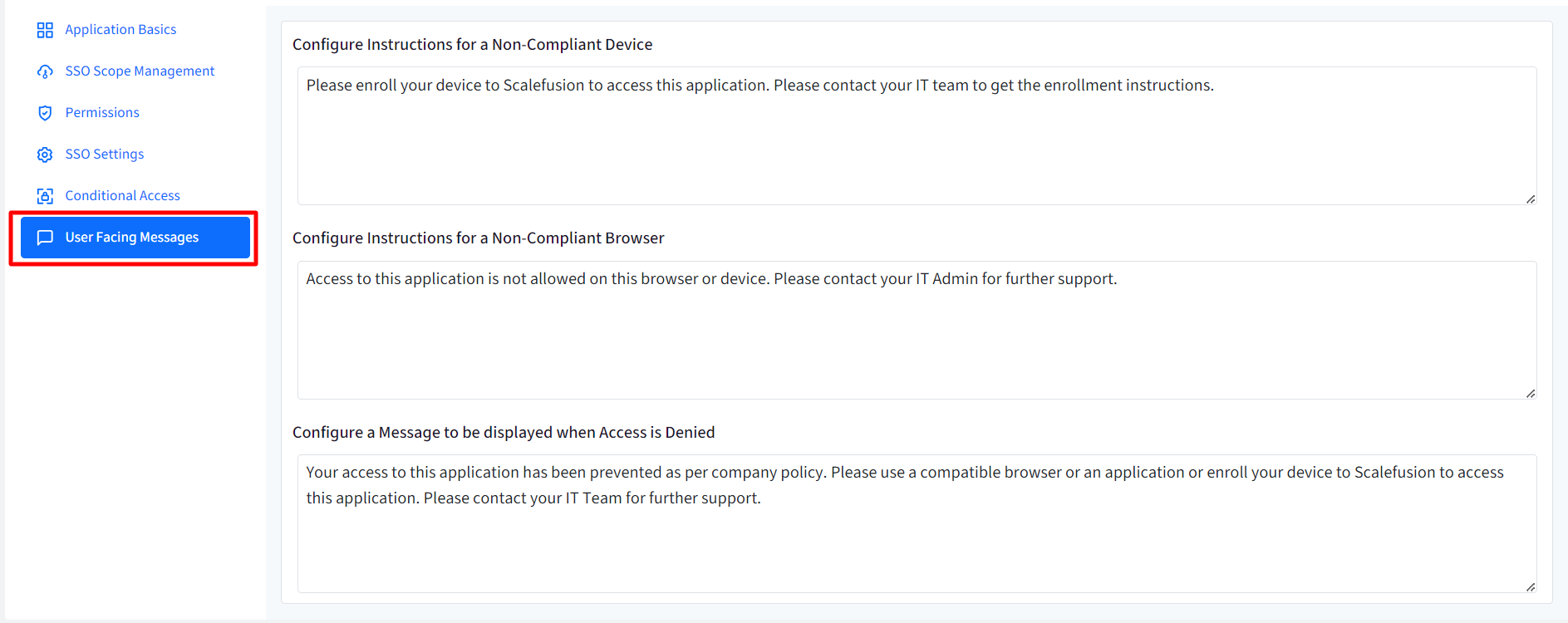
After configuring user facing messages, click on Save
The SSO configuration is created and listed on SSO Configuration page as a separate card with the name you have defined. You can create multiple SSO configurations in the same manner.

Method 1: Configure OneIdP as Claims Provider Trust with ADFS Configuration Manager
Downlaod the ADFS Configuration Manager file from Scalefusion Dashboard (SSO Settings > OneIdP SSO Settings)

Copy the downloaded file and paste it on your ADFS server machine.
Right click on the file and click on Run as Administrator. This will launch the Configuration Manager
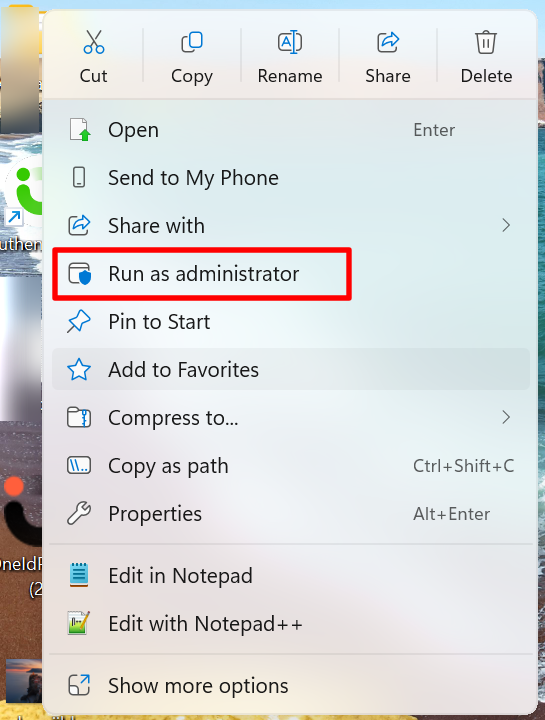
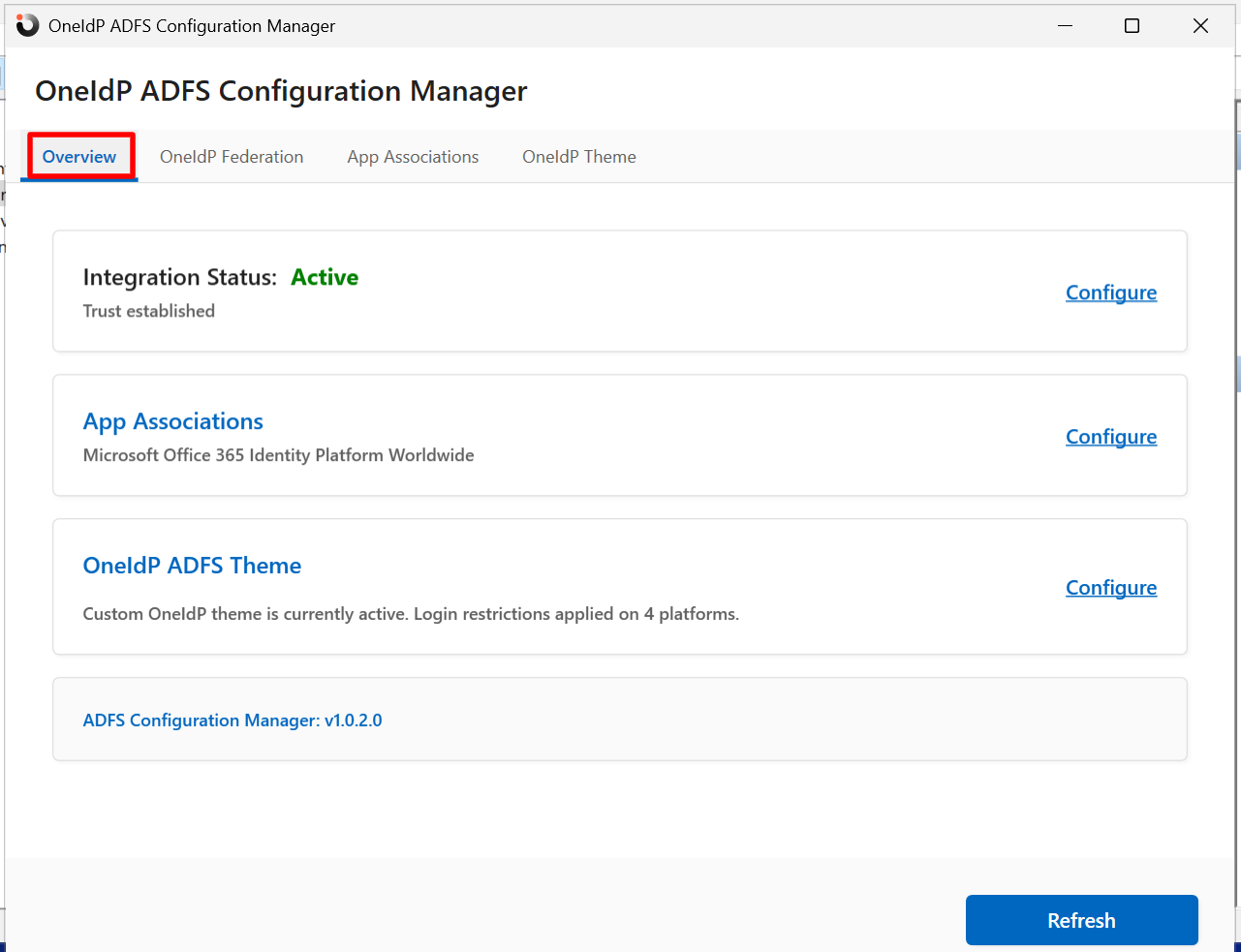
This has following sections:
Overview: Gives a quick snapshot of the current status of configuration. Click on Configure in front of each section and it will take you to the respective tab to configure it. The system determines the state based on the configuration of OneIdP (OIDP), Trust Providers, Platform Rules, and Theme.
State
Conditions
Not Configured
- OneIdP (OIDP) metadata file is not uploaded, or
- Custom providers queried in ADFS are not found
Active
- Custom Platform Rules and Trust Providers are configured and a Theme is set.
Partially Configured
- Metadata file is uploaded in OneIdP Federation
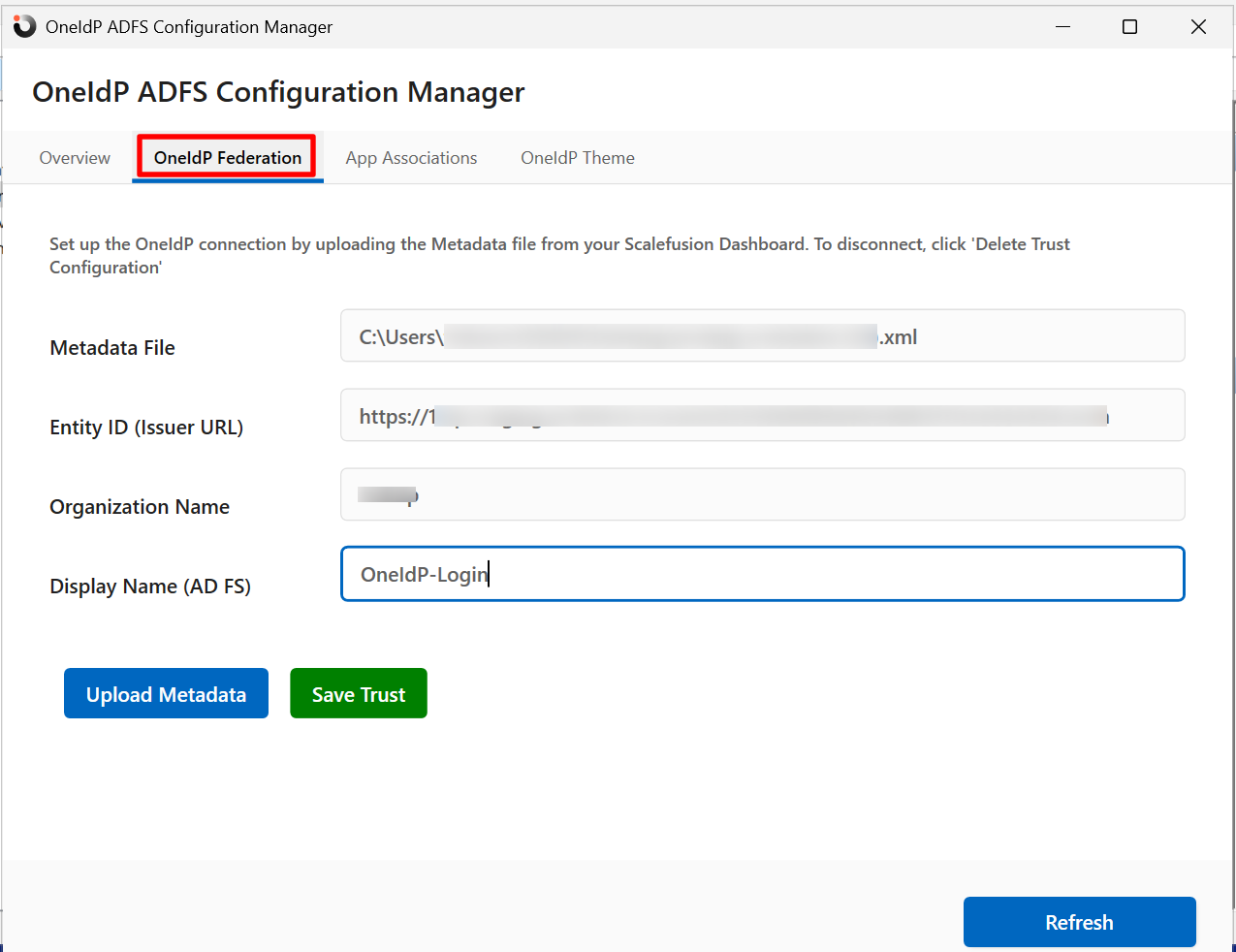
OneIdP Federation: Enter the following and click Save Trust:
Metadata file: Click on Upload Metadata to upload the metadata file that is downloaded from Scalefusion Dashboard (SSO Settings > OneIdP SSO Settings)
Entity Id (Issuer URL): This is pre-populated after uploading metadata file.
Organization Name: Displays Organization Name as set on Scalefusion Dashboard.
Display Name (AD FS): Enter the name that will be displayed on login page
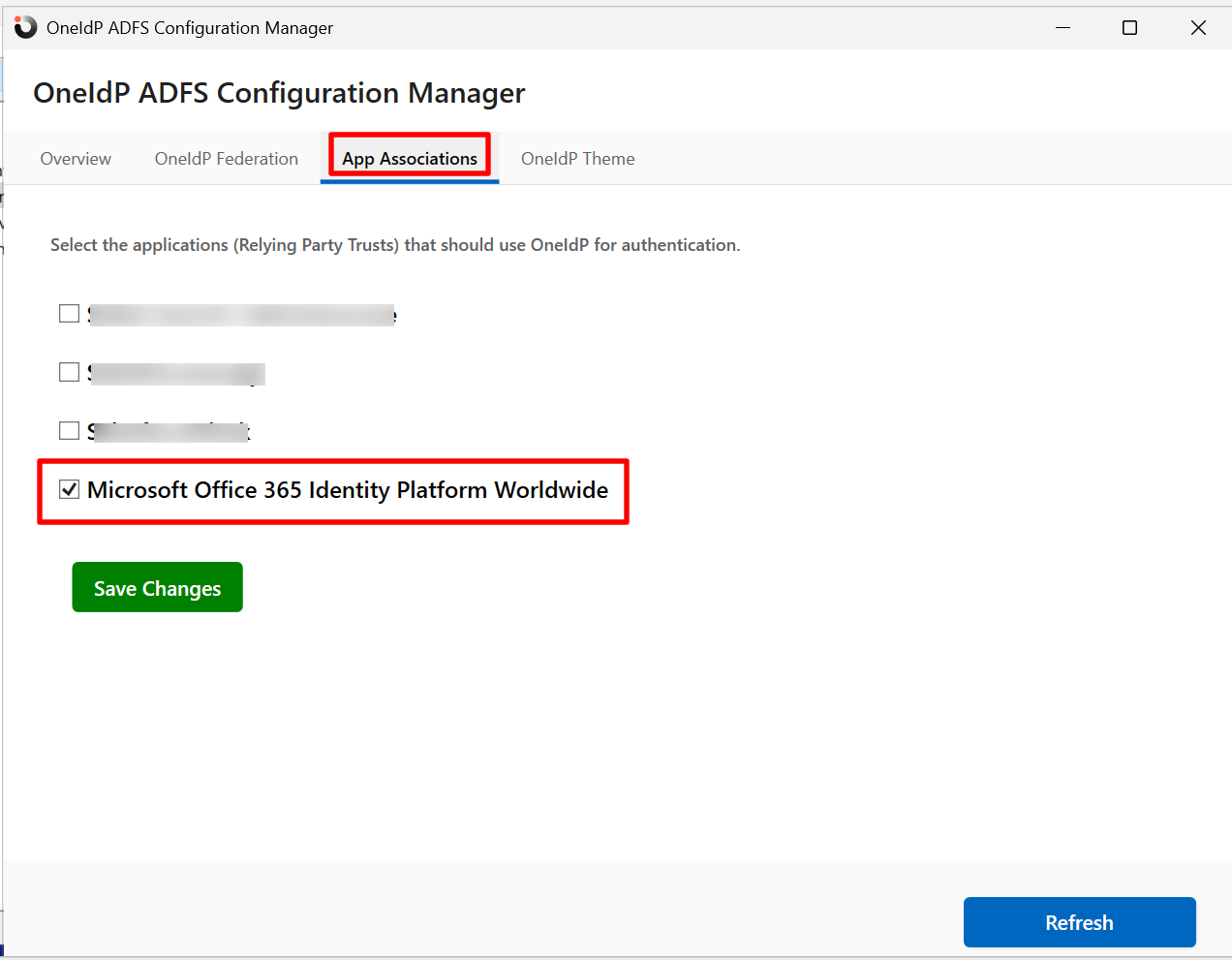
App Associations: Select the applications (Relying Party Trusts) that will use OneIdP for authentication. For Microsoft Cloud Services using Hybrid Connector, select Microsoft Office 365 Identity Platform Worldwide and click Save Changes
OneIdP Theme: Admins can configure a custom theme to personalize the Sign-In page. This allows you to customize the look and feel of the Sign-In experience while maintaining the configured authentication rules.
Upload Banner Image: Upload a banner image to display on the Sign-In page.
Organization Logo: Upload your organization logo
Sign-In Message: Use this field to provide guidance or instructions to users during sign-in.
Footer Message: Compose message that will appear at the footer
Platform Rules: Select platform(s) on which OneIdP login should be enforced.
After configuring, click on Apply New Theme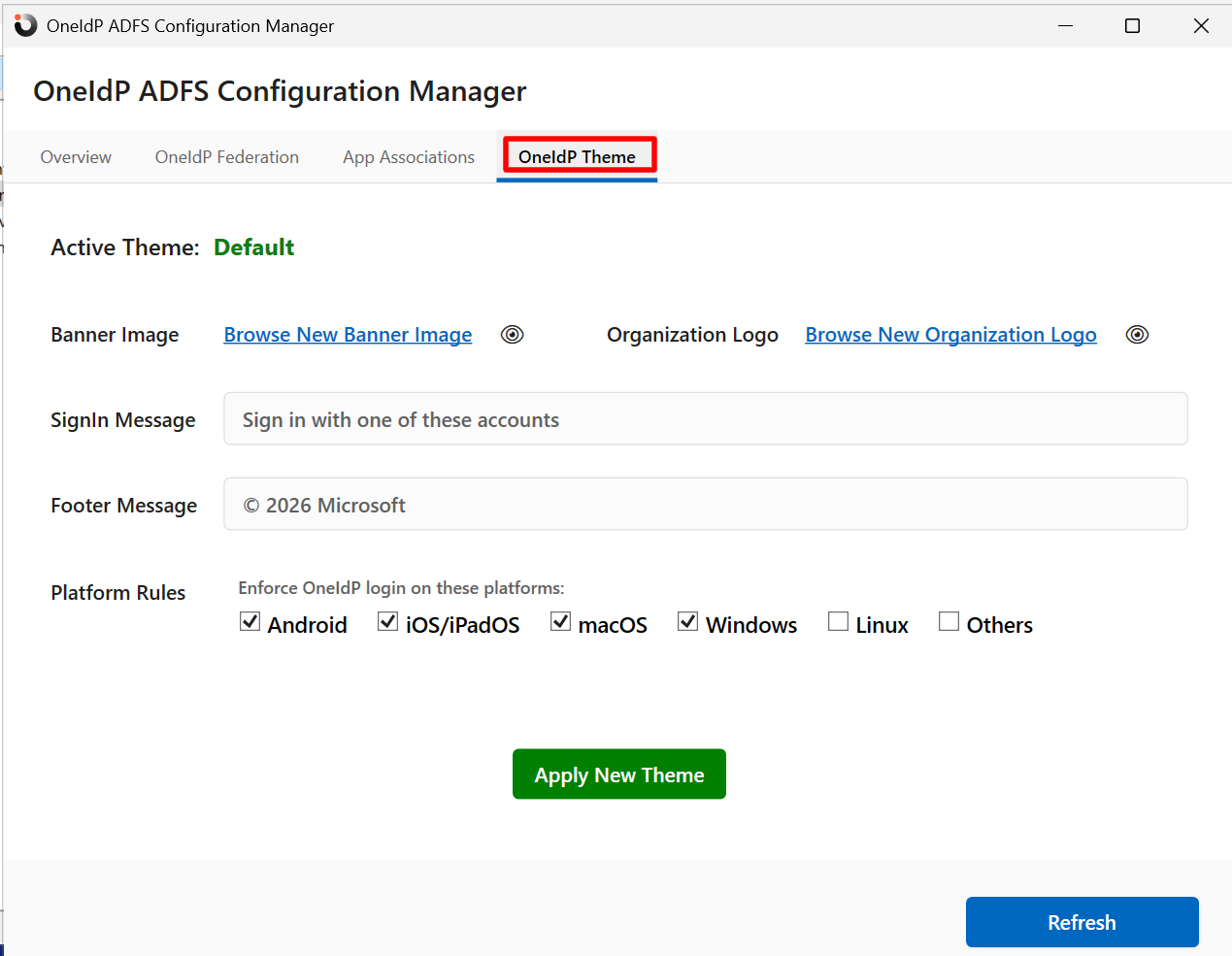
Now, navigate back to Scalefusion Dashboard and click Next to configure rest of the settings.
Method 2: Steps to manually configure OneIdP as Claims Provider Trust
Locate the metadata file downloaded in Step 3 above (SSO Settings > Service Provider Settings)

Login to the Windows sever machine where you have the Microsoft ADFS setup.
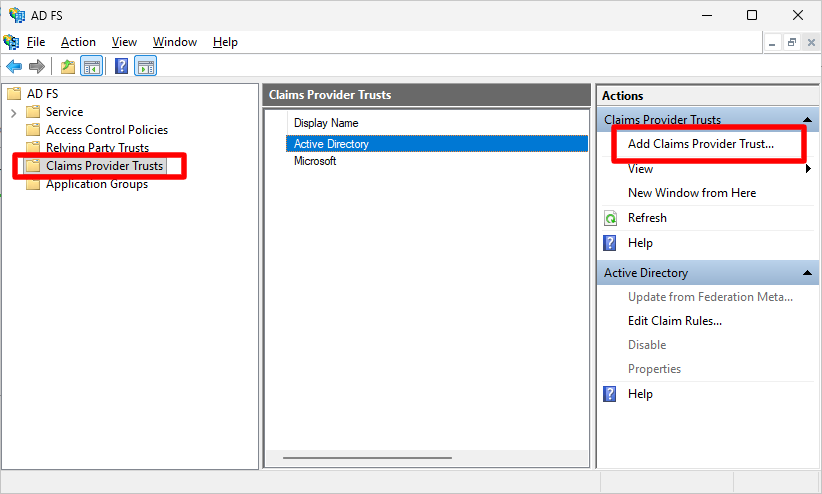
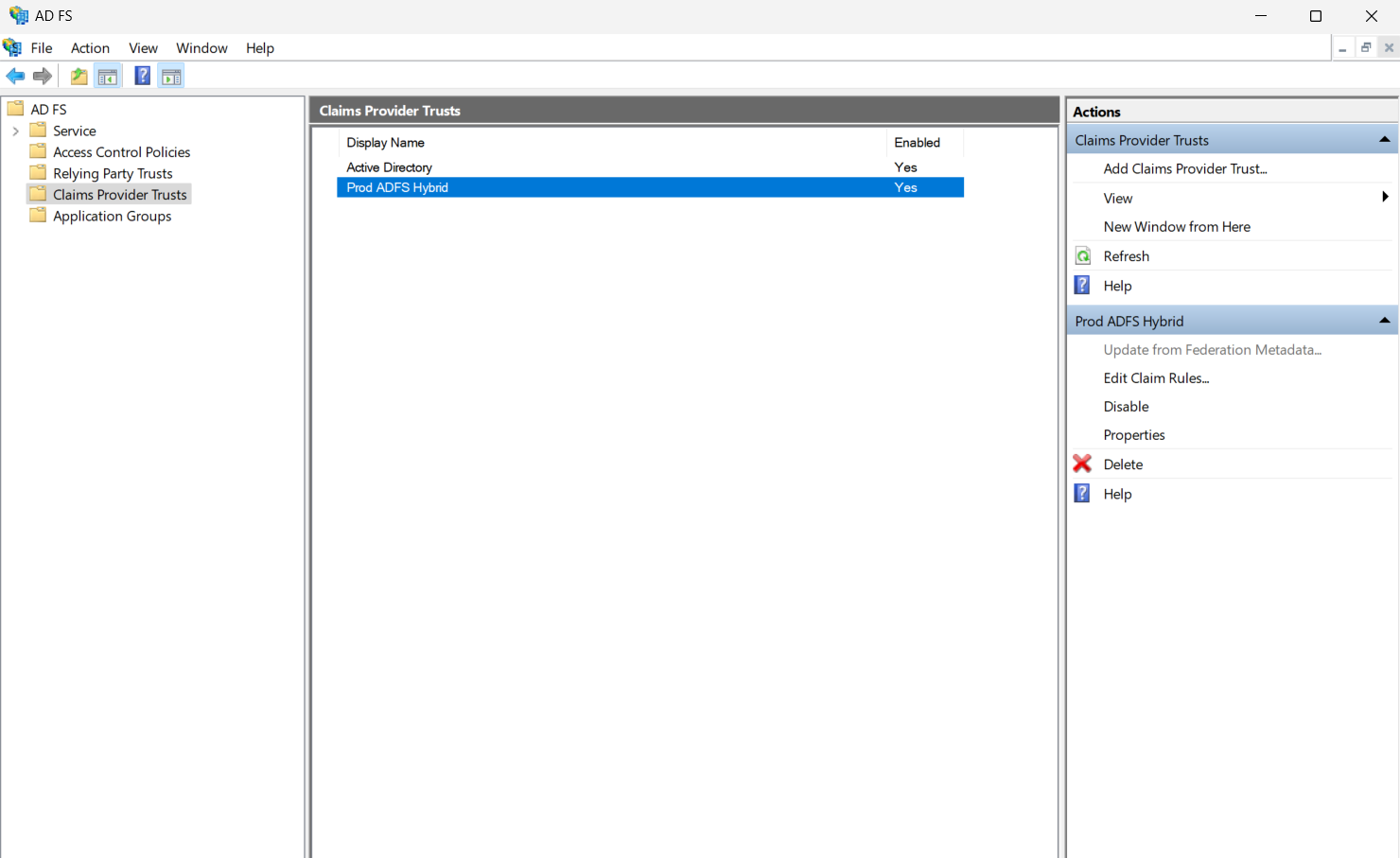
On your ADFS server machine, launch Server Manager -> AD FS Management. Click on “Claims Provider Trusts” and select “Add Claims Provider Trust”
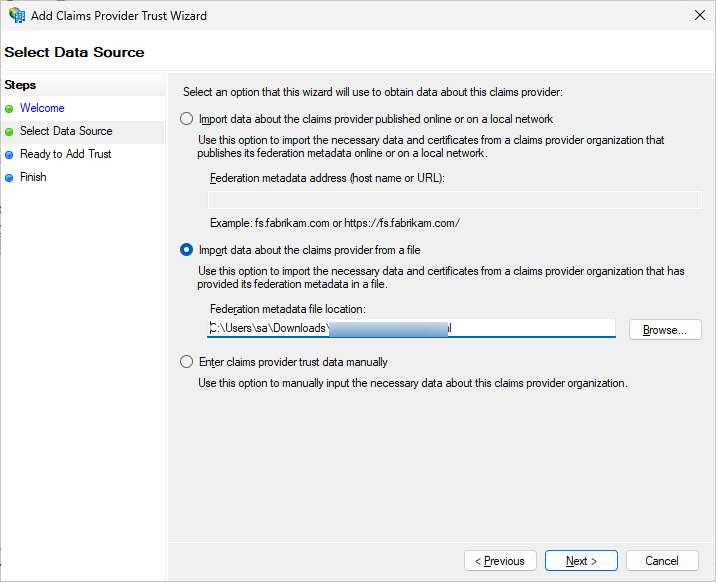
In the “Add Claims Provider Trust Wizard”, under “Select Data Source”, choose the 2nd option: “Import Data about the claims provider from a file”. Click on Browse and select the metadata file downloaded from Scalefusion Dashboard (Step #3). Click Next.
Provide an appropriate display Name (Eg: OneIdP) and give Notes. Click Next.
Note: This display name will be shown in your ADFS login page.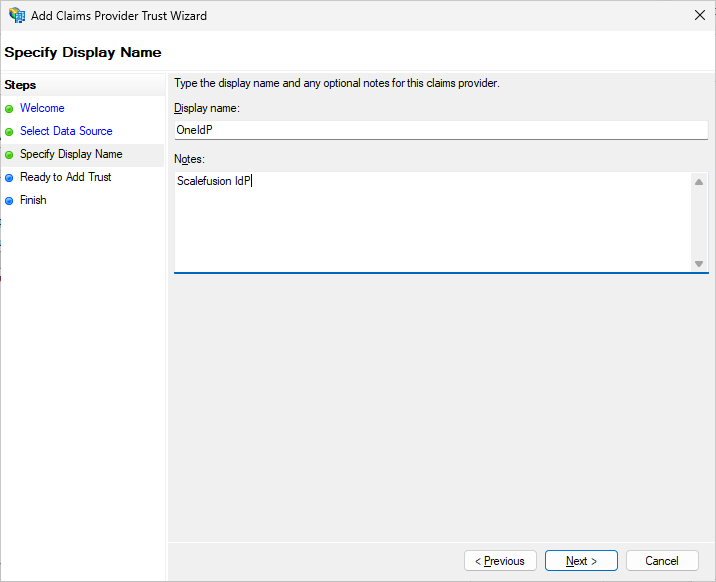
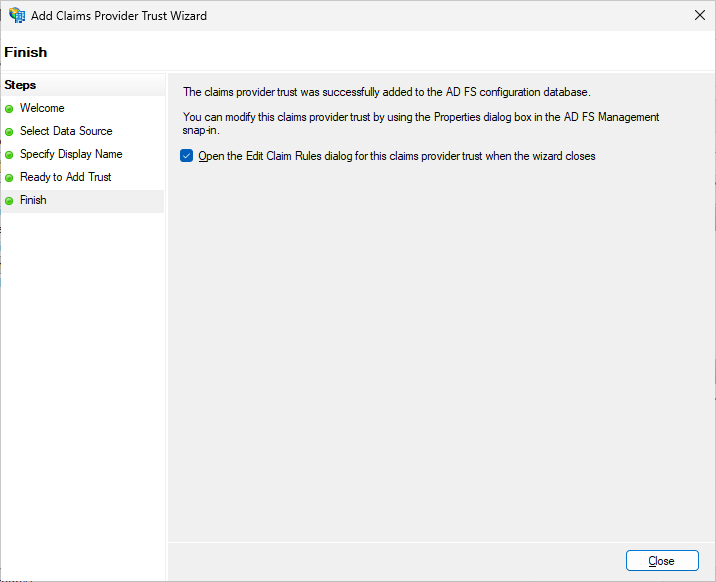
In “Ready to Add Trust” do not change anything. Click on Next. In the last window, Ensure that “Open the Edit Claim Rules dialog for this claims provider trust when the wizard closes” is checked and click on Close.
In the “Edit Claim Rules for OneIdP” window, click on “Add Rule”, Select “Pass Through or Filter an Incoming Claim”. Click Next.
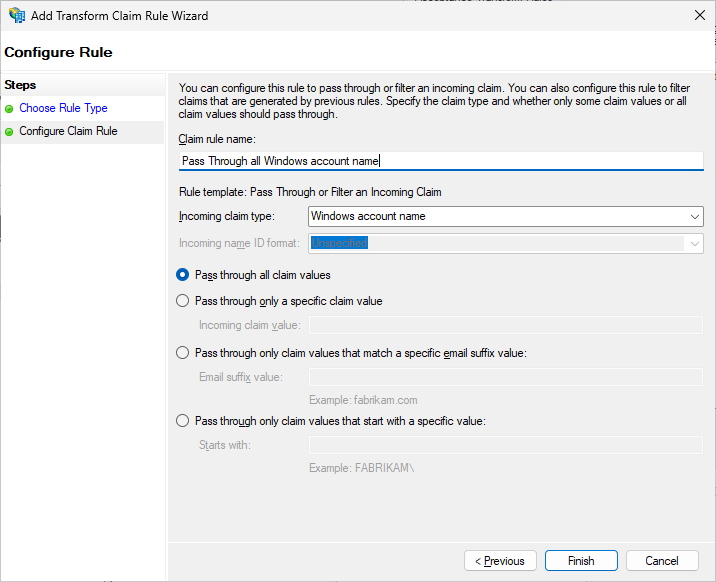
Set the Claim Rule name as “Pass Through all Windows account name”.
Select the Incoming claim type as “Windows account name” from the drop down.
Ensure that the radio button “Pass through all claim values” is selected.
Click Finish, Click Yes.
Repeat step 7 for the following Incoming Claim types:
Name
Primary SID
Enhanced Key Usage
UPN
After adding these rules, your “Edit Claim Rules for OneIdP” window should look like this:
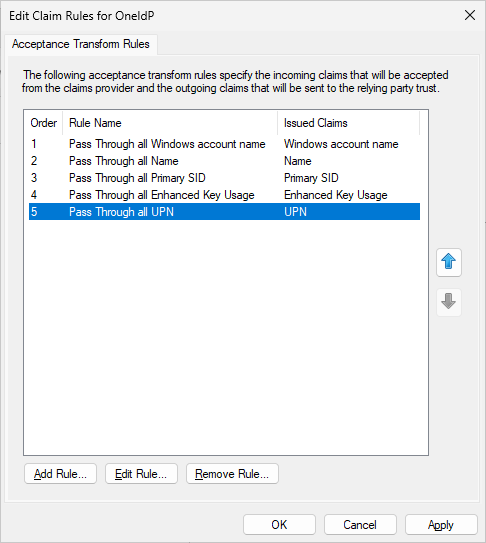
Click on “Add Rule”, Select the last option “Send Claims Using a Custom Rule”. Click Next. Set the Claim Rule name as “Custom ImmutableID Passthrough Rule” and Custom Rule as:
c:[Type == "http://schemas.microsoft.com/LiveID/Federation/2008/05/ImmutableID"]
 => issue(claim = c);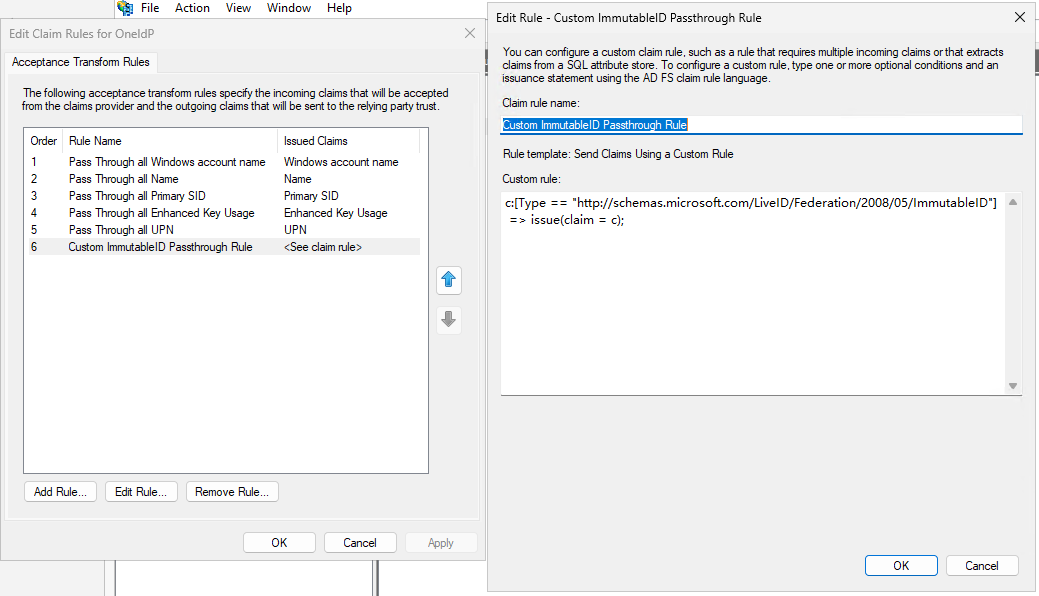
Click Apply and Ok to close the window.
Under Relying Party Trusts, Select Microsoft Office 365 Identity Platform Worldwide or the Trust that corresponds to your Outlook Client. Open its Claim Issuance Policy.
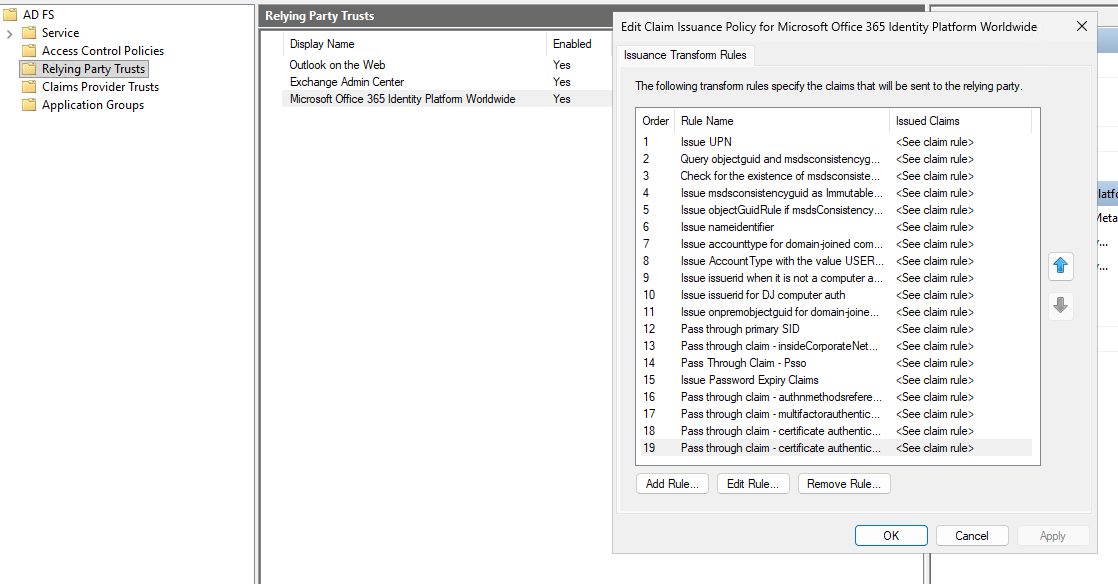
Select Add Rule. Select Last Option “Send Claims Using a Custom Rule”.
Set the Claim Rule name as “Custom ImmutableID Passthrough Rule” and Custom Rule as:
c:[Type == "http://schemas.microsoft.com/LiveID/Federation/2008/05/ImmutableID"]
 => issue(claim = c);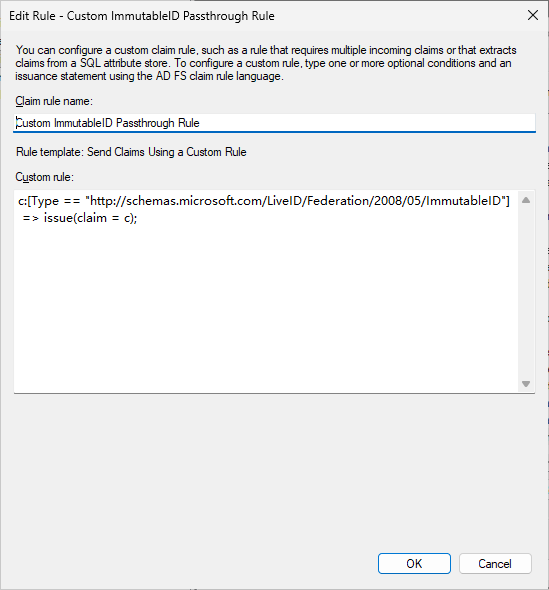
Click Apply and Ok to close the window.
Create or Import OneIdP user from Scalefusion portal. For testing purposes you can create a sample OneIdP user with the same email address present in your AD.
Now, navigate back to Scalefusion Dashboard and click Next to configure rest of the settings.
Step 5: Checking the Integration
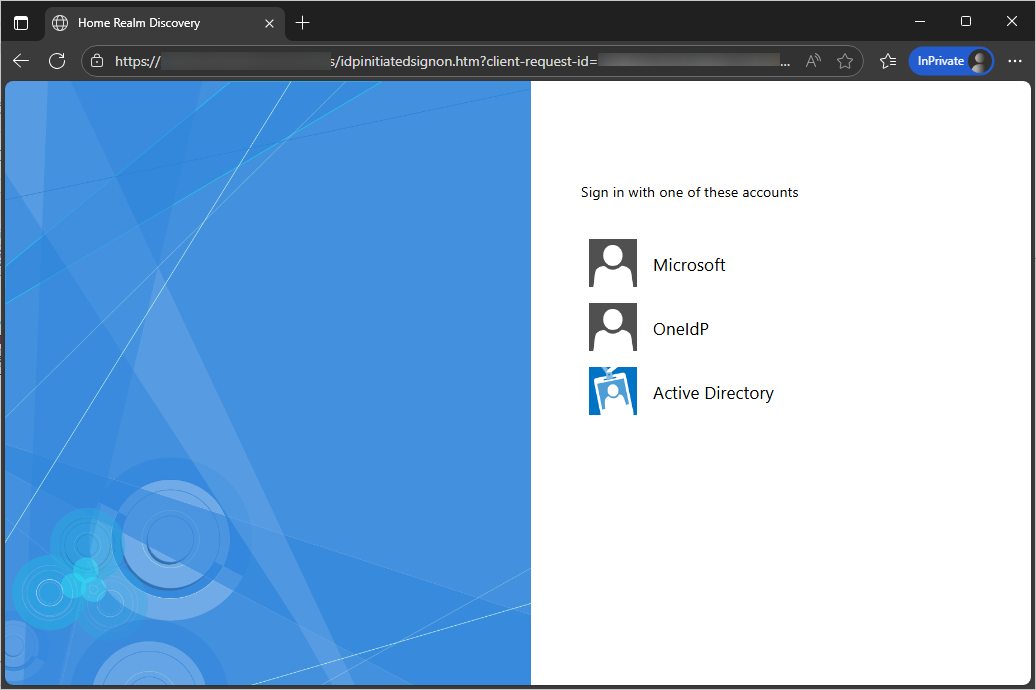
To test the configuration, open https://<adfs.your domain>/adfs/ls/idpinitiatedsignon.htm on any machine connected to the domain.
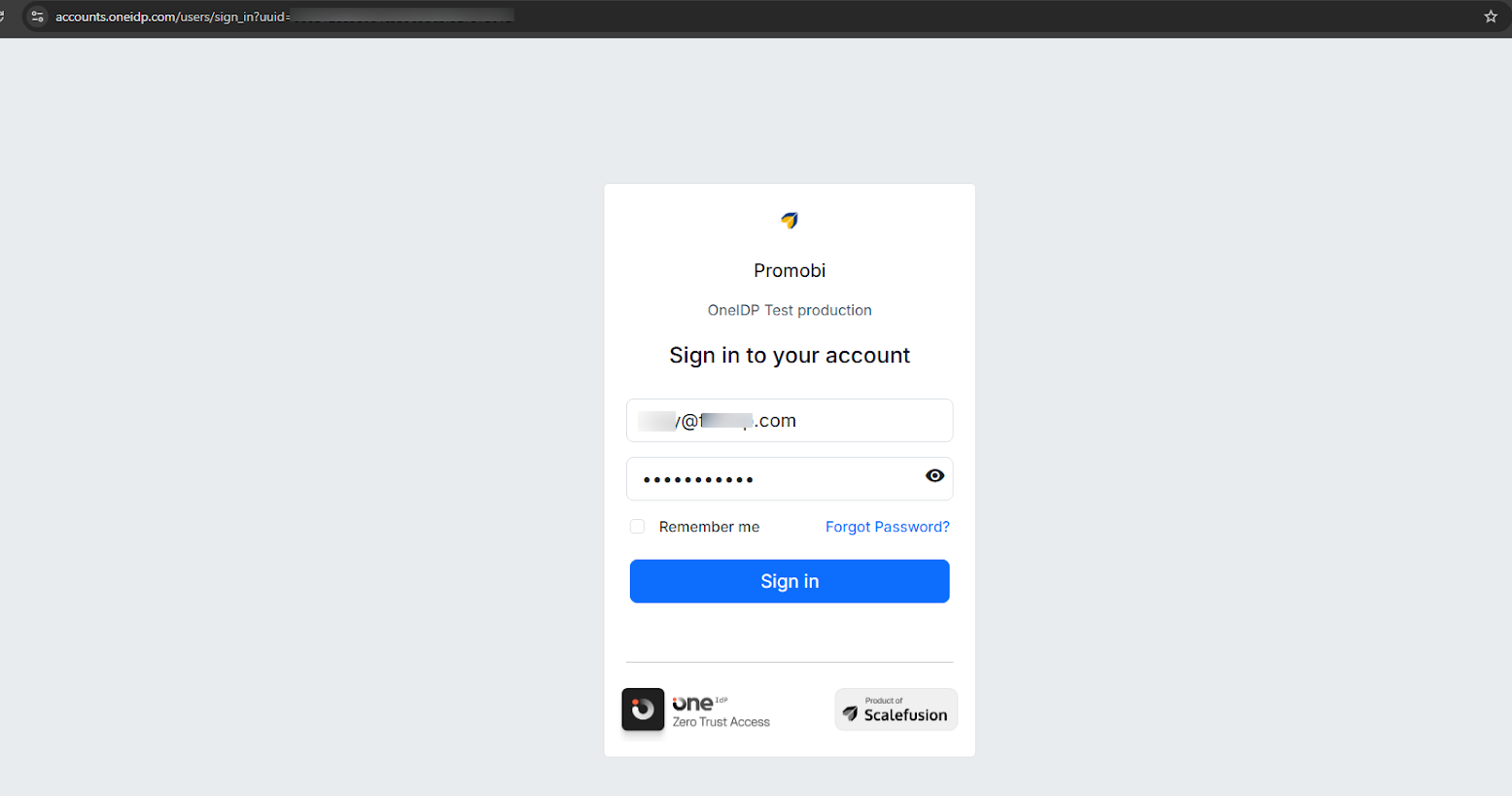
You should be able to see OneIdP as one of the sign-in options, clicking on which will redirect you to OneIdP login page. Enter your user credentials to verify if the login is working.
Step 6: Integration with Outlook
Enroll a device and access Outlook in chrome browser.
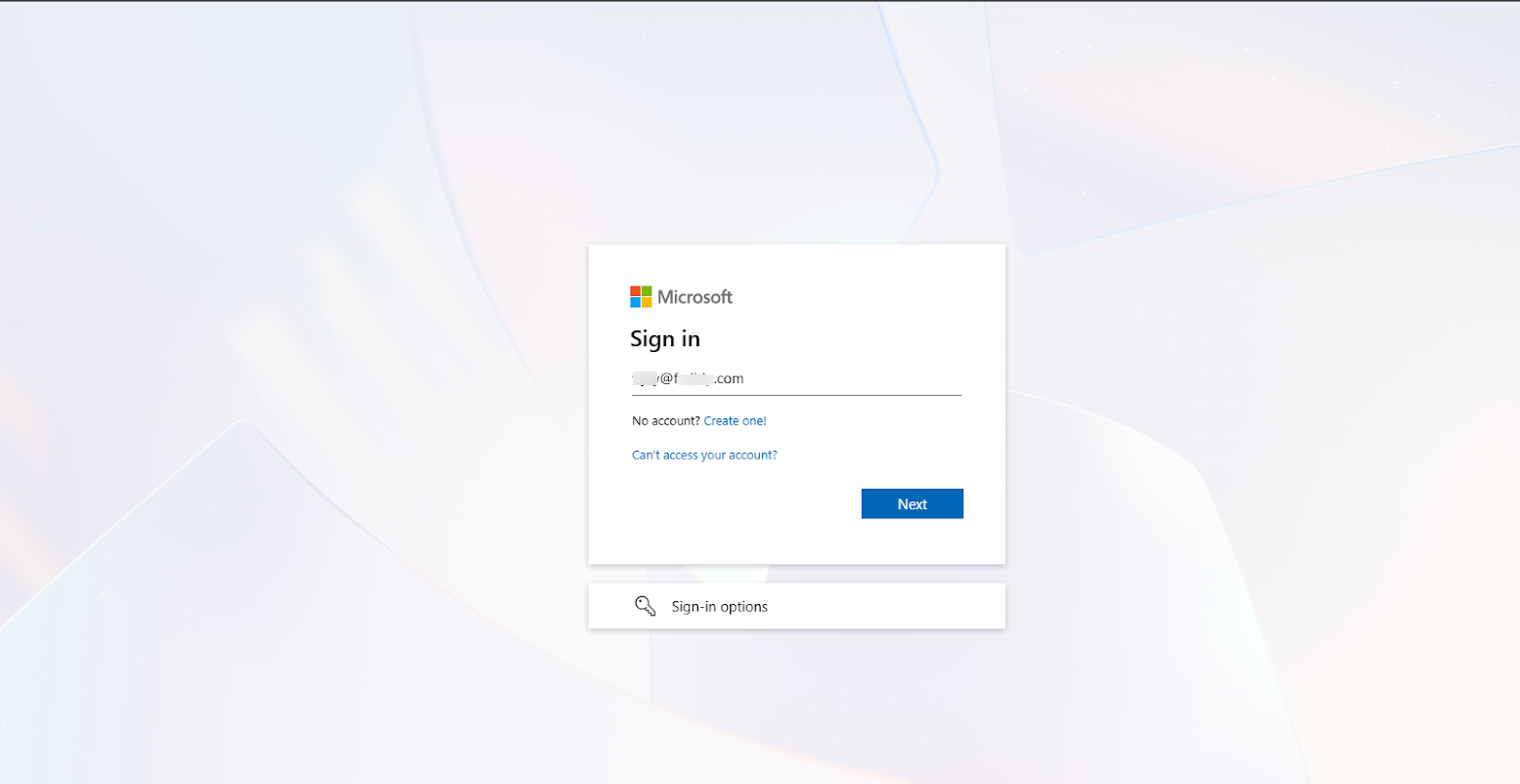
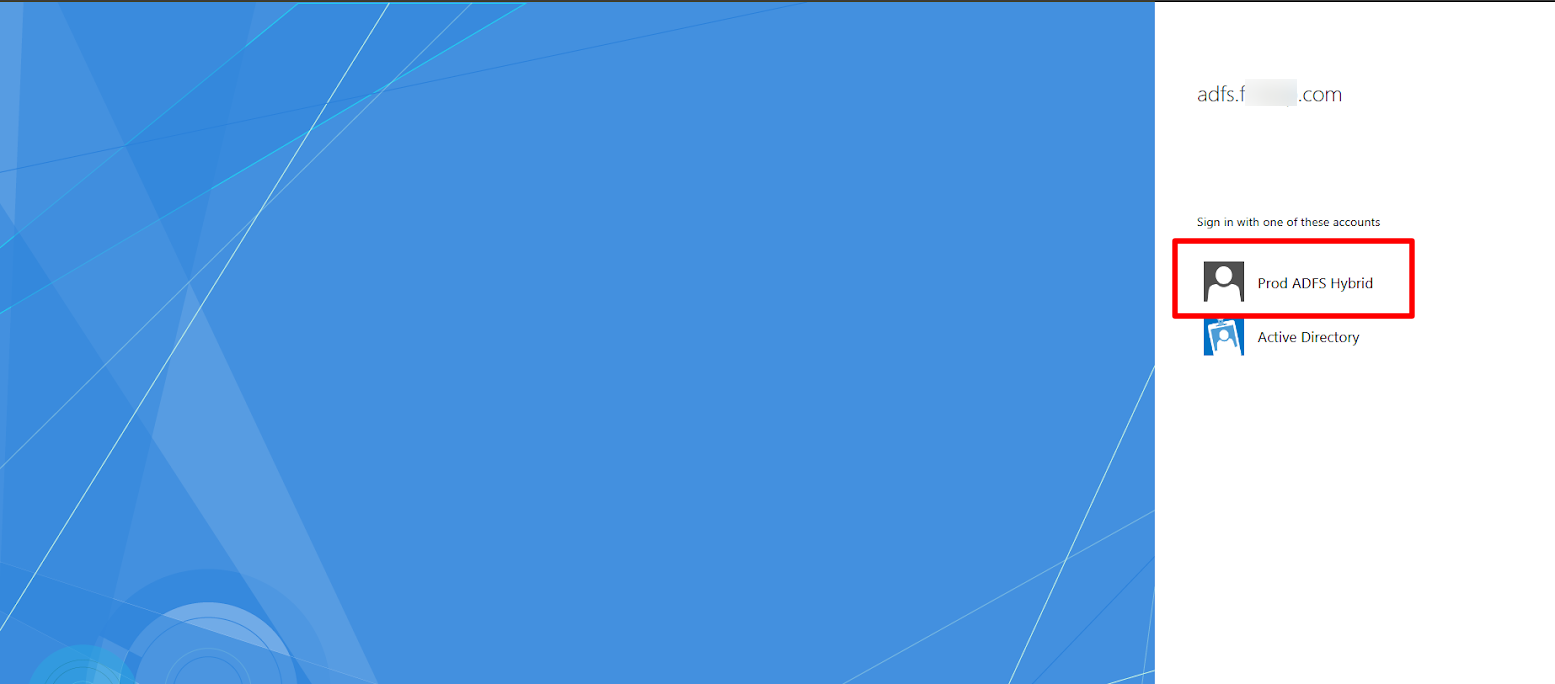
When trying to login to Outlook the you will be presented with the options to Sign in with OneIdP and the Active Directory. Select OneIdP.
Enter your credentials and follow steps to check compliance and complete the sign in.
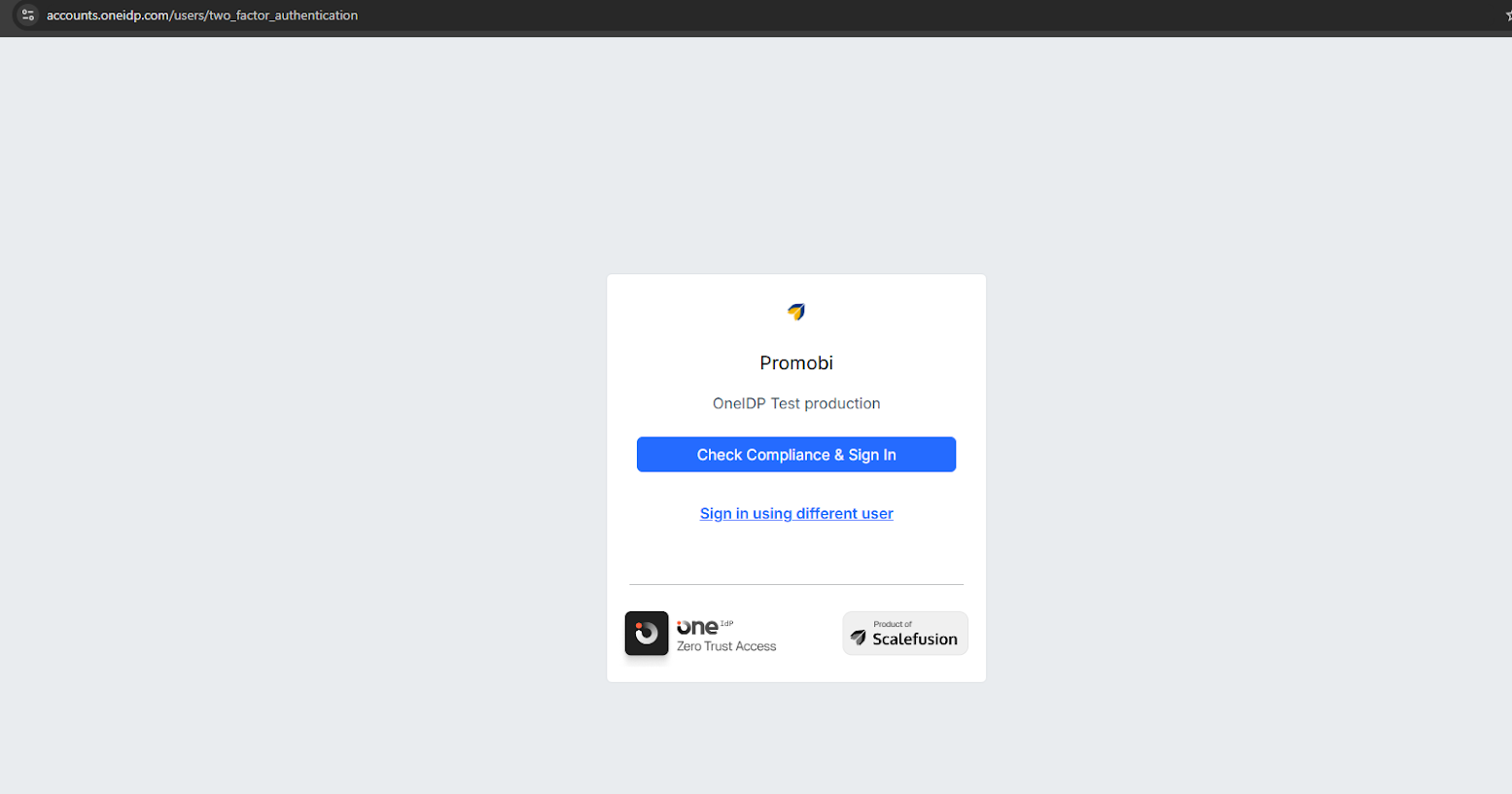
Ensure that you can access your emails.