Microsoft supports integration with third-party Mobile Device Management (MDM) solutions through its Partner Compliance Program. This integration allows Scalefusion MDM to report the compliance status of a device to Microsoft.
Using this device state in combination with Microsoft Entra Conditional Access, administrators can define access rules for Microsoft apps and cloud applications on Android, iOS, and macOS devices.
Device compliance is evaluated based on two aspects: the device’s management state and its compliance with the rules defined by the MDM.
Supported Platforms
Android
iOS
macOS
To implement Conditional Access on Windows devices enrolled through Entra Join, please refer to the following link
Pre-requisites
General
Entra ID (formerly Azure AD) (P1 or P2) subscription plan with Conditional Access
The account used to perform this action must be assigned the Global Administrator role.
Microsoft Enterprise Mobility + Security (E3 or E5) for users to perform the WPJ device registration
Platform specific
Android & iOS
Microsoft Authenticator app must be installed (either via Scalefusion Dashboard or manually).
macOS
1. Install Microsoft Company Portal
The Microsoft Company Portal application must be installed on the device.
You can install it using either of the following methods:
Via Scalefusion Dashboard
Manual installation by the end user
2. Install the SSO Extension Payload
The following SSO extension payload must be installed on the device:
com.microsoft.CompanyPortalMac.ssoextension This payload must be created using Apple Configurations and deployed to the device.
Steps to Create the SSO Extension Payload in Scalefusion
Follow the steps below to configure and deploy the required payload:
Navigate to:
Device → Profile → Apple Configurations → Create ConfigurationSelect:
macOS → Single Sign-On Extension
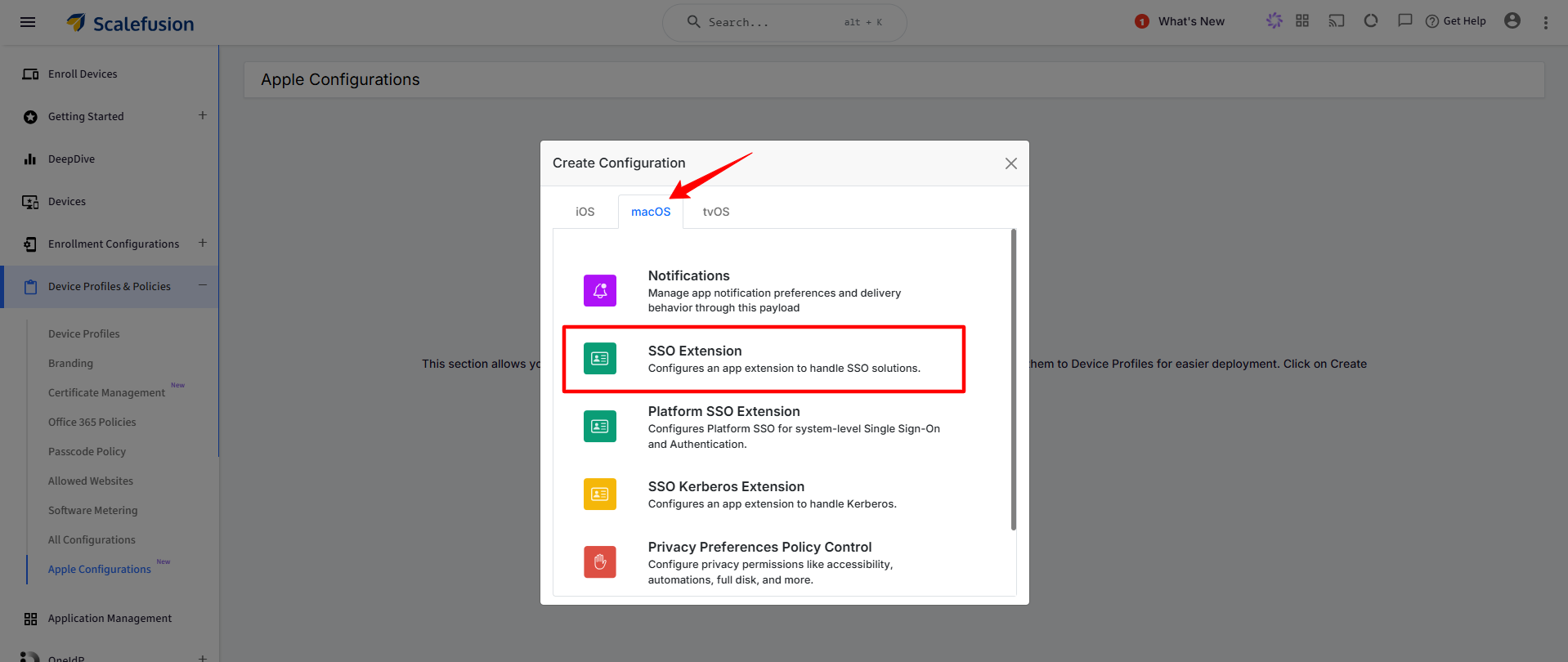
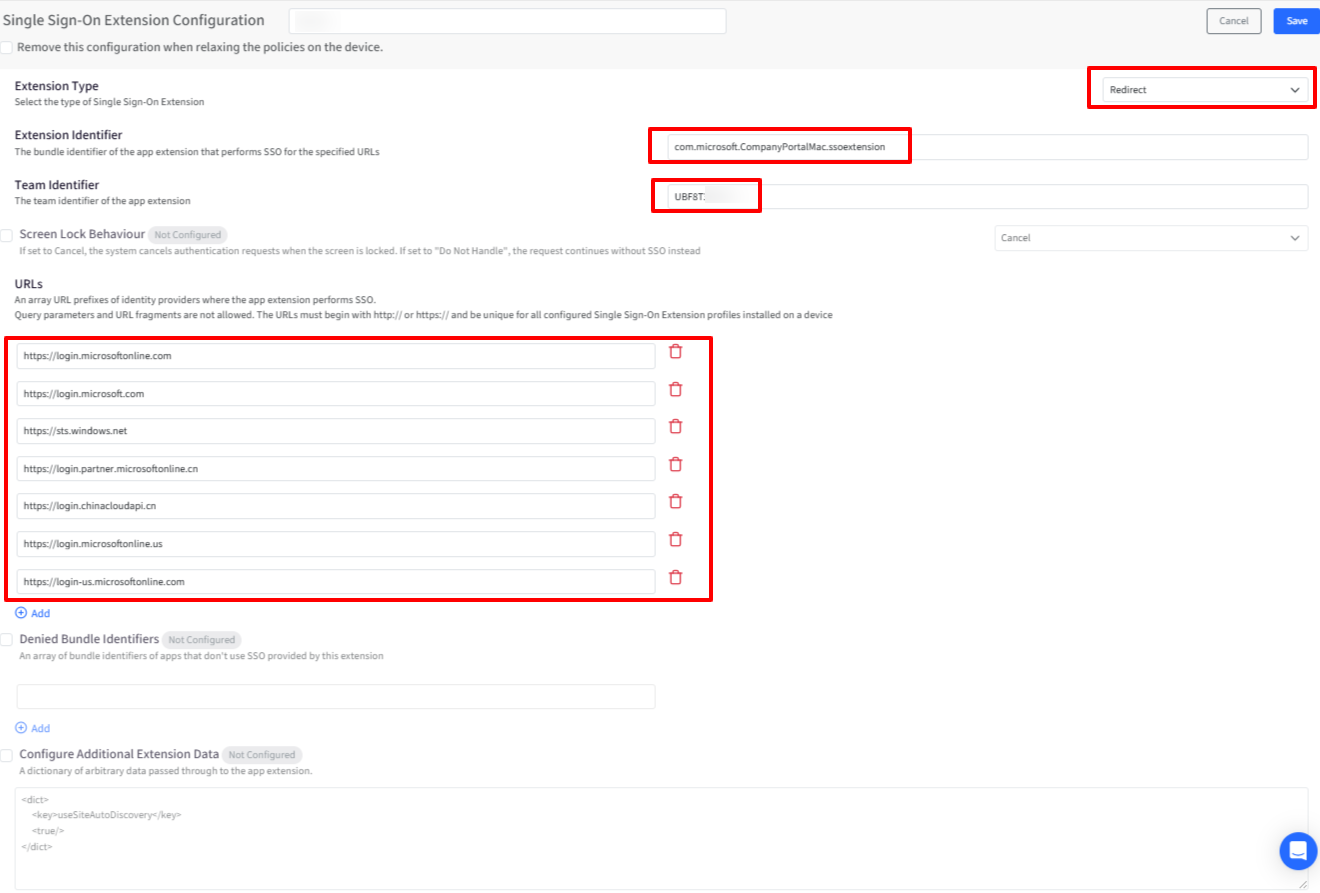
Configure the extension:
Extension Type :
RedirectExtension Identifier : com.microsoft.CompanyPortalMac.ssoextension
Team Identifier : UBF8T346G9
Add the following URLs in the URLs section:
https://login.microsoftonline.com
https://login.microsoft.com
https://sts.windows.net
https://login.partner.microsoftonline.cn
https://login.chinacloudapi.cn
https://login.microsoftonline.us
https://login-us.microsoftonline.com
5. Save the configuration.
6. Publish the configuration to the required device profile.
Setup Integration on Scalefusion Dashboard
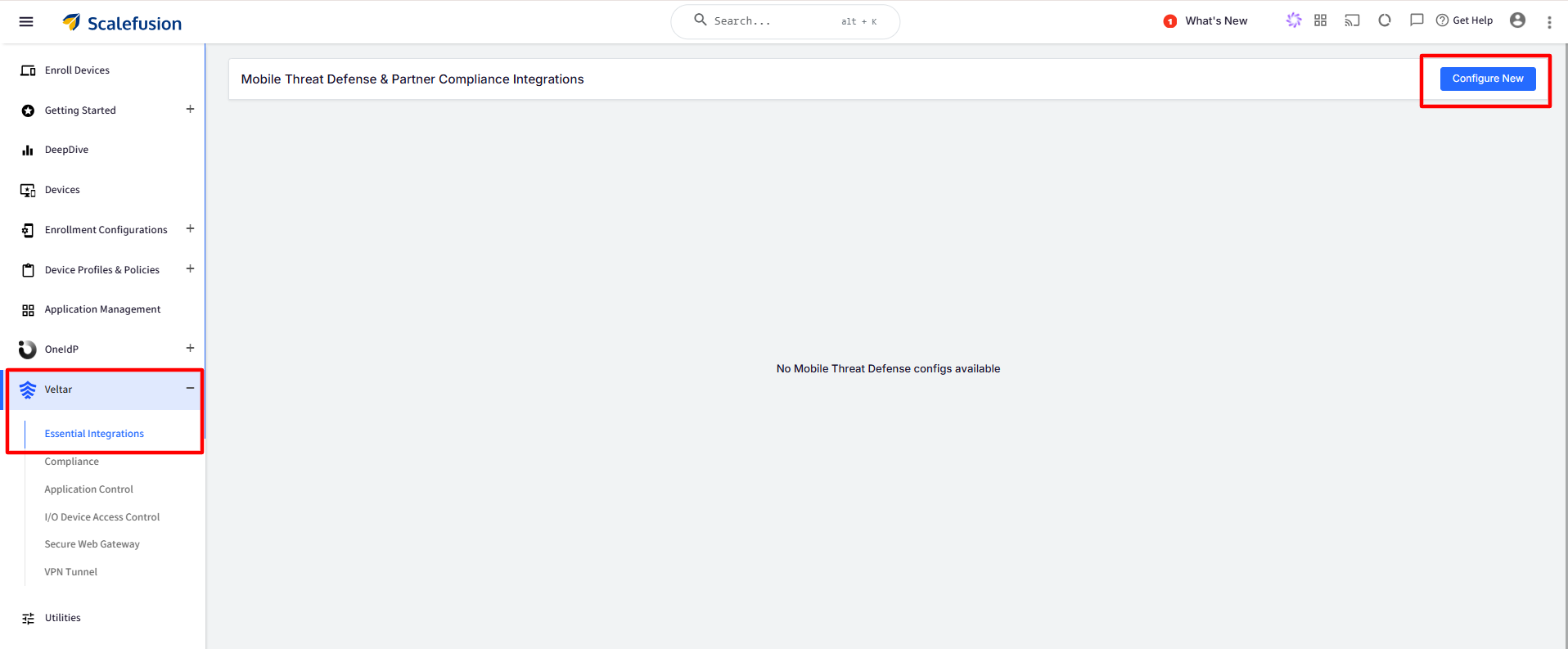
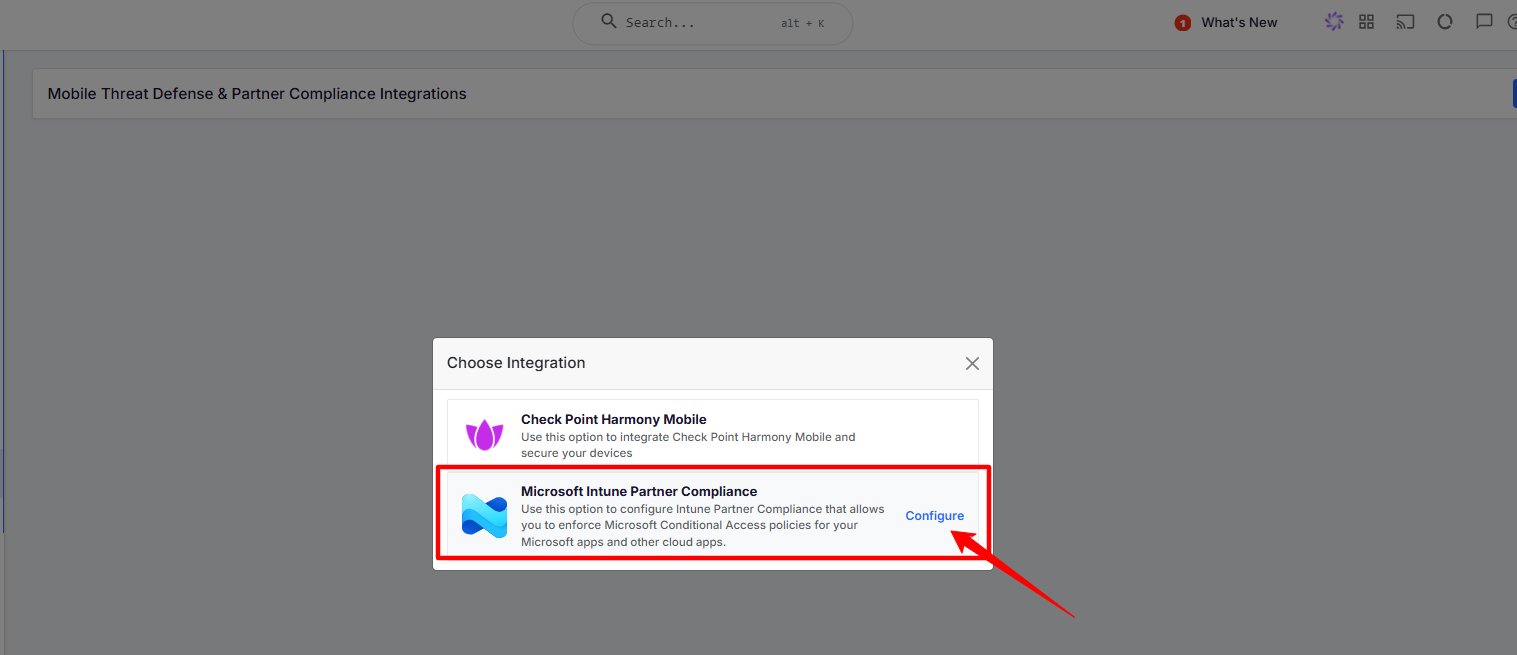
Log in to the Scalefusion Dashboard, click Veltar from the left navigation pane, and select Essential Integrations.
Click Configure New on the top-right corner of the page.
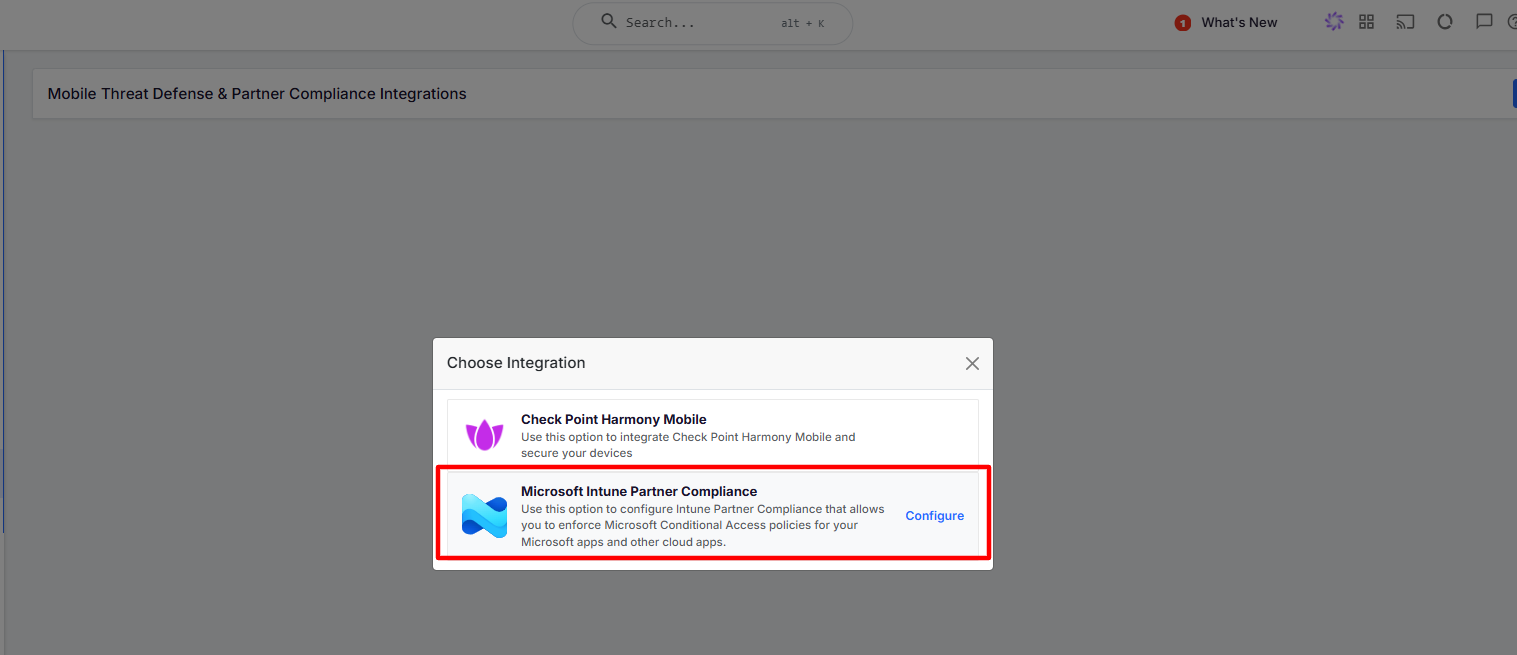
The Choose Integration screen appears after clicking on Configure New option.
Select Microsoft Intune Partner Compliance. Click Configure to launch the configuration wizard.
Configuring the Compliance
Step 1: Configure Scalefusion as a Partner Compliance Partner in Microsoft Intune
This section explains how to register Scalefusion as a Partner Compliance Partner in Microsoft Intune so that device compliance data evaluated by Scalefusion can be consumed by Intune for Conditional Access and compliance decisions.
1.1 Sign in to the Microsoft Intune Admin Center
Open a web browser and navigate to the Microsoft Intune admin center.
Sign in using an account that has one of the following permissions:
Global Administrator
Without the required administrative role, the Partner Compliance Management option will not be visible.
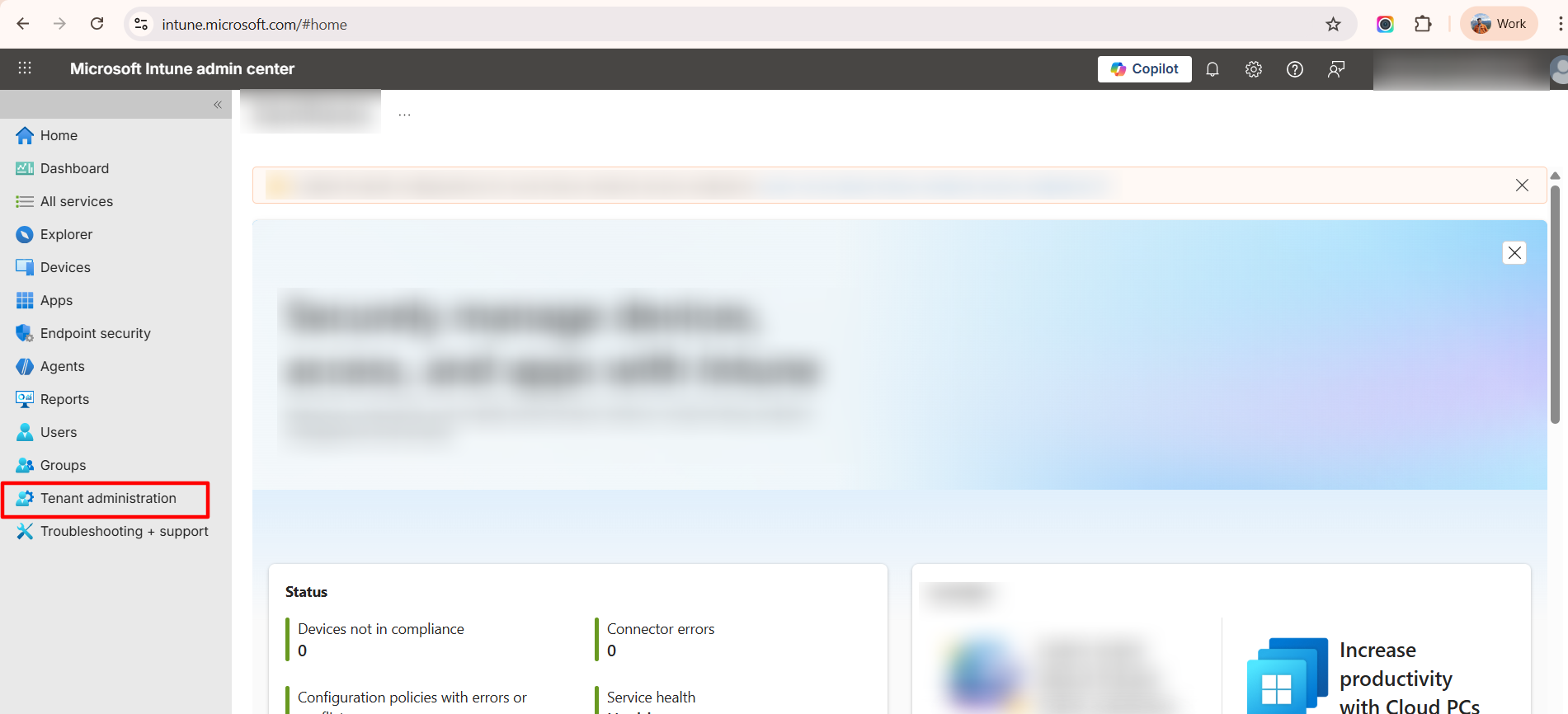
1.2 Navigate to Tenant Administration → Connectors and Tokens
From the left-hand navigation pane, select Tenant administration.
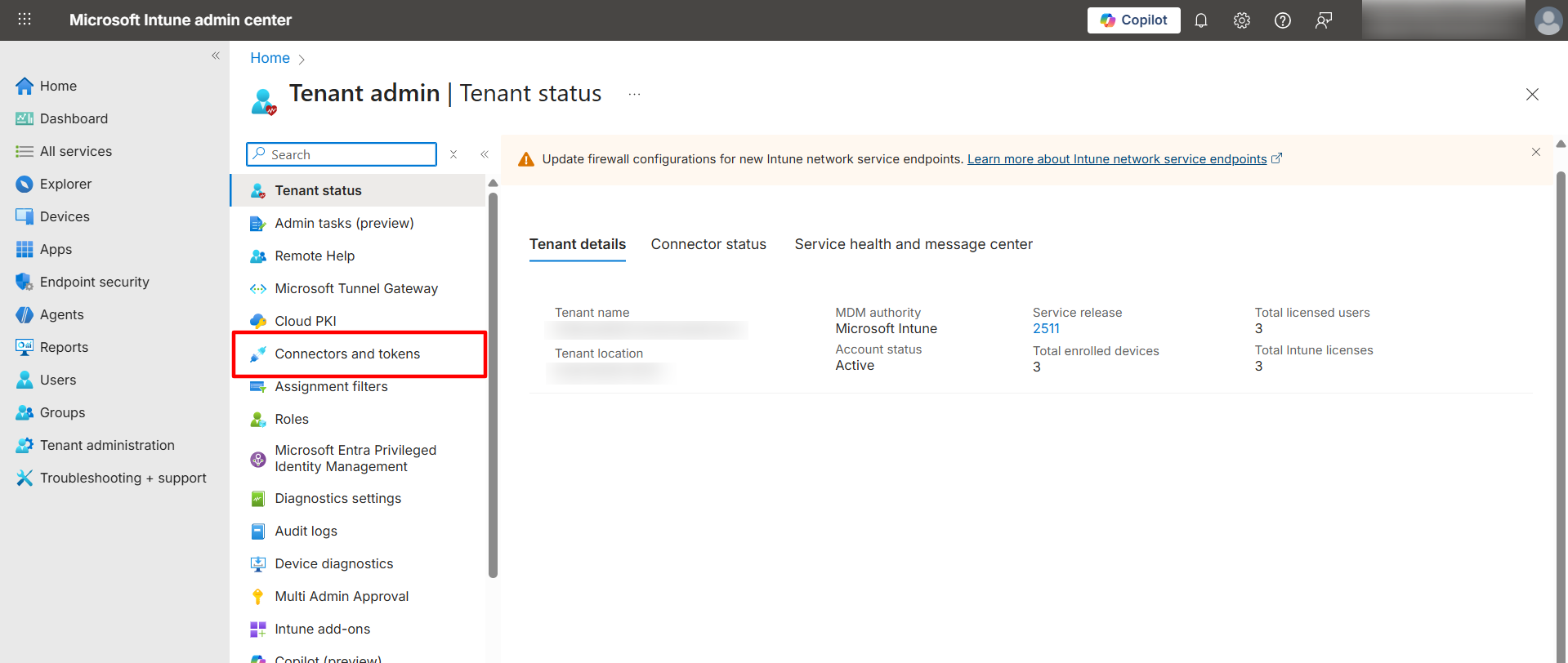
Under Tenant administration, click Connectors and tokens.
This section contains all integrations between Intune and third-party services such as MDM partners, compliance partners, certificate authorities, and enrollment connectors.
1.3 Open Partner Compliance Management
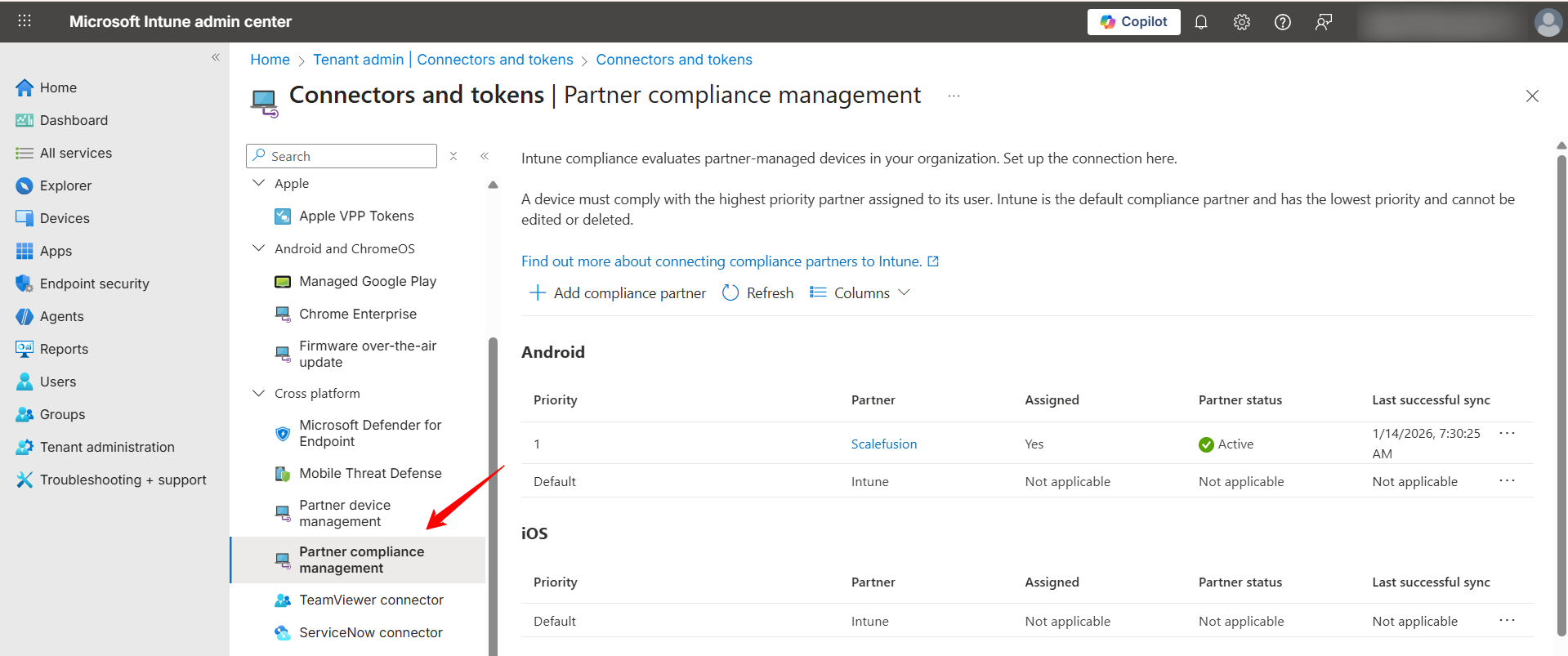
Within Connectors and tokens, locate and select Partner compliance management.
The Partner compliance management page lists all third-party partners that can provide device compliance signals to Intune.
1.4 Add a New Compliance Partner
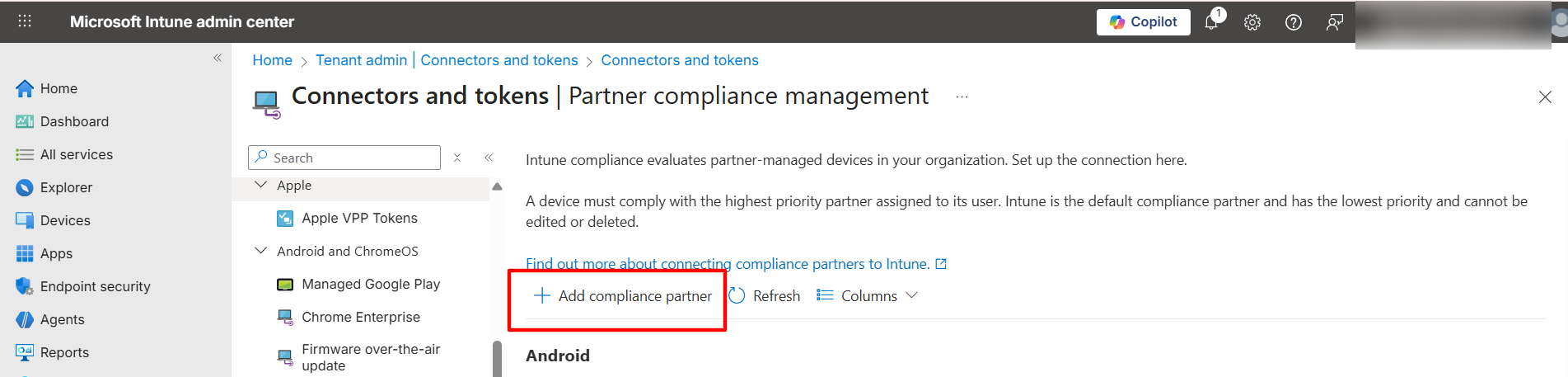
On the Partner compliance management page, click + Add.
This action initiates the workflow to register a new partner that will share compliance status with Intune.
1.5 Select Scalefusion and the Required Platforms
In the Add compliance partner pane:
From the Compliance partner list, select Scalefusion.
Under Platforms, select the operating systems for which Scalefusion will provide compliance data.
Only select platforms that are actively managed using Scalefusion to ensure accurate compliance reporting.
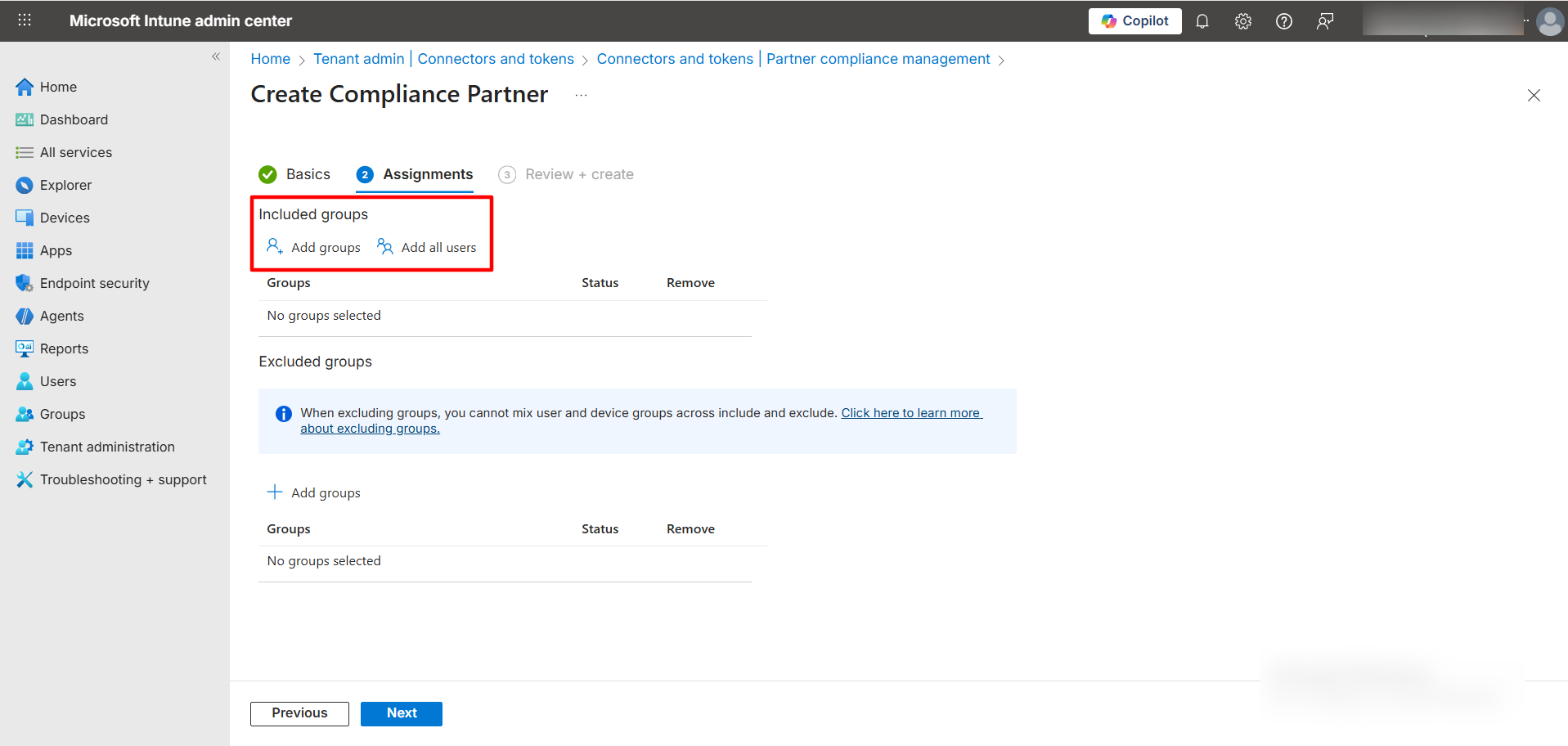
1.6 Assign Intune Groups (Intune-side Only)
Included groups
Add all users: Applies Scalefusion compliance to all users in the tenant.
Add groups: Select specific Microsoft Entra ID (Azure AD) groups to limit the scope.
Excluded groups (optional)
Add groups to explicitly exclude them from the compliance partner scope.
This group selection is configured only within Intune. Scalefusion does not select, manage, or modify these groups.
Only devices associated with users in the selected Intune groups will have their compliance evaluated using Scalefusion.
1.7 Add Scalefusion as a Compliance Partner
Review the selected partner and platforms.
Click Add to complete the configuration.
Once added:
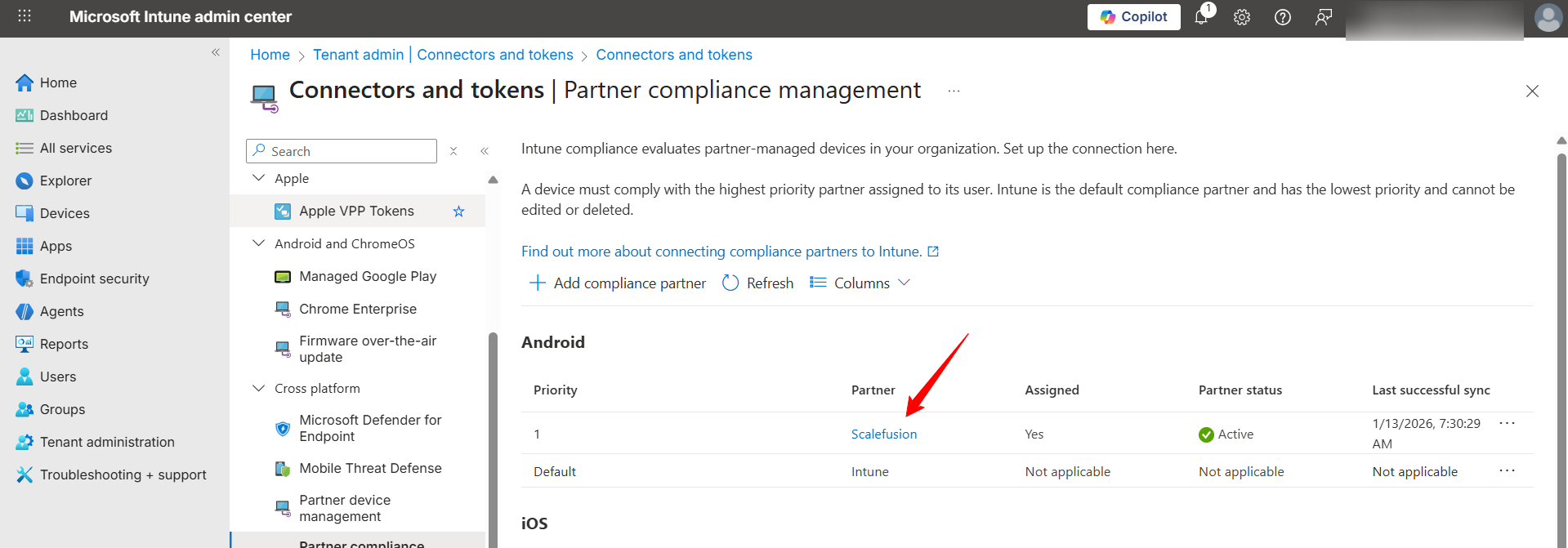
Scalefusion appears in the Partner compliance management list.
Intune is now ready to receive compliance signals from Scalefusion for the selected platforms.
At this stage, Intune only establishes the partnership. Compliance data will not be shared until the Scalefusion-side configuration is completed and the relevant compliance policies are mapped.
Step 2: Authorize
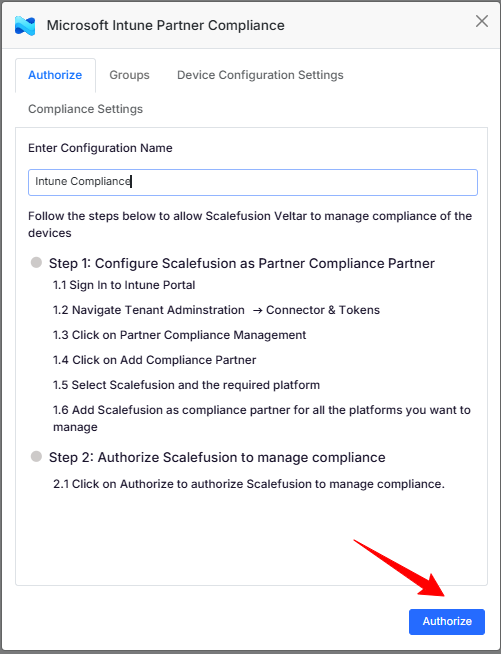
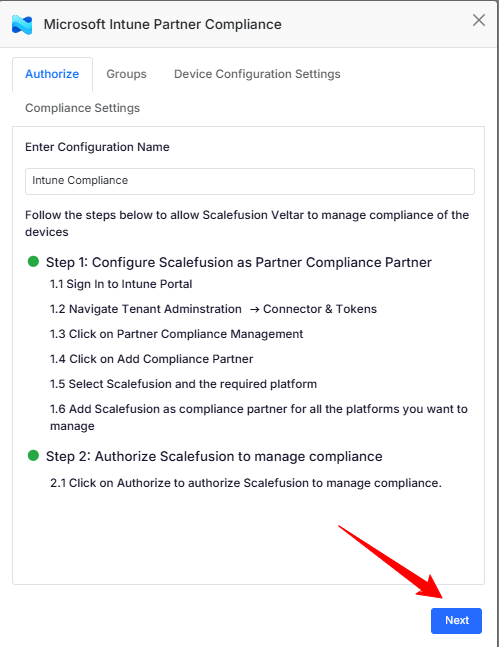
After selecting Microsoft Intune Partner Compliance and clicking Configure over the scalefusion dashboard the configuration wizard opens.
Enter Configuration Name
Enter a name in the Enter Configuration Name field to save the configuration.
The name appears under Veltar → Essential Integrations for identification.
Click Authorize and you will be redirected to the Microsoft Sign in page .
Complete the Microsoft sign-in to return to the Scalefusion dashboard and continue setup.
Note: The Microsoft account used for authorization must have sufficient permissions in the Intune tenant to complete the authorization process.
Once you have completed the Microsoft sign-in process the Authorize button changes to Next.
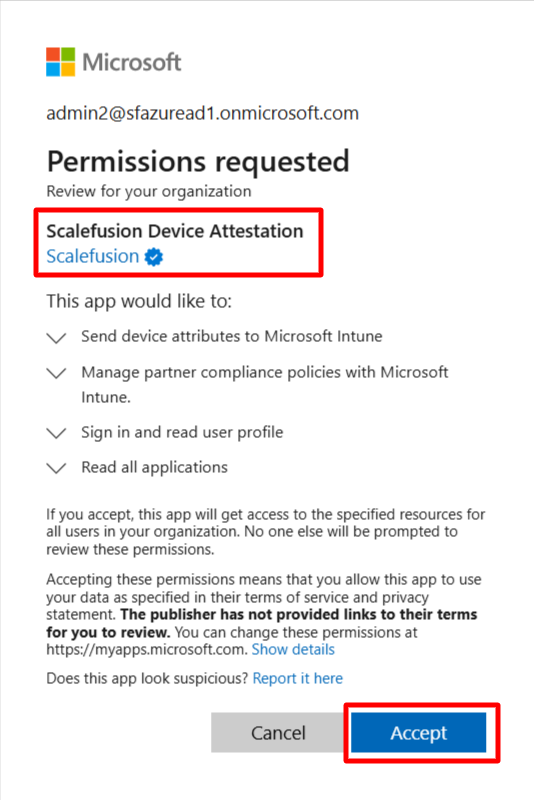
Once the authorization completes, the app Scalefusion Device Attestation is created on the azure portal Admin Console.
Groups
Add the Microsoft Entra ID groups for which Scalefusion is configured as the Partner Compliance provider.
Click Add Group Object ID.
Enter the Group Name and Object ID of the required Microsoft Entra ID group.
The Group Name and Object ID have to be exact as per what is visible under the Intune portal
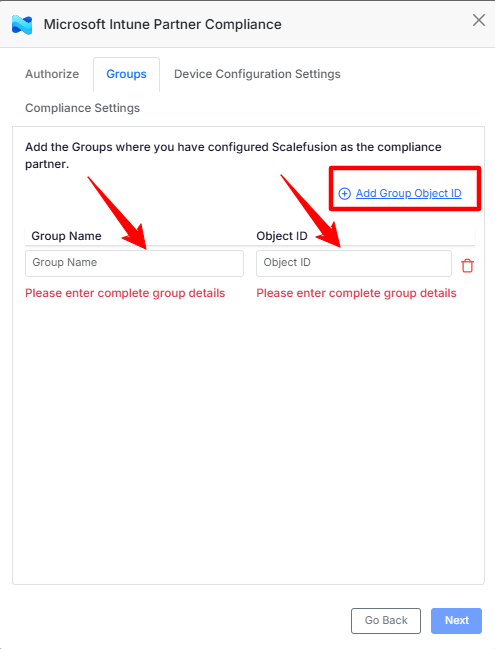
The added groups are listed with their Group Name and Object ID.
Only devices associated with the added groups are evaluated for compliance through Scalefusion.
Click Next to continue to Device Configuration Settings.
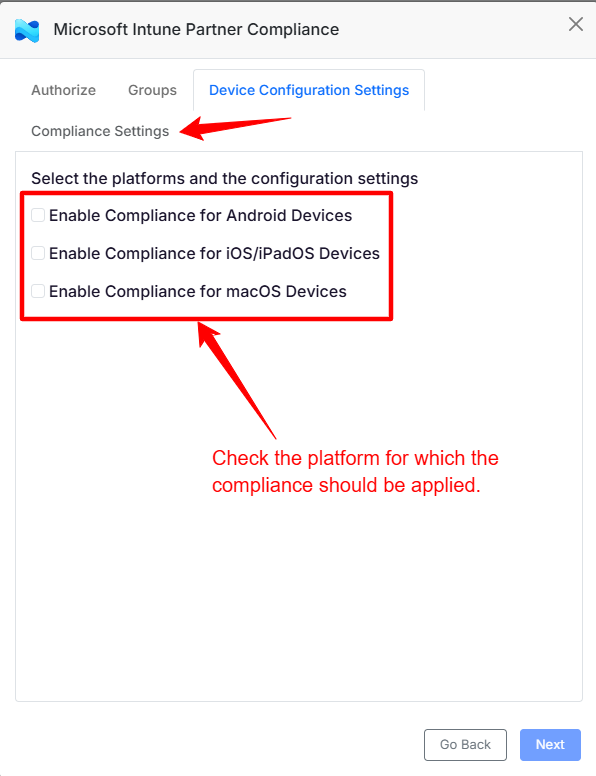
Device Configuration Settings
Use this section to select the platforms for which Scalefusion compliance should be applied.
Select one or more platforms:
Android devices
iOS/iPadOS devices
macOS devices
Enable compliance only for the platforms you want Scalefusion to manage.
The selected platforms determine where Scalefusion acts as the compliance source during Intune evaluation.
Ensure the selected platforms match the platforms configured for Scalefusion in Microsoft Intune → Partner compliance management.
Compliance Settings
Use this section to define how device compliance is evaluated and the messages shown to users.
Allowed Domains
Specify the Microsoft (Azure AD) domains that are permitted for device authentication and compliance evaluation.
Only users signing in with accounts from the configured domain(s) will be able to:
Authenticate during enrollment
Successfully enroll devices into management
Be evaluated for compliance status
Access managed applications and resources
This setting acts as a domain-level filter (whitelist) to ensure that only users from the intended Azure AD tenant(s) are considered during the compliance check process. It helps maintain proper integration between Intune and Scalefusion by preventing cross-tenant or unauthorized access attempts.
If multiple domains are associated with your organization, you can add all relevant domains to ensure seamless user access.
Configure Compliance Condition
Select the condition based on which a device is evaluated as Compliant or Non-Compliant:
Based on the managed state reported by Scalefusion
Compliance is determined by whether the device is successfully enrolled in and actively managed by Scalefusion.Based on the compliance status reported by Veltar Compliance
Compliance is evaluated using the device compliance status calculated by Veltar based on the configured security and policy checks.Based on the compliance status of Extended Access Policy
Compliance is determined according to the rules defined in the Extended Access Policy configured within OneIdp.
Only one compliance condition can be selected.
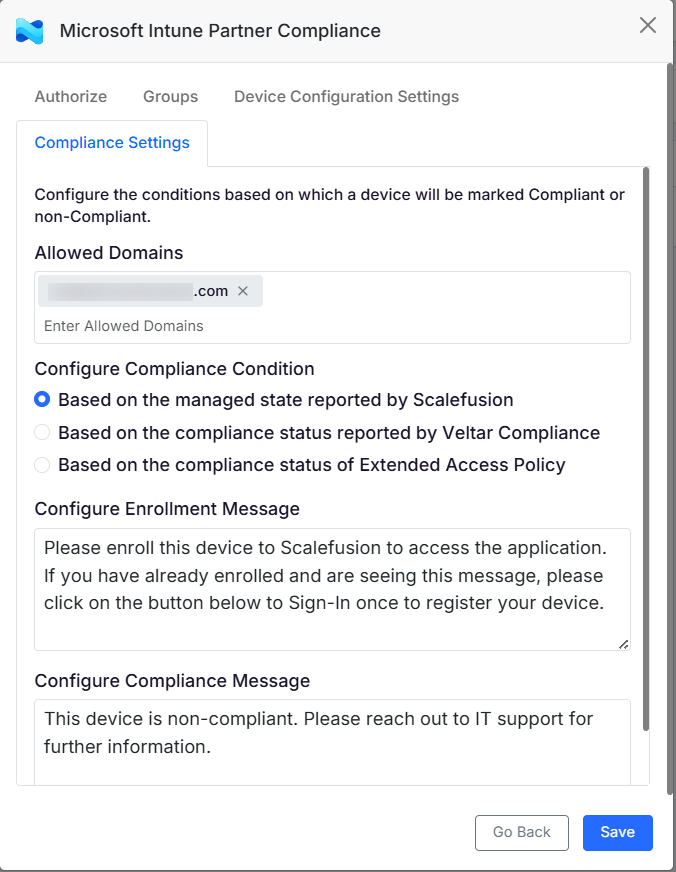
Configure Enrollment Message
Enter the message displayed to users when a device is not enrolled.
Configure Compliance Message
Enter the message displayed to users when a device is marked as non-compliant.
After configuring the compliance condition and messages, click Save to complete the setup.
Configure Microsoft Conditional Access Policy for Device Compliance
Let us now see how to configure a Microsoft Entra (Azure AD) Conditional Access policy that allows access only from devices marked as compliant using Microsoft Intune and Scalefusion (Veltar Partner Compliance).
Step 1: Open Conditional Access
Sign in to the Microsoft Entra admin center.
Navigate to: Protection → Conditional Access
Click + Create new policy.
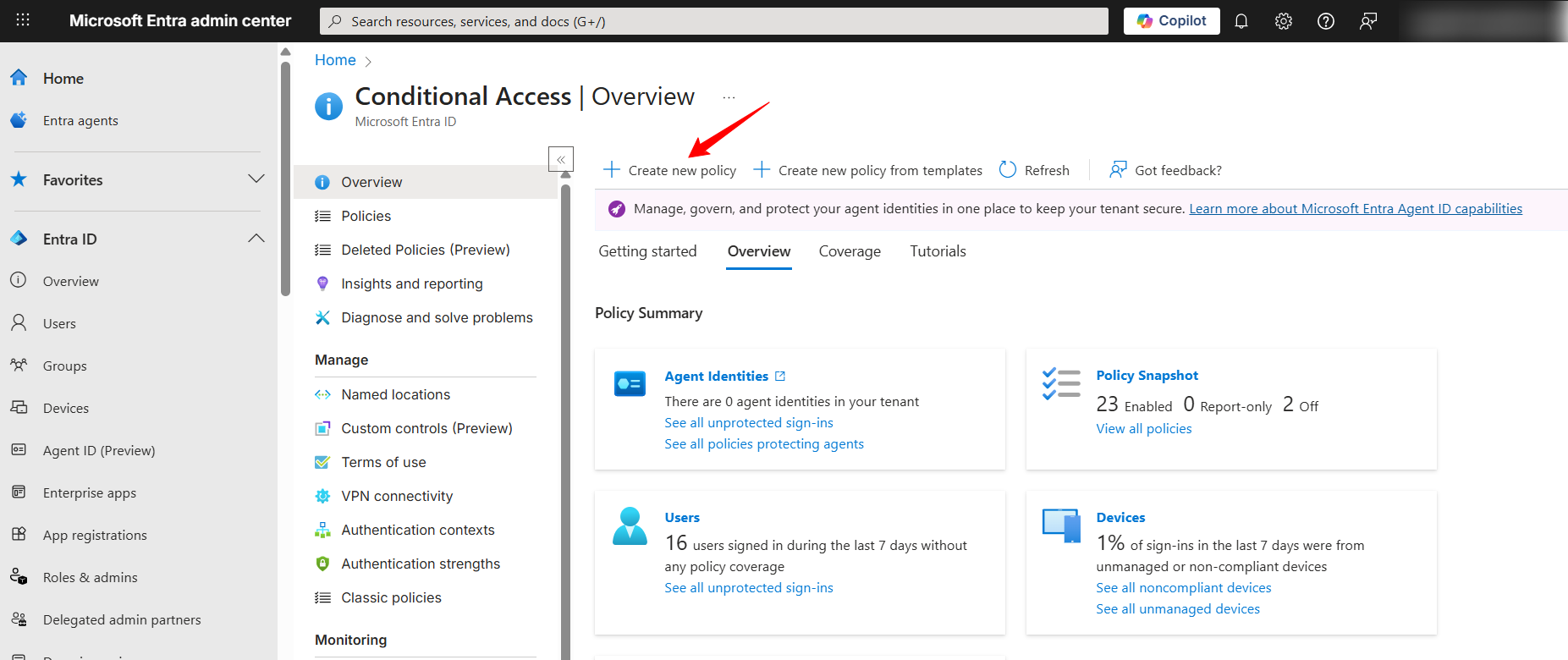
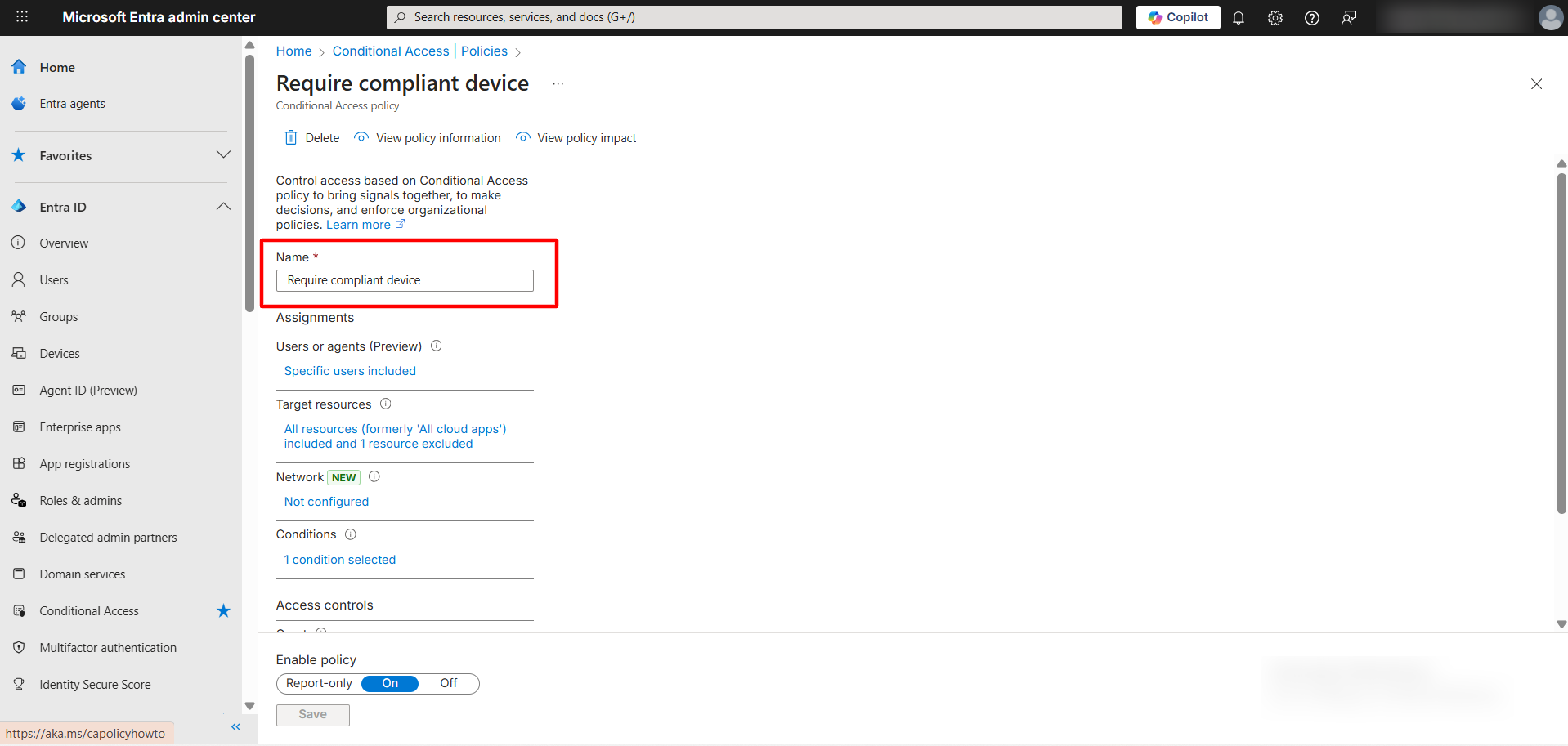
Step 2: Name the Policy
Enter a descriptive policy name, for example: Require compliant device (Scalefusion / Veltar)
Step 3: Select Users or Groups
Click Users.
Choose one of the following:
All users only choose this if you are to apply the policy for all users under the portal, or
Select users and groups (recommended if only specific users or groups should have the compliance policy applied to them).
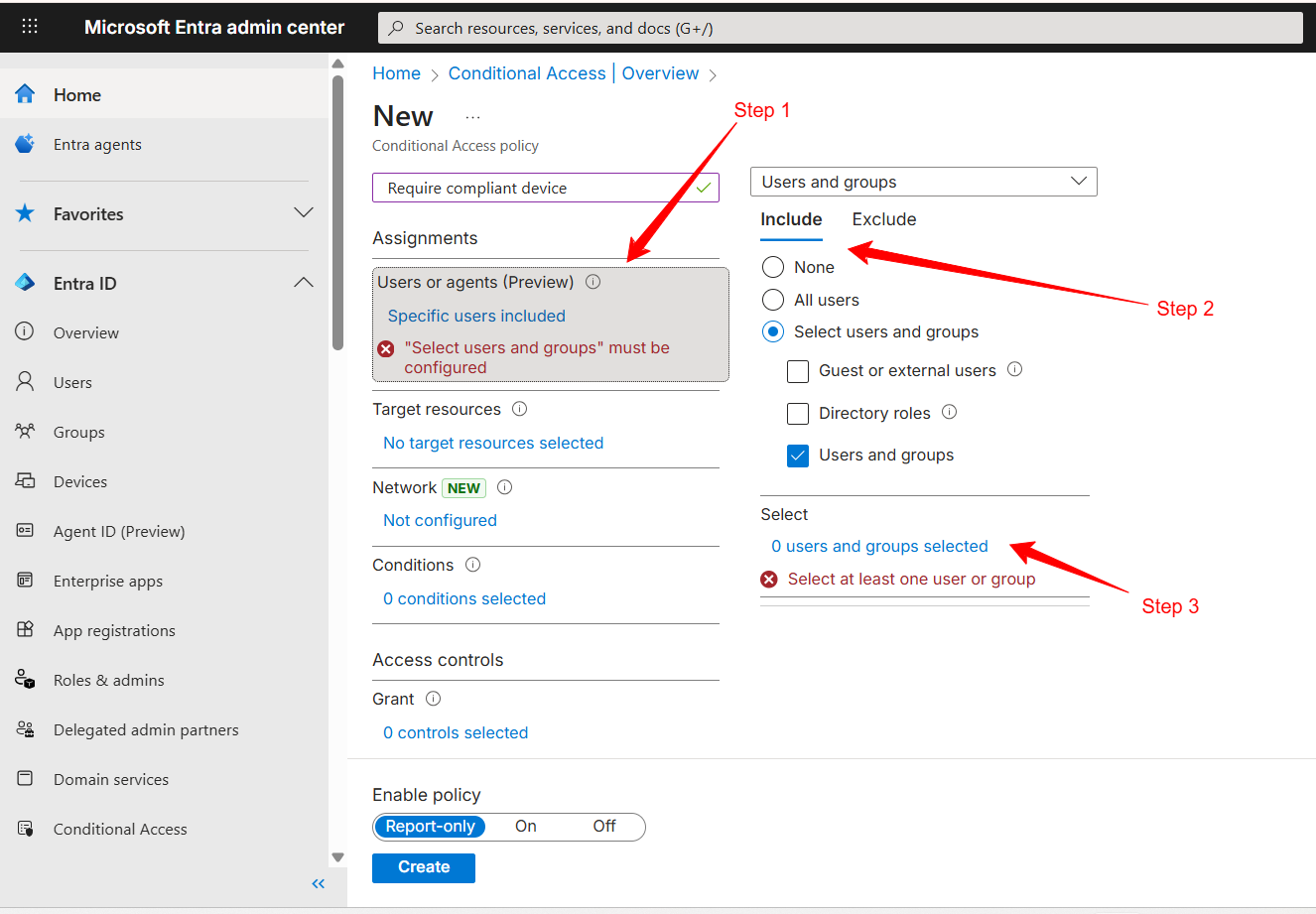
Exclude at least one emergency or break‑glass administrator account(optional)
The users or groups should be the ones that we had already added when adding scalefusion as a compliance partner in the intune portal.
Step 4: Select Target Applications
Click Target resources → Cloud apps.
You would see the option to Include apps.
Select one of the following:
All resources (formely known as ‘Cloud apps‘), or
Select specific applications (for example: Microsoft 365, VPN, internal apps).
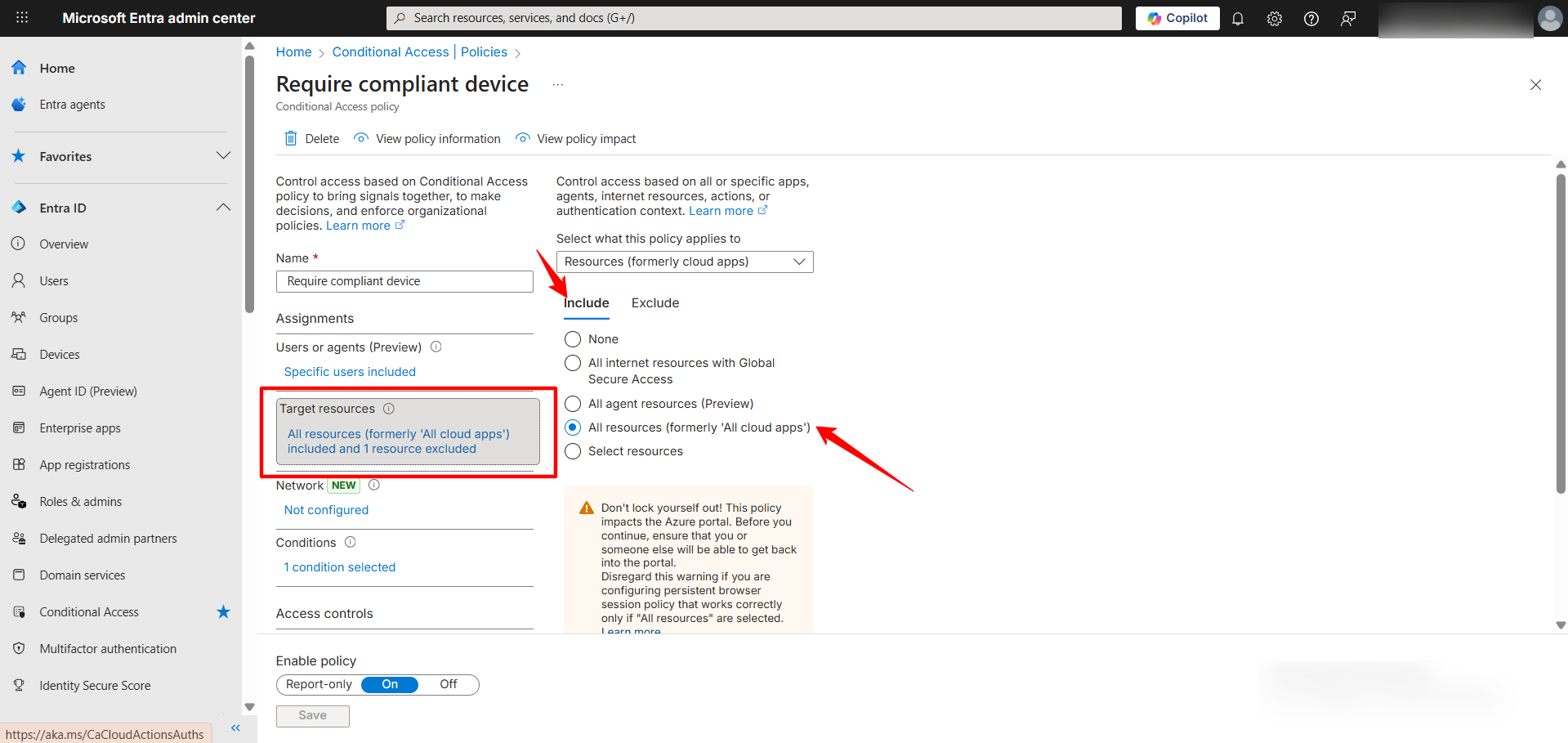
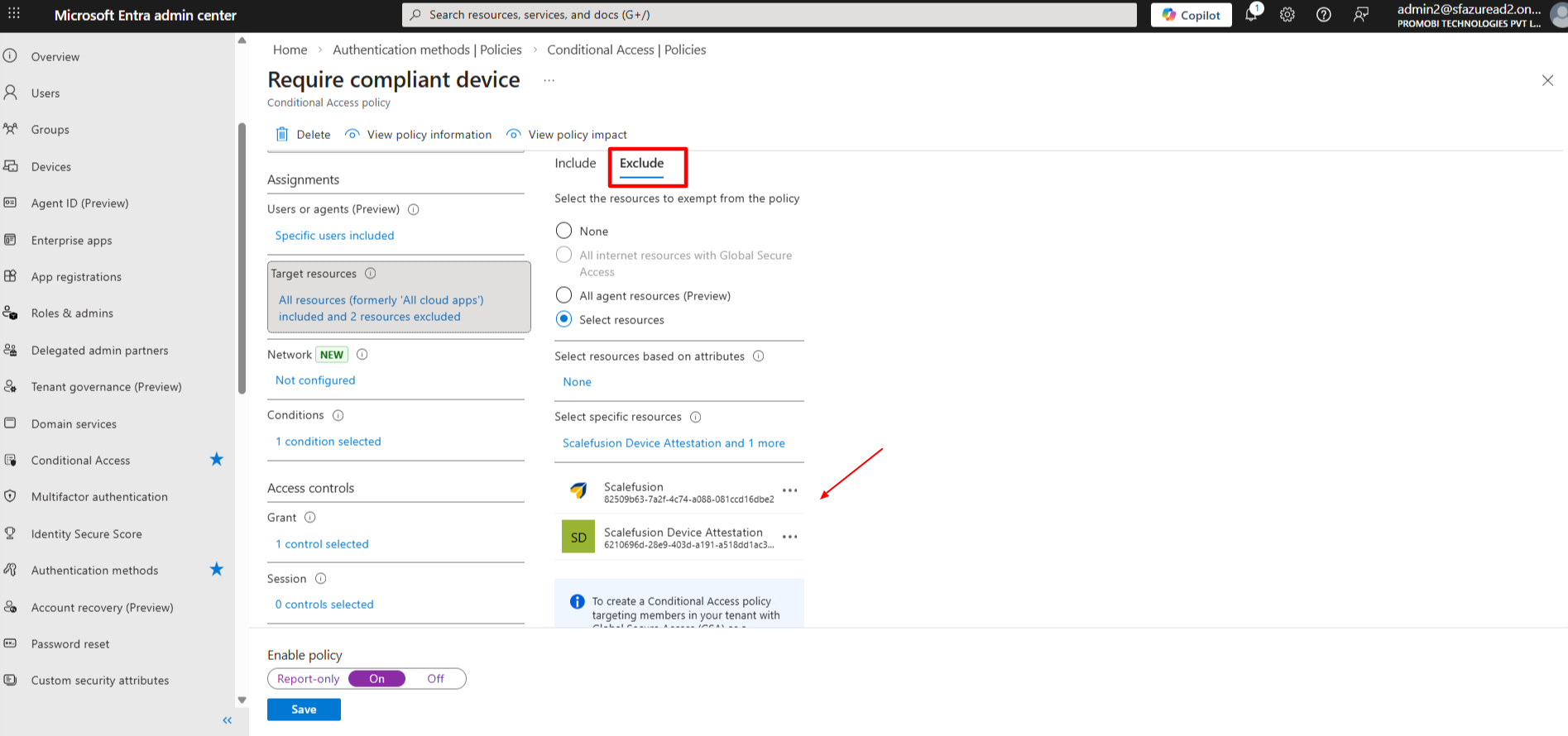
The entire process happens through the Scalefusion and Scalefusion Device Attestation app so ensure that is added to the Exclude list.
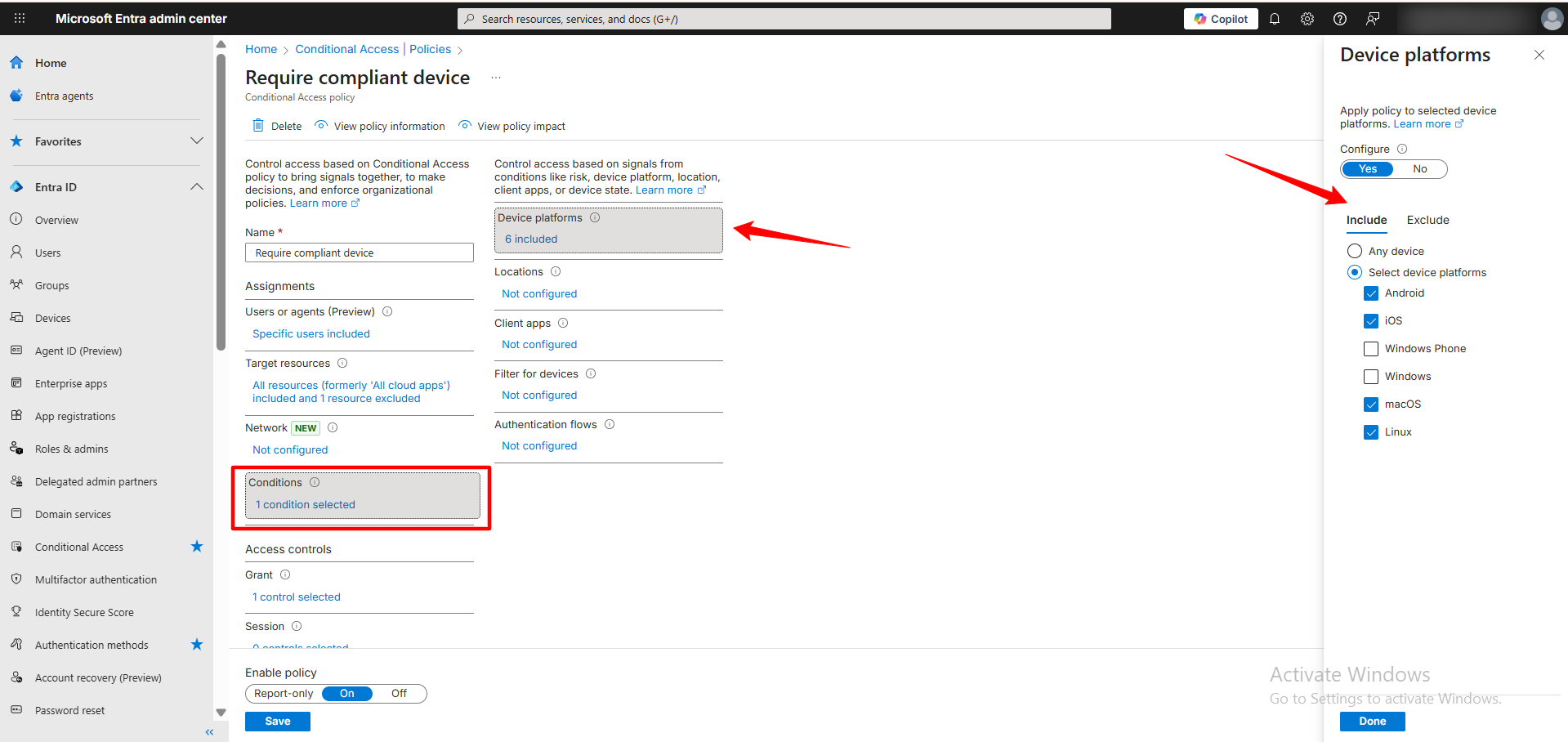
Step 5: Configure Conditions
You may restrict the policy further using conditions.
Click Conditions → Device platforms
Select the required platform on which you want the compliance policy to be applied from Scalefusion (you can choose multiple platforms as well)
Click Done.
Step 6: Configure Access Controls (Require Compliance)
Click Access controls → Grant
Select Grant access
Check Require device to be marked as compliant
Click Select
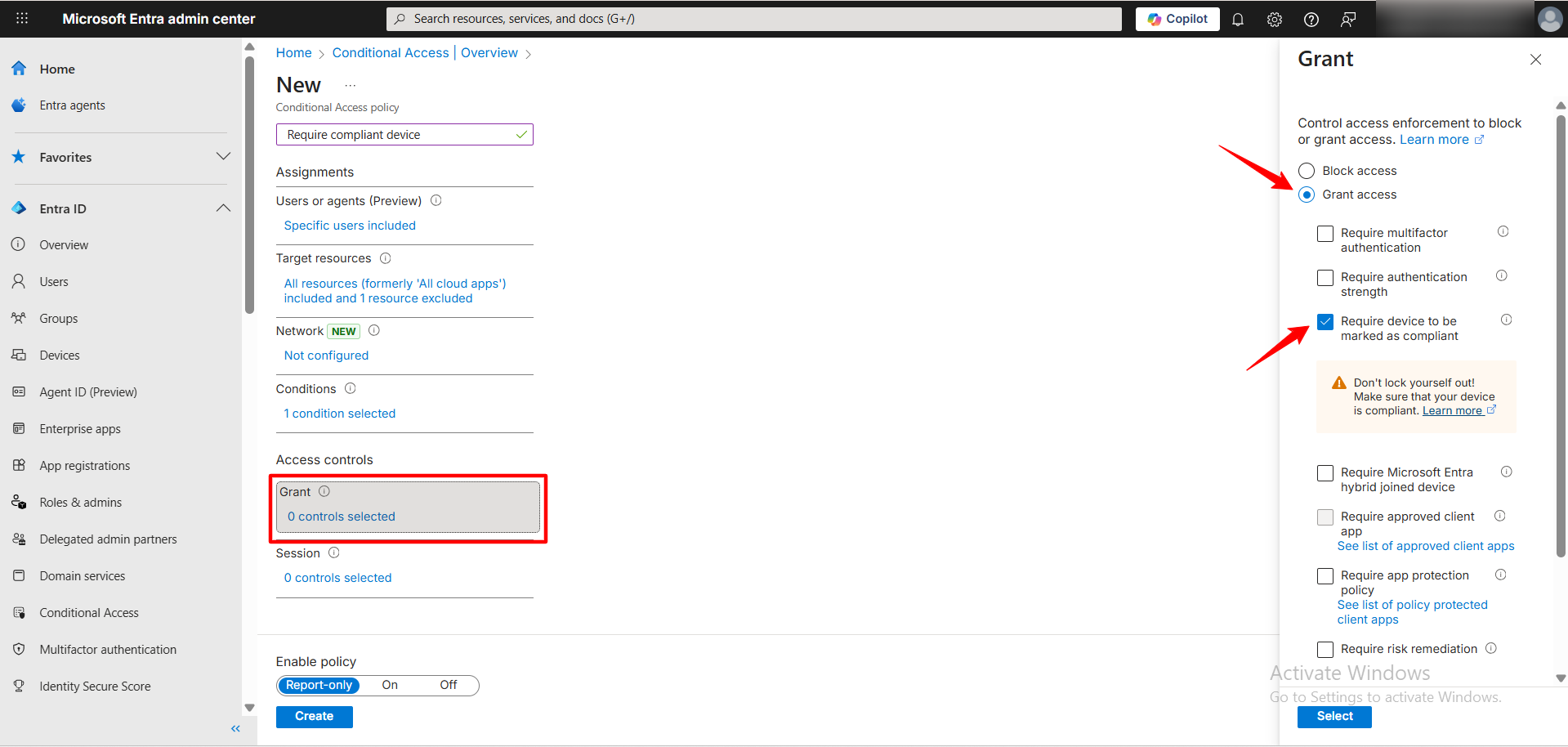
This ensures access is only allowed when Intune receives a compliant status from Scalefusion.
Step 7: Enable the Policy
Under Enable policy, choose to keep the policy on.
Click Create.
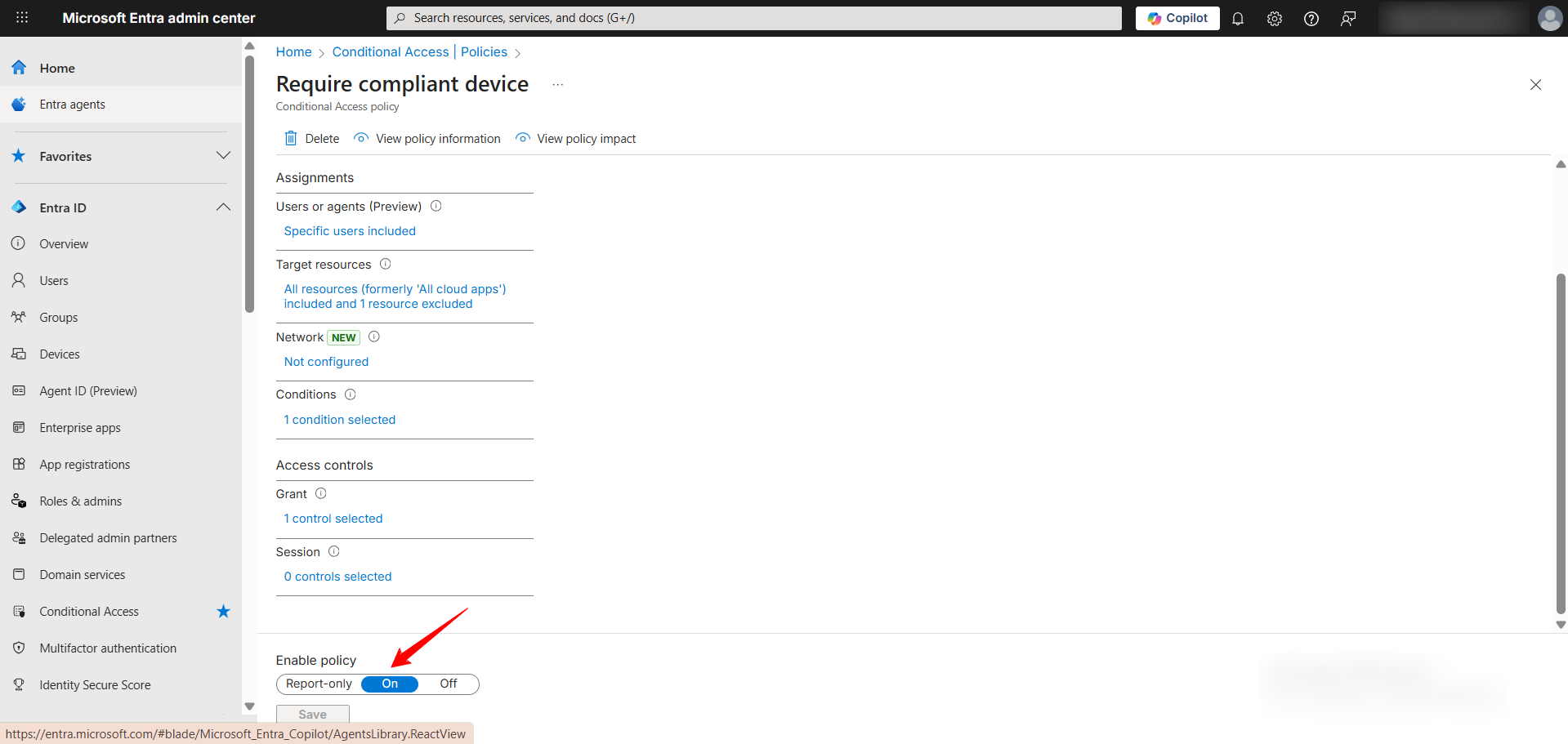
Step 8: Scalefusion Device Attestation Compatible with Baseline Scopes
To make Scalefusion Device Attestation compatible with Baseline Scopes, please click here
Once you have completed the above steps return back to the scalefusion dashboard and publish the Intune Compliance policy to the Device Group or User Group.
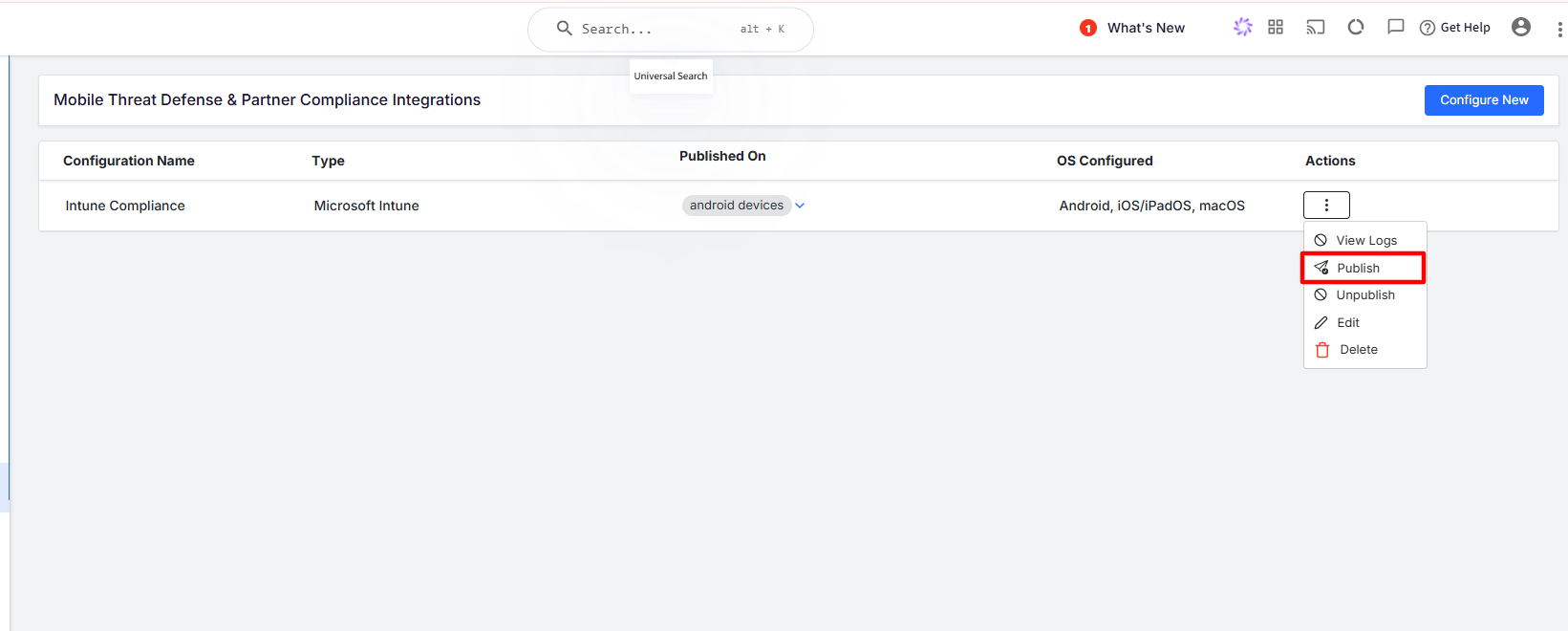
Compliance Logs & Inventory Logs (Monitoring & Validation)
Once devices are enrolled and compliance policies are configured, you can monitor device status using Logs within the Scalefusion Dashboard.
Navigating to Logs
Go to Veltar → Essential Integrations
Click on Actions.
Choose the option for View Logs.
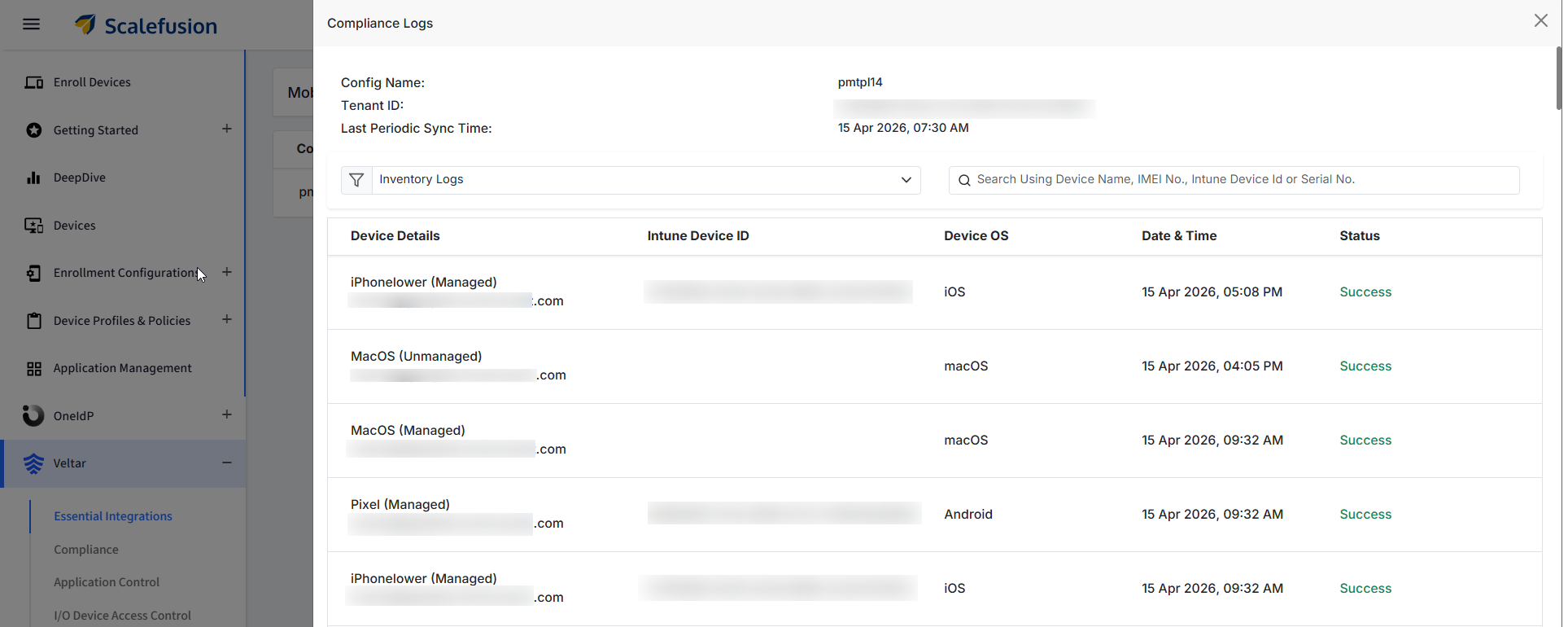
Use the dropdown to switch between:
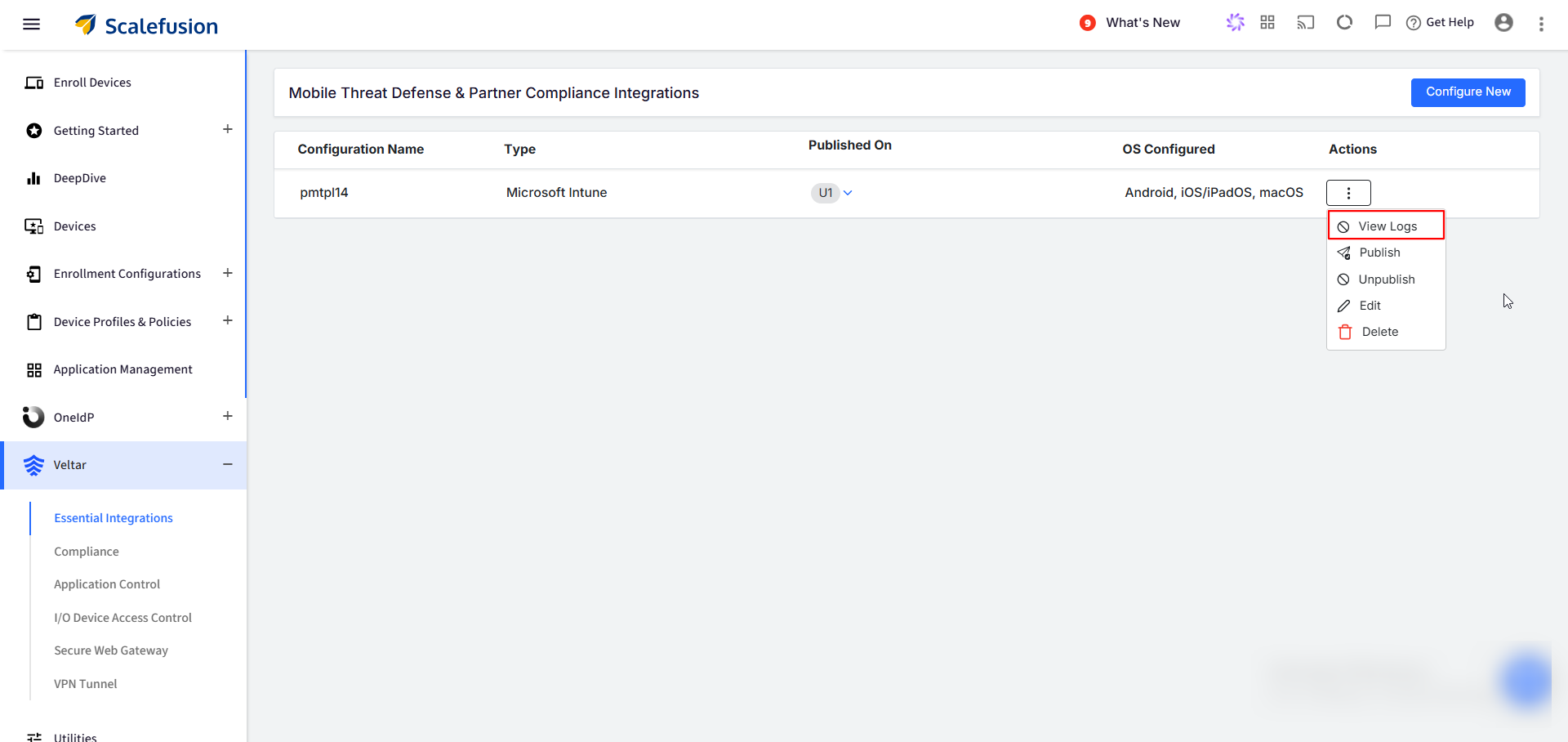
Inventory Logs
Compliance Logs
Inventory Logs (Device Registration Status)
Inventory Logs help verify whether a device has been successfully registered with Microsoft Intune.
Status Interpretation
Success → Device is successfully registered in Intune.
Pending → Registration is in progress or awaiting sync.
Failure → Device registration has failed.
Failure Log Details
When a log shows Failure, an eye (👁) icon is available under the Actions column
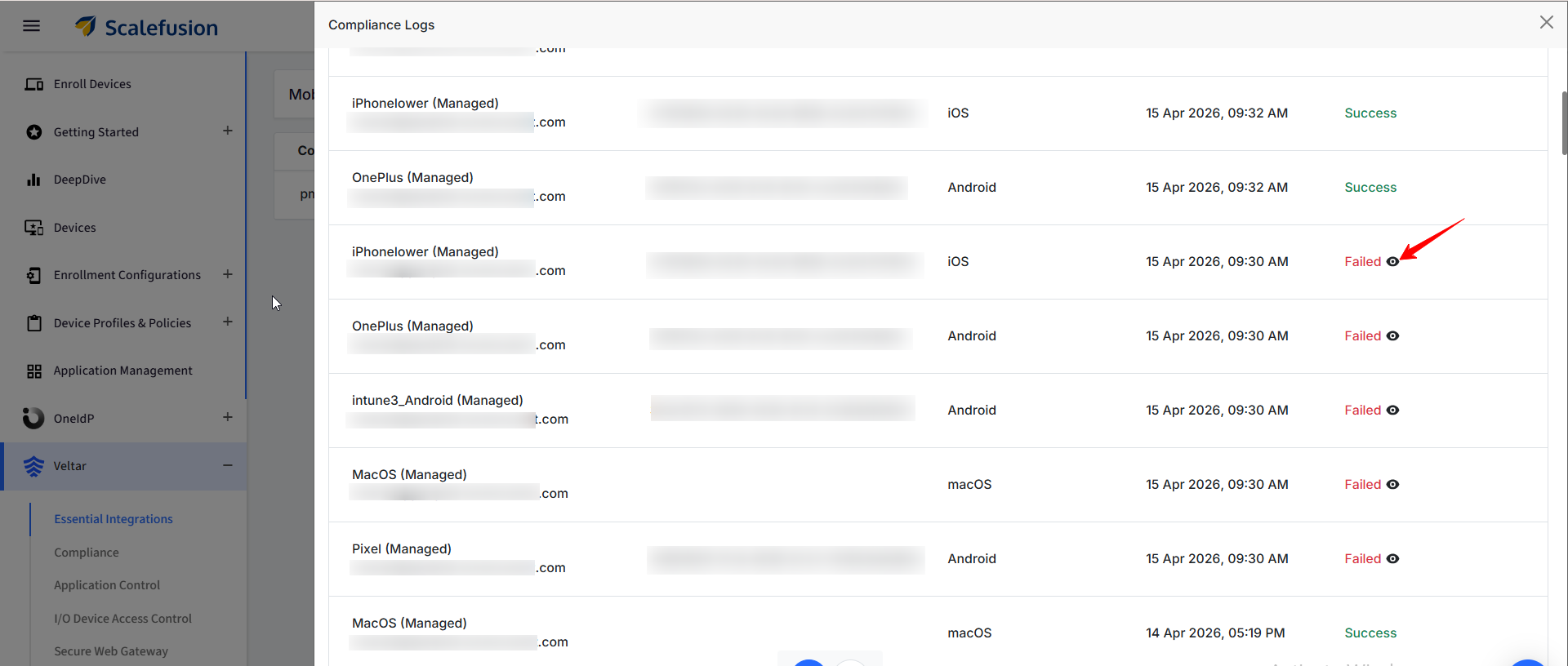
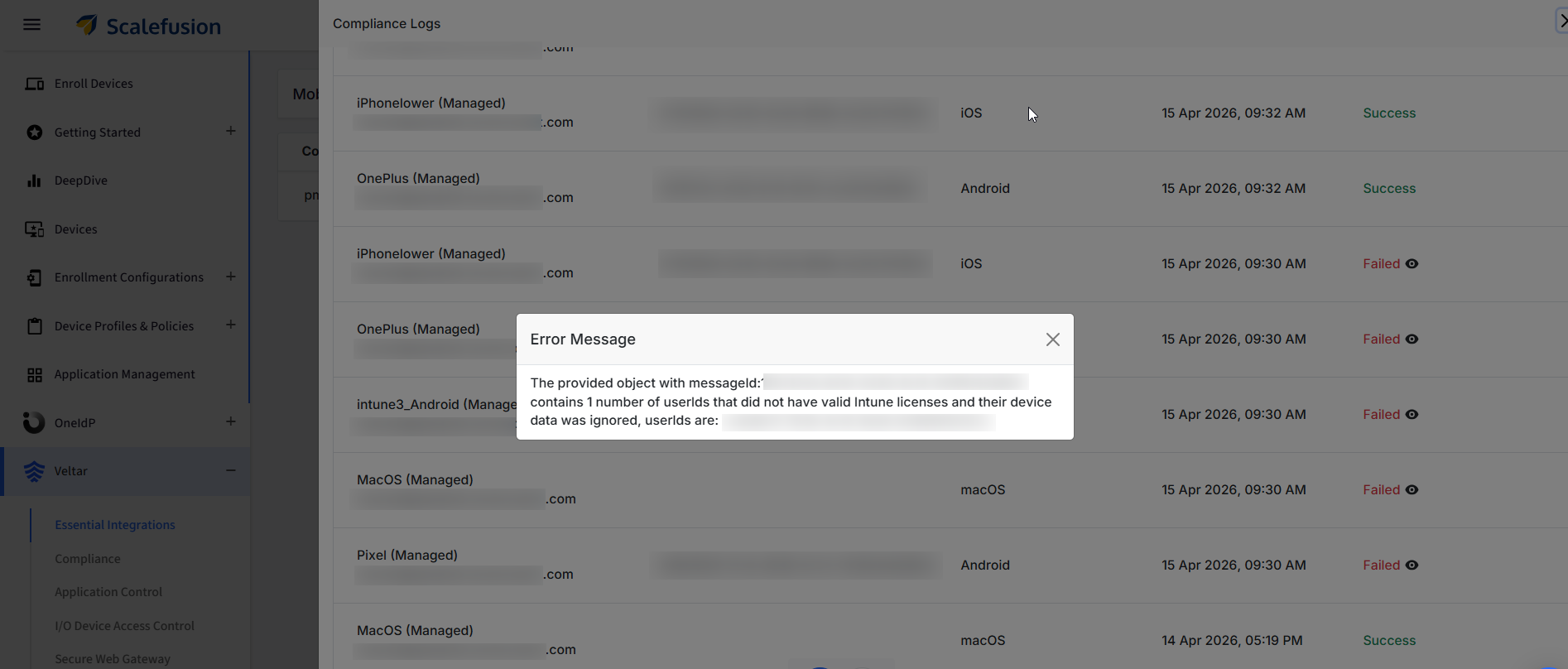
Clicking the eye icon allows you to view the reason for the failure of the same.
Compliance Logs (Compliance Evaluation Status)
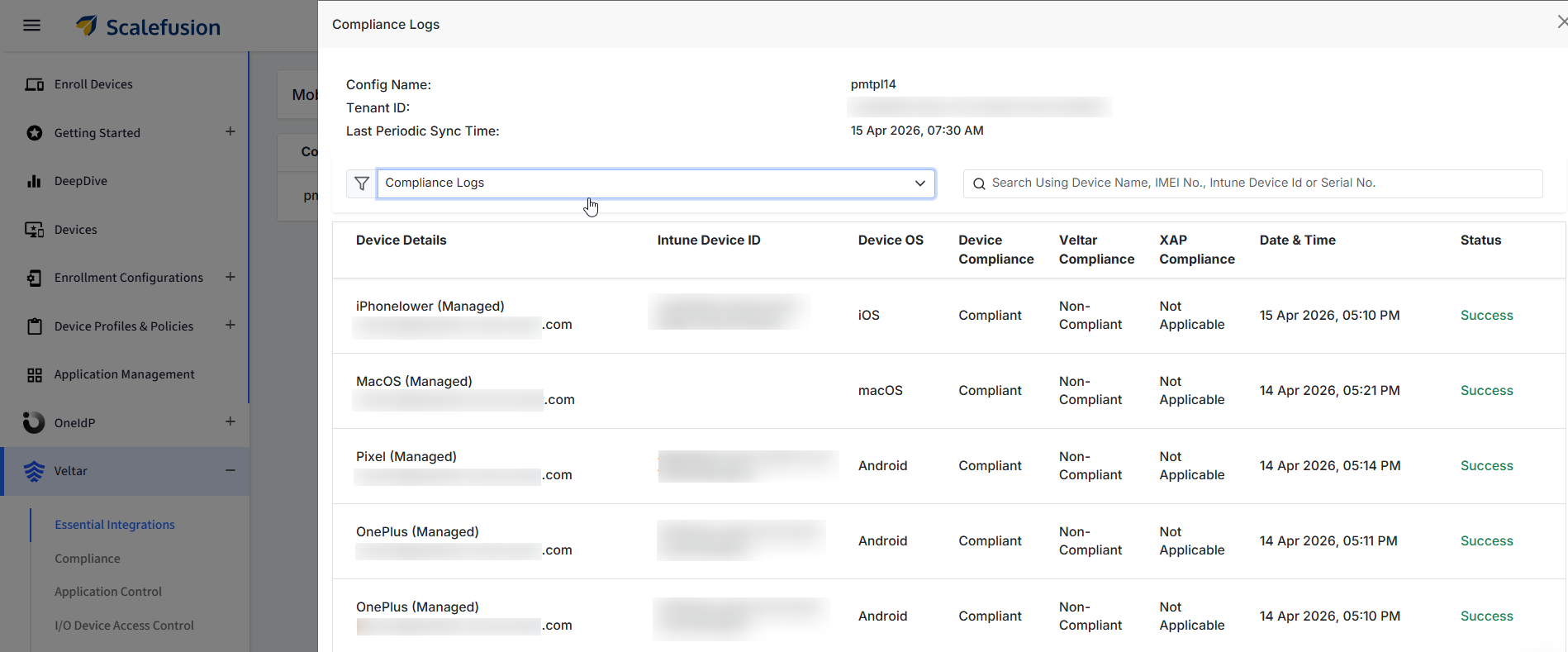
Compliance Logs provide visibility into the compliance state of devices synced from Scalefusion to Microsoft Intune. They help you understand how each device is being evaluated across different compliance checks.
For each device, the logs capture compliance details across multiple conditions (where applicable), including:
Intune Device ID (Device Id displayed over the Intune Portal)
Device Compliance
Veltar Compliance
XAP Compliance
These columns give a more granular view of the compliance evaluation, making it easier to identify the overall status of compliance.
The final compliance state reported to Intune is based on the conditions configured during the Intune Compliance setup in Scalefusion. Based on this configuration:
The evaluated compliance status is pushed to Intune
The device is marked as Compliant or Non-Compliant accordingly
End user Experience over the device
This section explains how device compliance behaves across supported platforms and how the compliance state is reflected in Microsoft Intune and Microsoft Entra ID (Azure AD).
How to register an Android device
Once we have published the Intune Compliance configuration on an android device it would show us an icon on the kiosk screen for Intune SignIn.
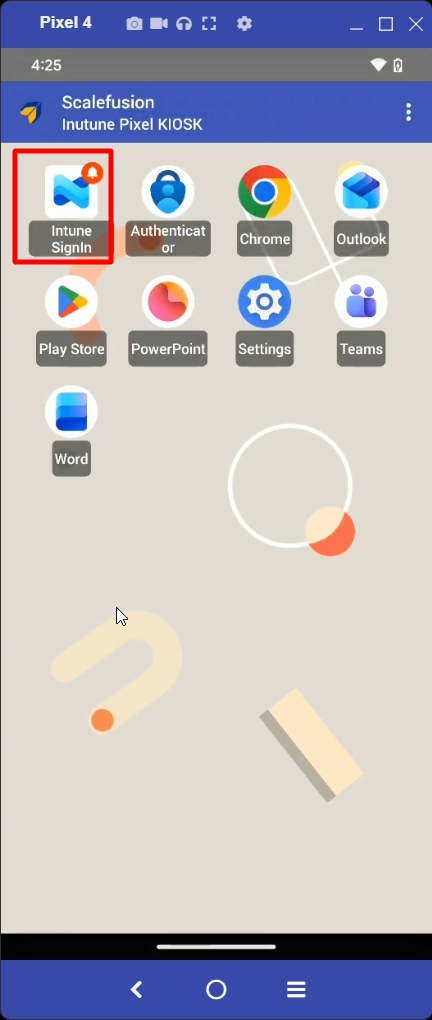
Click on the Intune SignIn icon and you will be redirected to the next screen asking you to Sign In, click on that and the sign in process starts.
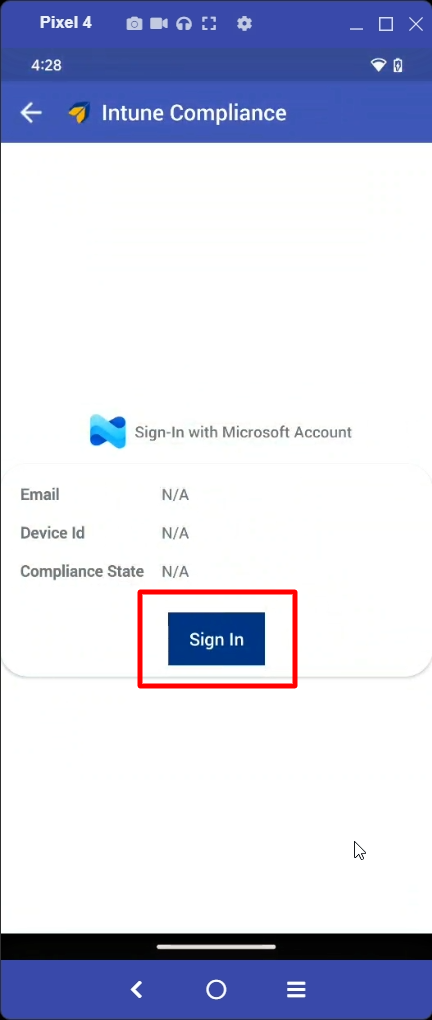
Now the User has to sign in through the Microsoft account
On the Microsoft login page, enter the Email address
Click Next
Enter the Password
Click Sign In
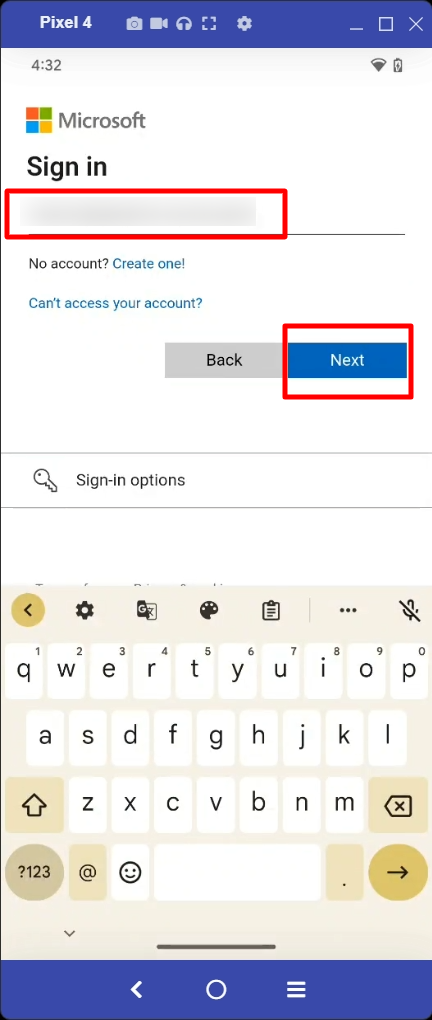
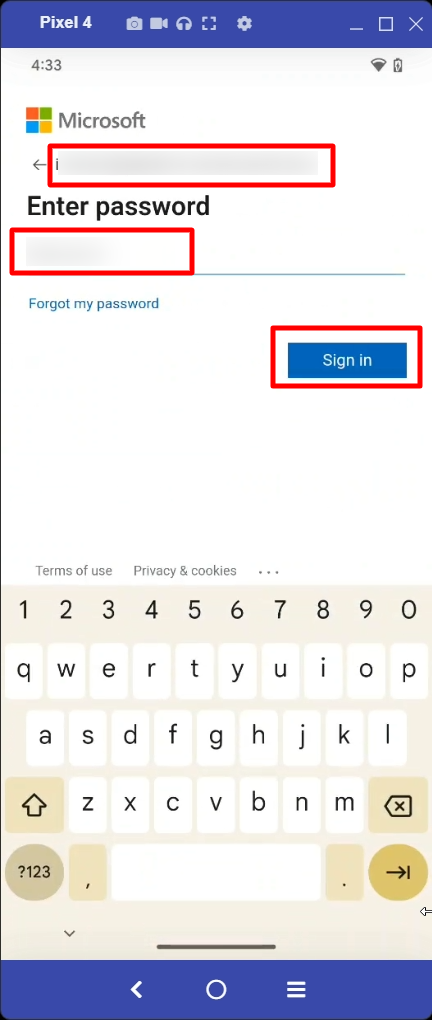 4. Post clicking on the Sign in button you will be asked to register the device, proceed by clicking on the Register button.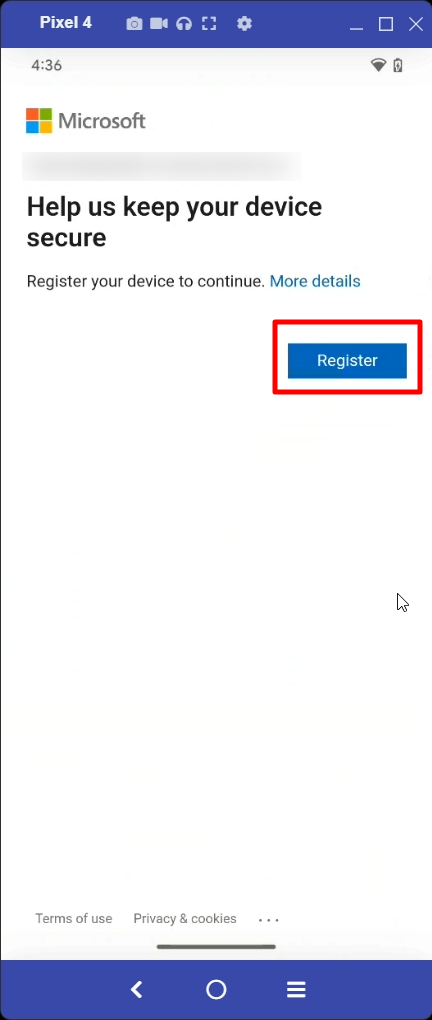
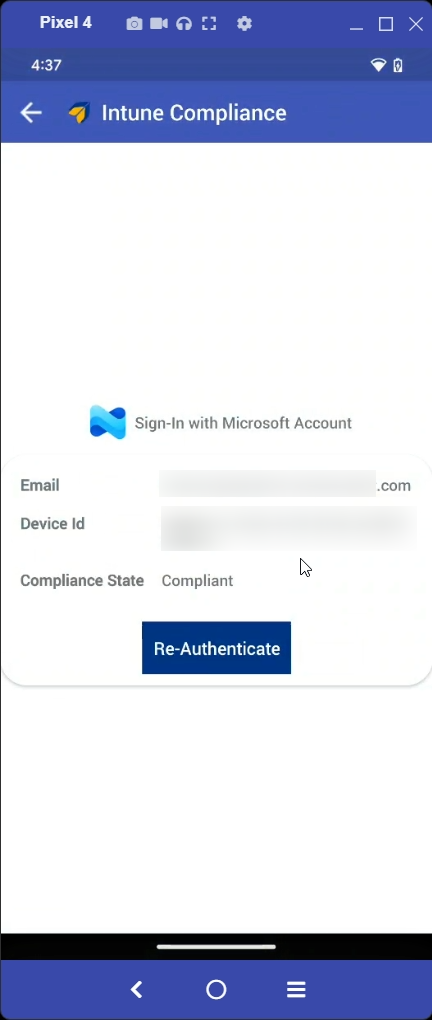
5. Once the device registration is successfully completed, the end user will see a confirmation card on the screen with the following details:
Email Address
Device ID
Compliance State
Outcome
The device is now successfully registered with Microsoft Intune.
A corresponding device entry is created in the Intune portal.
The device becomes eligible for compliance evaluation and Conditional Access policies.
How to register an iOS device
Unlike Android, iOS devices do not display a separate Intune registration icon on the kiosk/home screen. The registration and authentication flow happens from within the Scalefusion app using Microsoft sign-in.
Ensure that the Microsoft Authenticator app is installed on the device and the proceed to open the Scalefusion application.
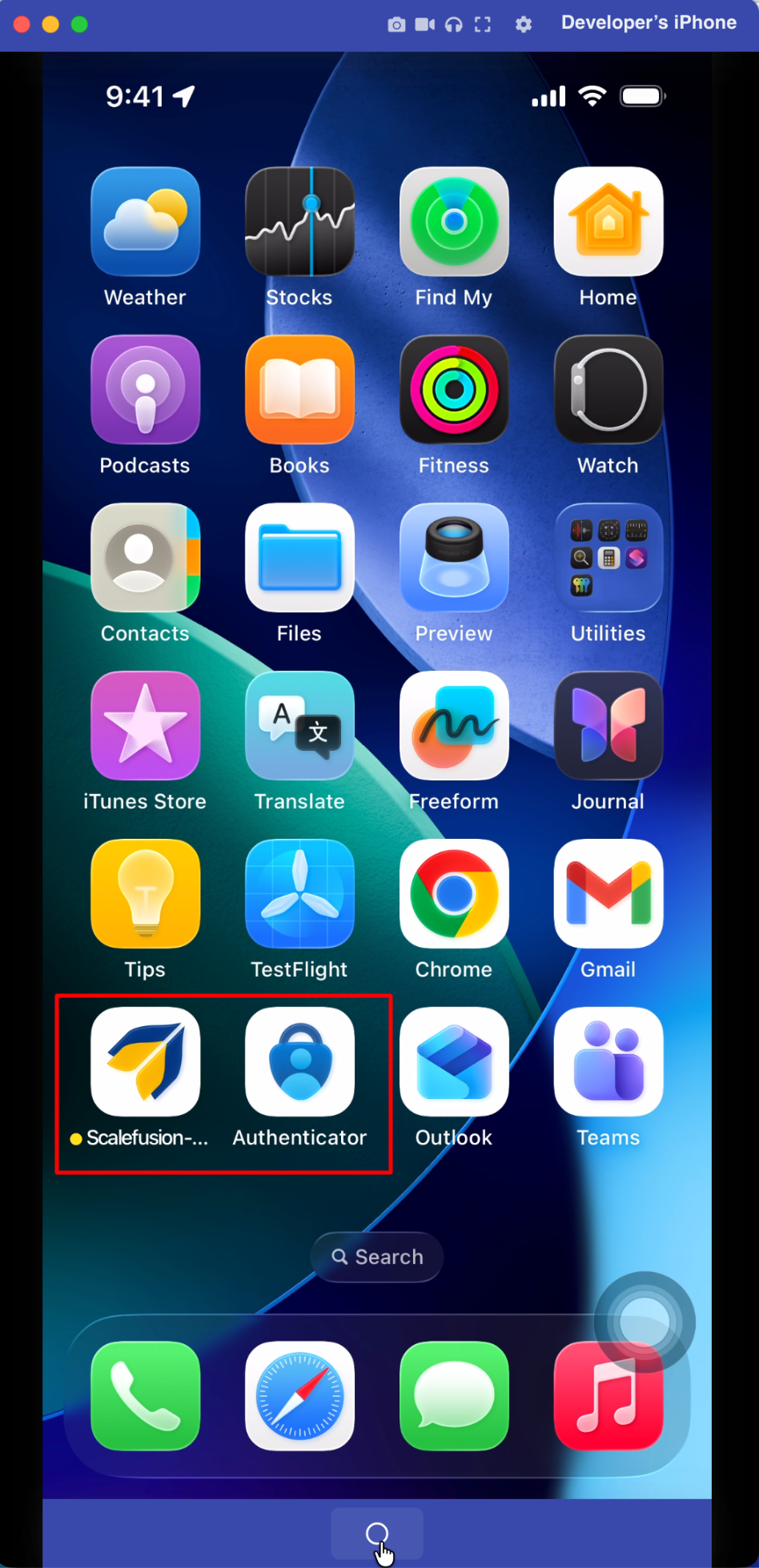
You will see the following notification:
“Sign in to your Microsoft account to access the Microsoft applications assigned to you.”
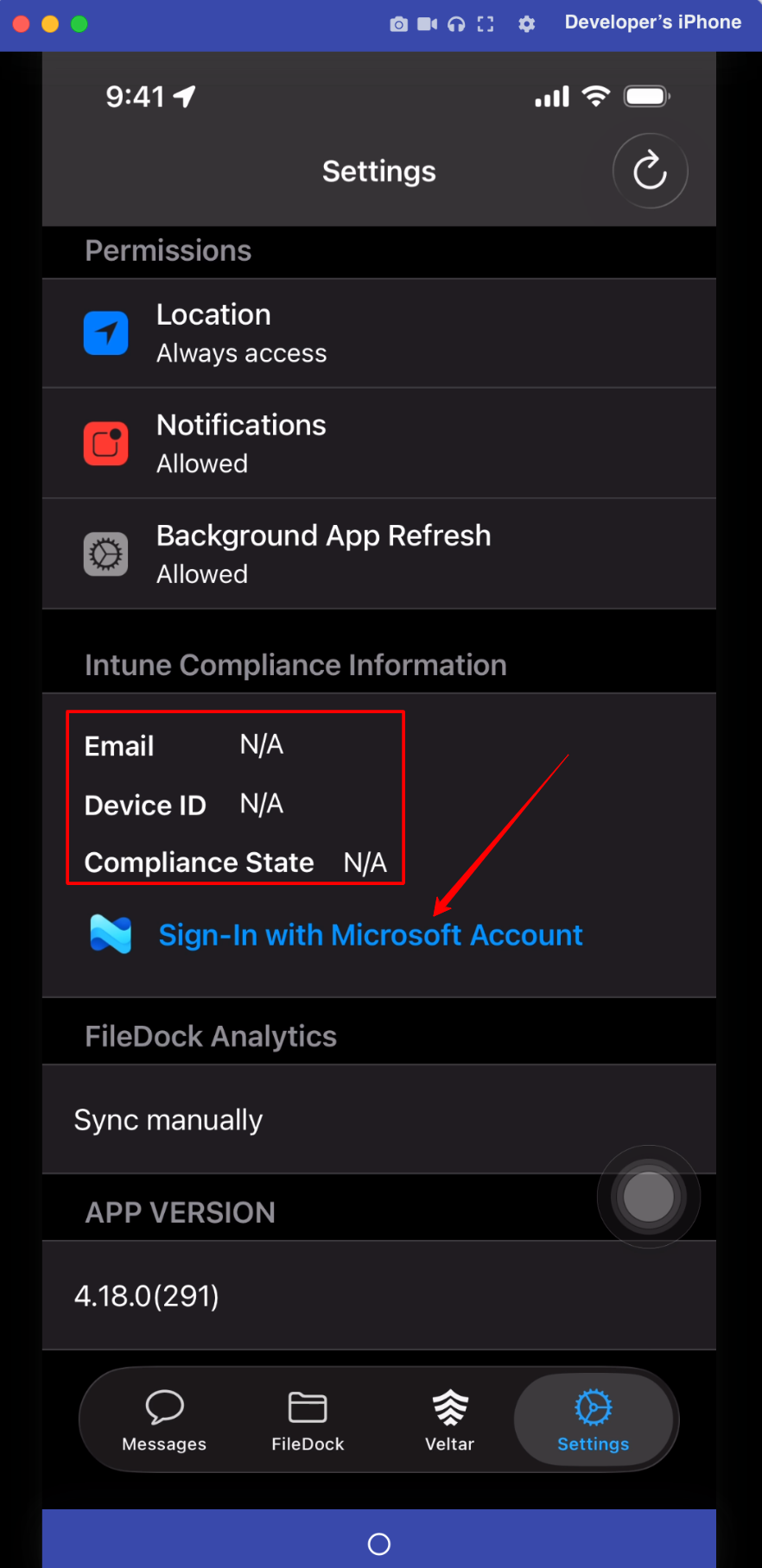
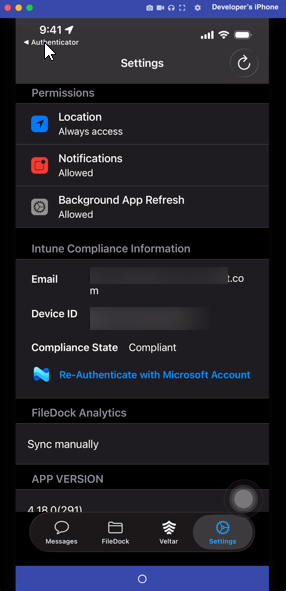
Inside the Scalefusion app a new section called as Intune Compliance Information appears, tap Sign in with your Microsoft account (with the Intune logo).
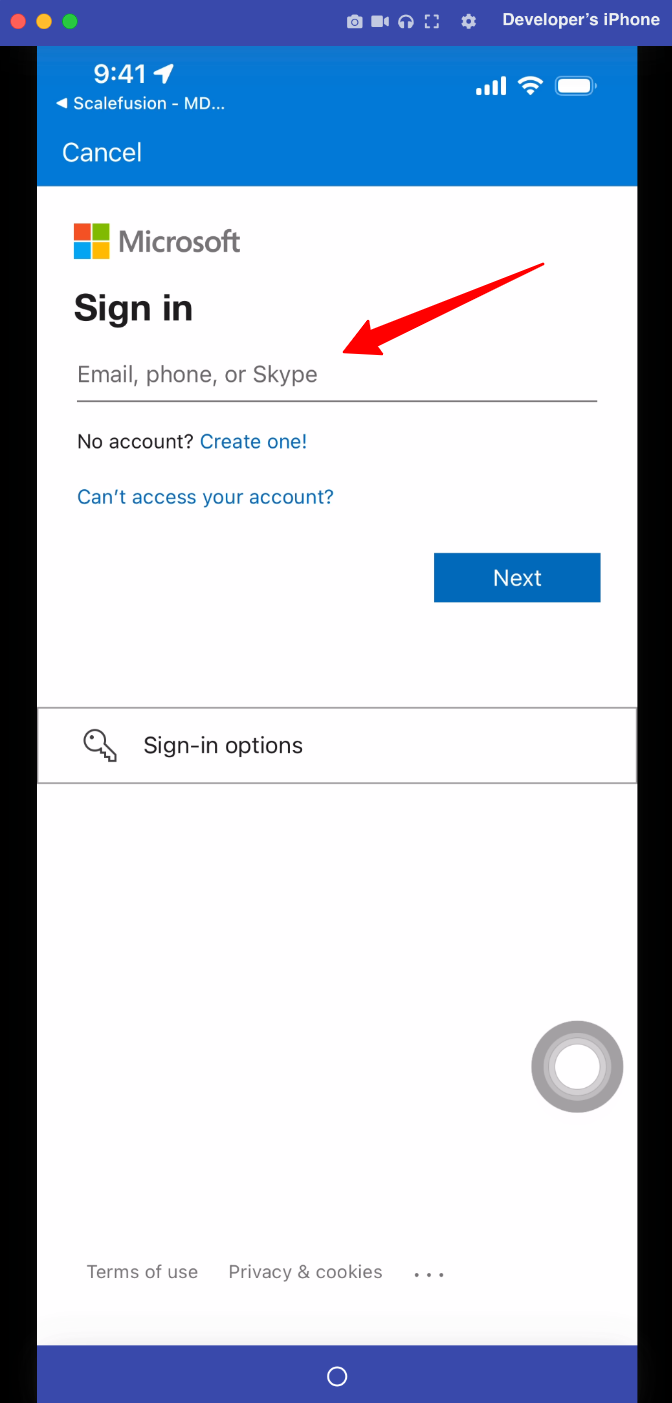
Once you click on the Sign-In with Microsoft Account from the previous step you’ll be prompted to sign in with your Microsoft account.
Now the user has to sign in to through their Microsoft account:
On the Microsoft login page, enter the Email address
Click Next
Enter the Password
Click Sign In
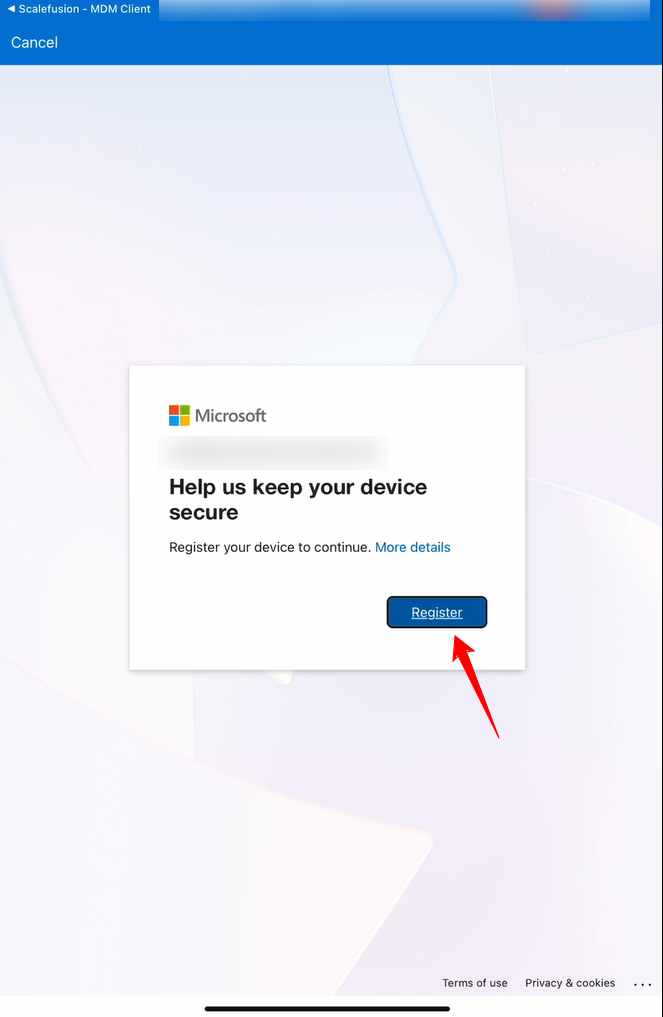
Post clicking on the Sign in button you will be asked to register the device, proceed by clicking on the Register button.
Once registration is completed:
The device is registered with Microsoft Intune.
The device is associated with the signed-in user account.
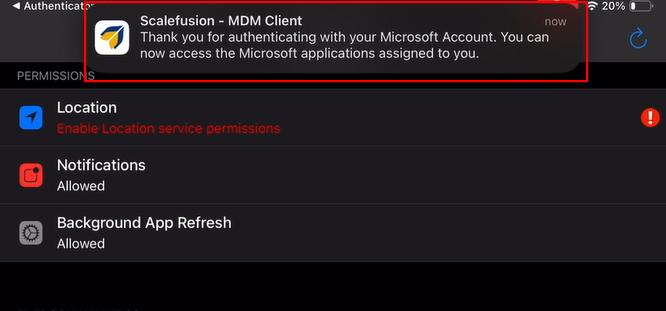
You will receive this confirmation:
“Thank you for authenticating with your Microsoft account. You can now access the Microsoft applications assigned to you.”
Once this is done you will observer that the Intune Compliance Information will now be populated with the information of the user that has signed in using their Microsoft account.
How to register a macOS device
The registration process for the macOS device is similar to that of the iOS devices that is the Sign In option is available directly under the Scalefusion agent.
Ensure that the device has the Scalefusion agent installed along side the Company portal app and the Configuration for SSO pushed out as per the steps mentioned at Steps to Create the SSO Extension in Scalefusion.
Once you have ensured Step 1, open the Scalefusion agent on the macOS device and navigate to the Settings tab from the left hand panel, you will see a new dialog box for Intune Compliance detail and the option to Sign-In with Microsoft Account along side the Sign-In button.
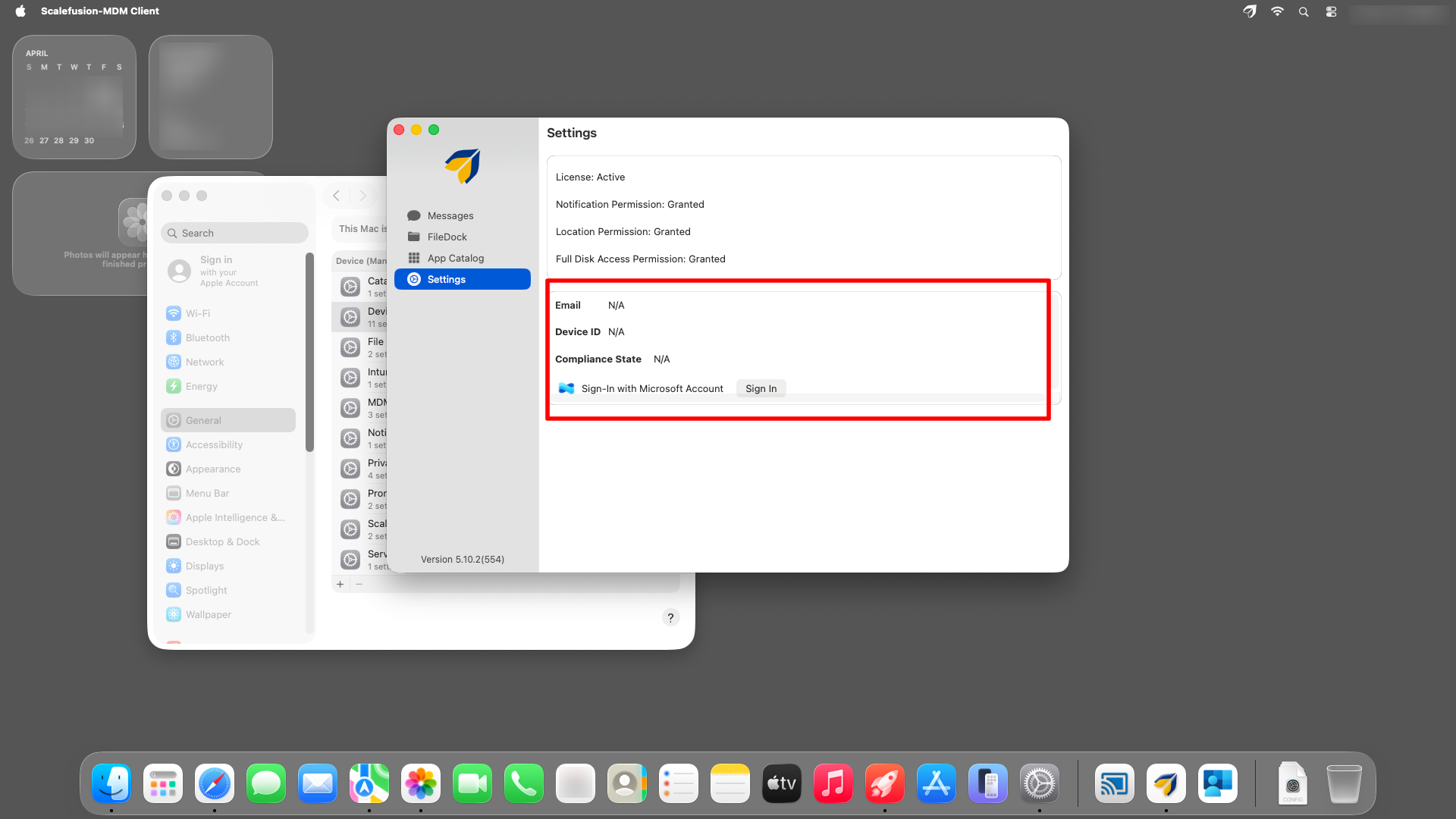
Click over the same and it would redirect you to the Microsoft Login page to enter the credential of the user.
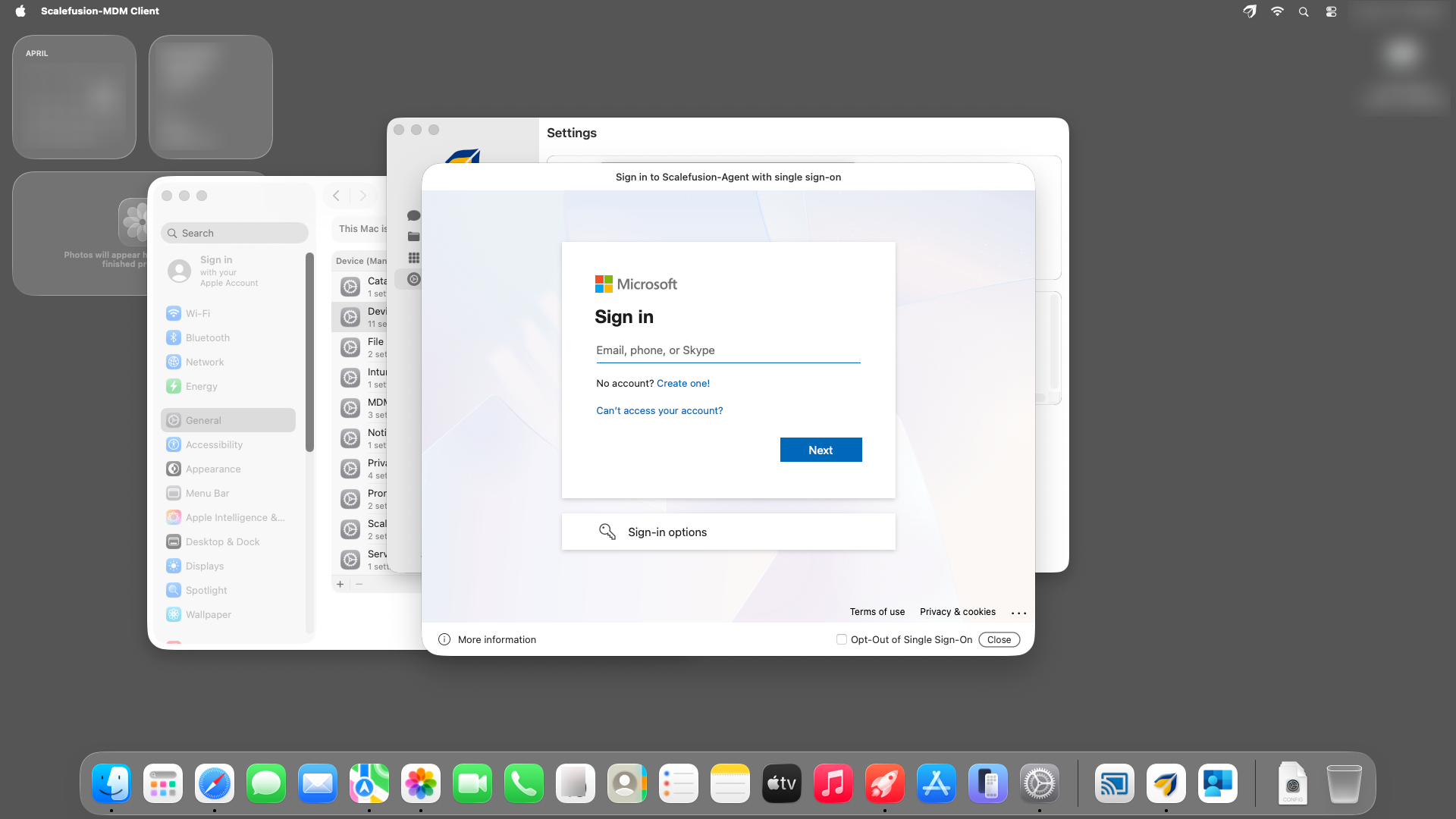
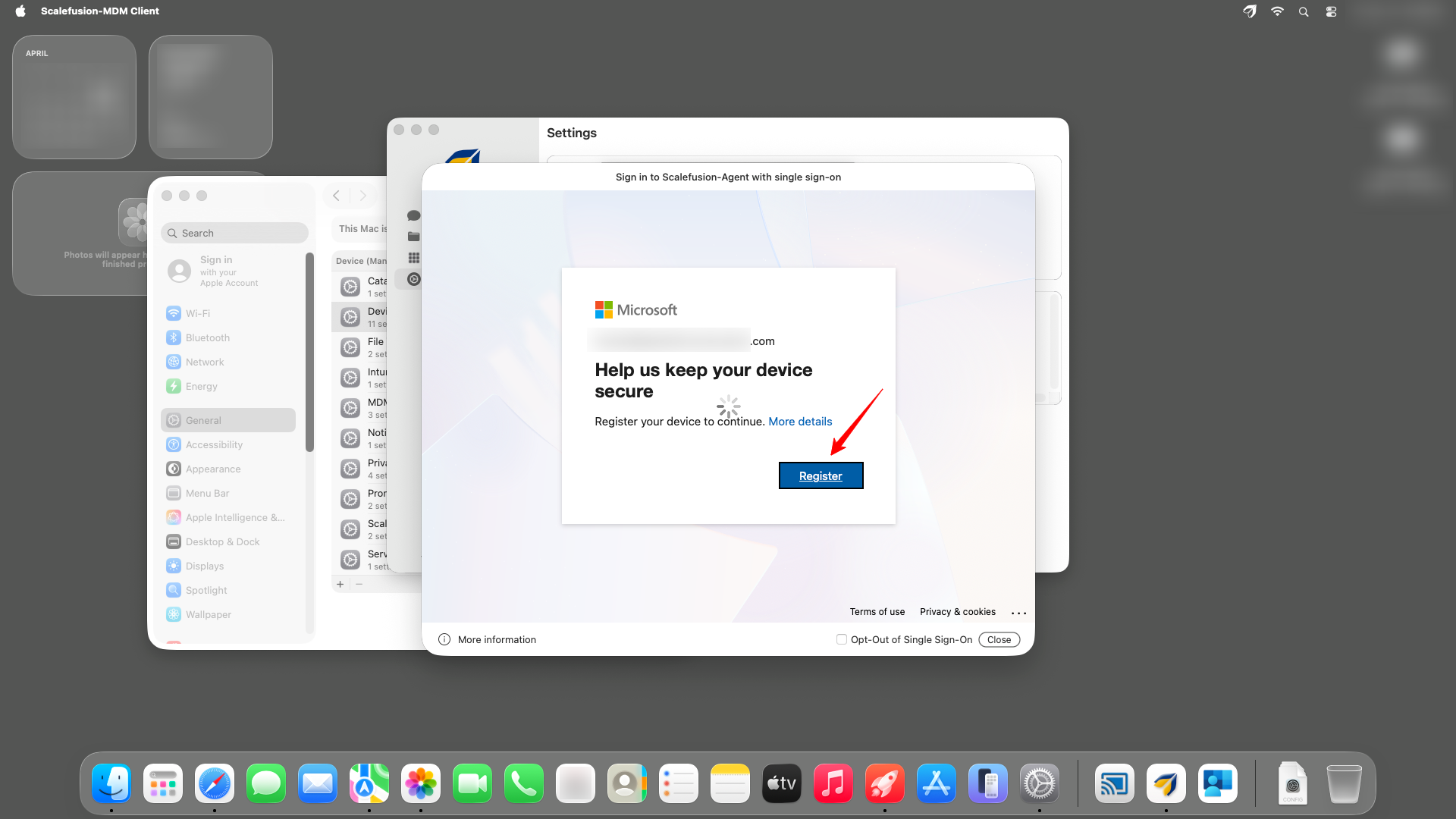
Once you have entered the credentials, the option to Register the device appears proceed with the same and that would register and create a entry of the device over the Intune portal too.
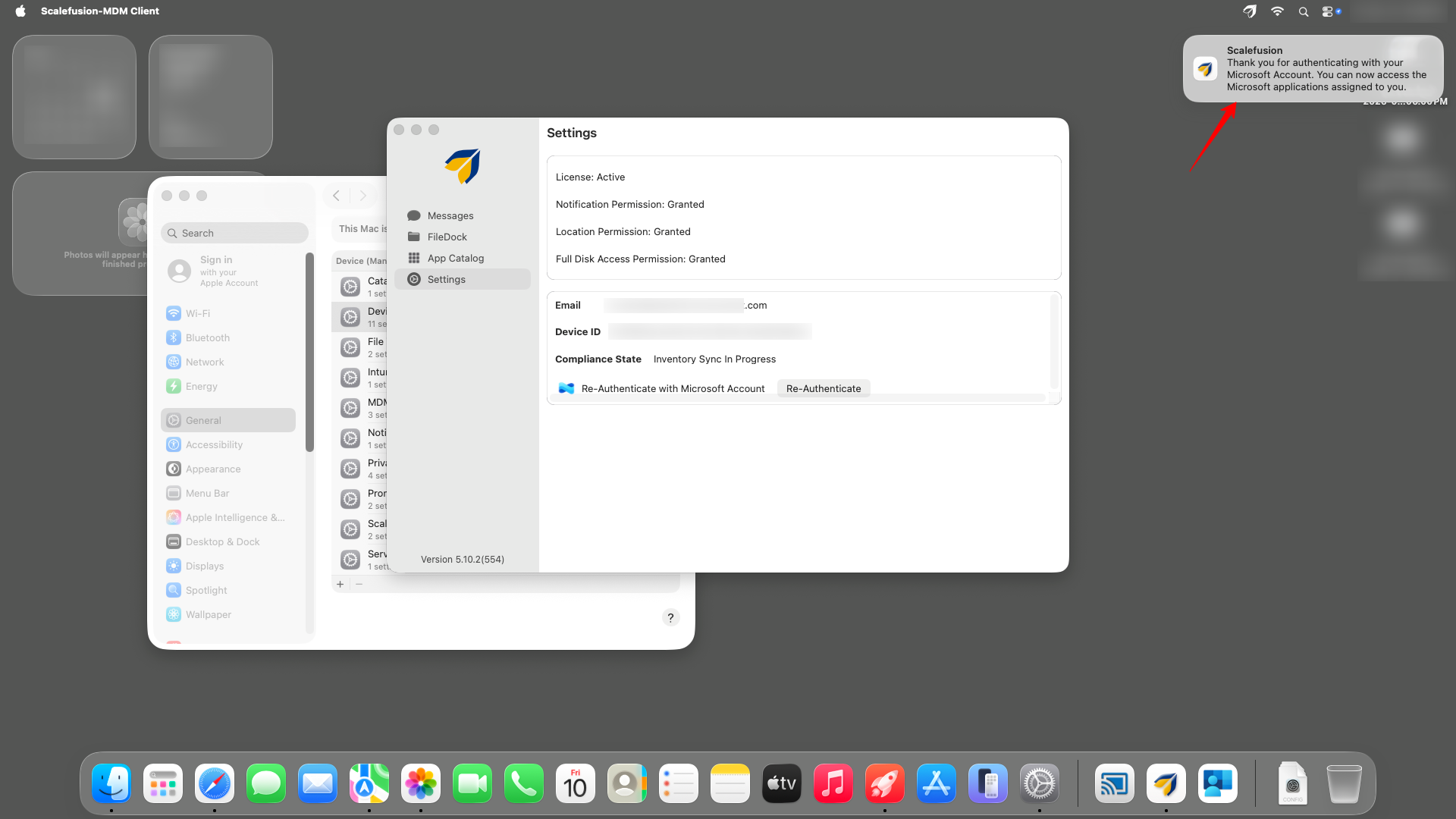
That being achieved a notification would be received on the device stating that, “Thank you for authenticating with your Microsoft Account. You can now access the applications assigned to you”.
On the Scalefusion agent the Email, Device ID and Compliance state which were earlier blank would now populate the details.
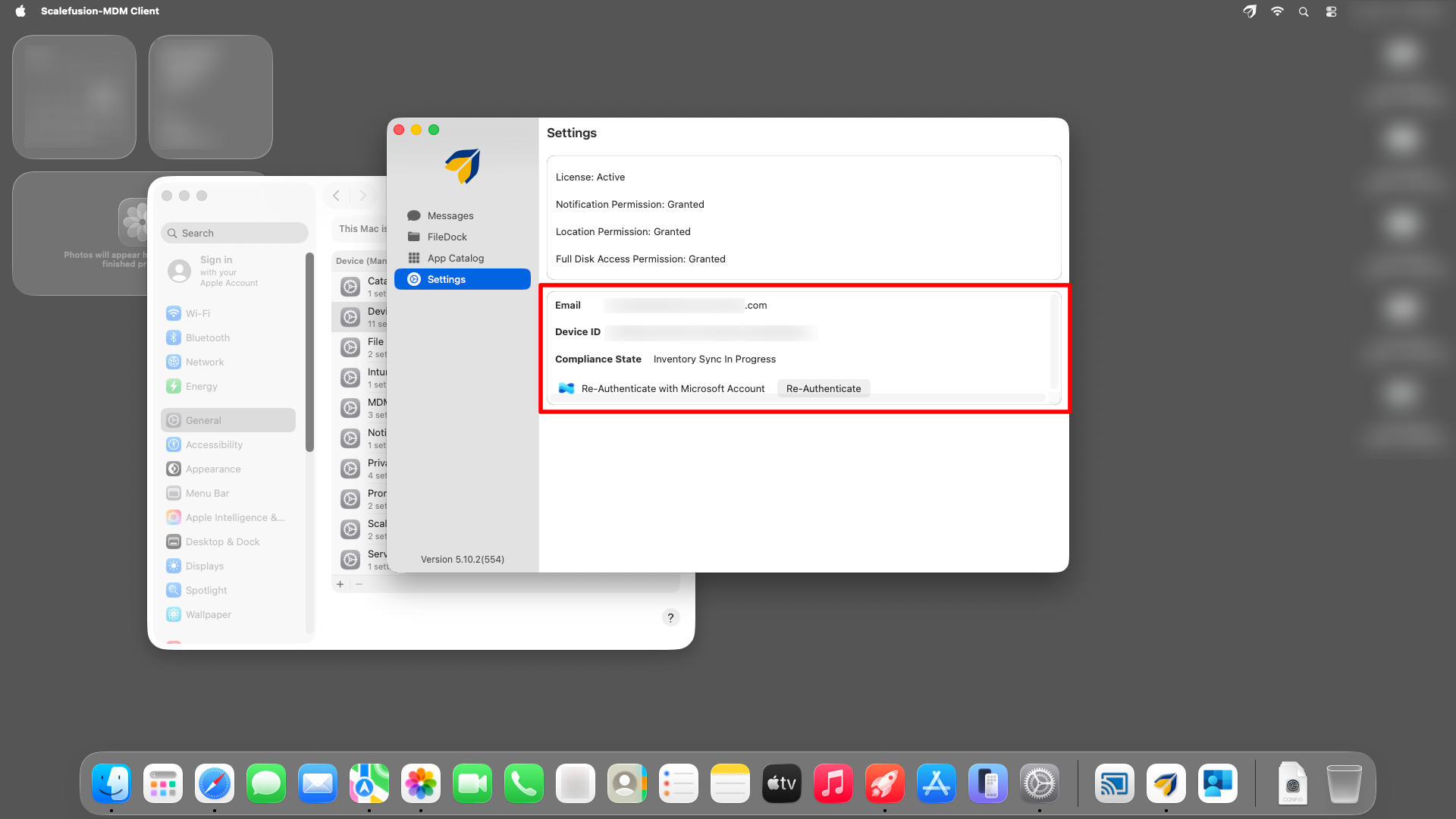
Re-authenticate with Microsoft Account
You will observer that across the various platforms there would be an option to re-authenticate the connection with your Microsoft Account this primarily helps with rechecking and refreshing the connection.
It checks whether the devices entry is present over intune additionally if the same has been deleted for any reason the user can register the device back or in cases of troubleshooting the users could re-verify themselves with the help of this option.
Platform wise Navigation
Android Devices
Navigate to the Kiosk screen
Tap on the Intune Sign-In icon
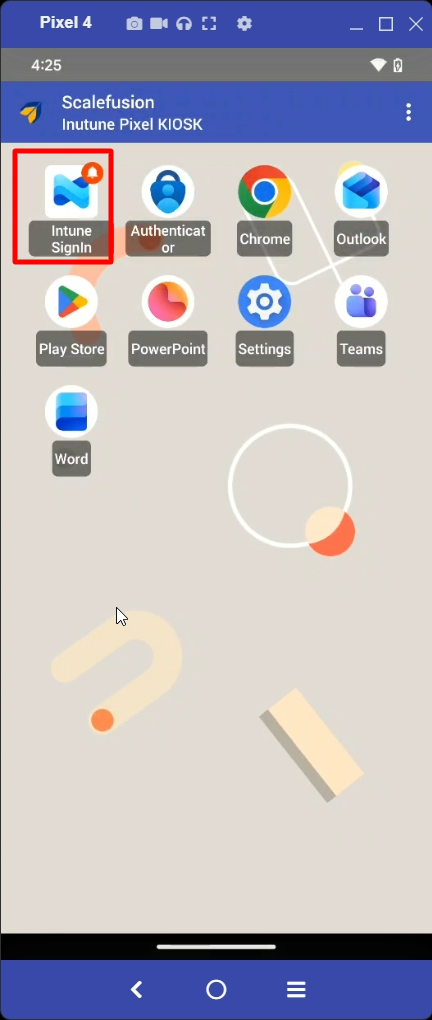
If the connection and checks are successful no actions would be required.
If the connection has any errors. Complete the Microsoft login flow to re-authenticate.
iOS Devices
Open the Scalefusion app
Tap on Re-authenticate with Microsoft Account
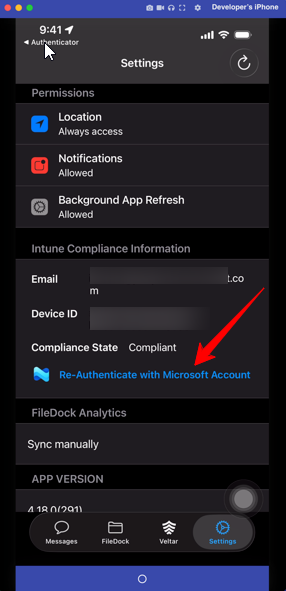
If the connection and check is successful you’ll receive the message
Account refreshed sucessfully
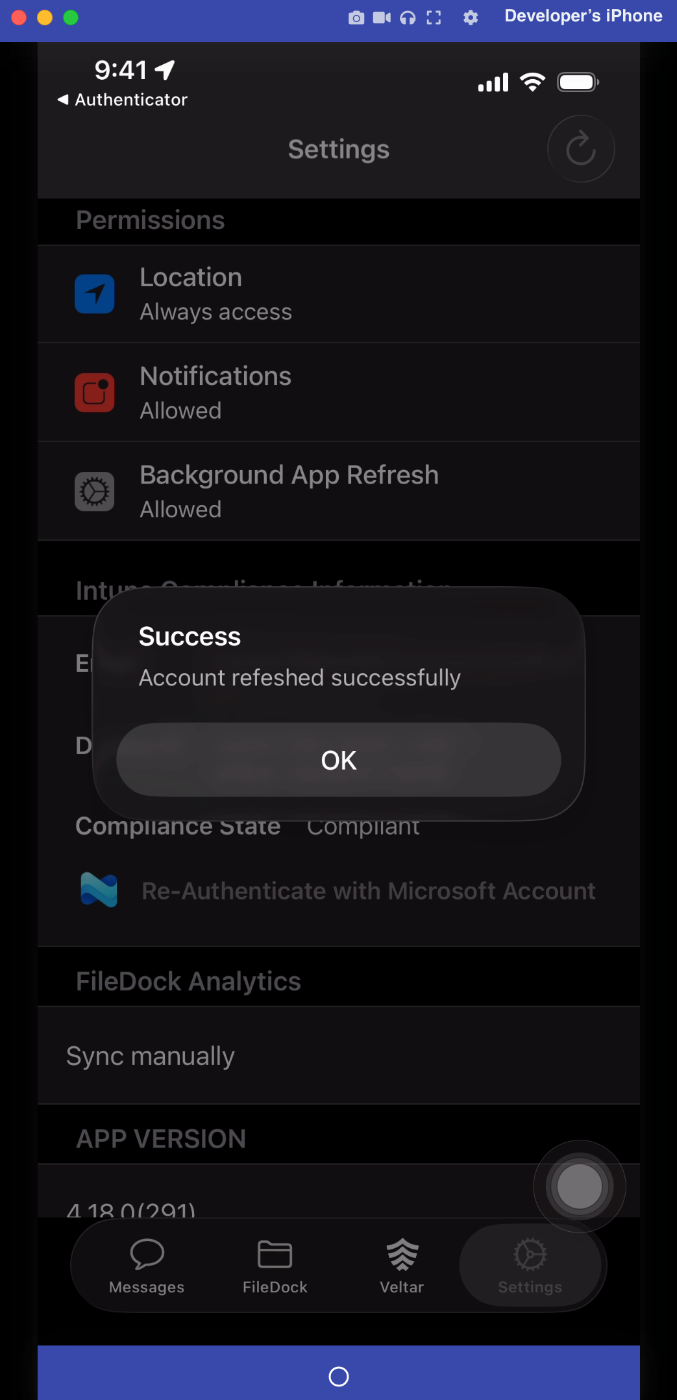
If in case the connection throws any error or failure message you’ll be asked to complete the Microsoft login flow.
macOS device
Open the Scalefusion app
Tap on Re-authenticate with Microsoft Account
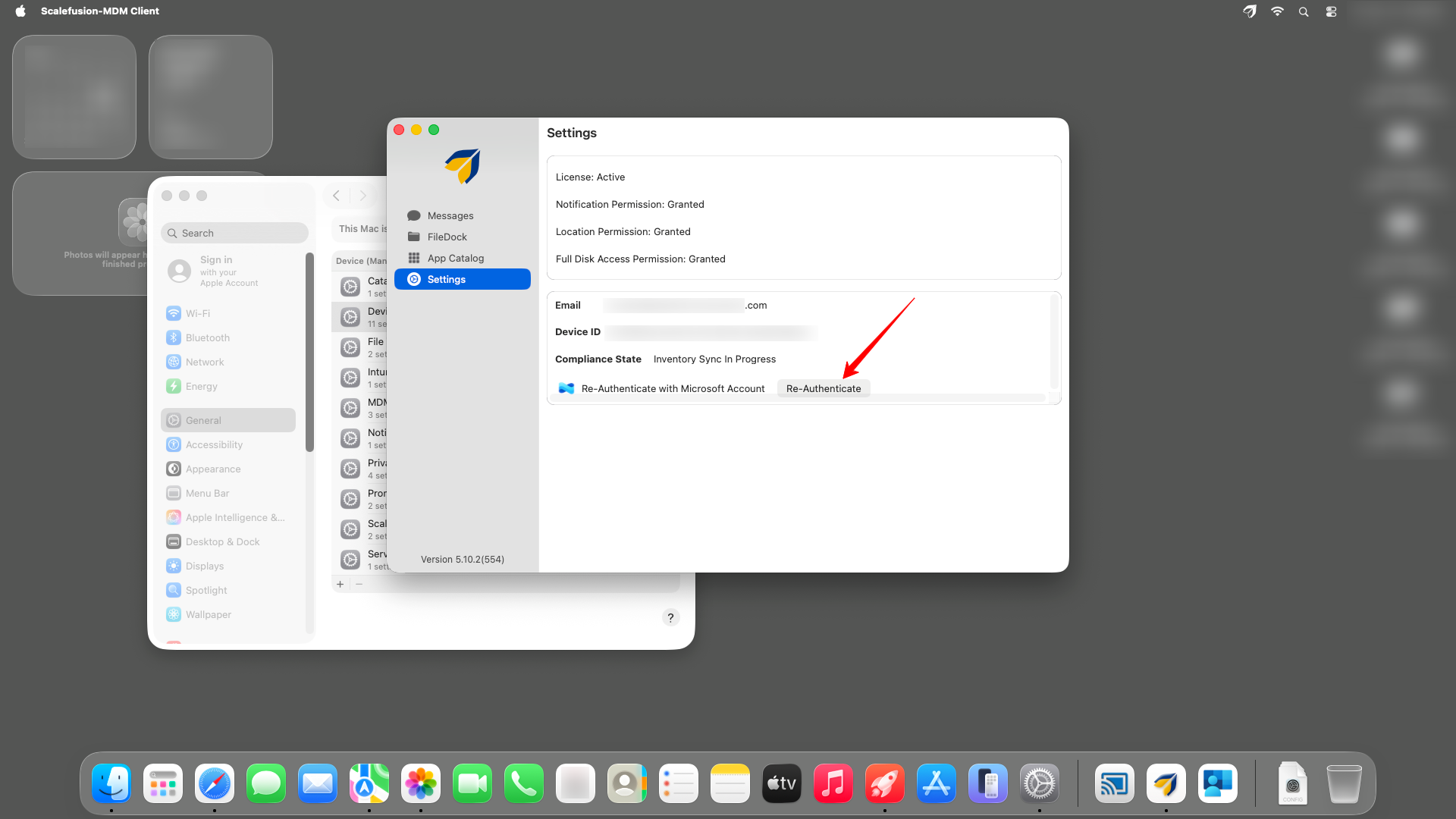
If the connection and check is successful you’ll receive the message
Account refreshed sucessfully
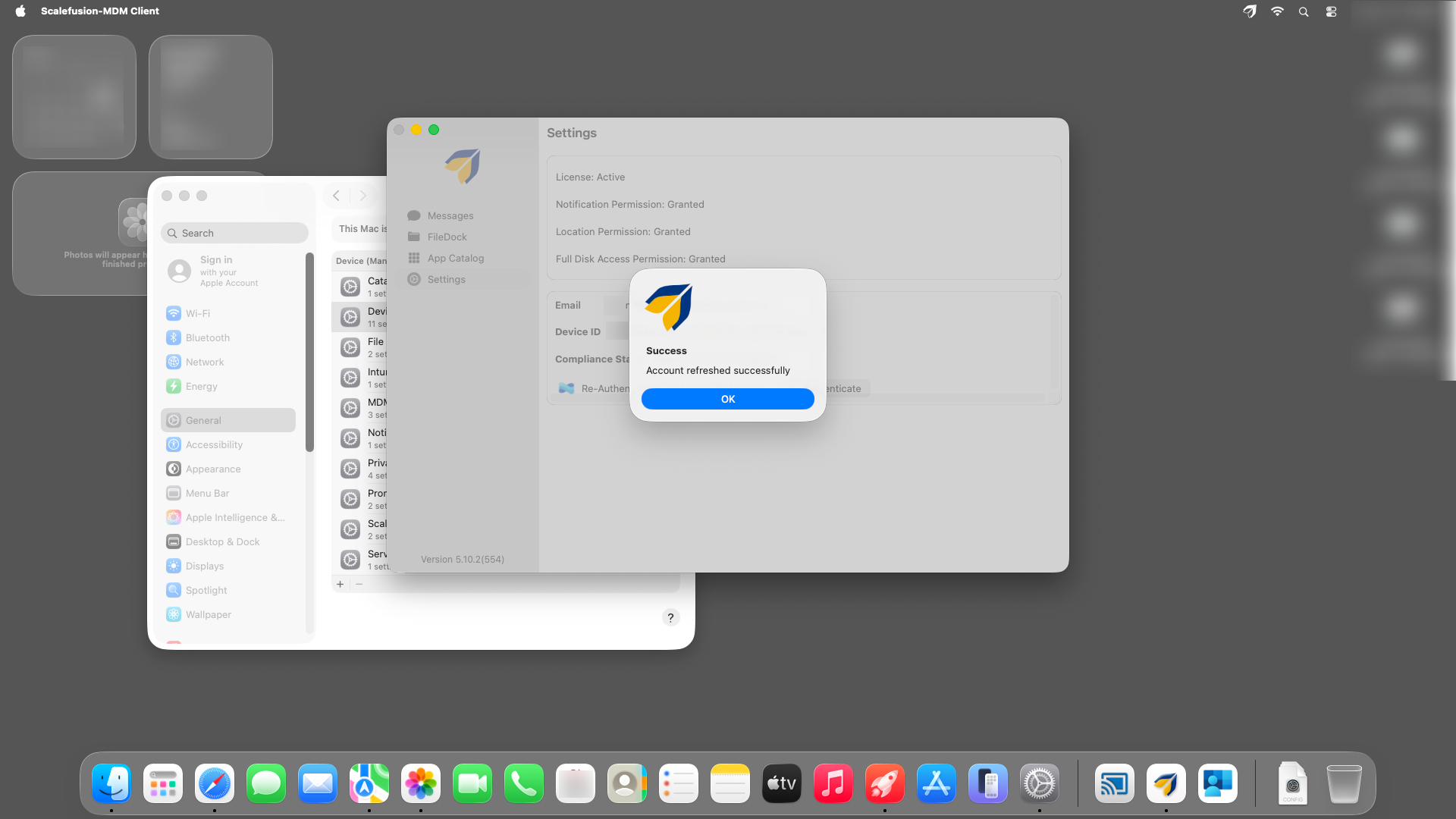
If in case the connection throws any error or failure message you’ll be asked to complete the Microsoft login flow to re-authenticate.
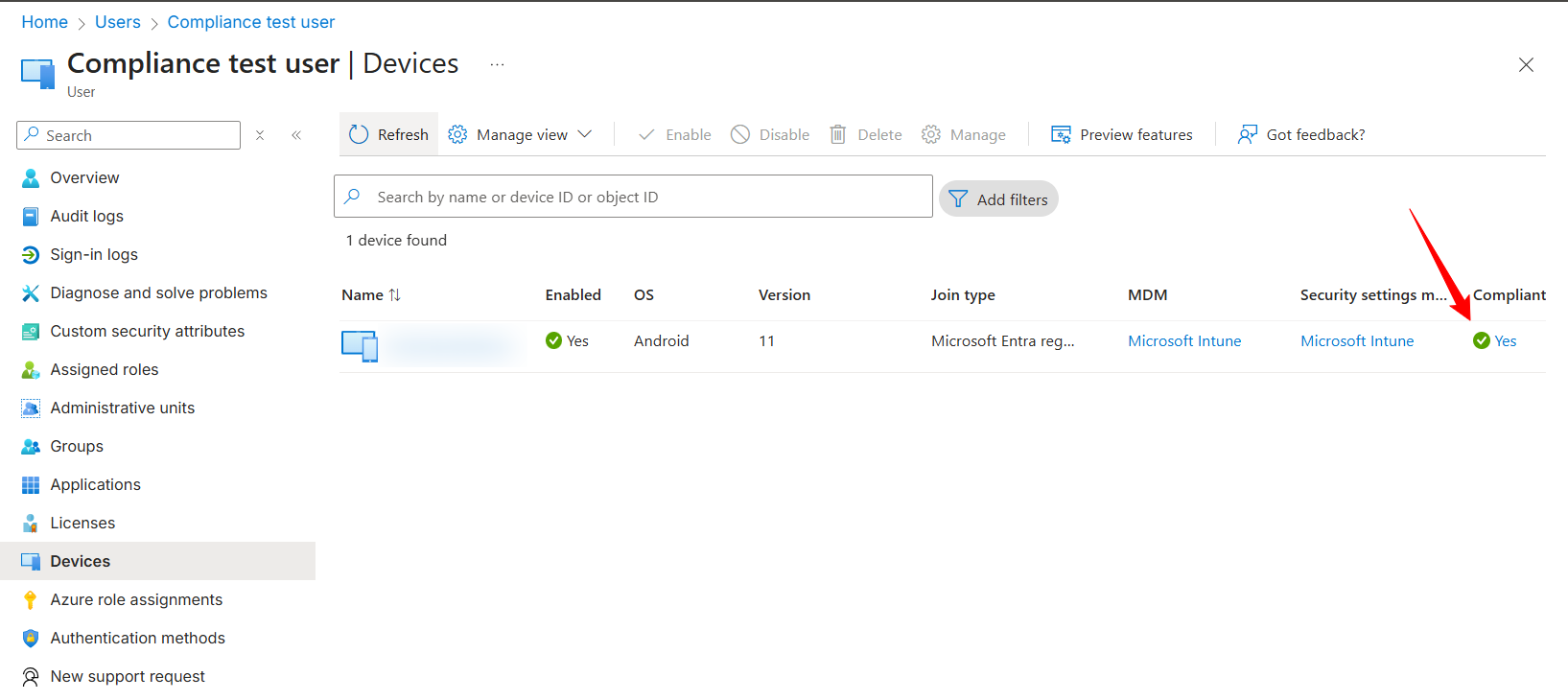
Behavior in Microsoft Intune:
Device compliance status changes to Compliant.
Partner compliance source is shown as Scalefusion.
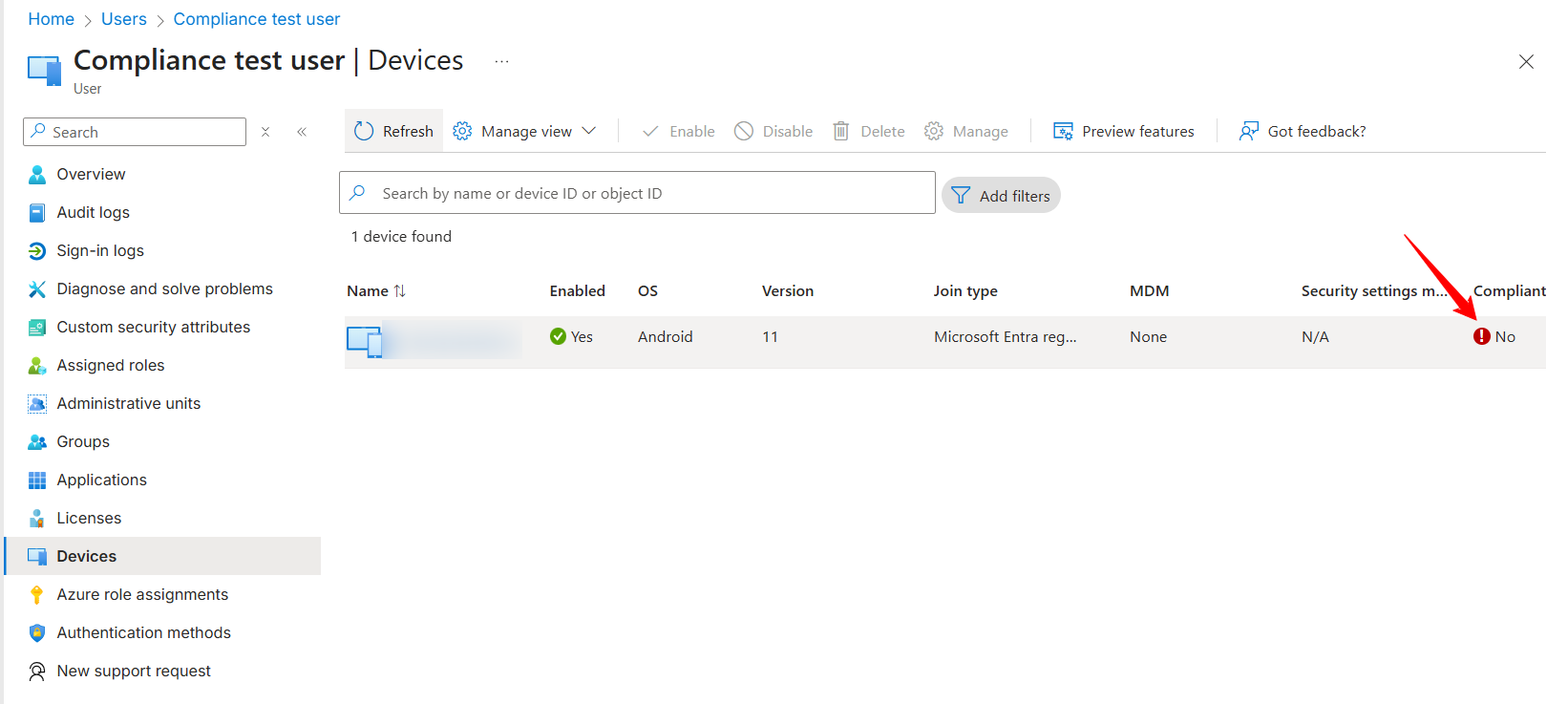
If device becomes non-compliant:
Intune compliance status changes to Non-compliant.
Conditional Access blocks access to configured cloud applications.
When the device is compliant
User signs in to Microsoft apps (Outlook, Teams, OneDrive, browser apps, etc.).
Authentication completes successfully.
No additional prompts are shown.
Device access remains uninterrupted.
When the device is non-compliant
User attempts to sign in to a protected application.
Microsoft Entra blocks the authentication request.
User sees a message similar to:
"Your organization requires this device to be compliant."
or "Access blocked due to device compliance policy."
“Please enroll this device to Scalefusion to access the application. If you have already enrolled and are seeing this message, please click on the button below to Sign-In once to register your device.”
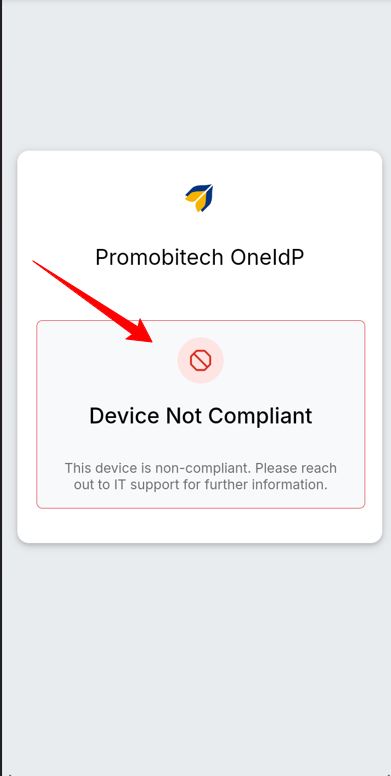
Similar behavior would be across all the supported platforms
User may be redirected to:
Scalefusion enrollment page (if not enrolled), or
Scalefusion compliance page (if enrolled but non-compliant)
How These Compliance Sources Affect Azure / Intune
Regardless of which option is selected:
Scalefusion sends the final compliance result to Microsoft Intune.
Intune displays the device status as Compliant or Non-compliant.
Microsoft Entra Conditional Access uses this status to allow or block access.
Frequently Asked Questions
Question: Why is the end user unable to sign in to the Intune Sign-In application on an Infinix Android device?
Answer: This issue occurs because the Intune SDK is unable to establish a connection with the Microsoft Authenticator application when the Authenticator app has not been launched on Infinix Android devices.
For Intune SDK operations to function correctly, the Microsoft Authenticator application must be opened and active before performing Intune-related authentication actions.
Resolution Steps
Launch Microsoft Authenticator
Navigate to and launch the Intune Sign-In application.
Long-press the “Sign In” button until the toast message(“Re-Initializing”) displays.
The user will then be automatically redirected to the Microsoft sign-in page to enter their email address and password.