Scalefusion Dashboard enables IT admins to track the movement of devices in and out of defined boundaries. This can be achieved through the Geofence feature. Geofence lets you create a virtual fence around a geographical region that helps in tracking the movement of Scalefusion-managed devices in and out of the fence.
Geofences can be applied on Android, iOS, macOS and Windows devices. Scalefusion supports the following geofence types:
Circular: Define a geographical area using a center point and radius.
Polygonal: Define a geographical area by drawing a polygon on the map.
Country: Define a geofence based on a country.
State: Define a geofence based on a state within a selected country.
City: Define a geofence based on a city within a selected state and country.
PIN Code/Postal Code/ZIP Code: Define a geofence based on a PIN/ZIP/postal code within a selected country.
This document explains how to create and manage geofences, apply them to devices, monitor geofence activity, and use the available geofencing features.
Pre-requisites
Devices should be enrolled with Scalefusion.
You should be subscribed to a Business or Enterprise plan.
Requires following client versions for multiple geofence features:
Scalefusion Android client: v4.0.0 & above
iOS client: v2.3.0 & above
macOS Agent application: v1.1.0 & above
Windows MDM agent: v15.6.0 or above
Polygonal geofences require the following client versions:
Scalefusion Android client: v8.7 and above
Scalefusion iOS client: v3.0.0 and above
Scalefusion macOS Agent: v1.1.0 and above
Scalefusion Windows MDM agent: v15.6.0 and above
On Mac devices, Location permissions and notification permissions should be granted.
Windows
It is recommended that location is enabled on the device.
Device must be connected to WiFi
Creating a Circular Geofence
On the Scalefusion Dashboard, navigate to Locations & Geofencing > GeoFencing
Click on New Geofence
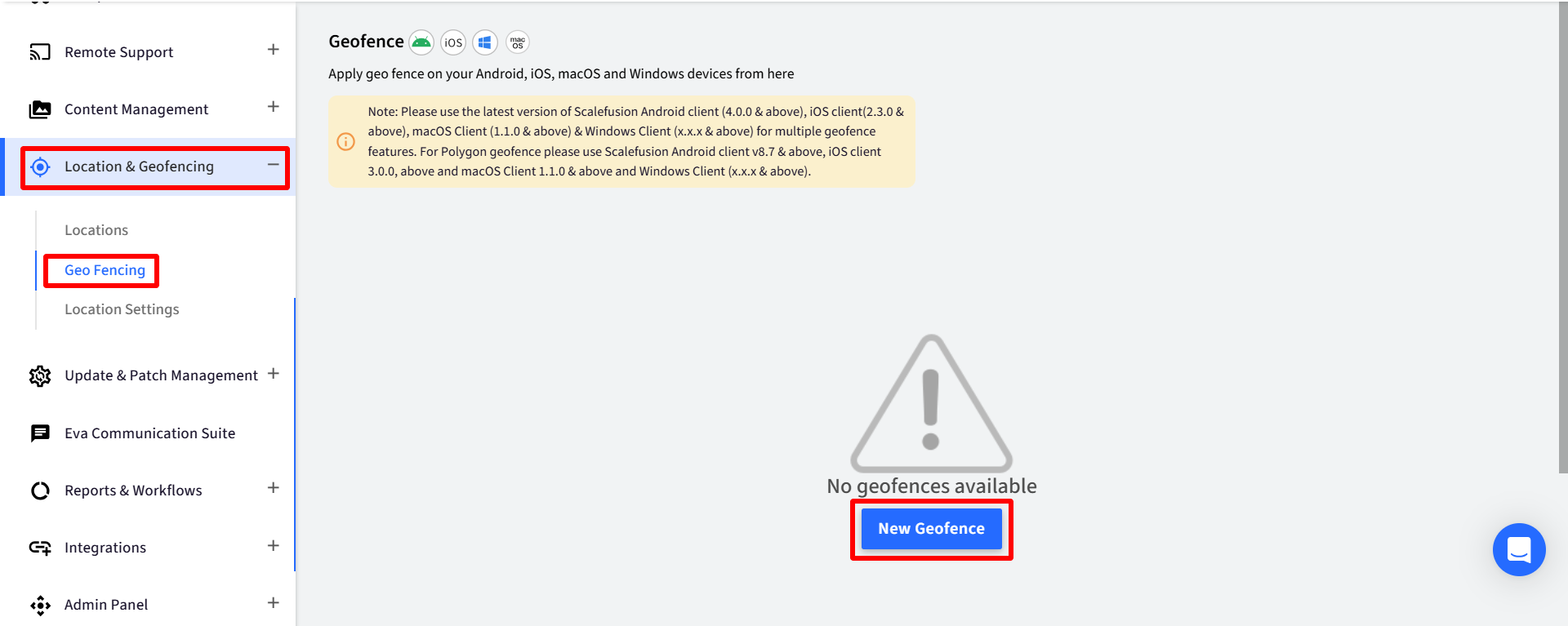
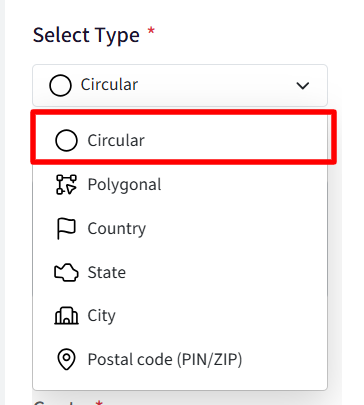
In the Select Type drop-down on the left, select Circular
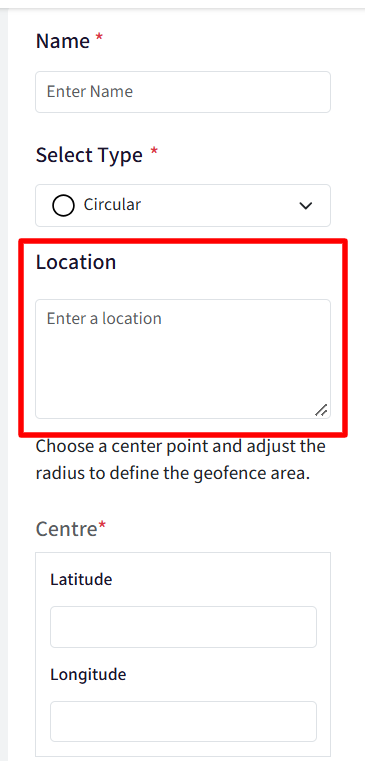
Search Location: Under Location, search for an address to display the corresponding area on the map.
Alternatively, click and drag the circle at the desired location on the map. Once the location is marked, a prompt appears on the side panel with Radius, Latitude and Longitude details of the selected area.
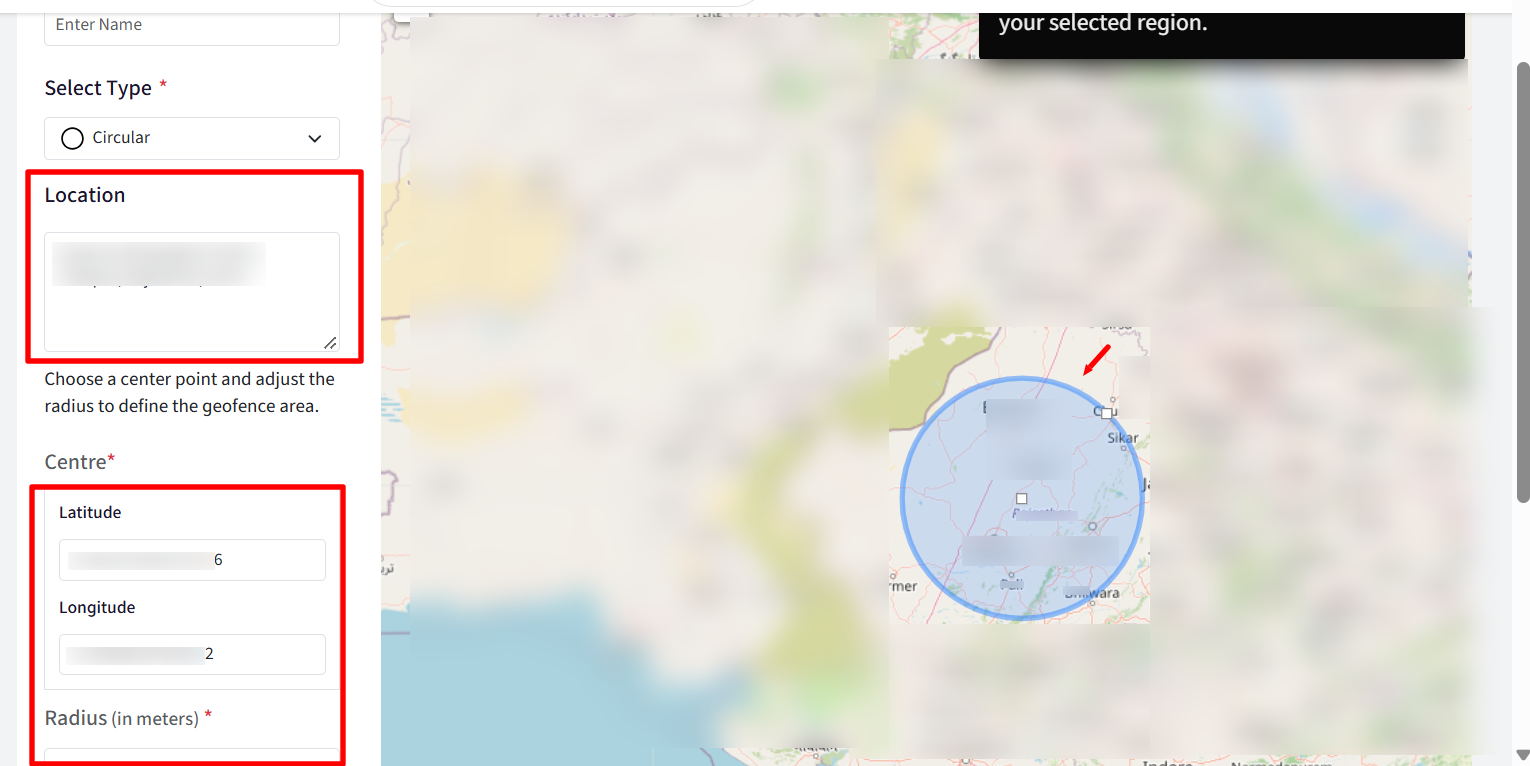
If you want to re-adjust the geofence area, drag the center point of the circular area on the map to move the location and drag the right handle to adjust the radius. Radius, Latitude and longitude details can also be changed from the respective fields on the left.
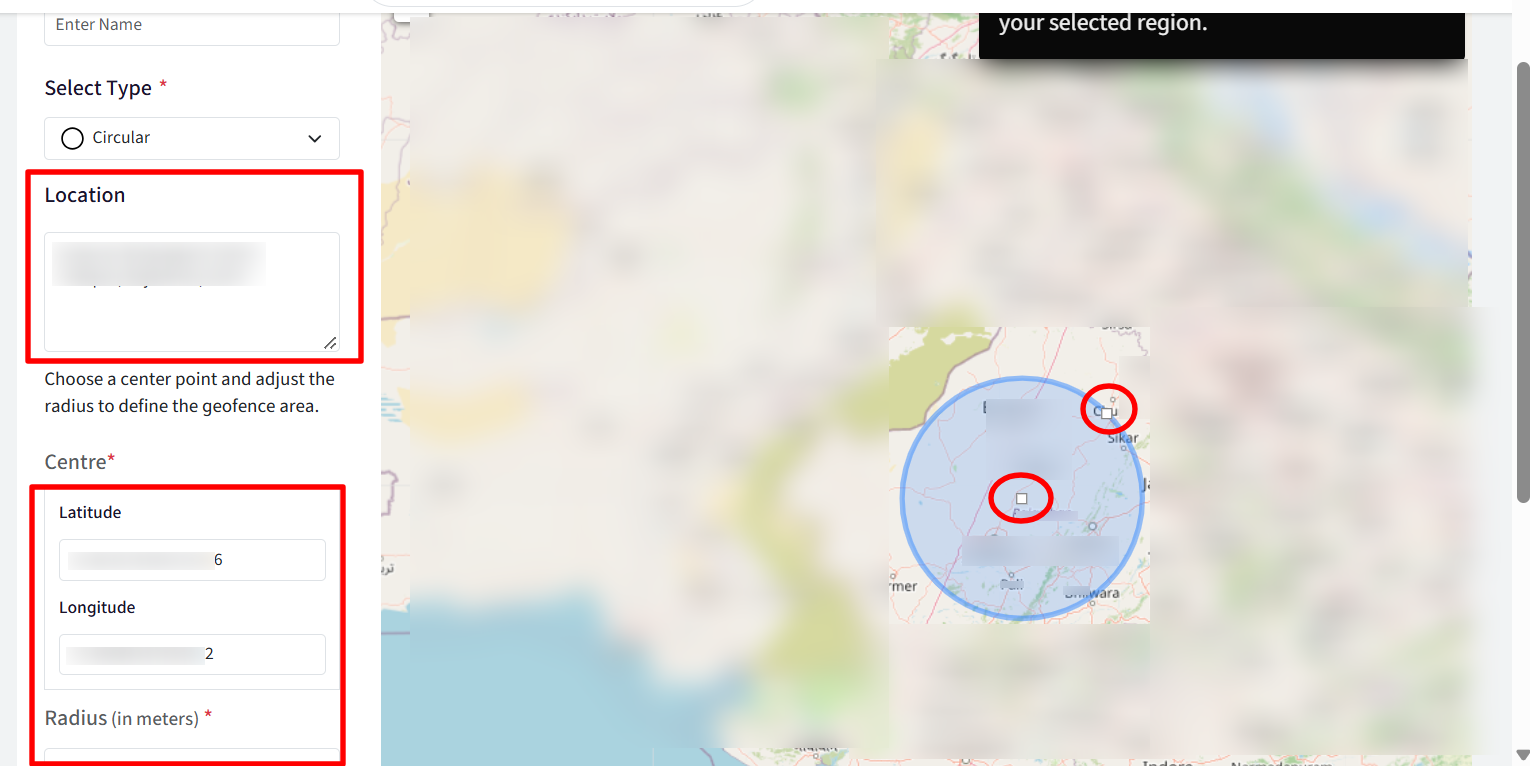
Enter a Name for the geofence and click Save.
Creating a Polygonal Geofence
In certain locations, circular geofence does not serve the complete purpose like for a school complex or factory area. You can create a polygonal geofence to define the geofence area more explicitly.
On the Scalefusion Dashboard, navigate to Locations & Geofencing > GeoFencing
Click on New Geofence
In the Select Type drop-down on the left, select Polygonal
By default, it is the circular type of geofence that is selected.
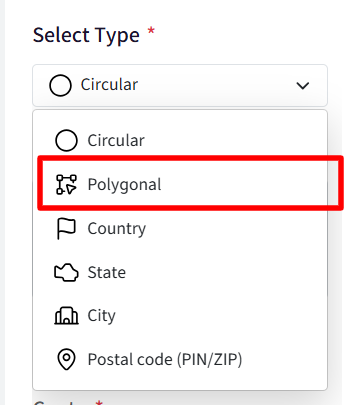
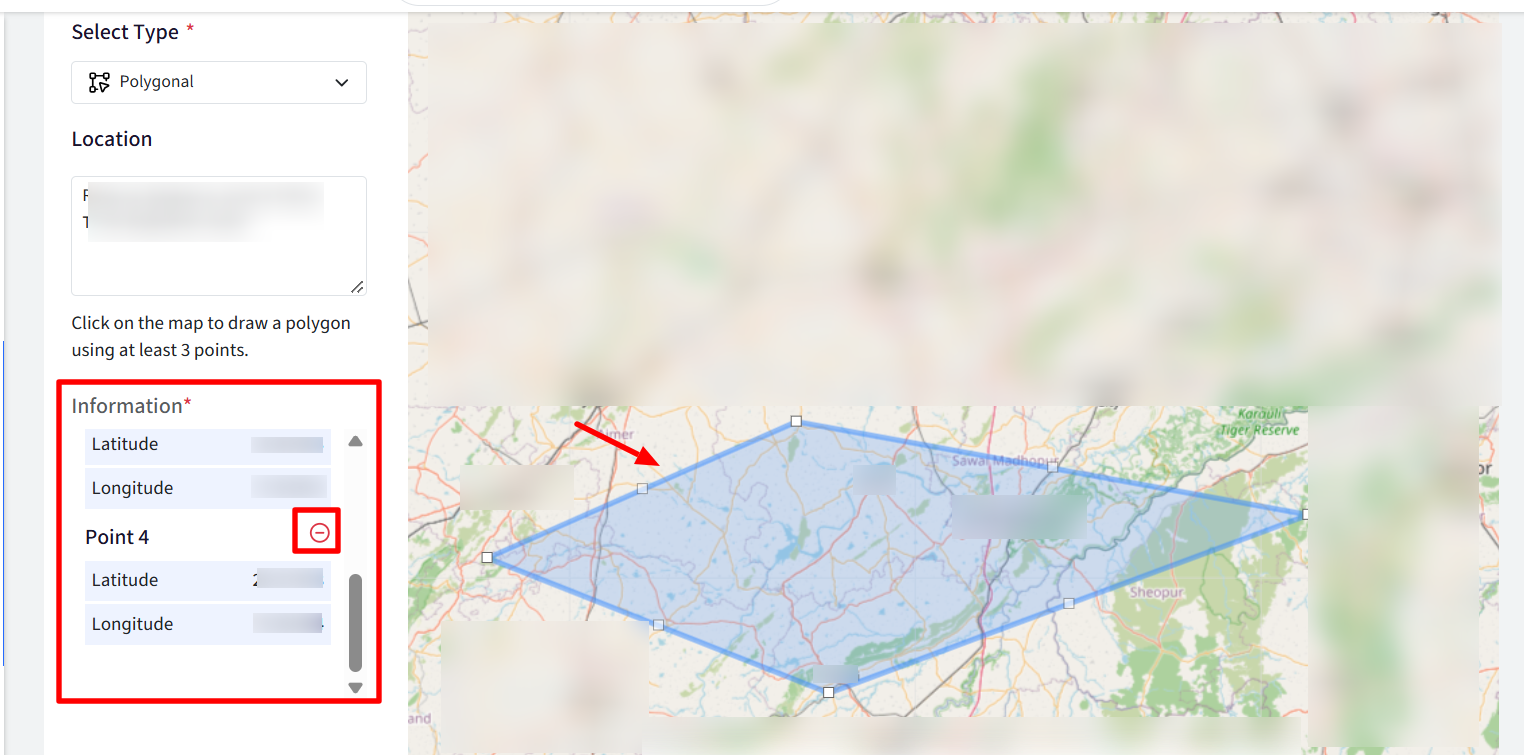
Click on the map to draw a polygon of the area to be marked under geofence. Requires a minimum of 3 points to be selected. To close the shape, click on the first point.
In the search location box, you can enter the address to bring up a region on the map below and then select location points.
Once the location is marked, a prompt appears on the right-side panel with the Latitude and Longitude details of each point. If you want to remove a particular location point, click on the Delete icon next to it.
On the map, drag the polygonal points if you want to re-adjust the geofence area or add additional points. Notice the lat and long details get automatically updated as you drag the points.
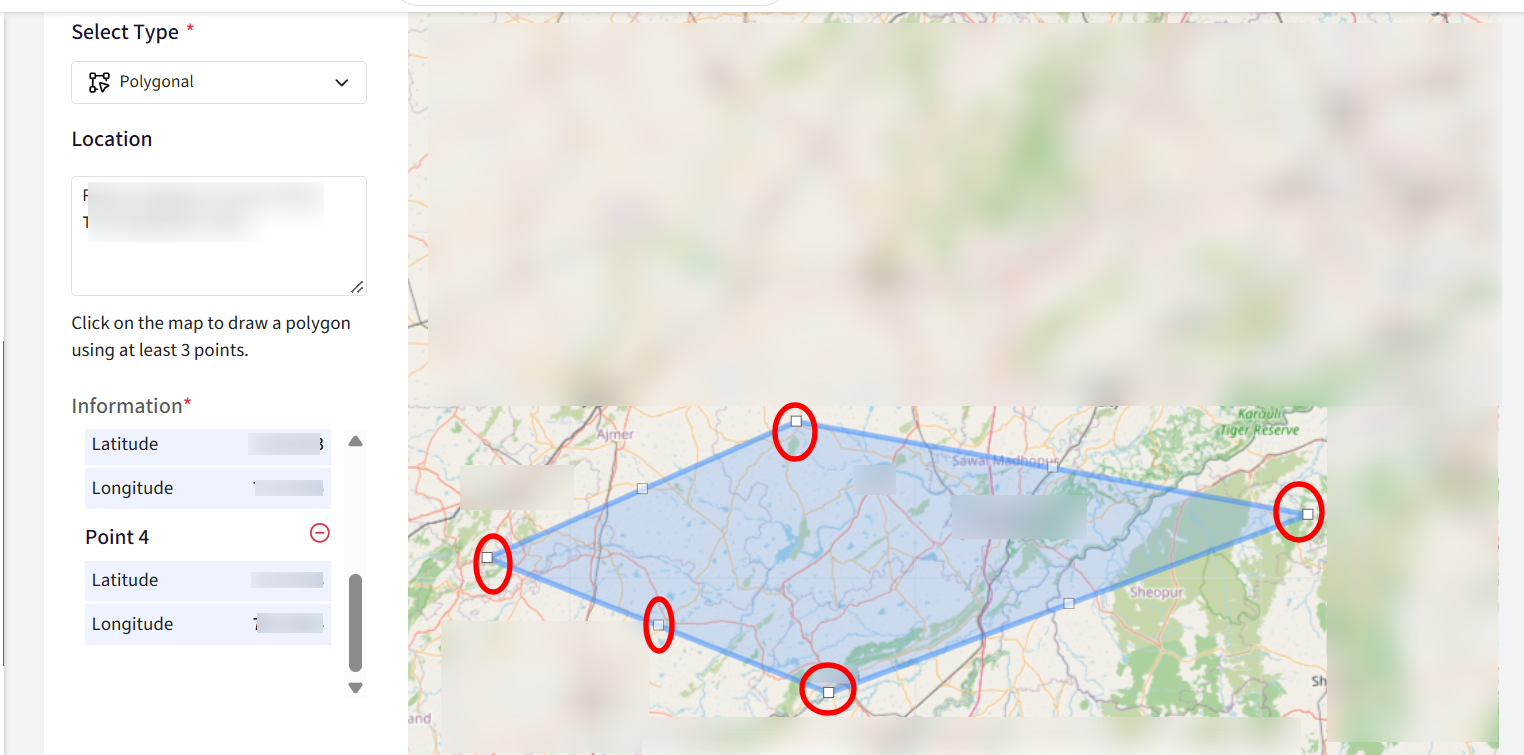
Enter a Name for the geofence and click Save.
Creating an Advanced Geofence
In addition to circular and polygonal geofences, Scalefusion supports advanced geofences based on a country, state, city, or PIN code/postal code/ZIP code. These geofences let you define geographical boundaries using address information instead of manually drawing a boundary on the map. To create an advanced geofence:
On the Scalefusion Dashboard, navigate to Locations & Geofencing > Geofencing.
Click New Geofence.
Under Select Type, choose one of the following:
Country
State
City
PIN Code/Postal Code/ZIP Code
Configure the location using the fields displayed for the selected geofence type.
Review the selected location on the map.
Enter a name for the geofence and click Save.
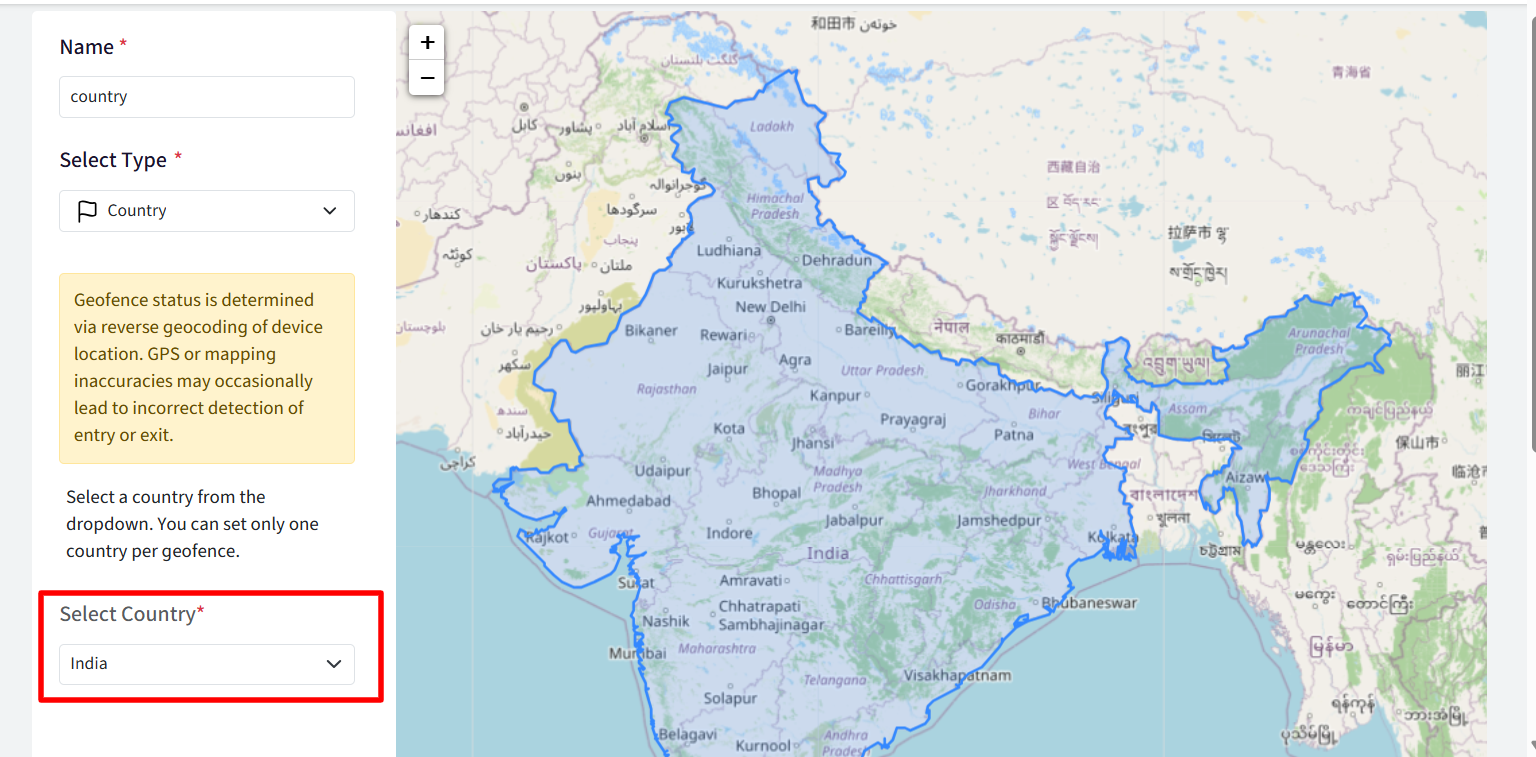
Only one country, state, city, or PIN code/postal code/ZIP code can be configured per geofence.
Geofence status is determined using reverse geocoding of the device's location. GPS or mapping limitations may occasionally result in inaccurate address details, which can lead to incorrect geofence entry or exit detection.
Pre-requisites for Advanced Geofence
You should be subscribed to Enterprise 2023, 2025 or Scalefusion 360 plan
Advanced geofences require the following client versions:
Scalefusion Android client: v23.0.0 and above
Scalefusion iOS client: v5.0.0(307) and above
Scalefusion macOS Agent: v6.6.3(639) and above
Scalefusion Windows MDM agent: v17.3.0 and above
Creating a Country-Based Geofence
A country-based geofence lets you define a geographical boundary using a selected country.
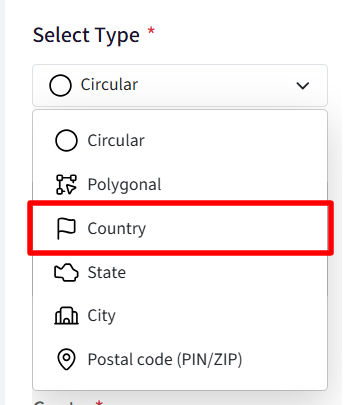
In the geofence creation wizard, select Country under Select Type.
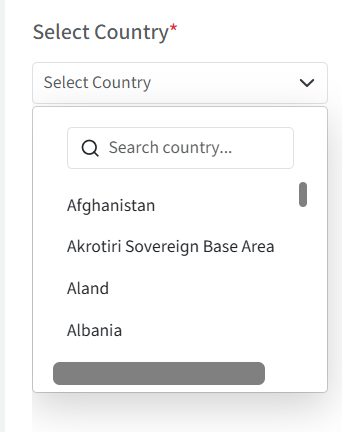
Under Select Country, open the country selector and search for a country by name or browse the list of countries, displayed alphabetically from A to Z.
Select the required country. The selected country is highlighted on the map.
Click Save to create the geofence.
You can click Reset to clear the selection and restore the default configuration.
Creating a State-Based Geofence
A state-based geofence lets you define a geographical boundary using a state within a selected country.
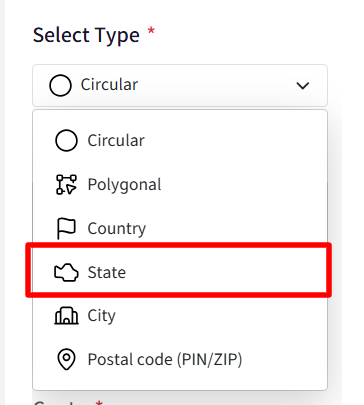
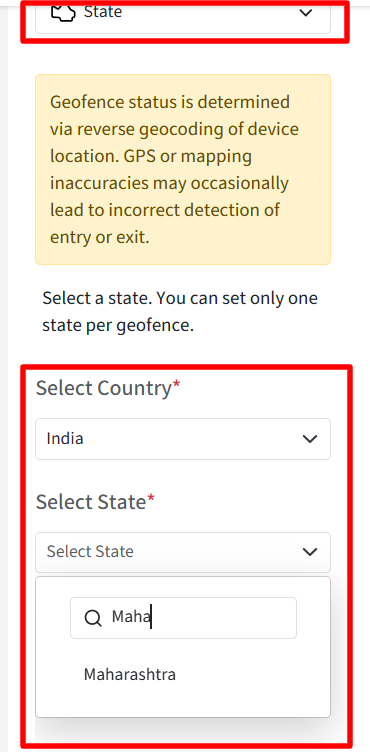
In the geofence creation wizard, select State under Select Type.
Under Select Country, select the country containing the required state.
Under Enter State, enter the state name. This field becomes available after you select a country.
After you enter the first four letters, matching state names from the selected country are displayed. Select the required state from the suggestions.
The selected state is highlighted on the map.
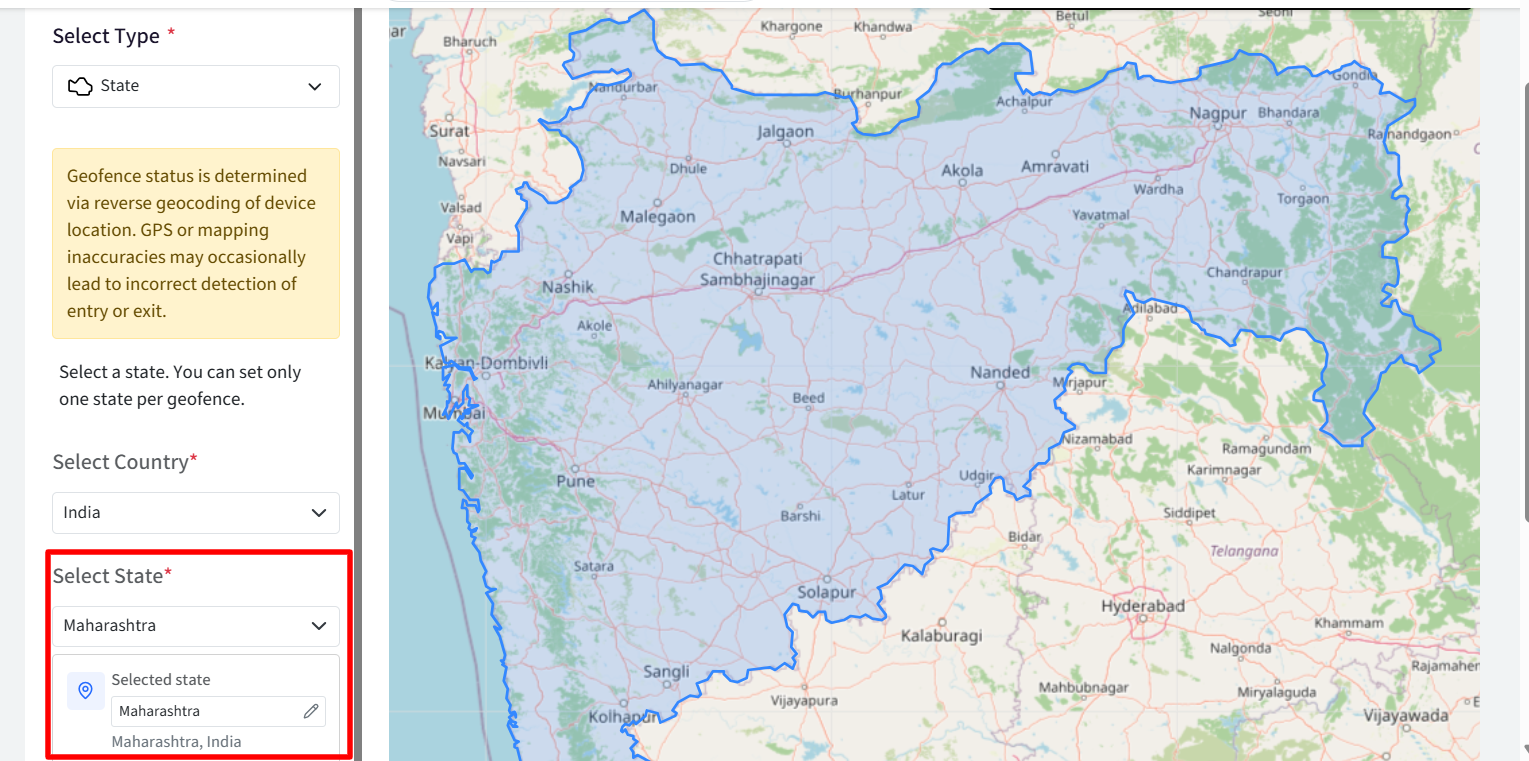
Click Save to create the geofence.
You can click Reset to clear the selections and restore the default configuration.
Creating a City-Based Geofence
A city-based geofence lets you define a geographical boundary using a city within a selected state and country.
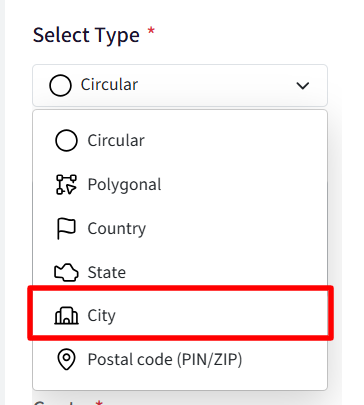
In the geofence creation wizard, select City under Select Type.
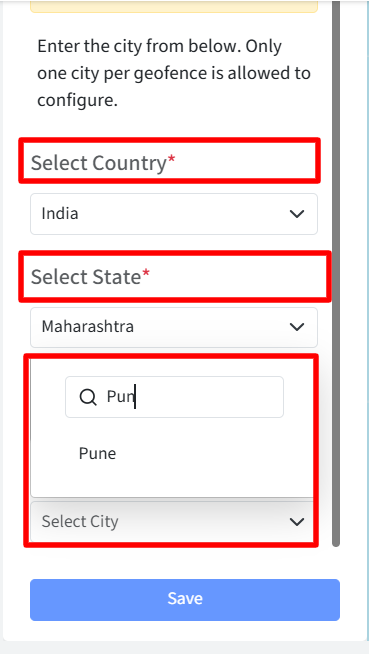
Under Select Country, select the country containing the required city.
Under Enter State, enter and select the state in which the city is located. The state field becomes available after you select a country.
Under Enter City, enter the city name. This field becomes available after you select a state.
After you enter the first four letters, matching city names from the selected state are displayed. Select the required city from the suggestions.
The selected city is highlighted on the map.
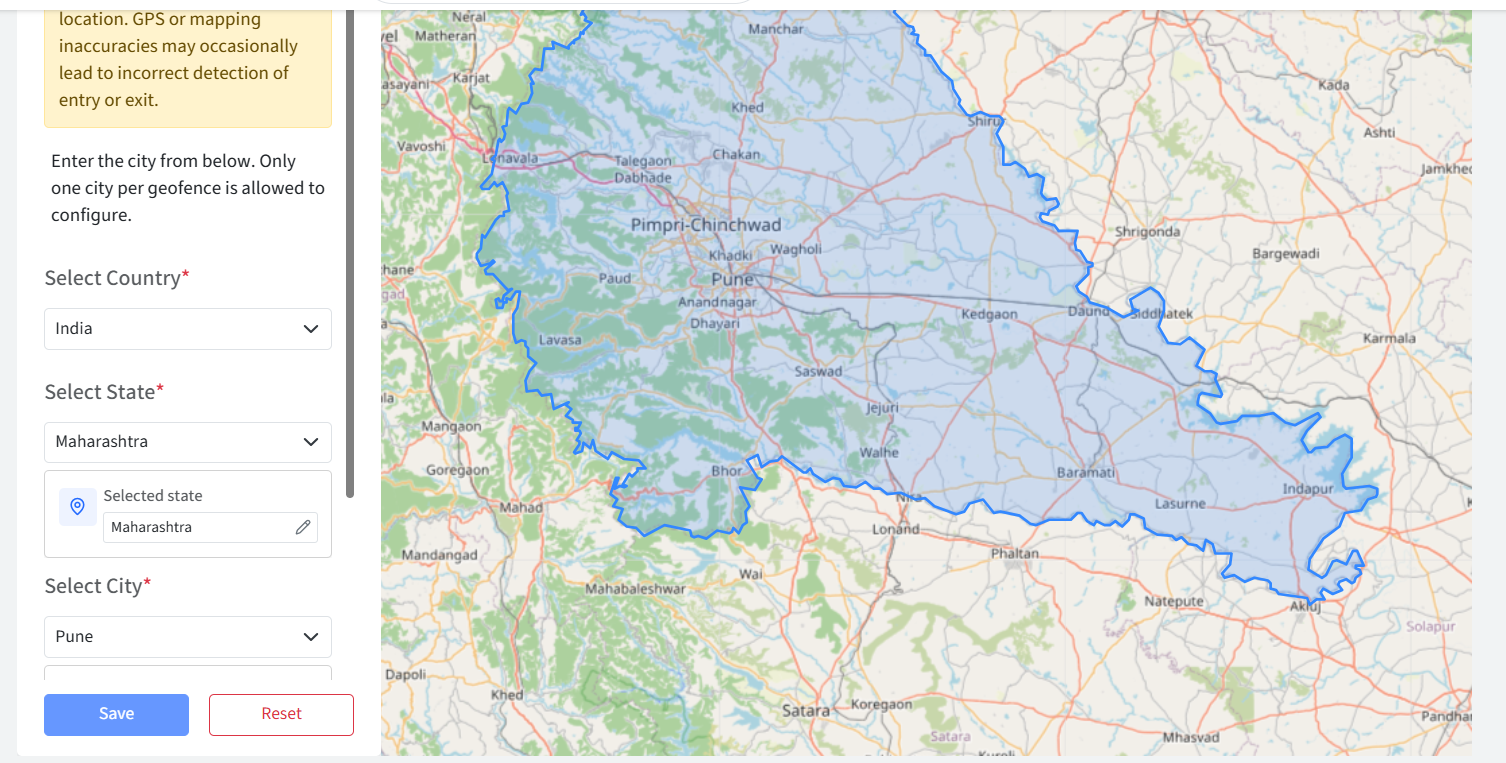
Click Save to create the geofence.
You can click Reset to clear the selections and restore the default configuration.
Creating a PIN Code/Postal Code/ZIP Code-Based Geofence
A PIN code/postal code/ZIP code-based geofence lets you define a geographical boundary using a postal code within a selected country.
In the geofence creation wizard, select PIN Code/Postal Code/ZIP Code under Select Type.
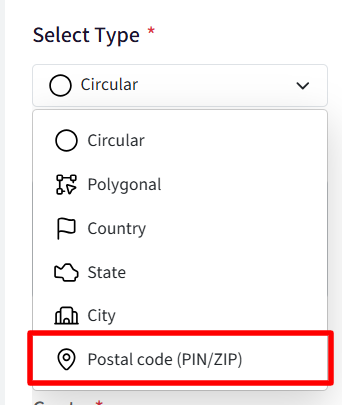
Under Select Country, select the country associated with the required postal code.
Under Enter PIN Code/Postal Code/ZIP Code, enter the required code. This field becomes available after you select a country.
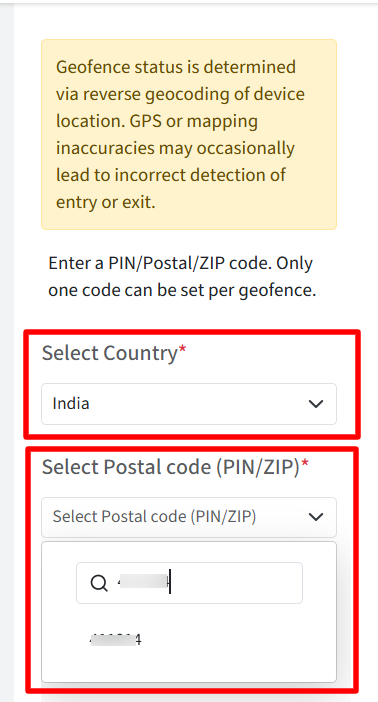
Once the code is entered and recognized, the corresponding area is highlighted on the map.
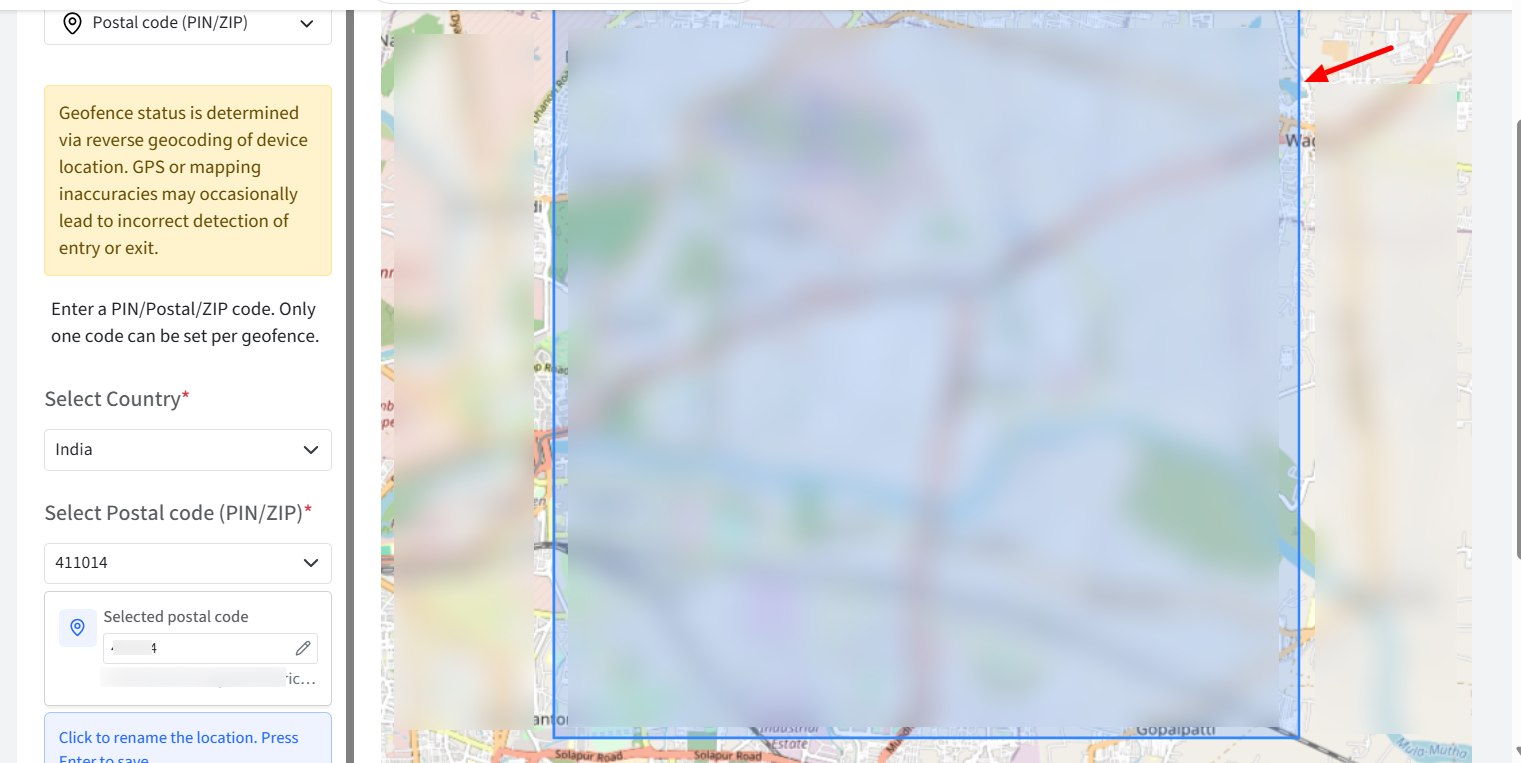
Click Save to create the geofence.
You can click Reset to clear the selections and restore the default configuration.
Only one PIN code/postal code/ZIP code can be configured per geofence.
Applying Geofence
Once you have created a geofence, apply it to devices or device groups/user groups. To do so,
Click on the Publish button on the top right. This opens the Apply geofence dialog.

Select the Device Groups / User Groups / Devices and click Apply
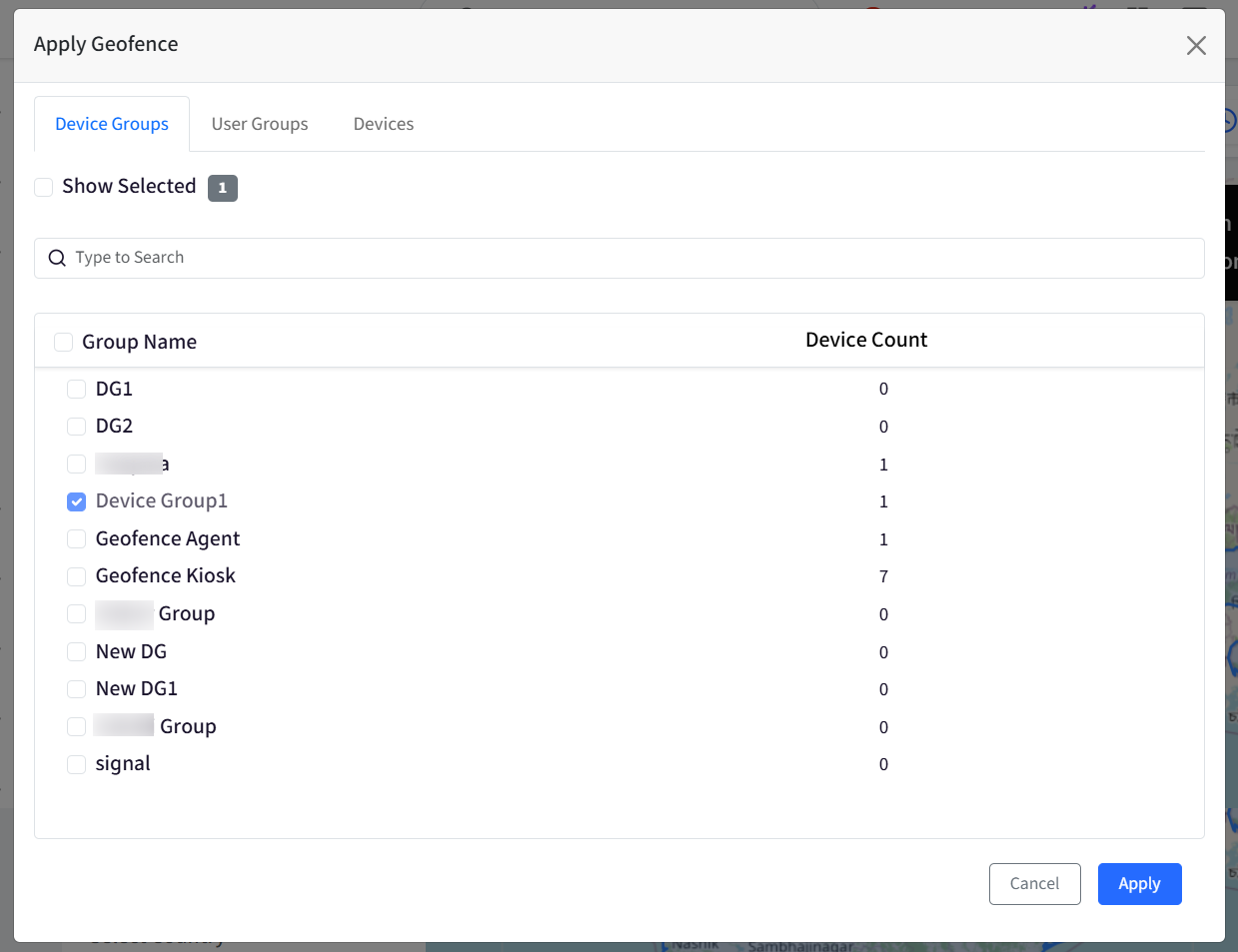
The geofence gets applied.
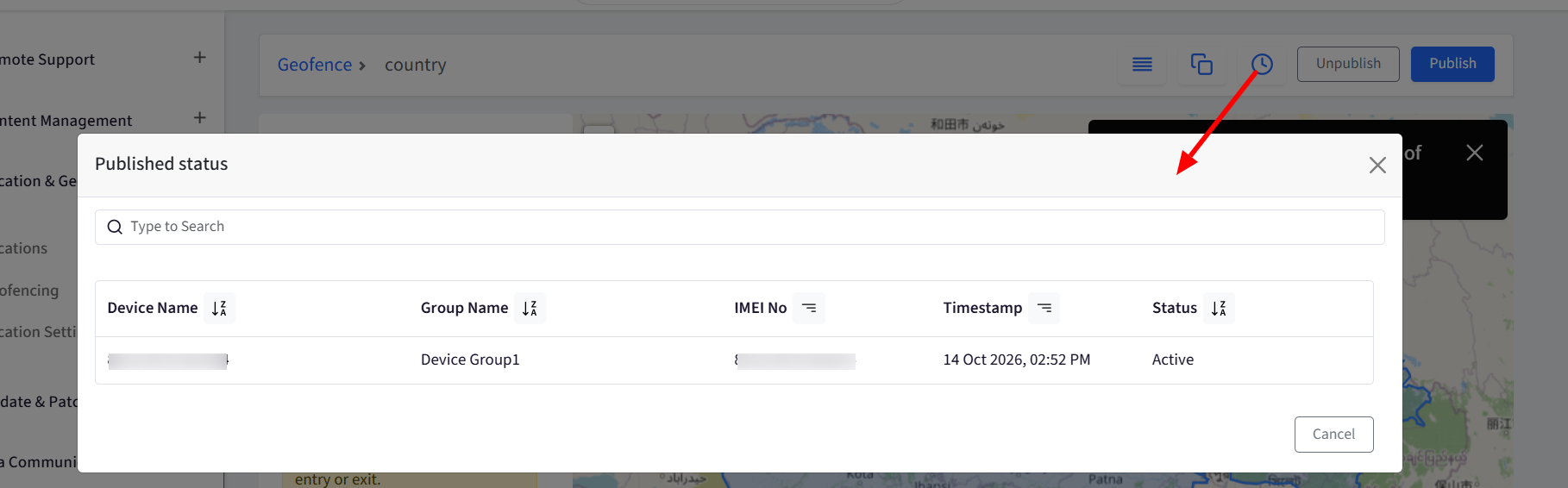
You can view the status by clicking on the Published status button. The Active status implies that the geofence has been applied on selected devices/device groups.
Checking device activity
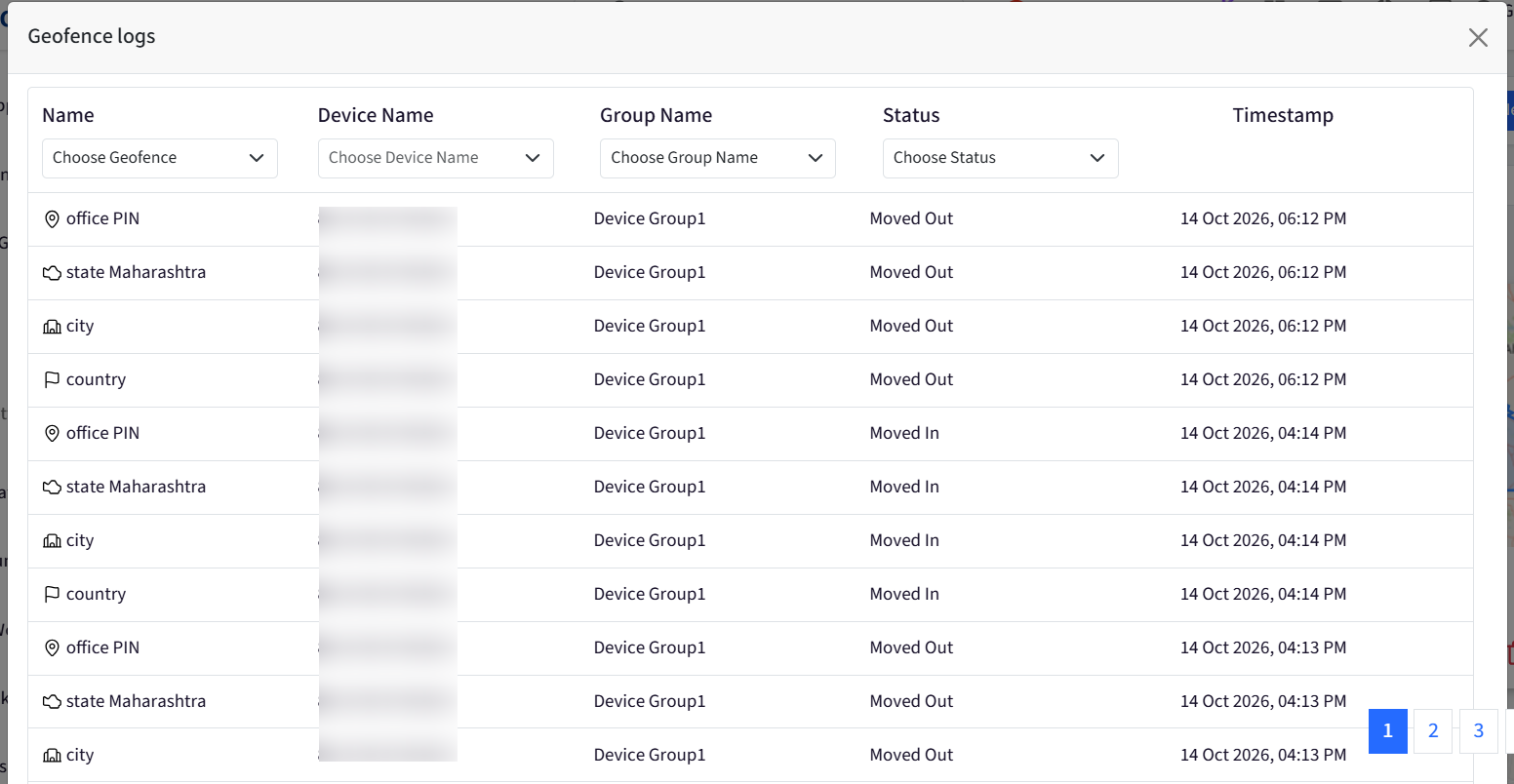
The logs are captured based on the activity of the device if a device enters a fenced area, it is considered as moved in, and when it exits the fenced area, it is moved out. To check logs,
Go to the geofence and click on View Logs on the top bar. This opens the Geofence logs window showing the timestamp and date with the status when the device moved in or out of the geofence area. This is shown for one particular geofence.

Logs can also be viewed from the main section, where all geofences are listed. From here, you can see the activities of devices for all geofences.

The listing page provides filters to help you narrow down the geofence activity you want to review.
Deleting a geofence
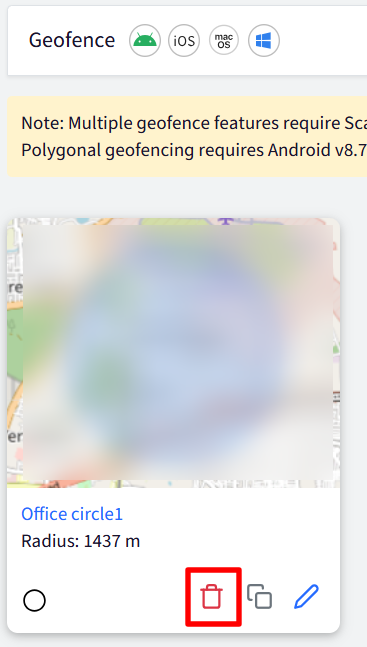
If you want to delete the complete geofence, click on the delete icon below the geofence in the main section where all geofences are listed. Once deleted, it cannot be recovered.
Unpublish Geofence
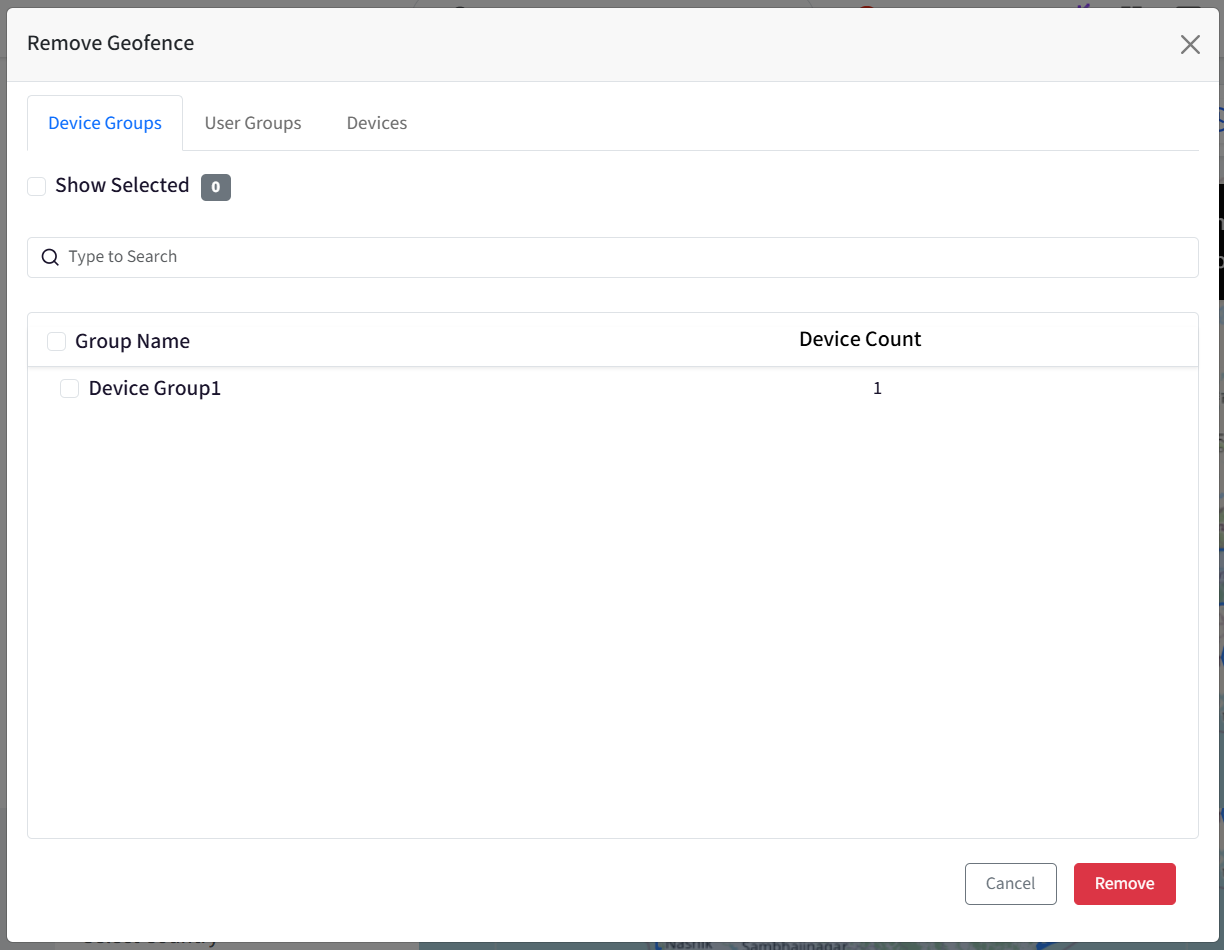
To remove the geofence from a select few device groups/devices, click on the Unpublish on top inside the geofence, select the device groups/devices from which you want to remove the geofence and click Remove.
Only those device groups/devices will be listed on which Geofence is already applied.

Other features
Edit: At any point in time, you can edit a geofence by clicking on the Edit icon, making changes to name/type/location and clicking Update.
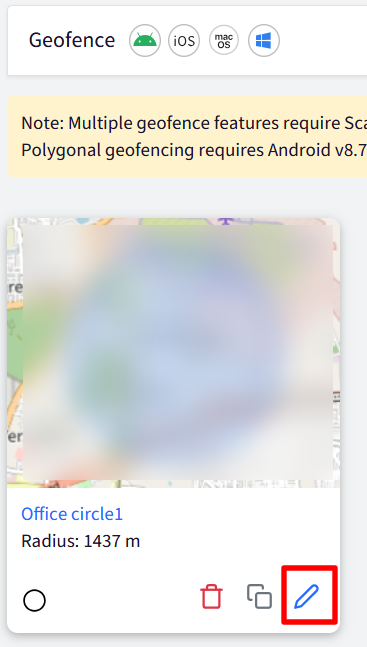
Make a Copy: You can also create a copy of the geofence. This helps in minimizing the effort of recreating a new geofence from scratch. Click on the Make a copy icon below the geofence or Make a copy on the top bar inside a geofence, and a copy of it gets created. You can make changes if required or save it as is. Notice that the geofence name has a copy word appended to it if you have created a copy.

Geofence Type Identification: The geofence listing displays a type indicator and the corresponding configured location for each geofence. This helps you identify whether a geofence is circular, polygonal, country-based, state-based, city-based, or postal-code-based.
Once geofences are created and applied, different device policies can be applied on Android devices based on geofence events (move in and move out). This can be achieved through Geofence-based Switch Profile workflow.
Known Behaviors
Android
Address Inconsistency on Android (OS 5–7)
Due to inconsistencies in the Android API on OS versions 5–7, location addresses returned during advanced geofence configuration or tracking may be incomplete or inconsistent. This may affect geofence location validation and cause a geofence to be incorrectly marked as "out"
macOS
On Mac devices, Location cannot be tracked if the device is in sleep mode or the device's lid is closed. As a result, geofences, even if applied, will not work.
Windows
WebKit Location API:
Inaccurate Location Data: If a device is in sleep mode or the user is logged out, the WebKit method may not be able to accurately capture the device's location.
Delayed Updates: When using WebKit as the Location API, changes to geofence settings may not be immediately reflected after a user logs out and then logs back in. There might be a delay until the system updates the database and applies the new settings.
Location Tracking with other APIs:
If you choose to use alternative location APIs like .NET API or WinRT, changes to geofence settings will be applied even when the user is logged out. This ensures consistent and accurate location tracking, regardless of the user's device state.
Enabling Location Services on LTSB Devices:
As LTSB machines have restricted access to registry settings, you need to allow location services from Scalefusion Dashboard:
Navigate to Device Profile > Settings > Advanced Settings > General Settings > Security and Search > Location Services.
Allow Location Services: Enable this setting to permit location tracking on the device.
Multi-App Kiosk (MAK) and Single App Mode (SAM) in Modern Management (MM) mode:
MAK-MM: The messages for compliance will pop-up on the screen only when applications are running else not.
SAM-MM Mode:
Actions like Keep Ringing and notification sounds for workflow alerts may not function as expected.
Devices may not be blocked as intended when they move out of a geofence. Instead, the user might be automatically signed out.