Introduction
Apple Configurations integrate with existing reporting and audit mechanisms to help administrators track configuration usage, changes, and impact across devices.
Profile Policy PDF Reports
When an Apple Configuration is published to a device profile, it is included in the Profile PDF.
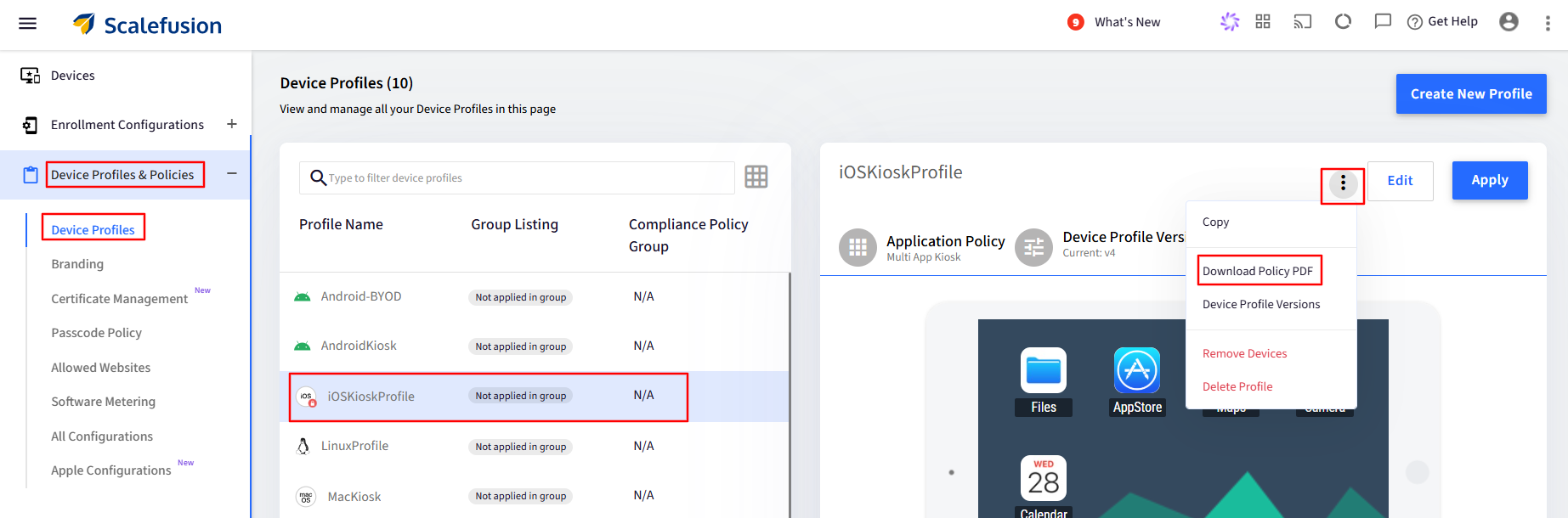
Navigate to the Device Profiles & Polices section > Device Profile > select the concerned iOS or macOS Profile.
Click the 3 dots next to Edit.
Click Download Policy PDF.
What is included?
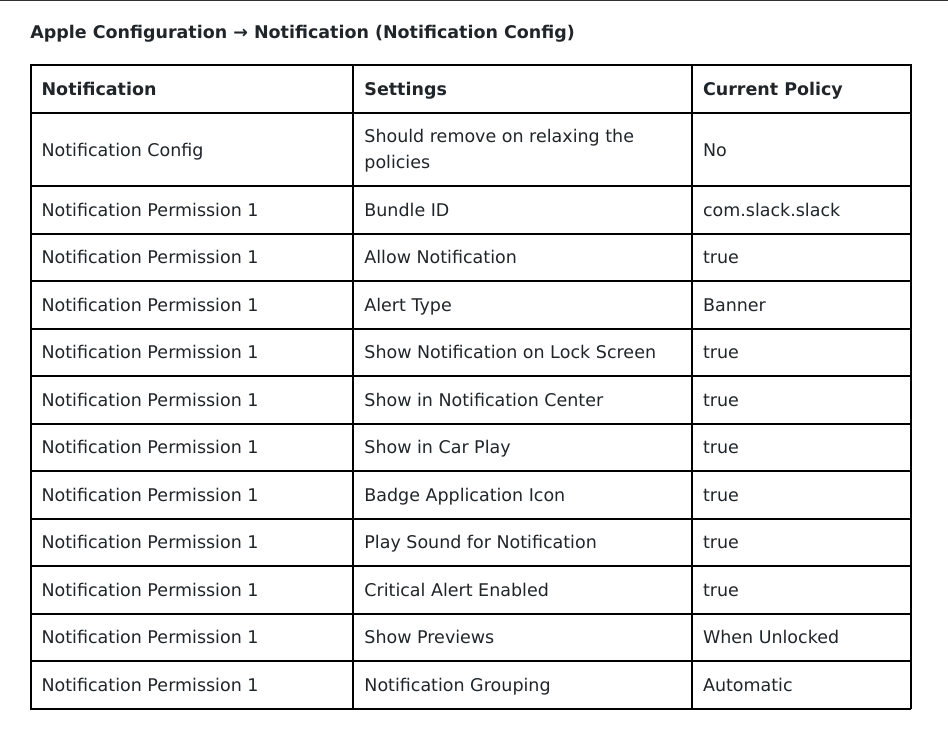
Depending on the configuration type, the PDF displays:
Configuration Name
Configuration Type
All configured settings
Multiple entries, if applicable (for example, multiple notification or app permissions)
Policy & Action Status Report
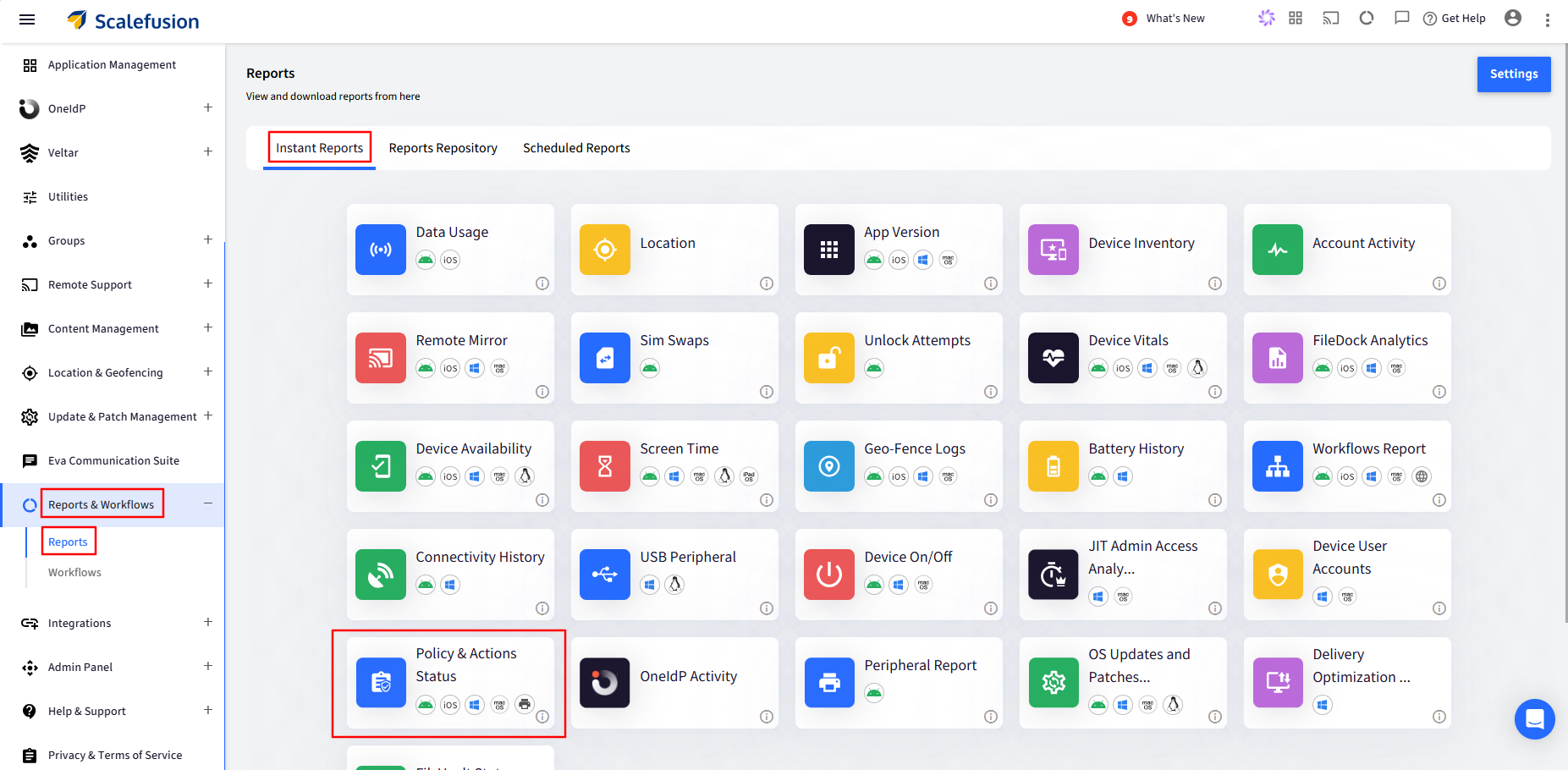
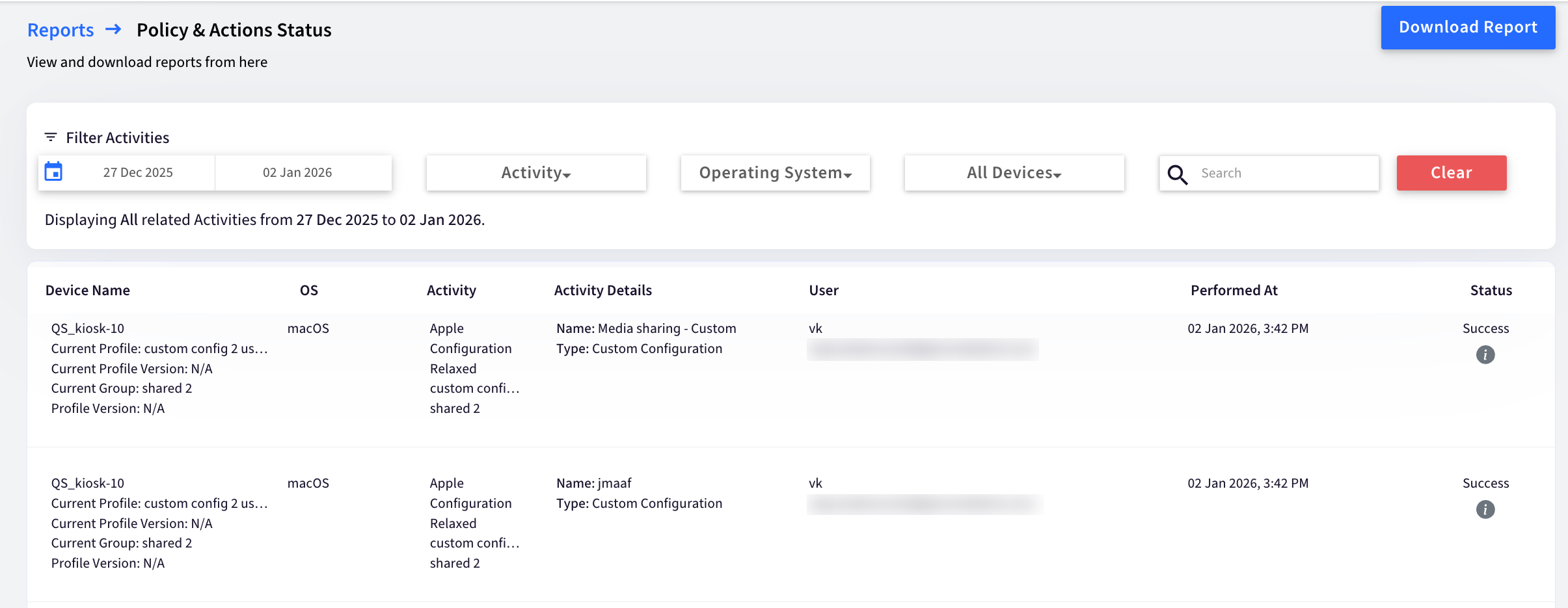
Navigate to Reports & Workflows > Reports > Instant Reports > Policy & Actions Status report.
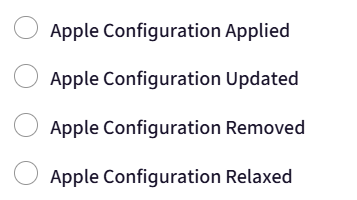
In the Activity filter, choose Apple Configuration to see the details. The following activities are recorded:
Apple Configuration Applied
Apple Configuration Updated
Apple Configuration Removed
Apple Configuration Relaxed
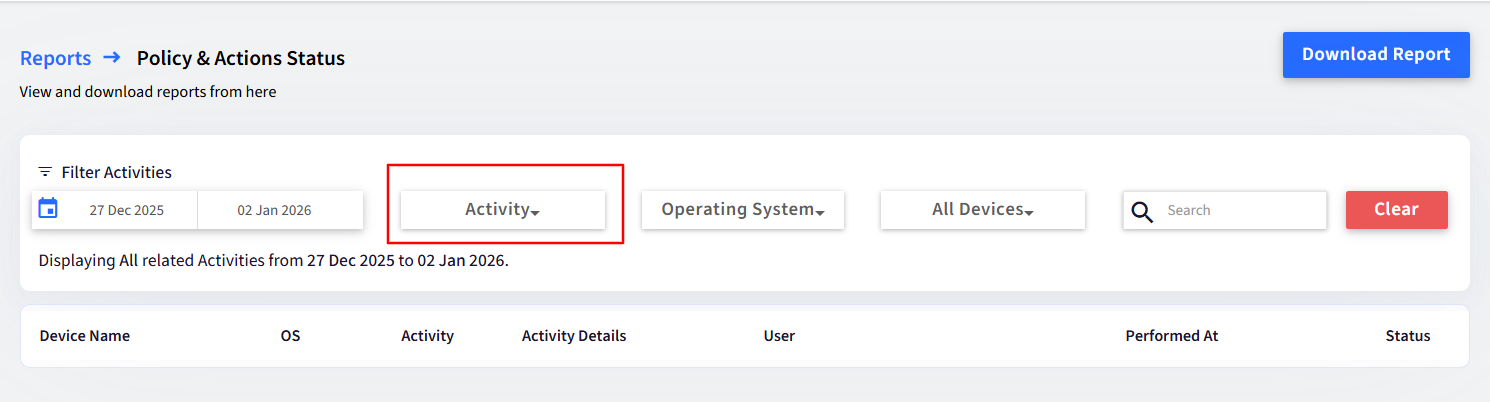
A new column called “Activity Details” has been added to Policy & Action reports and device details. It shows Configuration Name and Configuration Type, displayed in a readable Label: Value format. If no details are available, the value is shown as N/A.
Account Activity Report
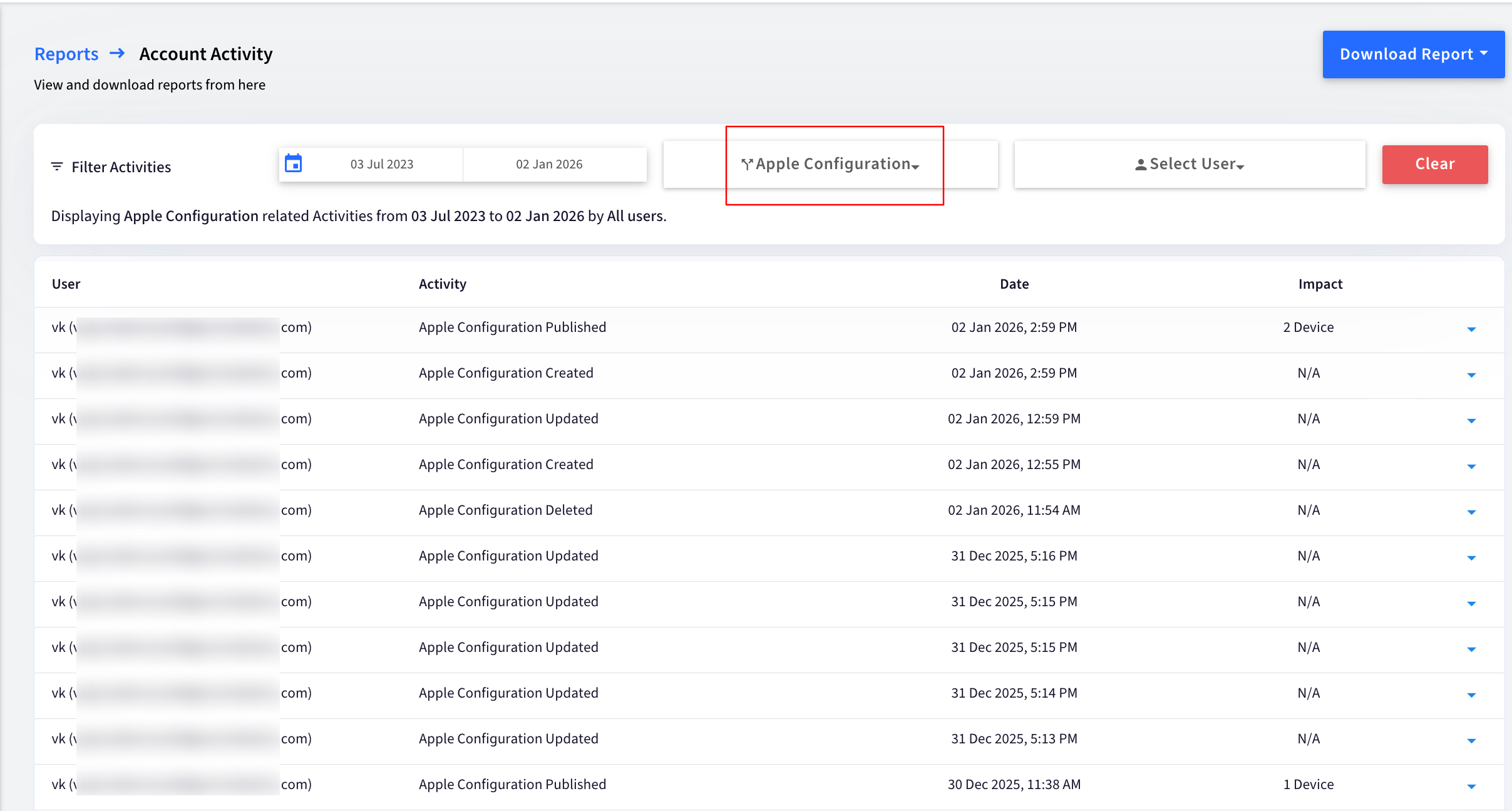
In addition to device and policy-level reports, administrator actions related to Apple Configurations are logged in the Account Activity Report. This provides an audit trail of configuration management activities performed in the dashboard. The Account Activity Report captures administrative actions, including:
Creation of an Apple Configuration
Modification or update of an existing Apple Configuration
Deletion of an Apple Configuration
Reuse of a saved custom payload within Apple Configurations
Each entry records who performed the action and when, ensuring accountability.
Navigate to Reports & Workflows > Reports > Instant Reports > Policy & Actions Status report.
In the Activity filter, choose Apple Configuration to see the details.
Device Level Visibility
On the Device details page, the Apple Configuration activity appears under Policy & Actions.
Go to the Devices section and select the desired iOS or macOS device to view its details.
Scroll down to the device preview section and go to the Policy & Actions tab.
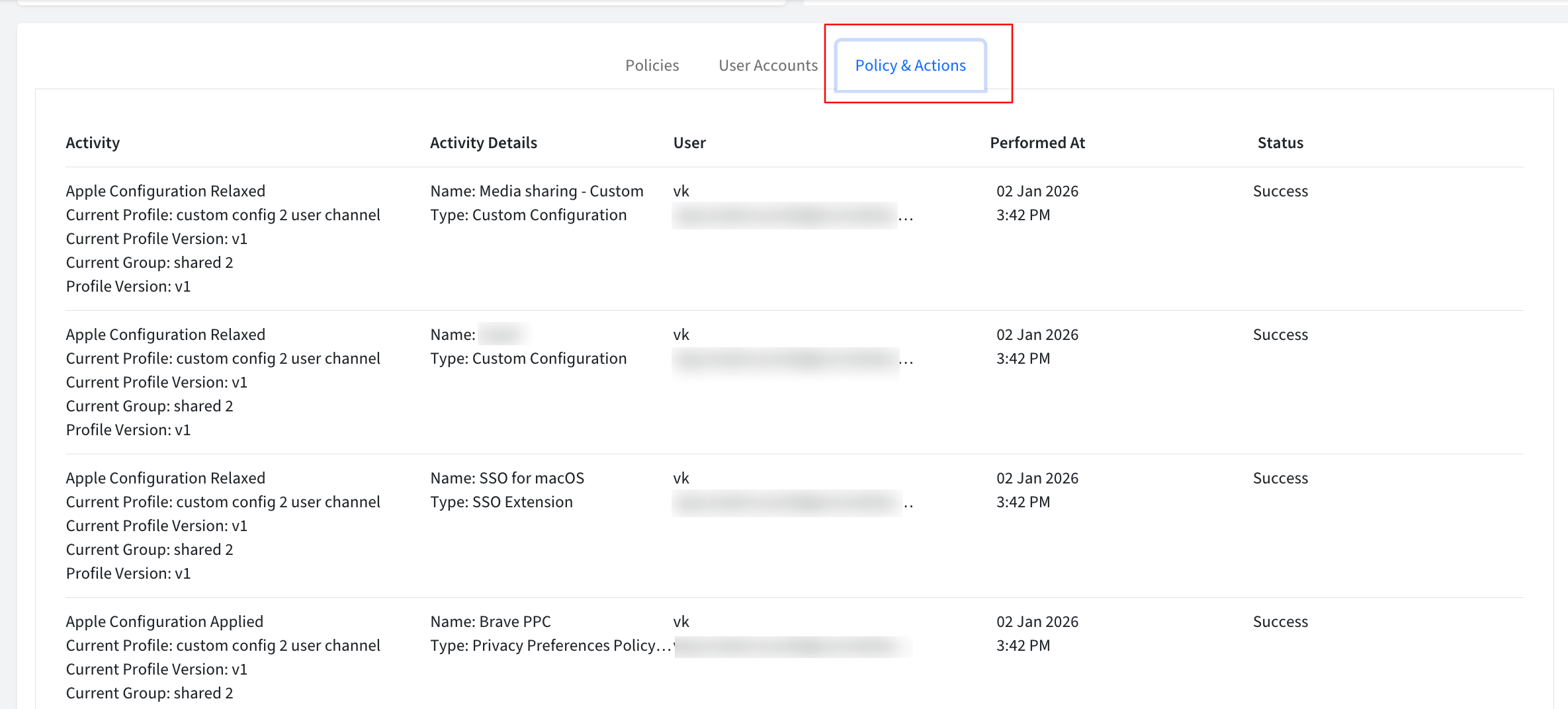
This provides a per-device audit trail for configuration enforcement.