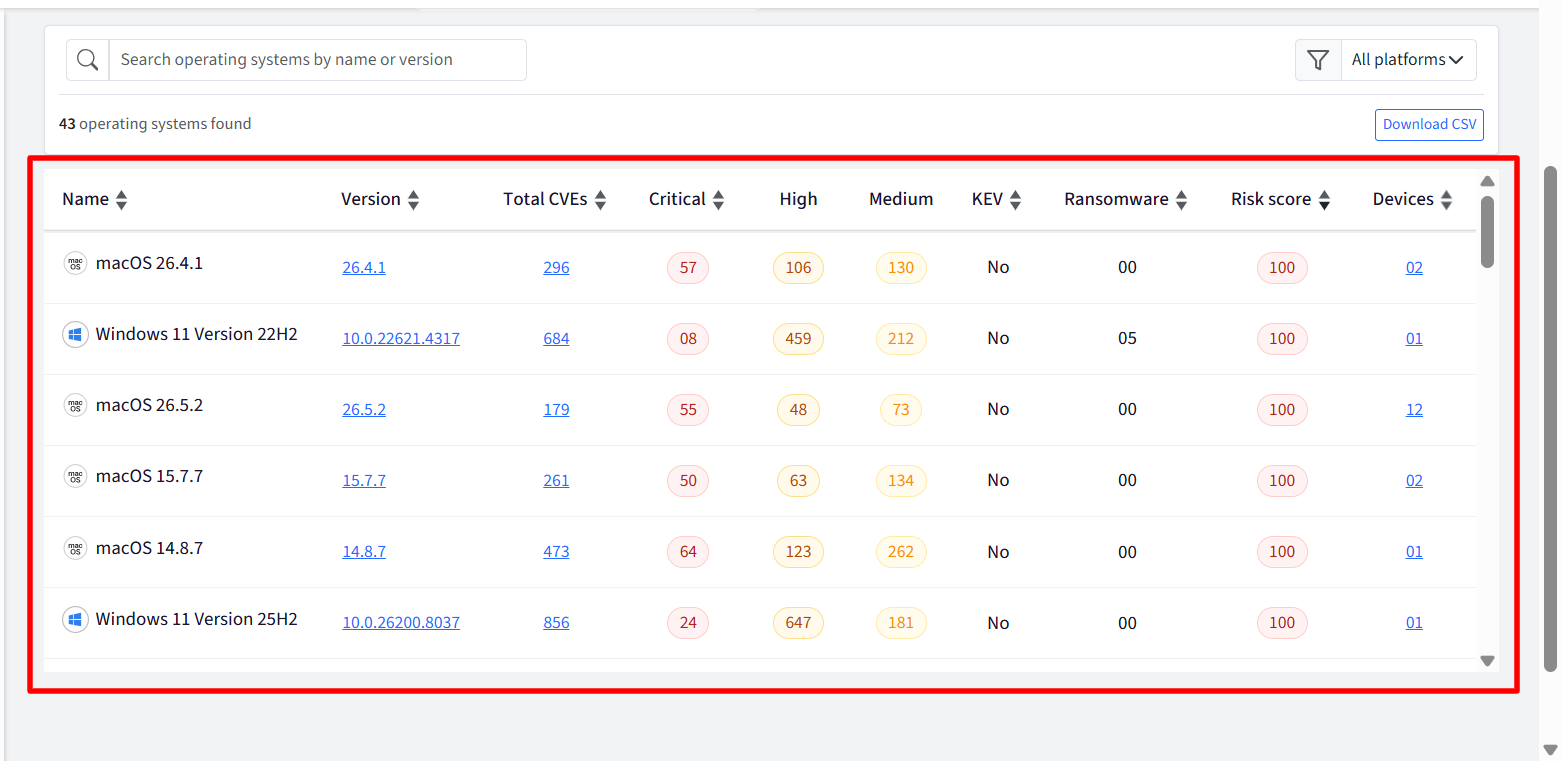
The Operating Systems section in the Vulnerability Management section provides a centralized view of all operating system versions running across your managed devices, highlighting their vulnerability exposure and risk levels.
Key Metrics Cards
OS Versions: Displays the total count of unique operating system (all platforms) versions detected across your environment.
Impacted Devices: Shows the ratio of devices affected by vulnerabilities compared to the total number of analyzed devices.
Severely At Risk: Indicates the number of devices with an overall risk score exceeding 80.
KEV Exposed: Highlights devices containing Known Exploited Vulnerabilities (KEV) currently present in active threats.

Operating Systems Table
The main table lists each detected OS version alongside detailed risk metrics:
Name & Version: The specific OS release name and build/version number.
Total CVEs: Total count of active Common Vulnerabilities and Exposures (CVEs) found for that version.
Severity Breakdown: Detailed count of vulnerabilities categorized by severity (Critical, High, and Medium).
KEV & Ransomware: Identifies whether known exploits or ransomware-associated vulnerabilities are associated with the OS release.
Risk Score: An aggregated risk rating assigned to the OS version based on its vulnerability footprint.
Devices: The total count of managed devices running that specific OS version. Clicking on the device count opens a side panel with the list of impacted devices.
Actions
Filters & Search: Search for specific operating systems by name or build version, or filter by platform (e.g., Windows, macOS).
Data Export: Click Download CSV to export the filtered OS vulnerability report for offline auditing or reporting.
Detailed View (Side Drawer / Slide-over Panel)
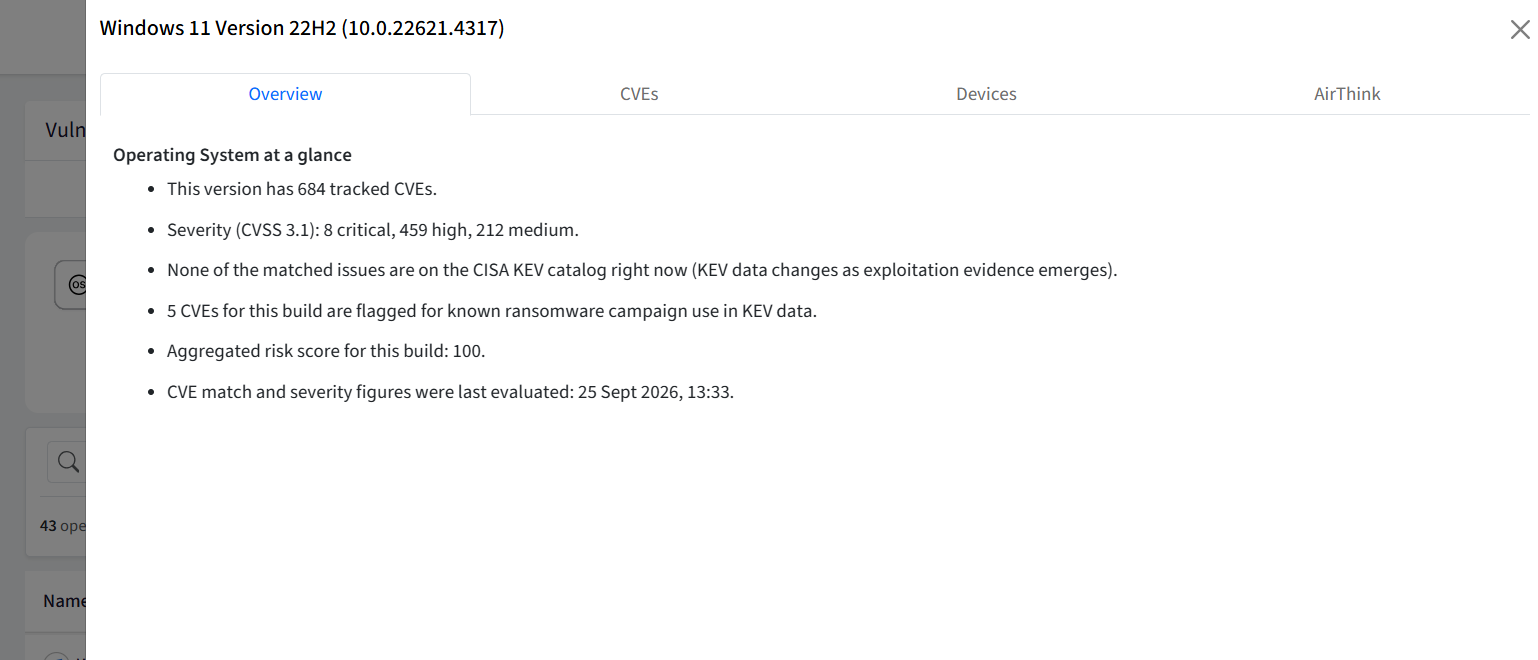
Clicking on interactive items in the table (Version, Total CVEs, or Devices) slides open a dedicated detail panel on the right side of the screen.
Patching & Redirection
Clicking Patch Now initiates the OS patching based on the device's operating system:
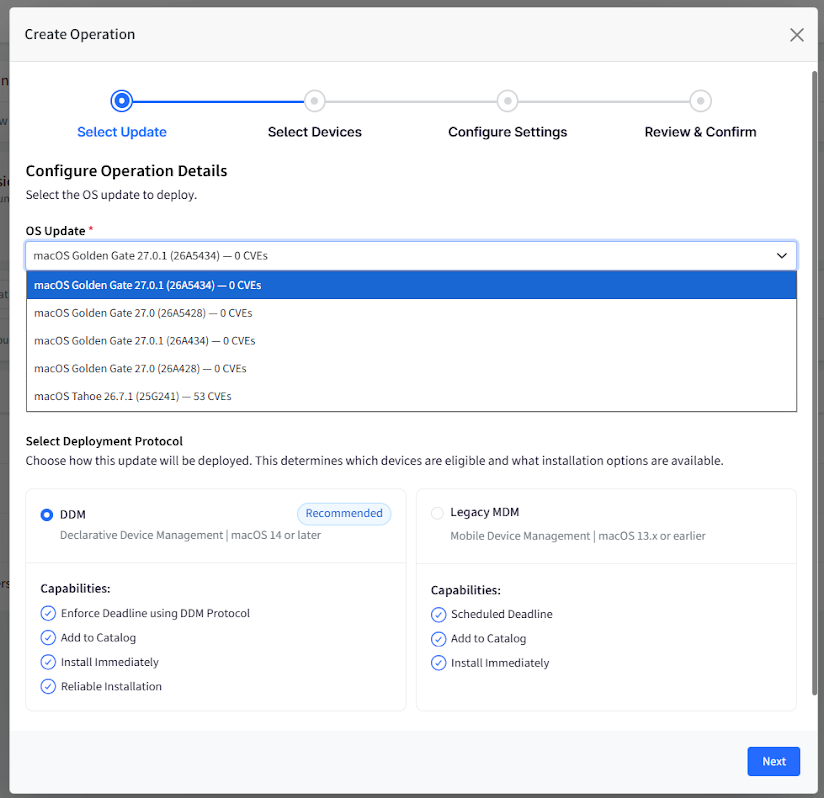
macOS: Opens Create Operation under macOS OS Updates. From here, you can create an OS update operation. The available OS versions include all versions newer than the selected OS version in Vulnerability Management > Operating Systems.
Windows: Redirects you to Windows OS Updates section filtered for the specific application / device, so you can review and initiate the applicable patch.
Operating System Version and Vulnerability Information (Windows)
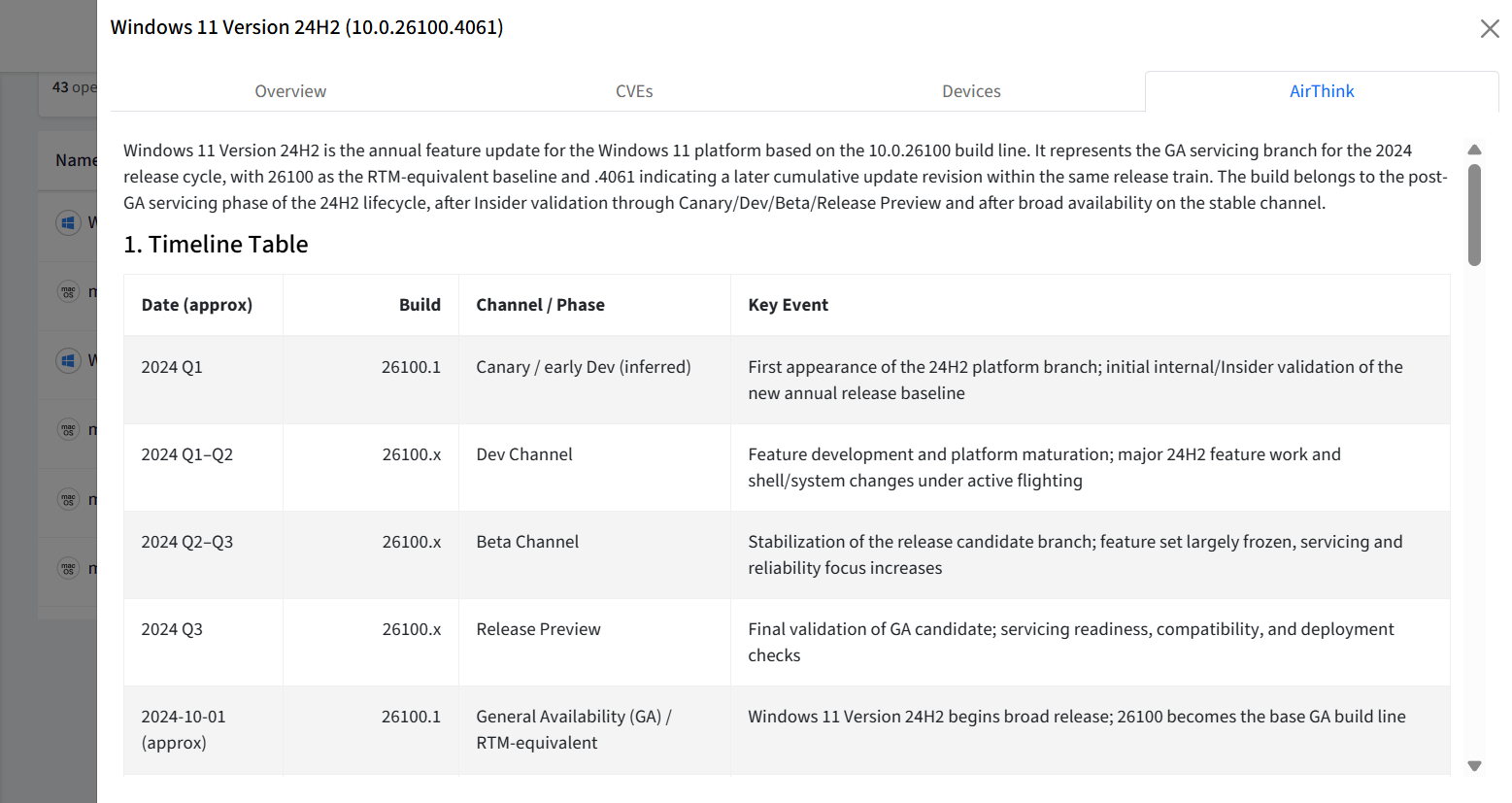
Airthink section in Vulnerability Management provides detailed information about operating system versions and their associated vulnerabilities, including CVE details, security updates, and patch information.
The operating system version and build information help identify the specific platform and servicing level of a device. Build revisions may change as security and quality updates are applied, while the underlying operating system version can remain the same.
Vulnerability information may include:
1. Timeline Table
Provides an overview of the operating system release and update timeline, including major release, servicing, and update milestones.
2. Channel Evolution (Operating System Lifecycle)
Describes the progression of operating system releases through development, testing, release, and general availability stages.
3. Milestone Builds
Highlights key operating system builds and their significance throughout the release and servicing lifecycle.
4. Servicing & Patch Evolution
Provides information about security updates, cumulative updates, patches, and other servicing mechanisms used to keep the operating system up to date.
5. Build Number Semantics
Explains how operating system version and build numbers identify the release and servicing level of a device.
6. Summary of Lifecycle Characteristics
Summarizes the key characteristics of the operating system release, including its release lifecycle, servicing model, and update progression.