Introduction
This configuration allows administrators to control how apps deliver notifications on managed devices. Each Notification Permission card applies notification rules to a specific app.
Creating Notification Configuration
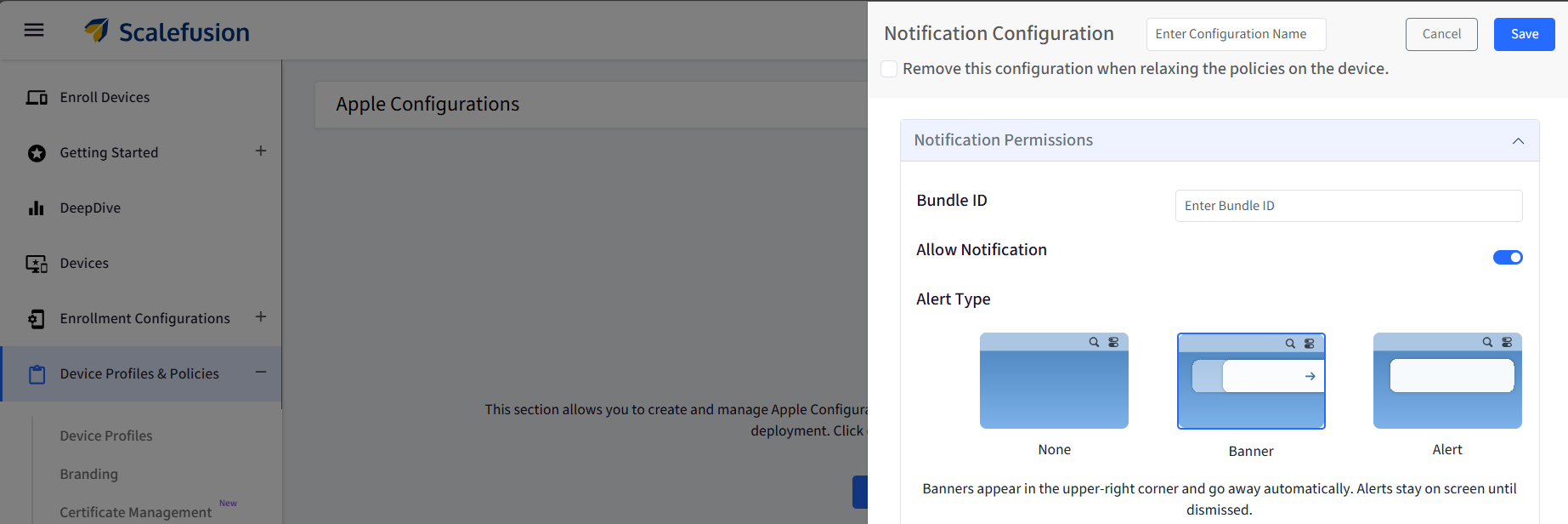
Provide a name to the configuration.
Remove this configuration when relaxing the policies on the device: When this option is enabled, the configuration will be automatically removed in the following scenarios: when policies are relaxed, or the device is unlocked via the dashboard, and when the device is deleted, all associated configurations and data will be cleared from the device.
Bundle ID: Enter the app’s Bundle ID for which the notification behavior will be configured. This field is mandatory.
Allow Notifications: Enable or completely block notifications for the selected app. After enabling it, you can choose how notifications are displayed to users.
Alert Type: Choose how notifications are presented to the user:
None: Notifications are delivered silently without visual alerts.
Banner: Notifications appear briefly and dismiss automatically.
Alert: Notifications remain on screen until dismissed.
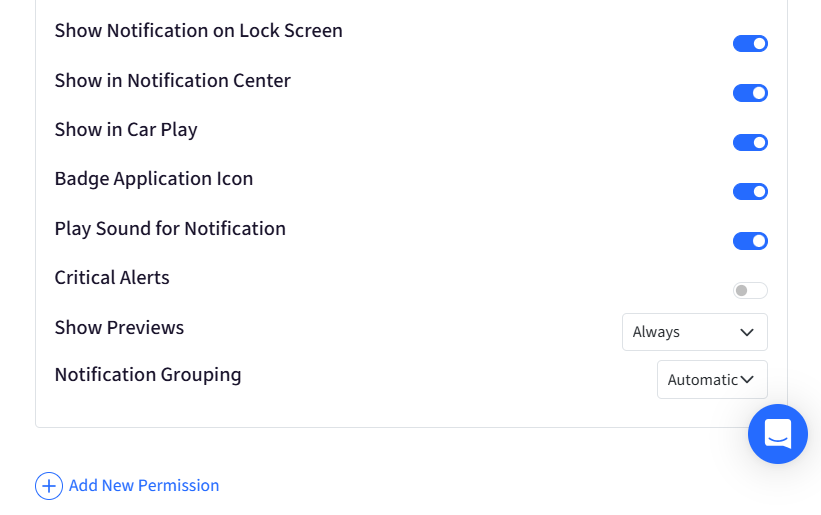
Show Notification on Lock Screen: Controls whether notifications appear on the device lock screen.
Show in Notification Center: Determines if notifications are visible in the Notification Center.
Badge Application Icon: Shows or hides the notification badge count on the app icon.
Play Sound for Notification: Enables or disables sound alerts for notifications.
Critical Alerts (supported on IOS 12 and later): When enabled, notifications from the app can bypass Focus, Silent Mode, and Do Not Disturb settings. This ensures that time‑sensitive or emergency alerts are always delivered with sound and visual indicators.
Show Previews (supported on iOS 12 and later): Controls how much of a notification users can see, helping protect privacy while maintaining usability, especially on shared or sensitive devices.
Always: Full notification content is always visible.
When Unlocked: Notification content is shown only when the device is unlocked.
Never: Notification content is hidden, showing only the app name.
Notification Grouping (supported on iOS 12 and later): Defines how multiple notifications from the same app are grouped in Notification Center. Grouping helps reduce clutter and improves notification visibility when apps generate frequent alerts.
Automatic: iOS intelligently groups notifications based on context and timing.
By App: All notifications from the app are grouped.
Never: Notifications are shown individually without grouping.
Add New Permission: Add additional permission cards to configure notification behavior for multiple apps within the same configuration.
Note:
At least one Notification Permission must be configured before saving the configuration.