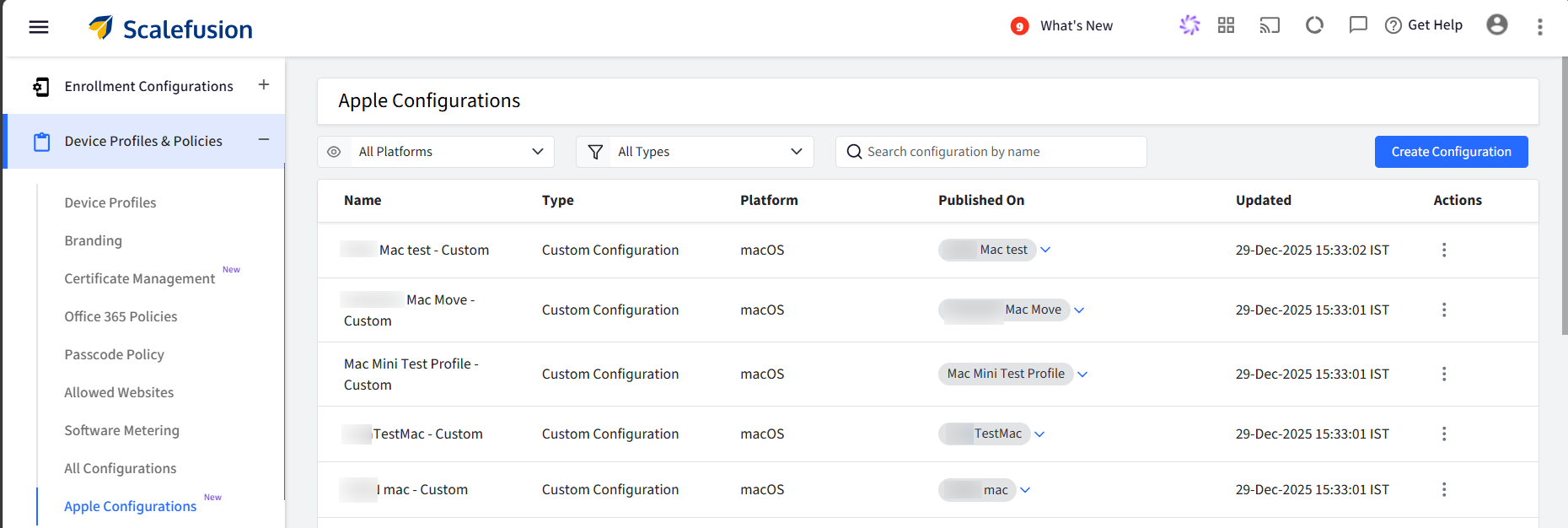
Apple Configurations in Scalefusion offer a centralized, flexible approach to managing custom payloads, enabling more organized, reusable, and consistent configuration management.
The best part? We've included a set of commonly used, built-in Apple payloads right in the tab. This means you can quickly configure frequently needed settings without spending time manually creating them. Of course, for anything unique, you can still create and upload your own custom payloads to meet your exact enterprise needs.
Once created, these payloads can be reused across multiple device profiles. This reduces repetitive work, improves consistency across deployments, and simplifies ongoing Apple device management.
Pre-Requisites
Your account should have access to the Apple Configurations feature.
Step 1: Create Configuration
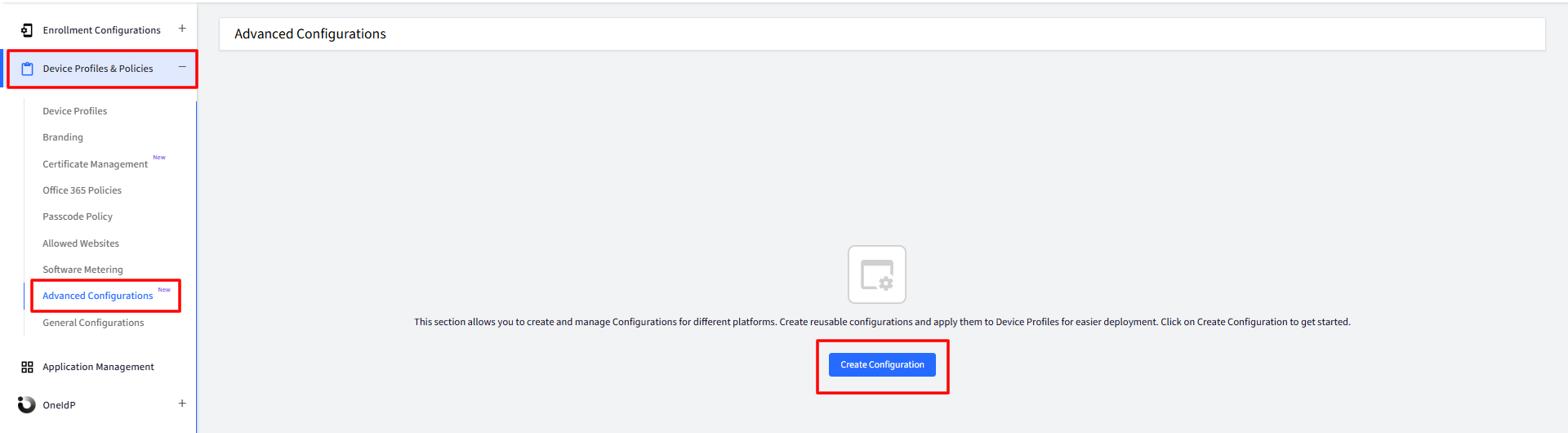
On the Scalefusion Dashboard, navigate to Device Profiles & Policies > Advanced Configurations.
Click Create Configuration to get started.
Choose the platform for which you want to create the configuration:
iOS (default)
macOS
tvOS
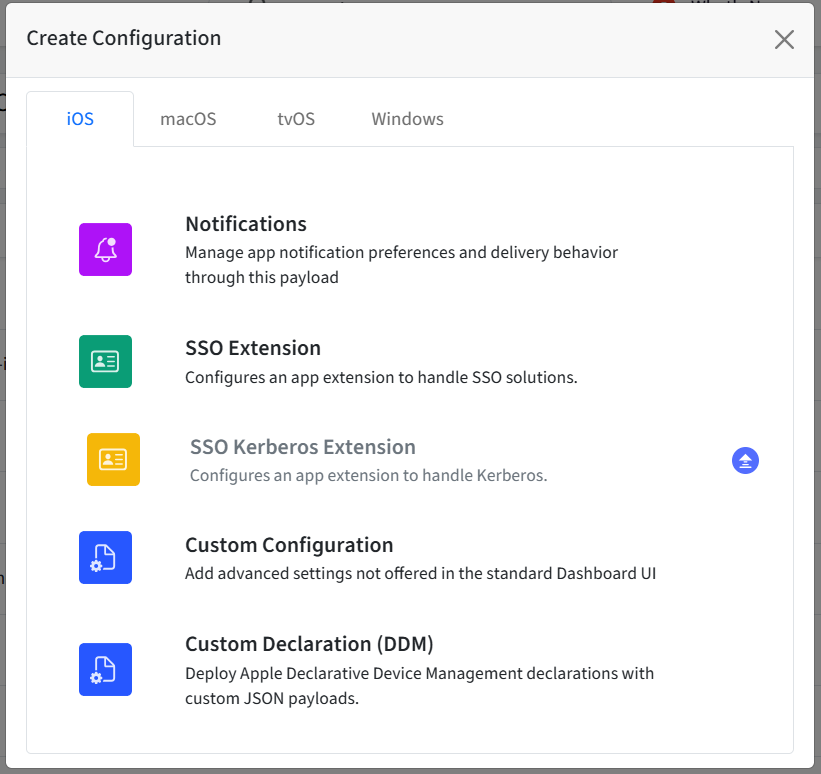
The table below shows the Apple Configuration types available for each platform:
Selecting a configuration type opens the respective configuration editor.
Step 2: Publish the configuration
Once a configuration is created, the next step is to publish it from the dashboard to the device. The configurations created are listed on the main page of Apple Configuration with the following details.
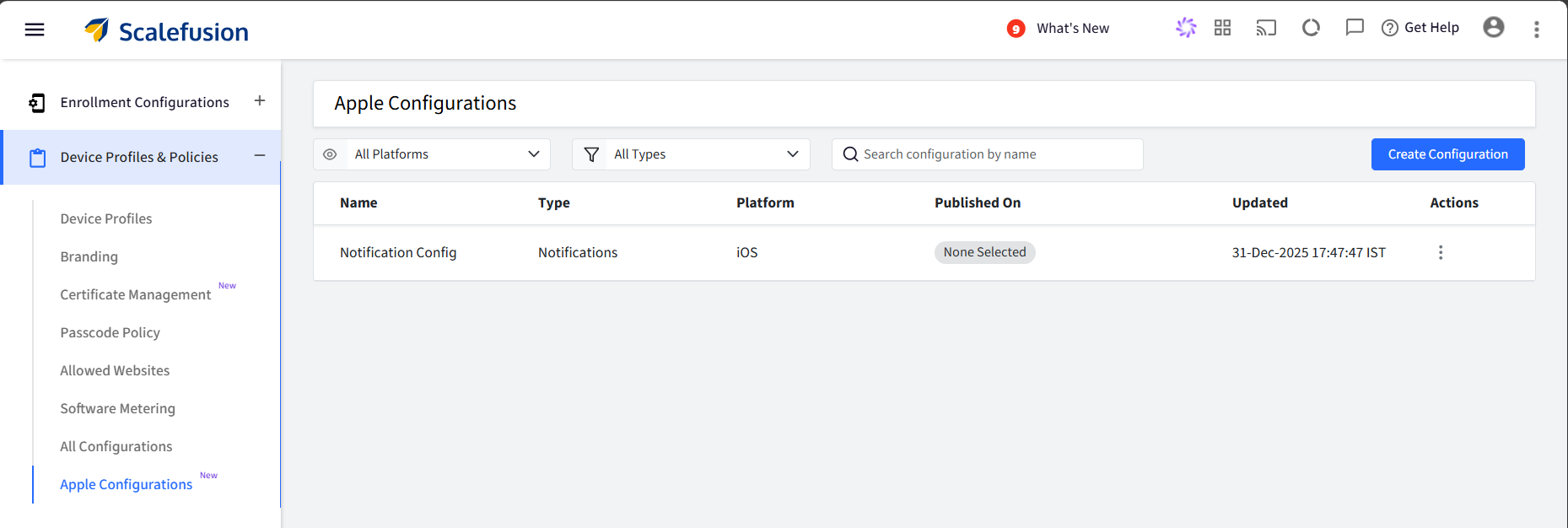
Click on the three vertical dots under the Actions heading on the right for the respective configuration that has to be published.
Click Publish.
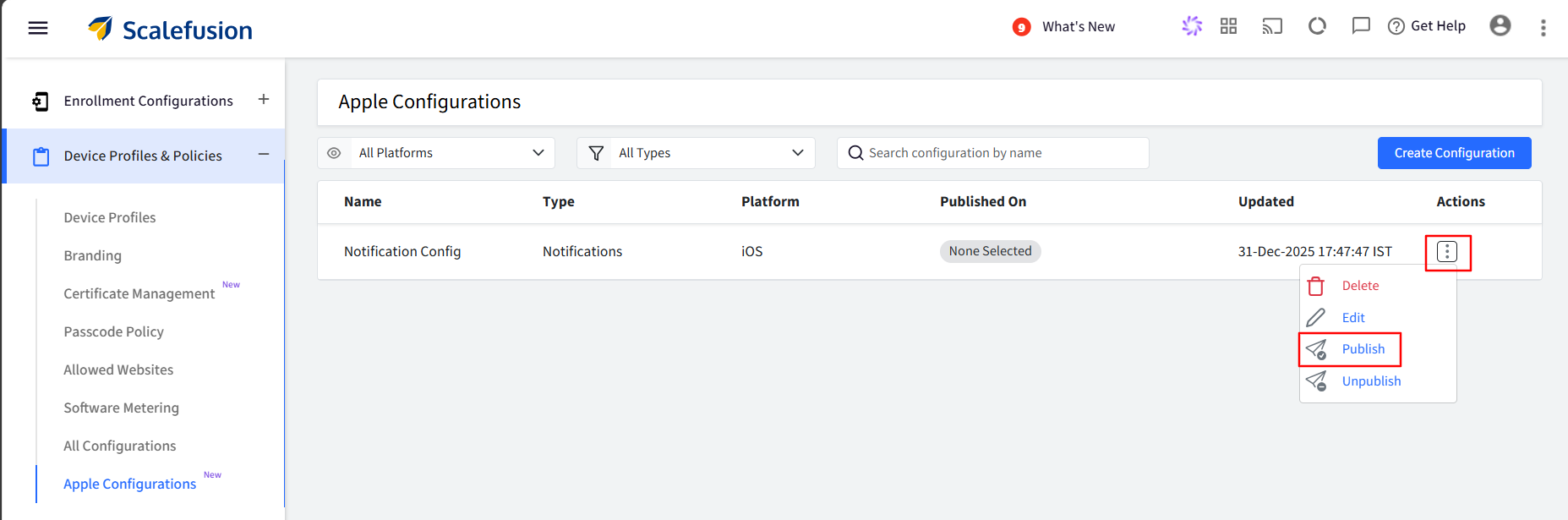
This opens up the window where you need to select the Device Profiles. Select the Device Profile(s) and click Publish.
Additionally, you can delete, edit, and unpublish the configurations from this main page.
Note:
If you have used custom payloads before, all those payloads will be visible to you here and you can edit, delete, publish & unpublish them from this section.