Tracking the real-time or periodic location of Linux devices can be essential for organizations with field teams, or mobility-dependent operations. Scalefusion enables IT administrators to monitor the geographical movement of Linux devices, ensure compliance, enhance security, and support recovery efforts in case of loss or theft all from the centralized Scalefusion Dashboard.
This article explains how to configure location tracking for Linux devices managed through Scalefusion and how to view the captured location data within the dashboard.
Prerequisites
The devices should have Tux agent version 3.5.0 and above installed.
Linux devices should be enrolled with Scalefusion.
Configuring Location Settings on Dashboard
Global Level
Login to Scalefusion Dashboard.
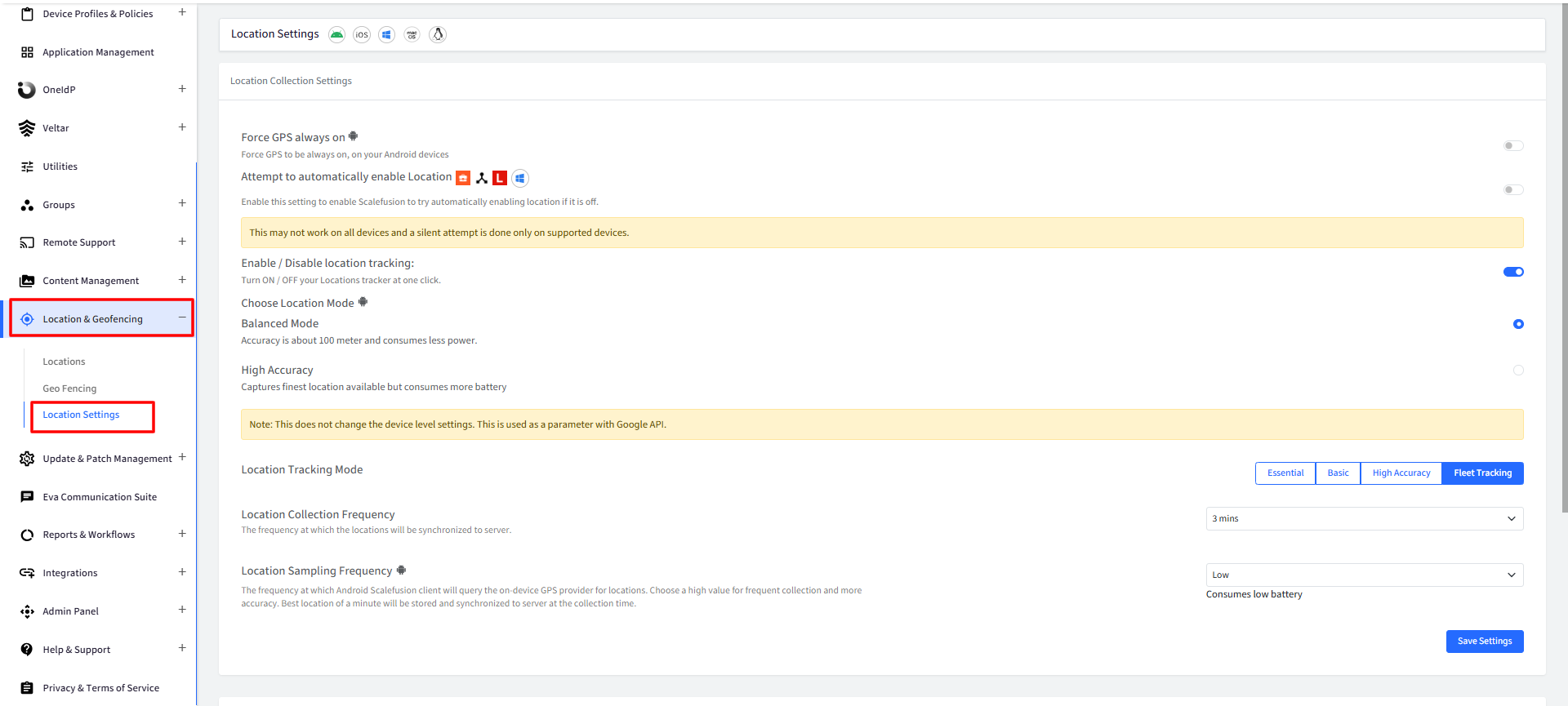
Navigate to Location & GeoFencing > Location Settings.
The following settings can be configured for Linux devices:
Enable/Disable Location Tracking: Enable this setting to turn on Location tracking and set other configurations.
Location Tracking Mode: Following are the modes for tracking Location:
Essential
Basic
High Accuracy
Fleet Tracking
Location Collection Frequency: Choose a frequency in which the locations should be synced with the server and reflected on the dashboard. Frequencies differ on the basis of the Location Tracking Mode you have chosen
Tracking Mode
Frequency
Essential
Choose one from the following:
24 hours
12 hours
60 minutes
Basic
Choose one from the following:
60 mins
30 mins
15 mins
High Accuracy
Choose one from the following:
10 mins
5 mins
3 mins
Fleet TrackingChoose one from the following:
3 mins
2 mins
1 mins
Once you have chosen the configurations, click the button SAVE SETTINGS
Google Maps API key
There is an option to switch to Google Maps for all map-related features if you wish. Switching to Google Maps would require a Google Maps API Key, which would require a valid Gmail account and setup of the Google Cloud Billing platform. To learn more about how to use this feature, please click here.
Profile level
These settings can also be configured at device profile level which will apply to the devices with that profile.
The settings done at global level (from Location & Geofencing > Location Settings) get overridden once configured at profile level.
To configure Location settings at profile level:
Navigate to Device Profiles & Policies > Device Profiles
Create or Edit Linux Device Profile on which updates have to be configured
Navigate to Location Settings and toggle on the setting Override Global Location Settings
Setting
Description
Override Global Location Settings
If this is enabled, the settings that have been set through Location & Geofencing > Location Settings on the Dashboard get overridden. This also enables the rest of the Location settings and makes them configurable.
Enable/Disable Location Tracking
Enable this setting to turn on Location tracking and set other configurations.
Location Tracking Mode
There are four modes for tracking Location:
Essential
Basic
High Accuracy
Fleet Tracking
Location Collection Frequency
Choose a frequency in which the locations should be synced with the server and reflected on the dashboard. Frequencies differ on the basis of the Location Tracking Mode you have chosen.
Select Location API
Select how you want Scalefusion to determine and capture device location. You can choose from the following methods:
Google Chrome Browser: When this method is selected, the Tux agent first checks whether Google Chrome is installed on the device. If available, Chrome is used to determine the device’s location. If Chrome is not installed, the agent falls back to the IP address based location API which has city-level accuracy.
GPS Hardware: Uses the device’s physical GPS hardware to collect accurate real-time location data.
Google Maps API: Uses Google’s location services through your organization’s Google Maps API key.
Select this option if your organization has a Google Maps account and wants to leverage Google’s precise mapping and location capabilities.Note: Your Google Maps account will be billed according to the API usage generated based on the location settings configured here.

Where is Location Data Visible on the Dashboard?
Location information reported by devices can be viewed in the following sections of the Scalefusion Dashboard:
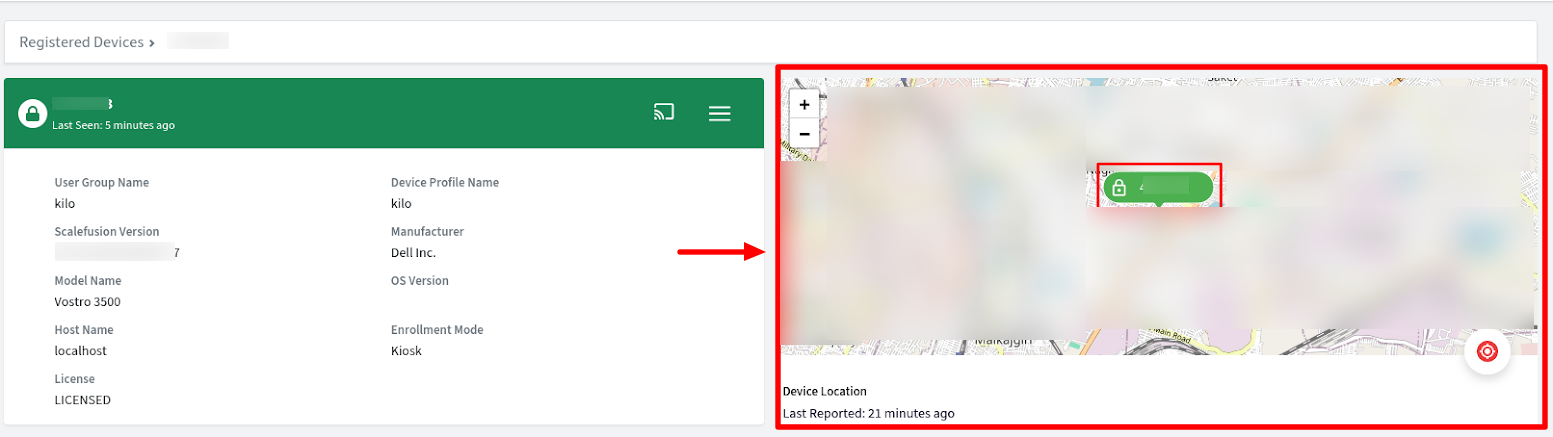
1. Device Details: View the most recent location of an individual device within its detailed device page.
2. Locations Page: Navigate to Locations & Geofencing > Locations to see all reported locations, including those from Linux devices.
3. Locations Report: Access summarized and historical location data through the Locations Report for audit, compliance, or tracking purposes.