Tux AppGuard for Linux is a security feature that helps protect your Linux devices by controlling which applications and system programs are allowed to run. Instead of letting any program execute freely, it ensures that only trusted and approved binaries can operate on the system. This reduces the risk of unauthorized software, malware, or accidental execution of harmful commands.
For ease of setup, AppGuard provides a learning phase (permissive mode) where it observes normal device activity and records what is needed, followed by a protection phase (enforcing mode) where it strictly allows only those approved components to run.
This article explains how to:
Use permissive mode to safely discover required system binaries
Capture and review execution logs
Create and deploy an enforcing policy
Handle emergency situations if something is unintentionally blocked
By following this guide, administrators can create a secure and controlled environment without disrupting essential workflows.
How It Works
Tux AppGuard for Linux provides application-level execution control through two operational modes:
Permissive Mode (Learning Mode): Logs all executed binaries without blocking them. This helps identify required components for normal system operation.
Enforcing Mode: Allows only explicitly whitelisted binaries to execute, blocking all others to ensure a secure and controlled environment.
Administrators typically begin with permissive mode to observe system behavior and then transition to enforcing mode to apply strict execution policies.
Pre-requisites
Linux device(s) enrolled with Scalefusion
tux-agent build version should be 4.1.0 or above
Permissions to create and execute
.shscriptsAccess to AppGuard logs (
/var/log/tux-agent/veltar/appguard.log)Supported Operating Systems: While Tux AppGuard is compatible with most operating systems, it has been tested and verified on Ubuntu, Linux Mint, and Fedora.
Steps
Step1: Configure Permissive Mode
In this phase, AppGuard operates in learning mode and does not block any execution.
Procedure:
Create a script in
.shformat.Configure the script to start AppGuard in permissive mode.
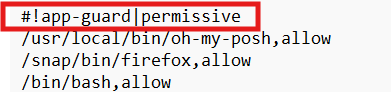
Deploy the script to the target devices.
Follow our guide to upload & publish the script using Scalefusion Dashboard.
Outcome:
All executed binaries are logged.
No processes are blocked.
Step 2: Capture Binary Paths from Logs
Once permissive mode is active, collect the binaries used during system operation.
Steps:
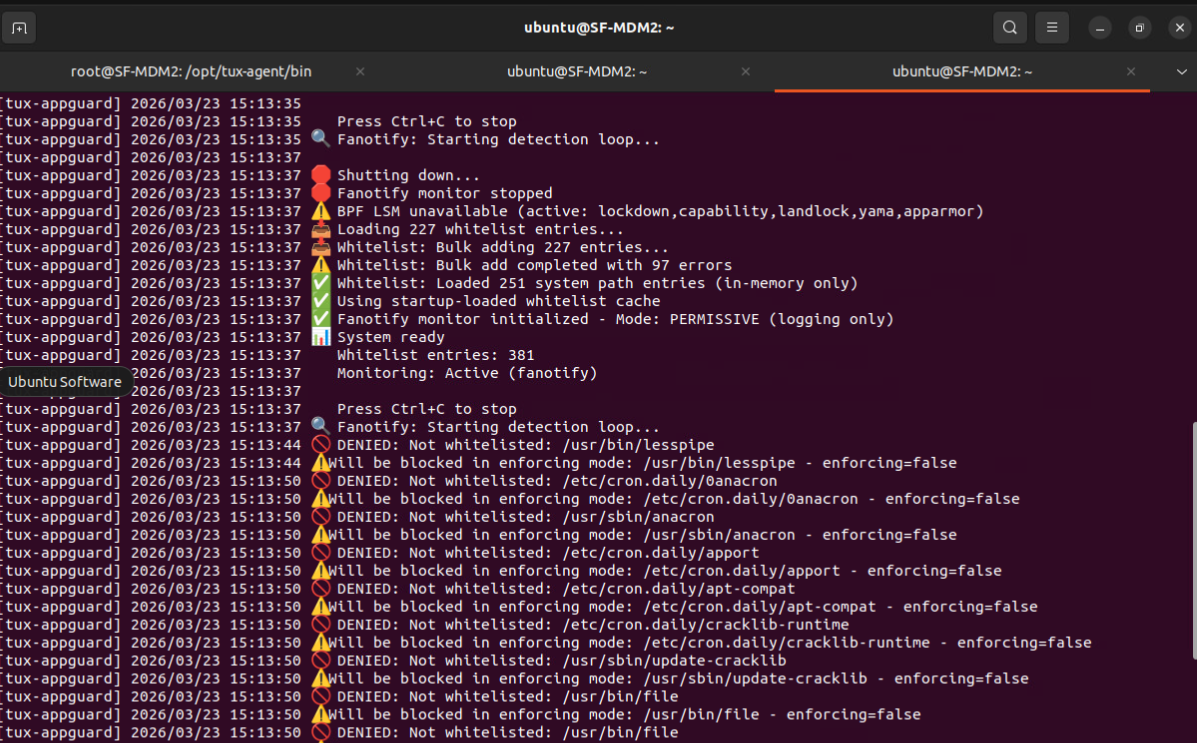
Run the following command on the device:
sudo tail -f /var/log/tux-agent/veltar/appguard.logWhile monitoring logs, perform key workflows:
Restart and shutdown
Login and logout
User switching
Business-critical applications
Automation scripts and monitoring tools
Outcome:
A comprehensive list of required binary paths is captured.
Step 3: Create Enforcing Script
After identifying required binaries, create a script to enforce execution control.
Script Requirements:
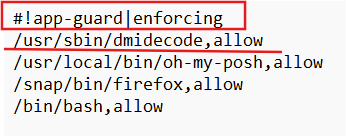
File format:
.shMust start with:
#!app-guard|enforcing
Add rules in the following format:
/absolute/path/to/binary,allowExample:
/bin/login,allow
/usr/bin/ssh,allow
/usr/sbin/sshd,allow
Outcome:
Only listed binaries are allowed to execute.
All others are blocked.
Step 4: Deploy Enforcing Script
Upload the enforcing script to the Enterprise Linux Store. To do so, navigate to Scalefusion Dashboard > Application Management > Enterprise Store and select Upload Linux Script
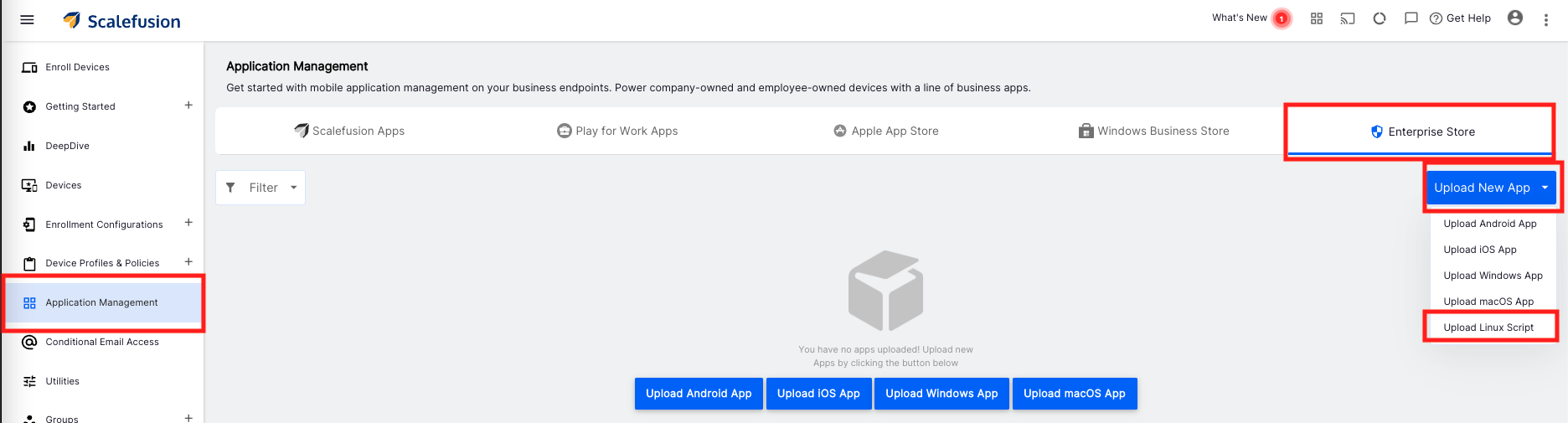
Publish the script to target devices.
Follow our guide to upload & publish the script using Scalefusion Dashboard.
Verify that all critical workflows function correctly under enforcing mode.
Emergency Stop for AppGuard
In case of misconfiguration or unintended blocking, AppGuard can be disabled using the following method:
Emergency Script
Create a removal script (e.g.,
appguard_remove.sh).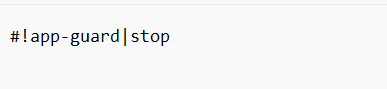
Upload and publish it via the Scalefusion dashboard.
Outcome:
Stops or removes AppGuard configuration.
Restores unrestricted device operation.
Best Practices
Validate before enforcement: Ensure all critical workflows are tested in permissive mode and required binaries are captured.
Whitelist package managers: Include tools like
apt,yum,dnf, orzypperif installations or updates are required.Maintain an emergency plan: Keep a ready-to-deploy emergency removal script and document its usage.
Test remote access: Verify that SSH and related binaries are whitelisted and functional before enabling enforcing mode.