The Events serves as the central activity log for your update environment. Instead of tracking down individual records, this page displays every major milestone—from setting up a deployment plan to device downloads, reboots, and final installations in a single, clean timeline.
If an update stalls or a device requires troubleshooting, this is the first workspace to check to see exactly what occurred and when it occured.
Filtering and Sorting
To save you from sorting through unnecessary records, use the filters at the top of the workspace to isolate specific data:
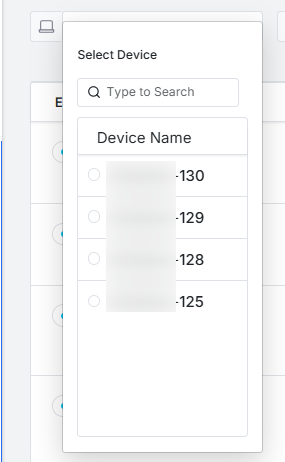
All Devices: Narrows your view by all macOS devices
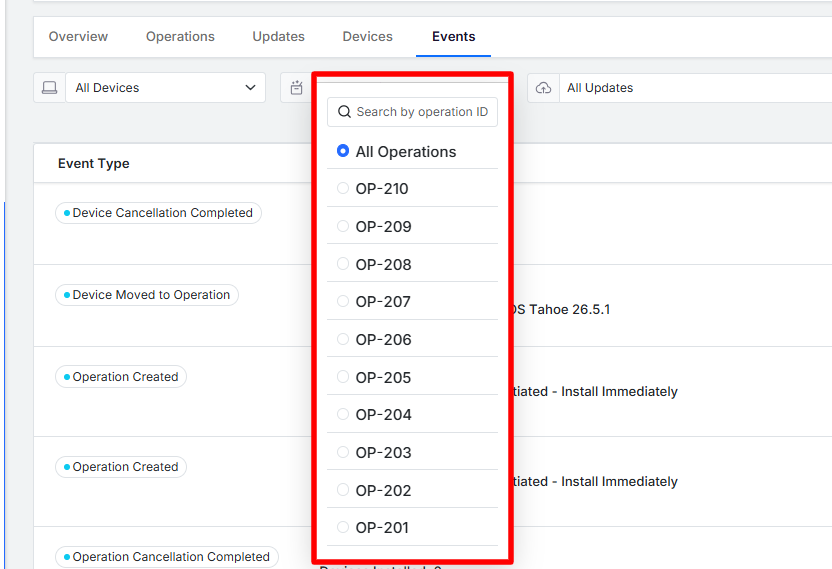
All Operations: Filter by a unique Operation ID to track the step-by-step progress of a single rollout.
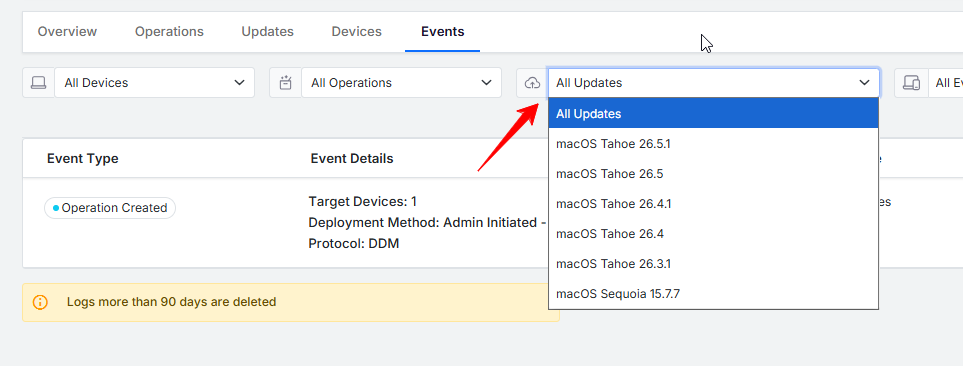
All Updates: Isolate events related to a particular software version (such as macOS Sequoia or macOS Tahoe).
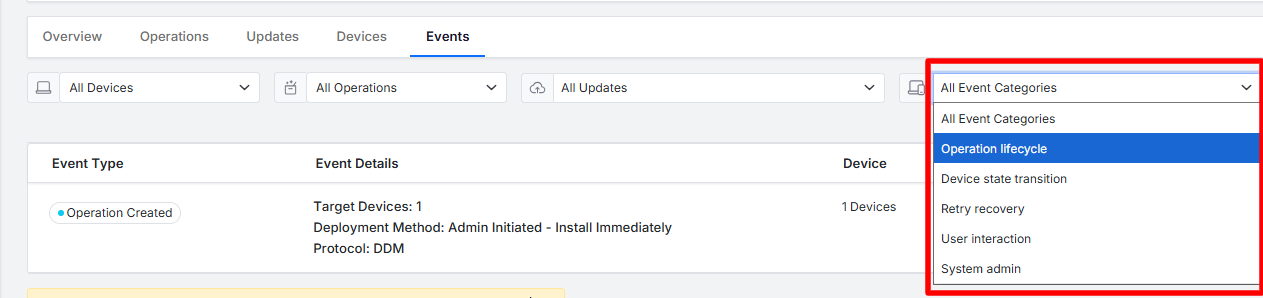
All Event Categories: Group logs by action type, such as system changes, download states, or installation progress.
Date Range: Limit visible actions to a specific calendar window (for example,
02-06-2026 to 09-06-2026).
Refresh
The Refresh button pulls in the latest status updates and device check-ins from your fleet in real time, ensuring your dashboard immediately matches the live status of your devices.

Exporting Reports
The Export CSV button downloads a spreadsheet of your filtered logs. This is useful for sharing deployment success reports with stakeholders or storing history outside the platform.
Note on Data Retention: As shown by the warning banner , Scalefusion automatically clears event logs older than 90 days. Use the Export CSV tool to save your data regularly if you need to retain histories for quarterly reviews.
Understanding the Events Table
The main table breaks down each recorded action into clear columns for straightforward tracking:
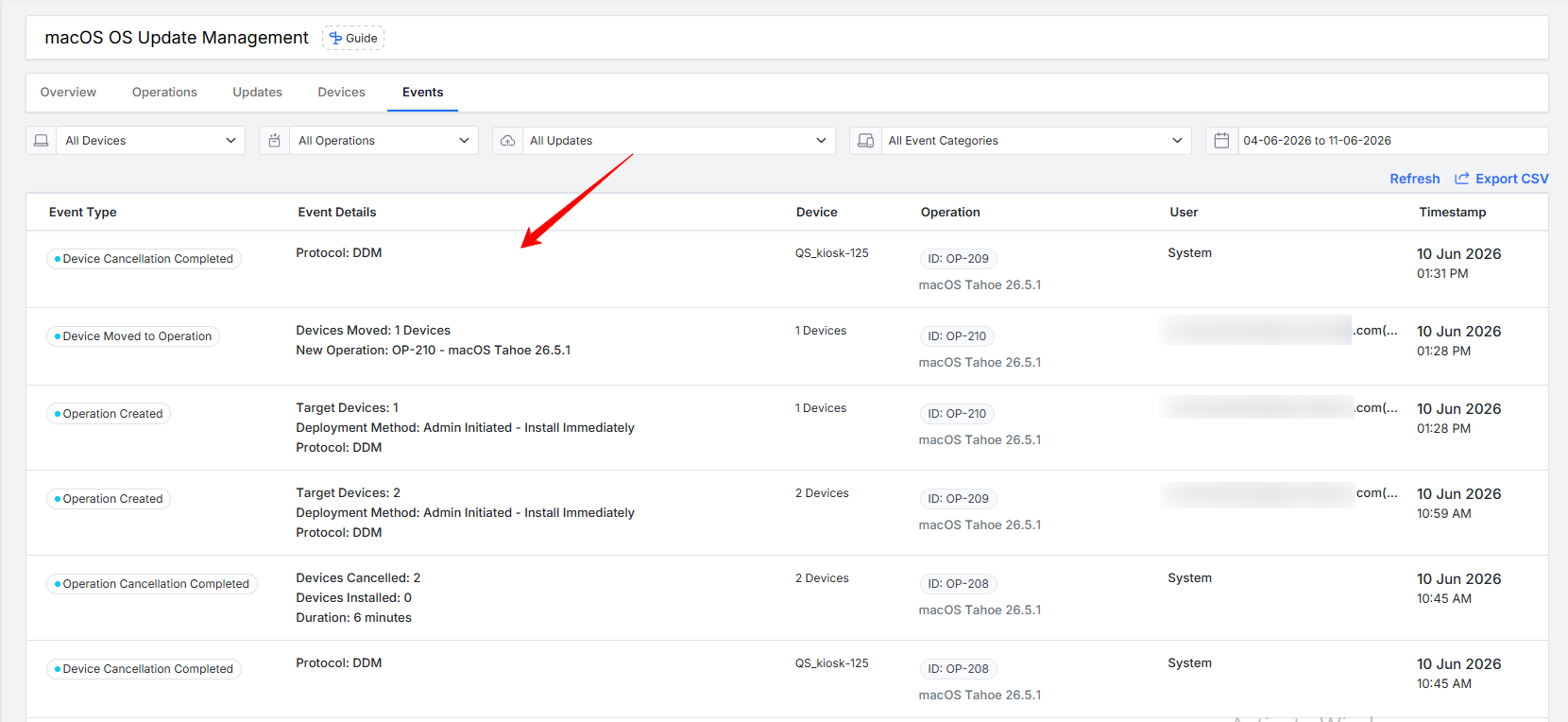
Event Type: Displays a status badge showing the exact milestone reached (such as Operation Created, Update Download Started, or Installation Completed).
Event Details: Explains the mechanics of the event in simple language. For instance, when a rollout starts, it lists the targeted device count, the delivery style (like Admin Initiated - Install Immediately), and the protocol used (DDM or Legacy MDM).
Device: Shows the precise device count or the specific Mac impacted by the event.
Operation: Ties the action to its specific plan by showing the unique ID (such as
ID: OP-001) and the software version (such as macOS Tahoe 26.5.1).User: Displays the email address of the administrator who triggered the action, showing who is managing the rollout.
Timestamp: The exact date and time when the action occurred, giving you a reliable timeline for tracking your updates.