If your organization has been using the legacy macOS OS Update Management workflow, Scalefusion provides a Migration Assistant to help transition your existing update deployments to the new Operations-based update management system.
The migration process preserves your existing update deployment data and converts it into Operations, allowing you to continue managing updates without having to recreate deployments manually.
What gets Migrated
During migration, Scalefusion automatically transfers the following information:
Published OS updates assigned to devices
Installation status and progress
User approval status
Self Service update configurations
Enforcement schedules and deadlines
Existing deployment metadata
What is not Migrated
The following information is not carried over during migration:
Individual deferral counts already used by end users
User-specific update preferences
Before you begin
Before starting the migration process, review the following recommendations:
Ensure your macOS devices are enrolled and actively communicating with Scalefusion.
Review any existing update deployments that are currently active.
Upgrade devices to the latest Scalefusion macOS client if you plan to use Catalog features such as:
Update visibility
User approvals
Update reminders
Note: Operations can still be created and executed on devices running older client versions. However, Catalog-based features require the latest supported Scalefusion macOS client.
How the migration assistant works
When you access OS Update Management for the first time after upgrading to the new system,
The What's New guide to help familiarize administrators with the updated workflow, is displayed

On clicking Next and following further steps, the Migration Assistant launches automatically.
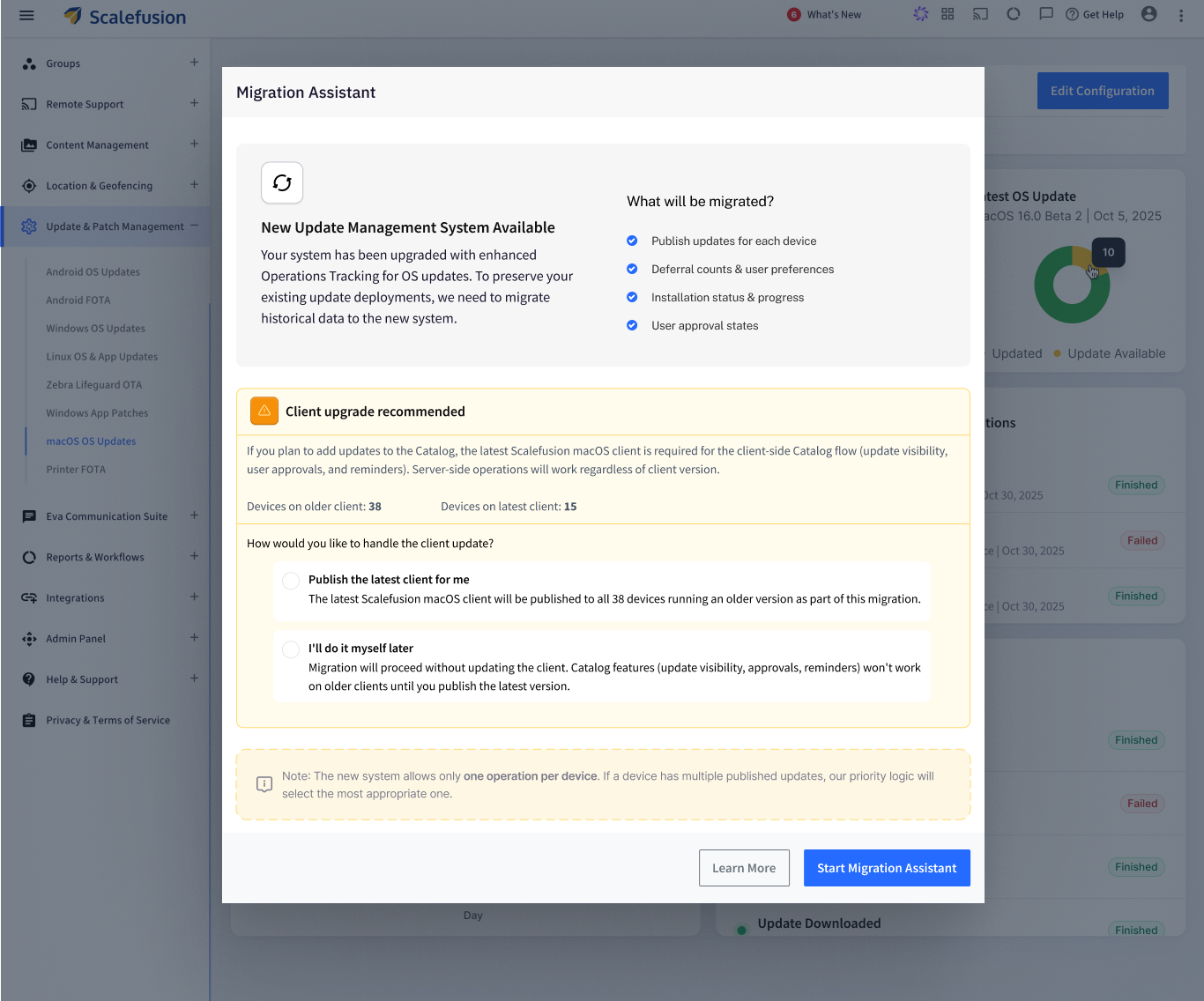
Agent Upgrade option
If older versions of the Scalefusion macOS agents are detected, you'll be given two options:
Automatically Upgrade Agent: Scalefusion publishes the latest macOS agent to affected devices as part of the migration process.
Upgrade Later: Migration proceeds without upgrading devices.
Catalog-related features will become available once the latest agent is deployed to those devices.
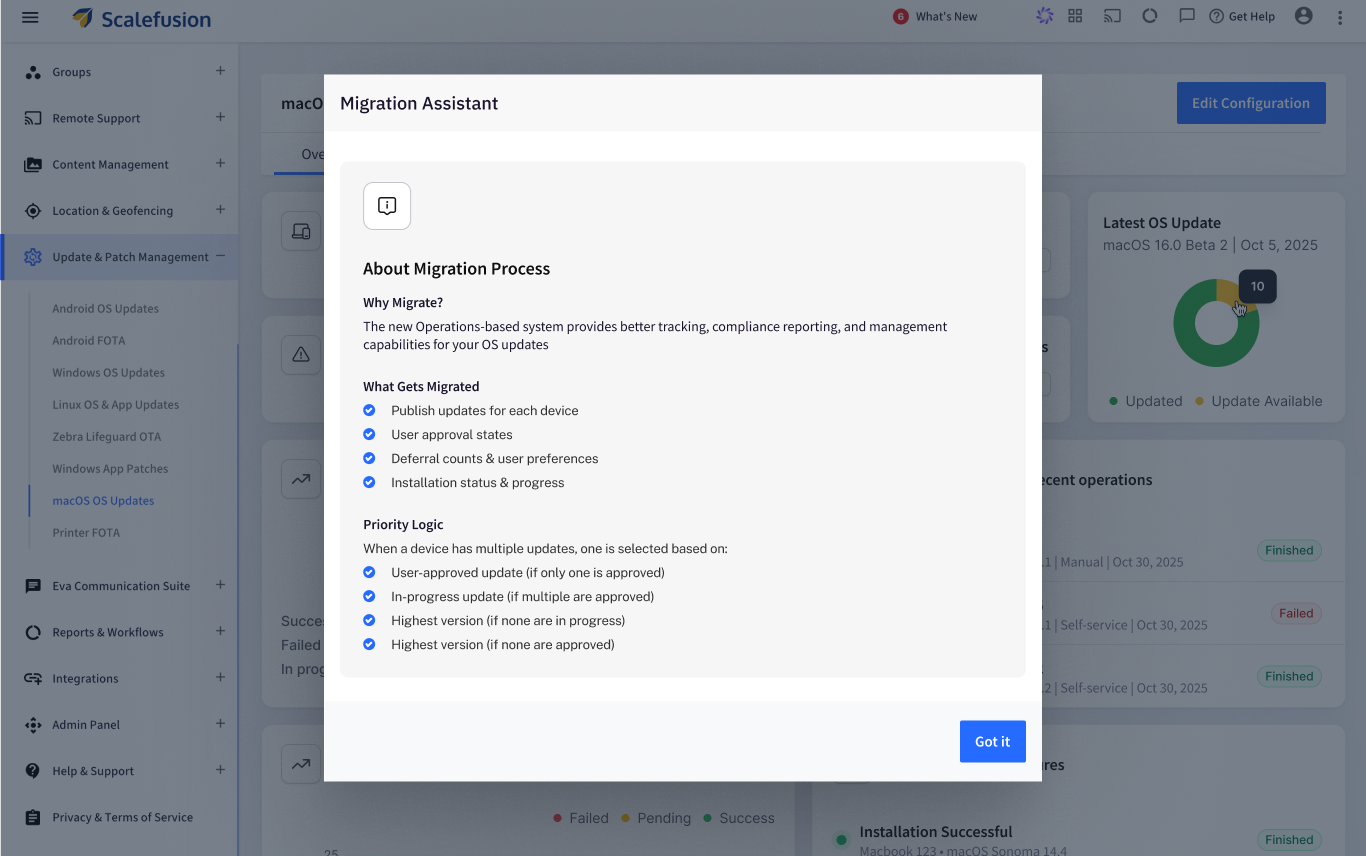
Clicking on Learn More would reveal more information related to the migration process.
The assistant guides you through three steps:
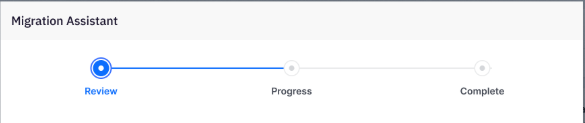
Review
Migration Progress
Completion
During the review stage, you'll see:
Total devices eligible for migration
Devices with published updates
Number of Operations that will be created
Updates being migrated
Devices that have multiple published updates
You can also export a detailed migration plan before proceeding.
Step 1: Review the Migration Plan
The Review page provides a summary of the updates and devices that will be migrated before any changes are made.
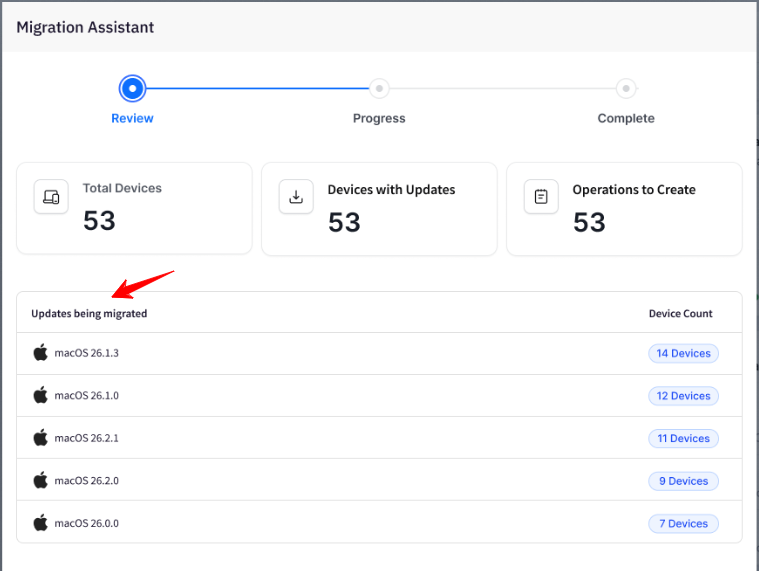
Review Migration Summary
The top section displays key information about your migration:
Item | Description |
|---|---|
Total Devices | Total number of enrolled macOS devices in your organization. |
Devices with Updates | Devices that currently have one or more published OS updates. |
Operations to Create | Number of Operations that will be created during migration. |
Review Updates Being Migrated
The Updates Being Migrated section lists all published macOS updates that will be converted into Operations.
For each update, Scalefusion displays:
macOS version
Number of devices associated with that update
This helps you understand the scope of the migration before proceeding.
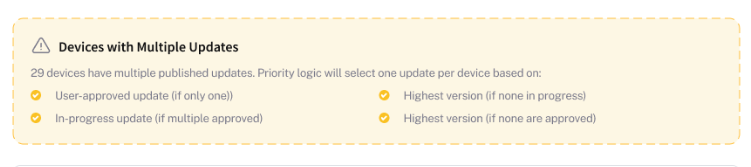
Review Devices with Multiple Updates
If a device has more than one published update, Scalefusion highlights it in the Devices with Multiple Updates section. Because the Operations framework supports a single active update operation per device, Scalefusion automatically selects the most appropriate update using the following priority order:
User-approved update
Update currently in progress
Highest available version
Only available update
This ensures that existing deployment intent and update progress are preserved during migration.
View Detailed Breakdown
The detailed breakdown table shows exactly how each device will be migrated.
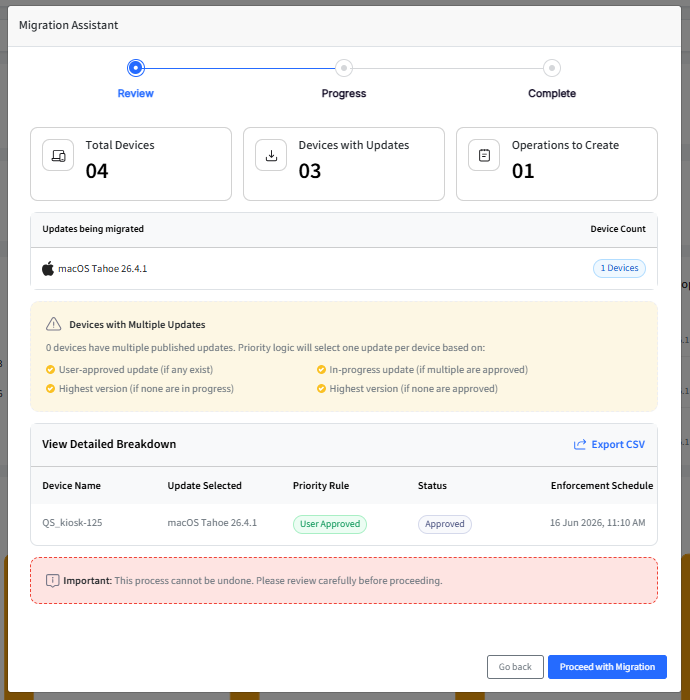
Information displayed includes:
Device name
Selected macOS update
Priority rule used for selection
Current update status
Enforcement schedule
This allows administrators to validate the migration plan before proceeding.
Export the Migration Plan
To review the migration data offline or for auditing purposes, click Export CSV.
After reviewing the migration plan:
Click Proceed with Migration.
Review the confirmation message.
Confirm that you want to start the migration.
Important: Once the migration starts, it cannot be reversed. Review the migration plan carefully before proceeding.
Step 2: Monitor Migration Progress
After confirming the migration, Scalefusion begins converting existing update deployments into Operations.
During this stage, the Migration Assistant displays real-time progress and migration activity.
Track Overall Progress
The Overall Progress section shows how much of the migration has been completed.
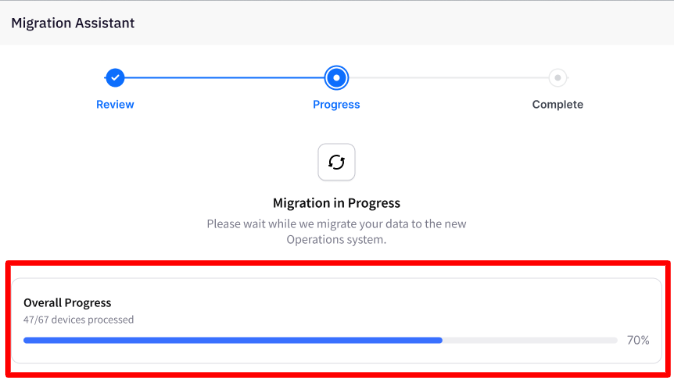
Information displayed includes:
Number of devices processed
Total devices included in the migration
Migration completion percentage
This allows you to track migration progress as Operations are created.
View Migration Phases
The migration is performed in three phases:
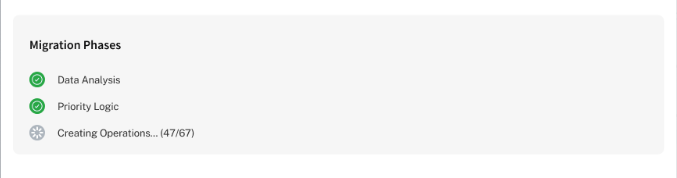
Data Analysis
Scalefusion analyzes existing update deployments and gathers information required for migration. This includes:
Published updates
User approval status
Installation status
Deferral configurations
Enforcement schedules
Creating Operations
Scalefusion creates Operations for eligible devices and transfers applicable update information into the new framework.
During this phase, device update status, approval state, and scheduling information are preserved whenever possible.
Review Recent Activity
The Recent Activity section provides a live activity log showing Operations as they are created.
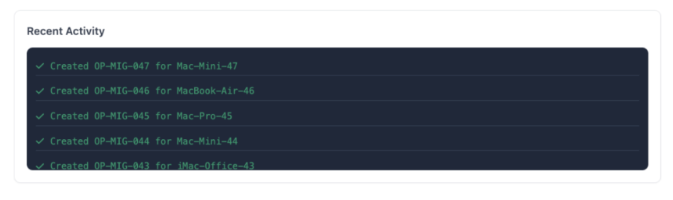
Examples of activity entries include:
Operation created for a device
Device successfully migrated
Operation assignment completed
This log updates automatically throughout the migration process.
Important Notes
Migration runs automatically once started.
The migration process cannot be paused or cancelled.
Closing your browser does not stop the migration.
If you leave the page and return later, Scalefusion resumes displaying the current migration status.
Multiple administrators can view migration progress, but only one migration can run per organization at a time.
Note: Migration duration depends on the number of devices and update deployments being processed. Larger environments may require additional time to complete.
Once all devices have been processed and Operations have been created successfully, the Migration Assistant automatically moves to the Complete stage, where you can review the migration results and access the new Operations-based update management experience.
Step 3: Review Migration Results
Once all devices have been processed and Operations have been created successfully, the Migration Assistant displays a summary of the migration results.
This page provides an overview of the migration outcome and confirms that your organization has successfully transitioned to the Operations-based update management framework.
Review Migration Summary
The summary section displays key migration statistics, including:
Metric | Description |
|---|---|
Operations Created | Total number of Operations created during migration. |
Devices Migrated | Number of devices successfully migrated. |
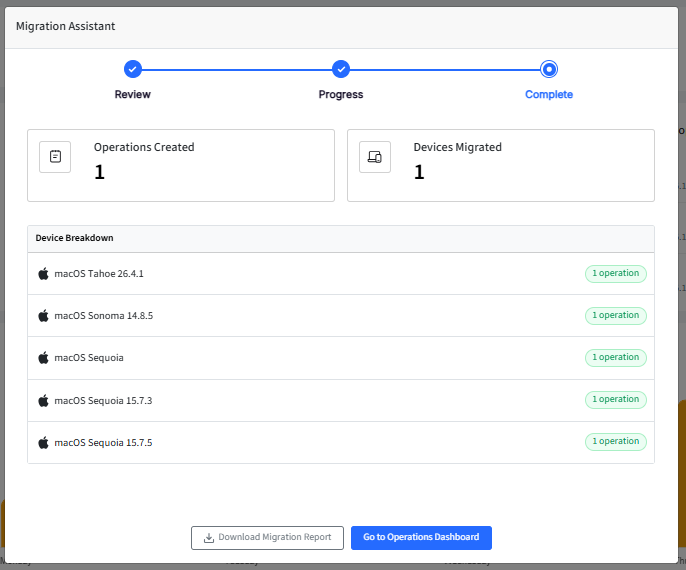
These metrics provide a quick overview of the migration outcome and help verify that all expected devices and update deployments were processed successfully.
Review Update Breakdown
The Breakdown by Update section shows how Operations were distributed across different macOS versions.
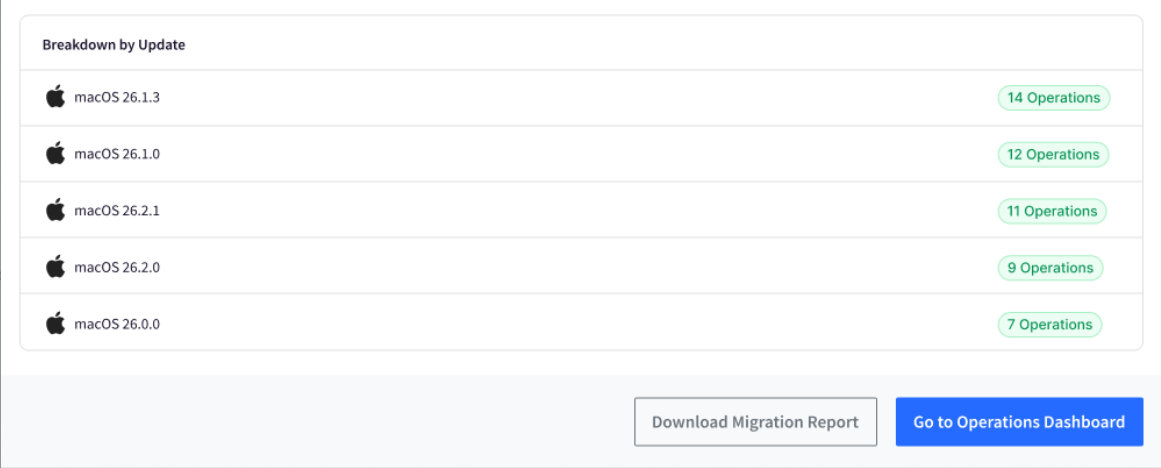
For each update, Scalefusion displays:
macOS version
Number of Operations created
This information helps administrators understand which updates were migrated and how many operations are associated with each update.
Download the Migration Report
To maintain migration records or perform additional auditing, click Download Migration Report. The report contains detailed migration information. This report can be used for compliance, troubleshooting, and internal documentation purposes.
Access the Operations Dashboard
After reviewing the migration results, click Go to Operations Dashboard. This action:
Completes the migration process
Opens the Operations dashboard
Grants access to the new OS Update Management experience
After Migration
Once migration is complete:
The Migration Assistant will no longer appear when accessing OS Update Management.
Existing update deployments are managed as Operations.
Future update deployments must be created through the Operations workflow.
Historical migration data remains available through exported reports and operation records.
Note: Migration is a one-time process. After completion, all macOS update management activities are performed through the Operations framework.
This guided workflow helps ensure a seamless transition from legacy OS update deployments to the new Operations framework while preserving existing deployment data and update progress wherever applicable.