The Devices gives you a complete look at your Mac fleet from a device-first perspective. While other sections help you manage software packages or deployment schedules, this section is designed to show you exactly how updates are progressing on individual machines. It acts as a tracking center where you can check any Mac's current OS version, see if it is compatible with newer management protocols, and view its live update progress.
Device Summary
The Devices tab displays summary that group your Macs by their current update health and protocol capabilities:
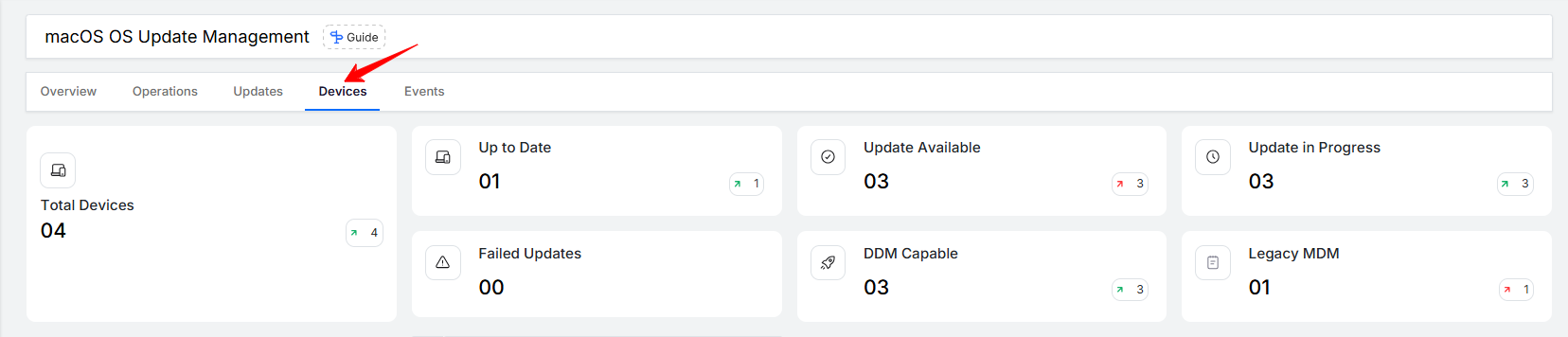
Total Devices: The total number of managed Mac devices currently included in your update management scope.
Up to Date: The number of Macs that have successfully installed the latest available operating system version.
Update Available: The number of devices that have detected a newer software version but haven't installed it yet.
Update in Progress: Macs that are currently downloading, preparing, or installing an update.
Failed Updates: Devices where an update operation was attempted but couldn't finish successfully, letting you know where to check for errors.
DDM Capable: The number of devices running macOS 14.0 (Sonoma) or later that support modern, device-driven updates.
Legacy MDM: The number of older Macs running macOS 13 or earlier that rely on traditional MDM update commands.
Clicking on each card takes you to the respective tab for viewing more details
Sorting and Exporting
To help you manage large fleets or find a specific machine quickly, you can use the search and filtering options located just above the main table:
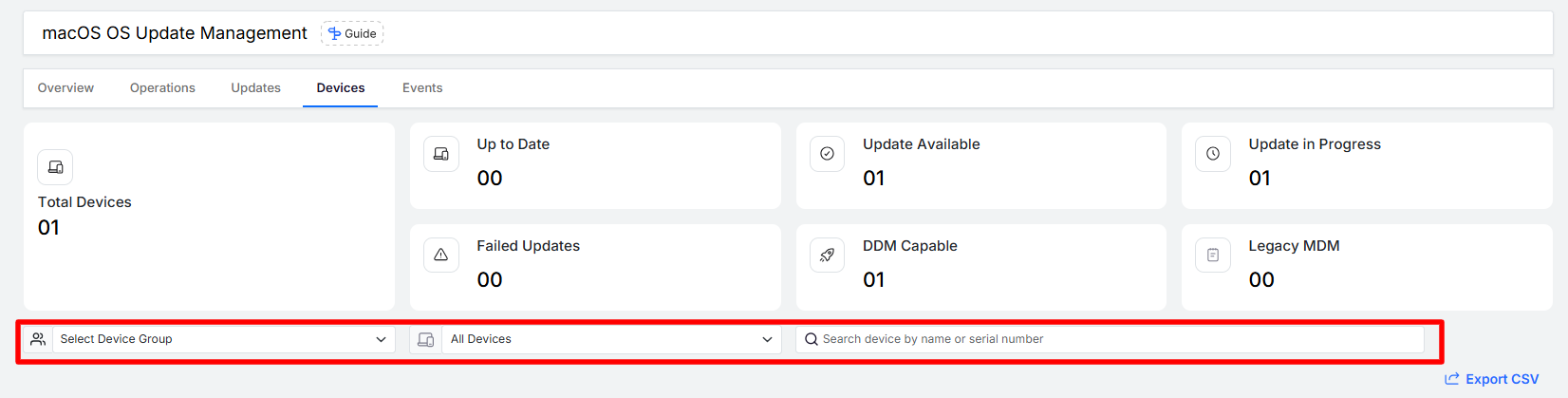
Select Device Group: Filters the table to show only the Macs belonging to a specific department or profile group.
All Devices: Narrows your view by all macOS devices
Search Bar: Allows you to instantly look up an individual machine by typing its device name or serial number.
Export CSV: Downloads a spreadsheet report containing your entire device list, their current OS versions, patch statuses, and pending updates for easy offline tracking.
Understanding the Devices table
The main grid organizes your Mac fleet into a clear, readable list, showing you the exact update lifecycle status for each machine:
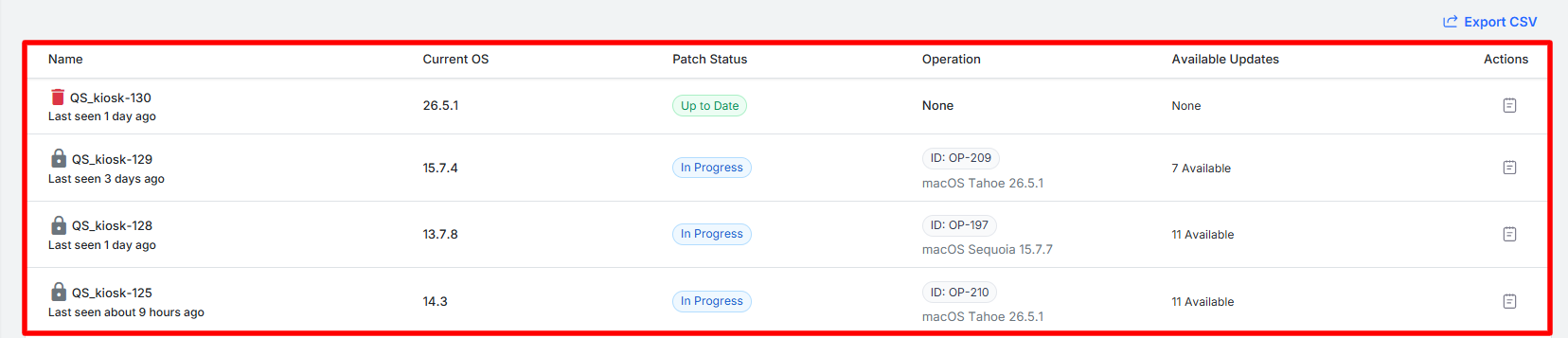
Name: Displays the custom device name along with a lock icon indicating its management status. Directly below the name, a "Last seen" timestamp shows you exactly when the device last checked in with Scalefusion.
Current OS: The exact software version number currently running on the Mac (for example,
15.7.5).Patch Status: A live status badge showing what the device is doing. For instance, an In Progress badge means the machine is actively working on a deployment.
Operation: Identifies the active deployment plan assigned to the device. It displays the unique Operation ID (such as
ID: OP-001) and the specific software version being pushed (such as macOS Tahoe 26.5.1).Available Updates: Shows the total number of newer updates that this specific Mac is eligible to receive (for example,
6 Available), helping you see how far behind a device is from the latest software catalog.Actions: Quick-access shortcuts on the far right. Clicking the document icon opens up a dedicated side panel for that single Mac, allowing you to view its individual history or force a specific update operation directly to that machine.

Device Information & Update Summary
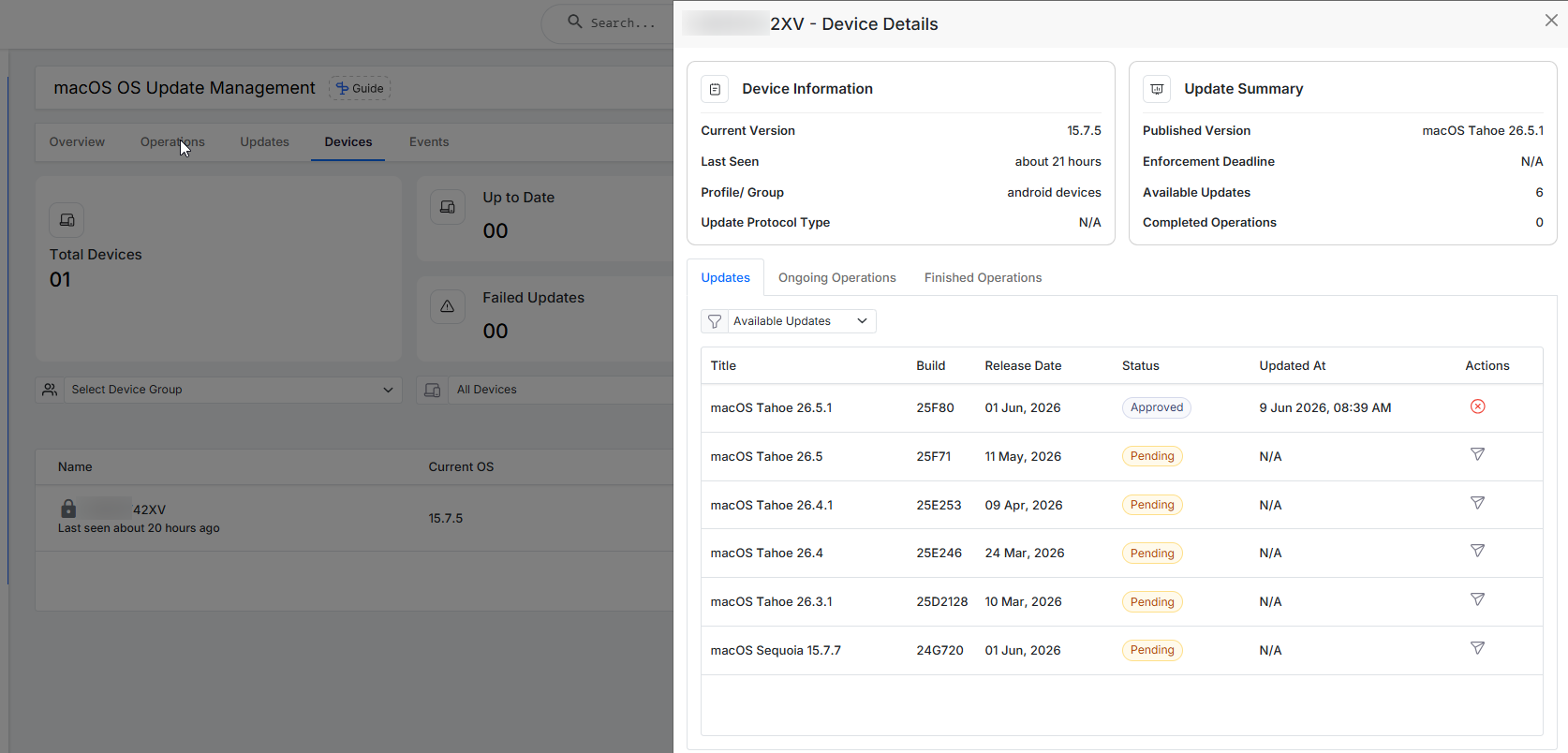
The top section of the panel uses two simple blocks to give you a quick check on the machine's software health:
Device Information: This card tells you how the Mac is currently communicating with Scalefusion. It displays the Current Version running on the machine, a Last Seen timestamp showing when it was last online, its assigned Profile/Group, and the Update Protocol Type (like DDM or Legacy MDM) that controls it.
Update Summary: This card shows what updates are lined up for the device. You can quickly see the Published Version target, any upcoming Enforcement Deadline set by your team, the number of Available Updates the Mac can still receive, and a count of its Completed Operations.
History & Management
The bottom half of the panel uses three tabs to track past rollouts and help you manage future updates:
Updates
This lists all the macOS versions that are relevant to this specific device. You can use the status dropdown (like selecting Available Updates) to clean up the view. The table breaks down:
Title & Build: The marketing name of the macOS version and its unique Apple build number.
Release Date: The calendar date when Apple launched the update.
Status: A live badge showing where the update stands. For example, an Approved badge means the update is actively assigned to the device, while a Pending badge means it is available but hasn't been installed yet.
Updated At: The exact day and time when the update status was last changed.
Actions: Quick shortcuts on the far right. If a deployment is active, a cancel icon lets you stop it. For pending versions, the action shortcut lets you quickly set up a deployment workflow for that version.
Ongoing Operations
Filters your view to show only the active update deployments that are currently running on this specific Mac.
Finished Operations
Shows a clean, simple history of all past or canceled update operations for this device, making it easy to see its complete update history over time.