Device Enrollment Configurations are a quick and easy way to enroll your Mac devices. By creating a configuration, you can choose the default Group or Profile and a naming convention for the devices that are enrolled using this configuration.
Before you start
Make sure you have completed the APNs set up.
Make sure you have at least one tvOS Device Profile created.
Steps to create the Enrollment Configuration
Navigate to Enrollment Configurations > QR Code Configurations.
Click the Create Config button. This will launch the configuration creator wizard.
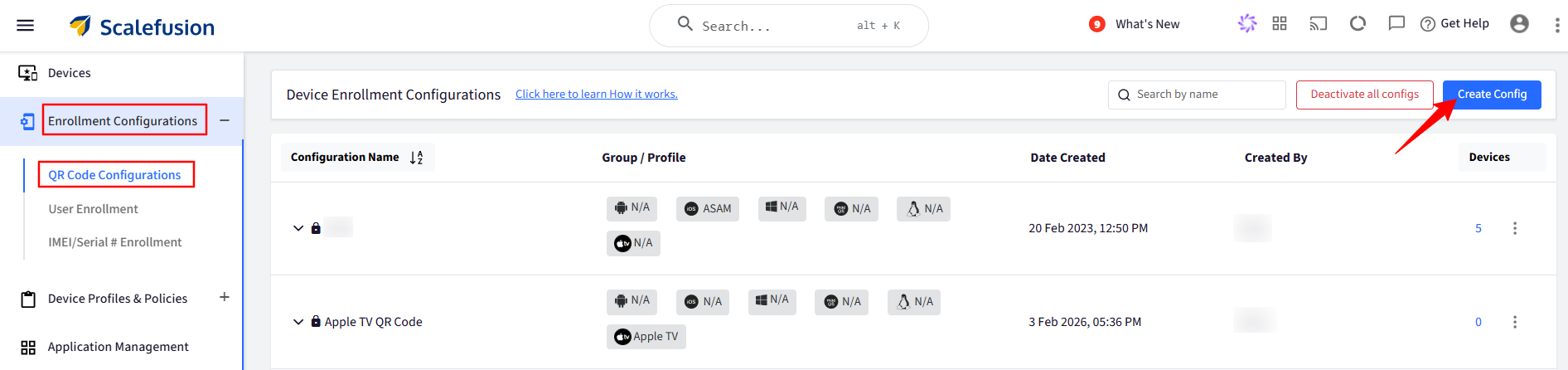
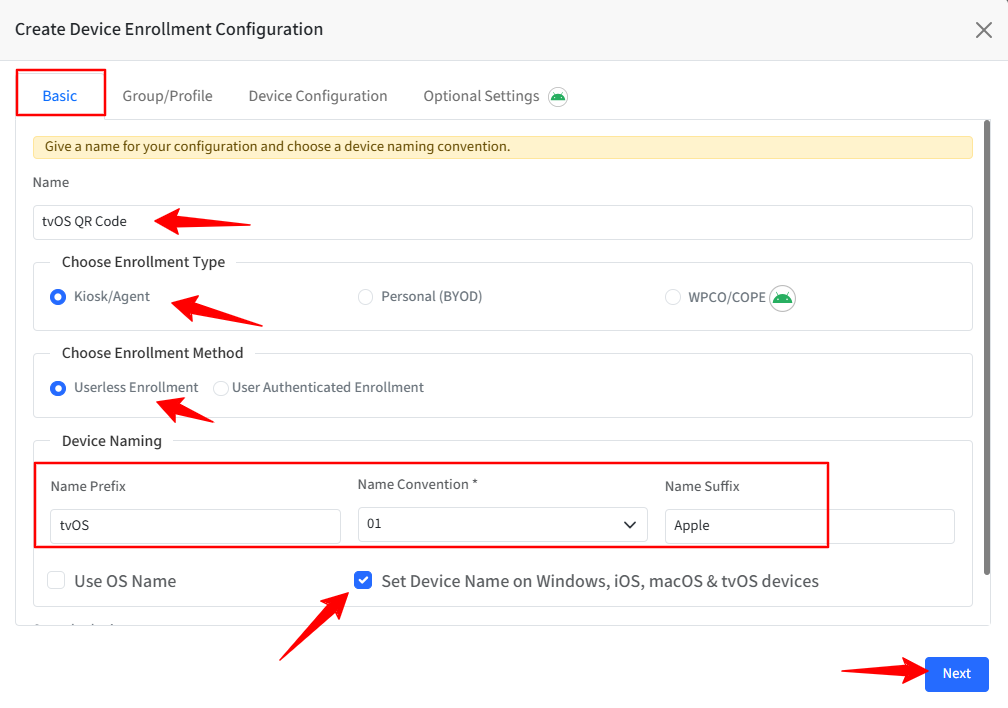
Under the Basic section, fill in the relevant details, and click Next once ready.
Name: Give a Name for this configuration.
Enrollment Type: Choose Kiosk/Agent.
Choose Enrollment Method: Select Enrollment Method from the following:
Userless Enrollment (Selected by default): On selecting this option, no user authentication will be asked for at the time of enrollment.
Device Naming: Choose a Device Naming convention.
Set Device Name on Windows, iOS,macOS & tvOS devices: Users can choose to set the device name on the device during enrollment. This flag is selected by default.
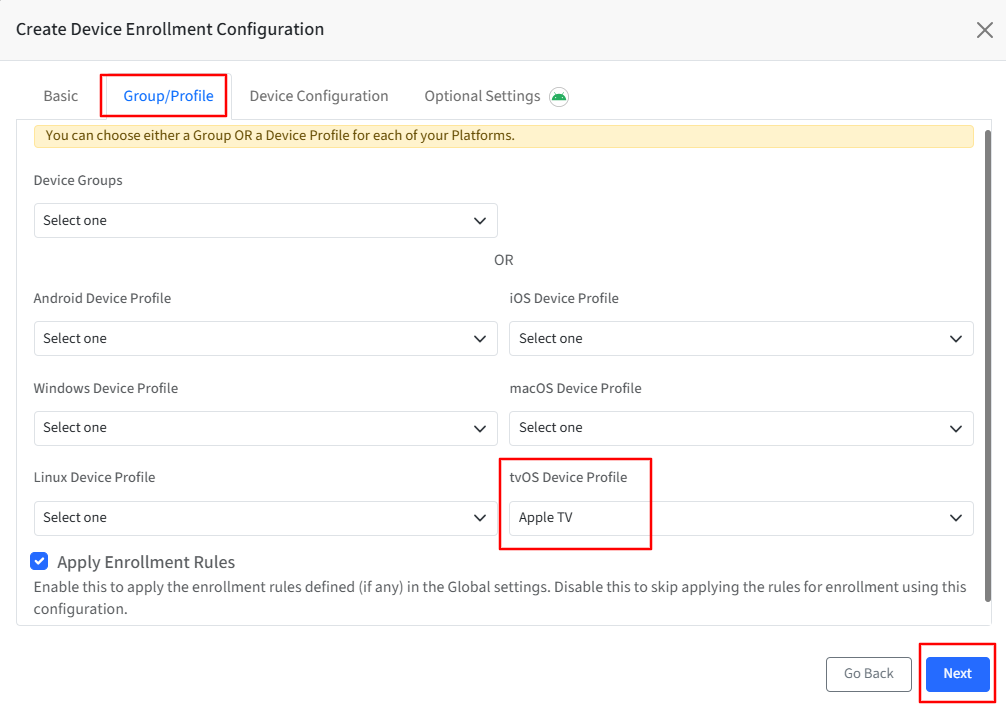
Under the Group/Profile section, select a tvOS Device Profile or a Device Group with a tvOS Device Profile. This will ensure that the devices enrolled using this configuration will have policies as per the Device Profile associated here.
Apply Enrollment Rules: If any enrollment rules are defined in Global settings, they get applied when a device is enrolled using this configuration. Disable this setting to skip applying the rules for enrollment using this configuration. Click Next once done.
Device Configuration: For tvOS, these can be skipped. Click Next.
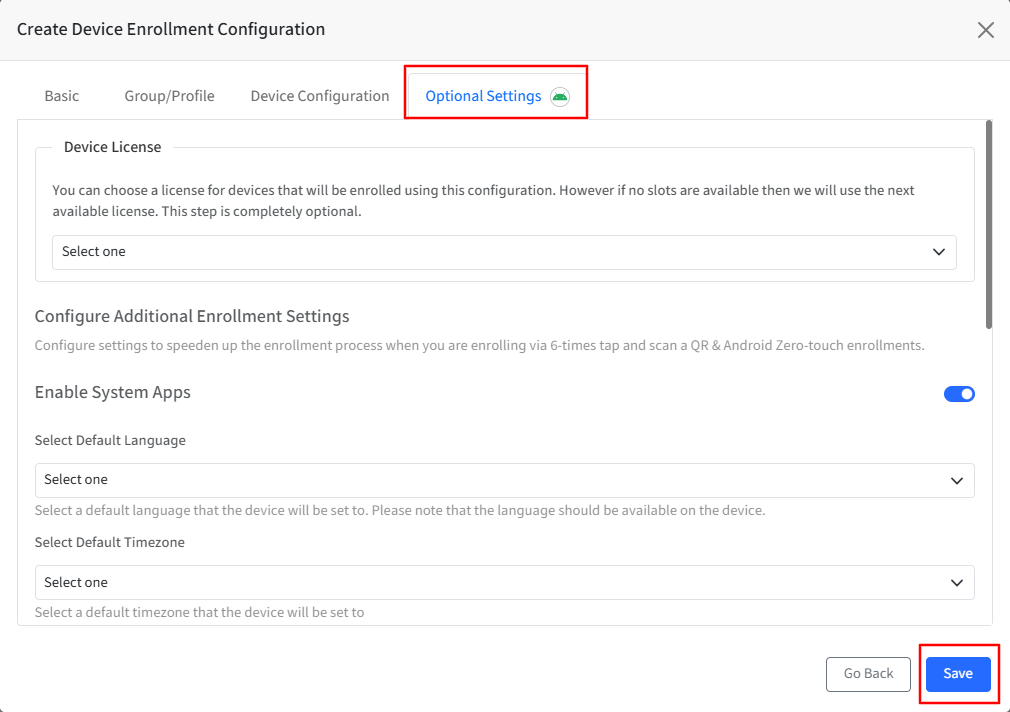
Optional Settings: These settings are for Android devices. For tvOS, these can be skipped. Click Save.
Once you have created enrollment configurations, head over to our Enrolling Apple TV guide to learn how to enroll it.