Device Profiles are a quick and easy way to group the common set of policies and then apply them to multiple devices. Any changes or edits to the Device Profile are applied to all the devices in that Profile without any further steps.
In Scalefusion, a minimum of one tv OS Device Profile is mandatory to manage your Apple TV devices. Without a Device Profile, you cannot apply any policies to the device. You can create as many Device Profiles as you want, depending upon your organization's structure.
Since a tvOS Device Profile offers quite a lot of settings and policies, this document covers the basics of creating a profile and links to various settings in separate documents for easier understanding.
Before you start
Complete the Configure APNs setup.
Complete the ADE/DEP setup.
Creating a tvOS Device Profile
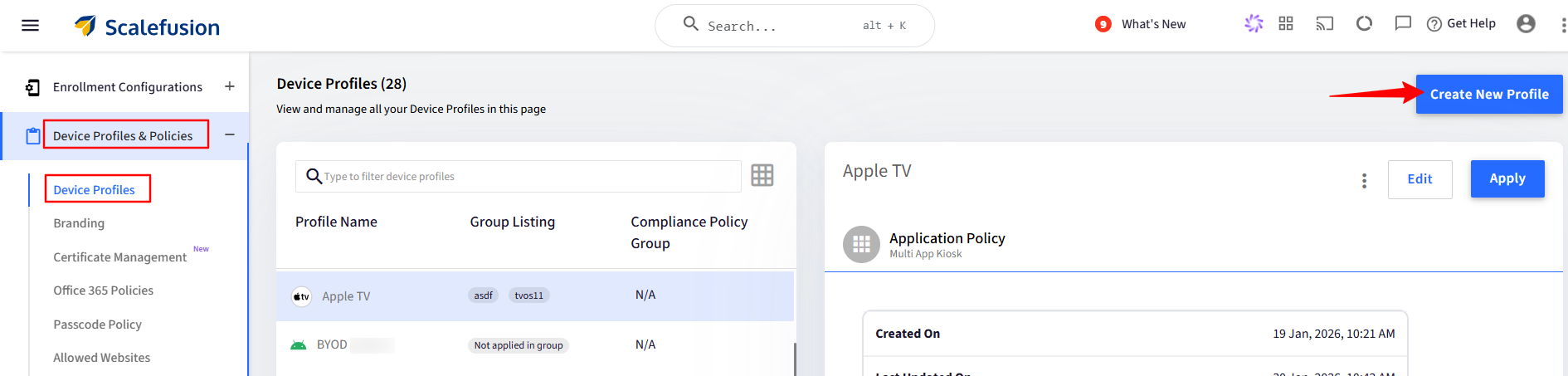
Navigate to Device Profile & Policies > Device Profiles section.
Click on Create New Profile to launch the profile creator dialog.
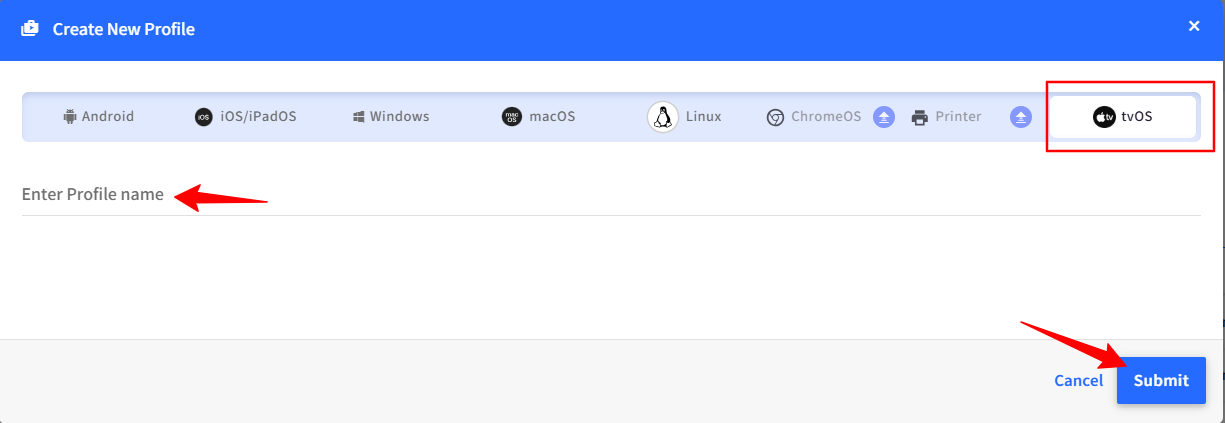
Select the tvOS tab. Enter a name for the Profile and click on Submit.
The Profile Creator wizard will be displayed, allowing you to configure the necessary policies and restrictions. These settings are explained in detail in the Configuring Restrictions guide.
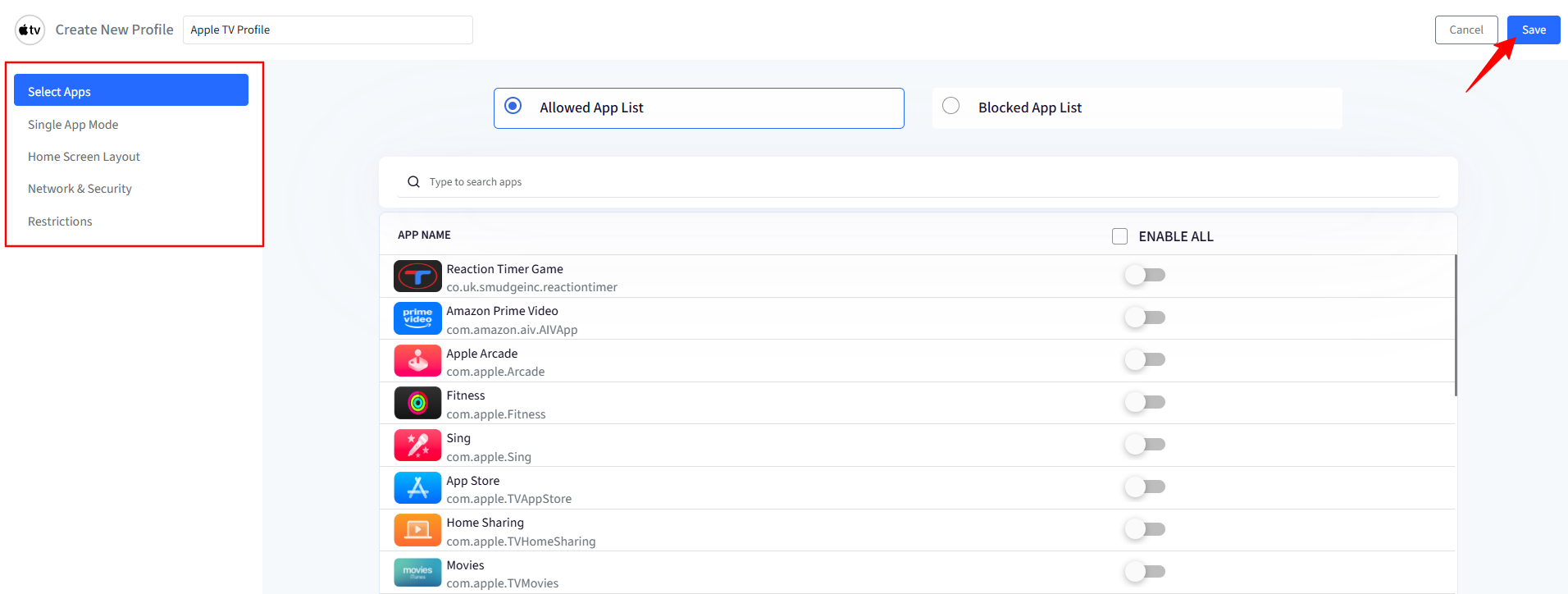
Once you have set the various policies, click on the Save button.
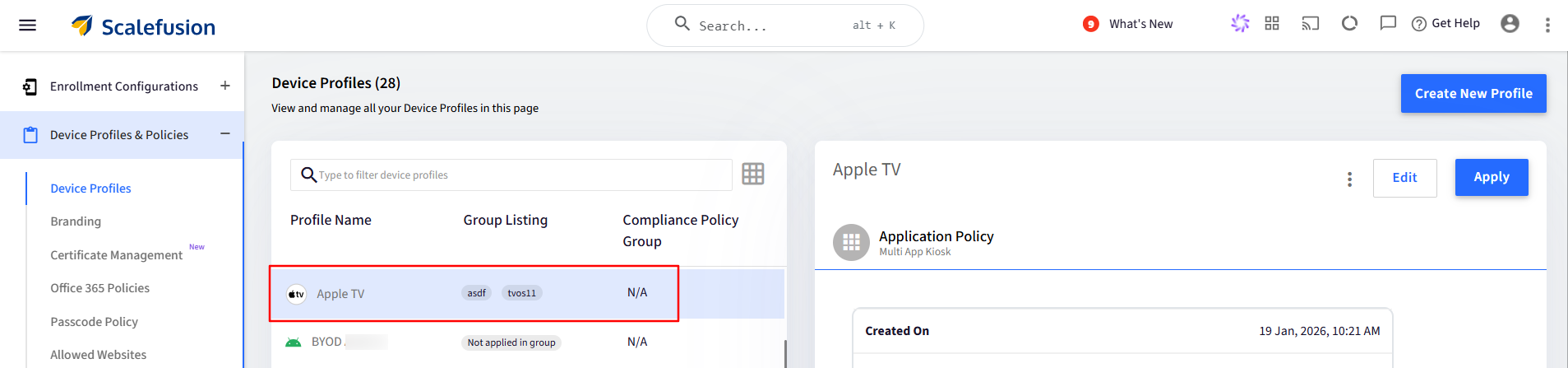
Once a Device Profile is saved, it will be listed in the Device Profile section.
Applying a Device Profile to a tvOS Device or Device Group
A Device Profile can be applied to one or multiple devices or Device Groups. Any changes in the device profile are automatically applied to all the devices in that profile or the device group. Follow the steps below to apply it to a device or a group.
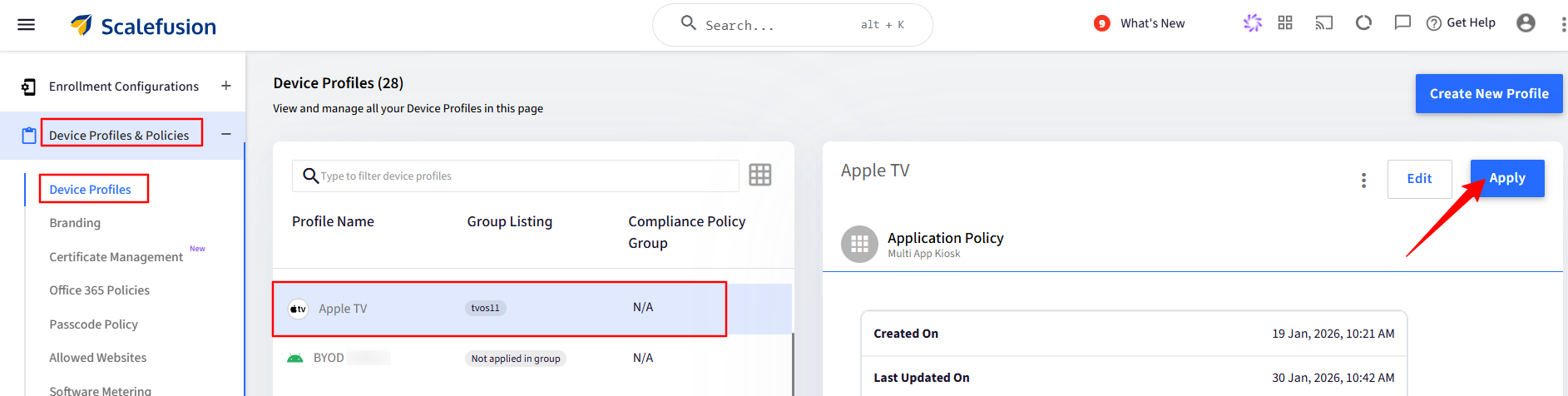
Navigate to Device Profiles & Policies > Device Profile and select the respective tvOS device Profile.
Click on the Apply button on the right-hand side.
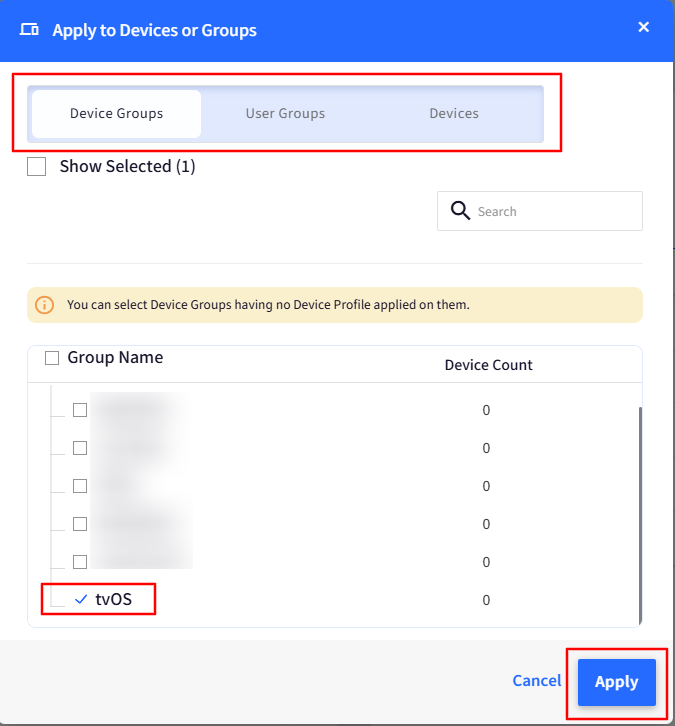
In the Apply Profile window, select either the Device Groups/User Groups/Devices tab and click Apply.