To remotely manage your Apple TV devices, they need to be enrolled in the Scalefusion Dashboard. If you have procured them through Apple's Automated Device Enrollment (ADE, previously Device Enrollment Program (DEP)) program, you can automate enrollment as soon as the devices are unboxed for the first time. Please refer to our guide for setting up ADE/DEP and syncing ADE devices.
You can also manually add your devices in Apple Business Manager. In this document, we will see how to enroll your Apple TV.
Before You Begin
Create a tvOS Device Profile.
Create a tvOS Enrollment Configuration.
Complete the APNs setup in Apple Setup.
Complete the ADE/DEP setup in Apple Setup.
Configure the Setup experience in Apple Setup.
Have physical access to an Apple TV device (and a Mac device in case you are manually adding the device to ABM/ASM).
Enrolling an Apple TV
To enroll Apple TVs, you have 2 options:
Use Automated Device Enrollment (ADE) to enroll Apple TV.
Enroll the device using Apple Configurator and Apple Business Manager (ABM) or Apple School Manager (ASM).
(A) Use ADE to enroll Apple TV
Previously known as the Device Enrollment Program, Automated Device Enrollment (ADE) leverages Apple Business Manager or Apple School Manager to automate the enrollment of tvOS devices.
Assign MDM Server
Ensure that you have completed the ADE/DEP setup in the Apple Setup section on the Scalefusion dashboard.
Next, in the Apple Business Manager (ABM) or Apple School Manager (ASM), go to the Devices menu.
Select the device you want to add to the Scalefusion MDM server.
Click the 3-dots (Actions) to assign an MDM server.
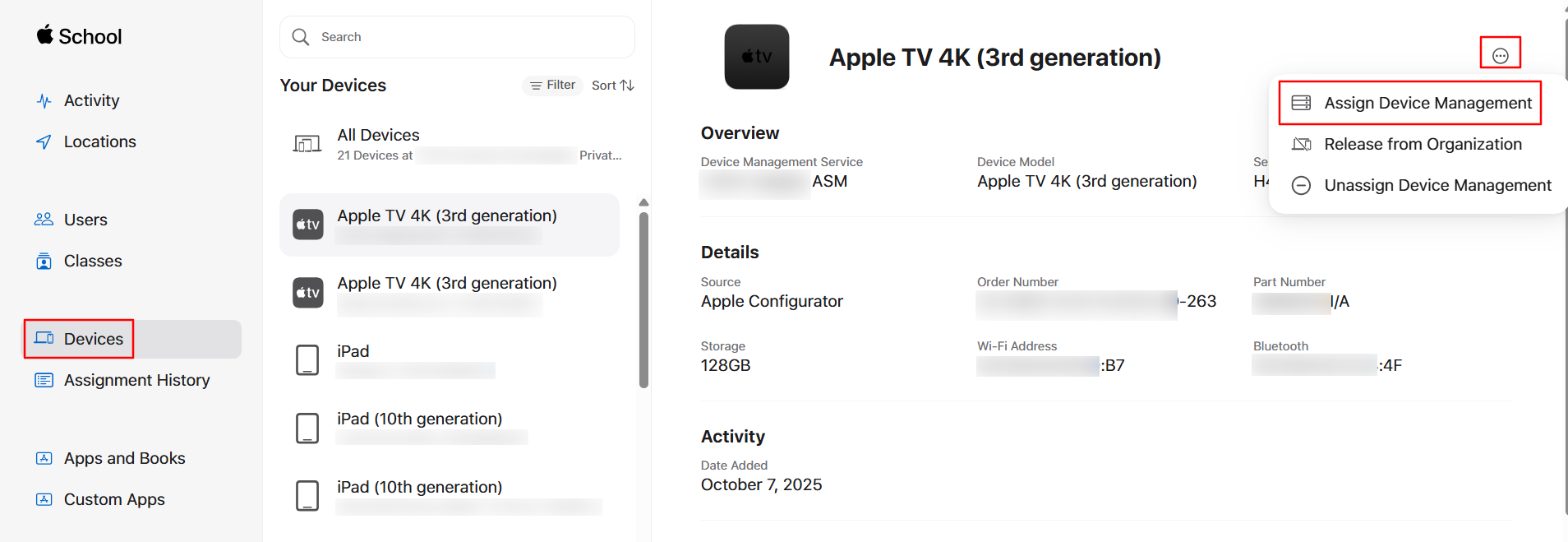
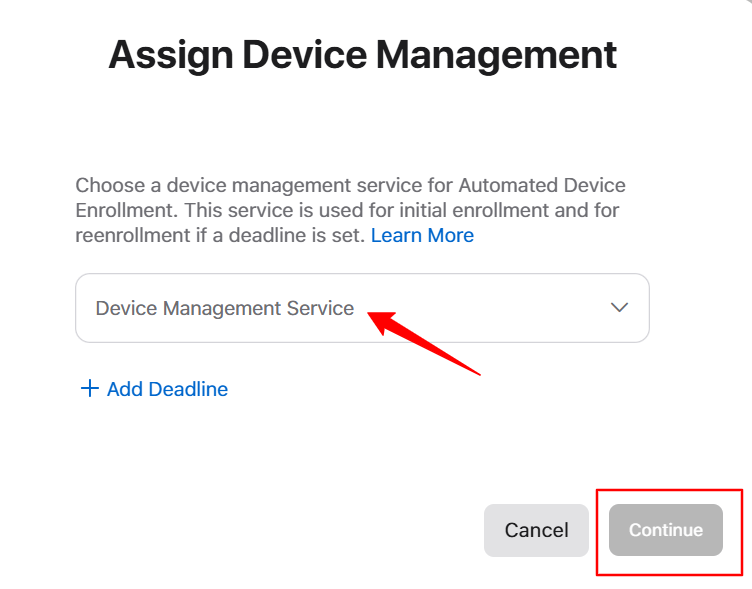
Click Assign Device Management and choose the Scalefusion MDM Server from the list of Device Management Services and click Continue.
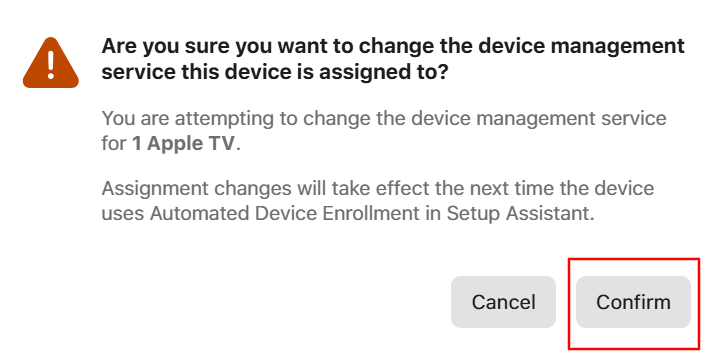
When prompted to confirm the assignment.
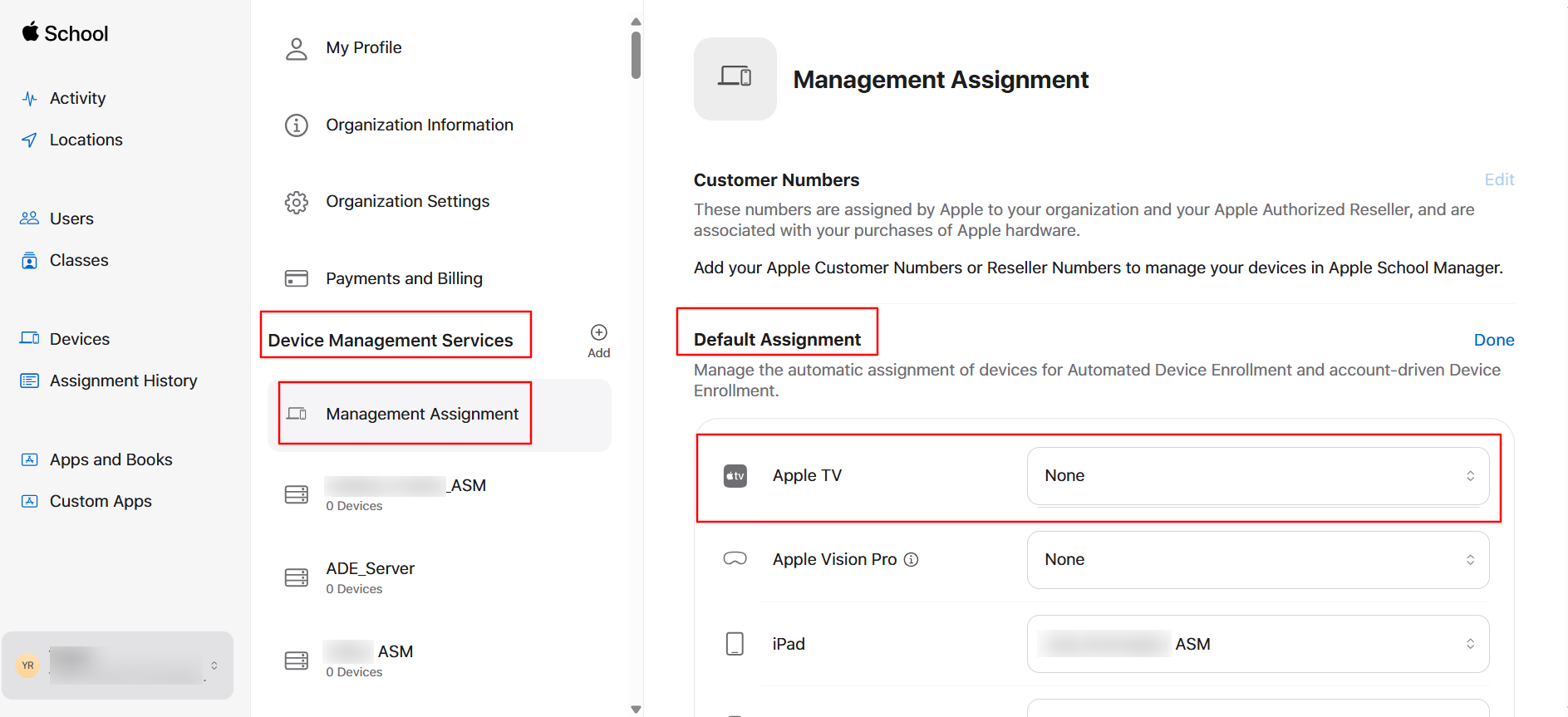
Assign a Default MDM Server
You can also set a default MDM server by device type.
In ABM/ASM, click on your account profile menu, then click Preferences.
Click Management Assignment.
Click Edit next to Default Assignment.
Assign the default MDM server for tvOS.
Once you've assigned your MDM server in ABM/ASM, you must sync it with the Scalefusion dashboard.
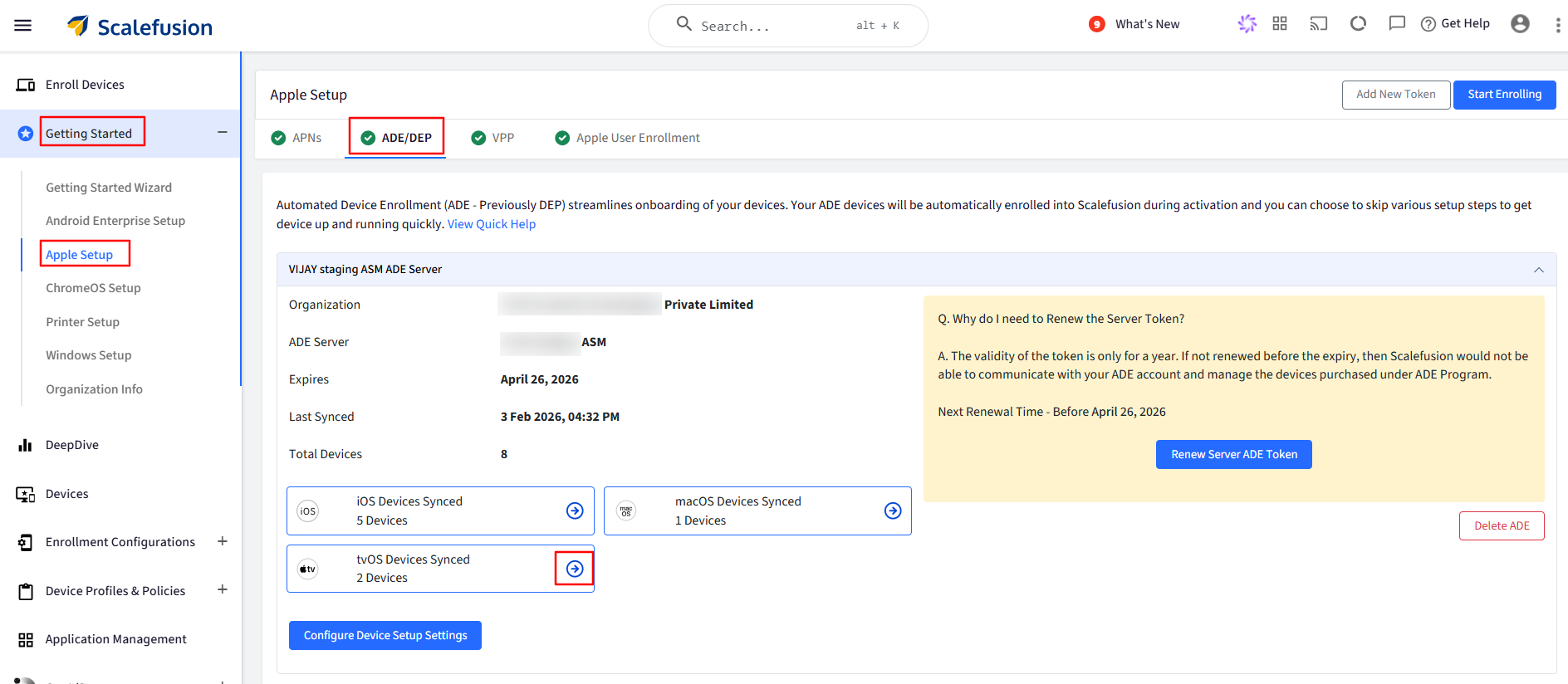
Navigate to Getting Started > Apple Setup > ADE/DEP.
Click the blue arrow button next to the Apple TV logo.
Click the Sync Now button.
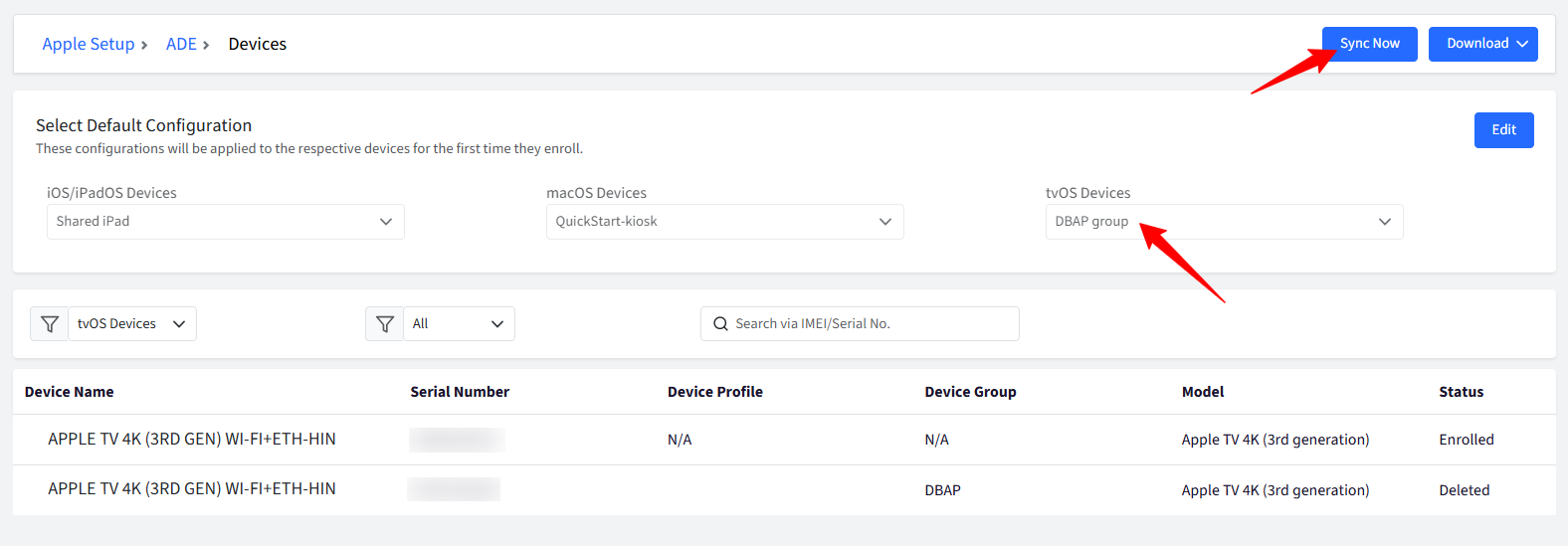
You can also assign a default configuration here.
Configure Device Setup Settings
In the ADE/DEP tab, you can also configure Automated Device Enrollment settings for your tvOS devices.
Navigate to Getting Started > Apple Setup > ADE/DEP.
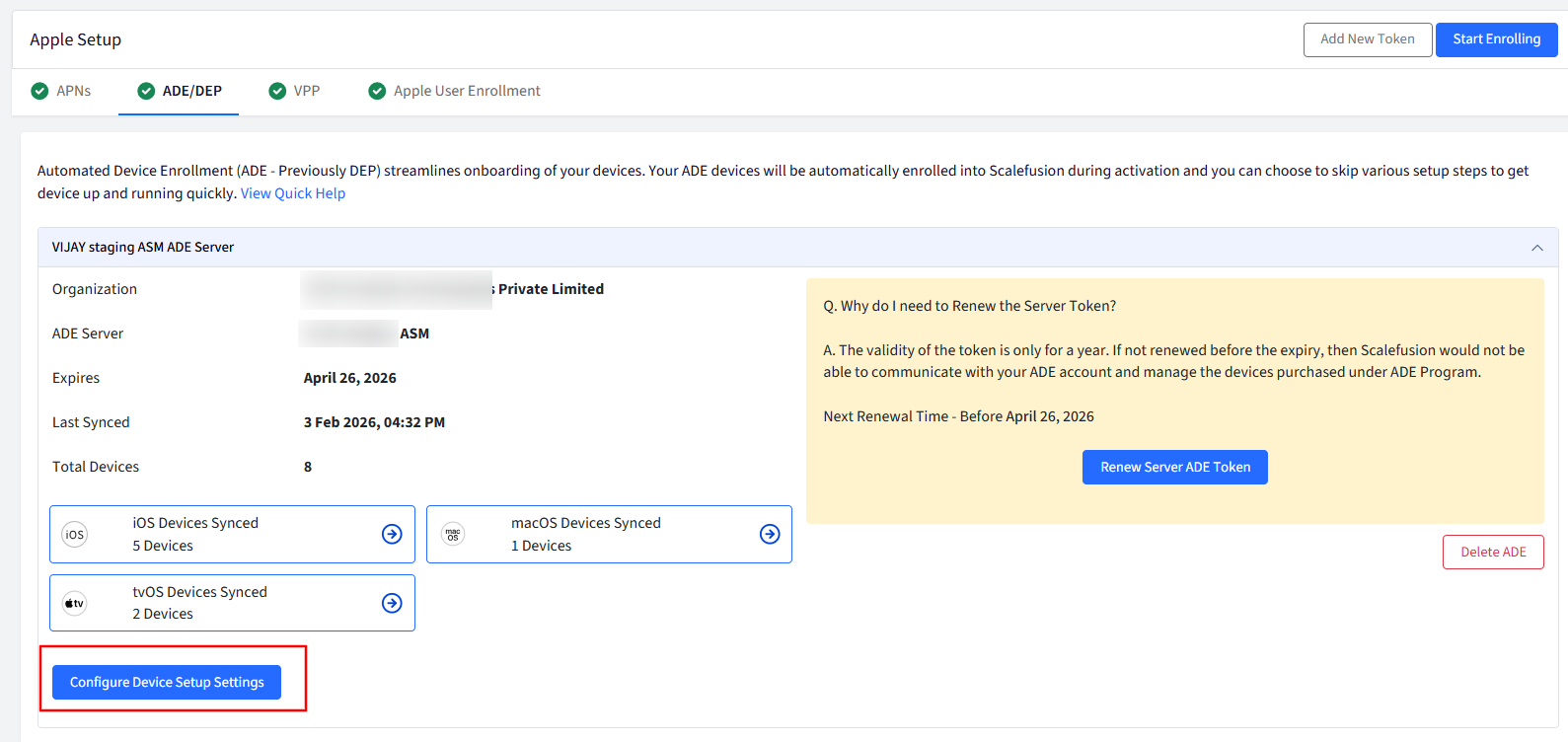
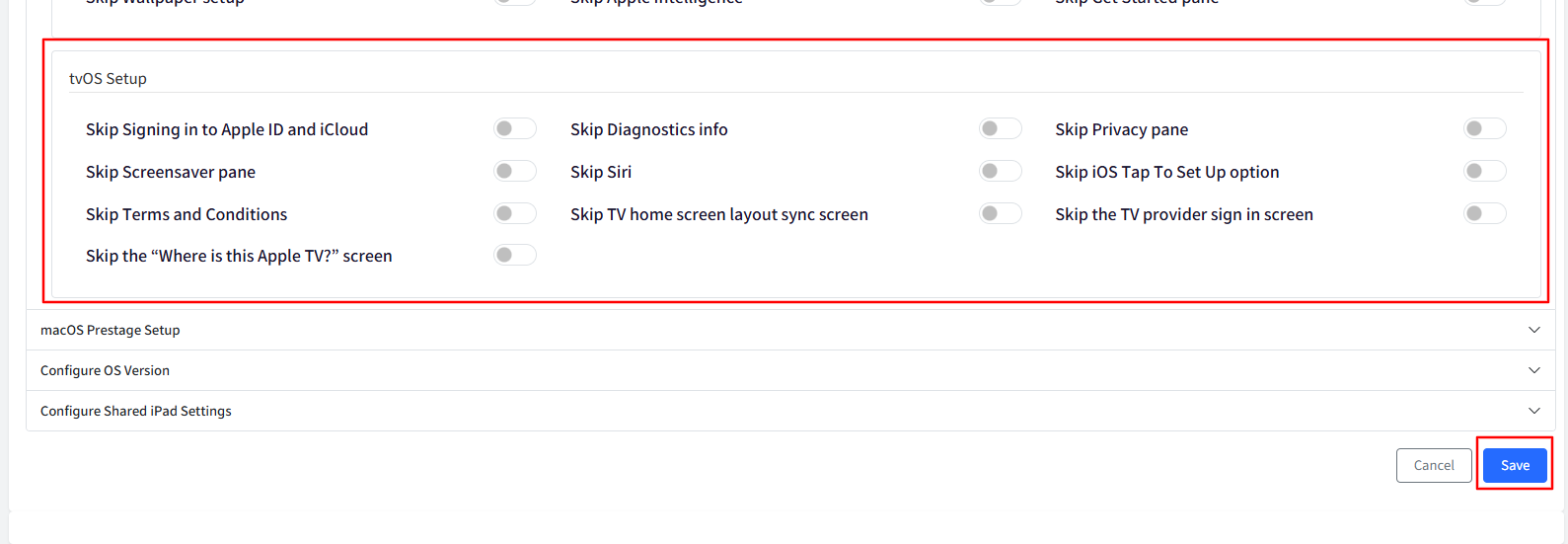
Click Configure Device Setup Settings and scroll down to the Setup Experience tab.
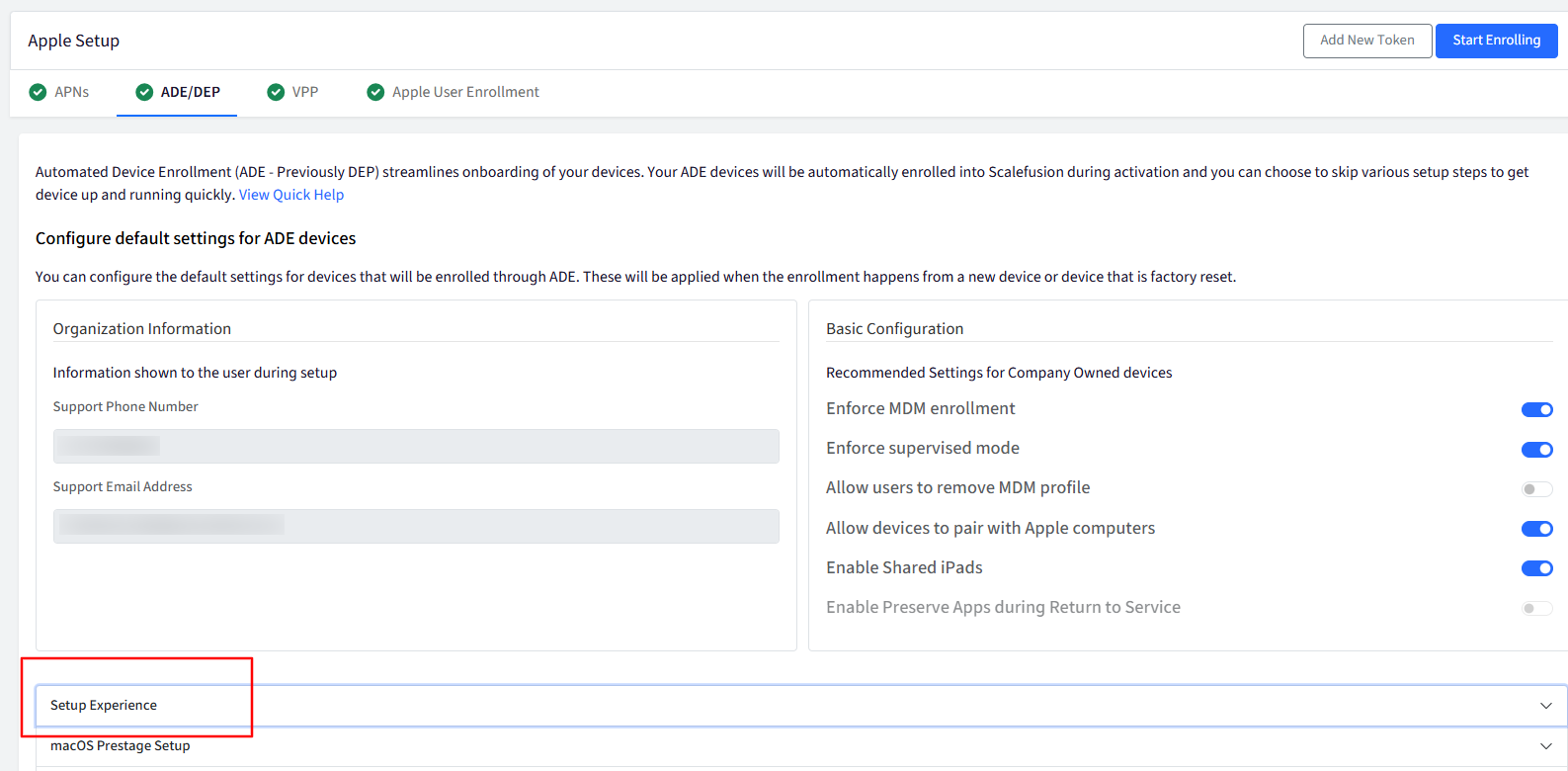
In the tvOS setup, you can configure which items are shown or skipped during device enrollment. Save the changes.
Enroll the device using ADE
Turn on your device for the first time. You may see a few initial setup questions.
When prompted, select the Region, Language, and Wi-Fi. An internet connection is required to complete the ADE process.
Once the device is connected to the internet, the setup process will continue according to the settings you have configured in Device setup settings.
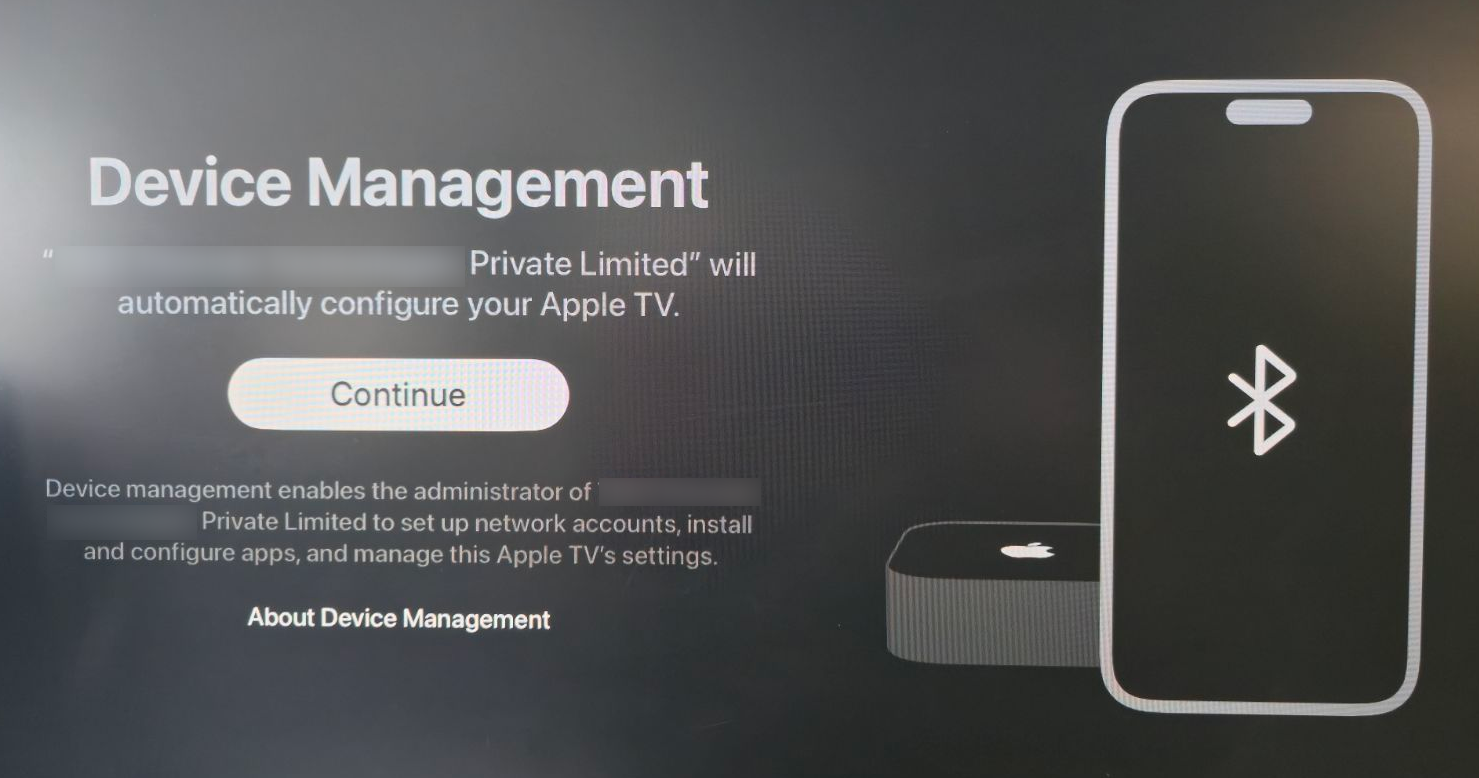
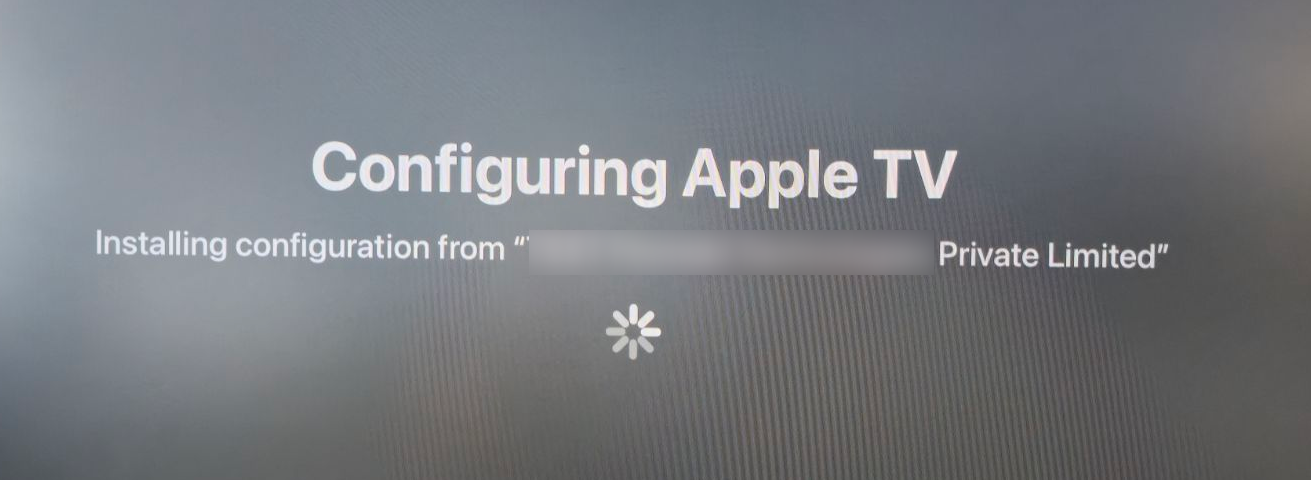
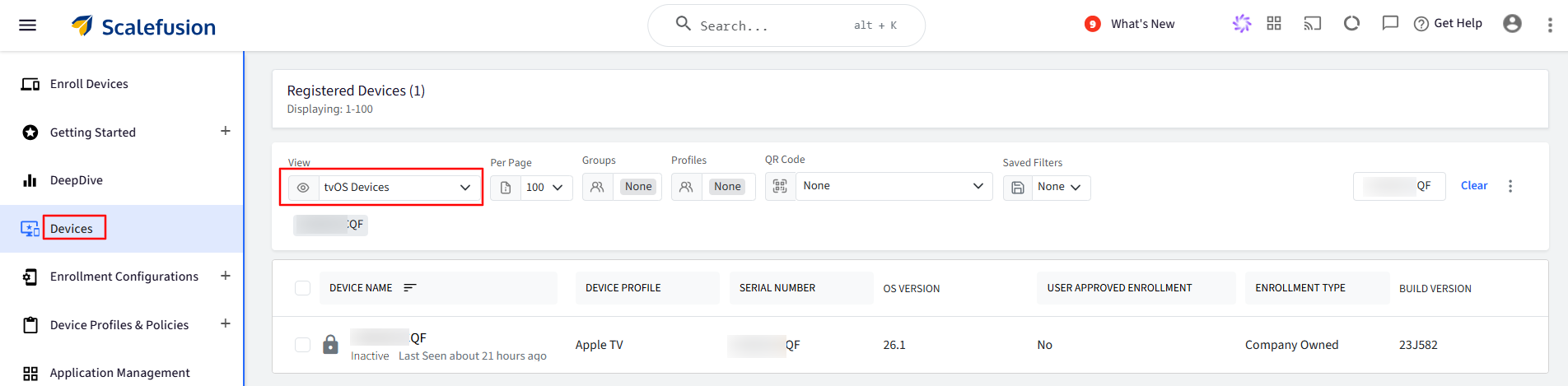
When the setup process is complete, the device will appear under Devices on the Scalefusion dashboard.
Note:
If you have previously turned the devices on and completed the setup panes, they must be reset. The devices only check in with the ADE service when not set up.
(B) Enroll Device using Apple Configurator
Although this process is manual, it is useful for enrolling already-owned devices and devices that didn't come directly from an Apple Authorized Reseller.
Use an Ethernet cable to connect the Apple TV to a router. Ensure that your Mac is also connected to the same network.
On your Mac, open Apple Configurator 2, go to Paired Devices, and click Pair.
You may be asked to enter a code in Apple Configurator.
If you see an error that pairing has failed, click Try Again.
When the Apple TV appears correctly in Apple Configurator, right-click the device and select Prepare.
Select Manual Configuration.
Make sure to check:
Add to Apple School Manager or Apple Business Manager.
Allow devices to pair with other computers.
Click Next.
In the next screen, you will be asked for the details of the MDM server:
If you’ve already created an MDM server, you can select it from the list and click Next.
Or, select New Server from the drop-down and click Next.
In the next screen, enter a Name for the server ex: Scalefusion, and paste the URL that you copied from the Scalefusion Dashboard > QR Code Configurations > AC2 Enrollment URL.
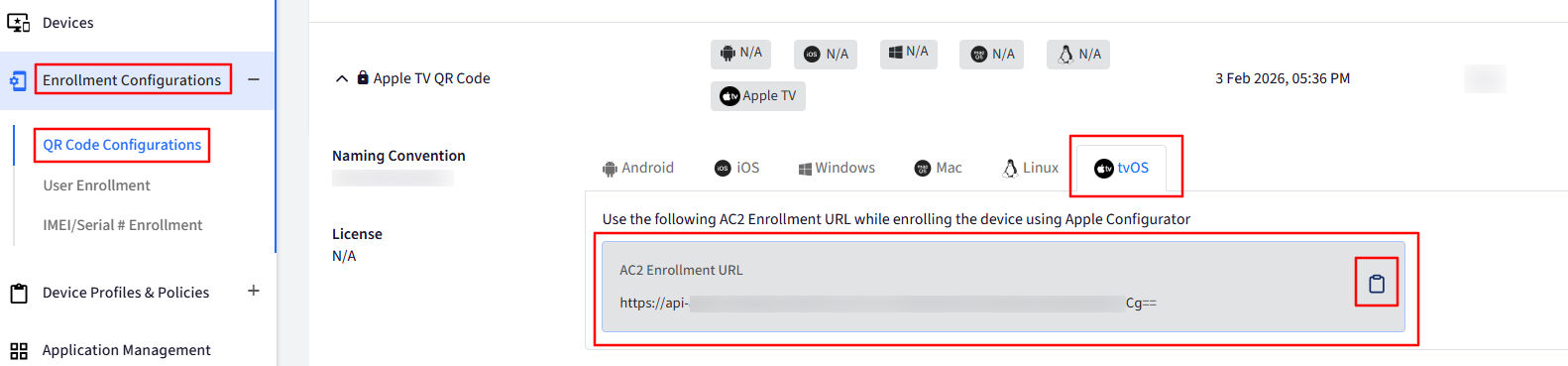
On the next screen, choose New Organization from the drop-down menu (if 'New Server' was selected earlier), then click Next.
At this point, you will be asked for your ABM or ASM credentials. Please enter the credentials and click Sign In.
Once the Sign In is successful, you will be asked to choose a Supervisioning identity. Click Next.
You can configure the tvOS Setup Assistant. The selected steps will be shown to the user during device setup.
You can add a Wi-Fi payload; however, it is Optional.
Click Prepare. You may be prompted to enter your Mac’s admin credentials.
You will be shown a warning that the device will be erased. Click Erase.
After the Apple TV completes the erase process, sign in to your ABM or ASM. The device should now appear in your ABM or ASM account. Assign the Apple TV to the appropriate Scalefusion MDM server from 3-dots (Actions) > Assign Device Management as shown in Step (A) above.
Next, navigate to the Scalefusion dashboard, go to Getting Started > Apple Setup > ADE/DEP > tvOS Device Synced, and sync the devices.
The Apple TV will need to be wiped once again. In Apple Configurator, select the device, and click Actions > Advanced > Erase All Content and Settings.
When prompted, click Erase.
Once the Apple TV has been restored, follow the on-screen instructions.
At the remote management screen, click Continue. The device will now enroll in Scalefusion MDM.
Note:
The devices that are manually added to ABM using Apple Configurator can be removed by the user within 30 days of enrollment.