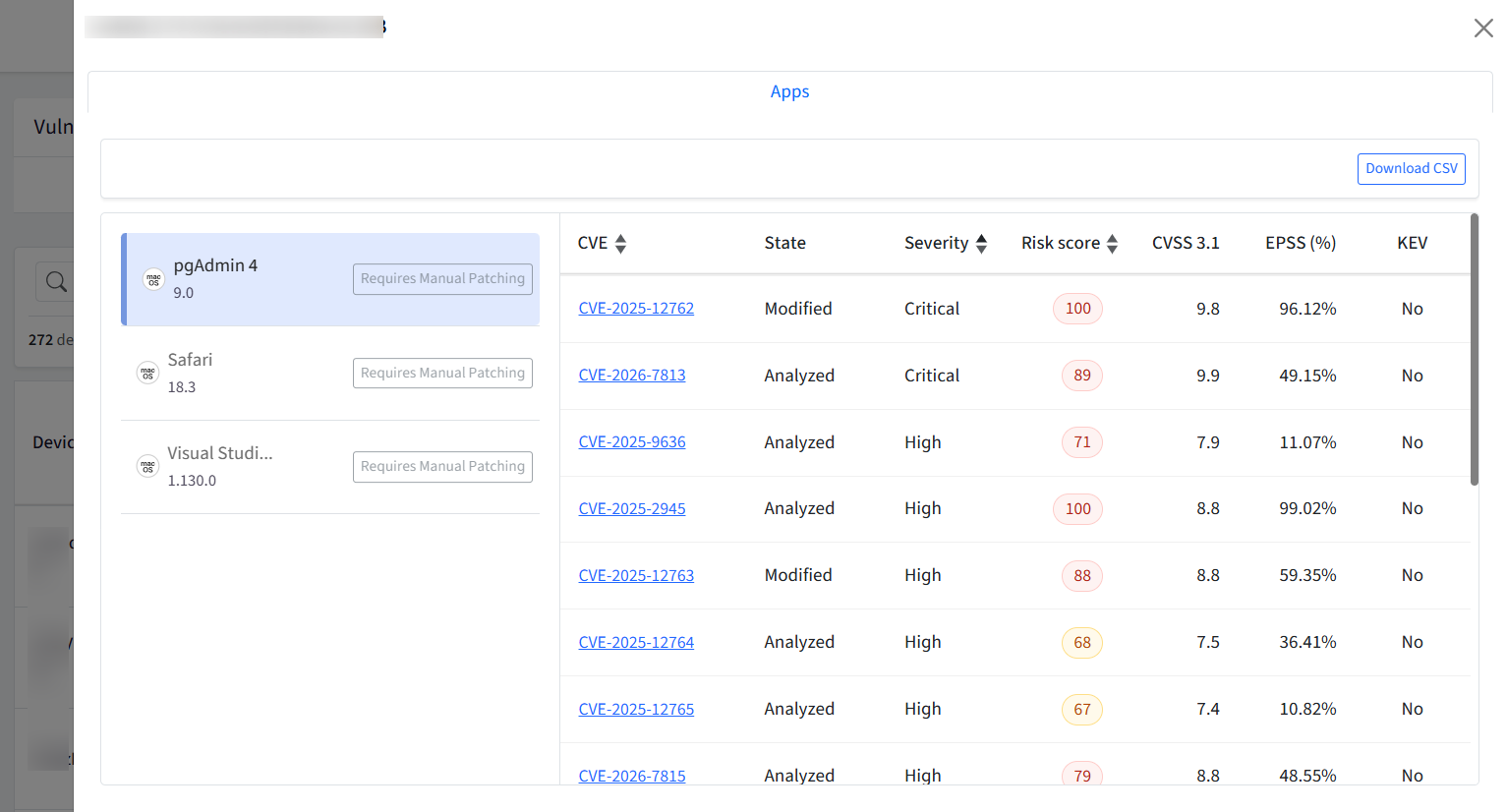
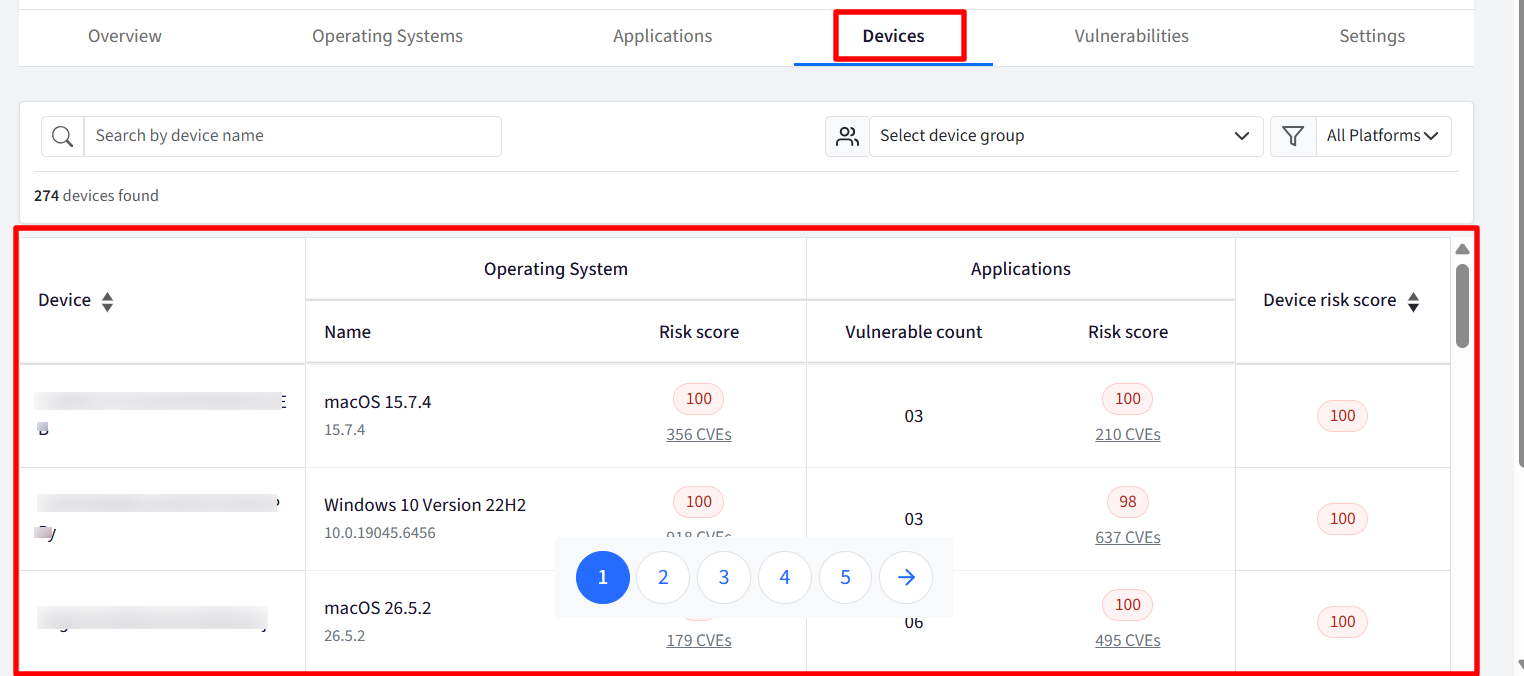
The Devices section under Vulnerability Management offers an endpoint-centric view of your entire managed devices infrastructure. It lists managed devices row-by-row, presenting distinct vulnerability breakdowns for both operating systems and installed applications.
Devices Table
The main table provides a list of all enrolled endpoints alongside key risk indicators:
Device Name: The hostname or custom name of the endpoint.
OS & Version: The operating system running on the machine (e.g., Windows 11 Version 24H2, macOS Sequoia).
Risk Score: An aggregated score (0–100) reflecting the overall security posture of the individual device, calculated based on CVE severities, KEV presence, and system configuration risks.
Total CVEs: The total number of active vulnerabilities detected on the device. Clicking this opens the side panel pre-filtered to the device's CVE list.
Vulnerable Count: The total no. of applications found vulnerable on a particular device.
Device Risk Score: Unlike the Risk Score, the Device Risk Score is calculated based on both OS and application vulnerabilities identified on the device.
Actions
Search & Filter: Search for specific devices by device name, or filter by OS platform, or group.
Download CSV: Export the complete device risk posture report for auditing, inventory tracking, or offline analysis.
Detailed View (Side Drawer / Slide-over Panel)
Clicking on a Total CVEs count opens a dedicated device drawer on the right side of the screen, providing granular insights and direct remediation tools for that specific device.
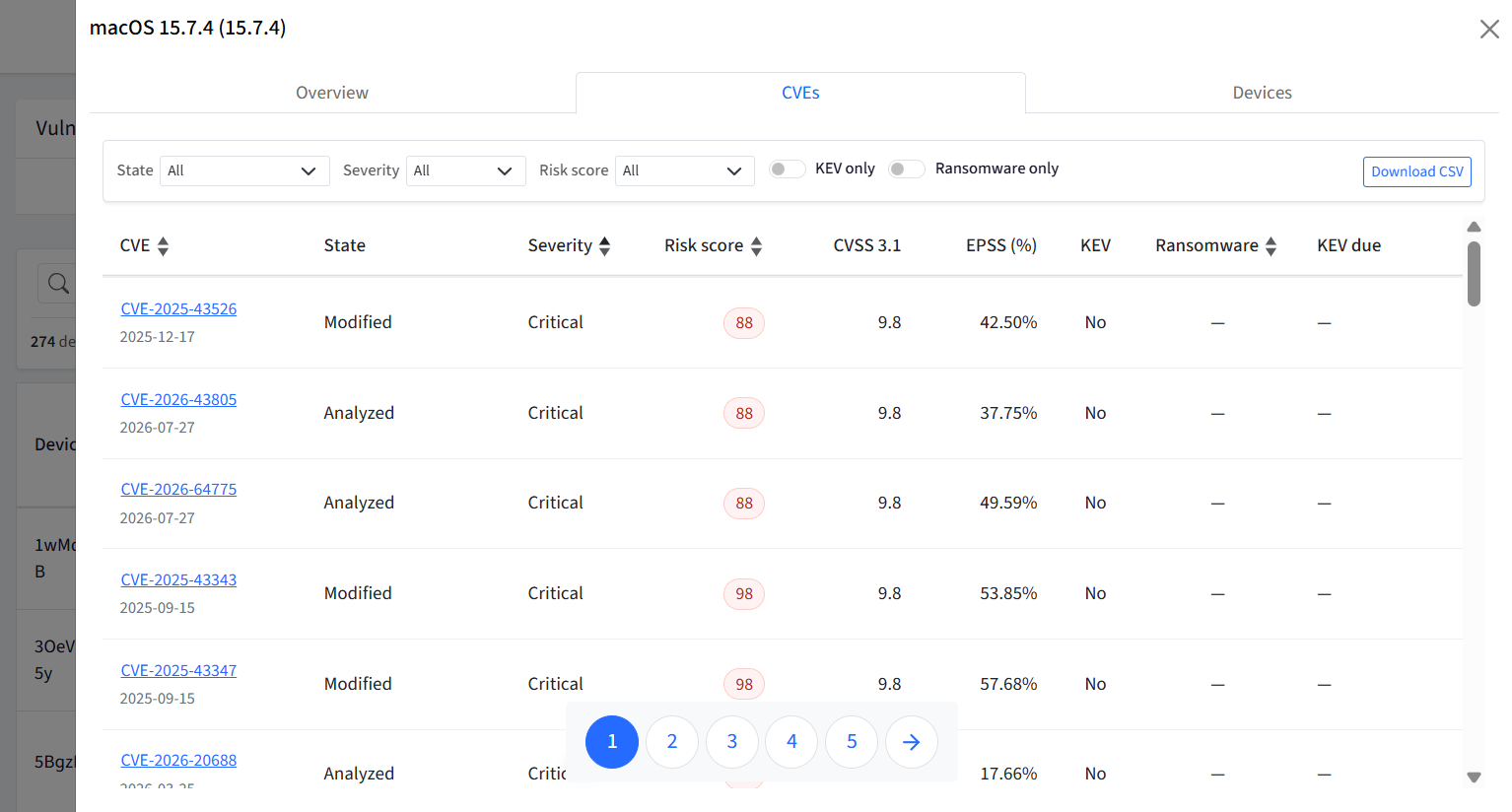
1. CVE Count under Operating Systems
When you click the CVE count (e.g., 12 CVEs) for a specific OS row:
The panel loads with the focus set to OS-Level Vulnerabilities affecting that exact OS release and build number (e.g., Windows 11 Version 23H2 or macOS Sonoma 14.5).
Displays only the system-level CVEs (associated with that OS version.
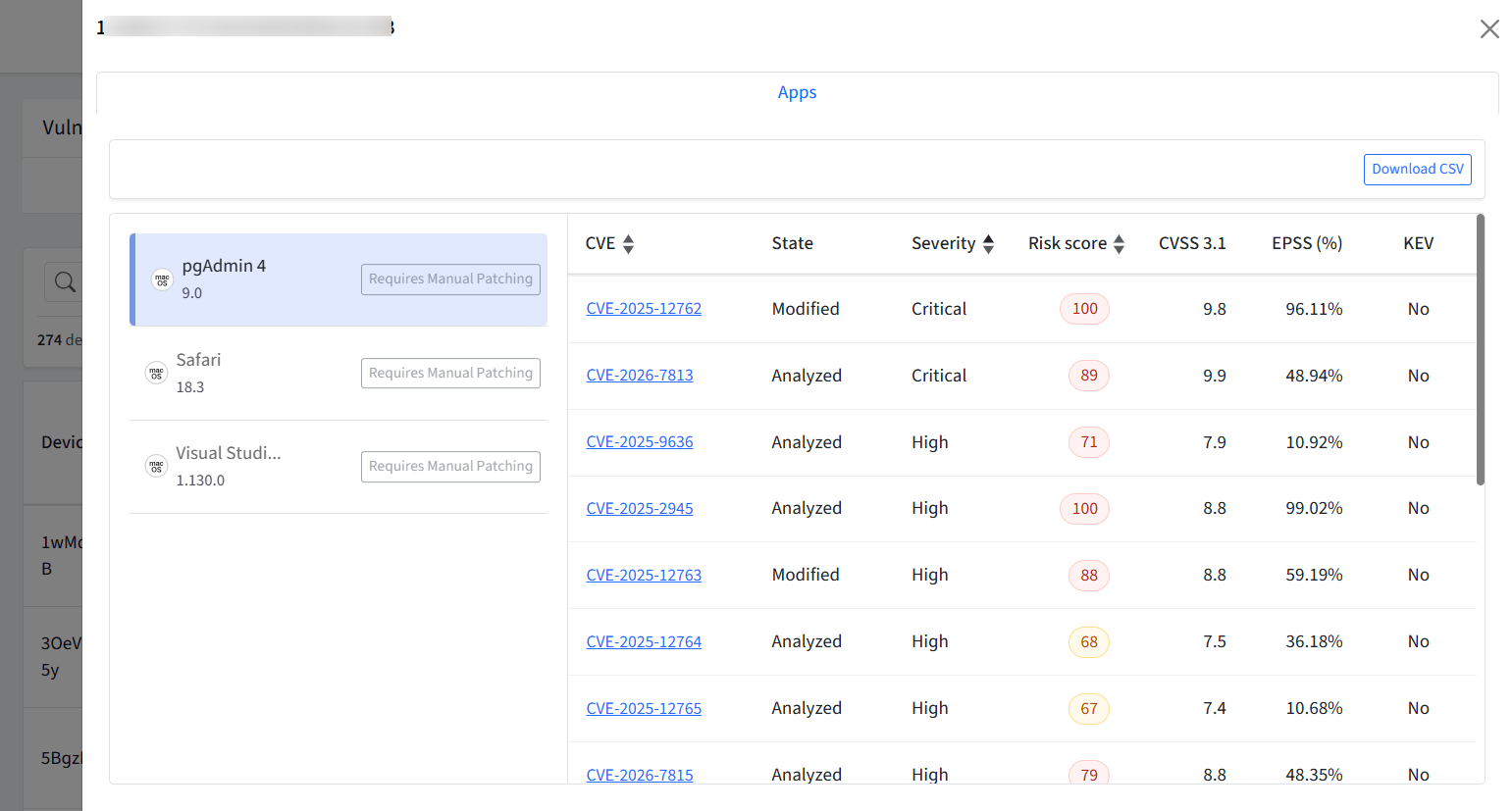
2. CVE Count under Applications
When you click the CVE count (e.g., 5 CVEs) for a specific Application row:
The panel loads with the focus set to Third-Party Application Vulnerabilities affecting that specific software package and version string (e.g., Google Chrome 124.0.6367.60 or Adobe Acrobat 23.008.20343).
Displays only the application-specific security flaws, execution bugs, or library vulnerabilities related to that software release.
Patching & Redirection
The patching and redirection depend on where you initiate the action: Operating Systems or Applications.
From Operating Systems
Clicking Patch Now initiates OS patching based on the device's operating system:
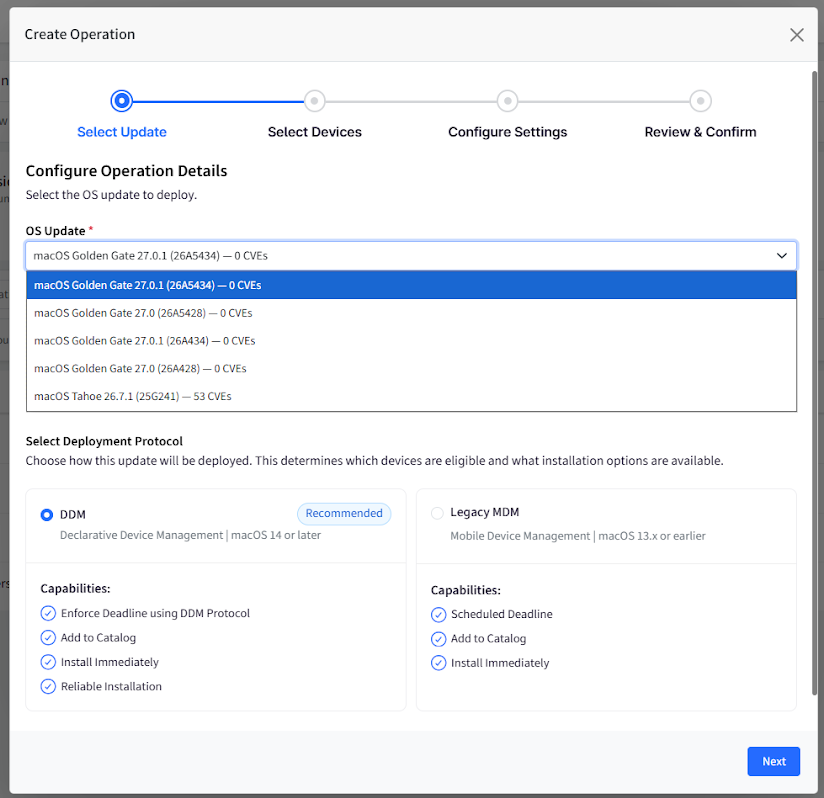
macOS: Opens Create Operation under macOS OS Updates. From here, you can create an OS update operation. The available OS versions include all versions newer than the selected OS version in Vulnerability Management > Operating Systems.
Windows: Redirects you to Windows OS Updates, filtered for the specific device, so you can review and initiate the applicable OS update.
From Applications
Applications that do not support automated patching are marked with a Requires Manual Patching tag. These applications must be patched manually.