The Updates acts as your organization's internal library for every macOS version Scalefusion detects across your managed fleet. Instead of guessing which devices are eligible for a specific patch or worrying about when Apple might retire an older version, this page brings all that hardware-specific data into one clean workspace.
Before you create a deployment plan, you can use this tab to check precise build numbers, review release timelines, and see exactly how many devices are ready to receive an update.
Summary
The top section of the Updates tab highlights four key metrics to give you an immediate health check on your software repository:

Total Updates: The complete count of all distinct macOS versions currently recognized across your managed environment.
Published Updates: The number of updates you have actively authorized, scheduled, or pushed out to your users' app catalogs.
Critical Updates: High-priority security patches or urgent updates from Apple that require immediate attention and fast-tracked deployment.
Expiring Soon Updates: A helpful countdown tracker for updates approaching their end-of-life, ensuring you prioritize older patches before Apple stops serving them.
Clicking on each card takes you to the respective tab for viewing more details
Filtering and Keeping Records

Managing a large fleet often means deploying updates in waves rather than all at once. To help you sort through the data, you can use the Select Device Group and Device Scope dropdown filters located just below the summary cards. These tools let you isolate specific teams or device profiles instantly.
If you need to share these insights with stakeholders, hand off data to an auditor, or keep a copy for internal planning, the Export CSV button downloads a complete spreadsheet of your update catalog.
Understanding the Updates Inventory Table
The main inventory table breaks down each operating system version into practical, actionable details:
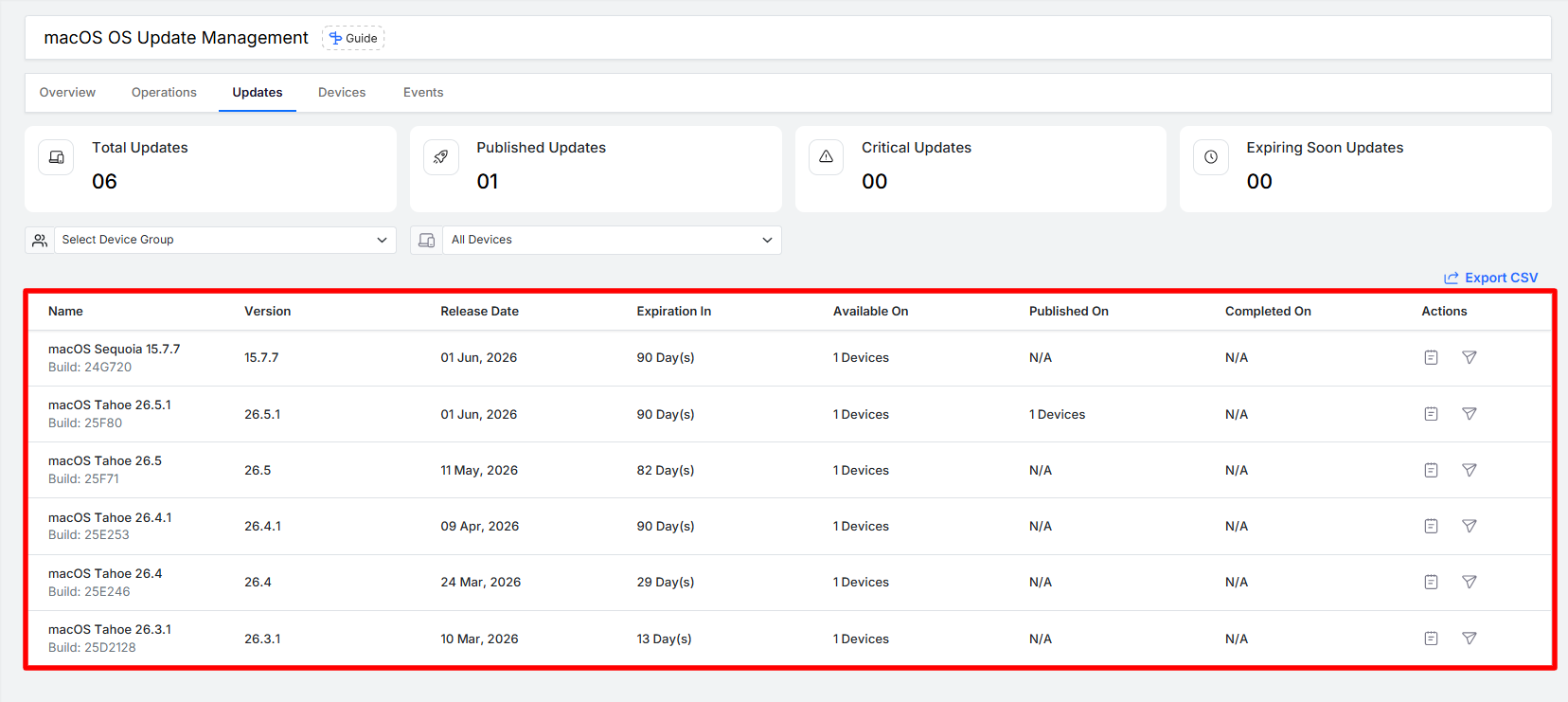
Name & Version: Displays the friendly marketing name of the OS (like macOS Sequoia or macOS Tahoe) along with its precise version number. Directly underneath, you'll find Apple's unique Build Number (such as
Build: 24G720), which is vital for verifying specific security patches.Release Date: The official calendar date when Apple launched the update.
Expiration In: A live countdown timer (e.g.,
90 Day(s)) that tells you exactly how long you have to safely deploy a patch before Apple retires it.Available On: The total number of Macs in your fleet that are physically compatible and eligible to install that specific version.
Published On: The number of devices where you have already made the update visible or available via an active policy.
Completed On: The number of devices that have successfully downloaded, processed, and finalized the installation.
Actions: Quick-access icons on the far right that let you drill down into update-specific logs or jump straight into configuring a deployment operation for that line item.
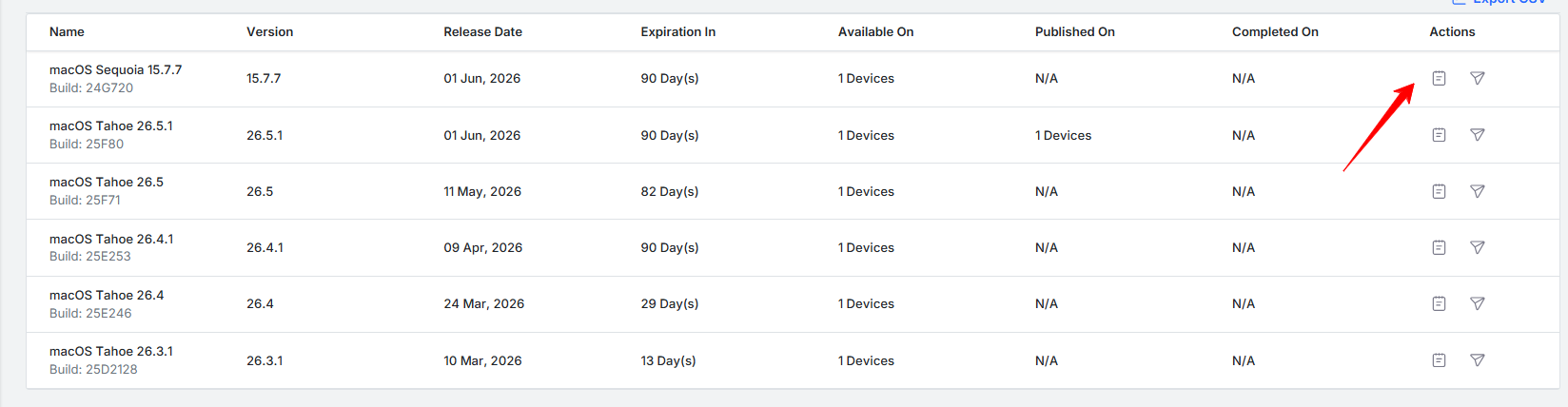
Summary of the update
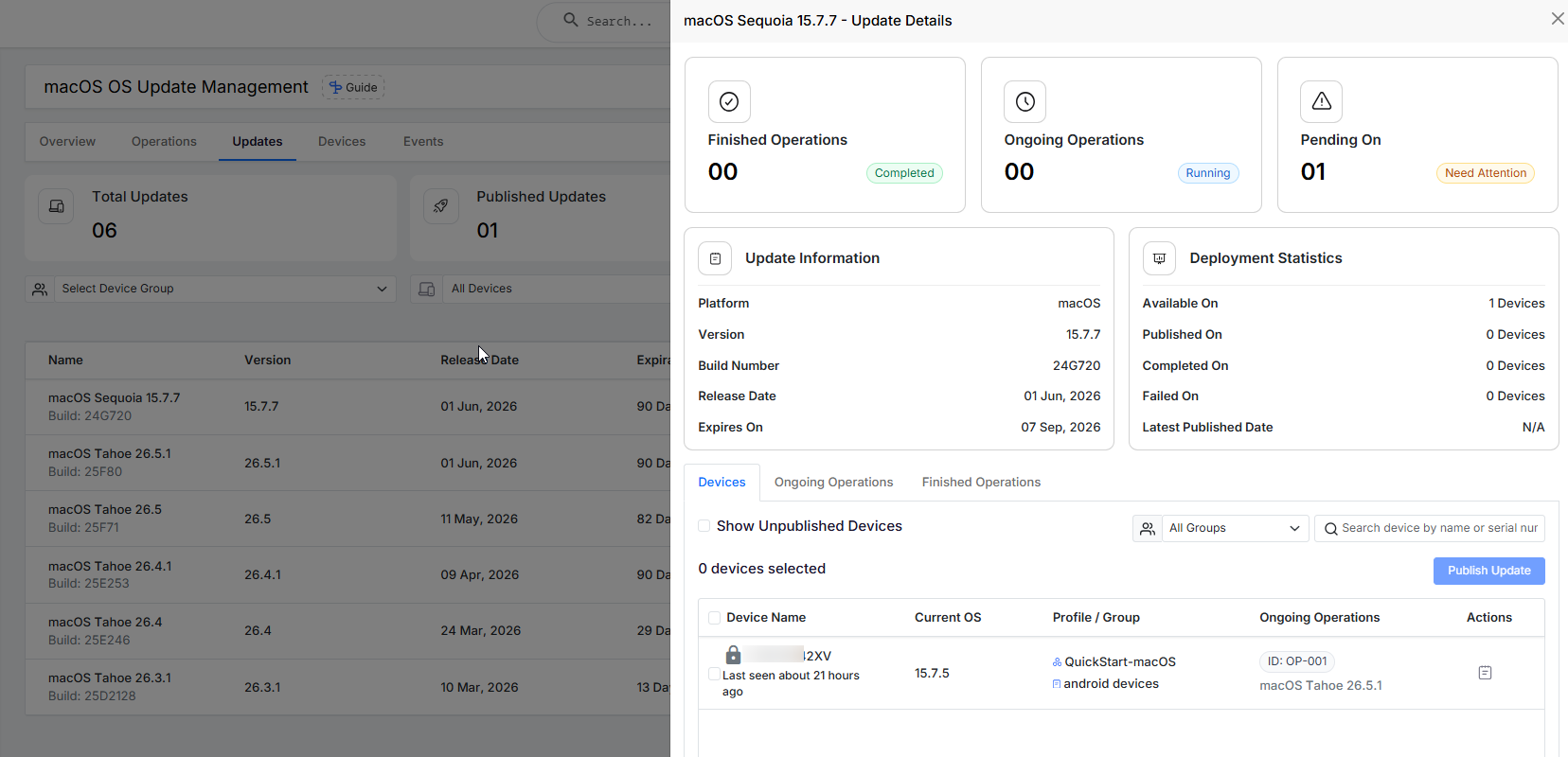
Selecting an update opens the Update Details panel. This panel provides information about the selected update and its deployment activity.
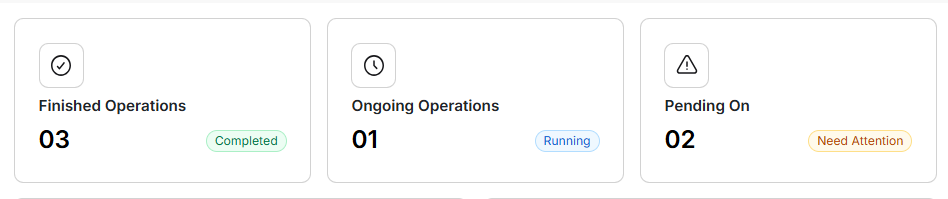
Located at the top of the side panel, these cards summarize the deployment status of the active update:
Finished Operations: The count of devices where the operation has been completed successfully.
Ongoing Operations: The count of running deployment plans actively processing this version across the fleet.
Pending On: Shows the count of devices where the update has not yet been published.
Information and Statistics
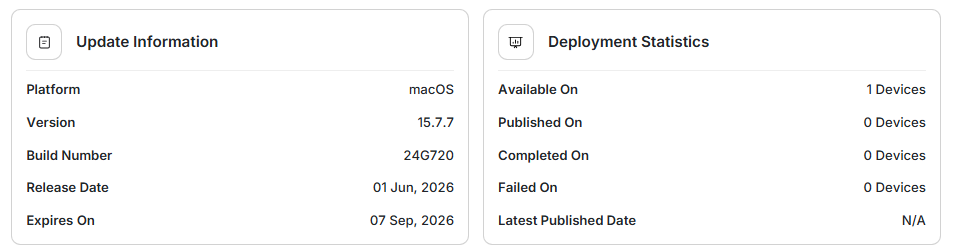
Update Information: Lists technical parameters including the target Platform, Version, Build Number, Release Date, and the official Expiration Date.
Deployment Statistics: Provides a snapshot scorecard tracking fleet interaction metrics, including total available devices, published devices, completed installations, failed installations, and the latest publication date.
Management and Tracking
The lower section of the panel provides granular visibility and control via three specialized tabs:
Devices
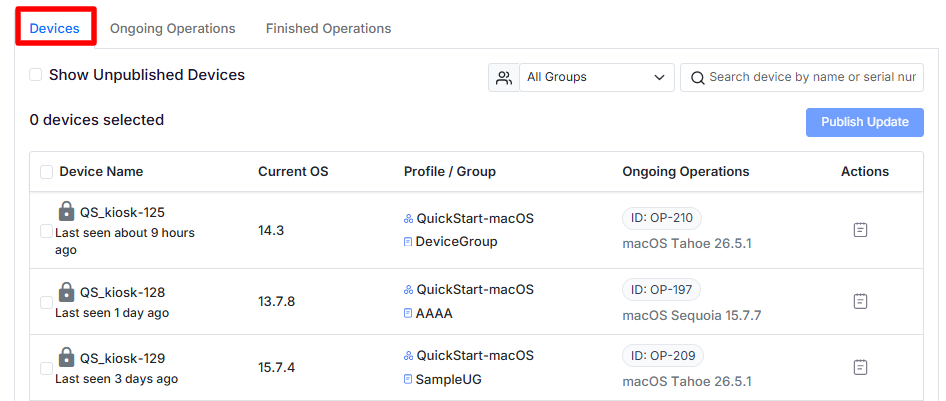
Displays an inventory of all individual Macs within the scope of the selected update. The grid lists the Device Name, Current OS, Profile / Group, Ongoing Operations (tracked by Operation ID, e.g., ID: OP-001), and Actions.
Show Unpublished Devices: A checkbox option that filters the list to display only the eligible devices that have not yet been targeted with a deployment policy.
Search and Group Filters: Allows administrators to locate specific machines by device name, serial number, or assigned device group.
Publish Update Button: Allows administrators to select specific devices directly from the grid and immediately deploy the patch without launching the main operations wizard.
Ongoing Operations
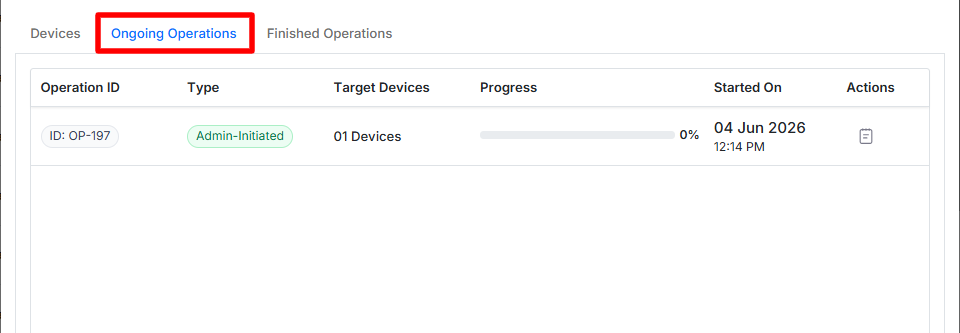
Isolates and displays all active, live deployment pipelines currently executing this specific update across the organization.
Finished Operations
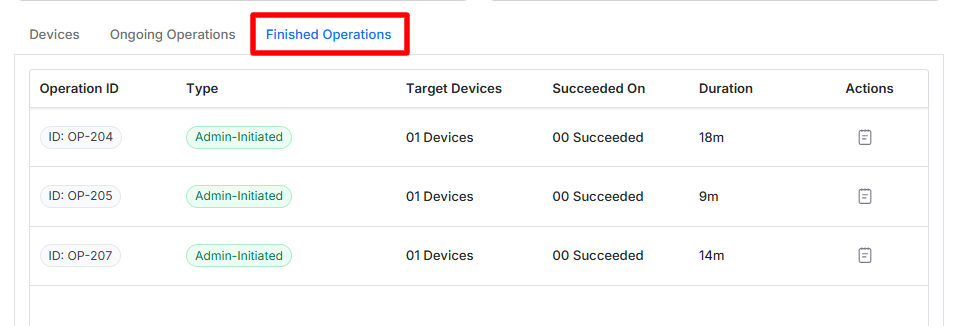
Shows a complete history of all completed or canceled update operations for this specific version, allowing you to quickly review past deployment records.