Introduction
Scalefusion Commands offer a quick and efficient way to execute Predefined Remote Actions, requiring minimal input from IT Admins. While many of these are typically available to Business and Enterprise plan users, Scalefusion Commands are accessible across all license plans, ensuring ease of use for all customers.
Creating Scalefusion Commands
Navigate to Remote Support > Remote Commands > click the Create button.

In the Android tab, click Scalefusion Commands.
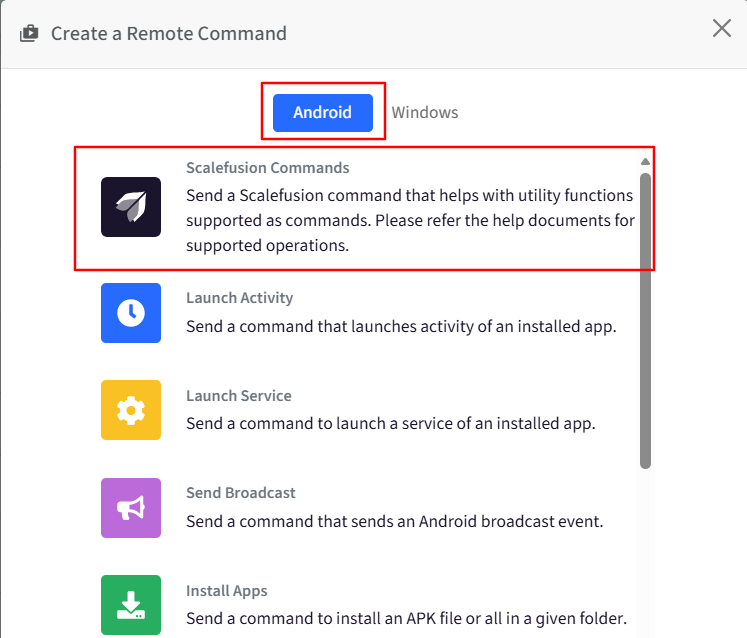
This will open the command creation wizard.
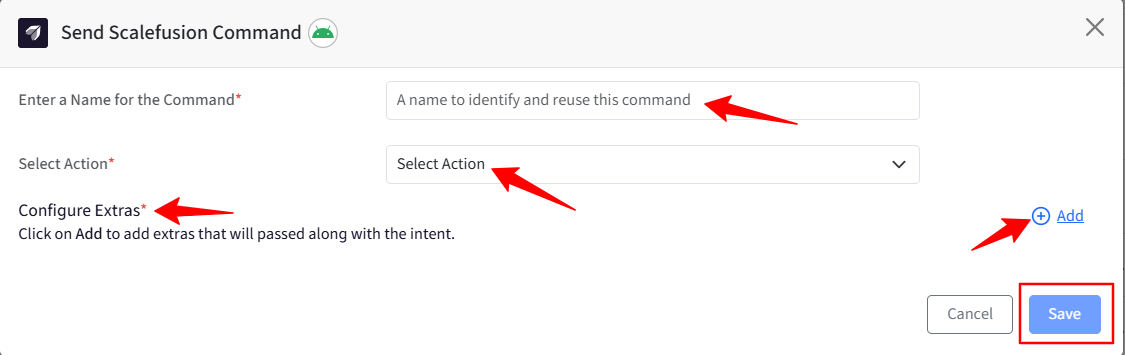
Select the Action you want to run on the device(s), configure the Extras, and Save it.
Provide a unique name for easy identification.
Select the Action type from the dropdown list.
Configure the Extras by clicking the Add button.
Next, let’s have a look at the different Actions available.
Select Actions
1. Apply Policies
You can configure actions categorized under com.mdm.action.APPLY_POLICIES. For example,
1.1 Full Screen Mode
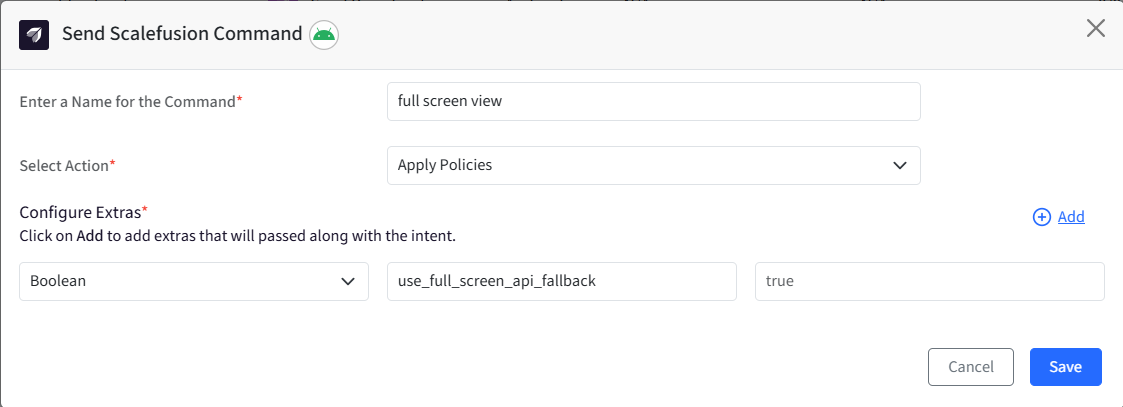
To show the device in full-screen view, configure the following:
Select Action: Apply Policies
Configure Extras:
Type: Boolean
Key: use_full_screen_api_fallback
Value: true
Click Save.
Note:
This command will work on:
Scalefusion Wingman supported devices.
Samsung KNOX supported devices.
ELO SDK-supported devices.
Zebra devices using MX config.
1.2 Disable Scalefusion Browser
Disable Scalefusion Browser and set another browser like Chrome, Firefox, Edge, etc. as the Default Browser on the device.
Note:
Make sure to enable the required browser in the Device Profile before creating this command.
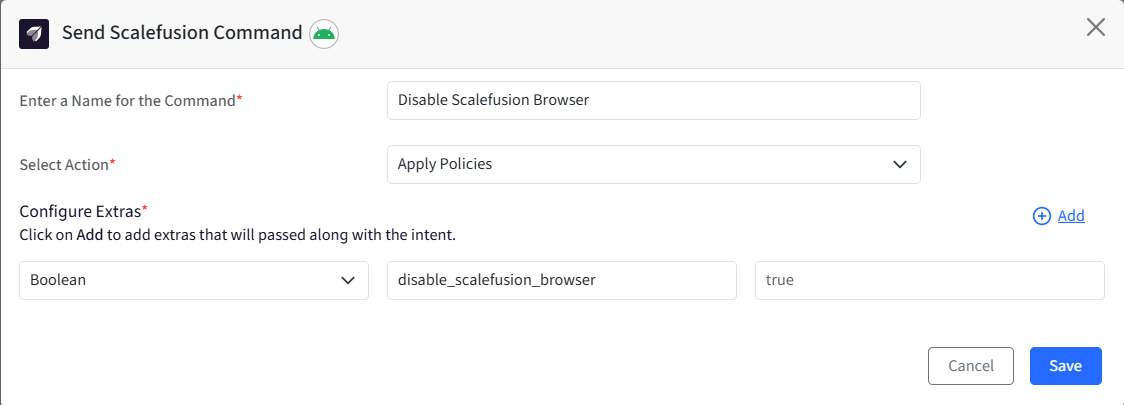
Select Action: Apply Policies
Configure Extras:
Type: Boolean
Key: disable_scalefusion_browser
Value: true
Click Save.
1.3 Apply Passcode Policy on OS 12+ devices using Legacy API
Using the Passcode Policy feature, you can set a password complexity to either Pin or Alphanumeric. However, if you would like to enforce that users set only a PIN or only an Alphanumeric password on the device, the following remote command can be used to enforce that.
Select Action: Apply Policies
Configure Extras:
Type: Boolean
Key: use_legacy_api_for_passcode
Value: true
Click Save.
If the use_legacy_api_for_passcode value is true, then the client will apply the Passcode Policy using the Legacy API.
To turn this off, change the value to false and rerun the remote command.
1.4 Prevent users from changing GPS settings
Prevent users from changing GPS settings if the Settings app is accessible. It is a two-step process.
Pre-requisites
The device must be running Android 9 (Pie) or above.
Devices must be set as a device owner or profile owner.
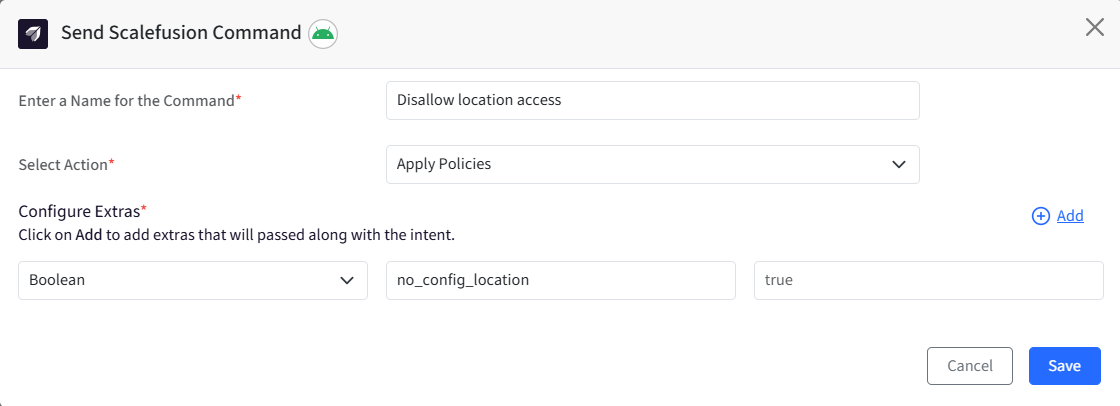
Select Action: Apply Policies
Configure Extras:
Type: Boolean
Key: no_config_location
Value: true
Click Save.
To disallow location access, use true, else use false.
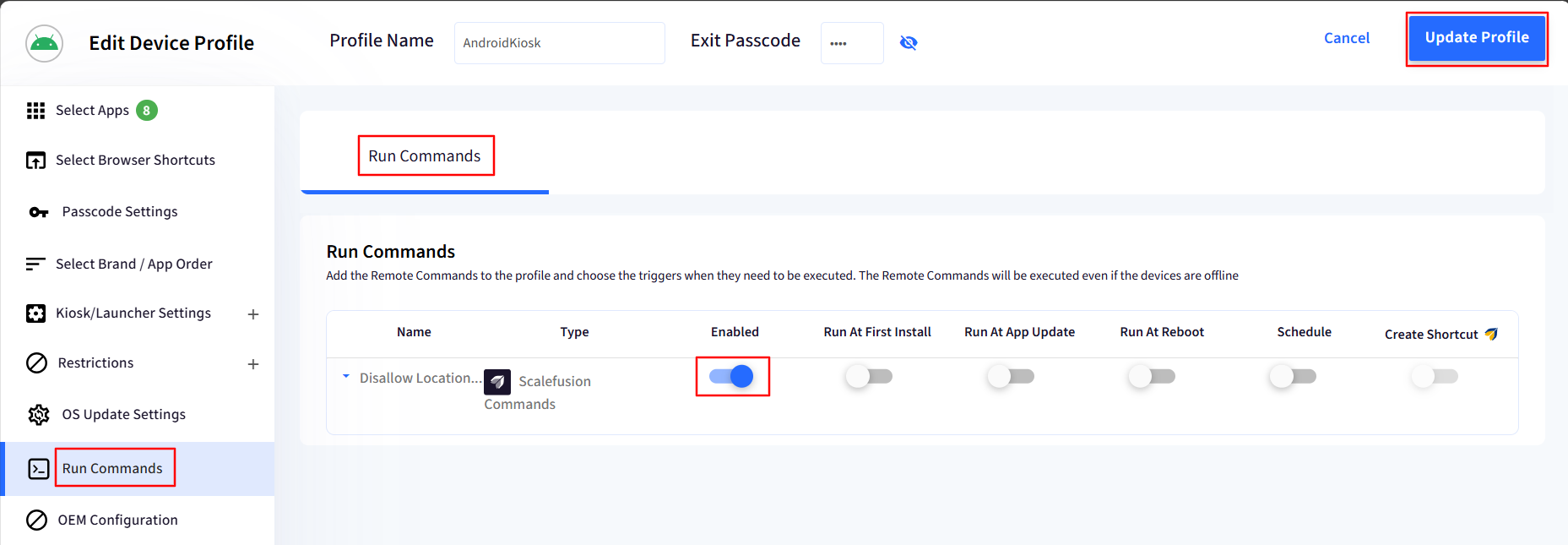
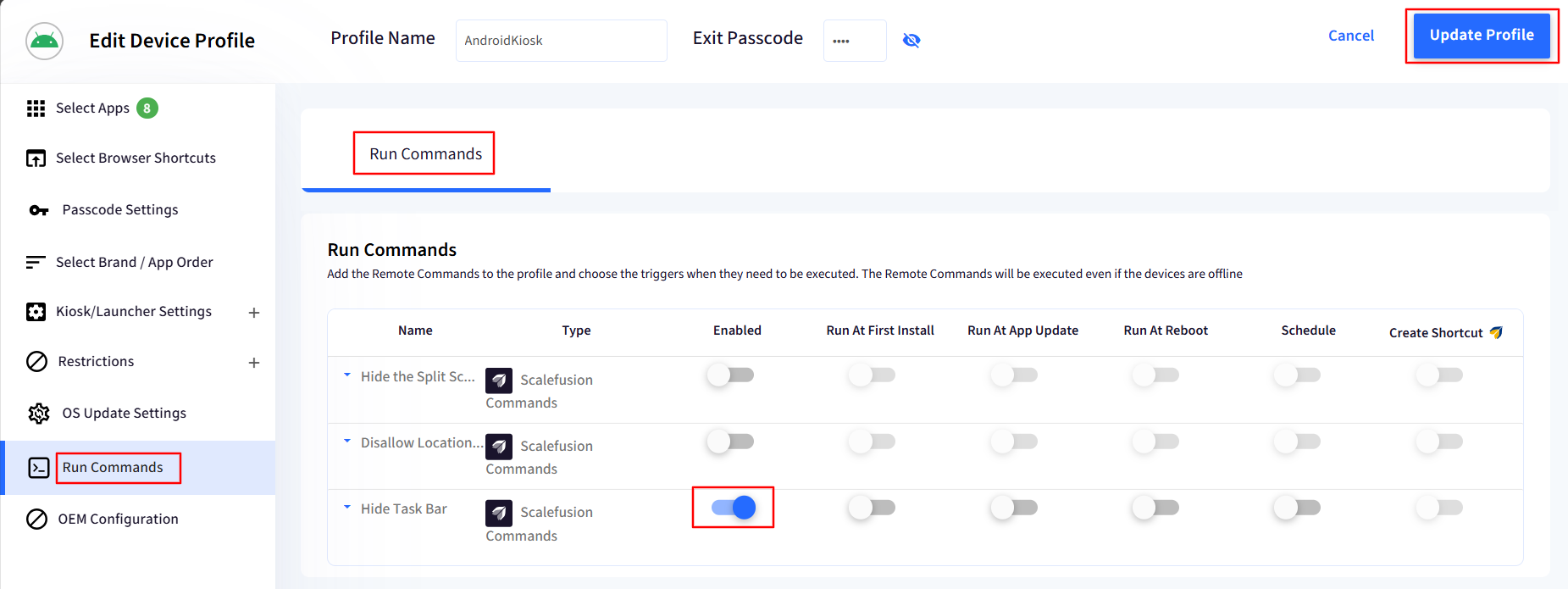
Next, navigate to Device Profiles > Run Commands, enable the command update the Profile.
1.5 Hide Task Bar
You can hide the taskbar on your Android devices with this command. It is a two-step process.
This Remote Command is supported on:
Lenovo Devices having Android OS version 13 or above.
Devices should be Company Owned Devices.
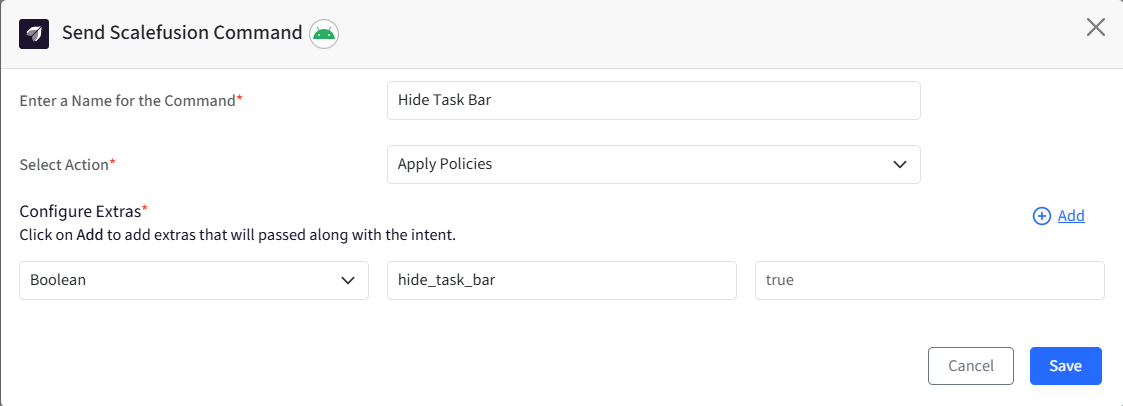
Select Action: Apply Policies
Configure Extras:
Type: Boolean
Key: hide_task_bar
Value: true
Click Save.
To hide the taskbar, use true, else use false.
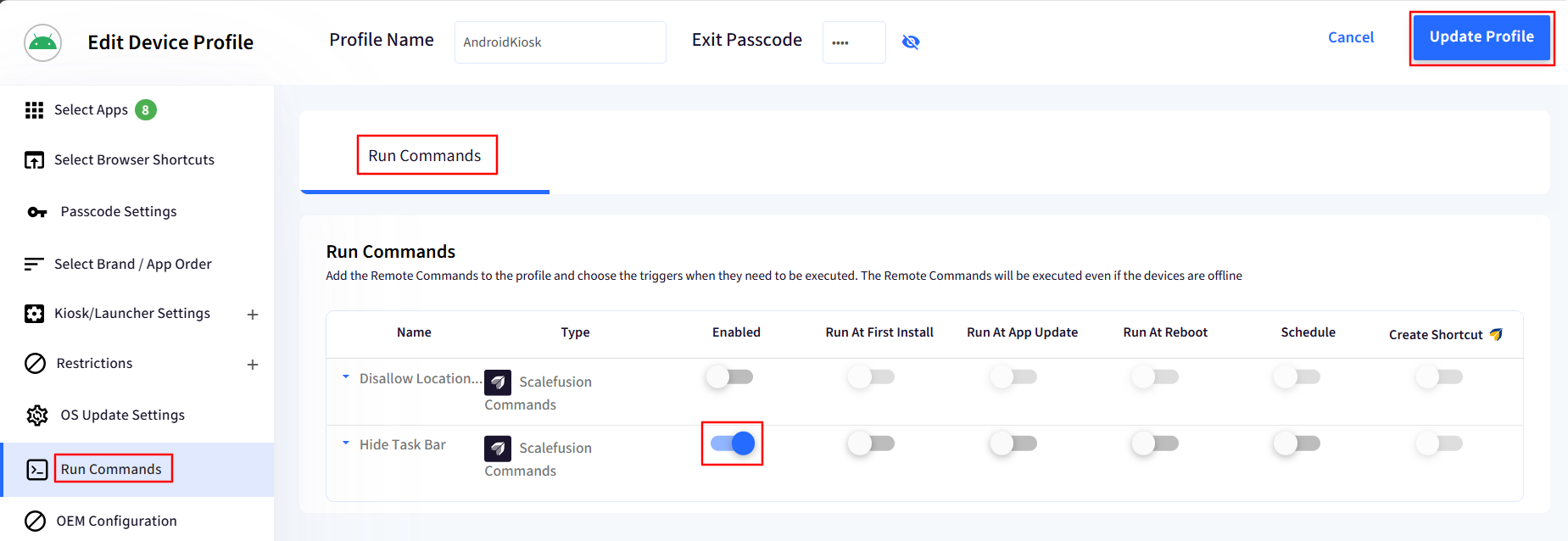
Next, navigate to Device Profiles > Run Commands, enable the command update the Profile.
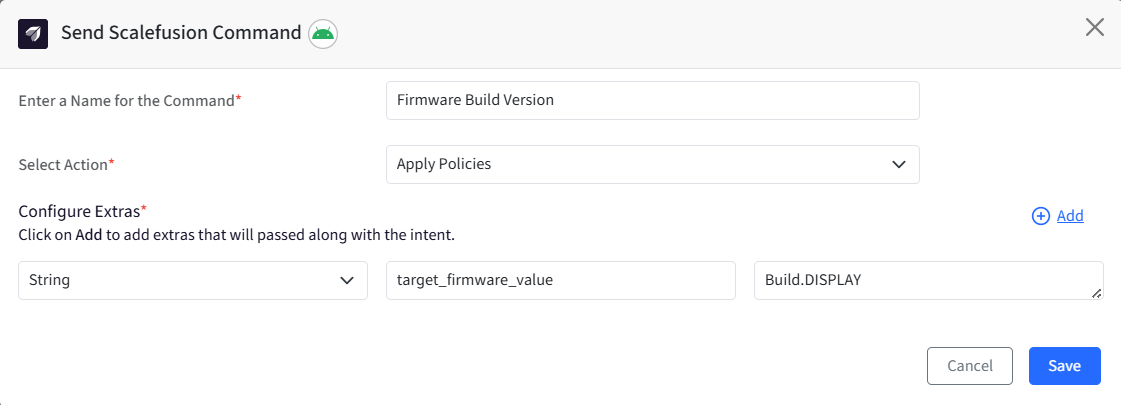
1.6 Set Device’s Firmware Build Version
You can configure which value (Build ID or Build Display) is displayed in device information on the Scalefusion dashboard.
Note:
By default Scalefusion uses Build.ID. However, you can set the value to Build.ID or Build.DISPLAY
Select Action: Apply Policies
Configure Extras:
Type: String
Key: target_firmware_value
Value: Build.DISPLAY
Click Save.
1.7 Disable copy/paste in the Scalefusion browser
You can disable the copy/paste function in the Scalefusion browser with this command.
Note:
Ensure that the device is running the latest Scalefusion agent version 19.0.1 & above for the command to execute successfully.
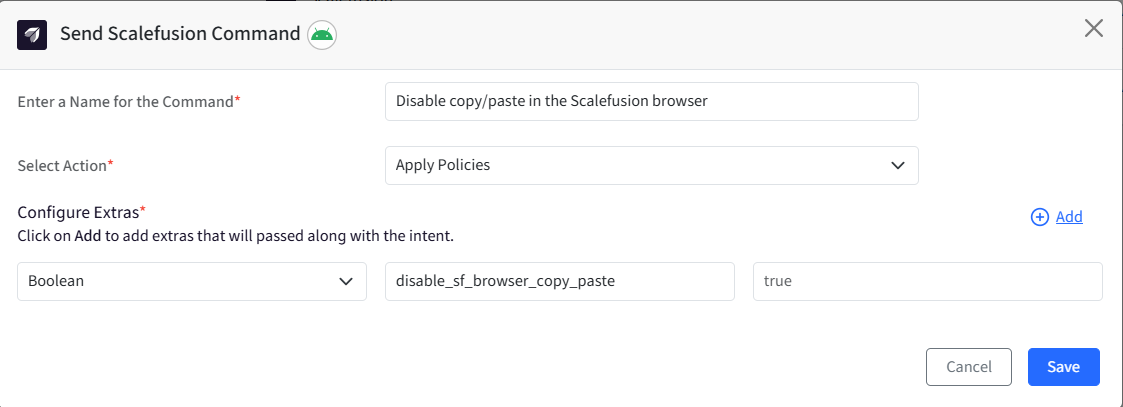
Select Action: Apply Policies
Configure Extras:
Type: String
Key: disable_sf_browser_copy_paste
Value: true
Click Save.
To disable, use true, else use false.
1.8 Delayed Power Off on USB Disconnect
You can configure a delay for powering off the device after the USB is disconnected with this command.
Note:
Ensure that the device is running the latest Scalefusion agent version 19.0.1 & above for the command to execute successfully.
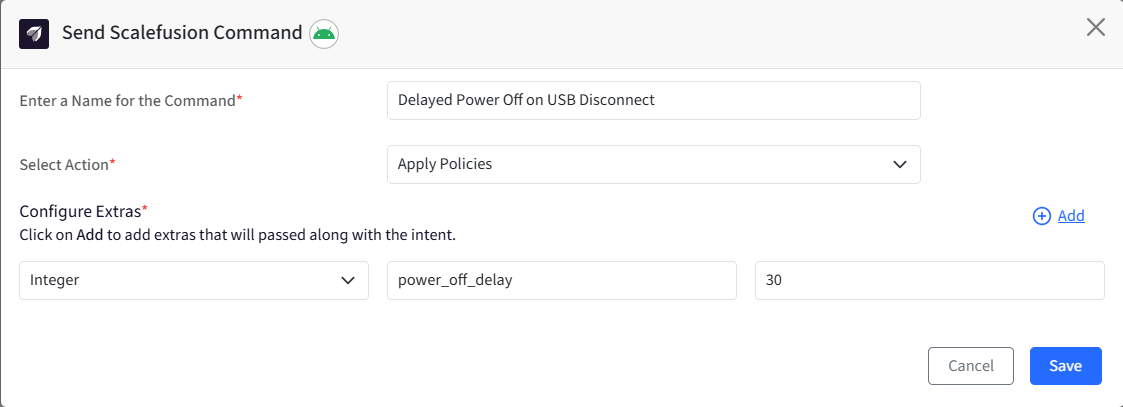
Select Action: Apply Policies
Configure Extras:
Type: Integer
Key: power_off_delay
Value: enter a value in seconds for the delay (30, 60,90, etc.)
Click Save.
Note:
For this command to work, please ensure that Power Off on USB Disconnect option is also enabled in the profile.
If you want to remove the delay run the command again by removing the extras.
Supported for Samsung, Lenovo, Zebra and Wingman-supported devices.
1.9 Hide the Split Screen menu (OneVision gesture) on Lenovo devices
You can hide Split Screen gestures from Lenovo devices with this command.

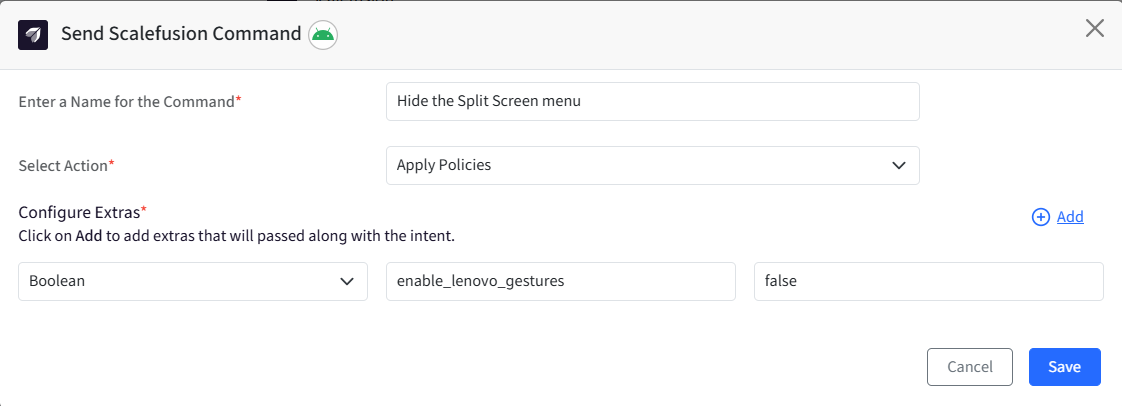
Select Action: Apply Policies
Configure Extras:
Type: Boolean
Key: enable_lenovo_gestures
Value:
false: To disable the gesture or horizontal 3 dots in the status bar
true: To enable the gesture or horizontal 3 dots
Click Save.
Next, navigate to Device Profiles > Run Commands, enable the command update the Profile.
Note:
Please ensure that the Android Beam toggle is turned off in the device profile for this remote command to work.
In case the gestures are still accessible after applying the command, reboot the device once.
Ensure that the device is running the latest Scalefusion agent version.
Lenovo device should be wingman enabled.
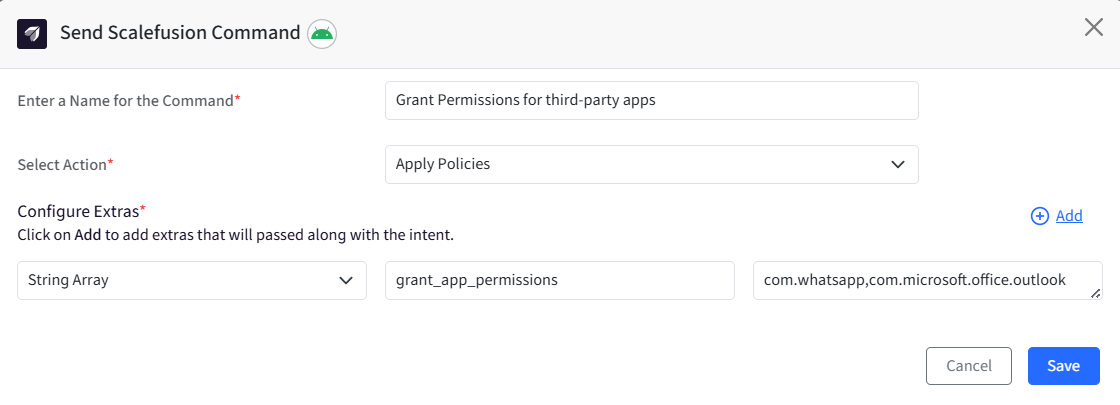
1.10 Grant Permissions for third-party apps
This command allows IT administrators to remotely grant permissions for third-party apps. It enables admins to manage both runtime and other required app permissions for installed applications without requiring user interaction.
Select Action: Apply Policies
Configure Extras:
Type: String Array
Key: grant_app_permissions
Value: app package name(s) separated by a comma (eg, com.whatsapp)
Click Save.
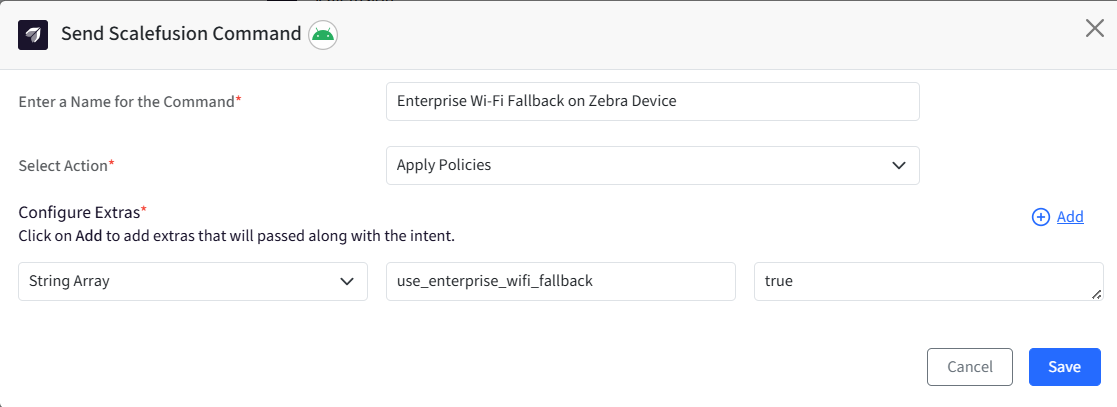
1.11 Enterprise Wi-Fi Fallback on Zebra Device
With this command, you can set a Wi-Fi fallback on Zebra Devices.
Prerequisites:
The device must be a Zebra device running Android 13 or above.
The Scalefusion Agent version must be 20.1.6 or later.
Select Action: Apply Policies
Configure Extras:
Type: Boolean
Key: use_enterprise_wifi_fallback
Value:
True - Enables the use of the Zebra API on Android 13 or above as an enterprise Wi-Fi fallback.
False - Disables the use of the Zebra API as a fallback.
Click Save.
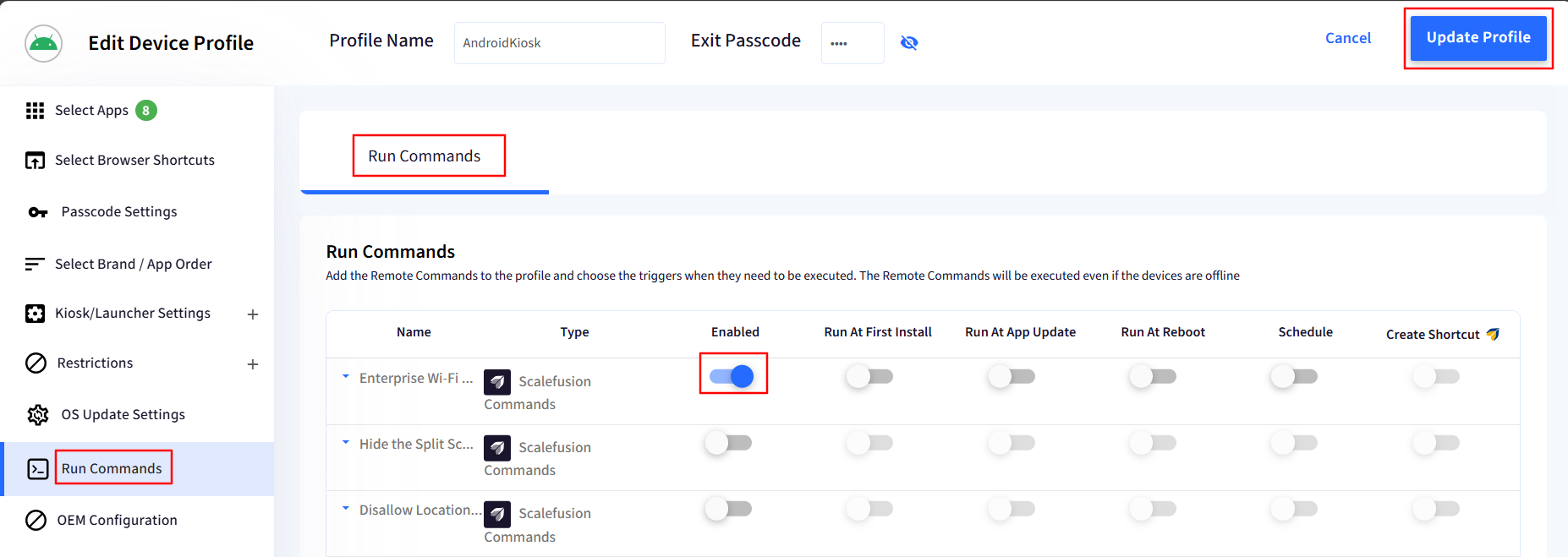
Next, navigate to Device Profiles > Run Commands, enable the command to update the Profile.
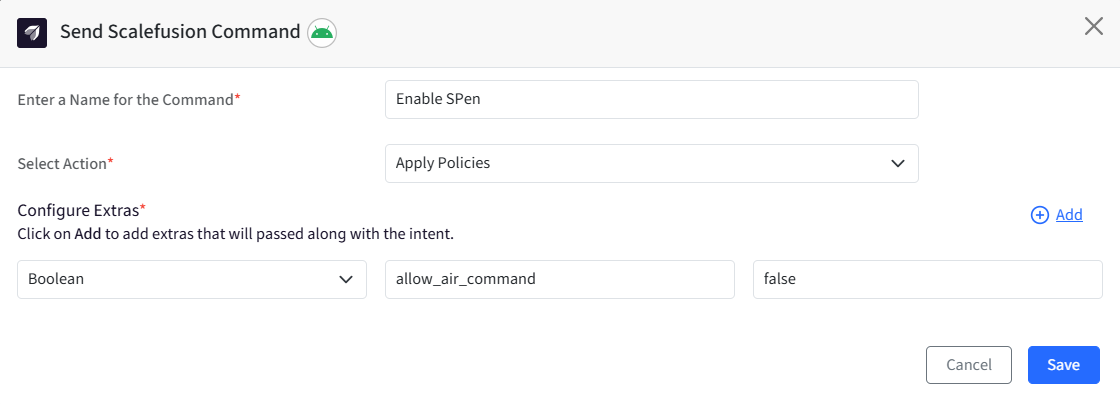
1.12 Enable/Disable Air Command/SPen on Samsung Devices
Select Action: Apply Policies
Configure Extras:
Type: Boolean
Key: allow_air_command
Value:
True - To enable Air Command.
False - To disable Air Command.
Click Save.
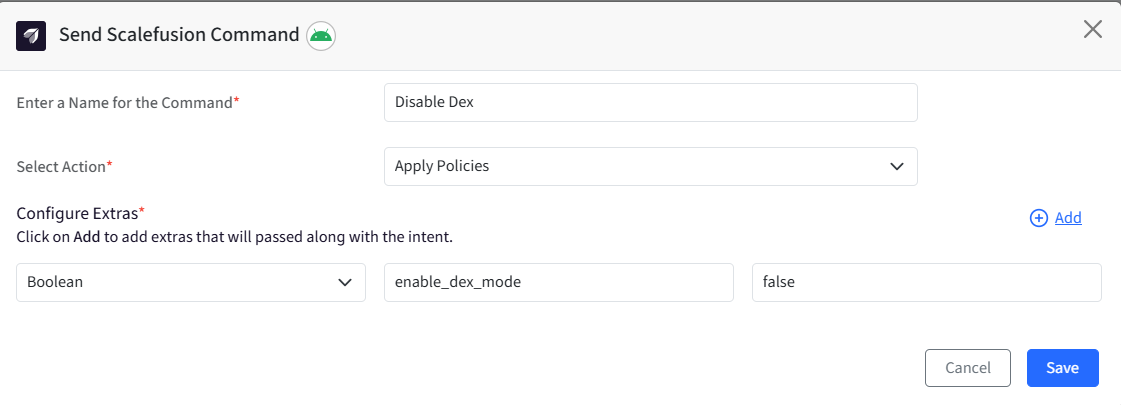
1.13 Enable/Disable Dex on Samsung Devices
Select Action: Apply Policies
Configure Extras:
Type: Boolean
Key: enable_dex_mode
Value:
True - To enable Dex Mode.
False - To disable Dex Mode.
Click Save.
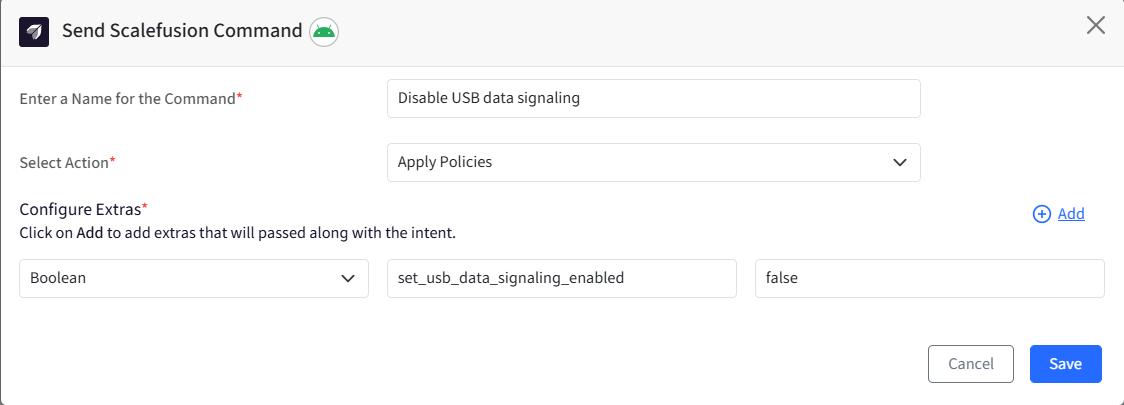
1.14 Enable/Disable USB data signaling on 11+ devices
Select Action: Apply Policies
Configure Extras:
Type: Boolean
Key: set_usb_data_signaling_enabled
Value:
True - To enable the USB data signaling.
False - To disable the USB data signaling.
Click Save.
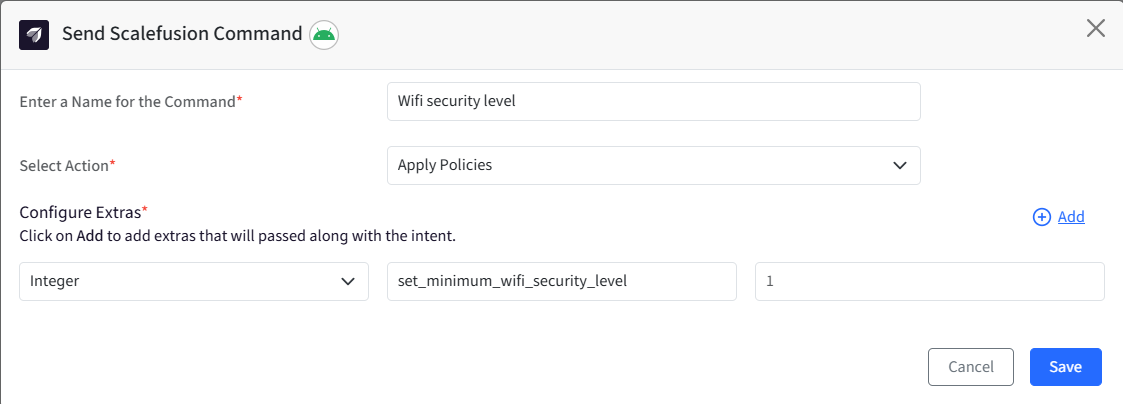
1.15 Set minimum Wifi security level on OS 13+ devices
Select Action: Apply Policies
Configure Extras:
Type: Integer
Key: set_minimum_wifi_security_level
Value:
0: Minimum Wifi security open network
1: Minimum Wifi security personal network
2: Minimum Wifi security Enterprise EAP network
3: Minimum Wifi security, Enterprise 192-bit network
Click Save.
1.16 Set nearby application streaming policy on OS 12+ devices
Select Action: Apply Policies
Configure Extras:
Type: Integer
Key: set_nearby_app_streaming_policy
Value:
0: Not controlled
1: Nearby streaming is disabled
2: Nearby streaming is enabled
3: Nearby streaming is enabled only with the same managed account
Click Save.
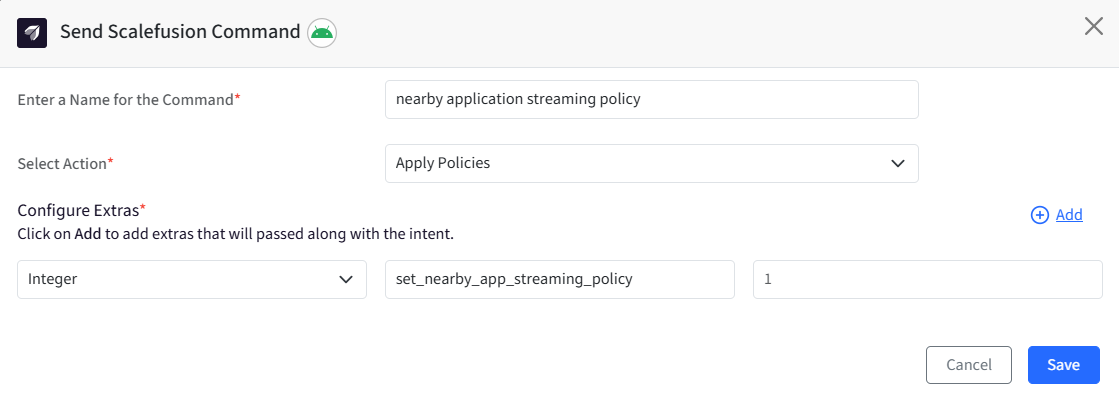
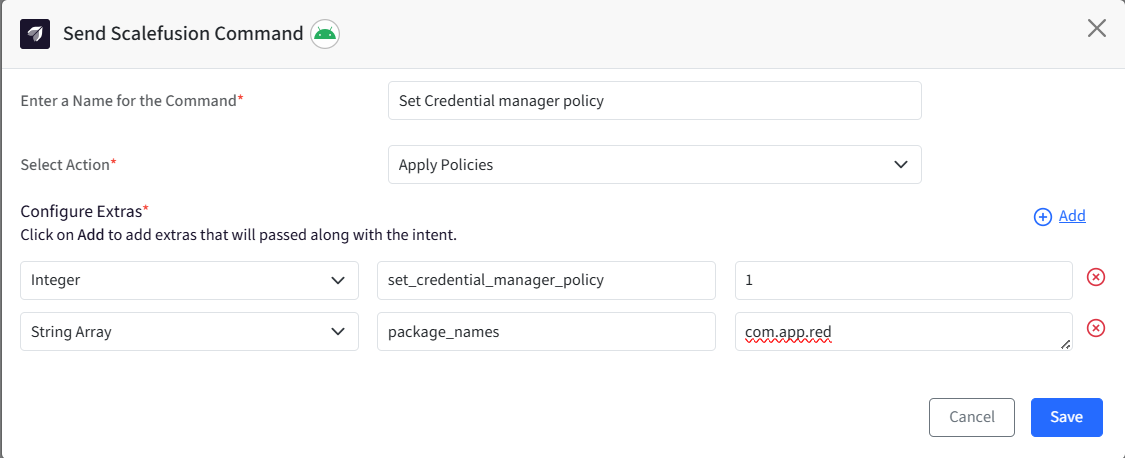
1.17 Set Credential Manager policy on OS 14+ devices
Select Action: Apply Policies
Configure Extras:
Type: Integer
Key: set_credential_manager_policy
Value:
1: Block the given package names
2: Allowed the given packages and system packages
3: Allowed the given packages
Type: String Array
Key: package_names
Value: Package names with comma-separated.
Click Save.
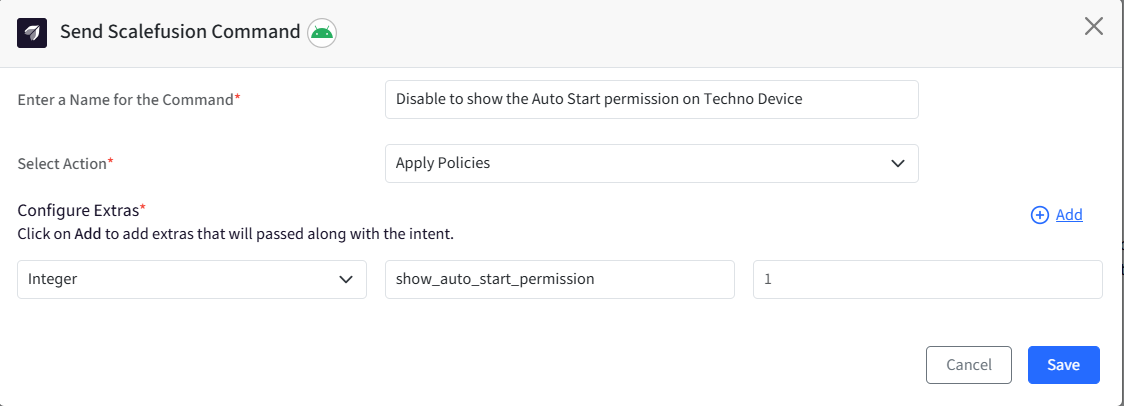
1.18 Enable/Disable to show the Auto Start permission on Techno Device
Select Action: Apply Policies
Configure Extras:
Type: Boolean
Key: show_auto_start_permission
Value:
True - To show the permission in Complete Setup option.
False - To hide the permission in Complete Setup option.
Click Save.
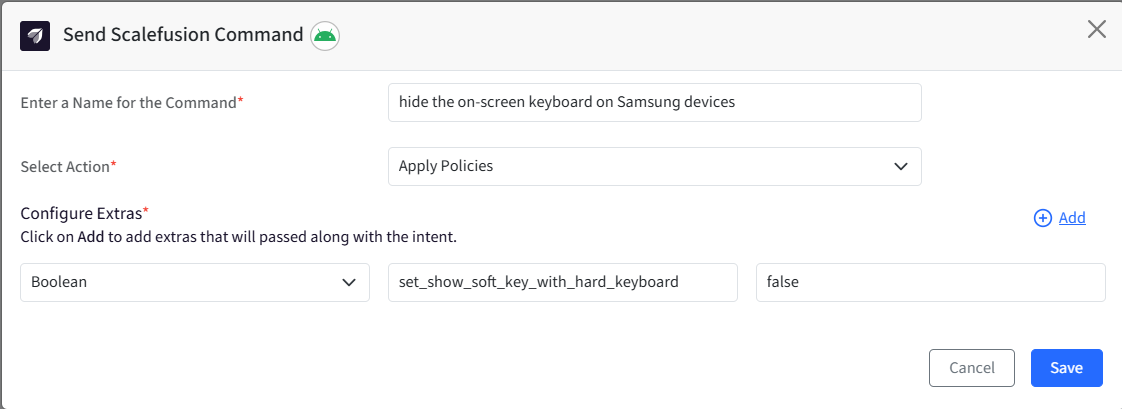
1.19 Show/hide the on-screen keyboard on Samsung devices while a physical keyboard is being used
Select Action: Apply Policies
Configure Extras:
Type: Boolean
Key: set_show_soft_key_with_hard_keyboard
Value:
True - To show the on-screen keyboard.
False - To hide the on-screen keyboard.
Click Save.
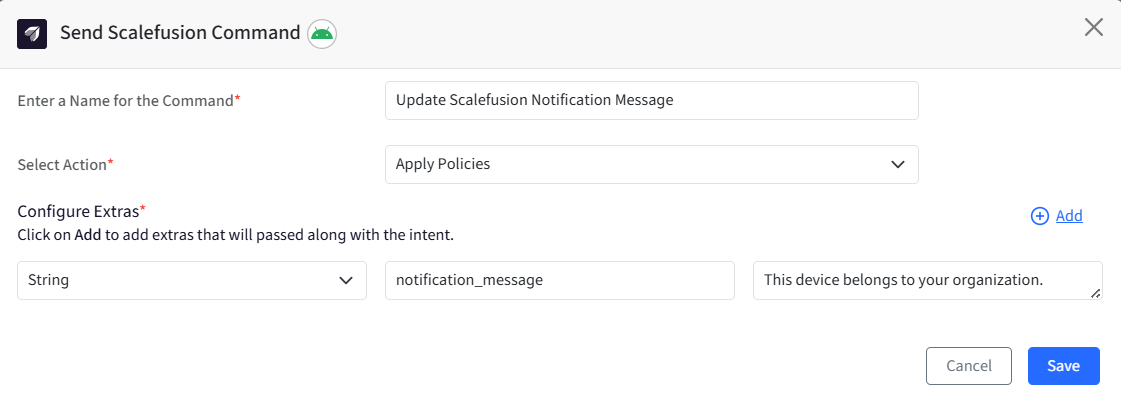
1.20 Update Scalefusion Notification Message
Select Action: Apply Policies
Configure Extras:
Type: String
Key: notification_message
Value: Enter the message that should be displayed in the notification
Click Save.
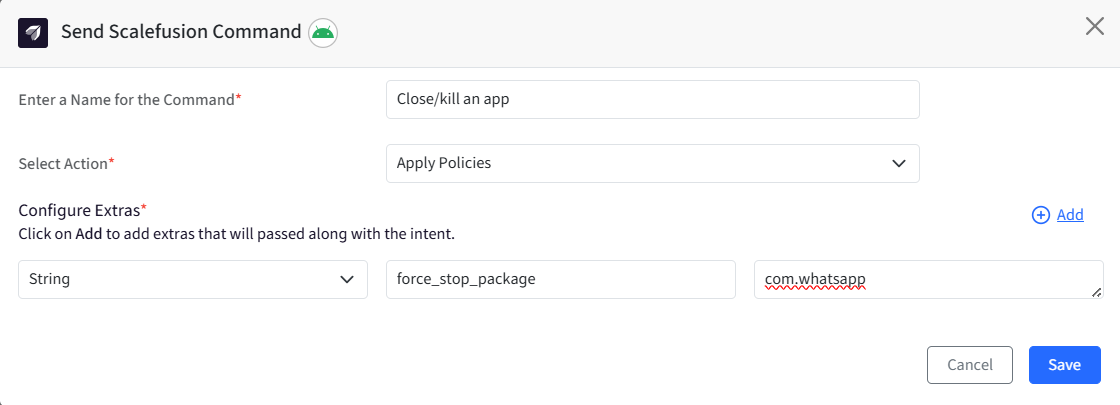
1.21 Close/kill an app
Select Action: Apply Policies
Configure Extras:
Type: String
Key: force_stop_package
Value: app package name that has to be force stopped (eg, com.whatsapp)
Click Save.
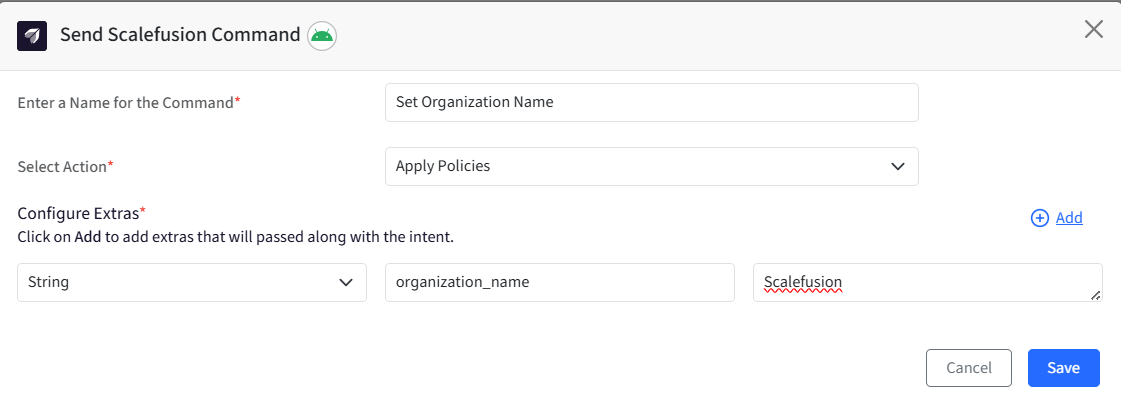
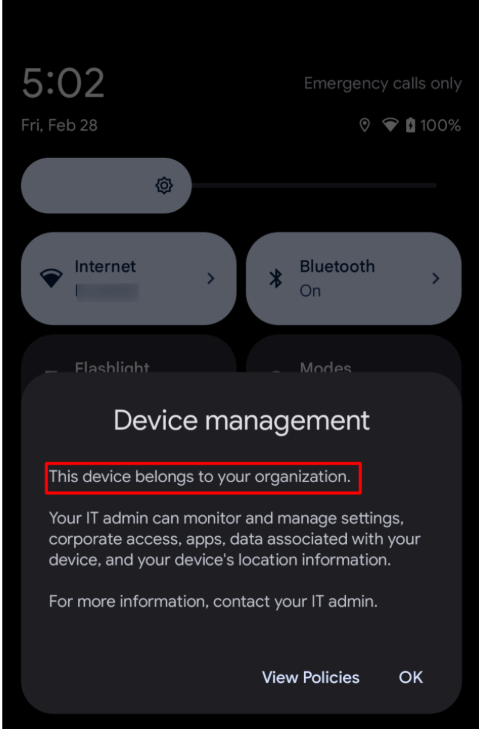
1.22 Set Organization Name
Select Action: Apply Policies
Configure Extras:
Type: String
Key: organization_name
Value: The name that has to be set as the Organization name (For eg, Scalefusion)
Click Save.
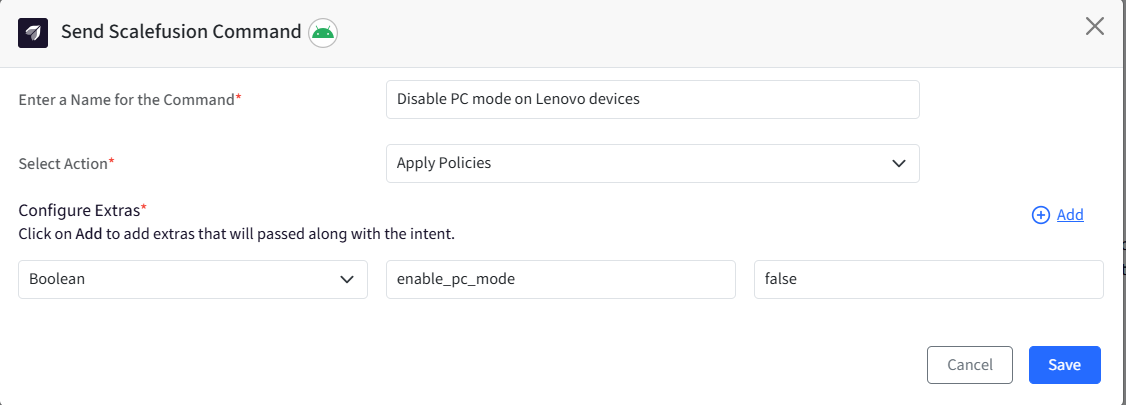
1.23 Enable or Disable PC mode on Lenovo devices
Select Action: Apply Policies
Configure Extras:
Type: Boolean
Key: enable_pc_mode
Value:
false: To Disable PC mode
true: To Enable PC mode
Click Save.
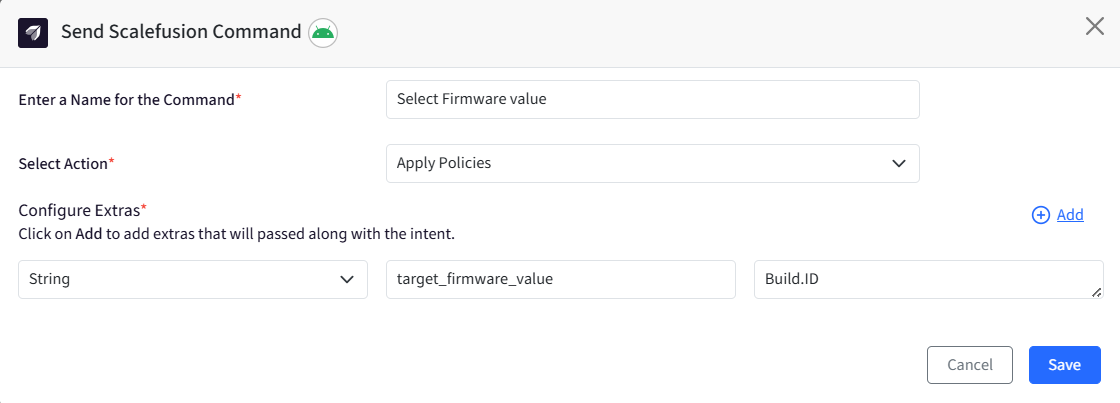
1.24 Select Firmware value
Use this command to select the Firmware value as either Build display or Build ID.
Select Action: Apply Policies
Configure Extras:
Type: String
Key: target_firmware_value
Value:
Build.DISPLAY: To sync the firmware value as Build.DISPLAY
Build.ID: To sync the firmware value as Build.ID. Build.ID is the default value.
Click Save.
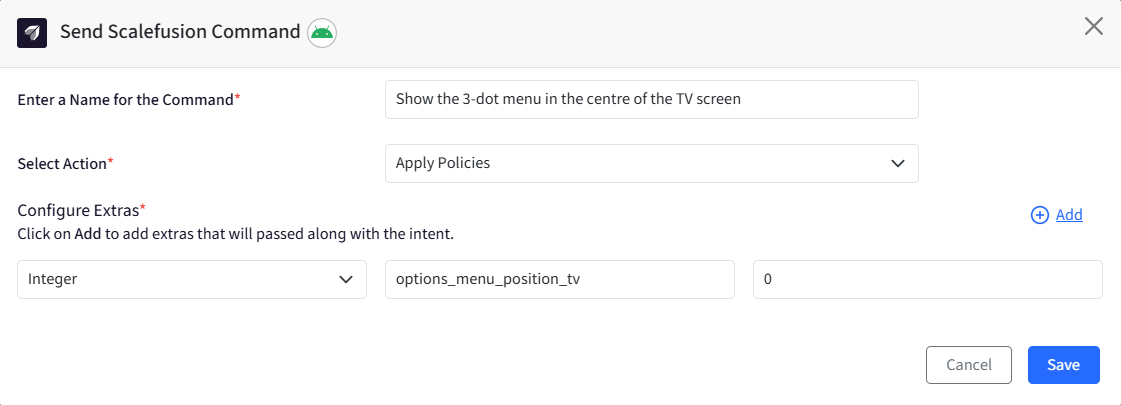
1.25 Show the 3-dot menu in the centre of the TV screen
Use this command to show the 3-dots menu in the centre of the screen for a TV.
Select Action: Apply Policies
Configure Extras:
Type: Integer
Key: options_menu_position_tv
Value:
0: Will place the 3-dot menu at the top right corner of the device screen.
1: Will place the 3-dot menu at the centre of the device screen.
Click Save.
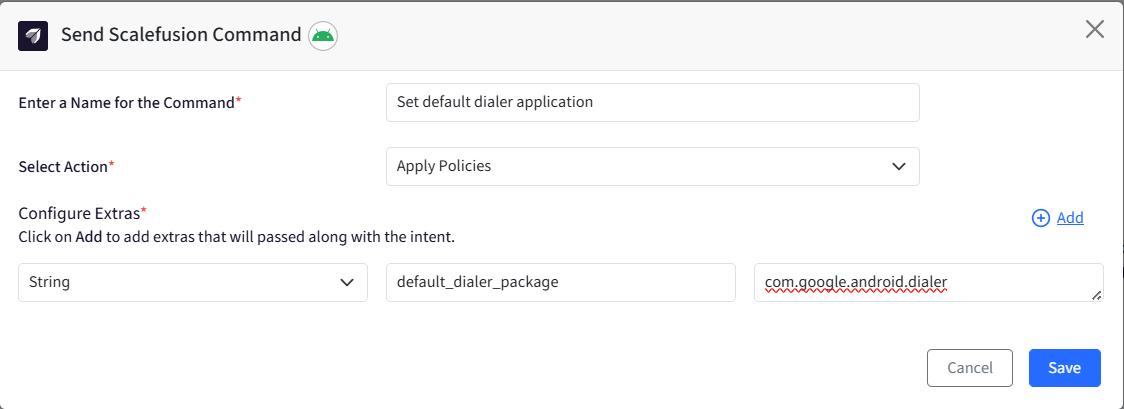
1.26 Set default dialer application
Use this command to set a default dialer on your device.
Select Action: Apply Policies
Configure Extras:
Type: String
Key: default_dialer_package
Value: Package name of the app that is to be set as the default dialer. Eg, com.google.android.dialer
Click Save.
1.27 Control Status bar on Lenovo device via CSDK API
Use this command to control the Status bar on devices using the Lenovo CSDK API.
Note:
Please ensure that the Scalefusion Agent version on the device is v20.2.1 and above.
Select Action: Apply Policies
Configure Extras:
Type: Boolean
Key: use_csdk_to_control_status_bar
Value:
true - To use the Lenovo CSDK API
false - To use fallback Android DO API
Click Save.
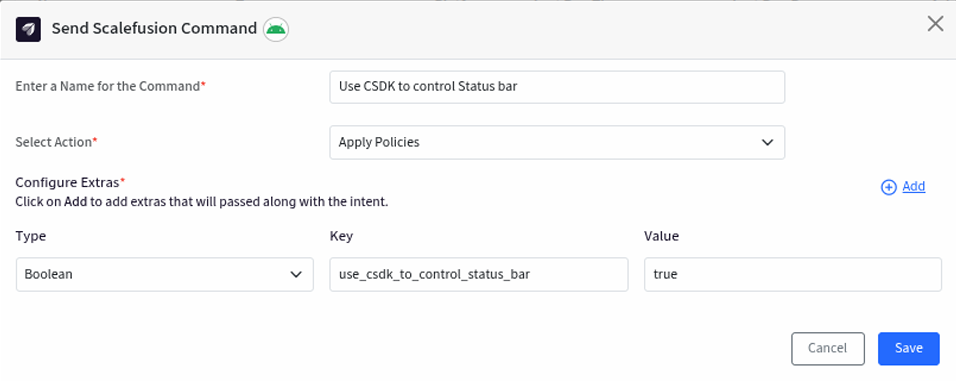
Next, navigate to Device Profiles > Edit the concerned profile, go to the Run Commands section, and enable the command.
Update the Profile.

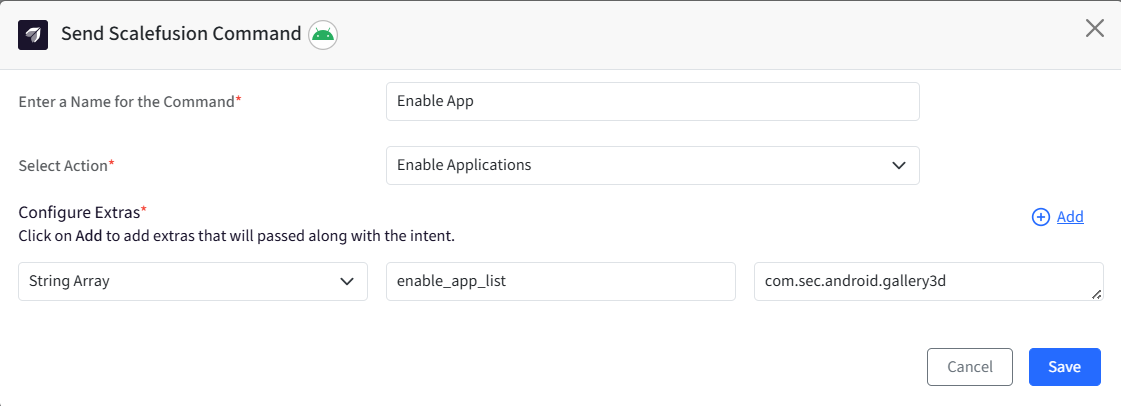
2. Enable Applications
Use this command to enable or disable system apps on the device(s).
Select Action: Enable Applications
Configure Extras:
Type: String Array
Key: enable_app_list
Value: app package name(s) that have to be enabled in comma-separated values (eg, com.sec.android.gallery3d)
Click Save.
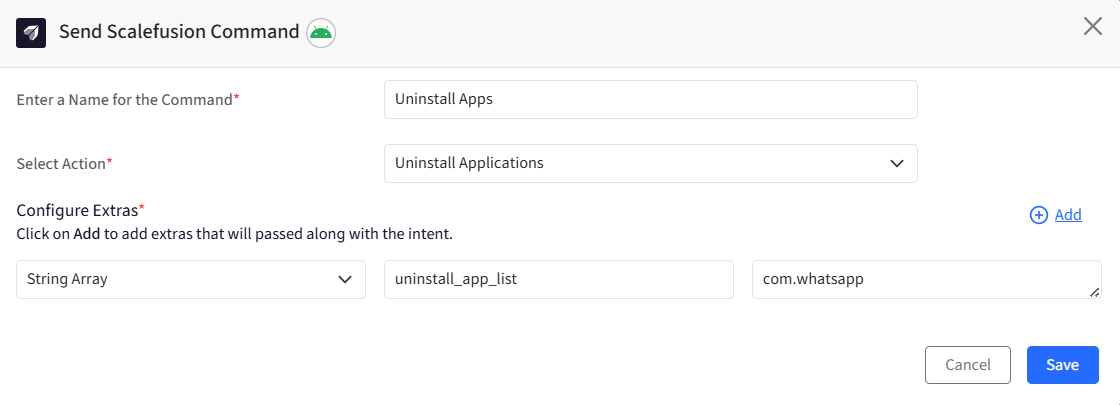
3. Uninstall Applications
Use this command to uninstall apps remotely from the device(s). This helps to uninstall the unwanted app(s) that are installed on the device.
Select Action: Uninstall Applications
Configure Extras:
Type: String Array
Key: uninstall_app_list
Value: app package name(s) in comma-separated values (eg, com.whatsapp)
Click Save.
Note:
This Remote Command is supported on EMM Managed, Wingman enabled, Knox or CSDK devices.
System packages and packages starting with com.promobitech cannot be uninstalled with this command.
4. Apply APN Configuration
Use this command to send an APN configuration to device(s). Please note that to use this command, you will also need a Custom build of the Scalefusion app. Please get in touch with Scalefusion Support for more details.
Provide it with a name for easy identification.
Select Action: Choose Apply APN Configuration from the dropdown list.
Configure Extras: Enter the extras as shown below.
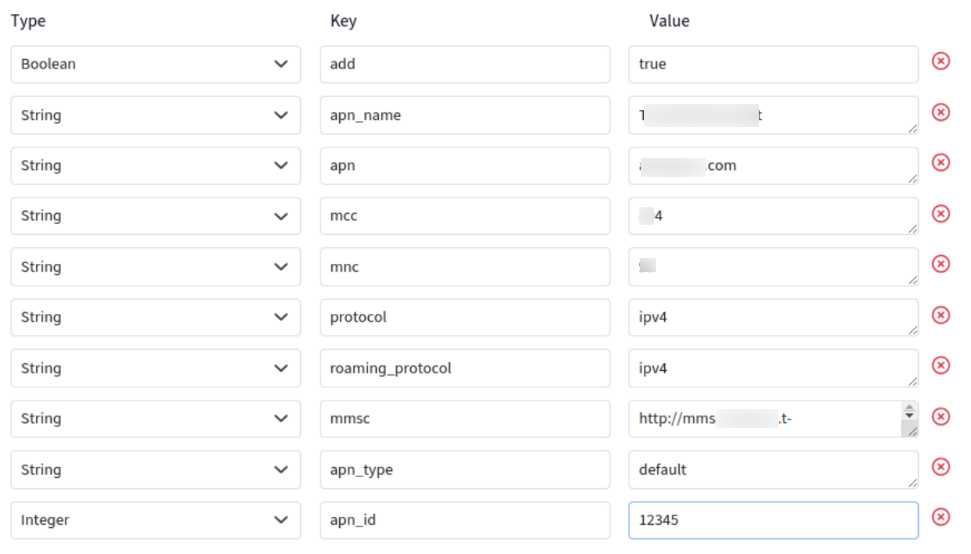
Type | Key | Value |
|---|---|---|
Boolen | add | true/false |
String | apn_name | APN name |
String | apn | APN |
String | mmc | mmc |
String | mnc | mnc |
String | protocol | ipv4/ipv6/both (in small case text) |
String | roaming_protocol | ipv4/ipv6/both (in small case text) |
String | mmsc | Mmsc URL |
String | apn_type | Apn type in small case separated by commas with no extra spaces in between. |
String | user | user |
String | password | password |
String | server | server |
String | proxy | proxy |
Integer | port | port |
String | auth_type | auth type in small case |
String | mms_proxy | MMS proxy |
String | mvno_type | Mvno type in small case text |
String | mvno_matchdata | Mvno value |
Integer | apn_id | a random 5-digit unique number |
Note:
Your The extra “add” determines whether to add or remove the config applied by Remote Command.
If “true”, Scalefusion will add the APN as configured in Remote Command.
If “false”, Scalefusion will remove the APN that was configured from Remote Command.
5. Apply Secure Settings
Use this command to configure settings on Wingman-supported devices. This Remote Command applies to device settings in Secure, Global, and System categories. These settings are:
settings list secure
settings list system
settings list global
Identifying Values
The values to be applied can be obtained using the ADB commands below. To determine the correct value, compare the settings between the desired (expected) and undesired (not expected) states. The difference will help identify the correct value to configure via Remote Command.
adb shell settings list secure
adb shell settings list global
adb shell settings list system
Settings Mapping
Secure Setting = 1
Global Setting = 2
System Setting = 3
Note:
Value type in Configure Extras can be either Integer or String, depending on the setting.
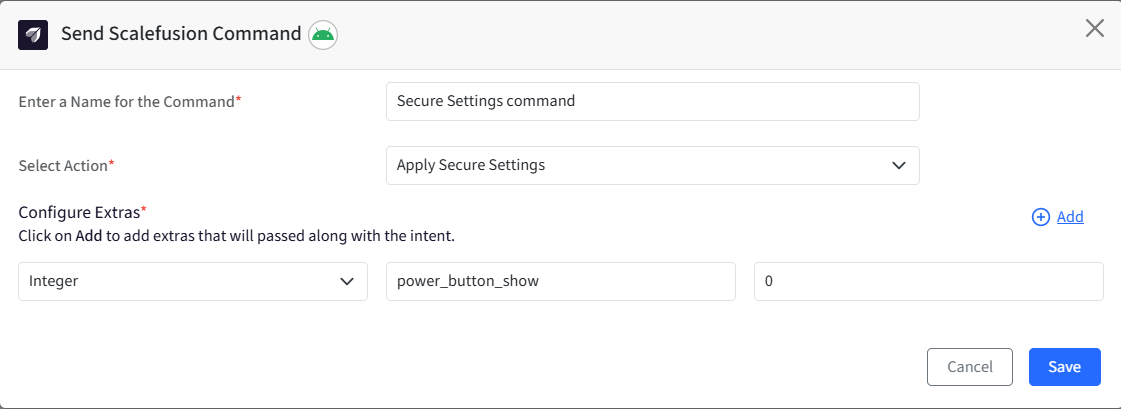
For example, System Setting
Command: adb shell settings list system
Output:
power_button_show=0 // Off
power_button_show=1 // On
Here:
secure_settings_type = 3
Since the values (0 and 1) are integers, the type in Configure Extras should be Integer.
5.1 Switch User
To switch user, configure the following:
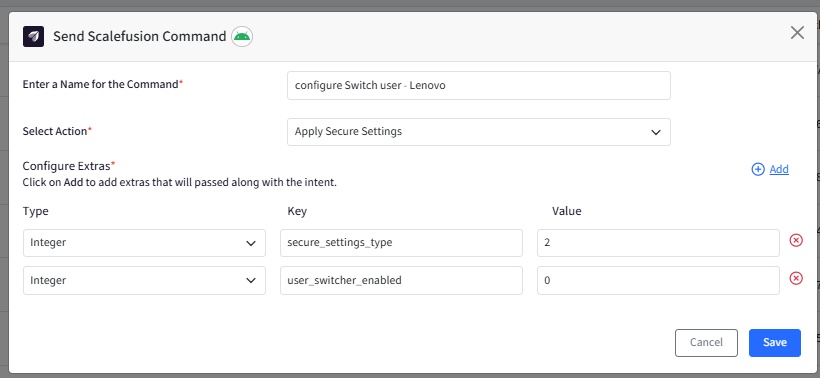
Select Action: Apply Secure Settings
Configure Extras:
Type: Integer
Key: secure_settings_type
Value: 2
Type: Integer
Key: user_switcher_enabled
Value: 1 / 0
Here,
Value 0 : Disables Allow multiple users option and won’t display the change user icon
Value 1 : Enables Allow multiple users option
Click Save.
6. Apply EMM Policy
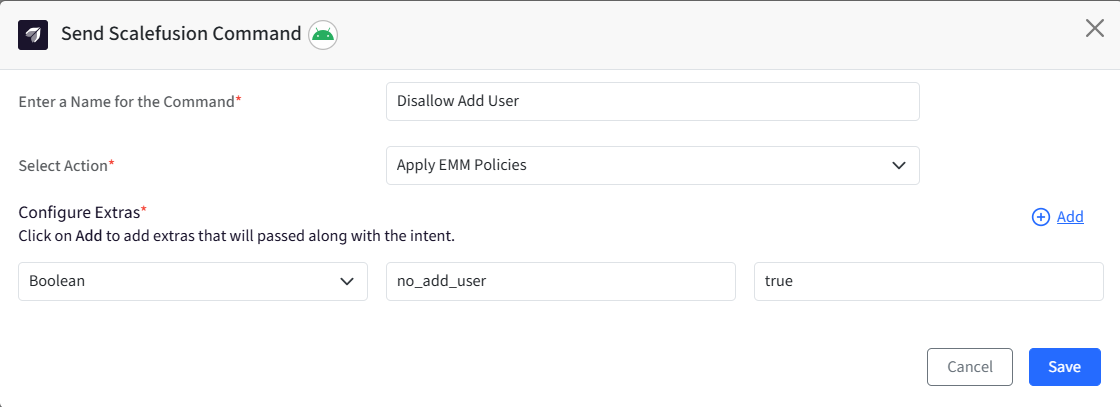
Use this command to configure the EMM policy application. All the settings that come under UserManager can be configured using this command. For example,
DISALLOW_ADD_USER: Specifies if a user is disallowed from adding new users.
Type: Boolean
Key: no_add_user
Value: false/true
Note:
To find the Type, Key and Contant Value for an EMM policy please refer to the official Android Developer guide.
7. Apply Private DNS
Use this command to configure and add Private DNS on the device(s), which allows users to configure a custom DNS (Domain Name System) server that supports DNS over TLS (DoT). This feature enhances privacy and security by encrypting DNS queries.
Note:
This Remote Command is supported on the following:
Android OS version 10 and above.
Company Owned Devices that are EMM managed.
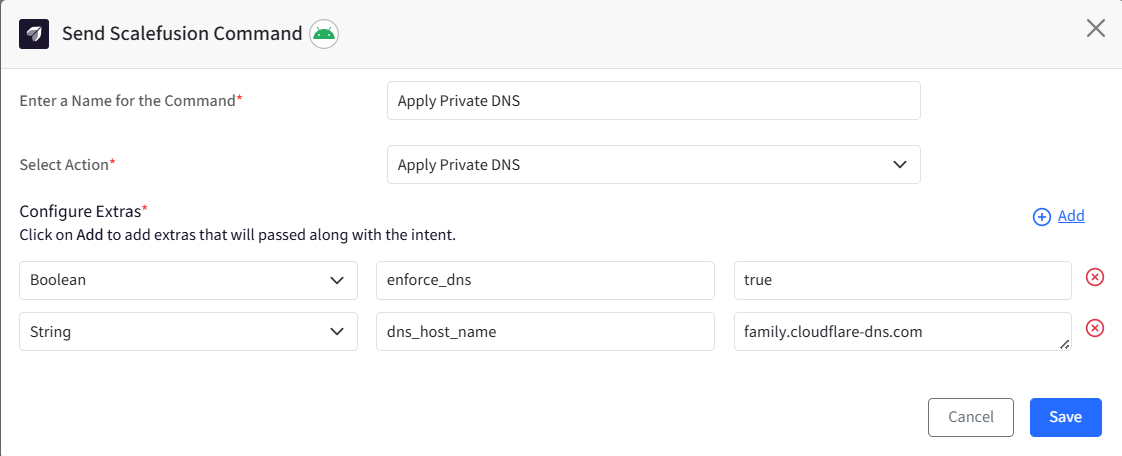
Select Action: Apply Private DNS
Configure Extras:
Type
Key
Value
Boolean
enforce_dns
true/false
String
dns_host_name
DNS host name value (For eg, family.cloudflare-dns.com)
Click Save.
Execute a Scalefusion command
Once a command is created, the next step is to run it from the dashboard to be executed on the device. Please refer to our guide for more information.
Policy-based Scalefusion command
IT admins can configure additional triggers to execute them whenever that event occurs (run at install, schedule at a specific time, etc.) and even when the devices are offline. Please refer to our guide for more information.
Note:
You will not be able to create a shortcut of the Scalefusion command.