Introduction
With Scalefusion MDM, admins can create remote commands via the Scalefusion Dashboard, which can then be launched on managed devices to perform a set of actions remotely. Actions like uninstalling apps, closing/killing apps, and more can be performed on end users' devices via Remote Commands. This document contains a compilation of certain specific actions that IT admins can implement on Android devices using Remote Commands.
All you need to do is create a Send Broadcast command, enter parameters specific to the action, and execute it.
Creating the Send Broadcast command
Step 1: Create Remote Command
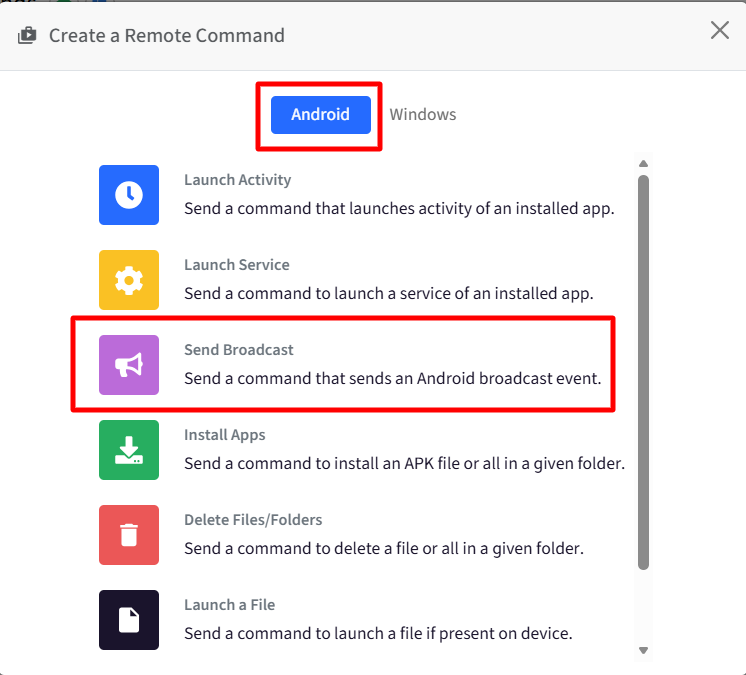
On the Scalefusion Dashboard, navigate to Remote Support > Remote Commands and click on Create
This would bring up a pop-up with a list of commands to select from in the Android tab.
Select Send Broadcast. This opens a form.
Fill in the details based on the action you want to perform on the devices and click Save.
Step 2: Execute (run) a command
Once a command is created, the next step is to run it from the dashboard to be executed on the device. Please visit here to know how to run a command.
Alternatively, you can also configure and execute the commands on devices via Android Device Policy. Please visit here to learn more.
Pre-Defined Remote Commands
1. Update Scalefusion Notification Message
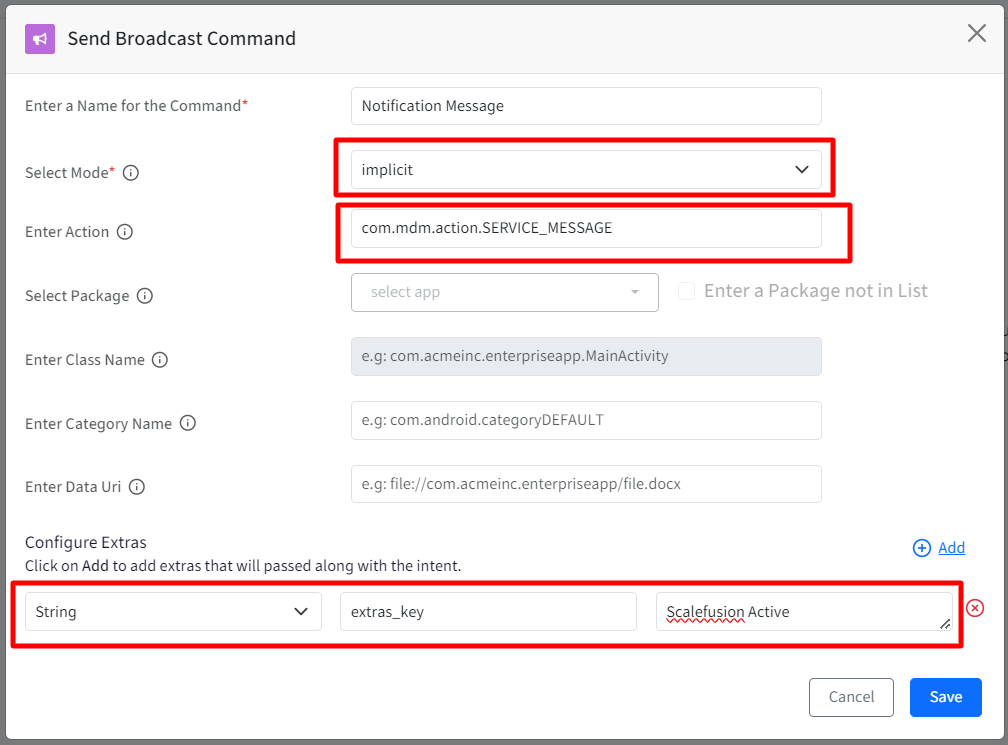
You can use Send Broadcast to configure a customized Notification message that appears on the Notification bar when device is enrolled and locked with Scalefusion. To configure, select the following:
Type: Implicit
Action: com.mdm.action.SERVICE_MESSAGE
Extras
Type: String
Key: extras_key
Value: Enter the message that should be displayed in the notification
2. Close/kill an app
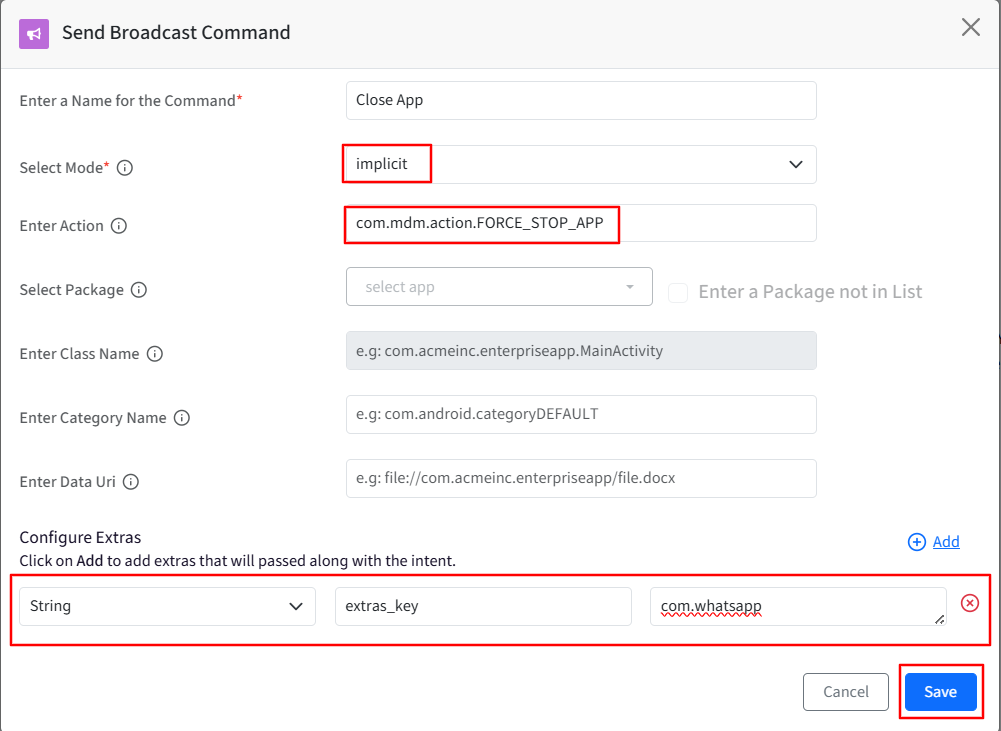
You can use Send Broadcast to close/kill any app remotely. To do so, select the following:
This remote command is supported on Wingman supported devices and Samsung Knox supported devices.
Type: Implicit
Action: com.mdm.action.FORCE_STOP_APP
Extras
Type: String
Key: extras_key
Value: app package name that has to be force stopped (eg. com.whatsapp)
3. Enable/Disable Smart Rotate
You can use Send Broadcast to:
Enable/disable smart rotate: turn on/off the smart rotate
Restrict screen rotation: allow/disallow user from changing the smart rotate setting
To do so, select the following:
This Command is supported only on Lenovo CSDK devices
Enable/disable smart rotate
Type: Implicit
Action: com.mdm.smartrotate
Extras
Type: Boolean
Key: enable_smart_rotate
Value: false
Restrict screen rotation
Type: Implicit
Action: com.mdm.smartrotate
Extras
Type: Boolean
Key: restrict_smart_rotate
Value: true

4. Allow Account Domains
Send Broadcast can be used to control the accounts that can or cannot be accessed through GMail app. With this, IT Admins can prevent users from adding personal GMail accounts in both Company Owned and BYO devices.
This command is supported on EMM Managed devices
To do so, enter the following:
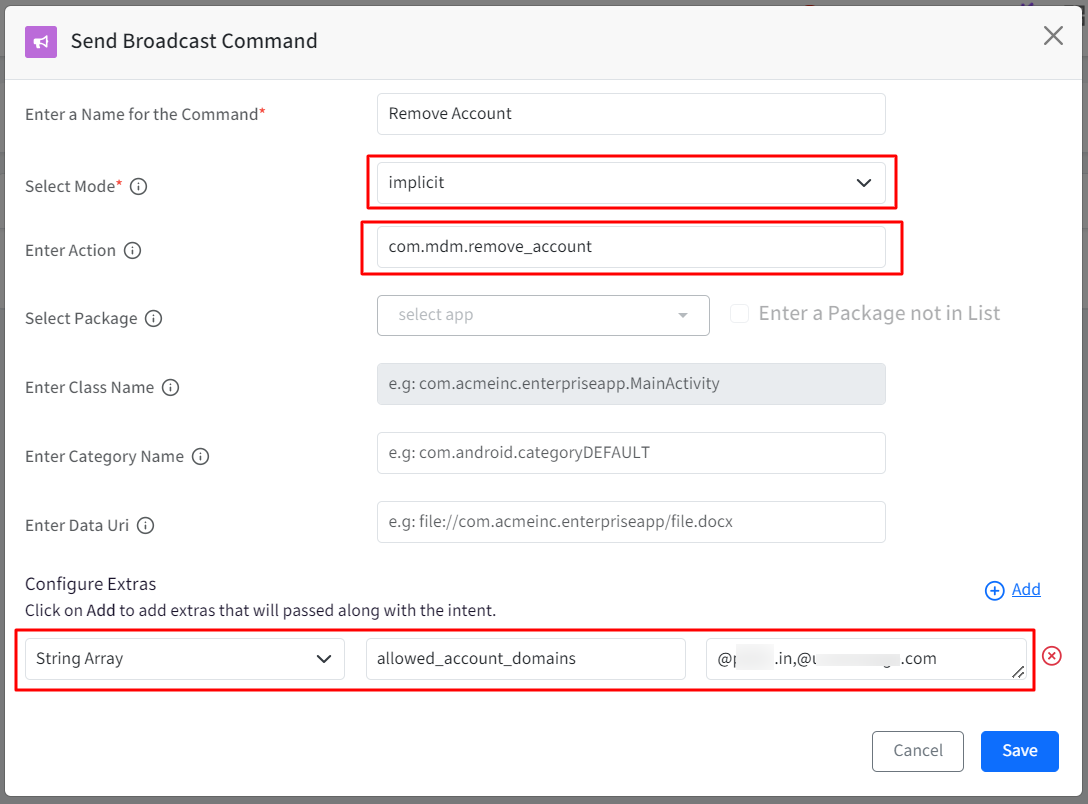
Mode: implicit
Action: com.mdm.remove_account
Extras
Type: String Array
Key: allowed_account_domains
Value: comma-separated domains starting with @
Note: Do not put any empty characters in between the domains
The screenshot below is an example where domains specified in the value field (under Extras) are the ones that will be allowed. In this case, if user now tries to add an account with, for example, @gmail.com (which is not an allowed account domain), it will be added first and then removed automatically. Also if a gmail account is already present on the device, that will get removed as well.
5. Suspend Apps on BYO Devices
You can suspend or block apps on BYO devices via Remote Commands. For BYO devices, it is a two-step process.
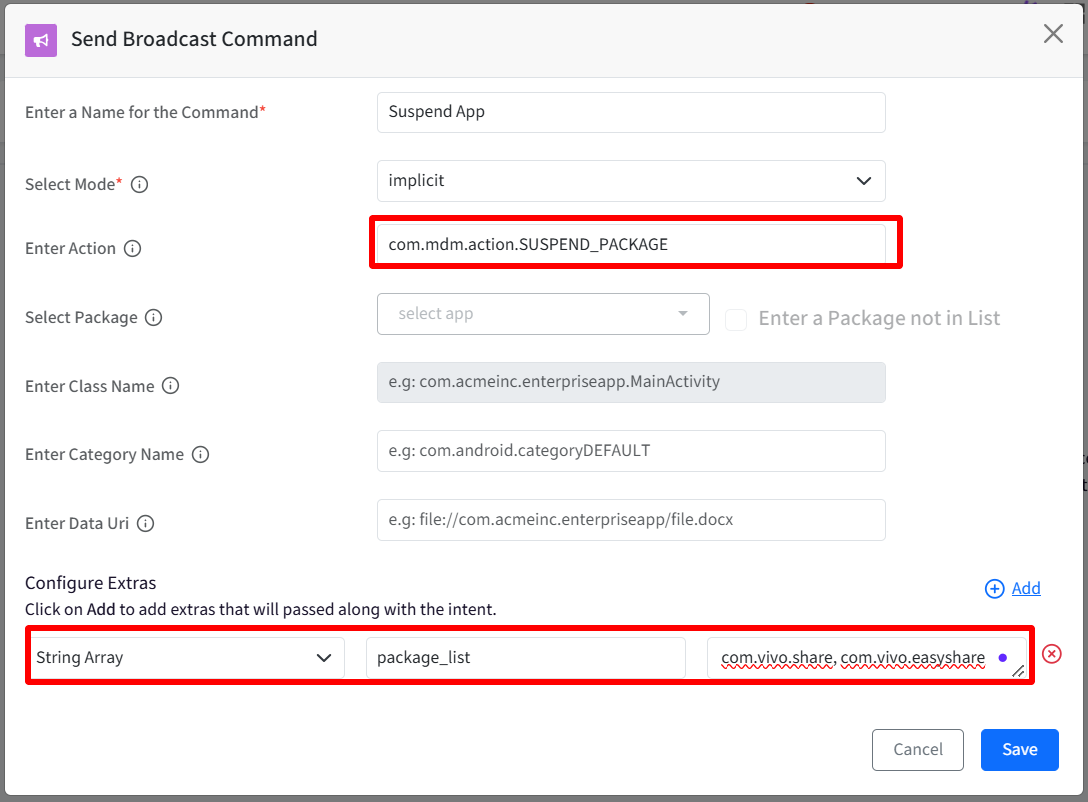
Step 1: Create a Send Broadcast command for blocking apps
To do so, select the following:
Type: Implicit
Action: com.mdm.action.SUSPEND_PACKAGE
Extras
Type: String Array
Key: package_list
Value: comma separated app package names that have to be suspended (eg. com.vivo.share, com.vivo.easyshare)
The screenshot below is an example of how to block EasyShare app on BYOD devices via Remote Commands
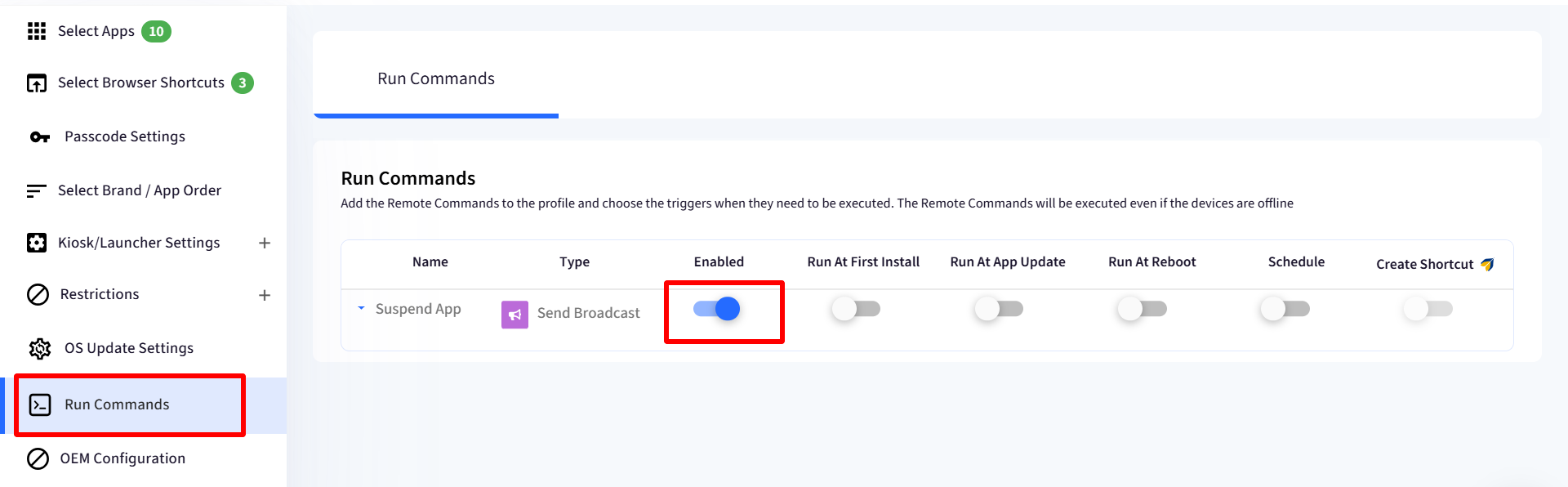
Step 2: Enable the Remote Command from Device Profile
Navigate to Device Profiles & Policies > Device Profiles
Edit an existing Android Device Profile
Click on Run Commands on the left panel. The Remote command for suspending apps that you have created from the Remote Commands section will be displayed here.
Enable the command by toggling on the setting and Update Profile
6. Set Organization Name
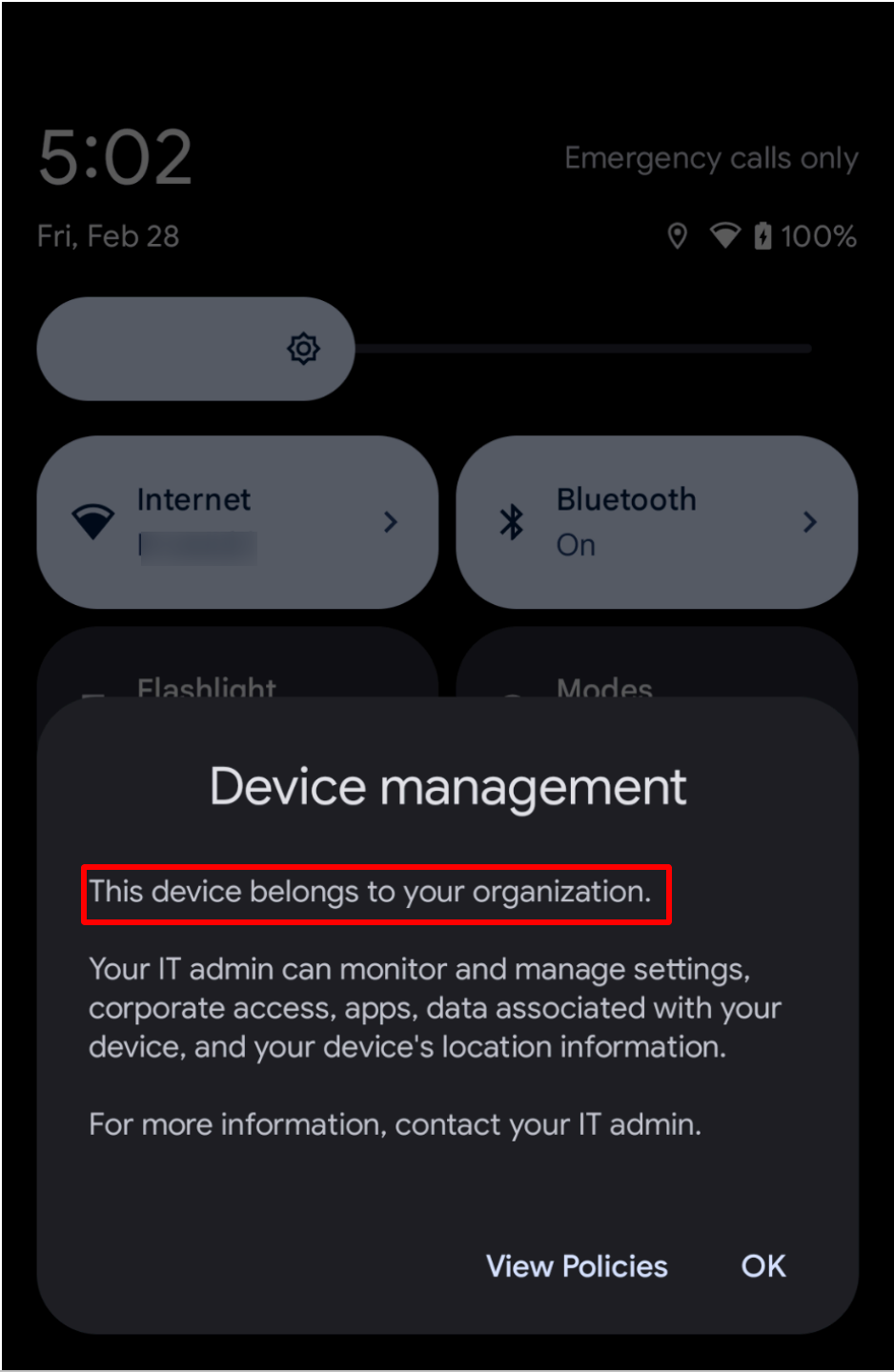
You can use Send Broadcast to Set Organization name on device. When executed, the organization name that you set will reflect under Device Management screen on the device. To do so, select the following:
This Remote Command is supported on EMM Managed devices
Type: Implicit
Action: com.mdm.action.SET_ORGANIZATION_NAME
Extras
Type: String
Key: extras_key
Value: The name that has to be set as Organization name (For eg. Scalefusion)
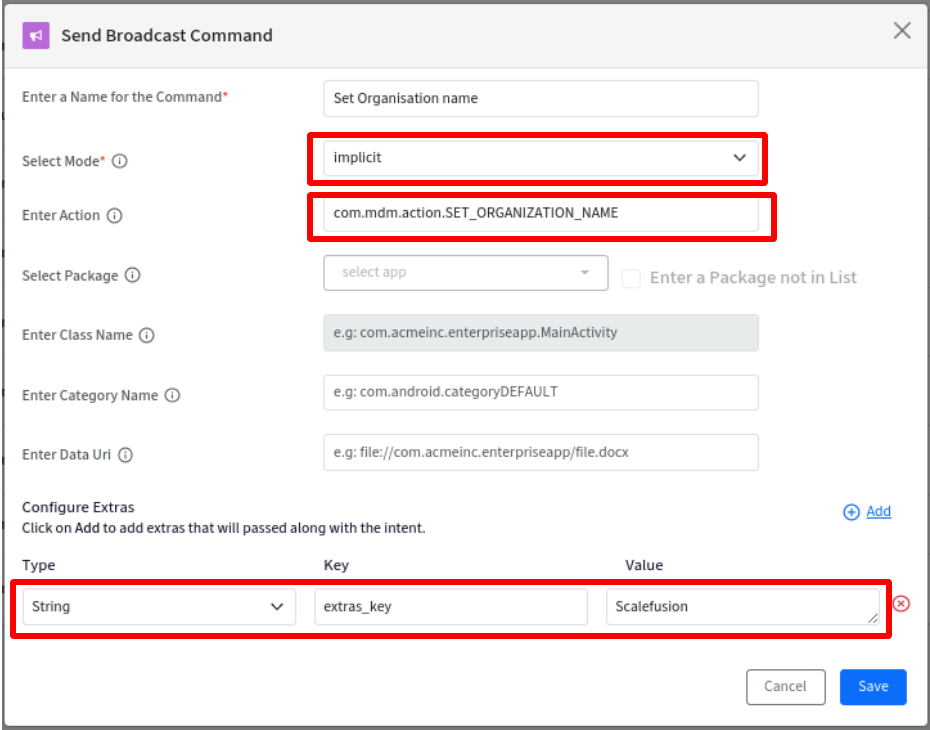
For example, in the screenshot below, This device belongs to your organization will be replaced with This device belongs to Scalefusion (as set via Remote Command)
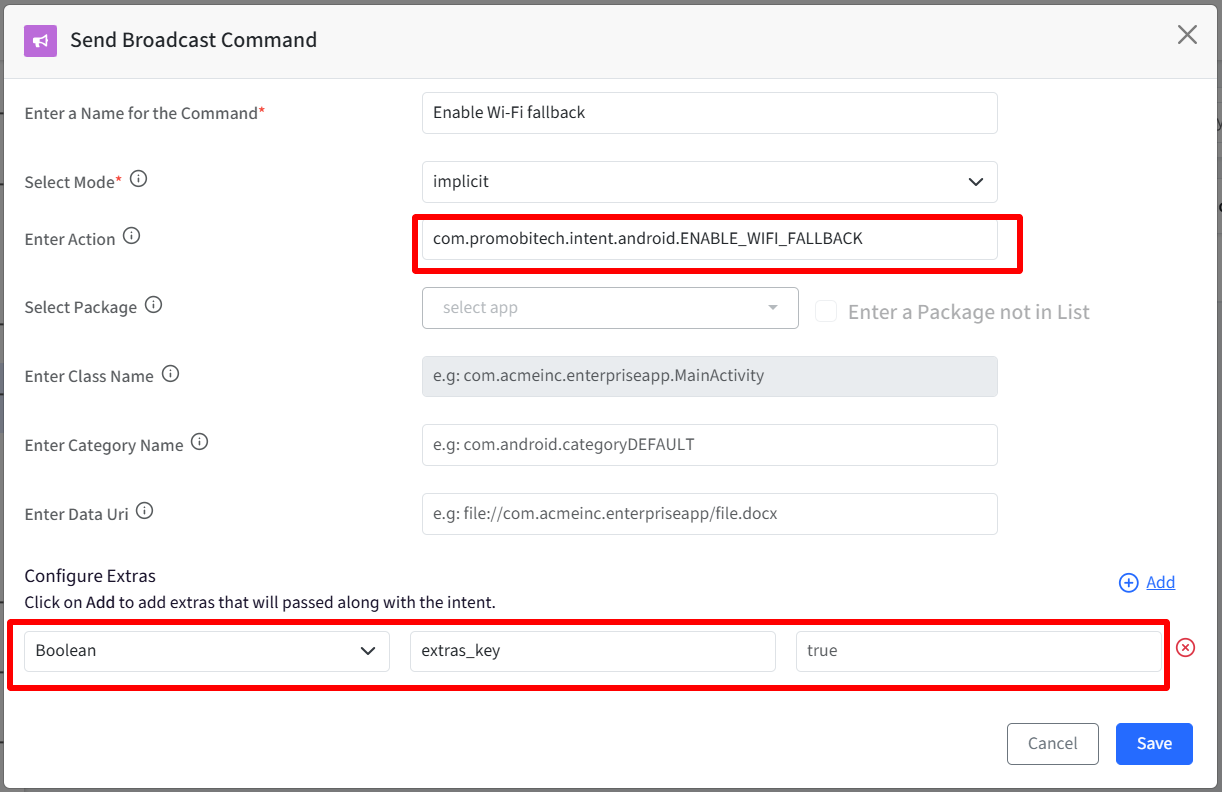
7. Enable Wi-Fi Fallback
If the Wi-Fi is not functioning properly with Scalefusion (IC-972 or PS-902) or above on the device, only then use the following remote command to enable Wi-Fi fallback.
Step 1: Create a “Send Broadcast” command for enabling Wi-Fi fallback
To do so, select the following:
Type: Implicit
Action: com.promobitech.intent.android.ENABLE_WIFI_FALLBACK
Extras
Type: Boolean
Key: extras_key
Value:
true (for applying latest changes)
false (for applying old changes)
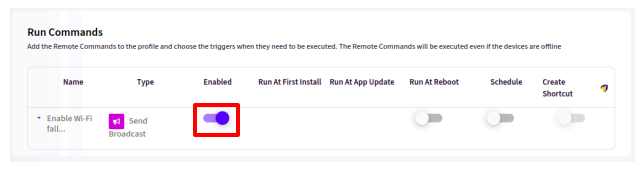
Step 2: Enable the Remote Command from Device Profile
Navigate to Device Profiles & Policies > Device Profiles
Edit an existing Android Device Profile
Click on Run Commands on the left panel. The Remote command for suspending apps that you have created from the Remote Commands section will be displayed here.
Enable the command by toggling on the setting and Update Profile
8. Command to grant Special Permissions on Wingman-supported devices
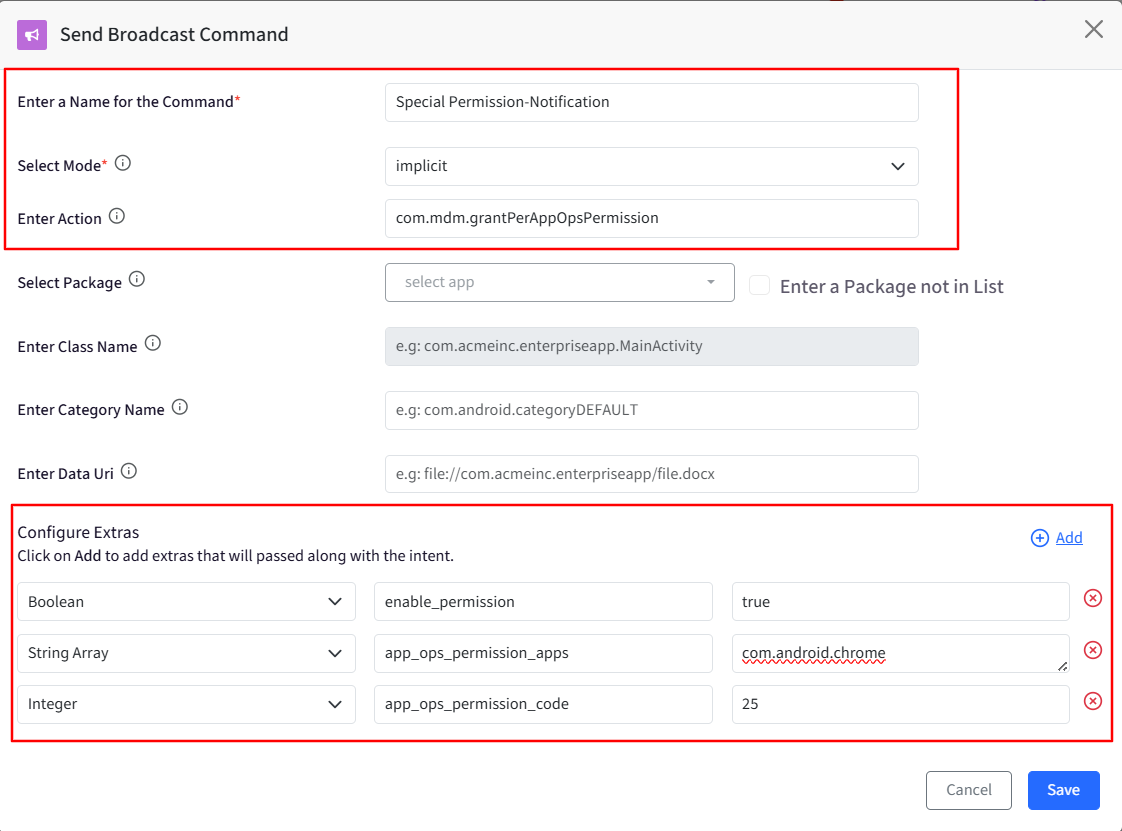
Using this Broadcast command, you can grant special permissions like access notifications, write settings, picture-in-picture, etc. on Wingman-supported device(s).
To do so, select the following:
Type: Implicit
Action: com.mdm.grantPerAppOpsPermission
Extras
Type: Boolean
Key: enable_permission
Value: true/false
Extras
Type: String Array
Key: app_ops_permission_apps
Value: Package names separated by a comma.
Extras
Type: Integer
Key: app_ops_permission_code
Value: Permission code of the permission to be granted.
Note:
Few of the known permission codes:
WRITE_SETTINGS = 23
SYSTEM_ALERT_WINDOW = 24
ACCESS_NOTIFICATIONS = 25
GET_USAGE_STATS = 43
PROJECT_MEDIA = 46
RUN_IN_BACKGROUND = 63
REQUEST_INSTALL_PACKAGES = 66
PICTURE_IN_PICTURE = 67
RUN_ANY_IN_BACKGROUND = 70
QUERY_ALL_PACKAGES = 91
MANAGE_EXTERNAL_STORAGE = 92
SCHEDULE_EXACT_ALARM = 107