To create a RADIUS configuration:
Go to OneIdP > RADIUS > RADIUS Configuration.
Click Create Configuration.
Enter a Configuration Name (5–30 characters).
Complete the four setup steps described below, then click Save.
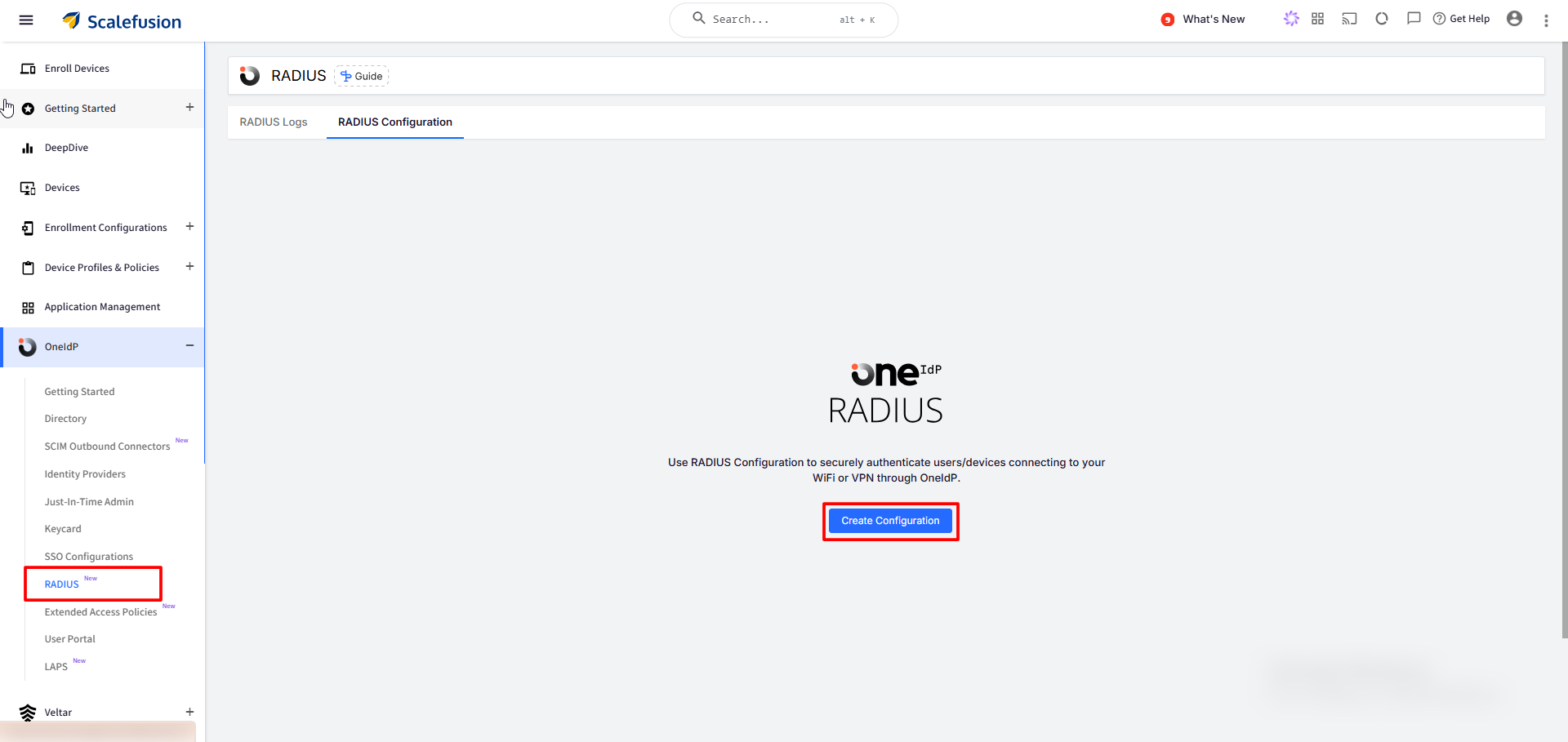
Opening RADIUS shows two tabs, with RADIUS Configuration as the default landing tab:
RADIUS Logs — view and export Authentication events.
RADIUS Configuration — create and manage RADIUS server configurations.
If you have no configurations yet, the RADIUS Configuration tab simply shows an empty state and the message: "Use RADIUS Configuration to securely authenticate users/devices connecting to your WiFi or VPN through OneIdP," along with a Create Configuration.
Steps to Configure RADIUS
Step 1: RADIUS Server Details
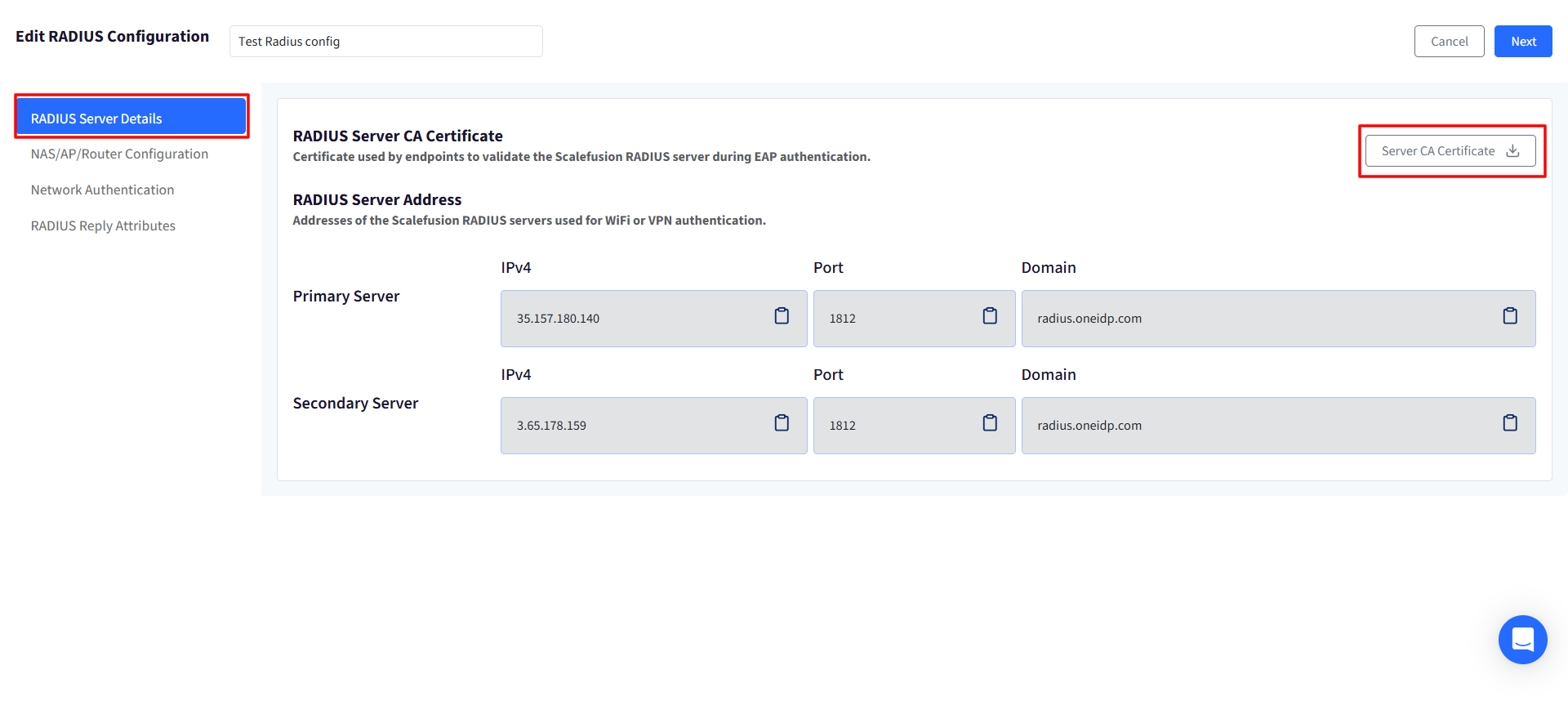
Here you'll find the RADIUS Server CA Certificate — download it and install it on client devices so they trust the Scalefusion RADIUS server during authentication. This only establishes trust; it doesn't authenticate anyone by itself.
Click Server CA Certificate download it as a .pem file.
Install it on the devices that will be connecting (via device profile, MDM policy, or manually, depending on how you manage devices).
It only builds trust in the server — it doesn't authenticate any specific user or device. That's handled separately in Step 3.
RADIUS Server IP Address (Primary/Secondary Server IP) — the address of the Scalefusion RADIUS server itself, 35.157.180.140 or 3.65.178.159.
Copy it using the copy icon.
Add it as the RADIUS server address in your NAS, access point, or router's Admin Console, alongside the Shared Secret from Step 2.
This step happens outside OneIdP — without it, your NAS won't know to send requests to Scalefusion at all.
Step 2: NAS/AP/Router Configuration
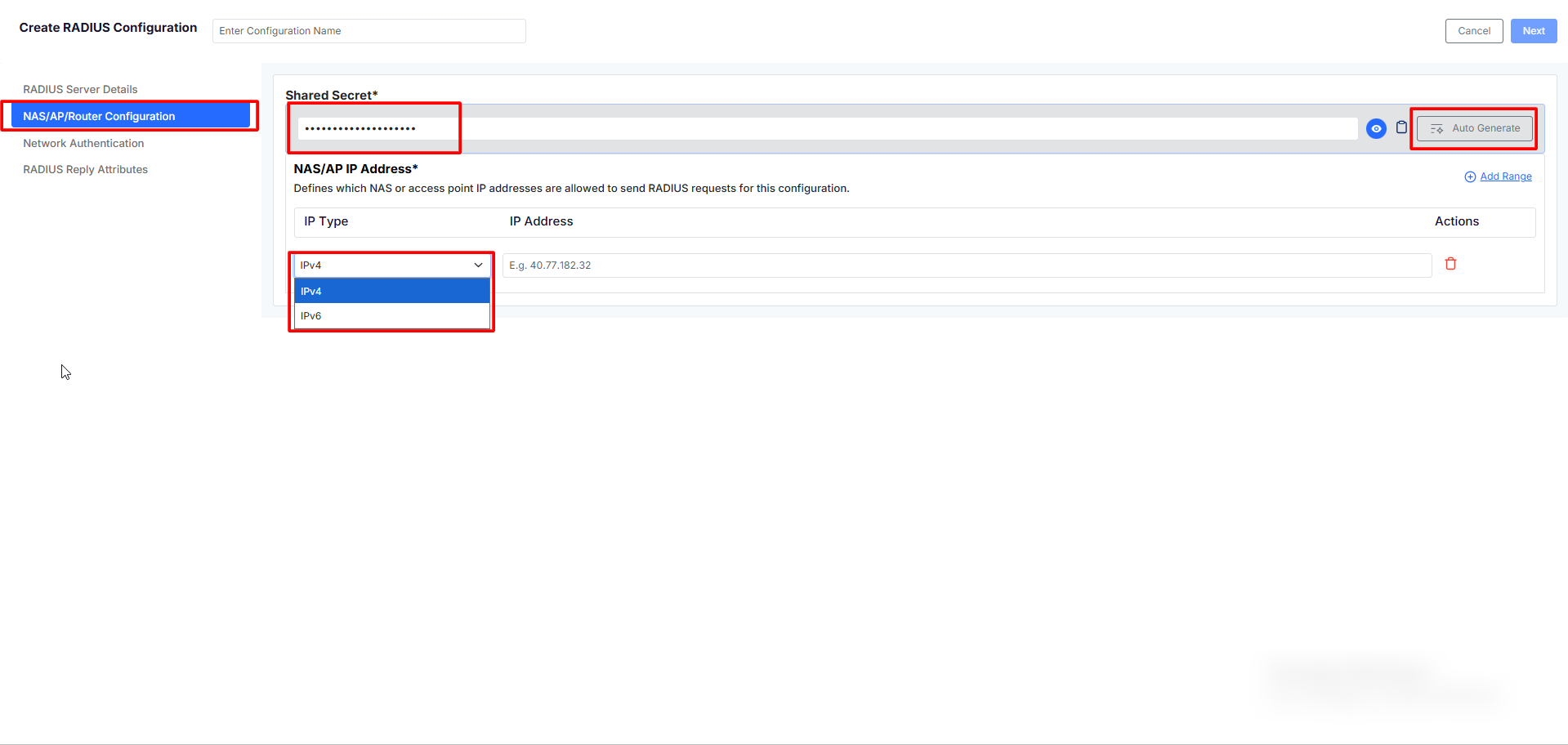
Shared Secret — a password shared between your NAS and the RADIUS server to encrypt and verify traffic and confirm both sides are legitimate.
A default Shared Secret is already available to be used or else click Auto Generate for a random secret, or type your own (16–64 characters).
Reveal or copy it using the icons next to the field.
Enter this same value on your NAS, alongside the server IP from Step 1.
If you regenerate or edit it later, update it on your NAS too — the two need to stay in sync.
NAS/AP IP Address — the IP addresses allowed to send requests to this configuration.
Select IPv4 or IPv6, then add the IP address that identifies your network:
For Wi-Fi: Enter your organization's public IP address (the outbound IP your ISP has assigned to your network) — not the local/private IP of an individual access point.
For VPN: Enter the outbound IP address of your VPN server (where the VPN service is hosted).
Click Add Range to add more rows if you need to list additional IPs or ranges.
At least one entry is required, and it can't overlap with a range already used in another configuration.
NOTE: If your VPN gateway connects from a different public/source IP address than your Wi-Fi access points, you'll need a separate NAS/AP IP Address entry (or a separate RADIUS configuration) using the VPN server's specific IP. Otherwise, VPN requests will be rejected even if Wi-Fi RADIUS is working correctly.
Step 3: Network Authentication
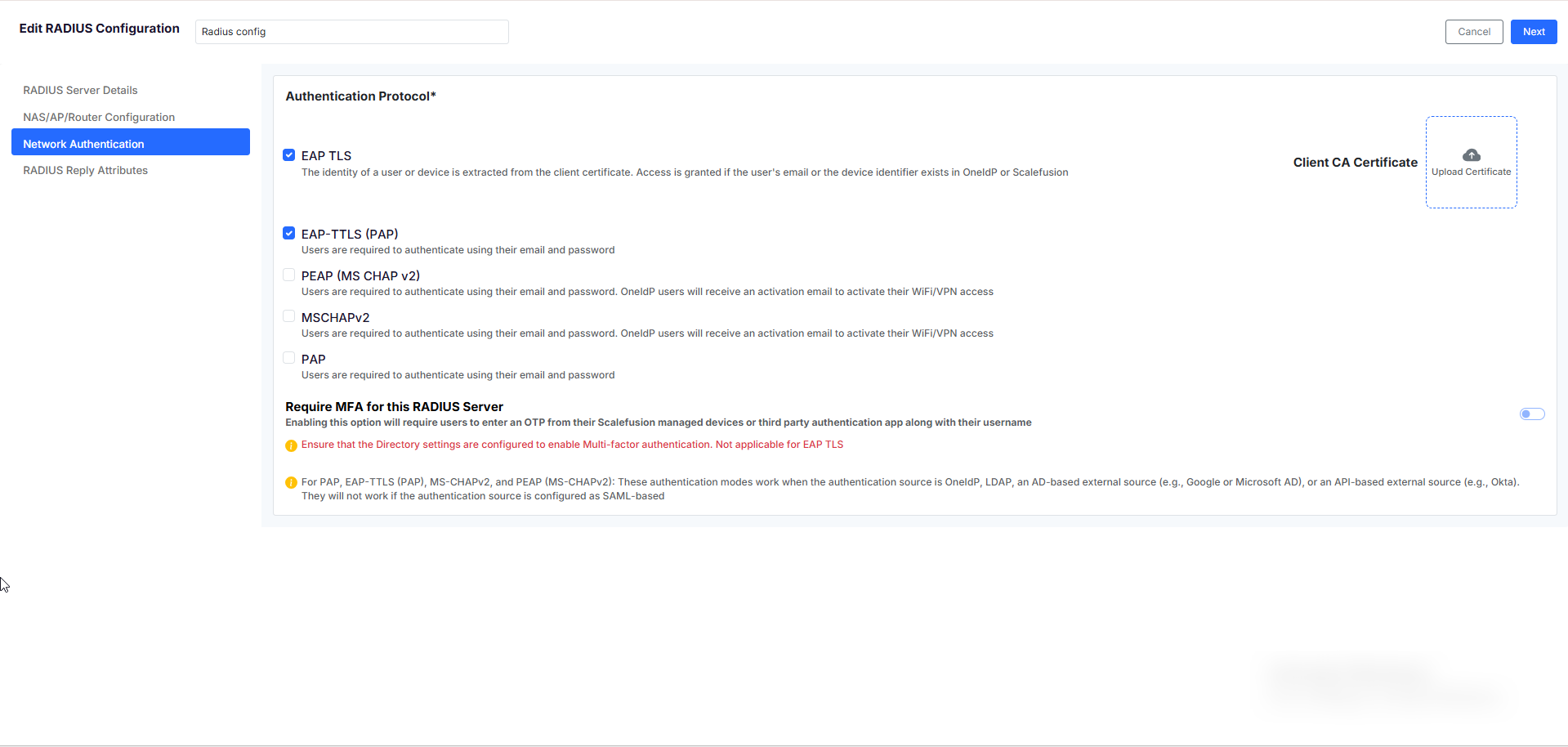
Select the Authentication Protocol your network will use to verify identities. The required settings will adjust based on whether you choose a certificate-based or password-based protocol:
For Certificate-Based Authentication (EAP TLS):
Client CA Certificate: Upload your
.pemor.cerfile. This is used to validate the certificates presented by connecting endpoints and is separate from the RADIUS Server CA Certificate downloaded in Step 1.Identity Validation: Network access is granted only if the presented certificate resolves to a known user, device, or both in the system (refer to the How EAP TLS Identity Matching Works section).
Note: The Require MFA toggle is not applicable for EAP TLS.
For Password-Based Authentication (EAP-TTLS (PAP), PEAP (MS CHAP v2), MSCHAPv2, or PAP):
Supported Identity Sources: Confirm that your users' authentication source is OneIdP, LDAP, an AD-based source, or an API-based source. SAML-based sources are not supported for these protocols.
Require MFA: Optionally enable multi-factor authentication. When enabled, users must enter a one-time code generated from a Scalefusion-managed device or a third-party authenticator app alongside their standard credentials.
Activation Email (PEAP MSCHAPv2 & MSCHAPv2 only): Because these specific protocols rely on NT Hash validation, OneIdP users assigned to this configuration will automatically receive an activation email to activate their access (refer to the Activation email for PEAP / MSCHAPv2 section).
Step 4: RADIUS Reply Attribute
Reply Attributes are instructions sent to the NAS along with a successful authentication response, telling it how to treat the connecting user or device. RADIUS itself only confirms who is allowed to connect — Reply Attributes are how you tell the NAS what to do with that connection once it's accepted. Common examples include:
Placing the user or device on a specific VLAN
Applying a particular access policy or firewall filter on the NAS
Setting a session timeout for how long the connection stays authenticated
Passing along vendor-specific attributes (VSAs) that a particular NAS brand uses for its own features
Which attributes are actually available, and what they do, depends entirely on your NAS. RADIUS Reply Attributes follow a standard format, but enforcement happens on the NAS side — Scalefusion sends the attribute, and it's up to your NAS to recognize and act on it.
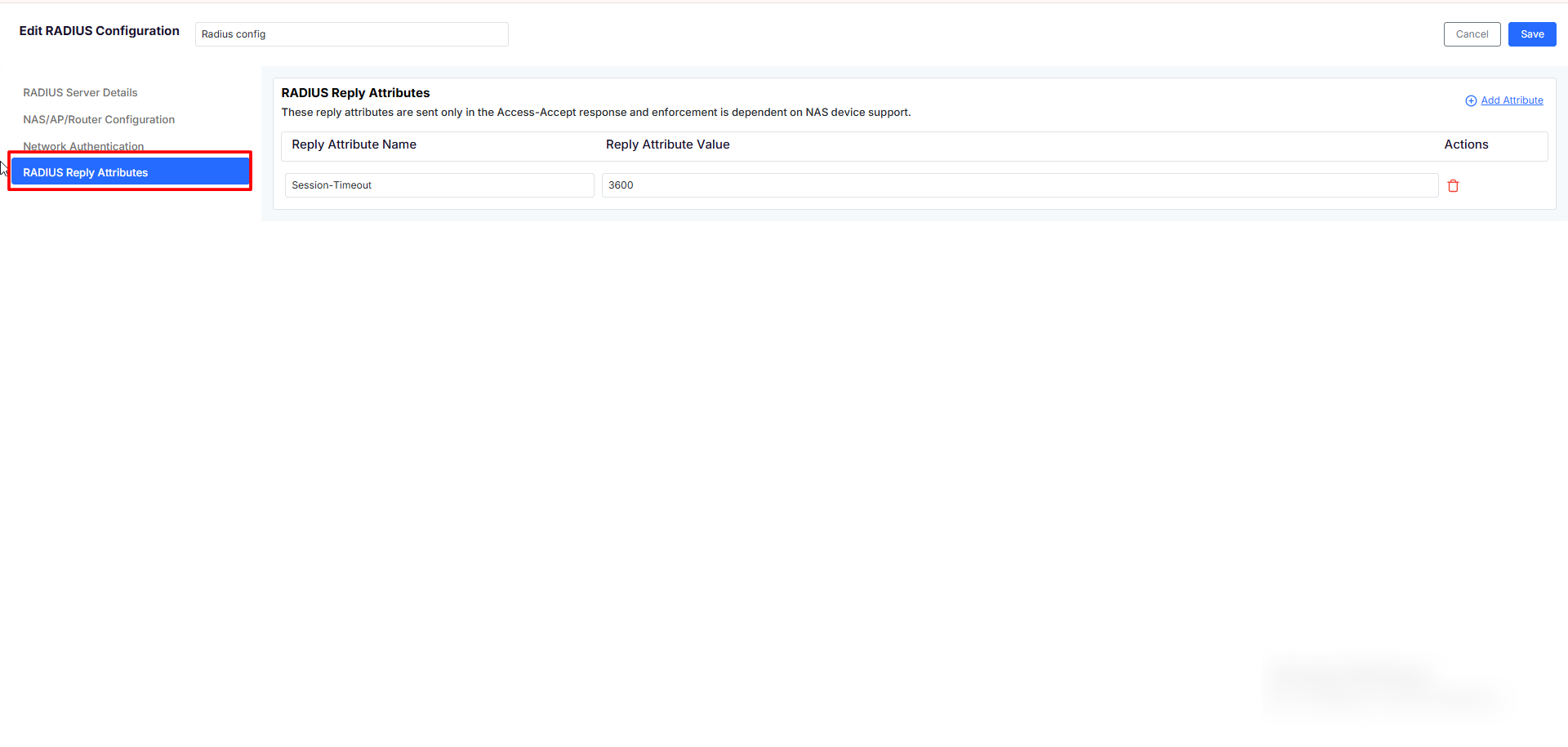
Steps to configure reply attribute :
Click Add Attribute.
Enter the Reply Attribute Name and its corresponding Reply Attribute Value.
Repeat to add more attributes.
This step is optional — a configuration can be saved without any Reply Attributes. Click Save to complete the configuration.
Attribute Precedence: Reply Attributes can be defined globally here at the Configuration level, or specifically under the settings of an assigned User Group or Device Group. If the exact same attribute is defined at both the group level and the configuration level, the group-level value always takes precedence.
Note: These attributes are transmitted only during the Access-Accept response. Actual enforcement of these instructions is entirely dependent on your specific NAS device's support and local configuration.
How EAP TLS identity matching works
For EAP TLS, RADIUS reads identity straight from the client certificate: the user's email comes from the Subject Alternative Name (SAN) field, and a device's IMEI/serial number comes from the serialNumber attribute in the Subject field.
If you're issuing certificates through a CA Server and Certificate Template in Scalefusion, make sure the template maps these two fields correctly — otherwise RADIUS won't be able to resolve identity from the certificate, even if it's otherwise valid. See "Deploying Wi-Fi and Certificate Configuration" for template setup.
Certificate contains | Result |
|---|---|
User identity only | Granted only if the user belongs to an assigned User Group |
Device identity only | Granted only if the device belongs to an assigned Device Group, or to a user in an assigned User Group |
Both identities | User identity is checked first (applying User Group rules). If unmatched, it defaults to the device identity (applying Device Group rules). |
Neither identity resolves | Access denied, regardless of certificate validity |
Activation Email for PEAP MSCHAPv2 / MSCHAPv2
PEAP (MS CHAP v2) and MSCHAPv2 verify a user's password using an encrypted format sent by the NAS, so credentials are never checked in plain text. Android, iOS, macOS, and Windows all support this natively — so unlike EAP TLS, there's no certificate authority or template to set up first.
For VPN, this means the RADIUS configuration alone is enough; for Wi-Fi, a Wi-Fi configuration still needs to be pushed to devices, but it's simpler than the EAP TLS version — see "Deploying Wi-Fi and Certificate Configuration" for the platform-specific steps.
Supported Auth Sources: OneIdP, Google LDAP, Microsoft Active Directory, and Okta API.
Unsupported Auth Sources: SAML-based identity providers.
Who Receives an Activation Email
When a user is first assigned to a PEAP or MSCHAPv2 configuration, their network access needs to be activated. Whether they actually get an email depends on their login history with Scalefusion:
User history | Receives an activation email? |
|---|---|
Newly migrated to OneIdP | No — access is set up automatically on migration |
Already logged into KeyCard, SSO, or the User Portal before | No — access was already set up from that activity |
Never logged into KeyCard, SSO, or the User Portal before | Yes (Requires manual activation) |
Note: Re-assigning a group doesn't send a repeat email to someone who's Network Access is already activated.
The EMAIL Activation Process
Using the Email Link: The activation email sent to the users and from there users need to activate their Network access.
Identity Provider Changes : If a user's authentication source is changed (for example, migrating from OneIdP to Google LDAP, Okta API, AD, their connection over the WIFI remains active and it will not disconnect the WIFI
Managing Existing Configuration
Once created, your RADIUS setups are listed in the RADIUS Configuration table. This centralized view provides a quick overview of each setup, including the configuration name, authentication protocol, NAS IP addresses, the groups it is published to, and the details of when it was last updated.
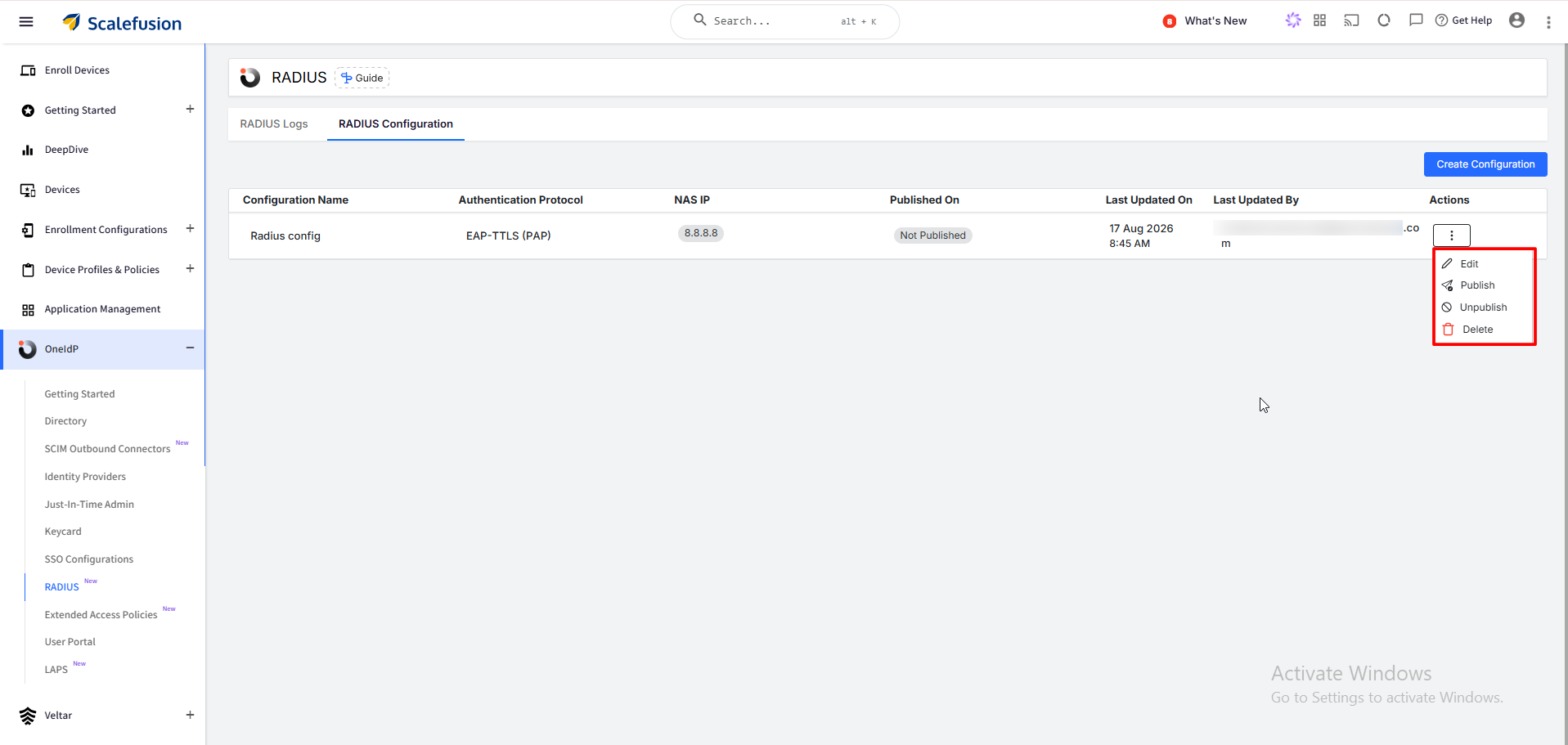
From the actions column, administrators can manage the lifecycle of the each of the RADIUS configuration:
Edit: Modify configuration details such as the NAS IP addresses, Shared Secret, or Reply Attributes. Note: The Authentication Protocol is permanently locked upon creation and cannot be changed.
Assign / Unassign: Control access by mapping the configuration to new User Groups and Device Groups, or revoke access by unassigning existing groups.
Delete: Permanently remove the RADIUS configuration. Because this is a destructive action, you will be prompted to confirm and re-enter your administrator PIN or password.
Warning: Changing or removing an active configuration will immediately break network authentication for any NAS IPs and groups that are still mapped to it. Ensure you have migrated active users or access points to a new configuration before proceeding.