Securing enterprise Windows 10 & above devices is a very important aspect of managing them. A quality password acts as first line of defense in protection against unattended access and stolen/lost devices.
Scalefusion helps you define a password policy, that can be applied to the devices thereby forcing the users to create a password that complies with your organizational policies. In this document, we will walkthrough on how to configure and publish a Password policy which can be implemented both via Modern Management as well as Scalefusion Windows MDM agent.
Before you Begin
Login into Scalefusion Dashboard
Have access to one Scalefusion managed Windows 10 & above devices.
Supported OS:
Windows 10 & 11: Pro, Enterprise, Education, Business
Windows Server OS: 2019 (Tested), 2022 & above
Windows IoT Enterprise: LTSC / LTSB versions
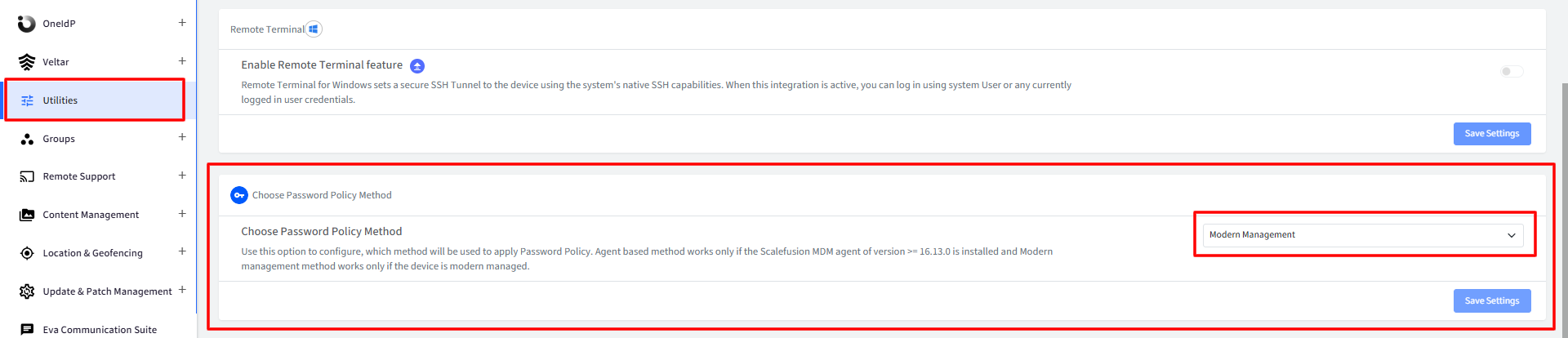
Choose a Password Policy Method which will be applied on devices. To do so,
Navigate to Utilities → Global Settings → Windows Settings
Choose Password Policy Method from the drop-down and click Save Settings:
Modern Management: Works only if device is modern managed
Scalefusion MDM Agent: Works only if Scalefusion MDM agent v16.13.0 or above is installed on devices
Password Policy does not apply to Entra (Azure) AD (domain joined) enrolled devices.
Creating a Password Policy
Password policy can be created in two ways:
Configure Password Policy at the Global Level
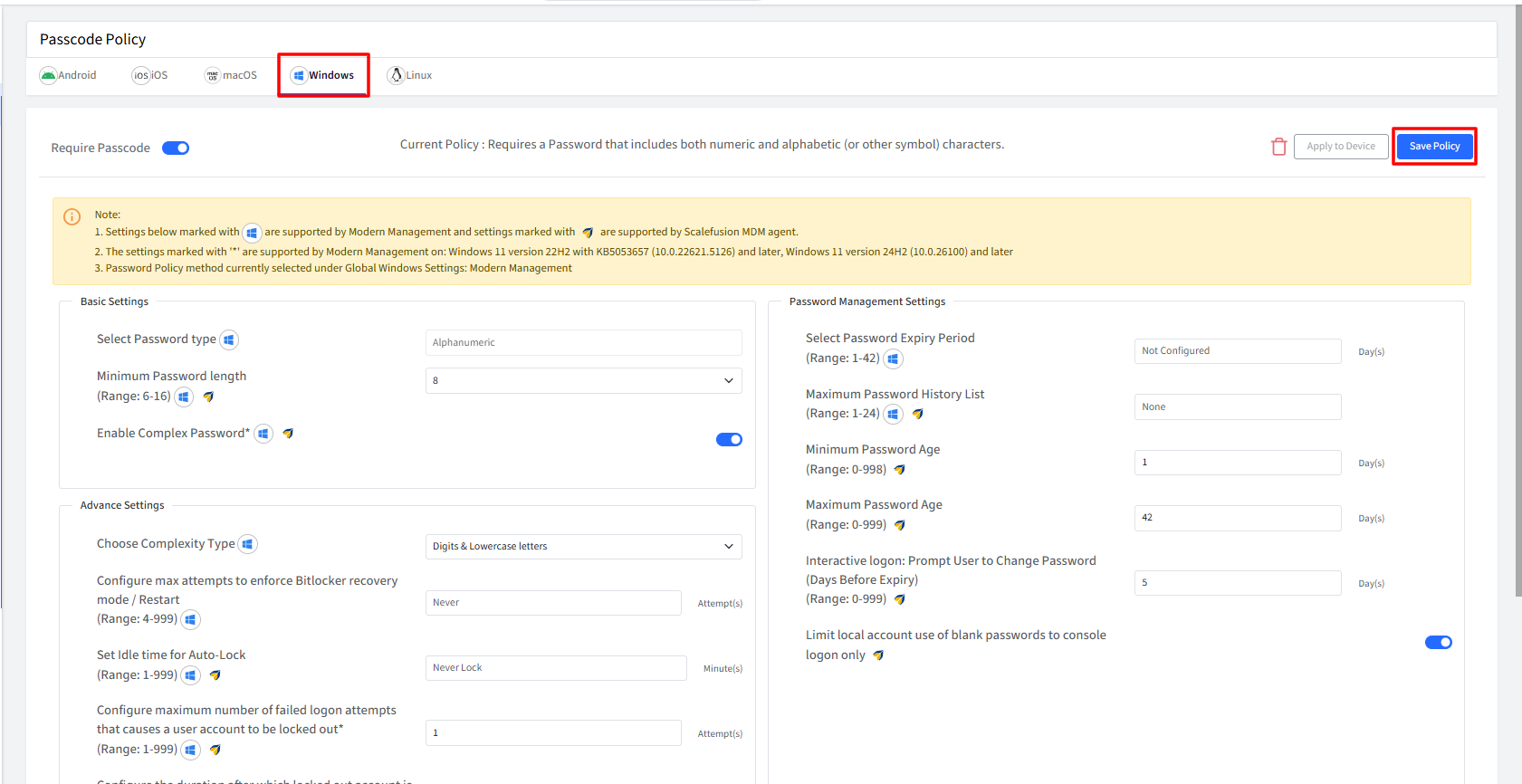
Navigate to Device Profiles & Policies > Passcode Policy > Windows section.
Toggle on the Require Passcode setting.
Settings marked with windows icon are supported through Modern Management, while settings marked with Scalefusion icon are supported through the Scalefusion MDM Agent.
Settings marked with * are supported by Modern Management on the following Windows versions:
Windows 11 22H2 with KB5053657 (OS Build 22621.5126) or later
Windows 11 24H2 (OS Build 26100) or later.
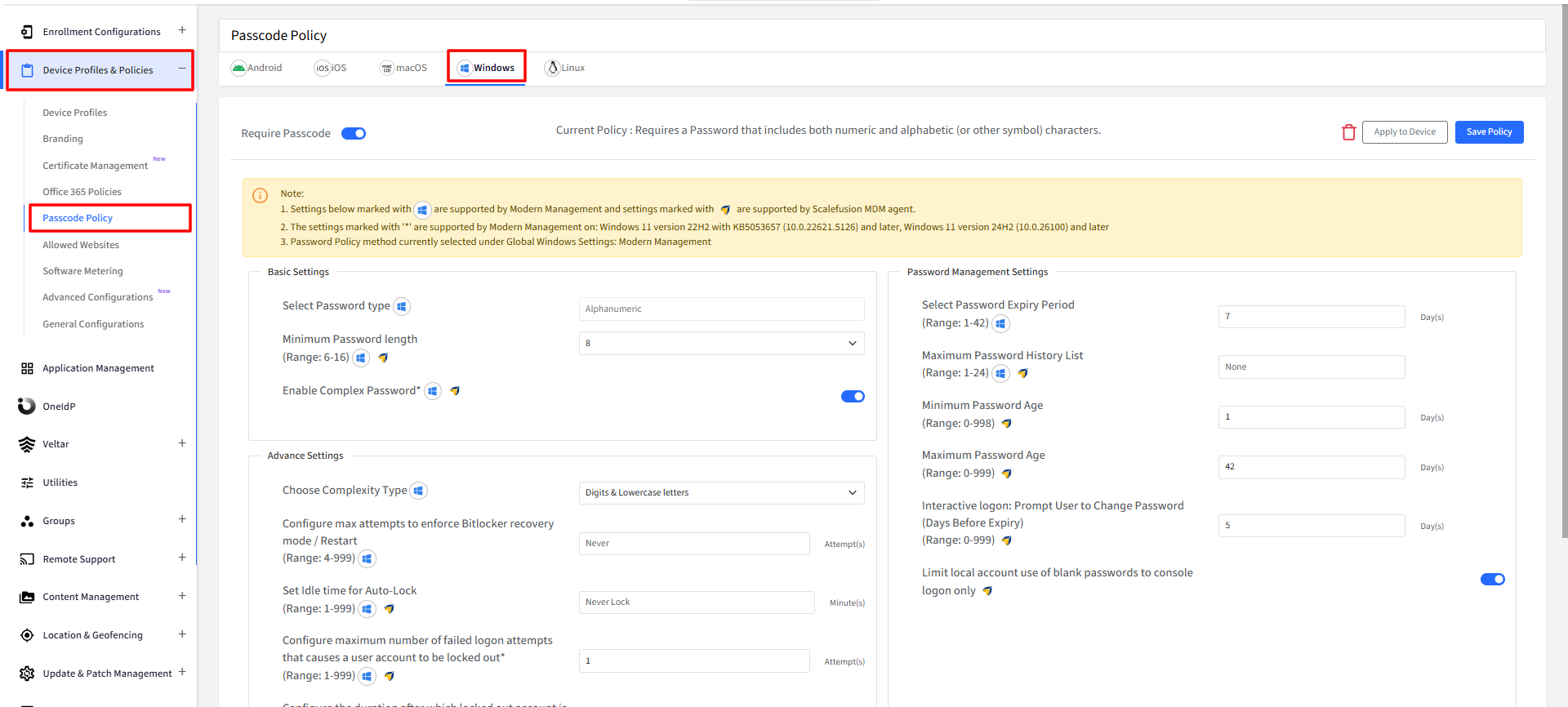
Following are the options available for Password Policy settings and their applicability to Agent-based management and Modern Management.
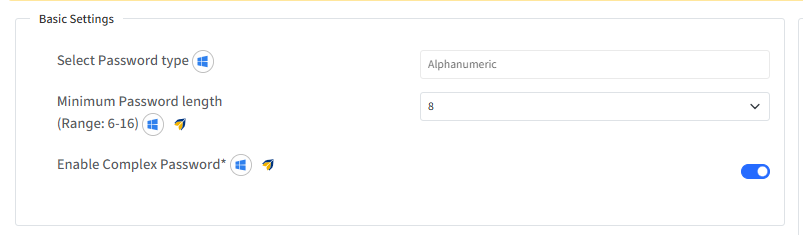
Basic Settings
Setting
Description
Applies To
Additional Notes
Select Password Type
Select the password type to be enforced on managed devices.
Modern Management
Available only for Modern Management policies.
Specify the minimum number of characters required for a password.
Agent, Modern Management
• Modern Management: 6–16 characters
• Agent: 0–14 characters
Enable Complex Password*
Enforces password complexity requirements.
Agent, Modern Management
When enabled, the minimum password length must be 6 characters or greater.
Minimum Password Length Mapping (switching methods)
In case Admin switches from Agent method to Modern Management Method or vice versa in Global Utilities, the following value mapping is applied automatically as the minimum password length:
Agent Value
Modern Management Value
0–5
6
6–14
Retains the same value (6-14)
Modern Management Value
Agent Value
15–16
14
6–14
Retains the same value
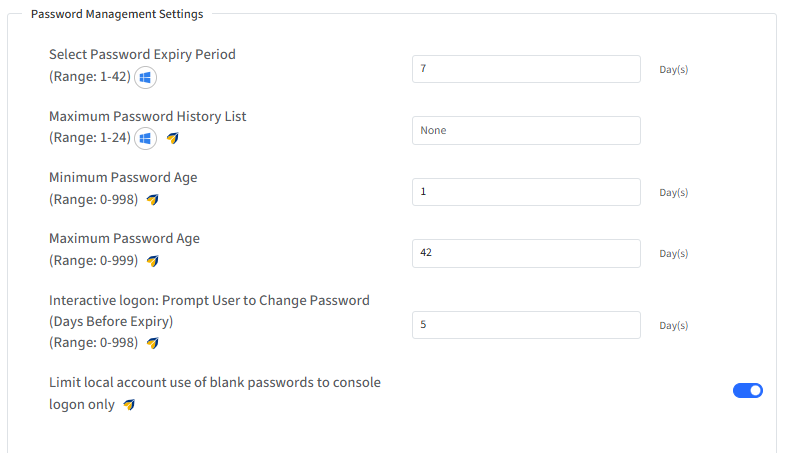
Password Management Settings
Setting
Description
Applies To
Additional Notes
Select Password Expiry Period
Defines how long a password remains valid before expiration.
Modern Management
It is mandatory to select expiry period and it can be from 1 to 42 days.
Maximum Password History List
Specify the number of previously used passwords that cannot be reused.
Agent, Modern Management
Helps prevent password reuse.
Range: 1 to 24
Minimum Password Age
Specify the minimum number of days a password must be used before it can be changed.
Agent
Range: 0–998 days
Default: 1 day
Maximum Password Age
Specify the maximum number of days a password can be used before a password change is required.
Agent
Range: 0–999 days
Default: 42 days
Minimum Password Age must be less than the configured Maximum Password Age.
Interactive Logon: Prompt User to Change Password (Days Before Expiry)
Specify how many days before password expiration users are prompted to change their password.
Agent
Range: 0–998 days
Default: 5 days
Limit Local Account Use of Blank Passwords to Console Logon Only
Enabling this restricts local accounts with blank passwords from being used for remote sign-ins.
Agent
Default: ON
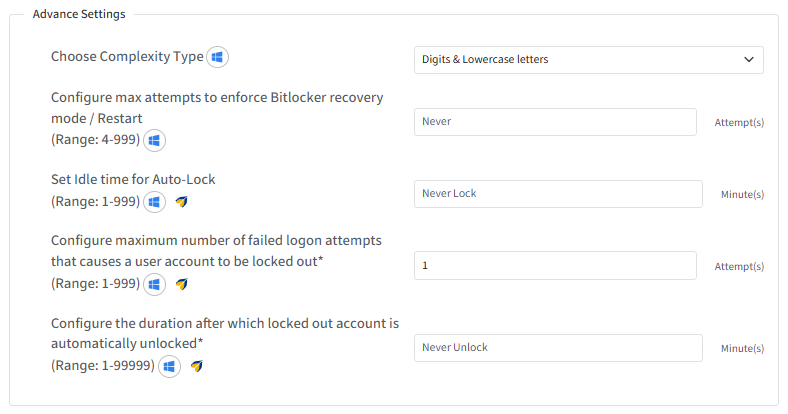
Advanced Settings
Setting
Description
Applies To
Additional Notes
Choose Complexity Type
Select the password complexity standard to apply.
Modern Management
It can be Digits & Lowercase letters
Configure Max Attempts to Enforce BitLocker Recovery Mode / Restart
Specify the number of failed password attempts before BitLocker Recovery Mode or a device restart is enforced.
Modern Management
By default it is set to Never.
Range: 4-999Set Idle Time for Auto-Lock
Specify the period of inactivity after which the device automatically locks.
Agent, Modern Management
Range: 1-999 minutes
If it is agent mode, device restart is required
Configure Maximum Number of Failed Logon Attempts That Causes a User Account to Be Locked Out*
Specify the number of failed sign-in attempts allowed before the account is locked.
Agent, Modern Management
Range: 1–999 attempts
Default: Never
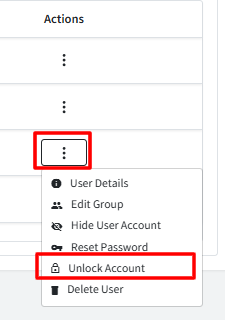
Locked user accounts can be manually unlocked from the User Accounts section of the device details page, subject to few conditions
Configure the Duration After Which a Locked-Out Account Is Automatically Unlocked*
Specify how long a locked account remains locked before it is automatically unlocked.
Agent, Modern Management
Range: 1–99,999 minutes
Default: Never Unlock
This setting is available only when a value has been configured for Failed Logon Attempts.
Once you have configured the desired policy, click Save Policy.
Publishing a Password Policy
Once you have created a password policy, you can publish it to the Device Profiles. To do so, navigate to Device Profiles & Policies > Passcode Policy. Under Windows tab, click on Apply to Device.
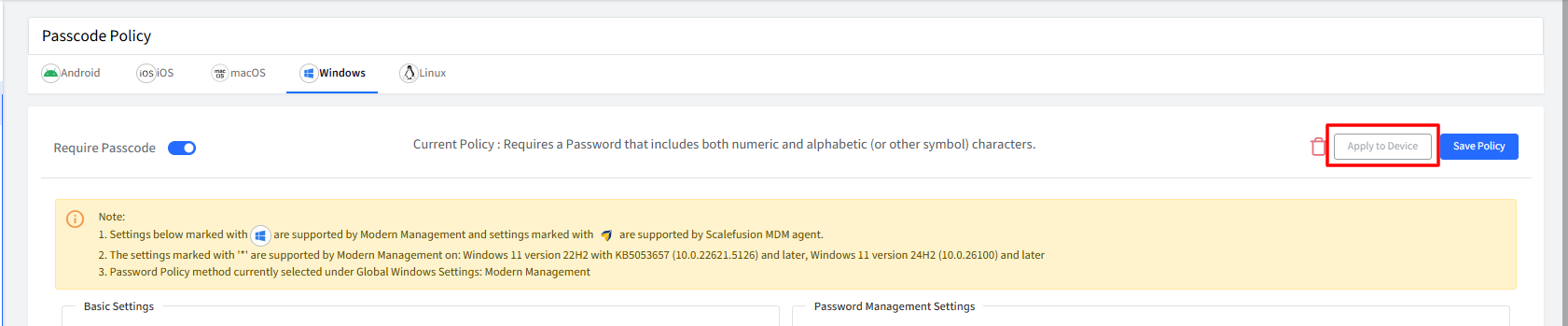
Select the Device Profile(s) where you want to apply the policy to and click on Submit.
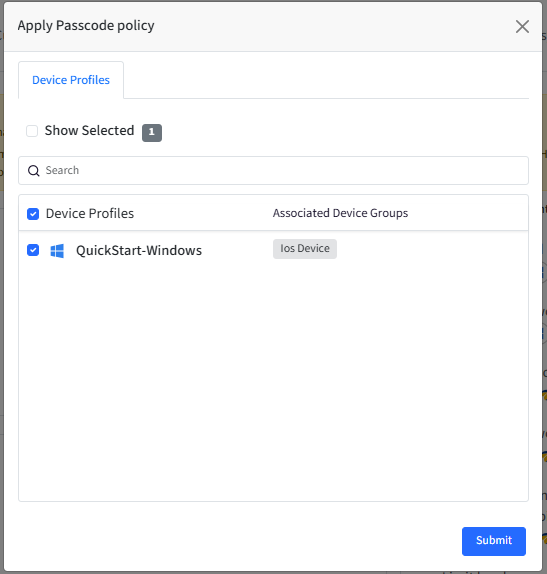
Once the policy is applied and the devices sync with the Scalefusion dashboard, they will be forced to change the password the next time the device reboots or they Login to their account on device.
It is observed that irrespective of the current password on the device, users are forced to create a new password.
Removing a Password Policy
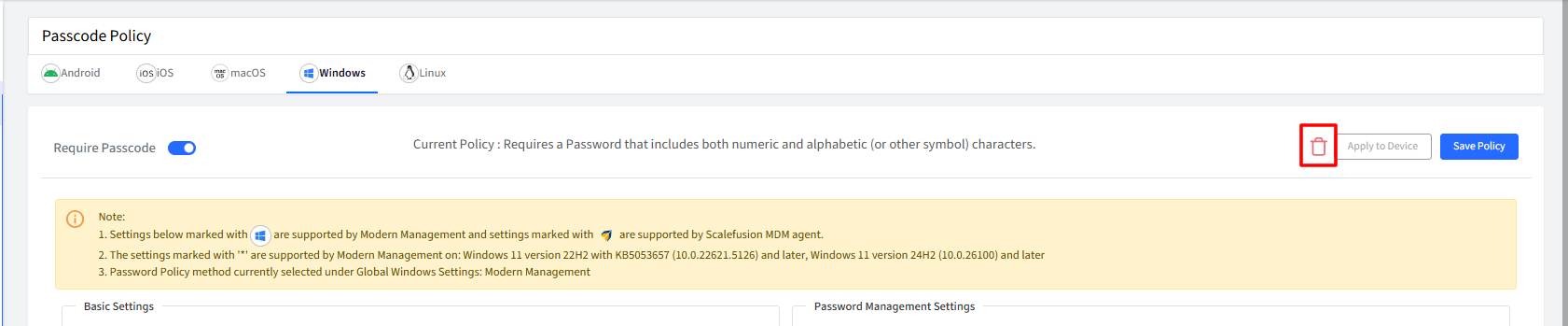
If you want to relax the password policy and want to remove a password policy from devices, then navigate to Device Profiles & Policies > Passcode Policy and click on Delete icon.
Select the Device Profile(s) where you want to remove the policy from and click SUBMIT.
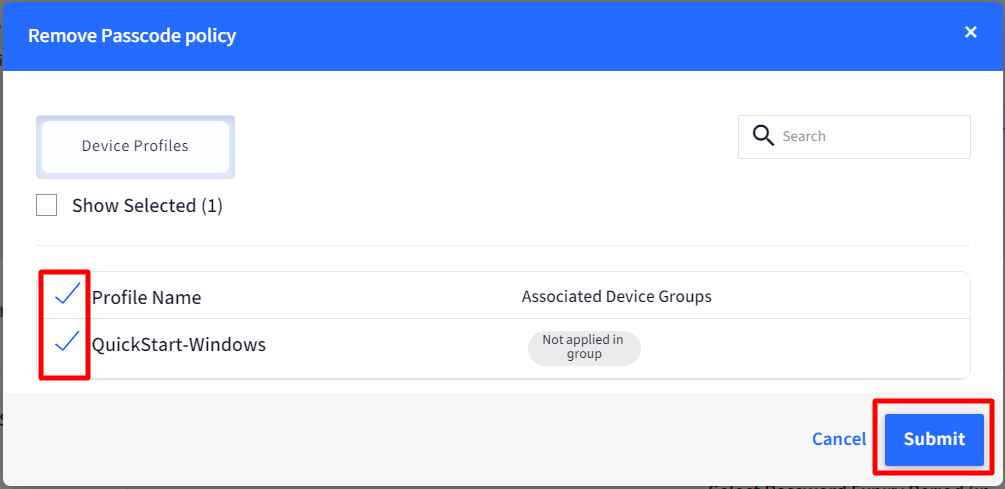
Once you remove a password policy from a device profile, following are the actions taken,
All the future devices that enroll into the device profile will not be enforced to create a password.
For the current devices in the profile, however, the password that is already configured is not removed.
Configure Password Policy at the Profile Level
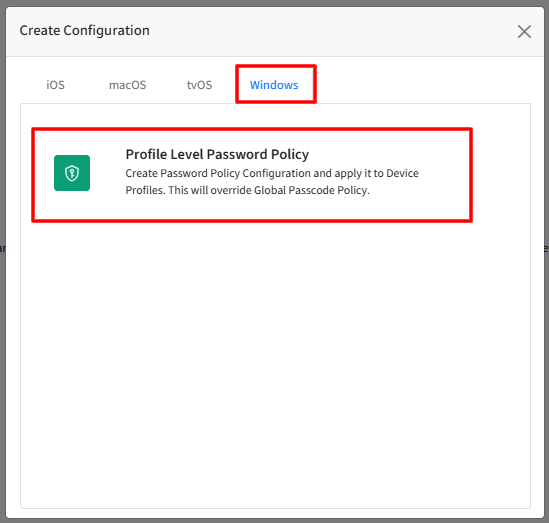
On the Scalefusion Dashboard, navigate to Device Profiles & Policies > Advanced Configurations and click Create Configuration.
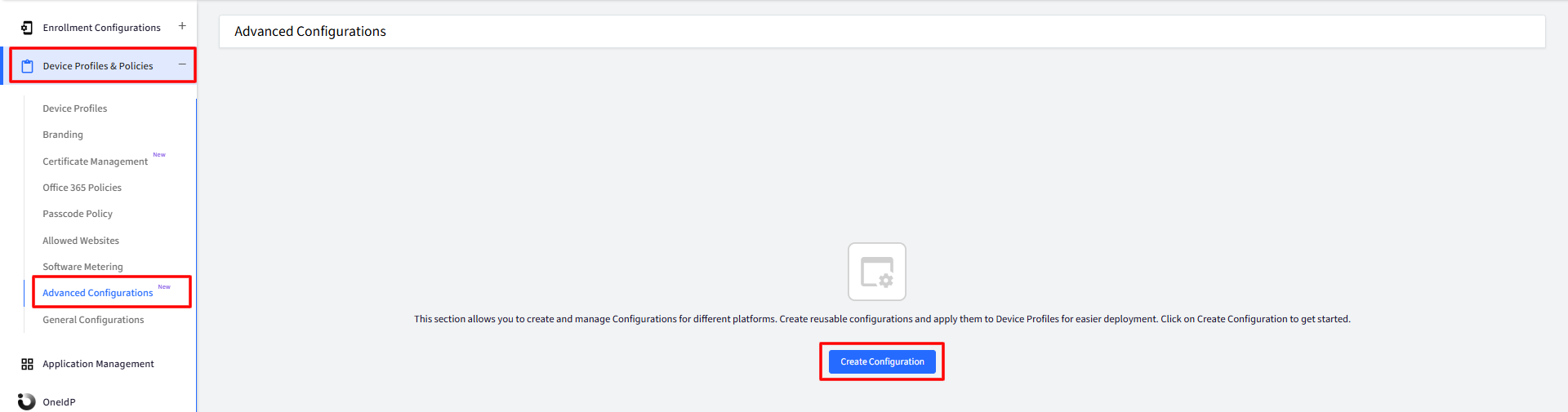
Under the Windows tab, select Profile Level Password Policy.
Configure the required password policy settings. These settings are similar to those available under the Global Password Policy configuration.
Click Save Policy.
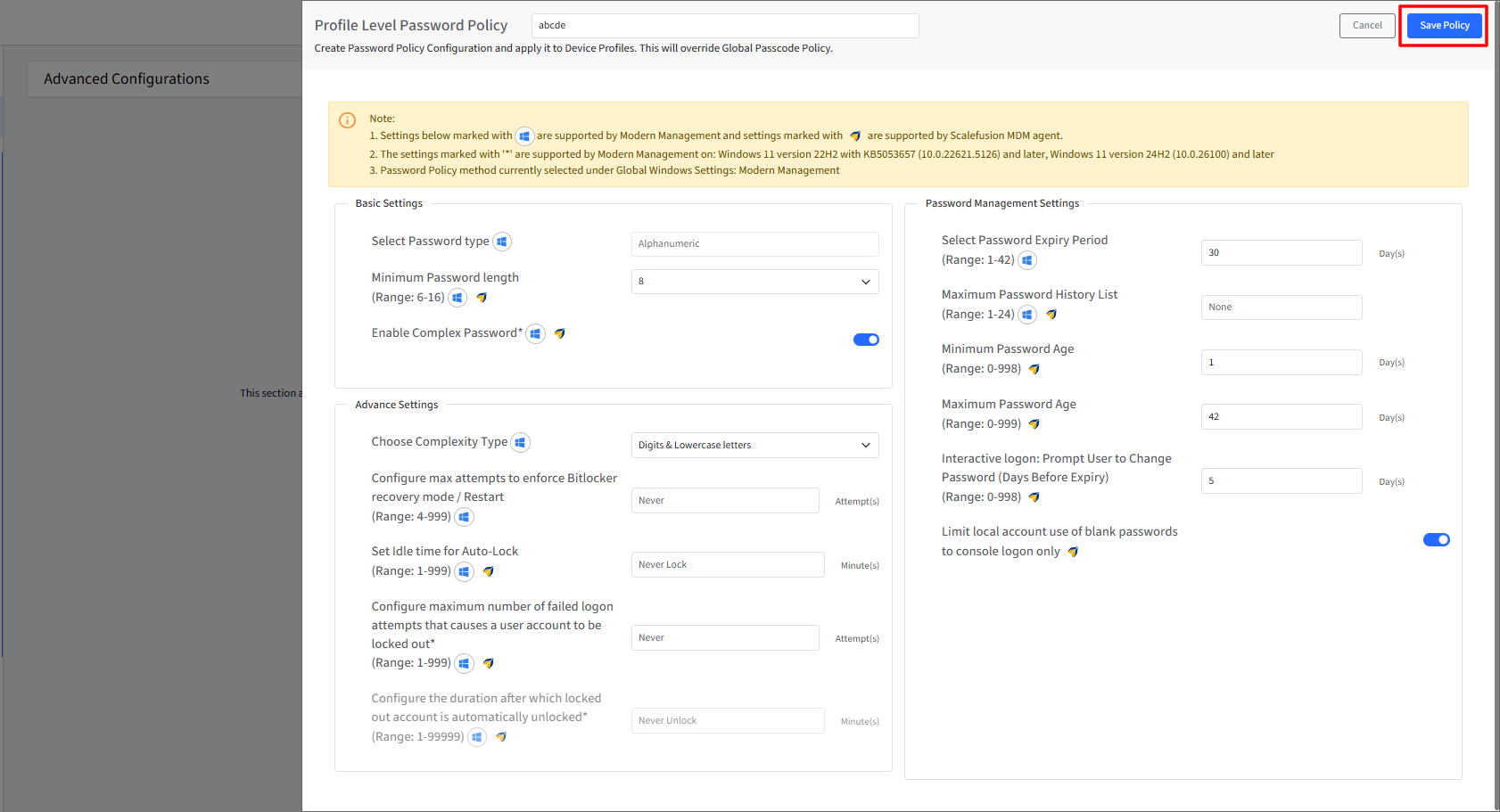
Profile-level password policies override the password policy configured at the Global level.
The Publish dialog appears automatically.
Select the device profiles to which you want to apply the policy.
Click Publish to deploy the configuration.
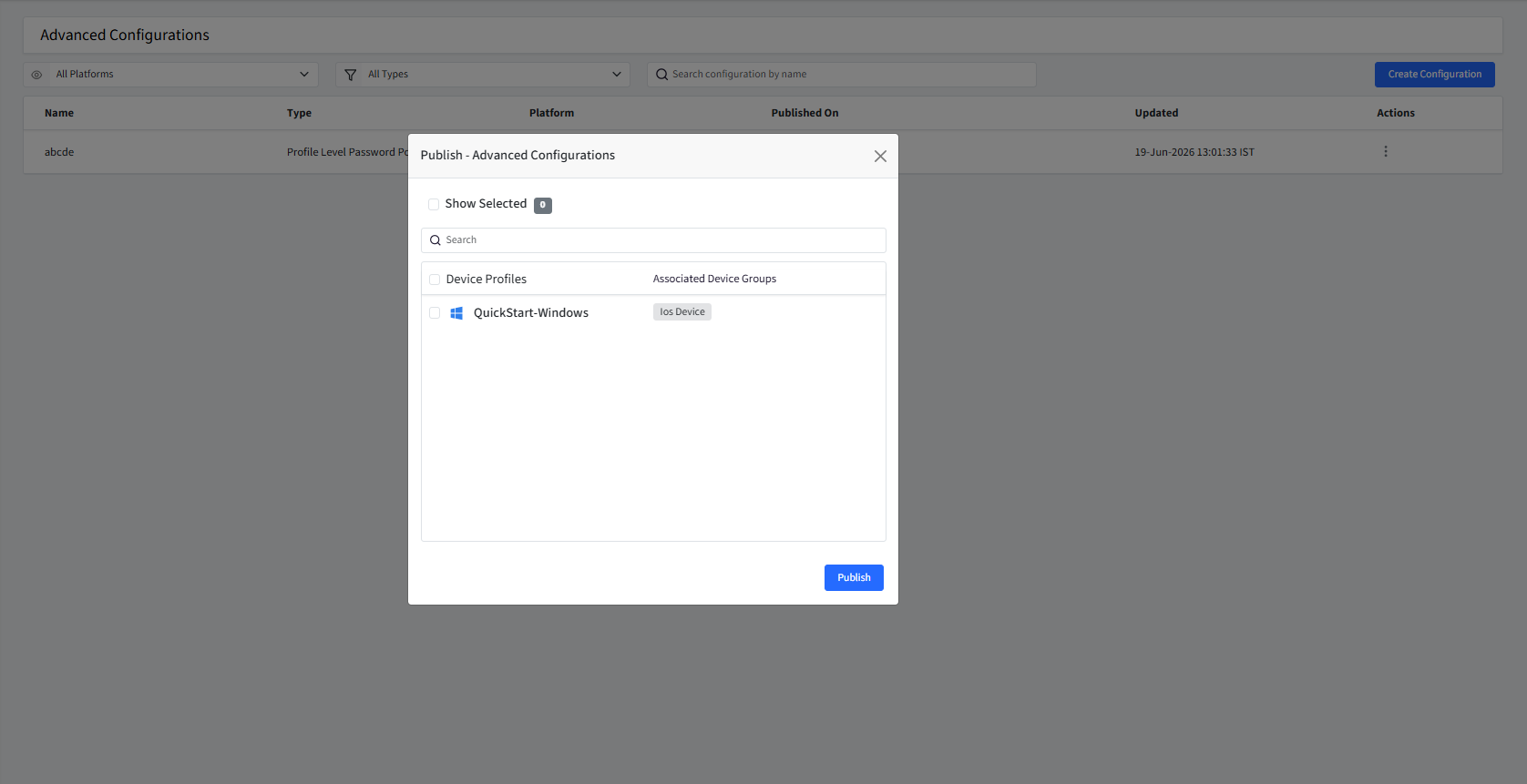
If you do not want to publish the configuration immediately, you can close the Publish dialog. The configuration will still be saved and listed under Advanced Configurations.
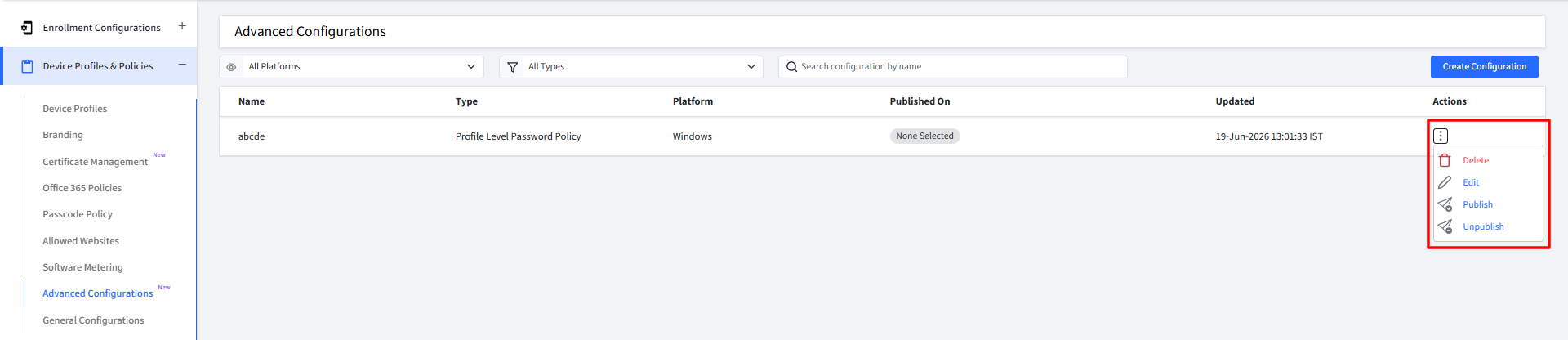
Here, click the three-dot menu under the Actions column to perform the following actions:
Edit: Modify the configuration settings.
Publish: Assign the configuration to one or more device profiles.
Unpublish: Remove the configuration from previously assigned device profiles.
Delete: Permanently remove the configuration.
FAQs
What happens if a local user account was created before the password policy was deployed?
If an administrator created a local user account through Windows Settings → Accounts → Other Users before the password policy was deployed, Windows sets that account's Password Never Expires option to on by default. This means the account would not be subject to password expiration, even after the policy is applied, until the agent corrects it.
Once the password policy is published, the agent automatically detects accounts with Password Never Expires turned on and disables that setting. The agent checks every 30 minutes and will enforce the correct configuration, no manual action is needed.
There may be up to a 30-minute delay before the correction is applied to any affected account.
Does this 30-minute check apply to all local user accounts?
No. The 30-minute remediation loop only applies to accounts created directly through the Windows Settings app. Accounts created through Scalefusion User Account Management (UAM) or the native Windows Local Users and Groups tool (lusrmgr.msc) do not have Password Never Expires turned on by default, so no remediation is needed for those accounts.
A user has been locked out after too many failed login attempts. Why isn't it showing on my dashboard yet?
When a user account is locked out, the dashboard does not reflect this instantly. There is a short synchronisation delay before the Locked status and the Unlock Account button appear in the User Account Management (UAM) section. This is expected behaviour and does not indicate a problem.
The dashboard will update as soon as any one of the following occurs on the affected device:
An administrator or another user signs into a different account on the same device.
The device is restarted.
The agent's regular sync interval completes (typically every 15 minutes).
Why are users being asked to change their password right after the password policy is first deployed?
This is expected behaviour. When a password policy is deployed to a device for the first time, the agent automatically prompts all targeted local user accounts to change their password at next login. This ensures every account immediately complies with the new policy from day one, rather than waiting for each user's existing password to naturally expire.
Which accounts are affected by this forced password change?
It depends on the policy type being deployed:
Agent-driven policy: All targeted local accounts are prompted to change their password, except the Global Admin account (if enabled from the dashboard).
Modern Management password policy: All targeted local accounts are prompted to change their password, including the Global Admin account.
This one-time prompt only occurs on initial deployment. Subsequent policy updates do not trigger a forced password change.
What happens if Scalefusion password policies are applied to devices that are also managed by Active Directory Group Policy?
When a device is joined to a Windows Server domain and receiving password settings via Active Directory Group Policy, both systems will compete to apply their own configuration. This creates an unstable loop where settings on the device are never consistent.
How the conflict happens?
Active Directory applies its password settings, either on a scheduled Group Policy refresh or when a manual update is triggered.
The Scalefusion agent detects the change and overwrites the settings with its own policy configuration.
The next Group Policy refresh restores Active Directory's settings and the cycle repeats indefinitely.
This back-and-forth makes it impossible to determine which policy is actually in effect at any given time and can lead to unpredictable behaviour for end users.
Recommended approach
Always manage password policies from a single source. Choose one and use it exclusively:
Option A: Manage all password policies through Active Directory Group Policy and do not deploy password policies via Scalefusion.
Option B: Manage all password policies through Scalefusion and remove conflicting password rules from your Active Directory Group Policy.
This also applies when using Modern Management alongside domain-based policies as mixing the two produces the same conflict. Always use one source of truth.
What happens if multiple password or security policies are applied to the same device?
When more than one password or security policy applies to a device, the system automatically resolves any conflicts based on a predefined policy precedence order. Policy precedence is applied automatically to ensure consistent enforcement when multiple security configurations target the same device. The following rules are used:
Policy Combination | Result |
|---|---|
Veltar Compliance and Agent-Driven Password Policy | Veltar Compliance takes precedence and overrides the Agent-Driven Password Policy settings. |
LAPS and Agent-Driven Password Policy | The system enforces the more restrictive (stricter) setting for each password requirement. For example, a higher minimum password length or a shorter password rotation period will be applied. |
Veltar Compliance, LAPS, and Agent-Driven Password Policy | Veltar Compliance has the highest priority and overrides settings from both LAPS and Agent-Driven Password Policy. |
How does the Idle Time for Auto-Lock setting work, and what happens if Windows Power Settings are also configured?
The Idle Time for Auto-Lock setting allows you to define how long a device can remain inactive before it is automatically locked. The supported range is 1–999 minutes. After this setting is applied, a device restart is required for the policy to take effect.
When both the Idle Time for Auto-Lock policy and Windows Power Settings are configured, the following behavior applies:
Scenario 1: Windows Power Settings are set to "Never"
If the device's local Windows Power Settings (such as screen timeout or sleep settings) are configured to Never, the configured Idle Time for Auto-Lock policy is enforced and determines when the device locks after inactivity.
Scenario 2: Both settings specify a time value
If both the Windows Power Settings and the Idle Time for Auto-Lock policy are configured with specific time intervals, the device will enforce the shorter (more restrictive) timeout value.
Examples:
Windows Power Settings: 10 minutes
Idle Time for Auto-Lock: 5 minutes
Result: The device locks after 5 minutes of inactivity.Windows Power Settings: 3 minutes
Idle Time for Auto-Lock: 10 minutes
Result: The device locks after 3 minutes of inactivity.