Branding is a functional feature that offers you mechanisms to create multiple Brands that can be applied to devices in your organizations. Scalefusion Branding offers the following features,
Set a Lock Screen Message
Set a Home Screen Wallpaper
Set a Lock Screen Wallpaper
This tutorial guides you through the process of creating and applying a brand in Scalefusion dashboard.
Please note these features are applicable to Supervised devices only.
Video Guide:
Please watch the video below to get a visual walkthrough.
Create a Branding
Log-In to your Scalefusion Dashboard.
Navigate to Device Profiles & Policies > Branding section.
Click on Create New Brand.

You would see a page with following tabs,
GENERAL
ANDROID
iOS/iPadOS
Windows
macOS
ChromeOS
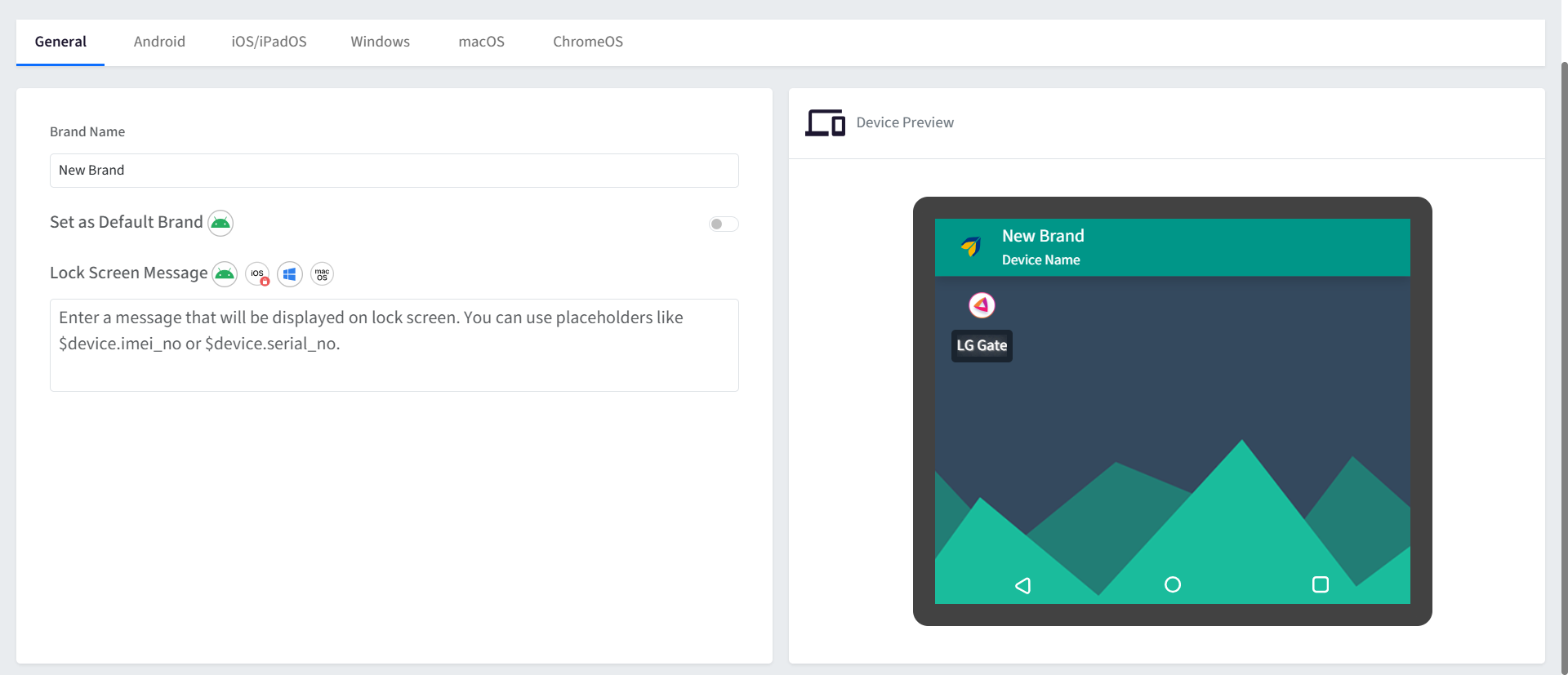
Under the GENERAL tab you can do the following,
Give the Brand a name.
Enter a Lock Screen message: Ideally of 255 characters. Custom fields can also be entered as part of lock screen message. For example, $device.serial_no.
Points to Note for custom fields:
a. Only default custom fields ($device.serial_no., $device.imei_no, $device.id) can be used along with text message.
b. Other custom fields can be entered without text message
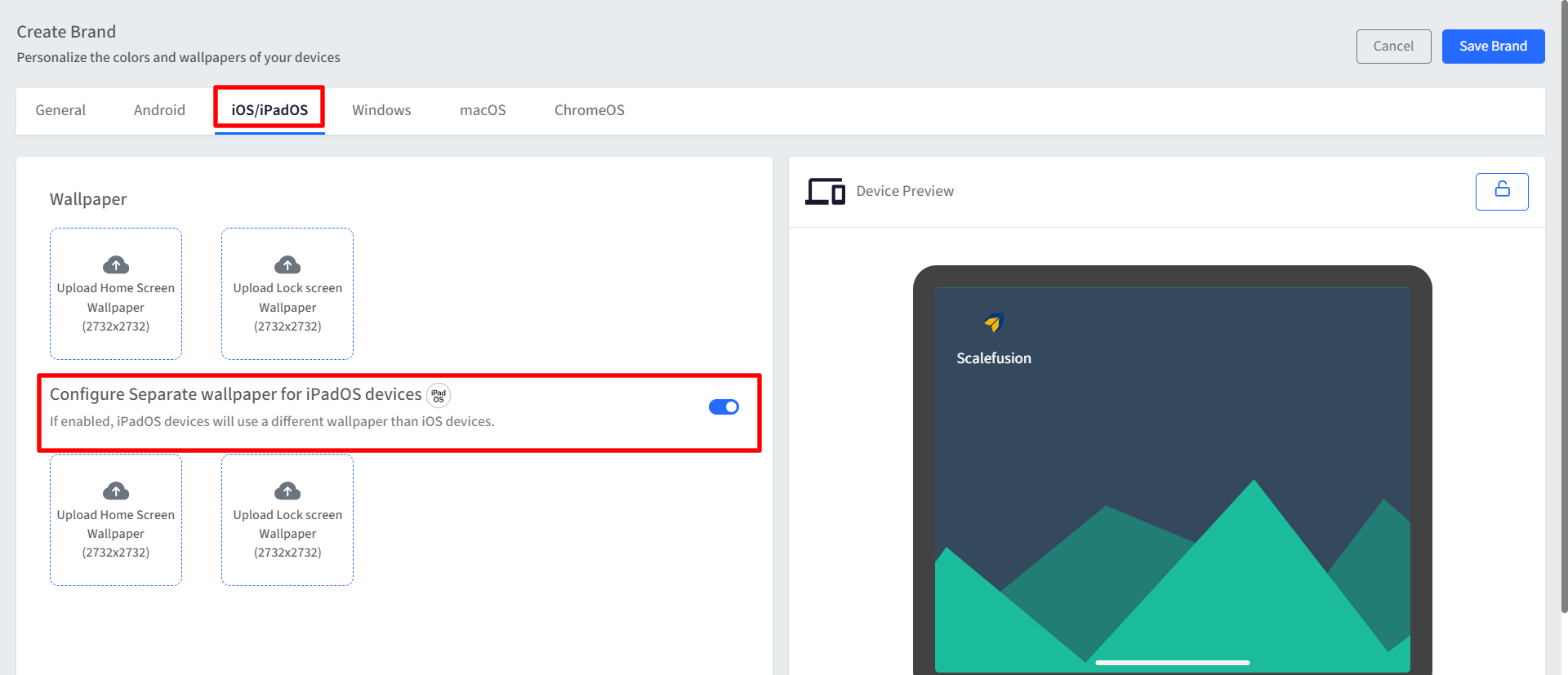
Navigate to the iOS/iPadOS tab. Here you can do the following,
Choose a Home Screen wallpaper.
Choose a Lock Screen wallpaper.
Preview the wallpapers set.
Configure Separate wallpaper for iPadOS devices: This setting allows you to assign a different wallpaper specifically for iPadOS devices, instead of using the same wallpaper that is set for iOS (iPhone) devices.
Click Save Brand to save the Branding.
Applying Branding to Devices
Scalefusion offers two mechanisms to apply branding to devices,
Publishing from Branding section
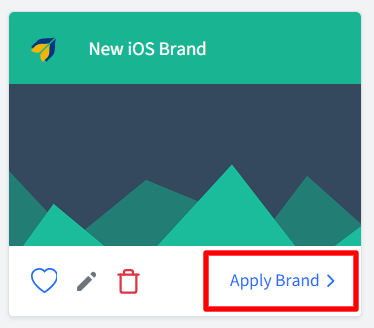
Navigate to Device Profiles & Policies > Branding to see the list of saved brands.
Click on Apply on the brand that you want to set.
In the dialog that is shown, choose the Device Profiles where you want to apply this branding to.
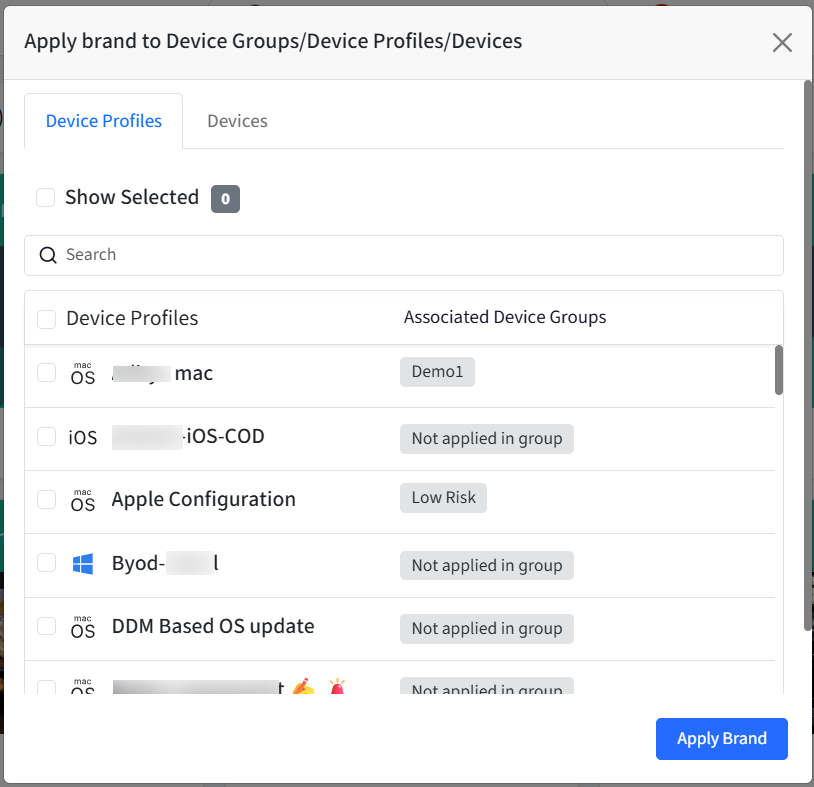
Note that Scalefusion does not support apply branding to individual devices.
Publishing from Device Profiles
Navigate to Device Profiles & Policies > Device Profiles.
Select the Profile where you want to publish it and click on EDIT icon.
Once in the Edit mode, navigate to Select Brand/App Order.
Choose the Brand that you want to Apply. The preview is available on the right side. Here, you can also change the App Order and organize home screen layout. Please click here for more details.
Click on NEXT and click on UPDATE PROFILE.
You can disallow the user from changing the wallpaper by disabling the Allow Wallpaper Modification setting in Device Profiles > Restrictions > General Settings