Zebra Battery Information & Reporting enables administrators to monitor battery health on supported Zebra devices. It supports battery types such as Power Precision, Power Precision Plus, and Backup Battery, providing battery-related details based on device capabilities.
This article covers configuring battery health thresholds on Scalefusion Dashboard, viewing battery information in the device dashboard, accessing battery details through Device Inventory reports and developer APIs, and tracking configuration changes through device profile version history.
Pre-requisites
The Zebra device is managed using an Android Company Owned/BYO/COPE profile.
You have the required permissions to view or edit device profiles and access device information or inventory reports.
The device supports reporting the relevant battery information.
Note: Battery information and monitoring settings are available only on supported devices. Some fields may display Not Available or Unknown when the device does not report the corresponding information.
Configure Battery Health Monitoring Settings
You can configure battery health monitoring through the Android COD device profile.
Steps
On Scalefusion Dashboard, navigate to the Android kiosk device profile that you want to configure.
Navigate to Restrictions > Advanced Settings > General Settings.
Locate Battery Health Monitoring Settings.
Enable the Battery Health Monitoring Settings toggle.
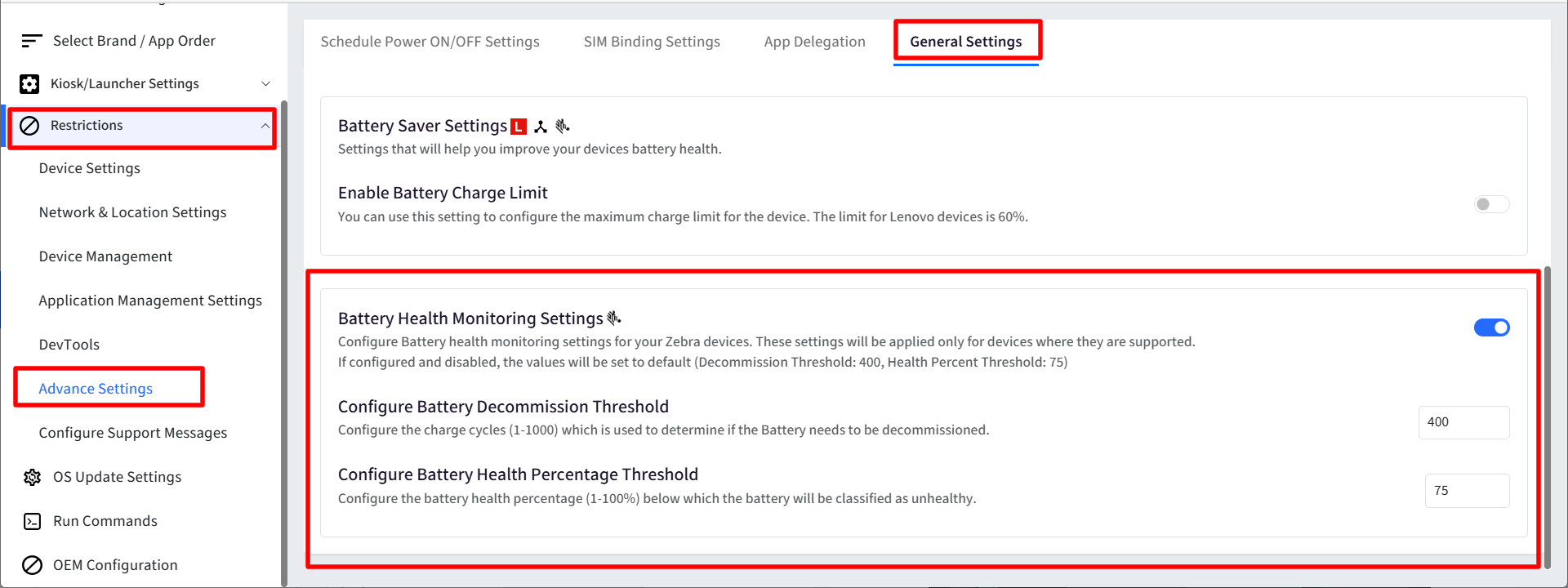
Configure the following thresholds according to your organization's requirements.
The options to configure the Battery Threshold and Health Percentage are available for Company Owned profiles only. For BYOD and COPE profiles, these are not configurable and are displayed with default values.
Save the profile and apply it to the applicable devices.
Configuration options
Setting | Description | Allowed range | Default |
|---|---|---|---|
Battery Health Monitoring Settings | Enable this to configure Zebra battery health monitoring settings. The rest of the settings below become configurable only on enabling this. | On/Off | Off |
Configure Battery Decommission Threshold | Specify the number of charge cycles used to determine whether a battery should be decommissioned. For example, if the threshold is 400, a reported charge-cycle count of 400 or greater meets the configured decommissioning criterion. | 1–1,000 charge cycles | 400 |
Configure Battery Health Percentage Threshold | Specify the battery health percentage below which the battery is classified as unhealthy. For example, if the threshold is 75%, a reported battery health percentage of 70 is classified as Bad, while 75 is classified as Good under the reporting rule. | 1–100% | 75% |
Important: The thresholds determine how battery information is evaluated. They do not, by themselves, indicate that a physical battery has been replaced or removed.
View Battery Information in Device Details
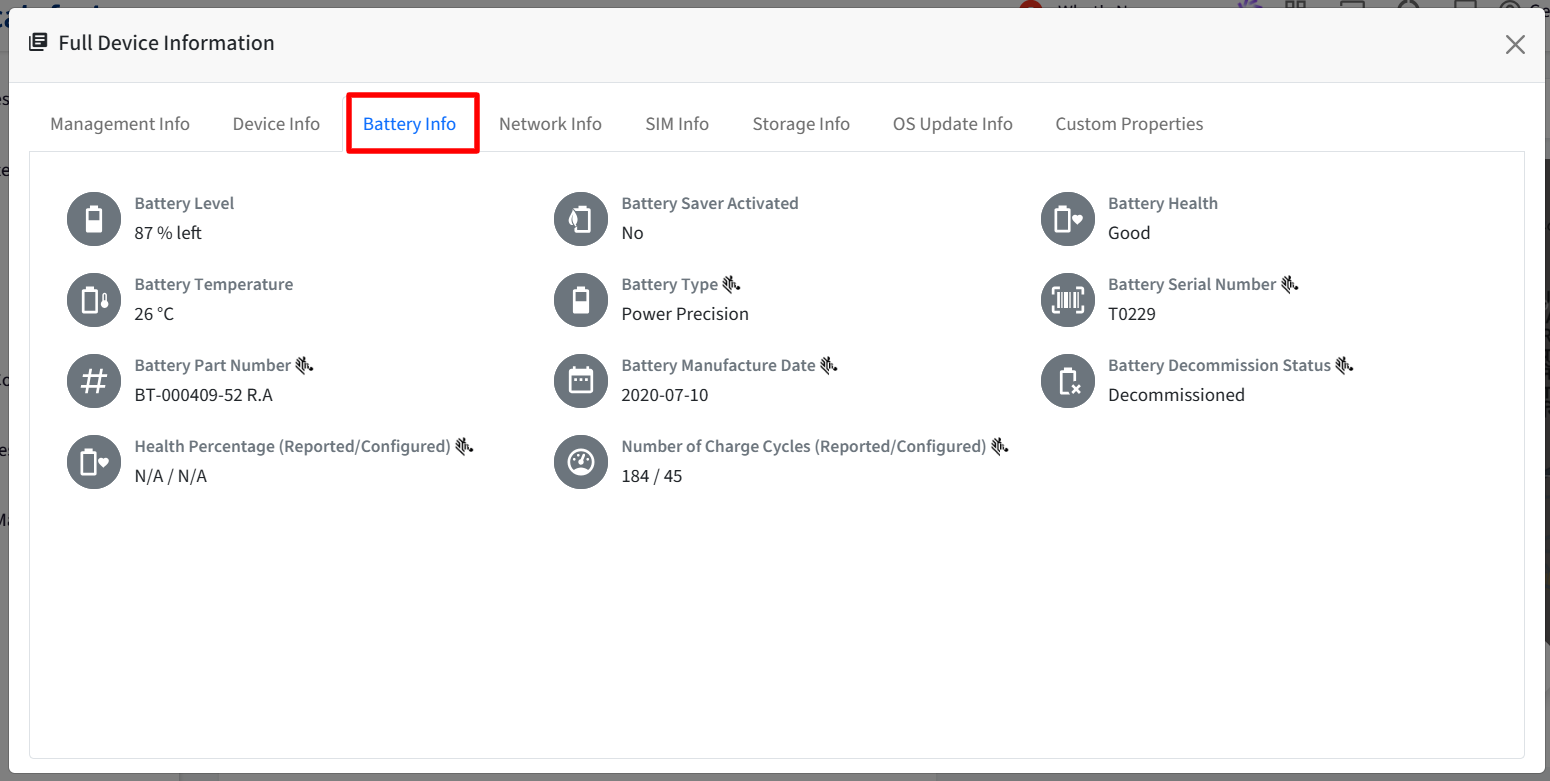
Battery information is available in a dedicated Battery Info tab in the Full Device Information (under Device Details) section for Android Company Owned/BYOD/COPE devices. For Zebra devices, this tab displays the battery details reported by the device, along with decommissioning and health-monitoring information where available.
Battery information fields
These details are displayed only for supported Zebra devices and are hidden for devices from other manufacturers.
Field | Description |
|---|---|
Battery Level | Current battery charge level. |
Battery Saver Activated | Indicates whether Battery Saver is activated. |
Battery Health | Battery health information reported by the device, where available. |
Battery Temperature | Reported battery temperature. |
Battery Type | Type of battery reported by the device, such as Power Precision, Power Precision Plus, or Backup Battery. Displays Unknown if the type is not reported. |
Battery Serial Number | Serial number reported by the battery or device. |
Battery Part Number | Part number reported by the battery or device. |
Battery Manufacture Date | Manufacturing date reported by the battery or device. |
Battery Decommission Status | Indicates whether the battery is active or decommissioned. This can be one of the following:
|
Number of Charge Cycles | Reported battery charge-cycle count, displayed alongside the applicable configured threshold when available. |
Health Percentage | Reported battery health percentage, displayed alongside the applicable configured threshold when available. |
Unavailable information
Fields such as battery serial number, part number, and manufacture date may display Not Available if the device does not report those values.
Accessing and Viewing Battery Information
Battery information is available through multiple areas of Scalefusion Dashboard, enabling administrators to review battery health, monitor decommissioning status, generate inventory reports, integrate battery data with external systems, and track device profile configuration changes.
Device Inventory Reports
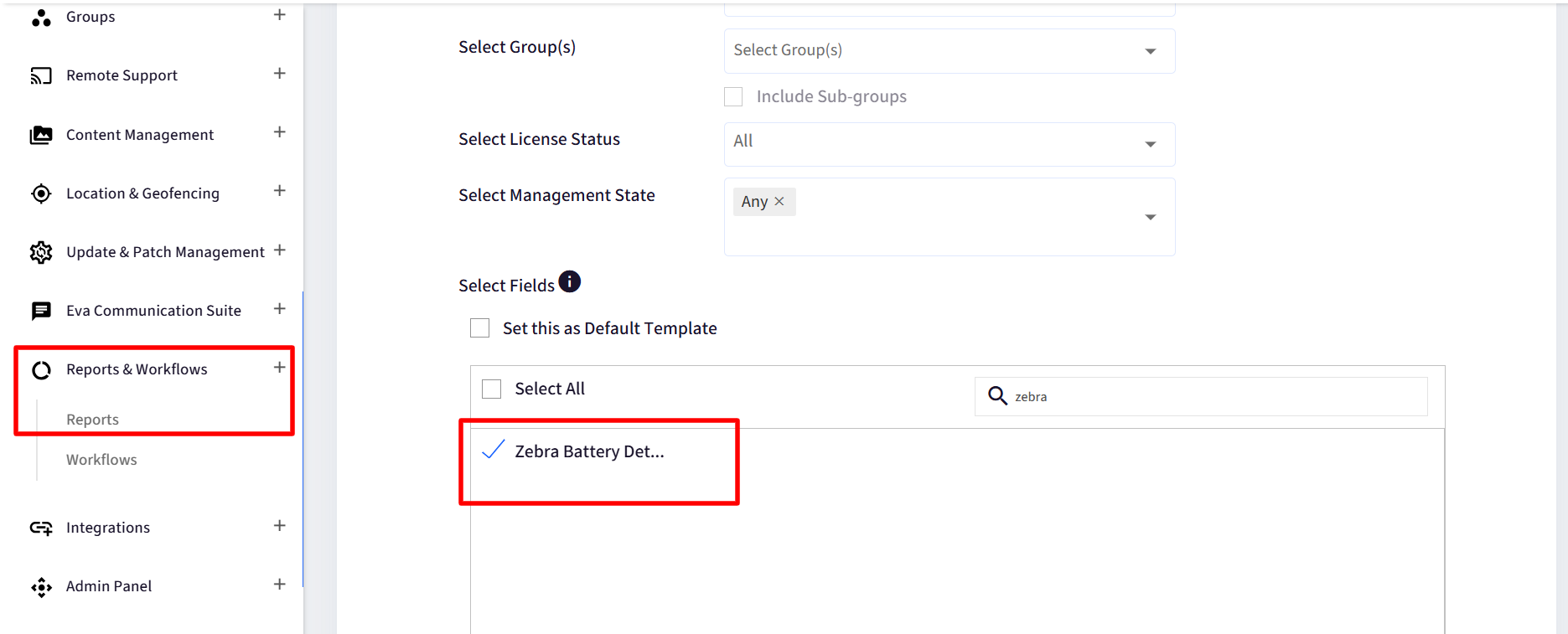
The Device Inventory report provides a grouped field called Zebra Battery Details. Selecting this field adds the associated battery information columns to the downloaded report.
Steps
Navigate to the Reports & Workflows > Reports and click on Device Inventory report.
Open the report's field-selection options.
Select Zebra Battery Details.
Generate or download the report.
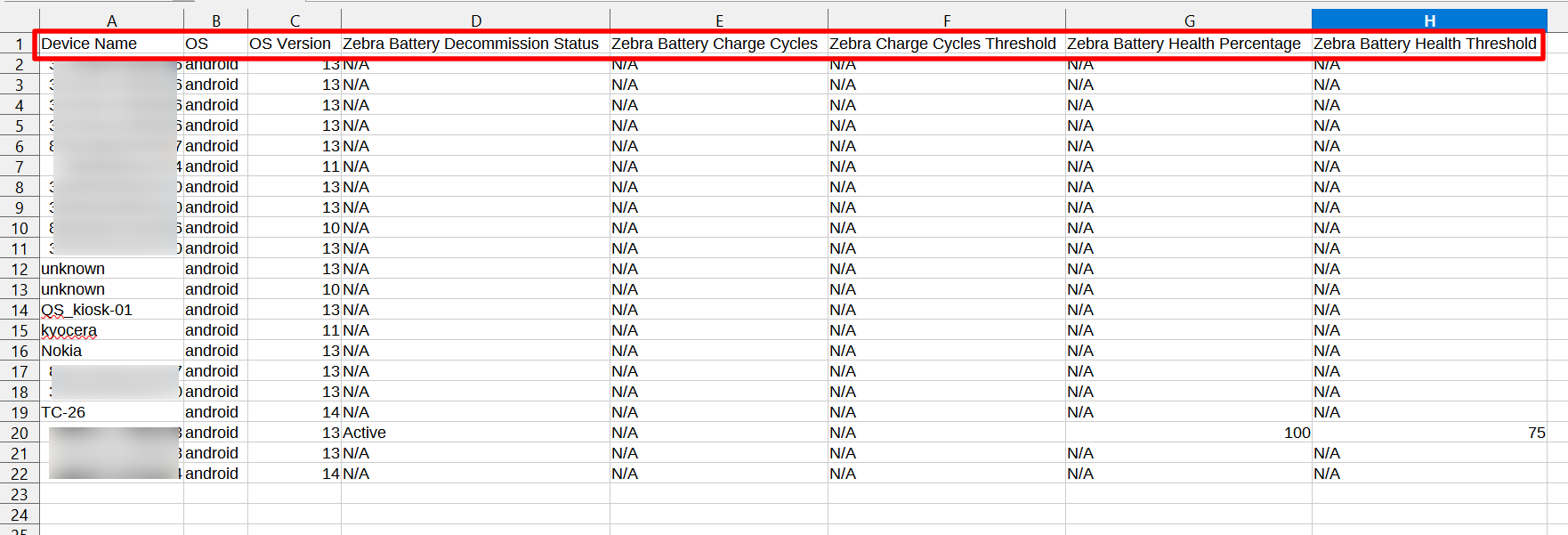
The following columns are included:
Column | Description |
|---|---|
Zebra Battery Decommission Status | Indicates whether the battery is active or decommissioned. |
Zebra Battery Charge Cycles | Charge-cycle count reported by the battery. |
Zebra Charge Cycles Threshold | Charge-cycle threshold used for evaluation. |
Zebra Battery Health Percentage | Reported battery health percentage, represented as a number without the percentage symbol. |
Zebra Battery Health Threshold | Health-percentage threshold used for evaluation. |
Zebra Battery Health | Health classification derived from the reported health percentage and configured threshold. |
Unsupported devices: Zebra-specific battery columns display Not Applicable for devices outside the supported manufacturer and operating-system scope.
Developer APIs
Battery information is available through supported device APIs, allowing integrations to retrieve battery details for inventory management, monitoring, and reporting workflows. Supported endpoints:
/v2/devices
/v3/devices
/v2/device/{id}.json
/api/v3/devices/{id}.json
/api/v1/devices/{id}/battery.json
Device Profile and Version History
Battery Health Monitoring Settings are included in device profile PDF and version tracking, allowing administrators to review configuration details and monitor changes over time.
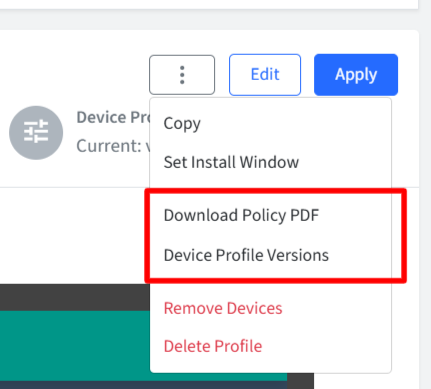
Downloaded device profile PDF
When an administrator downloads a device profile PDF, it includes the following settings:
Battery Health Monitoring Settings.
Battery Decommission Threshold.
Battery Health Percentage Threshold.
Profile version reports
Full Report: Includes the battery monitoring settings as part of the complete profile configuration.
Delta Report: Highlights changes to these settings between profile versions.
This enables administrators to review the configured battery monitoring thresholds and identify changes made to a device profile.
Troubleshooting and FAQs
Why is battery information marked Not Available or Not Applicable?
The device may not report the requested information, or the device may not support the Zebra-specific battery feature. Verify device compatibility and check whether the relevant battery information is reported.
Why is a battery classified as Bad or Decommissioned?
A battery is classified as Bad when its reported health percentage is below the configured health threshold. It may be classified as Decommissioned when its reported charge-cycle count meets or exceeds the configured decommission threshold, unless an explicit decommission status is reported by the device.
What happens when battery monitoring configuration is removed?
When the configuration is removed, the device-side thresholds revert to the defaults of 400 charge cycles and 75% health.