Activity logs
RADIUS configuration changes are recorded under OneIdP > Activity Report, in a RADIUS Configuration category, covering:
Configuration created
Configuration modified
Configuration deleted
Configuration assigned to a group
Configuration unassigned from a group
Each entry records the admin who performed the action.
RADIUS Logs
To view Authentication events:
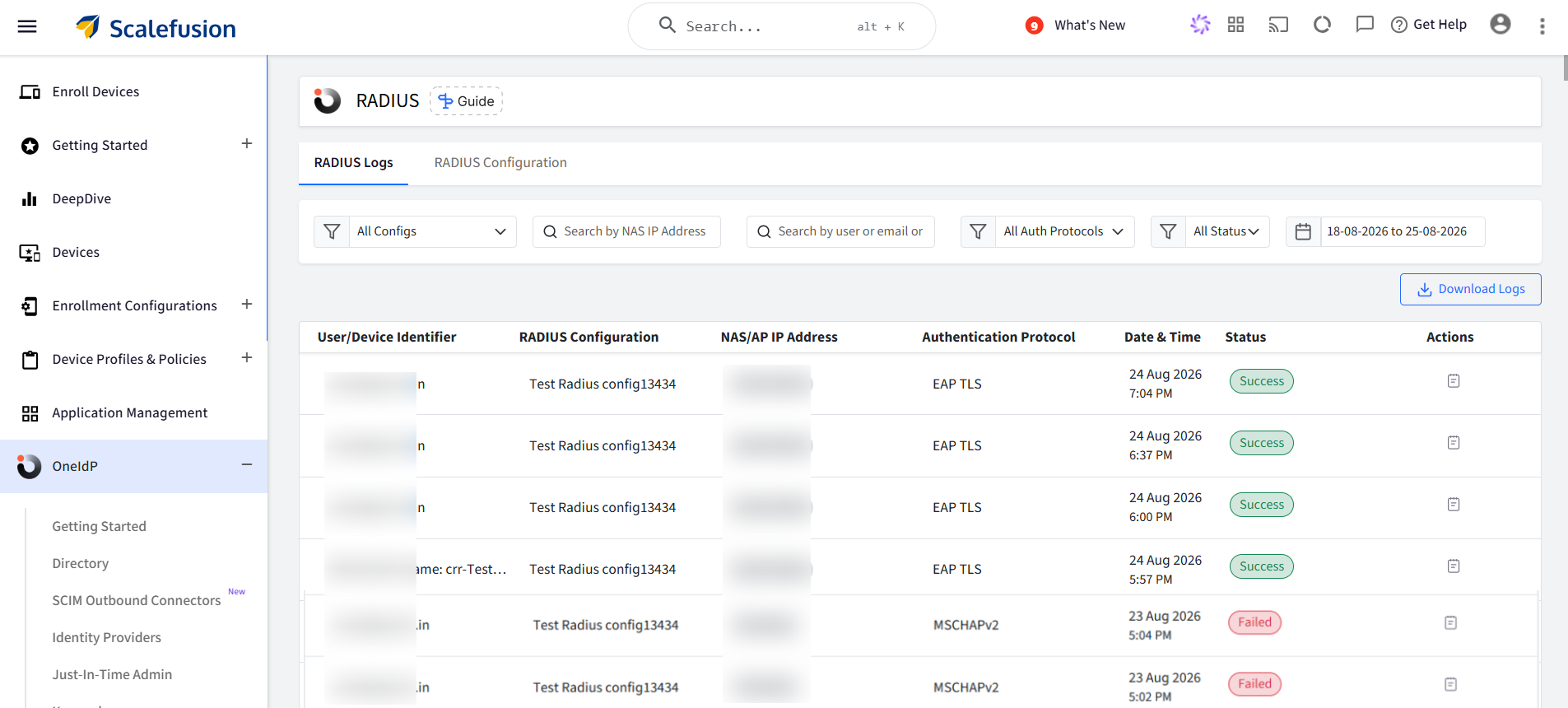
Go to OneIdP > RADIUS > RADIUS Logs.
Use the filters to narrow results: configuration, NAS IP address, user/email, authentication protocol, status (Success/Failed), and date range.
Click any log entry to view access details, Identity provider details, the MFA result, and the Reply Attributes applied during that authentication.
Click Download Logs to export the currently filtered results as CSV. This is available only to admins with All access to RADIUS.
Reviewing Log Details
Administrators can view the high-level authentication Status (Success or Failed) directly from the main RADIUS Logs table.
To investigate a specific authentication attempt, click the action button alongside any log entry to open the Log Details panel. This panel provides a comprehensive breakdown of the transaction, divided into three key areas:
Access Details: Displays the exact User/Device Identifier, NAS IP, Authentication Protocol, Date & Time, the final Status, and the specific Failure Reason (if the connection was rejected).
Identity Provider Details: Shows the Identity Provider used, whether the primary credential check succeeded (IdP Result), and the status of the Multi-Factor Authentication check (OneIdP MFA Result).
RADIUS Reply Attributes: Lists any configuration or group-level attributes passed back to the NAS upon a successful connection.
Example 1: Failed Authentication Log
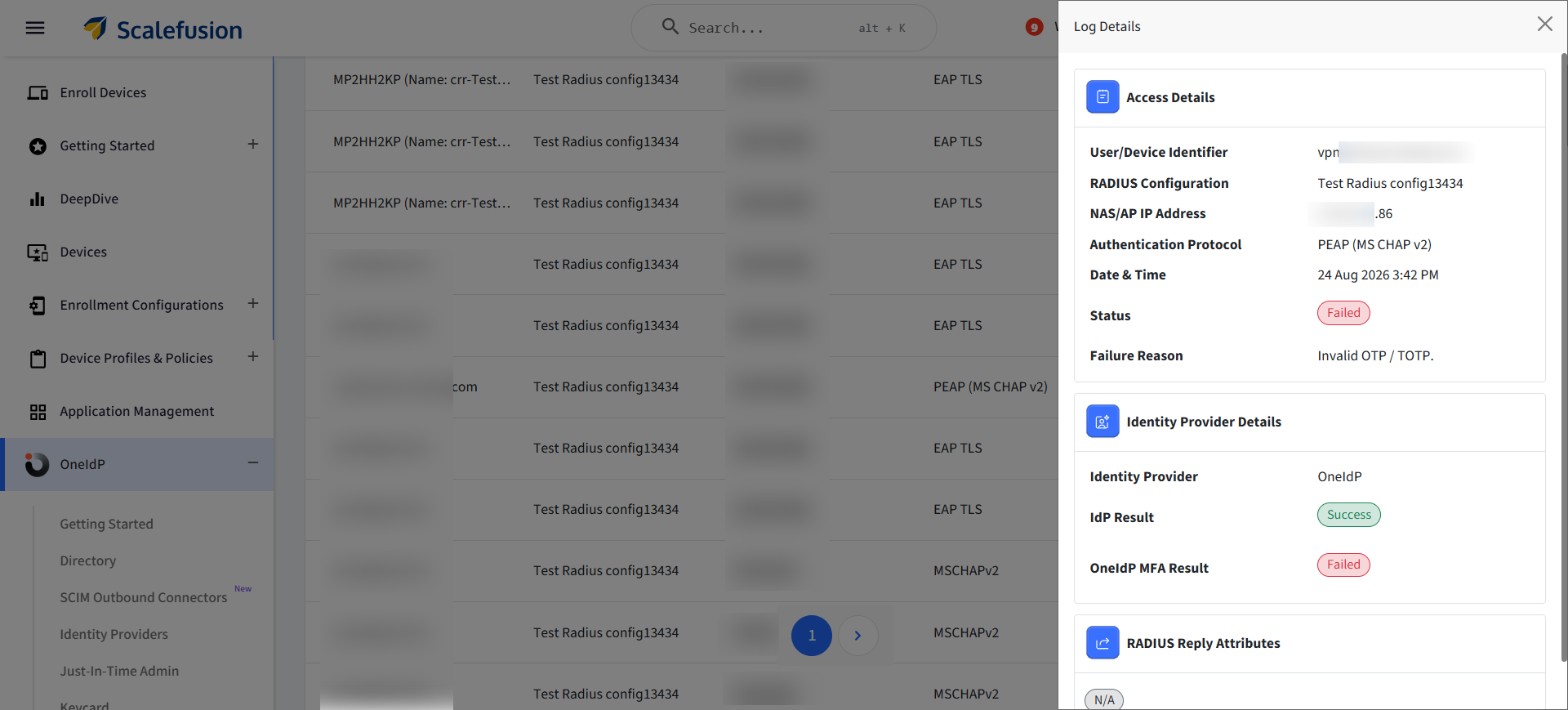
In the failure example above, the primary identity check (IdP Result) succeeded, but the connection was ultimately rejected because the user provided an "Invalid OTP / TOTP" during the MFA check.
Example 2: Successful Authentication Log
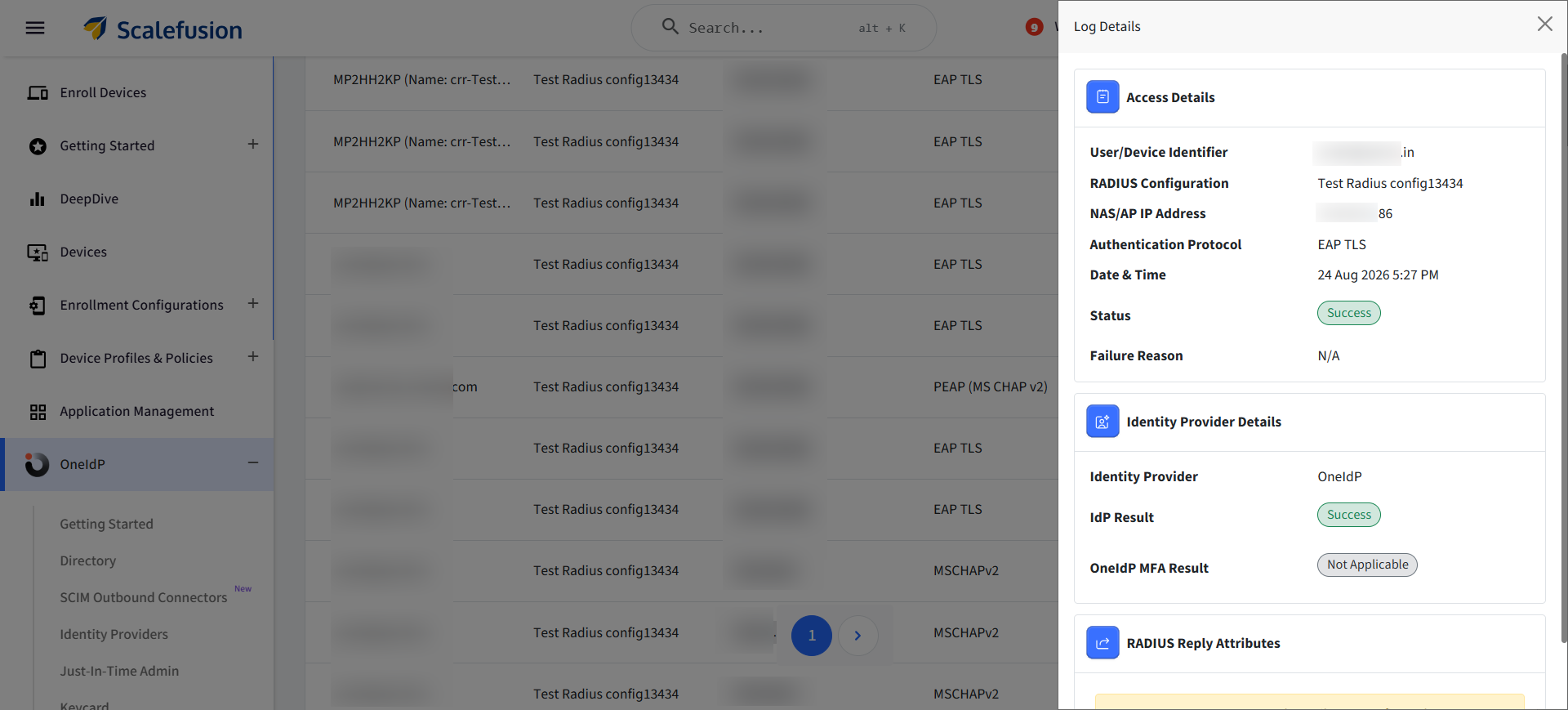
In this successful EAP-TLS example, access is granted without errors.
Because EAP-TLS relies entirely on secure client certificates rather than passwords, the MFA result correctly registers as "Not Applicable," and the Failure Reason is "N/A."
OneIdP MFA Result values
When MFA is involved, the log entry's OneIdP MFA Result shows one of the following:
Status | Meaning |
|---|---|
Not Required | The Require MFA toggle is off for this RADIUS configuration, so MFA was never evaluated. |
Not Applicable | The configuration uses EAP TLS. Certificate-based authentication handles security natively, so MFA doesn't apply. |
Not Enabled | Require MFA is on for the configuration, but MFA is disabled for this user at the Directory/OneIdP level, so it couldn't be enforced. |
Success | The user entered a correct, unexpired OTP/TOTP. |
Failed | The user entered an incorrect, expired, or out-of-sync OTP/TOTP. |
Understanding Failure Reasons
Invalid Authentication Protocol
What it means: The user tries to connect to Wi-Fi using an authentication protocol that is not enabled or checked in the target RADIUS configuration.
What to do: Re-check the RADIUS configuration on the Scalefusion Dashboard and ensure the protocol being used by the device is checked/enabled.
Certificate verification failed
What it means: The client certificate presented by the device does not match the Client CA Certificate uploaded in radius configuration.
What to do: Re-check both the client certificate CA and the Root CA certificate.
User is not assigned to any published user group for this RADIUS configuration
What it means: The user authenticated correctly with valid credentials, but they are not in a User Group that RADIUS configuration is published to.
What to do: Add the user to a published User Group, or publish the configuration to their existing group.
Device is not assigned to a device group published to this RADIUS configuration
What it means: During EAP-TLS authentication, the device is enrolled, but it is not part of any Device Group to which the RADIUS configuration has been published.
What to do: Add the device to the correct, published Device Group.
Device is not enrolled in Scalefusion
What it means: The device attempted an EAP TLS authentication without an active Scalefusion enrollment record.
What to do: Enroll the device into Scalefusion before granting RADIUS access.
User Account is locked
What it means: The user's OneIdP account has been automatically or manually locked (e.g., due to excessive failed attempts).
What to do: Check if user’s account is locked.
User Account is not allowed to access the app
What it means: The user is currently in a soft-deleted or domain of the user is not verified on the dashboard.
What to do: Check the user's status on the dashboard and reactivate them if necessary.
Network access not activated for this account
What it means: This issue occurs during PEAP-MSCHAPv2 or MSCHAPv2 authentication when the user has not activated the Network Access sent to their registered email address.
What to do: Confirm with the user whether they've clicked and activated network access via the link emailed to them, or have them log into the User Portal/Keycard/SSO.
The configured authentication source does not support network access via OneIdP RADIUS
What it means: The user's authentication source isn't one that supports credential verification for RADIUS (e.g., they are using a SAML-based identity provider).
What to do: Verify the user's identity provider supports password validation via OneIdP (must be OneIdP, LDAP, AD, or Okta API).
Multi-factor authentication is required but not configured
What it means: MFA is enabled on the RADIUS configuration, but it is not enabled for this specific user at the Directory level.
What to do: Enable MFA at the Directory level and ensure the user has set up a compatible authenticator app.
Invalid username or password
What it means: The primary credentials entered were incorrect.
What to do: Have the user re-enter their credentials carefully or reset their password.