Deploying certificates to managed devices
For EAP TLS, and for installing the RADIUS Server CA Certificate on any protocol, devices need the relevant certificates installed before they can authenticate. If your devices are managed through Scalefusion, this is done through Certificate Management rather than manual installation.
Client Certificates via CA Servers Integration
Rather than uploading and managing individual identity certificates manually, Scalefusion supports CA Servers Integration. A certificate authority server (CA server) offers a secure and user-friendly solution for automatic generation of certificates with CA Server Integration from Scalefusion Dashboard and ultimately deploying on Scalefusion managed devices.
This connects directly to your SCEP-based certificate authority to issue unique certificates to devices automatically based on a template.
Pre-requisites - Respective platform Device Profiles should be created on Scalefusion Dashboard
To configure a Certificate server for automatic deployment of certificates:
On Scalefusion Dashboard, navigate to Device Profiles & Policies > Certificate Management
Under Certificate (CA) Servers tab, click on Add CA Server
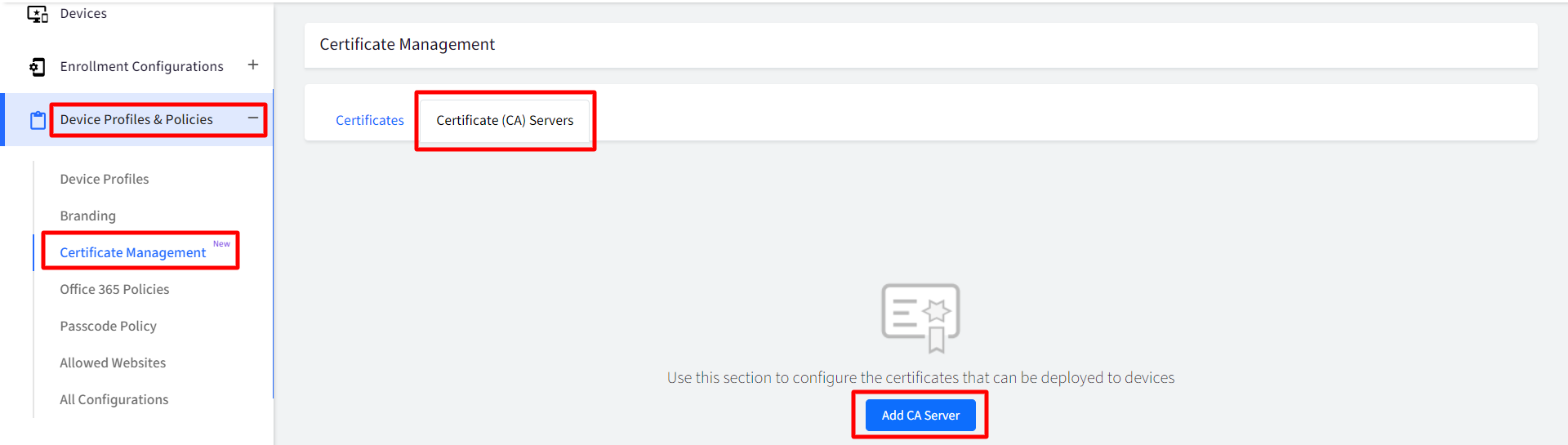
3. This will open the Add CA Server window. Enter the following:
CA Server Name: Enter a name for CA Server
CA Server Provider: Choose the CA server provider from the following by clicking on the drop-down:
Generic SCEP Server
SCEPMan
Smallstep CA Server
SCEP URL: Provide SCEP URL. It is the URL to reach the Certificate Authority (CA) Server and its shared secret key
Click Save
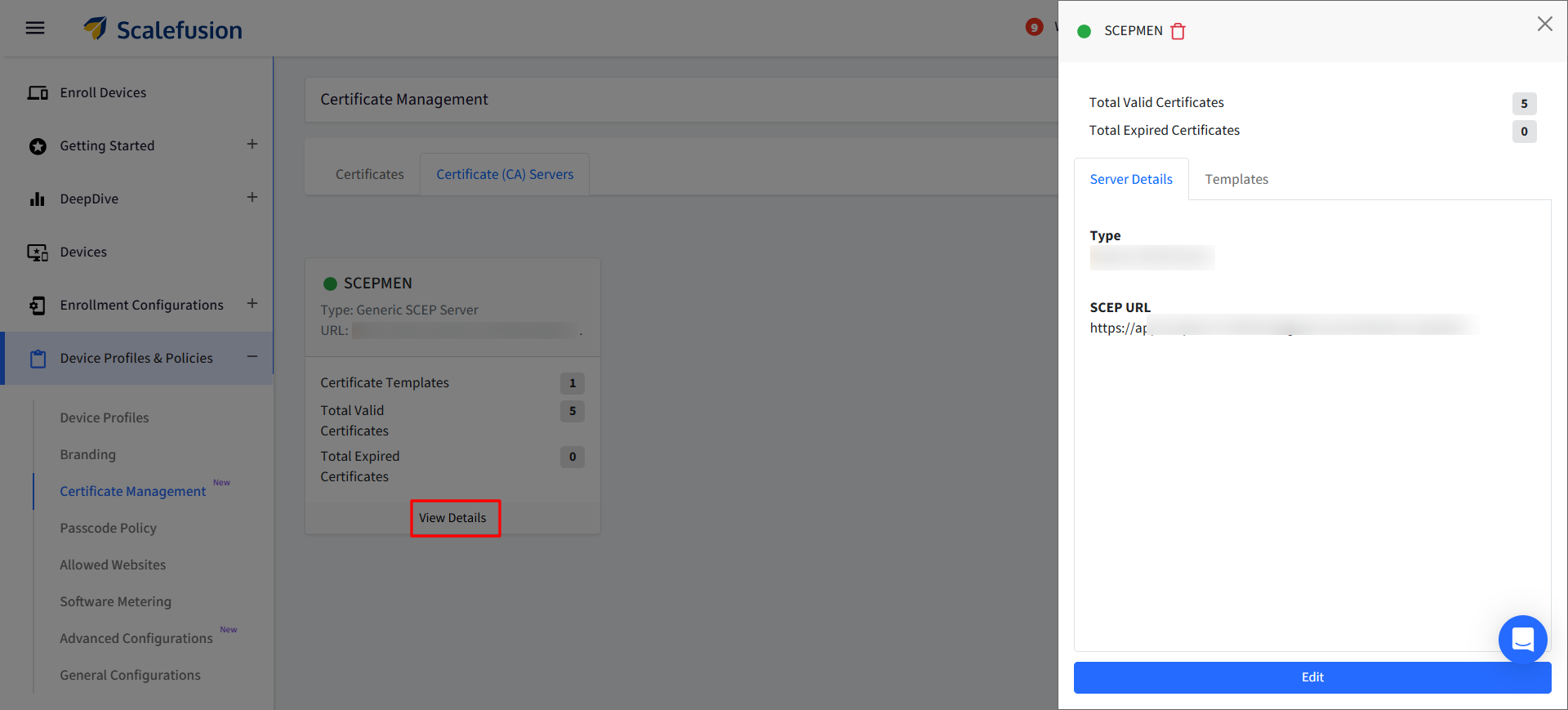
4. The CA server (you have added) will display as a card on Dashboard under Certificate (CA) Servers tab with details like active/expired certificates, certificate templates etc.
5. Clicking on View Details will show the server details in the side card
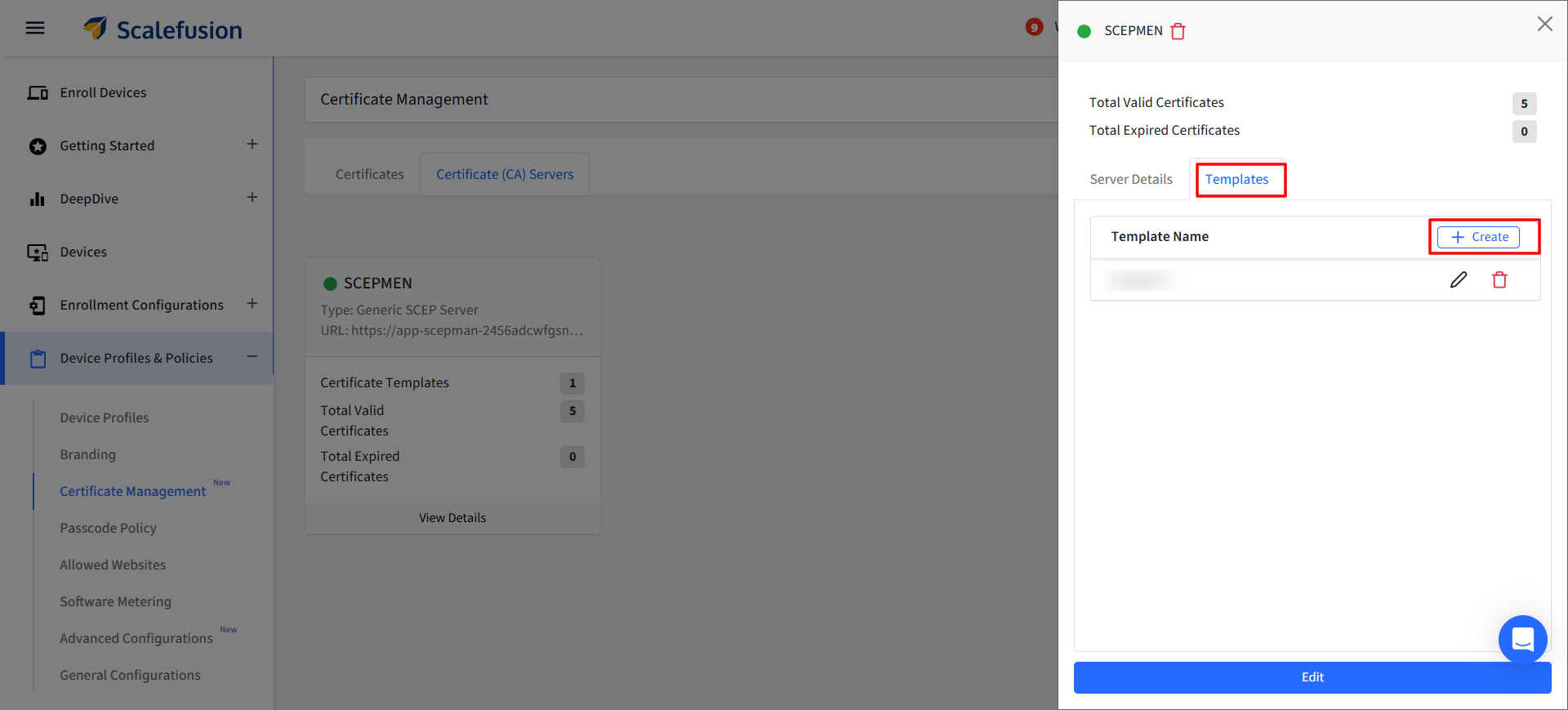
Add Template to start generating certificates using the CA server. To do so, on the side card, click on Create under Templates tab.
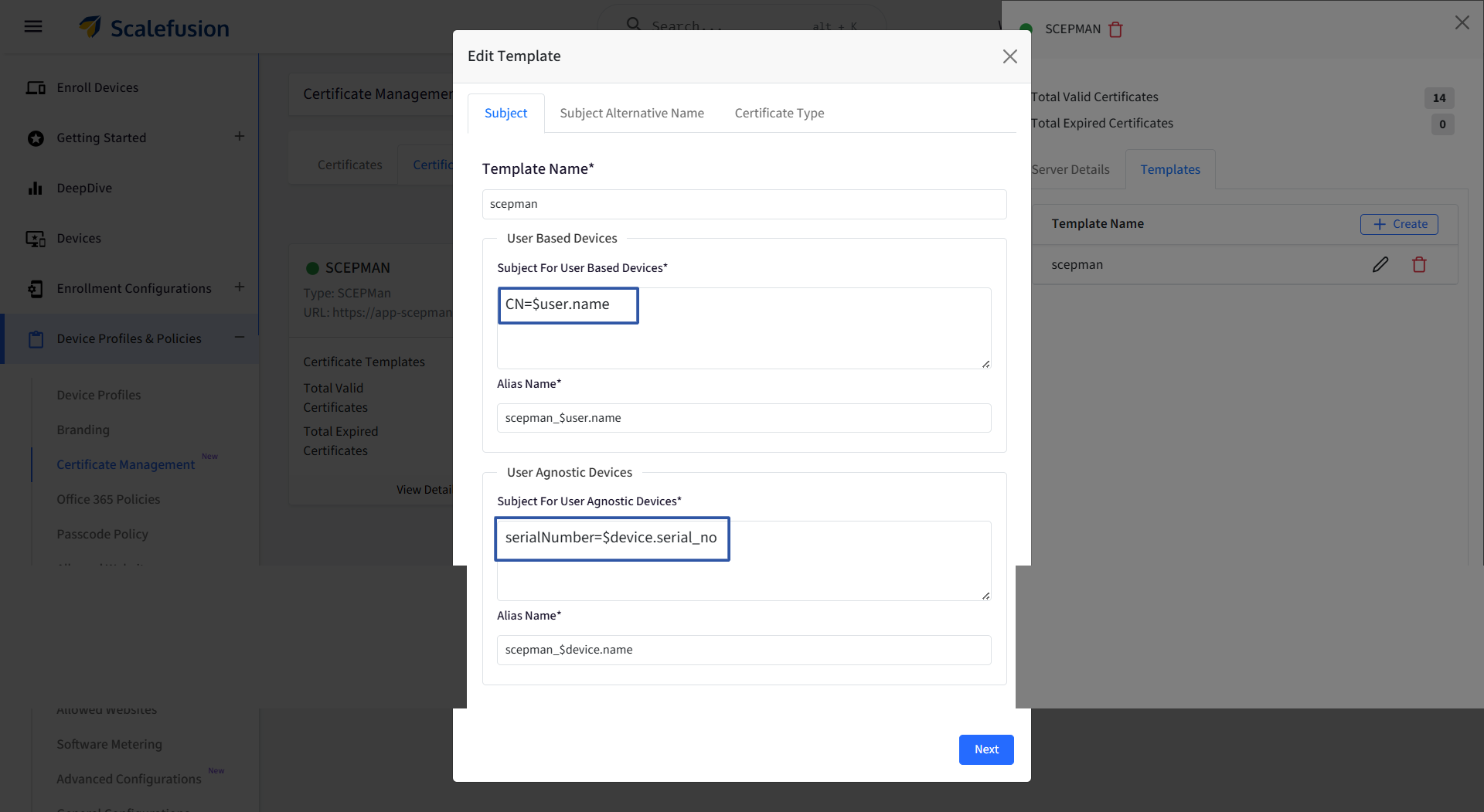
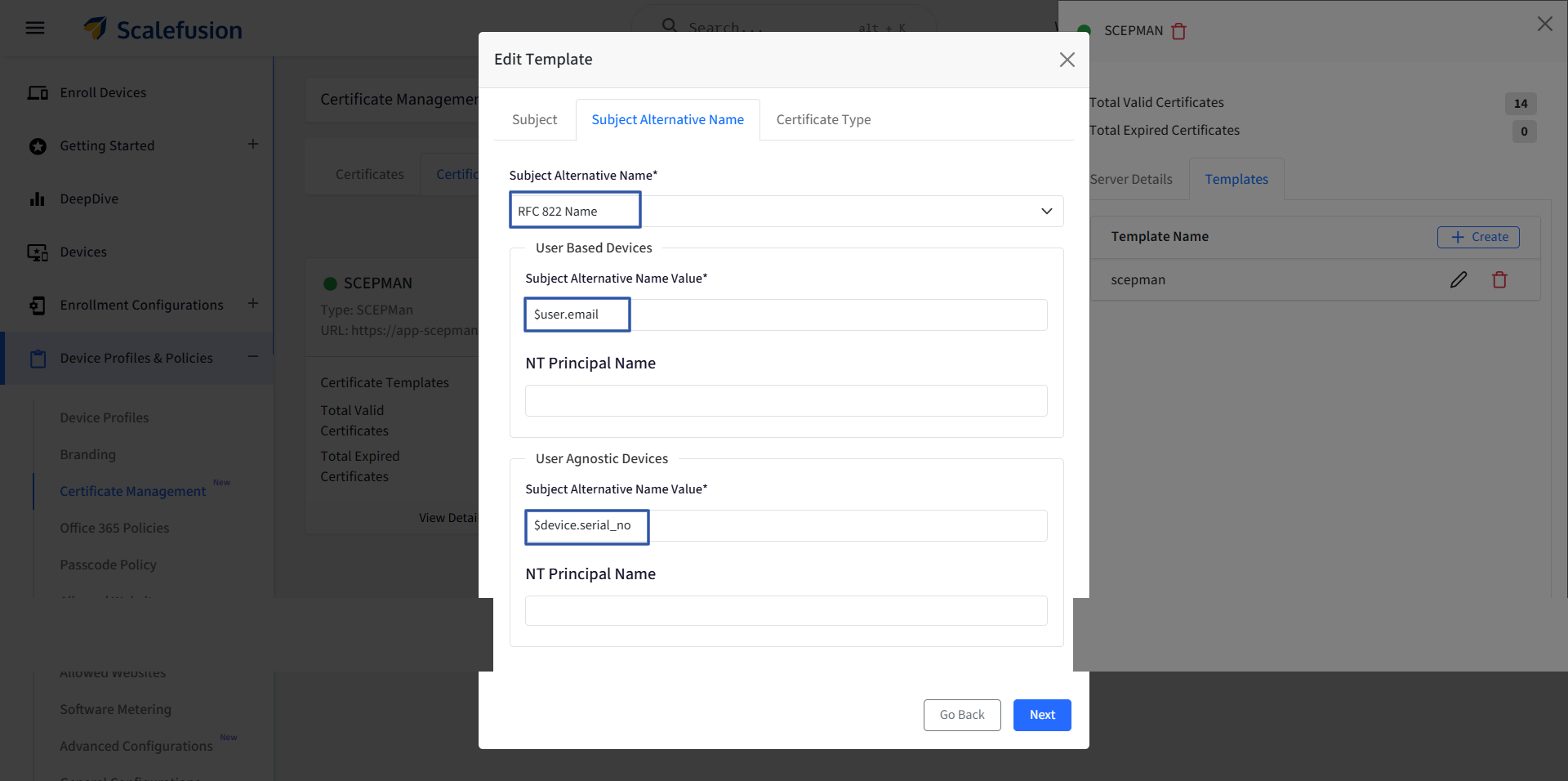
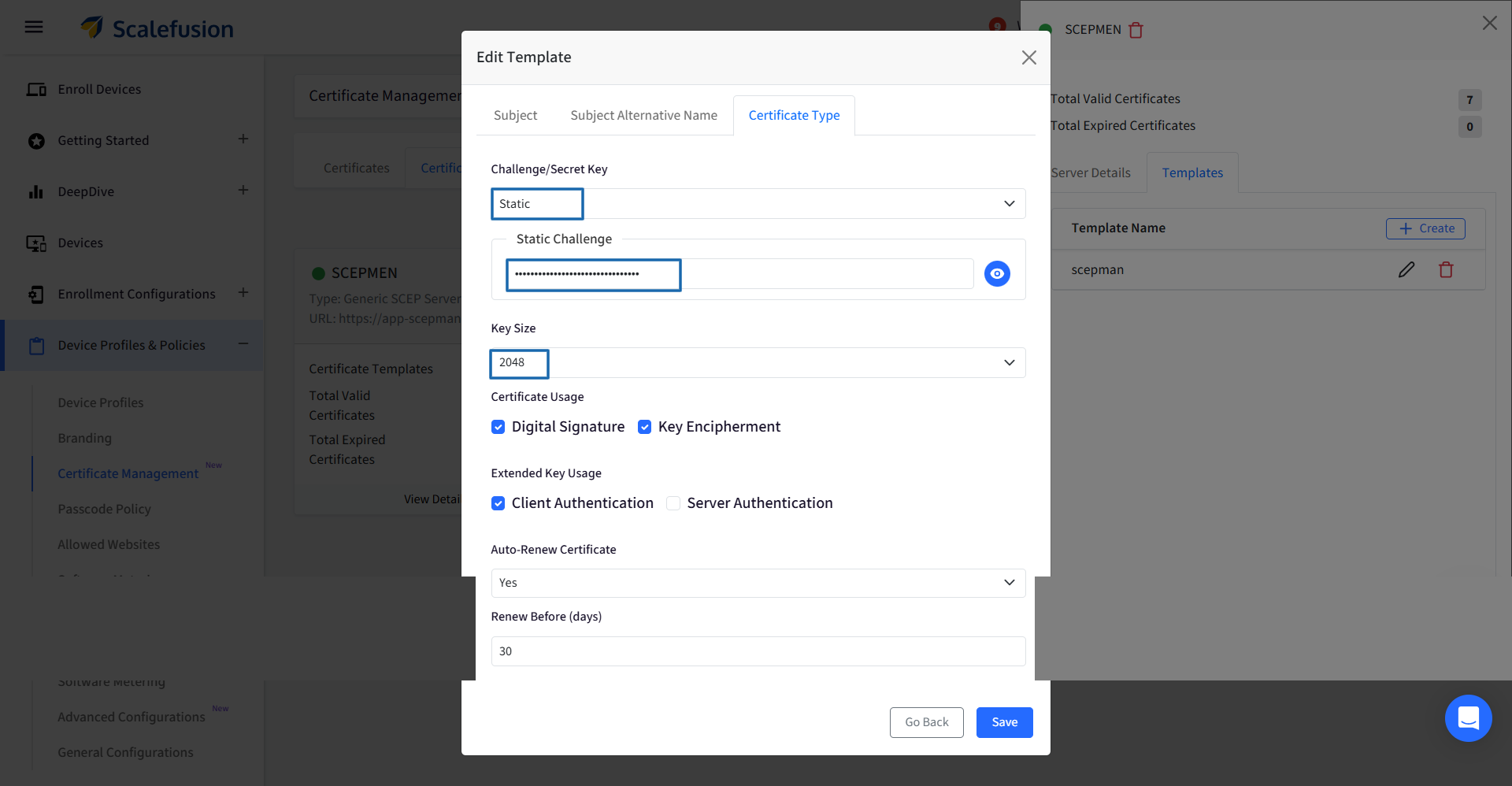
This opens the Add Template window having three sections: Subject, Subject Alternative Name and Certificate Type.
Follow the steps below and enter the specified values exactly as mentioned to configure the certificate template correctly and save the template.
Critical Requirement: To ensure OneIdP RADIUS can correctly resolve identities during EAP TLS authentication, your certificate template must map exact attributes:
User Identifier: Must be mapped to the Subject Alternative Name (SAN) field.
Device Identifier: Must be mapped to the serialNumber attribute in the Subject field.
Creating a Wi-Fi configuration for managed devices
Once the template for CA Server is setup, the Wi-Fi network itself needs to be pushed to devices so they connect using the correct security settings — this is done through Scalefusion's Wi-Fi Configuration, separate from any Wi-Fi network settings on the NAS/access point side.
To create a Wi-Fi configuration:
Go to Device Profiles & Policies > All Configurations > Wifi Settings (under Global Settings).
Click Create New and select the option for your platform (for example, Enterprise for Android).
Enter the Name and SSID for the network.
Set the Security Type to 802.1x EAP, and choose the matching EAP method — TLS, PEAP, or TTLS — to match the Authentication Protocol selected in the RADIUS configuration.
For EAP TLS or PEAP, select the Identity Certificate and Trust Certificate uploaded in Certificate Management.
Click Submit.
Click Publish on the configuration, and select the Device Profiles or devices it should apply to.
Platform-specific setup steps differ slightly. Please refer to the appropriate article:
Platform | Wi-Fi Configuration article |
|---|---|
Android (802.1xEAP) | |
iOS (WPA/WPA2 Enterprise) | |
macOS (WPA/WPA2 Enterprise) | |
Windows (802.1xEAP) |