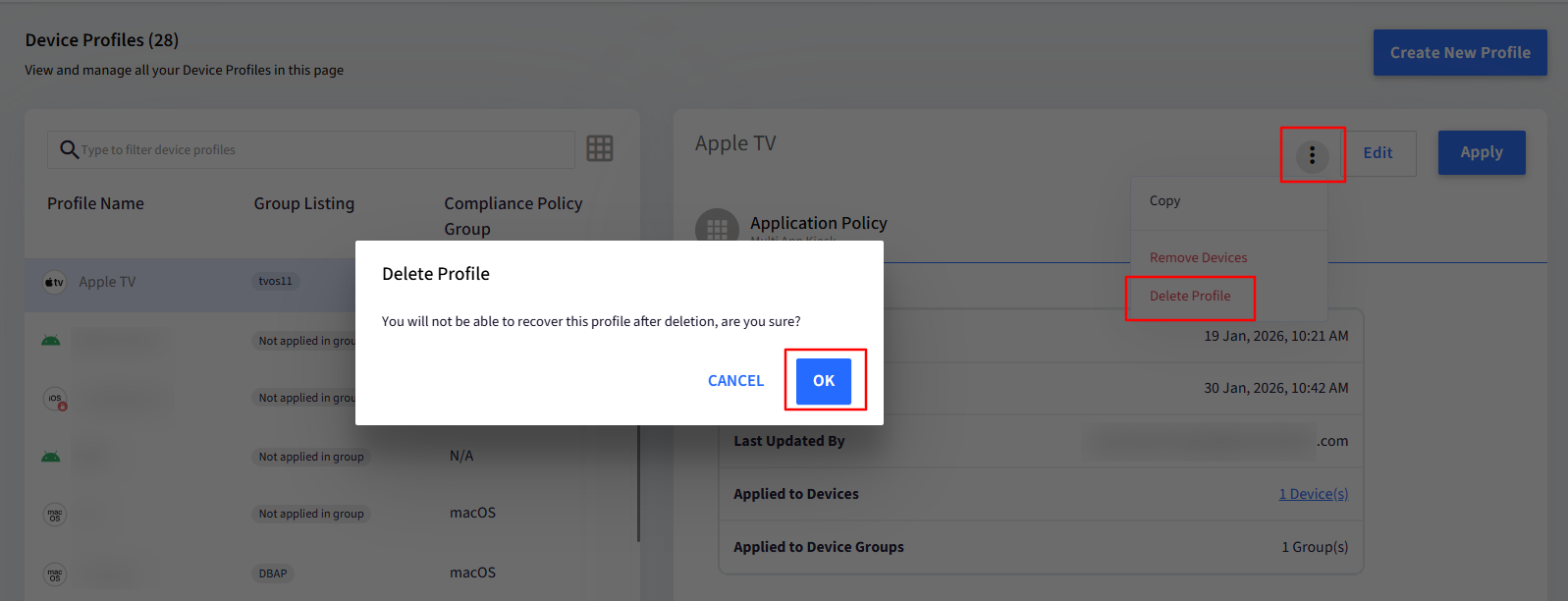
Device Profiles allow you to group common policies and apply them across multiple devices with ease. Changes made to a profile are reflected on all devices within it, without requiring additional steps.
Policies & Restrictions
Let's look at all the policies and restrictions that you can configure for your tvOS devices.
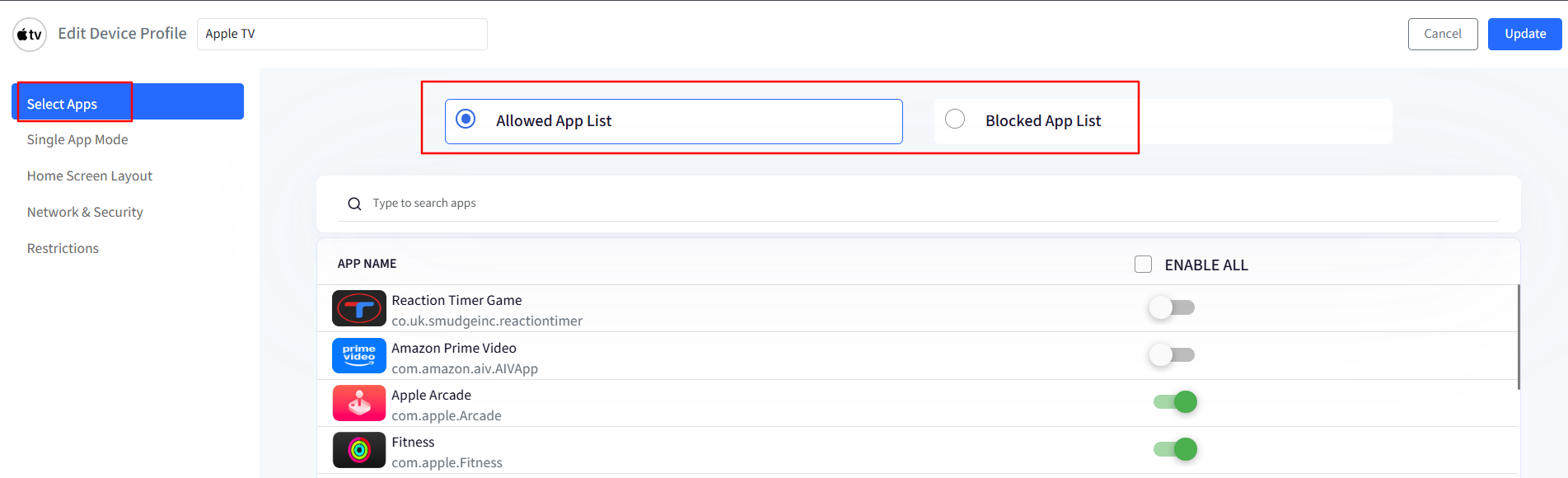
1. Select Apps
In this section, you can choose:
Allowed App List: Strictly allows the selected applications to be visible on the device.
Blocked App List: Strictly disallows the selected applications. All other applications will be visible to the user.
The list of applications that you can choose from is:
A prepopulated list of common applications on your Apple TV.
All App-Store applications that are currently installed across the devices that are already enrolled.
The Applications that you have added to your Dashboard from Application Management > Apple Apps > App Store and published to the Device Profile.
The Applications that you have uploaded to the dashboard from Application Management > Enterprise Store > tvOS apps and published to the Device Profile.
2. Single App Mode
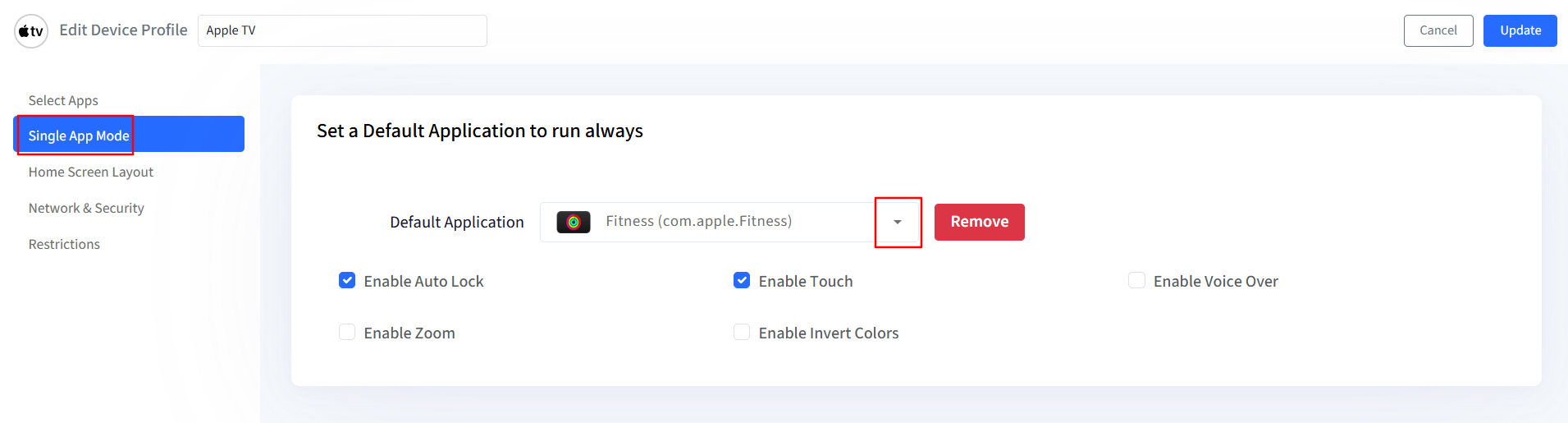
With Single App Mode, you can turn your Apple TV into Digital Signage for your Conference rooms and meeting spaces.
From the Default Application dropdown, select the application that you want to set in Single App Mode. You can choose one app from the applications that you have allowed in the Select Apps section of Device Profile.
Additionally, you can control the following settings when in Single App Mode.
Enable Auto Lock: Allow devices to be locked.
Enable Touch: Disabling this will disable the remote touch.
Enable Voice Over: Built-In screen reader verbally describes on-screen items, allowing users to navigate the interface.
Enable Zoom: Enables screen zooming for improved visibility.
Enable Invert Colours: Changes the way colors appear on Apple TV to make the screen more comfortable and easier to read.
Note:
If you have set an application that you have enabled in Apple App Store or Enterprise Store, then first the application will be installed, if not present, on the device and then the device will be set in single app mode.
3. Home Screen Layout
Configure the home screen layout of your Apple TV.
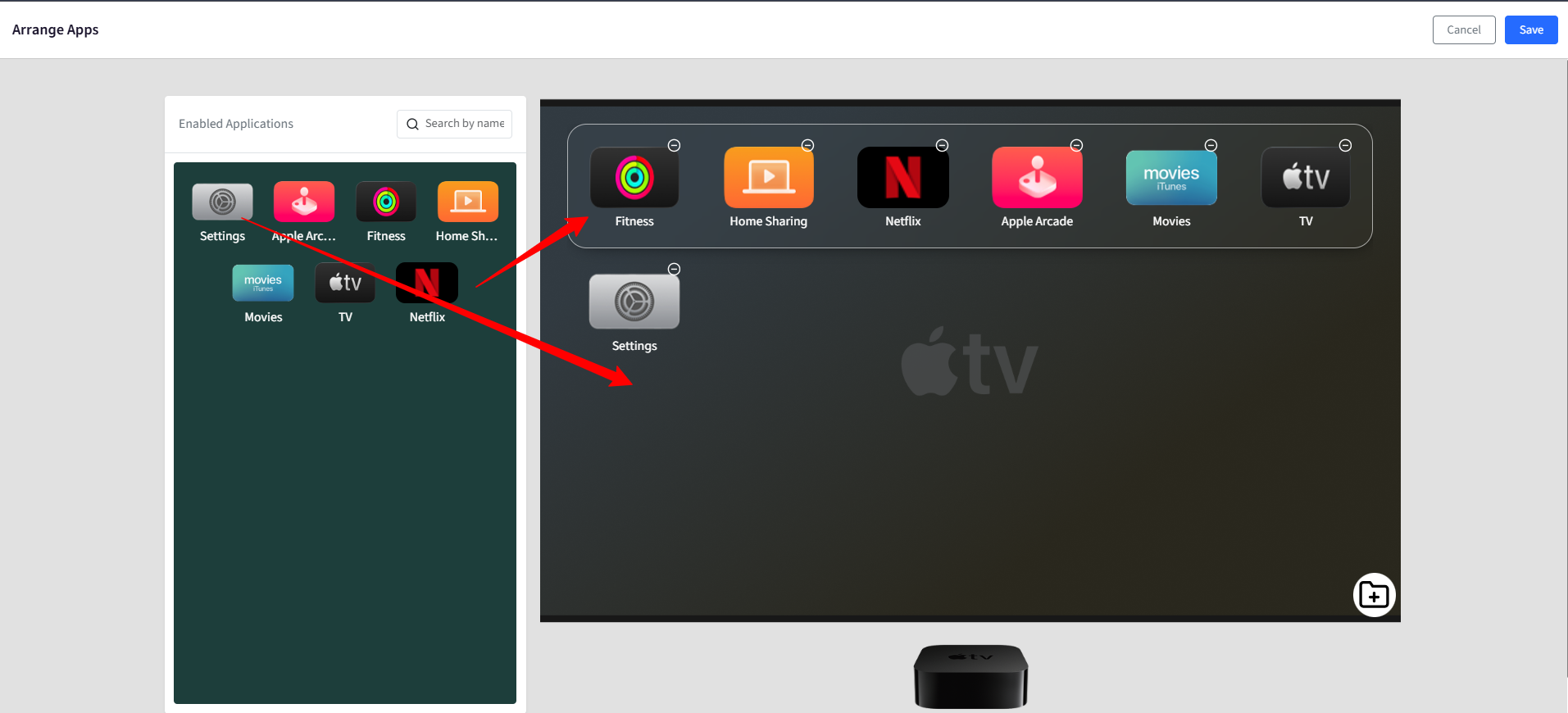
Click the Configure button to open the Arrange App screen.
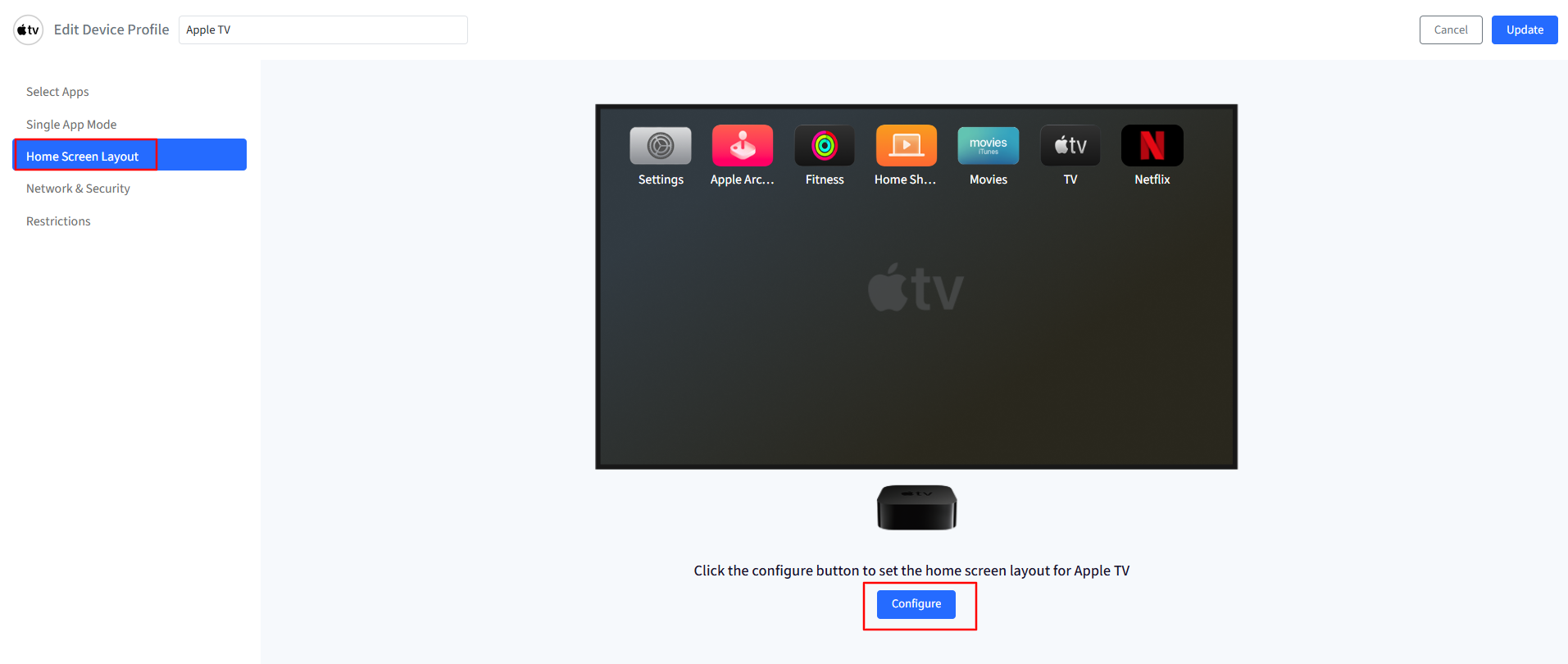
On the left-hand side, you will see the applications that you have enabled in the Select Apps section.
Drag and drop the apps on the home screen as required.
You can also create an App folder.
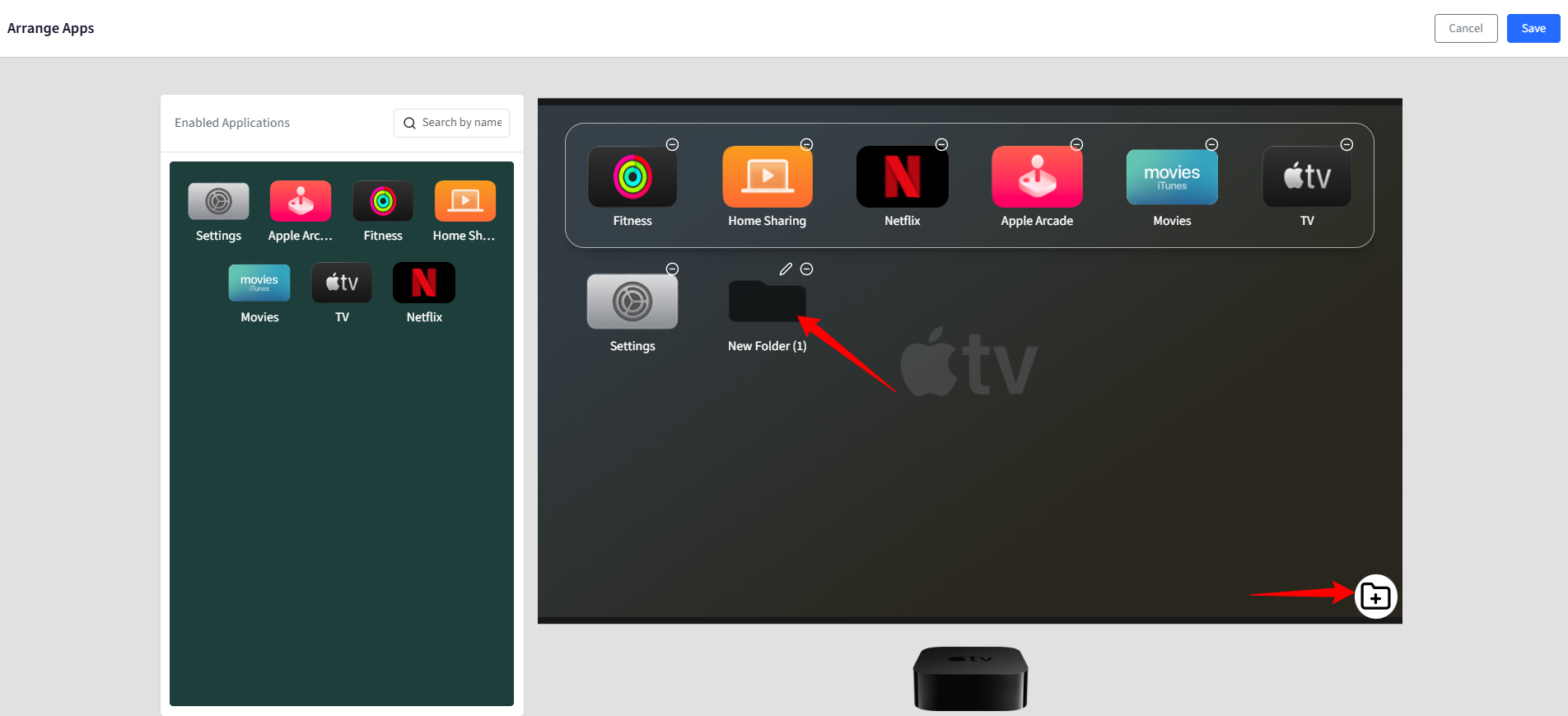
Once done, click Save.
4. Network & Security
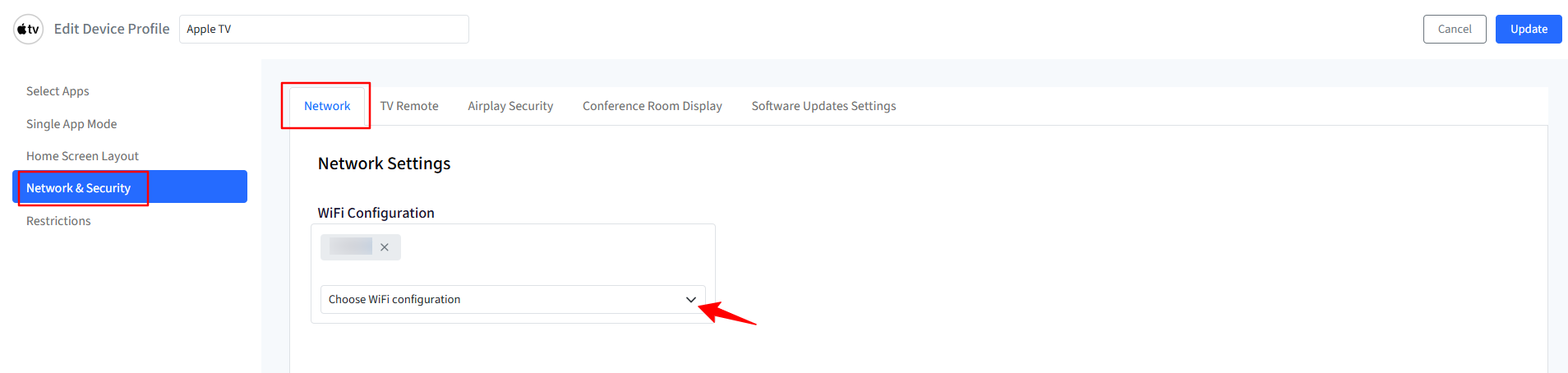
Network: Select the Wi-Fi configurations in this tab. You can create a Basic Wi-Fi configuration or an Enterprise Wi-Fi configuration.
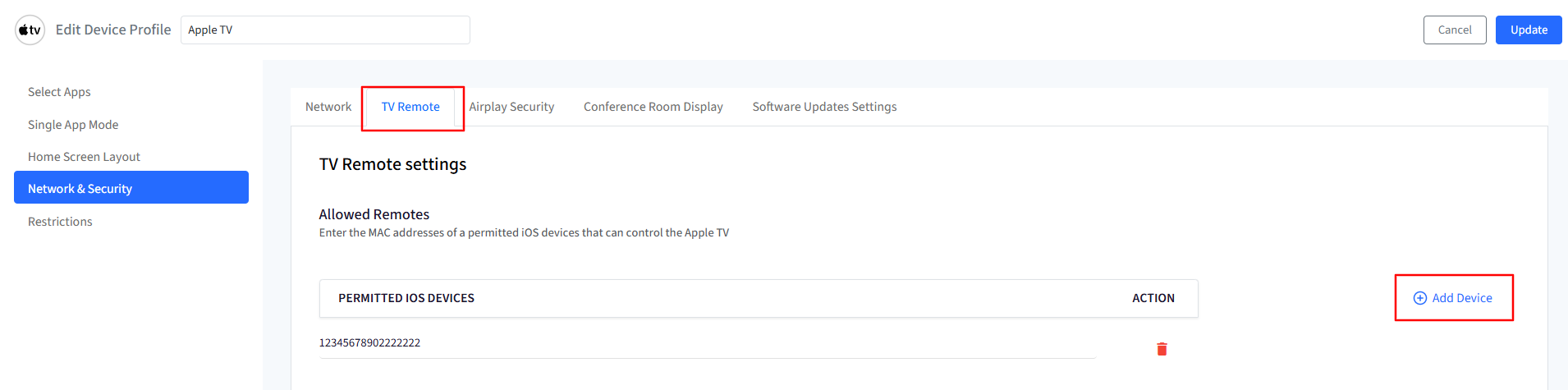
TV Remote: Enter the MAC addresses of permitted iOS devices that can control the Apple TV by clicking on the Add Device button.
Airplay Security: Configure whether to allow or block the Incoming Airplay Requests.
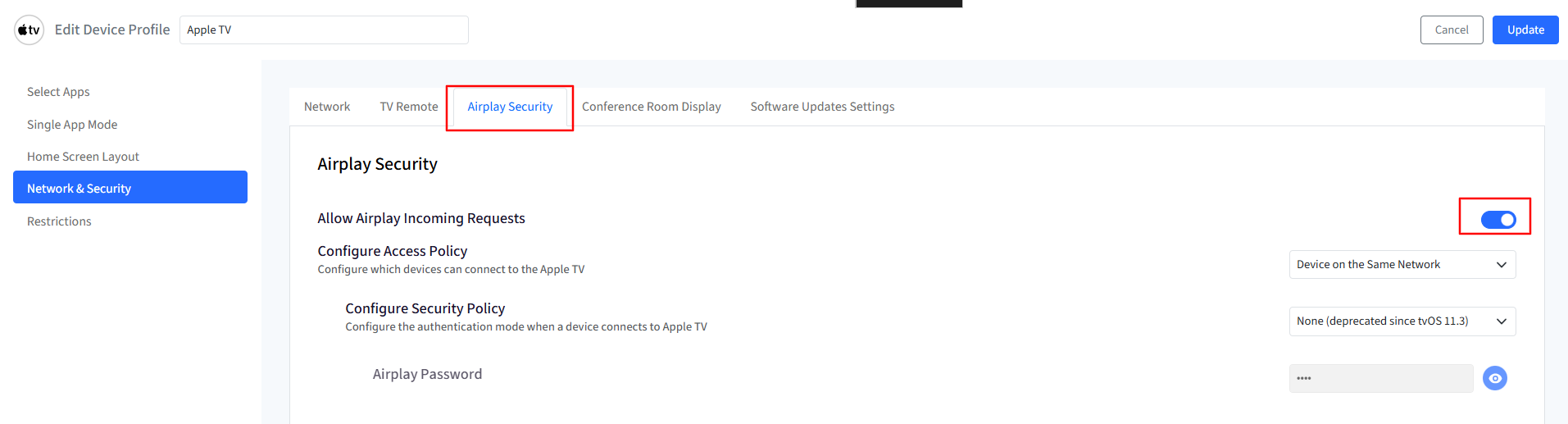
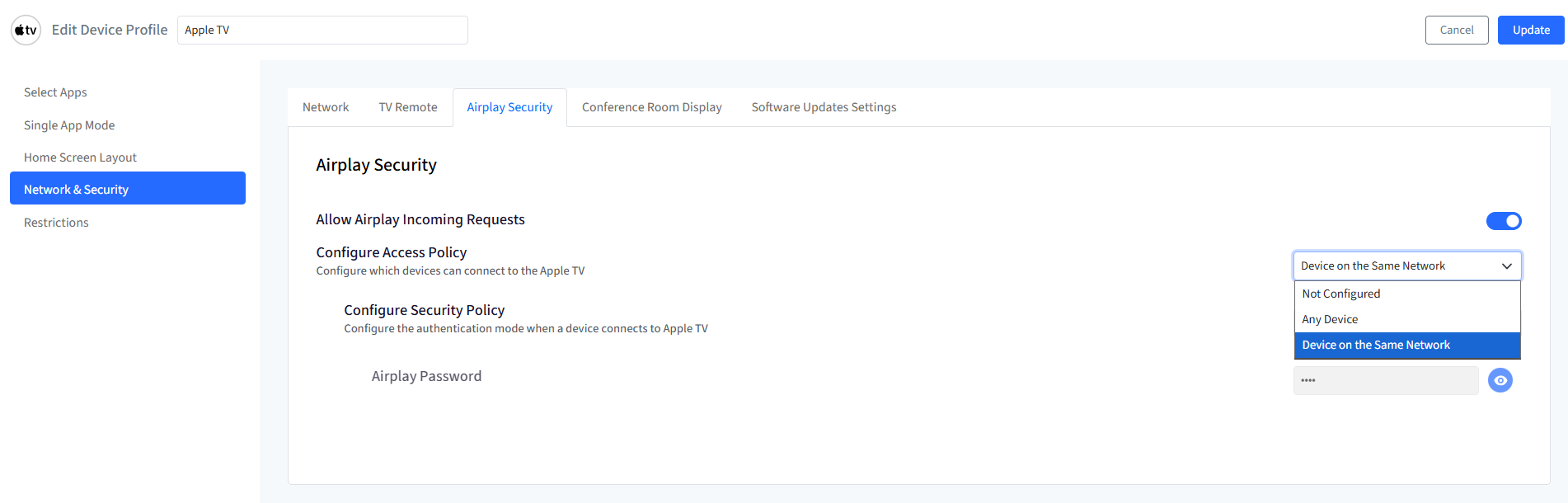
Configure Access Policy: Configure which devices can connect to Apple TV. This can be:
Not Configured
Any Device
Device on the Same Network
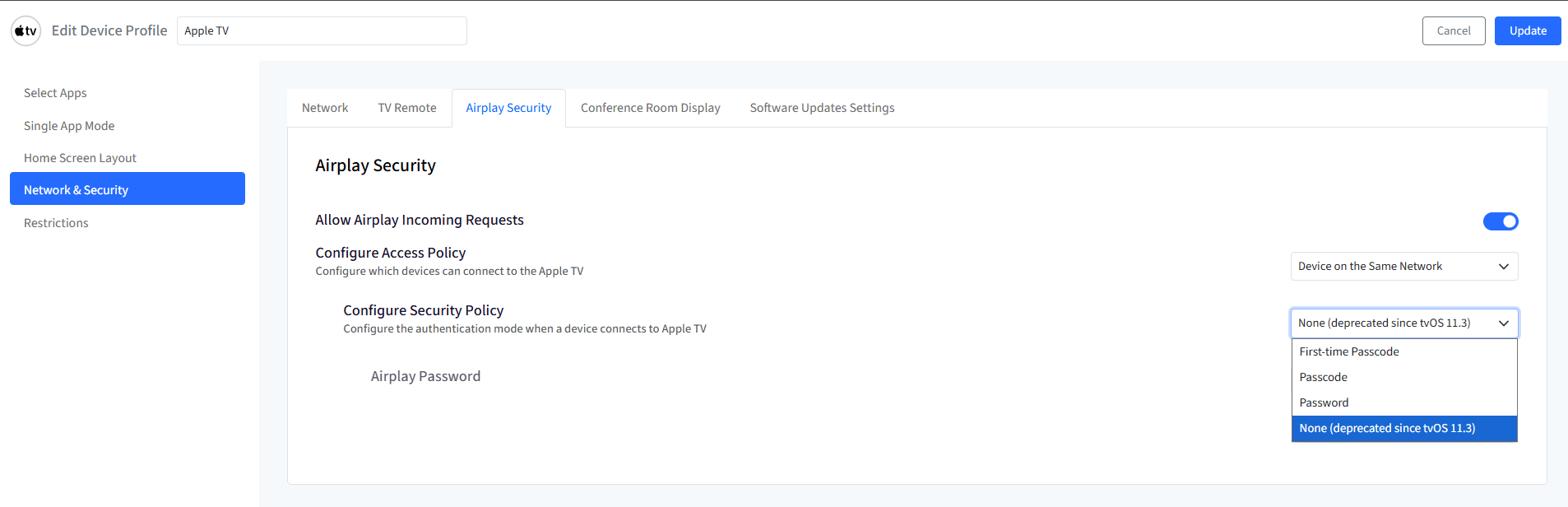
Configure Security Policy: Configure the authentication mode when a device connects to Apple TV. This can be:
None (Deprecated since tvOS 11.3)
First-time Passcode
Passcode
Password
Airplay Password: Set a password required to authorize streaming from an Apple device to an Apple TV.
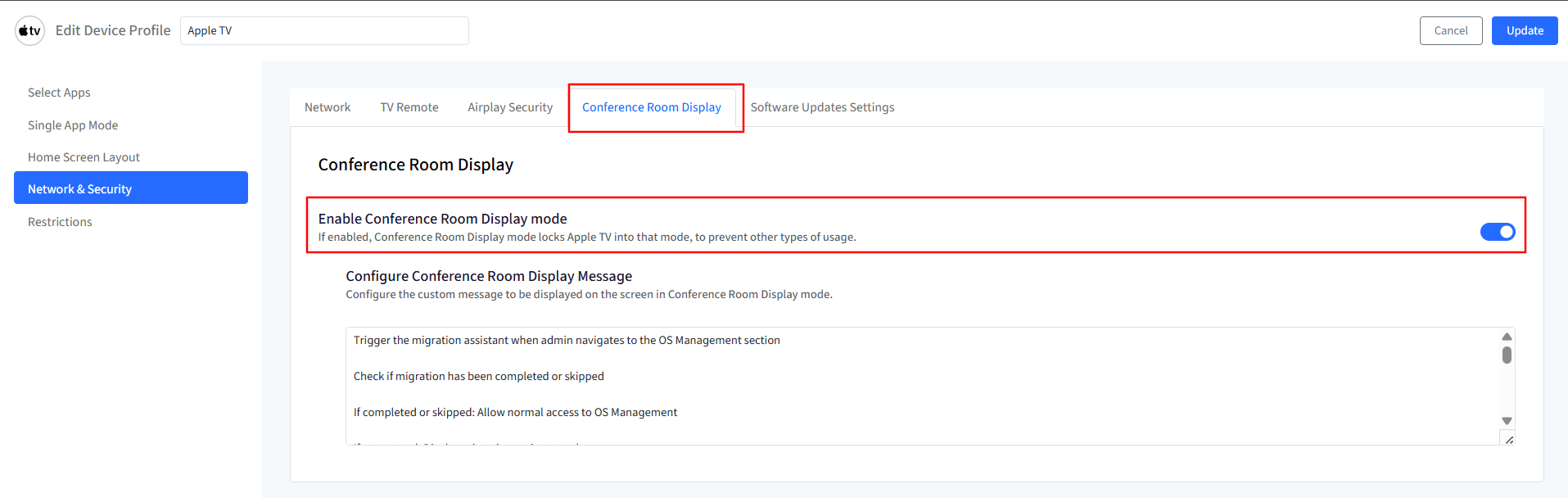
Conference Room Display:
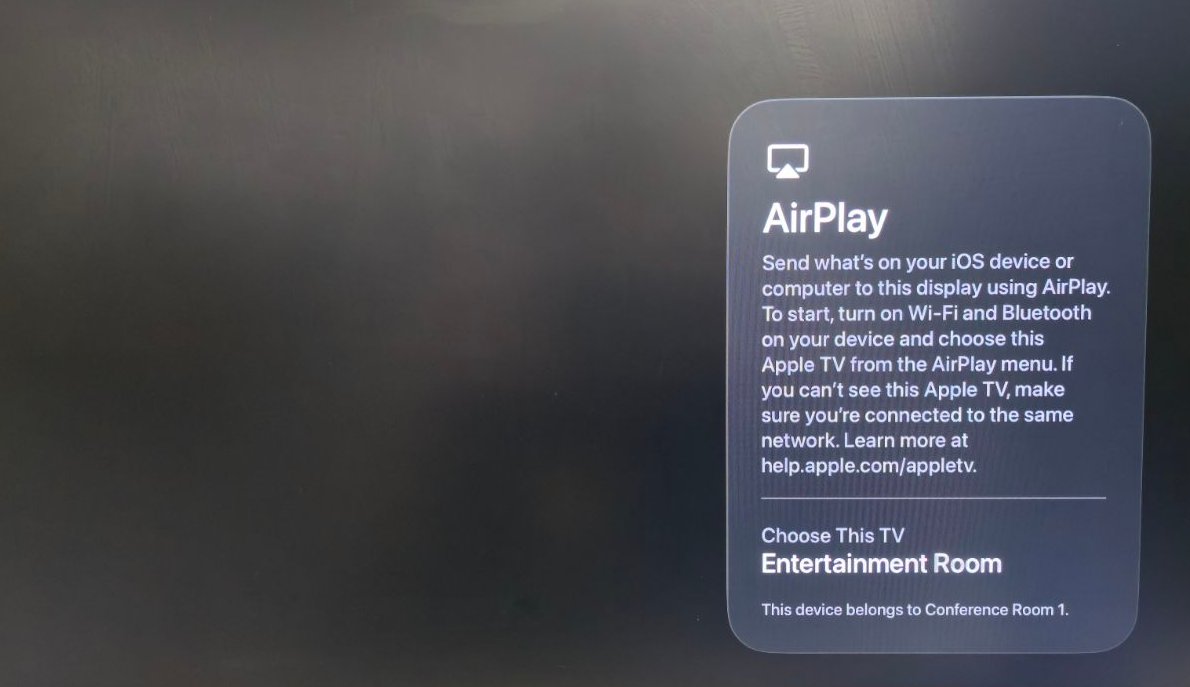
Enable Conference Room Display mode: Enabling this locks the device onto a screen showing instructions for wireless AirPlay screen sharing.
Configure Conference Room Display Message: Configure a custom message to be displayed on the screen in Conference Room Display mode.
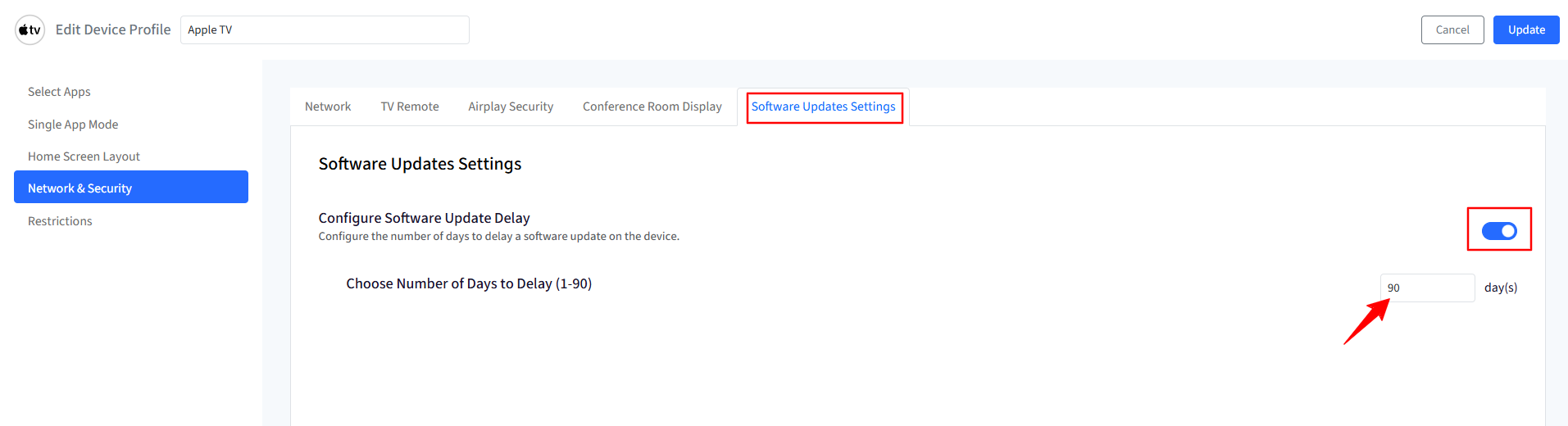
Software Update Settings:
Configure Software Update Delay: Configure the number of days to delay a software update on the device. You can choose between 1 and 90 days.
5. Restrictions
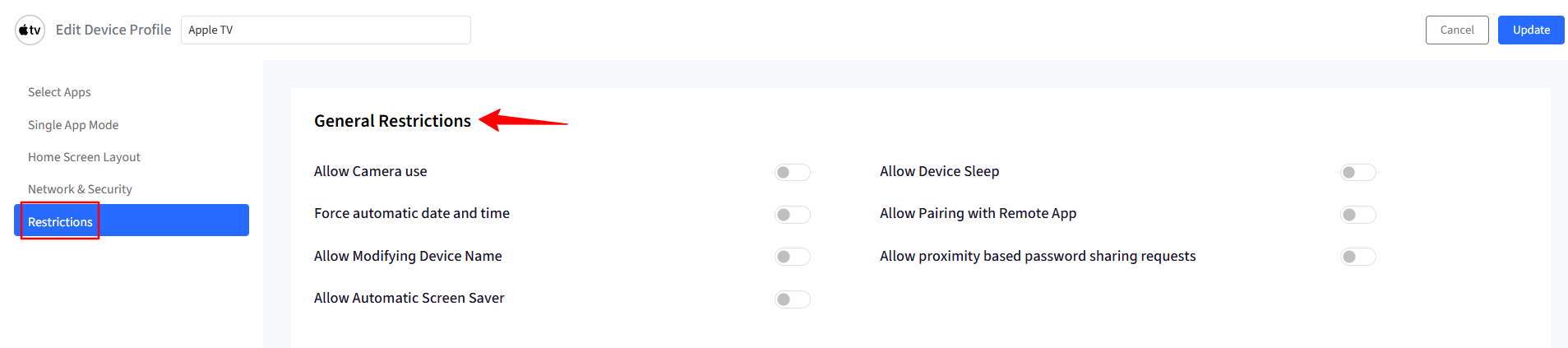
General Restrictions: A collection of common settings.
Allow Camera use: Enabling Continuity Camera allows you to use your iPhone or iPad as a wireless webcam for applications such as FaceTime, Zoom, and Apple Music Sing.
Allow Device Sleep: Allows Apple TV to automatically go to sleep when inactive.
Force automatic date and time: Ensures date and time are set automatically and cannot be changed manually.
Allow Pairing with Remote App: Allows Apple TV to pair with the Apple TV Remote app on iPhone or iPad.
Allow Modifying Device Name: Allows the device name to be changed.
Allow proximity based password sharing requests: Allows nearby Apple devices to request password sharing.
Allow Automatic Screen Saver: Enables the screen saver to turn on automatically after inactivity.
Media Restrictions: A collection of media-related settings.
Region Code: Based on the region selected, the content available on Apple TV will change.
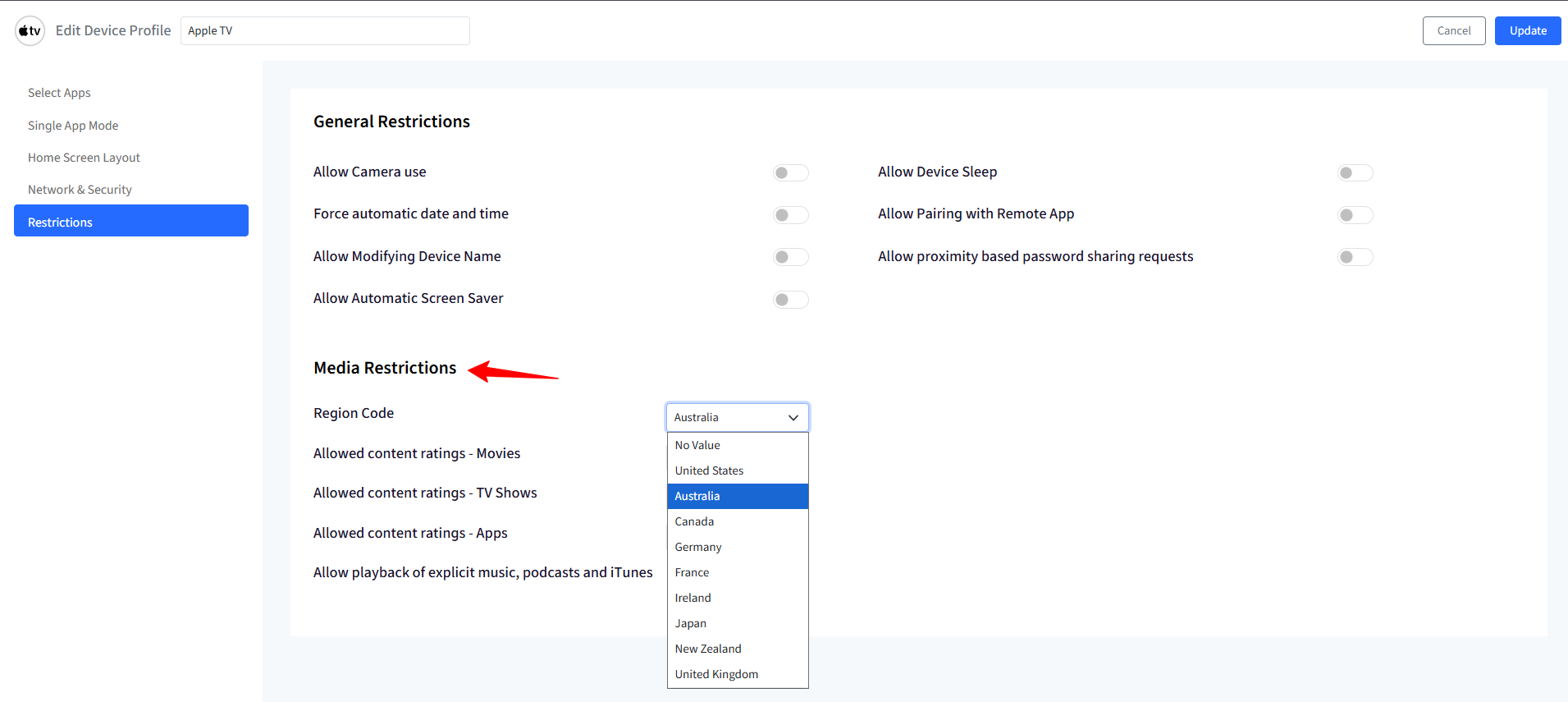
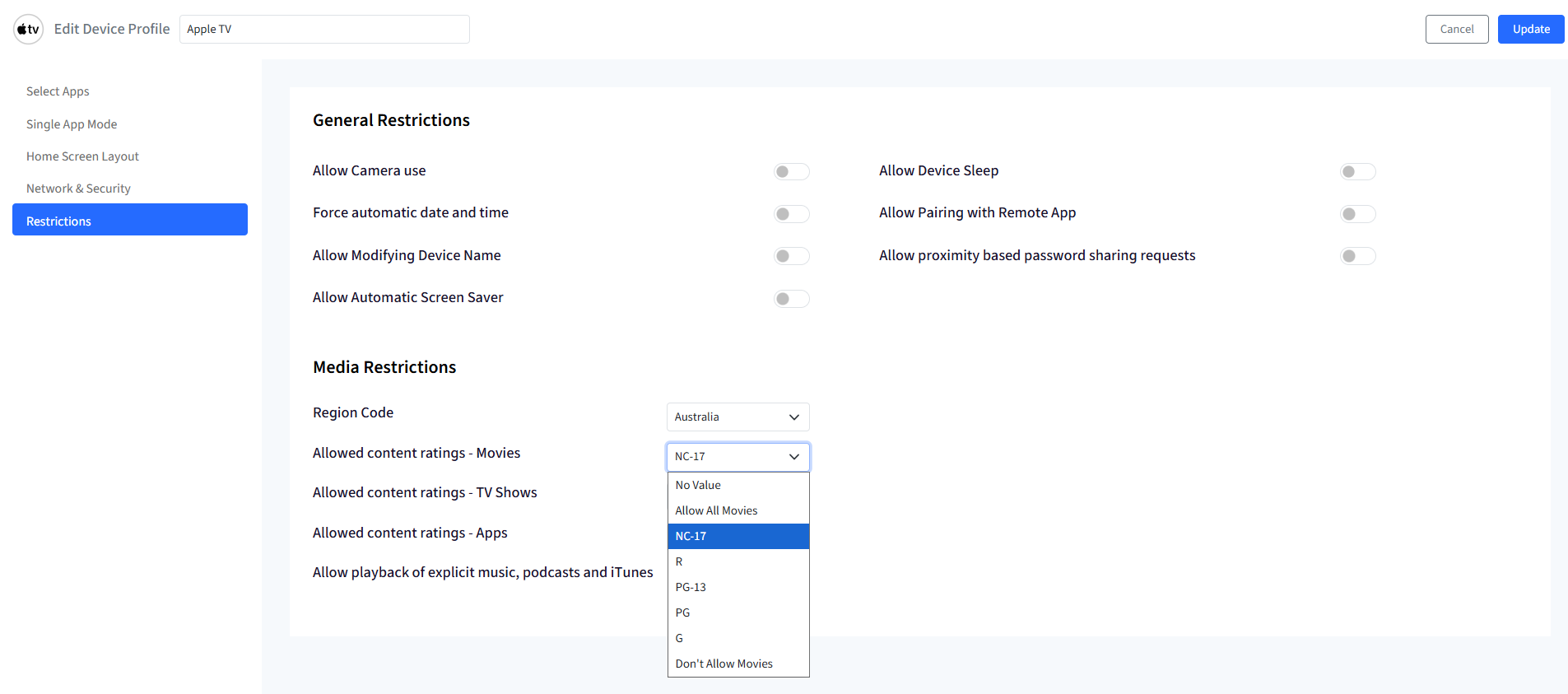
Allowed content ratings - Movies: You can configure restrictions for movies available on Apple TV, based on their ratings.
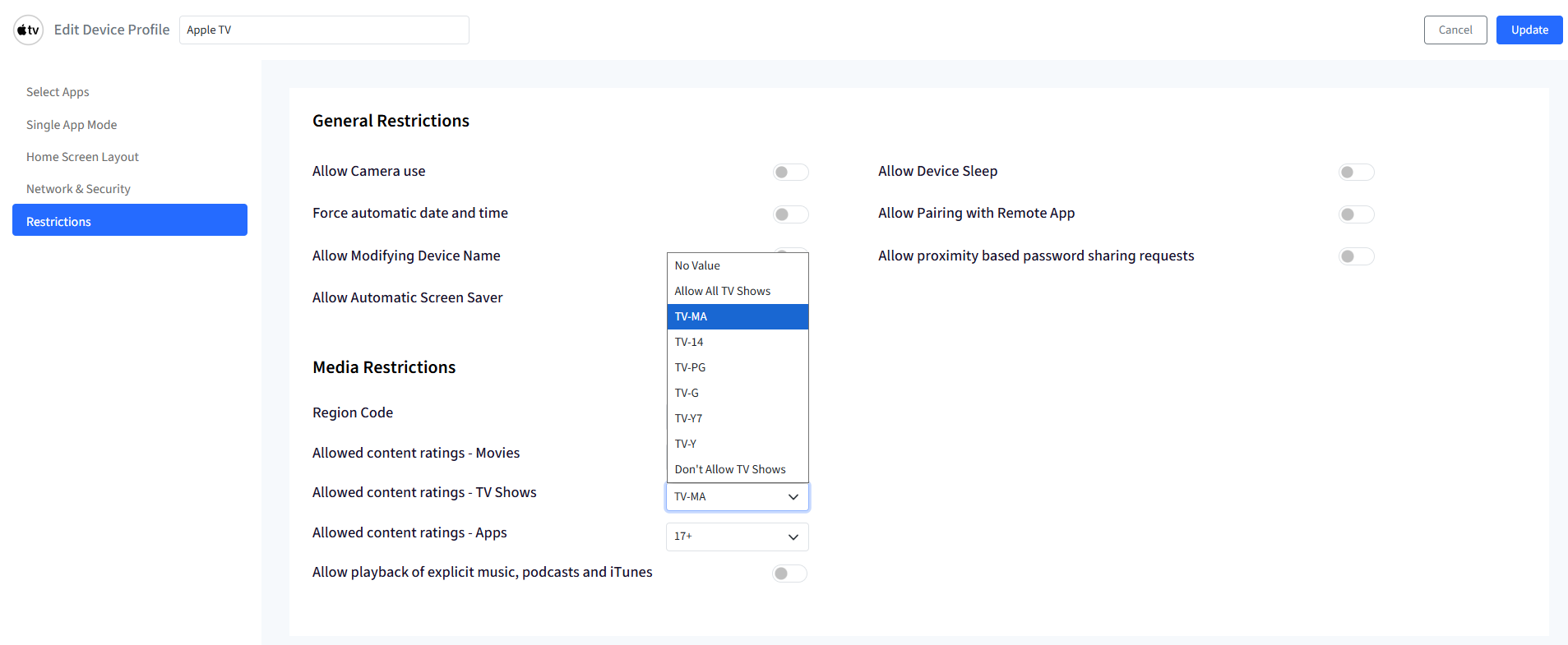
Allowed content ratings - TV Shows: You can configure restrictions for the TV shows available on Apple TV, based on their ratings.
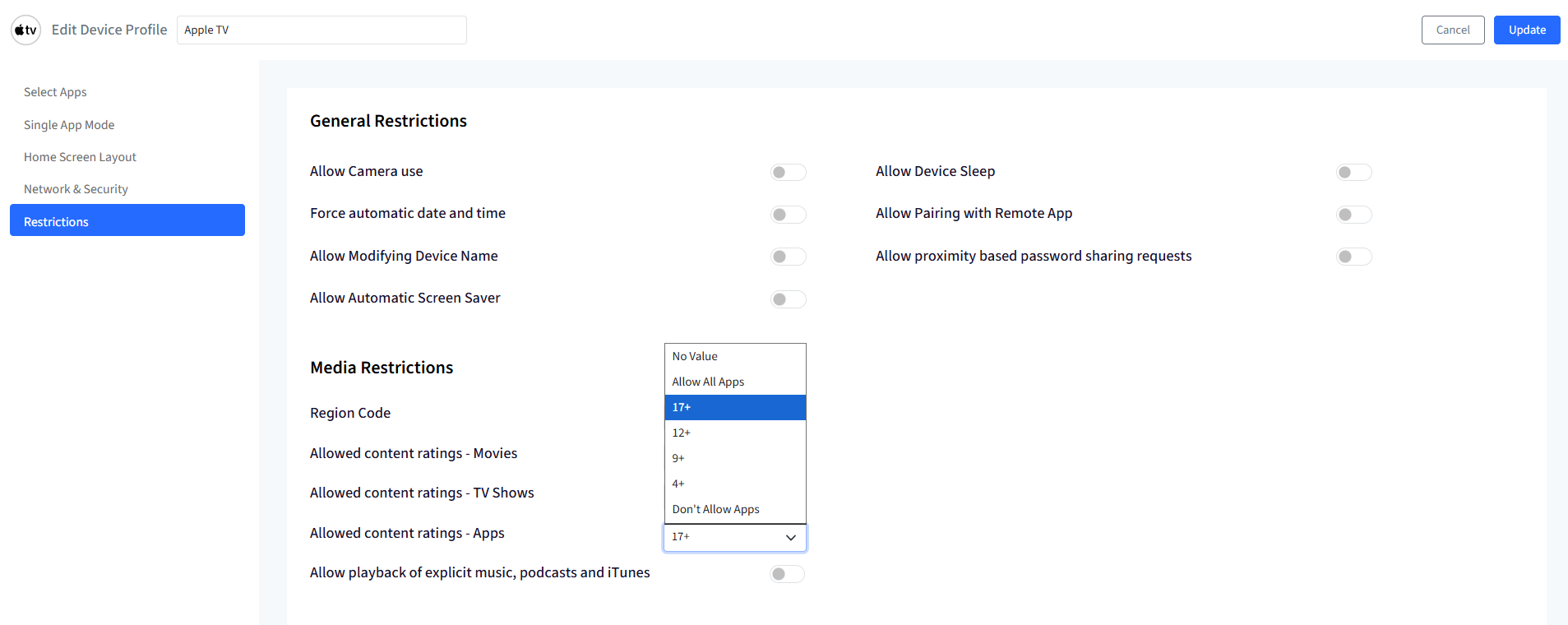
Allowed content ratings - Apps: You can configure restrictions for the apps available on Apple TV, based on their ratings.
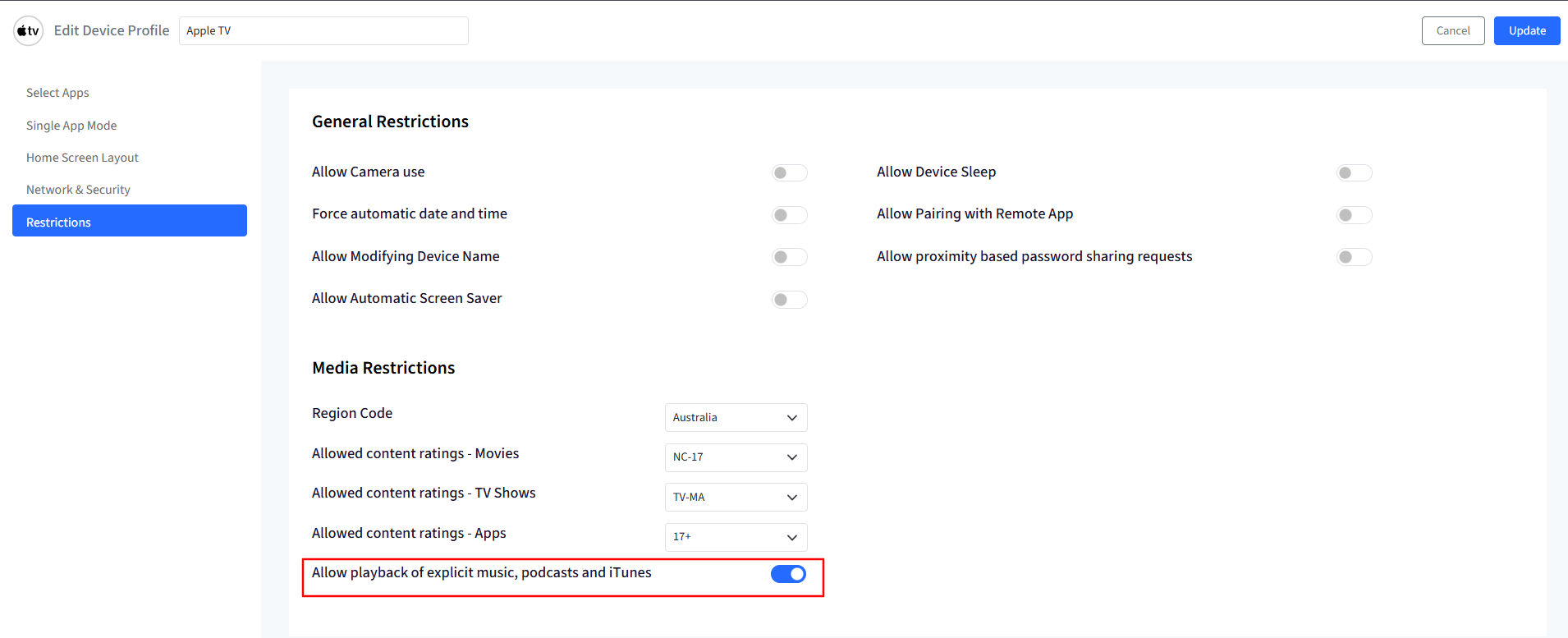
Allow playback of explicit music, podcasts, and iTunes: You can restrict playback of explicit content in music, podcasts, and iTunes on Apple TV.
Profile View
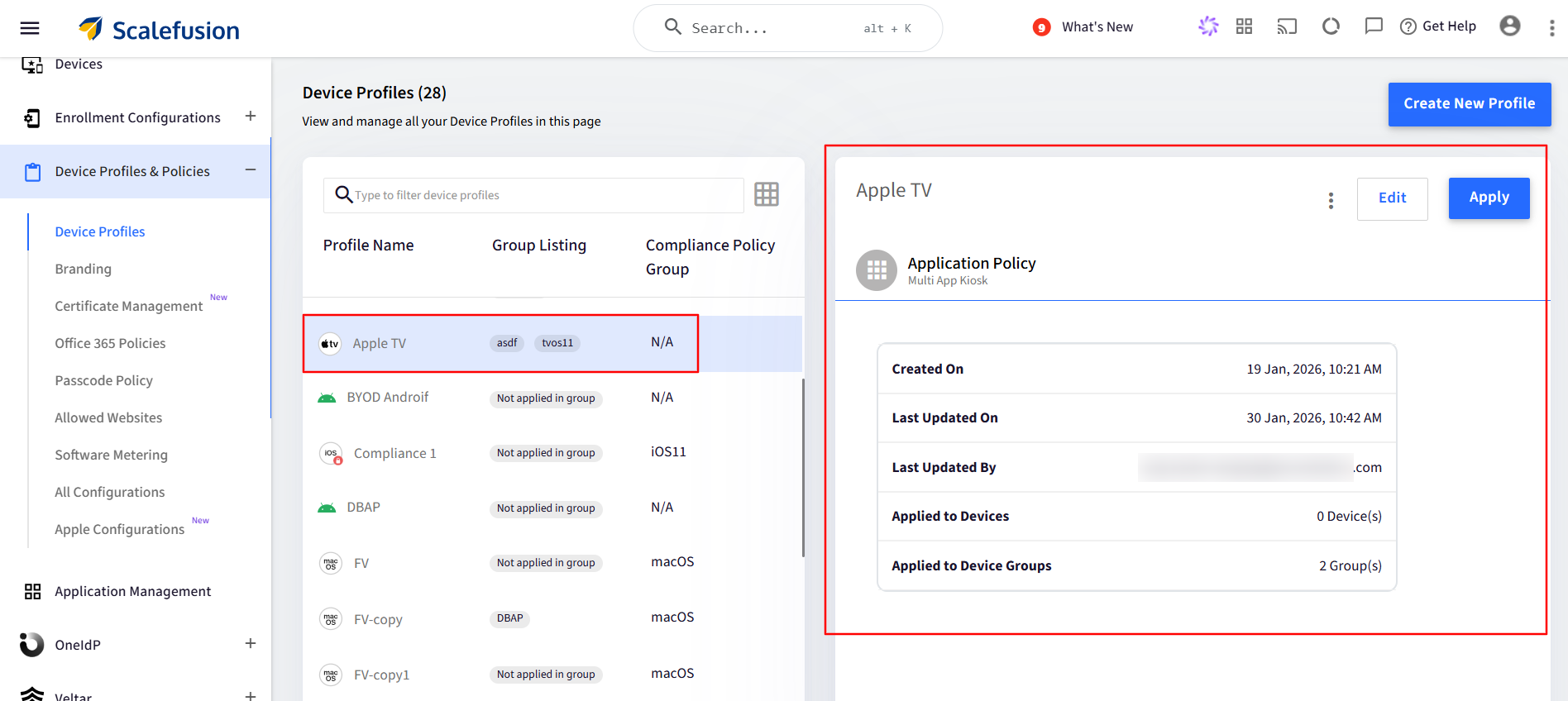
Once the profile is created, it will be visible on the main page of the Device Profiles section. The following information will be displayed for the concerned profile:
Application Policy that is selected in the Profile.
When it was created.
When it was Last Updated.
Who last updated the profile?
Number of devices where the profile is applied.
Number of Device Groups where the profile is applied.
Profile Level Actions
You can edit the Profile.
You can apply the Profile on Device(s) and Device Group(s)
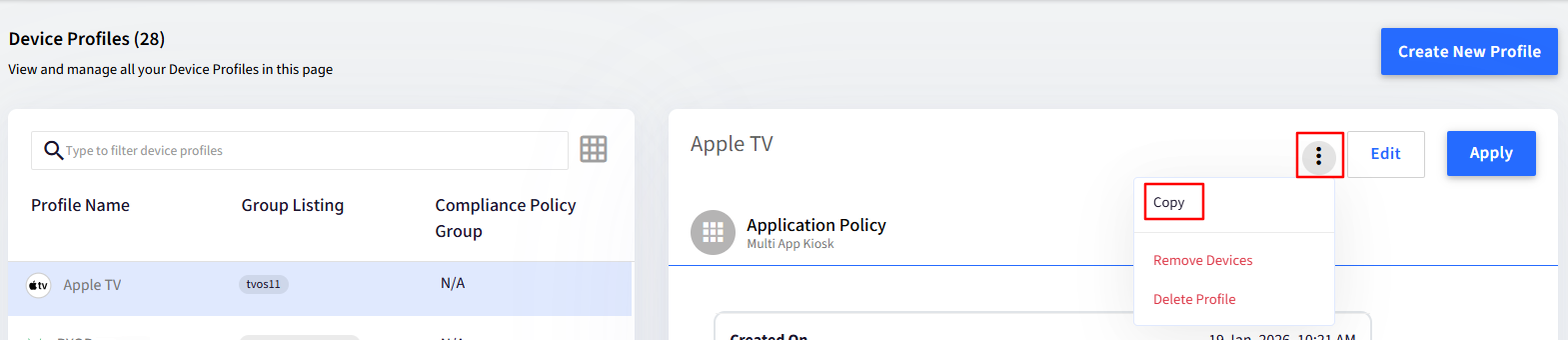
Click the 3 dots in the actions panel on the right to perform the following actions:
Copy: To create a copy of the existing profile.
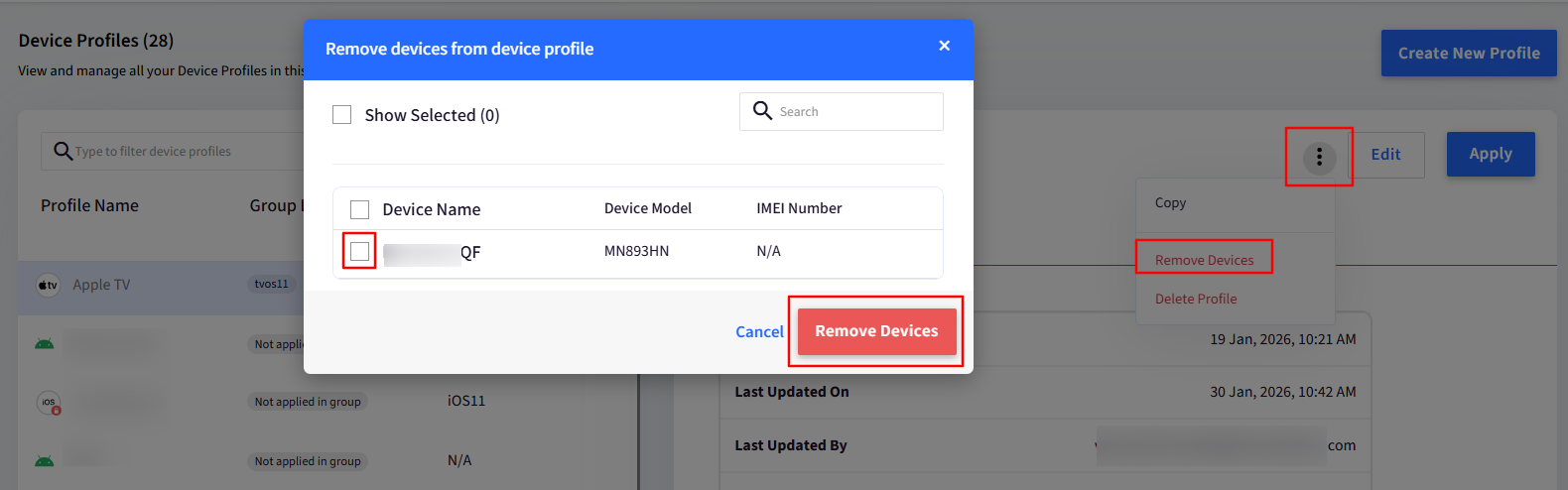
Remove Devices: To remove the device(s) from the current profile. You will be asked to select the device(s) you want to remove.
Delete Profile: To delete the profile. You will be asked to select the device(s) you want to delete.