The following Shell script helps IT Admins to set DNS server on their macOS devices.
Create a file on your desktop, for example, set_dns_server.sh and open it in a text editor like Notepad++.
Copy the contents below to the file or click here to download the file.
#!/bin/bash

# Configure the DNS Server here. For example: "8.8.8.8"
DNS_SERVER="ENTER_DNS_SERVER"

###  DO NOT EDIT BELOW THIS ###

WIFI_SERVICE="Wi-Fi"

# Verify Wi-Fi service exists
if ! networksetup -listallnetworkservices | grep -qx "$WIFI_SERVICE"; then
  echo "Wi-Fi network service not found."
  exit 1
fi

echo "Configuring Wi-Fi DNS"
echo "Setting DNS server to: $DNS_SERVER"

networksetup -setdnsservers "$WIFI_SERVICE" "$DNS_SERVER"

echo "Wi-Fi DNS configuration updated successfully."
In the script, enter your DNS server against DNS_Server=”ENTER_DNS_SERVER”
When uploading the script, choose “Run Script as signed-in user” as ‘No’.
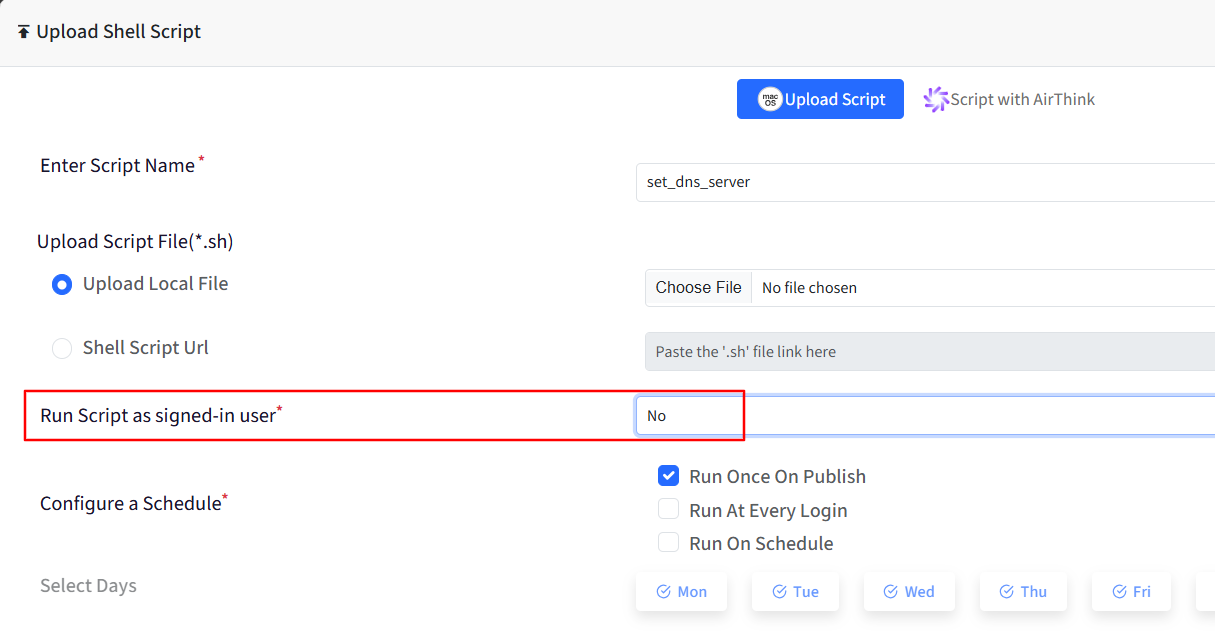
Follow our guide to upload & publish the Shell script using Scalefusion Dashboard.
Note:
Please note that to use the Shell scripts, the Scalefusion MDM Client Application must be installed on the device(s). Please follow our guide to publish and install the Scalefusion MDM Agent Application.
Note:
The scripts and their contents are sourced from various albeit authenticated Apple Developer communities and forums.
Please validate the scripts on a test machine before deploying them on all your managed devices.
Scalefusion has tested these scripts, however, Scalefusion will not be responsible for any loss of data or system malfunction that may arise due to the incorrect usage of these scripts.