The following script permanently blocks Safari for the current user by force-closing it every time it starts, using a LaunchAgent that runs in the background.
Creates a background script that continuously checks if Safari is running.
Kills Safari immediately if it is found.
Registers that script as a LaunchAgent.
Ensures it starts at login and continues to run.
Result: Safari cannot be opened at all for that user.
Block Safari on Mac
Create a file on your desktop, for example, Block_Safari.sh, and open it in a text editor like Notepad++.
Copy the contents below to the file or click here to download the file.
#!/bin/bash

# Define the LaunchAgent plist file location
LAUNCH_AGENT_DIR="$HOME/Library/LaunchAgents"
LAUNCH_AGENT_FILE="$LAUNCH_AGENT_DIR/com.user.safari.block.plist"
SCRIPT_PATH="$HOME/Library/Scripts/block_safari.sh"

# Step 1: Create the block_safari.sh script
mkdir -p "$HOME/Library/Scripts"  # Create the Scripts directory if it doesn't exist

cat > "$SCRIPT_PATH" <<EOL
#!/bin/bash
# Infinite loop to keep checking for Safari process
while true; do
    # Check if Safari is running by looking for its PID
    SAFARI_PID=\$(pgrep -x Safari)

    # If the PID exists, kill the Safari process
    if [ ! -z "\$SAFARI_PID" ]; then
        echo "Safari process found with PID: \$SAFARI_PID. Killing it..."
        kill -9 "\$SAFARI_PID"
    fi

    # Sleep for 5 seconds before checking again
    sleep 5
done
EOL

# Make the script executable
chmod +x "$SCRIPT_PATH"

# Step 2: Create the LaunchAgent plist to run the script on login
mkdir -p "$LAUNCH_AGENT_DIR"  # Create the LaunchAgents directory if it doesn't exist

cat > "$LAUNCH_AGENT_FILE" <<EOL
<?xml version="1.0" encoding="UTF-8"?>
<!DOCTYPE plist PUBLIC "-//Apple//DTD PLIST 1.0//EN" "http://www.apple.com/DTDs/PropertyList-1.0.dtd">
<plist version="1.0">
  <dict>
    <key>Label</key>
    <string>com.user.safari.block</string>
    <key>ProgramArguments</key>
    <array>
      <string>$SCRIPT_PATH</string>
    </array>
    <key>RunAtLoad</key>
    <true/>
    <key>KeepAlive</key>
    <true/>
  </dict>
</plist>
EOL

# Step 3: Load the LaunchAgent so that it starts immediately
launchctl load -w "$LAUNCH_AGENT_FILE"

# Step 4: Inform the user that the launch agent is running
echo "Safari blocking agent has been deployed and is now running."
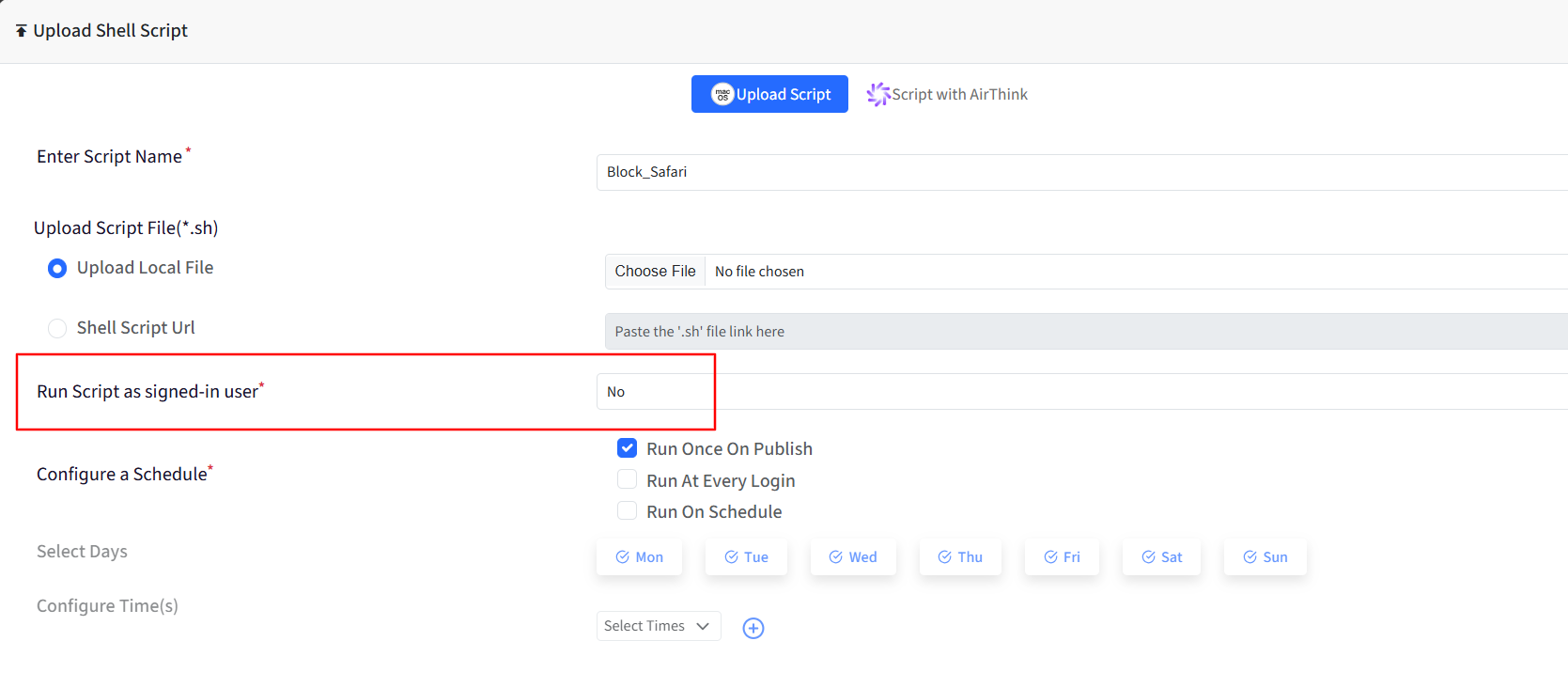
Follow our guide to upload & publish the Shell script using the Scalefusion Dashboard.
When uploading the script, please select "No" for the option "Run script as signed-in user".
Restrict users from turning off Safari block
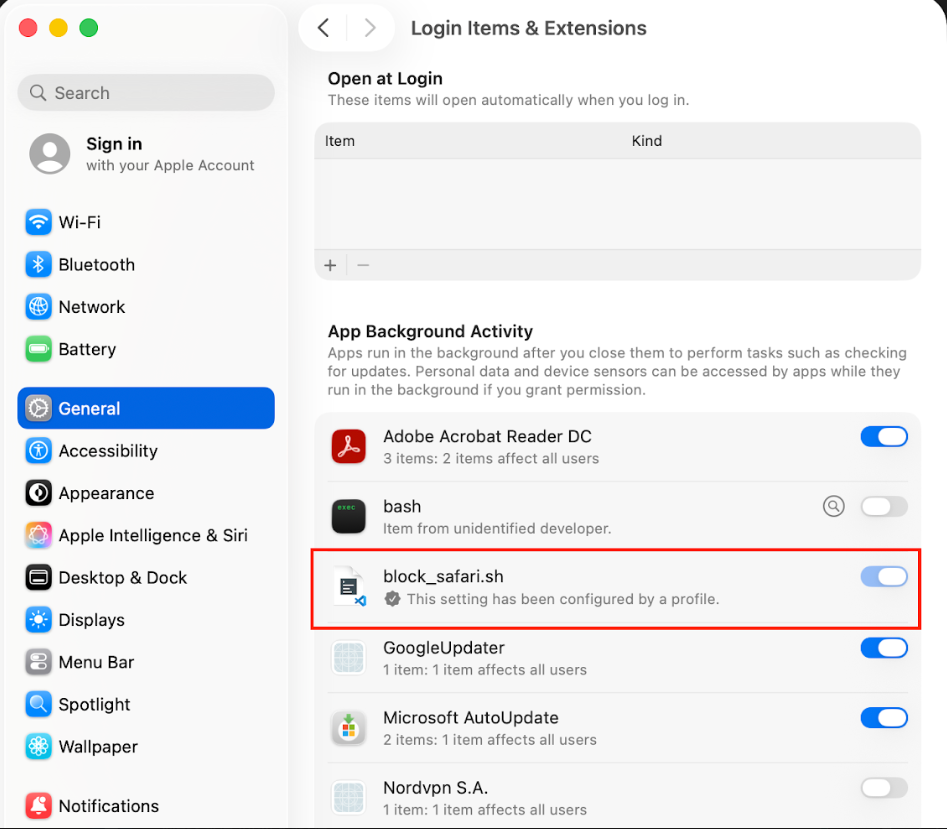
The following payload restricts the user to toggle off the login/background item whose Label is com.user.safari.block by going to General > Login Items & Extensions > App Background Activity.
Copy the contents below directly and add them to Apple Configurations > Custom Configurations for Mac, or click here to download the file and import it.
<?xml version="1.0" encoding="UTF-8"?>
<!DOCTYPE plist PUBLIC "-//Apple//DTD PLIST 1.0//EN" "http://www.apple.com/DTDs/PropertyList-1.0.dtd">
<plist version="1.0">
<dict>
	<key>PayloadContent</key>
	<array>
		<dict>
			<key>PayloadDisplayName</key>
			<string>Service Management - Managed Login Items</string>
			<key>PayloadIdentifier</key>
			<string>com.apple.servicemanagement.5C8FEBF2-EB63-43CB-A5E1-28B35FAF6725</string>
			<key>PayloadType</key>
			<string>com.apple.servicemanagement</string>
			<key>PayloadUUID</key>
			<string>5C8FEBF2-EB63-43CB-A5E1-28B35FAF6725</string>
			<key>PayloadVersion</key>
			<integer>1</integer>
			<key>Rules</key>
			<array>
				<dict>
					<key>RuleType</key>
					<string>Label</string>
					<key>RuleValue</key>
					<string>com.user.safari.block</string>
				</dict>
			</array>
		</dict>
	</array>
	<key>PayloadDescription</key>
	<string>This payload enforce Safari blocking script</string>
	<key>PayloadDisplayName</key>
	<string>Enforce Safari Script</string>
	<key>PayloadIdentifier</key>
	<string>com.promobitech.scalefusion.40E117C6-A5C4-410C-8E91-0F73286D3DEC</string>
	<key>PayloadOrganization</key>
	<string>Scalefusion</string>
	<key>PayloadType</key>
	<string>Configuration</string>
	<key>PayloadUUID</key>
	<string>40E117C6-A5C4-410C-8E91-0F73286D3DEC</string>
	<key>PayloadVersion</key>
	<integer>1</integer>
</dict>
</plist>
Follow our guide on how to add the Custom Payload in the Apple Configurations & deploy it to devices.
Note:
Please note that to use the Shell scripts, the Scalefusion MDM Client Application must be installed on the device(s). Please follow our guide to publish and install the Scalefusion MDM Agent Application.
Notes:
The Payload and its contents are sourced from various albeit authenticated Apple Developer communities and forums.
Please validate them on a test machine before deploying them on all your managed devices.
Scalefusion has tested these Payloads, however, Scalefusion will not be responsible for any loss of data or system malfunction that may arise due to the incorrect usage of these payloads.