Introduction
The Kerberos Single Sign-On (SSO) extension streamlines how devices obtain Kerberos authentication tickets from an organization’s identity service or on-premises Active Directory. This enables users to access enterprise websites, applications, and file servers automatically, without needing to sign in repeatedly.
The SSO Kerberos Extension enables managed devices to authenticate users seamlessly with Kerberos, minimizing repeated password prompts and providing secure access to enterprise resources.
Provide a name to this configuration.
Remove this configuration when relaxing the policies on the device: When this option is enabled, the configuration will be automatically removed in the following scenarios: when policies are relaxed, or the device is unlocked via the dashboard, and when the device is deleted, all associated configurations and data will be cleared from the device.
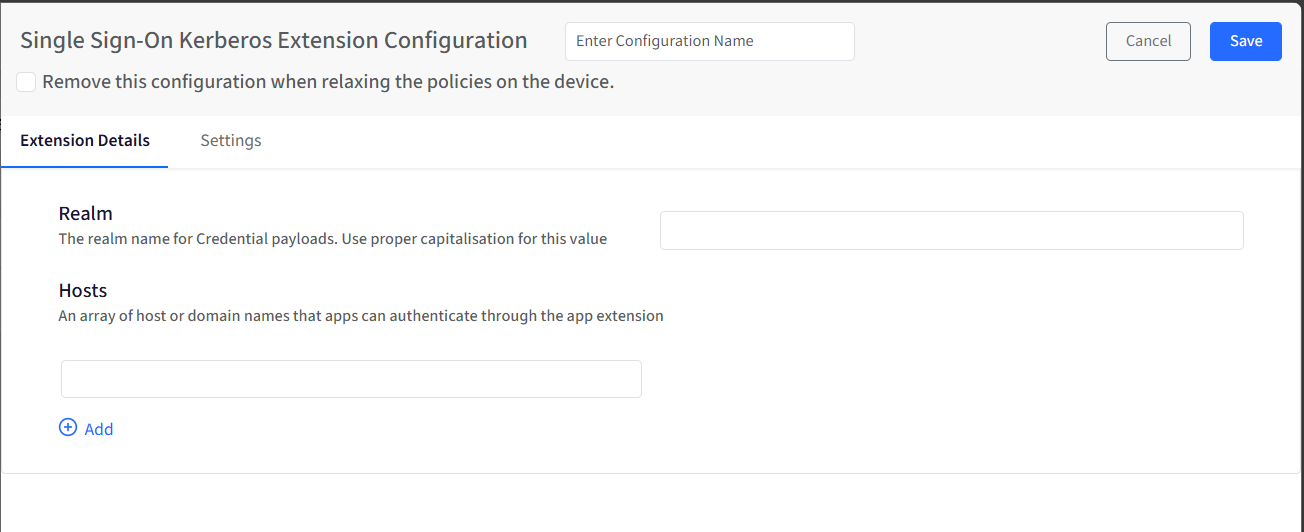
Extension Details: Enter realm and host details in this section.
Realm: This is the Kerberos realm used for authentication, typically matching your Active Directory domain. It tells the system which Kerberos environment to use when validating user credentials. Make sure the value is entered with the correct capitalization.
Hosts: This is the list of hostnames or domain names where apps are allowed to use Kerberos authentication through this extension. Only requests made to these specified hosts will use the Kerberos SSO flow. You can add multiple entries as needed, for example, internal websites or services.
iOS
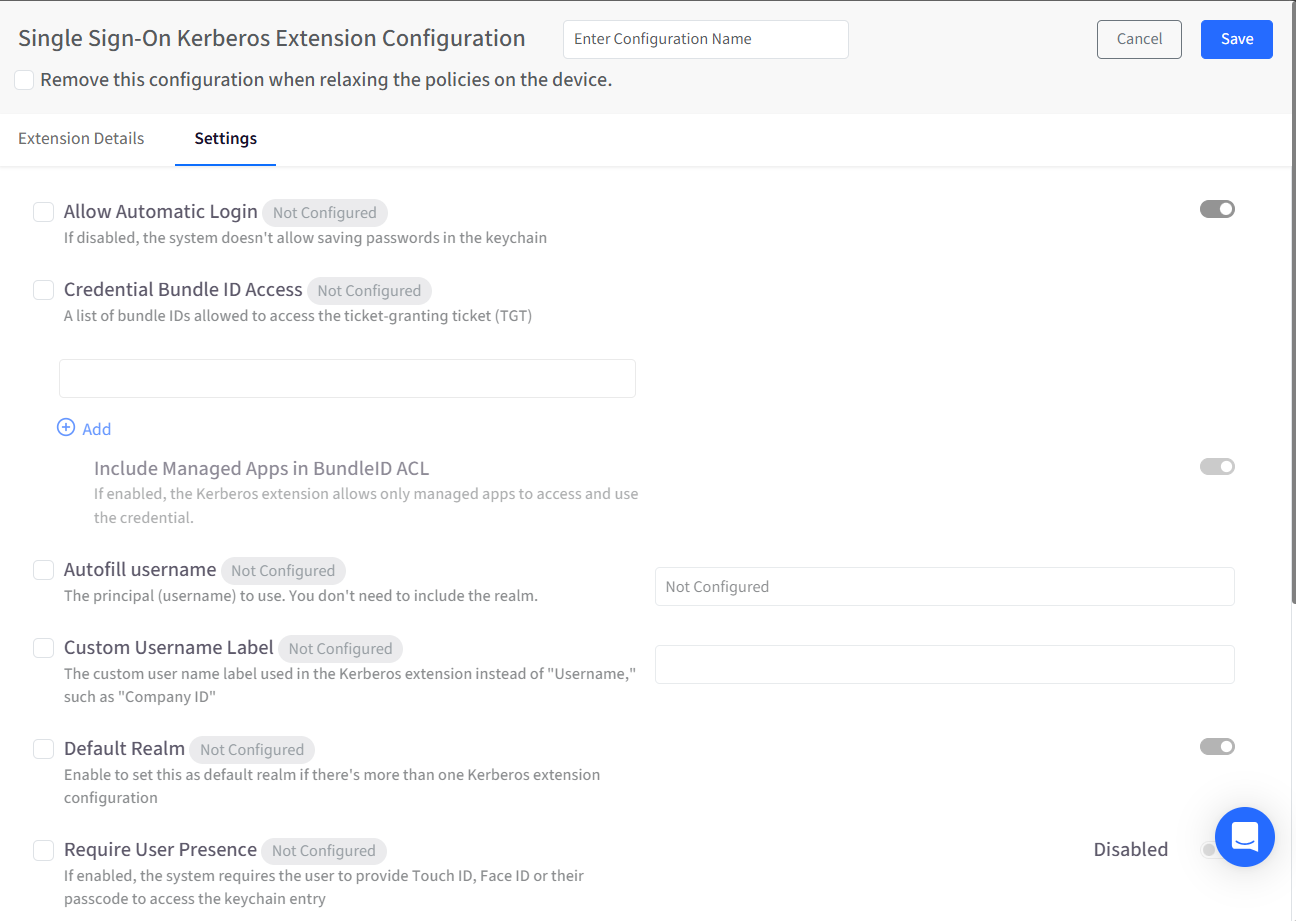
For iOS, you will be able to configure the following Settings. By default, settings appear as Not Configured. Select the checkbox to mark them as Configured.
Allow Automatic Login: When enabled, the system can securely store credentials in the keychain. If disabled, passwords are not saved, and users may be prompted more frequently.
Credential Bundle ID Access: Defines which applications are allowed to access the Kerberos ticket-granting ticket (TGT). Only apps listed here can use the Kerberos credentials.
Include Managed Apps in Bundle ID ACL: Restricts Kerberos credential access to managed applications only. This ensures that only apps deployed and controlled by MDM can use the credential.
Autofill Username: Pre-fills the username during authentication. You only need to specify the username portion—no realm is required.
Custom Username Label: Replaces the default “Username” label with a custom name, such as “Employee ID” or “Company ID”.
Default Realm: Marks this configuration as the default when multiple Kerberos extensions are present on the device.
Require User Presence: Requires the user to authenticate using Touch ID, Face ID, or their passcode before accessing the Kerberos credential stored in the keychain.
Site Code: Specifies the Active Directory site to use. In most cases, this does not need to be set, as the system can determine the site automatically.
Enable Site Auto-Discovery: Allows the system to automatically determine the Active Directory site using DNS and LDAP. Disabling this requires the site code to be specified manually.
Help Text: Displays custom text at the bottom of the Kerberos login window. This is useful for instructions, help information, or legal disclaimers.
macOS
For macOS, you will find settings in addition to what is available for iOS.
Password Settings
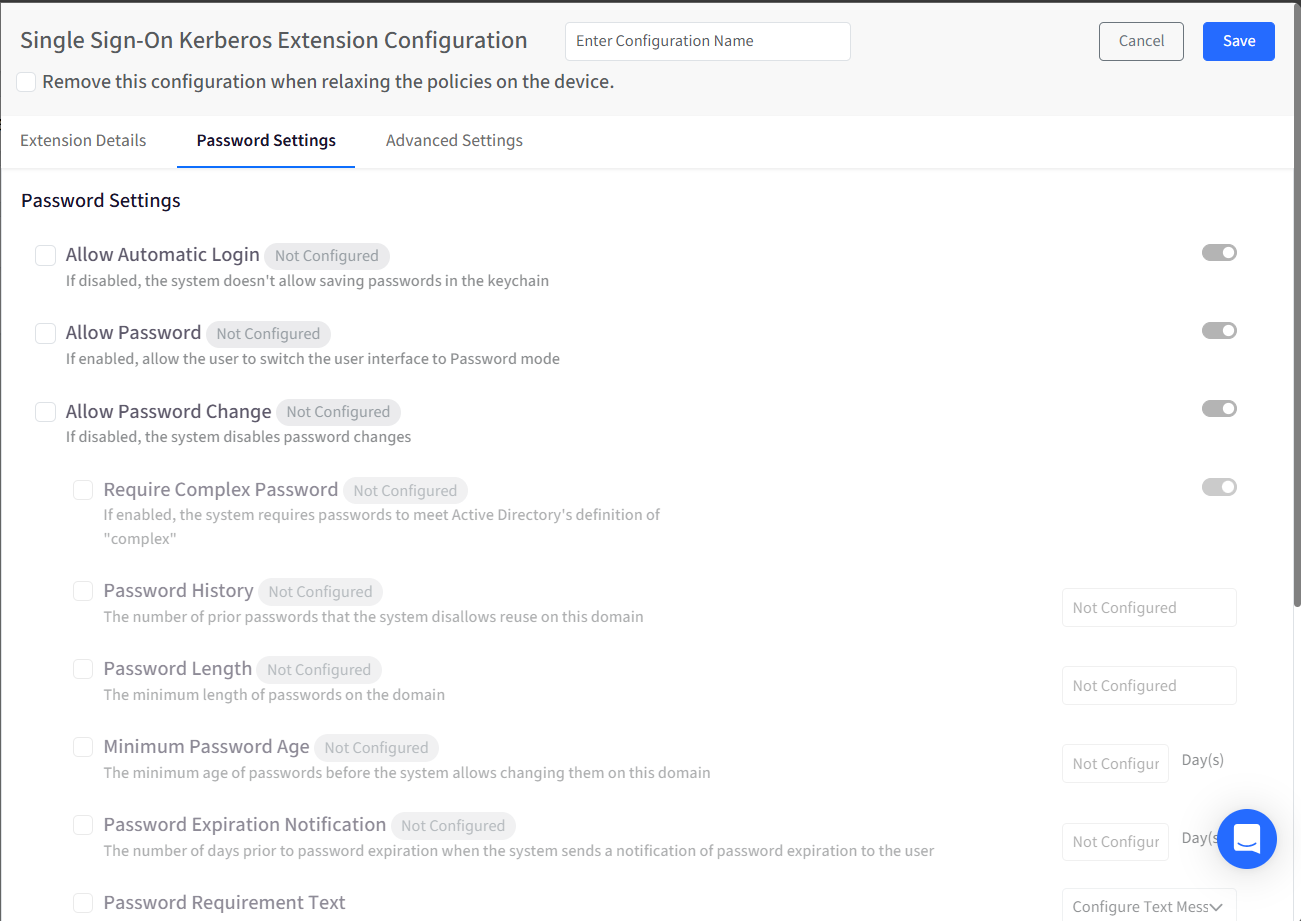
These options control how passwords are handled when users authenticate through Kerberos. By default, settings appear as Not Configured. Select the checkbox to mark them as Configured.
Allow Automatic Login: When enabled, the system can securely store credentials in the keychain. If disabled, passwords are not saved, and users may be prompted more frequently.
Allow Password: Allows users to authenticate using a password-based interface. If turned off, password authentication is not available as a login option.
Allow Password Change: Controls whether users are allowed to change their passwords through the system. Disabling this prevents password updates on the domain.
Require Complex Password: Enforces Active Directory’s definition of a complex password. This typically includes rules such as using a mix of character types.
Password History: Specifies how many previously used passwords cannot be reused. This helps prevent users from cycling back to old passwords.
Password Length: Sets the minimum number of characters required for passwords on the domain.
Minimum Password Age: Defines how long a password must be used before it can be changed again.
Password Expiration Notification: Specifies how many days in advance the user is notified before their password expires.
Password Requirement Text: Displays password requirement guidance to users. This can be plain text or an RTF-formatted message and is typically used when complexity or length rules are not explicitly configured.
Password Change URL: If provided, this URL opens in the user’s browser when they attempt to change their password. It’s commonly used to redirect users to a corporate password management portal.
Sync Password with Local User: When enabled, the Kerberos password is synchronized with the local macOS account password. If disabled, password syncing does not occur.
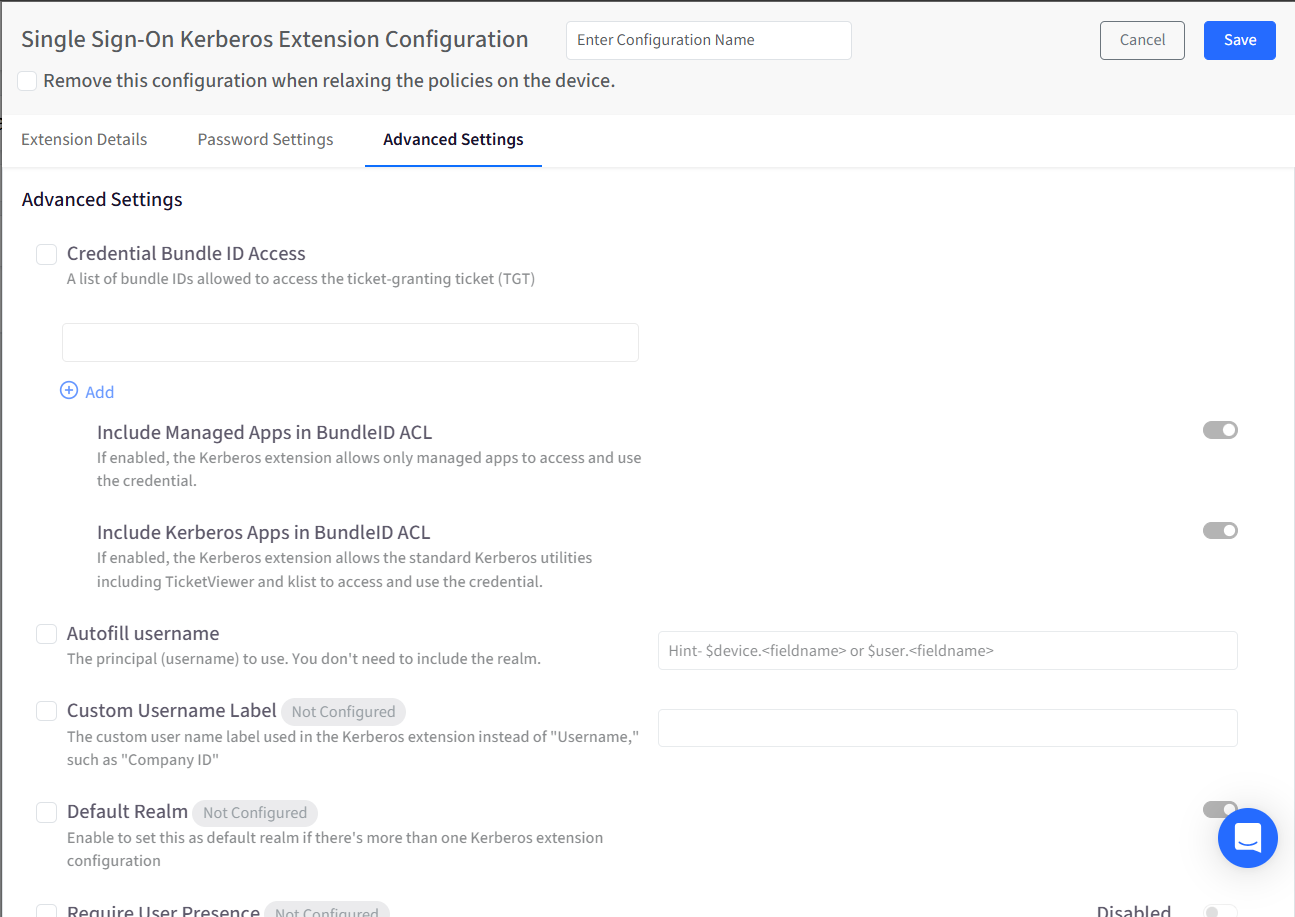
Advanced Settings
By default, settings appear as Not Configured. Select the checkbox to mark them as Configured.
Credential Bundle ID Access: Defines which applications are allowed to access the Kerberos ticket-granting ticket (TGT). Only apps listed here can use the Kerberos credentials.
Include Managed Apps in Bundle ID ACL: Restricts Kerberos credential access to managed applications only. This ensures that only apps deployed and controlled by MDM can use the credential.
Include Kerberos Apps in Bundle ID ACL: Allows built-in Kerberos tools, such as TicketViewer and list, to access the credentials.
Autofill Username: Pre-fills the username during authentication. You only need to specify the username portion—no realm is required.
Custom Username Label: Replaces the default “Username” label with a custom name, such as “Employee ID” or “Company ID”.
Default Realm: Marks this configuration as the default when multiple Kerberos extensions are present on the device.
Require User Presence: Requires the user to authenticate using Touch ID, Face ID, or their passcode before accessing the Kerberos credential stored in the keychain.
Site Code: Specifies the Active Directory site to use. In most cases, this does not need to be set, as the system can determine the site automatically.
Enable Site Auto-Discovery: Allows the system to automatically determine the Active Directory site using DNS and LDAP. Disabling this requires the site code to be specified manually.
Help Text: Displays custom text at the bottom of the Kerberos login window. This is useful for instructions, help information, or legal disclaimers.
Enable Monitor Credentials Cache: When enabled, the system continuously monitors the credential state. If a credential expires or is missing, the system automatically requests a new one when needed.
Allow Smart Card: Allows users to switch the authentication interface to Smart Card mode.
Start in Smart Card Mode: When enabled, the login interface opens in Smart Card mode by default.
Smart Card Identity Issuer Auto Select Filter: Filters available Smart Cards based on the issuer name using wildcards. If only one matching card remains, it is automatically selected for the user.