Scalefusion lets you quickly check details of a downloaded .pkg file on your macOS device using a simple Terminal command. This is helpful if you want to verify a package's information before or after installing it, without logging into the Scalefusion Dashboard.
Pre-requisite
Please make sure the following are true on your macOS device:
Scalefusion Agent is Active: The Scalefusion Agent/Client should be installed and running on your device.
Terminal Access: You should have access to the Terminal application.
Package File Path: You should know the full path to the downloaded
.pkgfile you want to check.
Steps to Check a Downloaded Pkg file
Open Terminal Open the Terminal app on your Mac.
Enter the Command Type the following command, replacing
<pkg_filepath>with the full path to the.pkgfile you want to check:
scalefusion -pkginfo <pkg_filepath>For example, to check details of a downloaded Chrome package:
scalefusion -pkginfo /Users/admin/Downloads/GoogleChrome.pkg
Press Enter Press Enter to run the command.
View the Details The Terminal will display the relevant details for the package you specified.
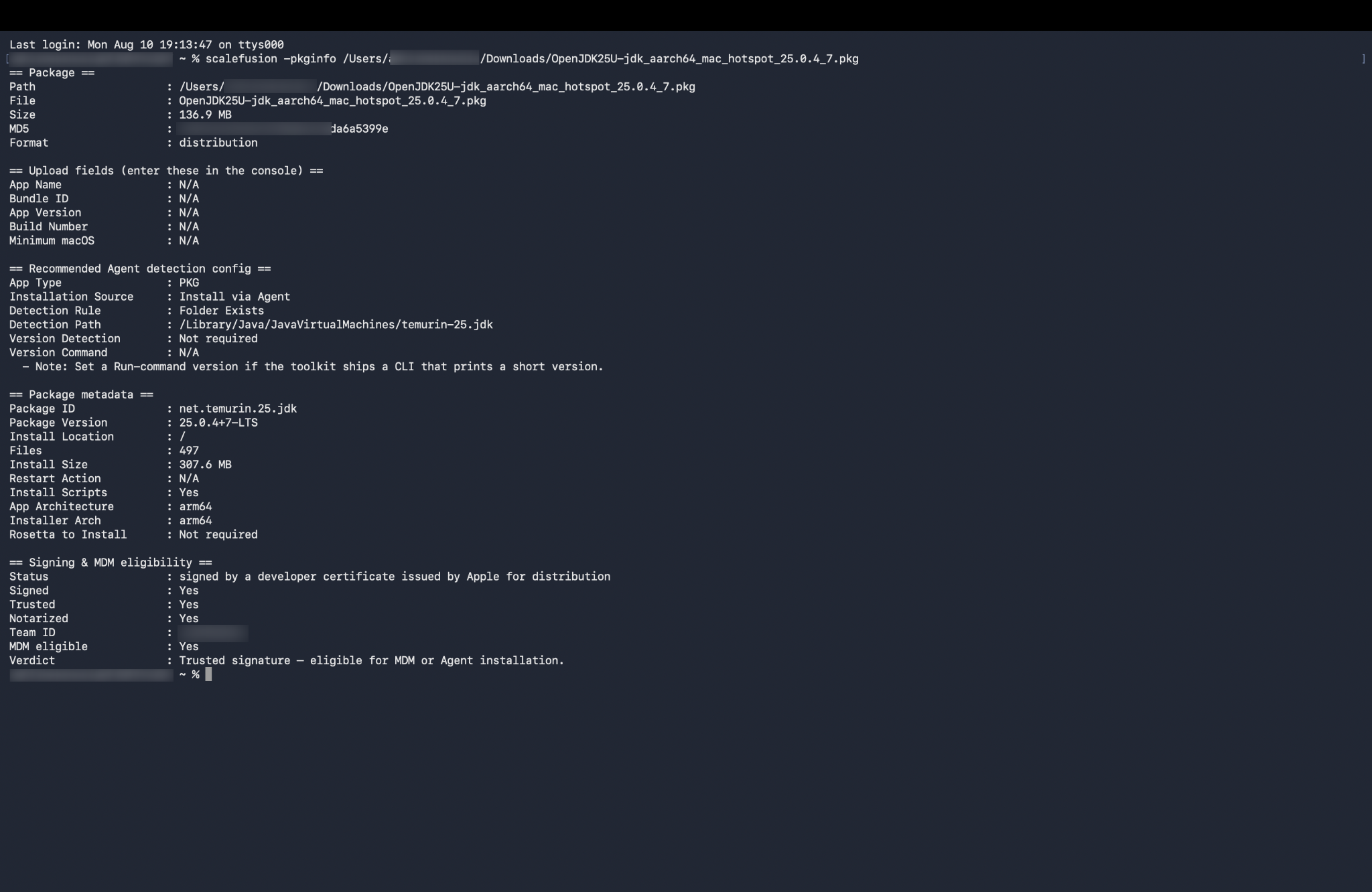
Expected Result
Scalefusion returns details about the specified .pkg file, allowing admins to verify package information directly even before one has installed the pkg on the device.