Enterprise Wi-Fi refers to a wireless network designed to meet the needs of large organizations, providing robust, secure, and scalable connectivity.
Scalefusion's WiFi configuration feature helps you create a WiFi network that can then be pushed to devices so that the WiFi network is automatically configured on them. In this guide, we will see how to create Enterprise Wi-Fi configurations on the Scalefusion Dashboard and apply them to Windows Device Profiles.
Prerequisites
Devices should be running a supported Windows version.
Supported on Windows devices enrolled with Scalefusion.
Creating a Wi-Fi Configuration
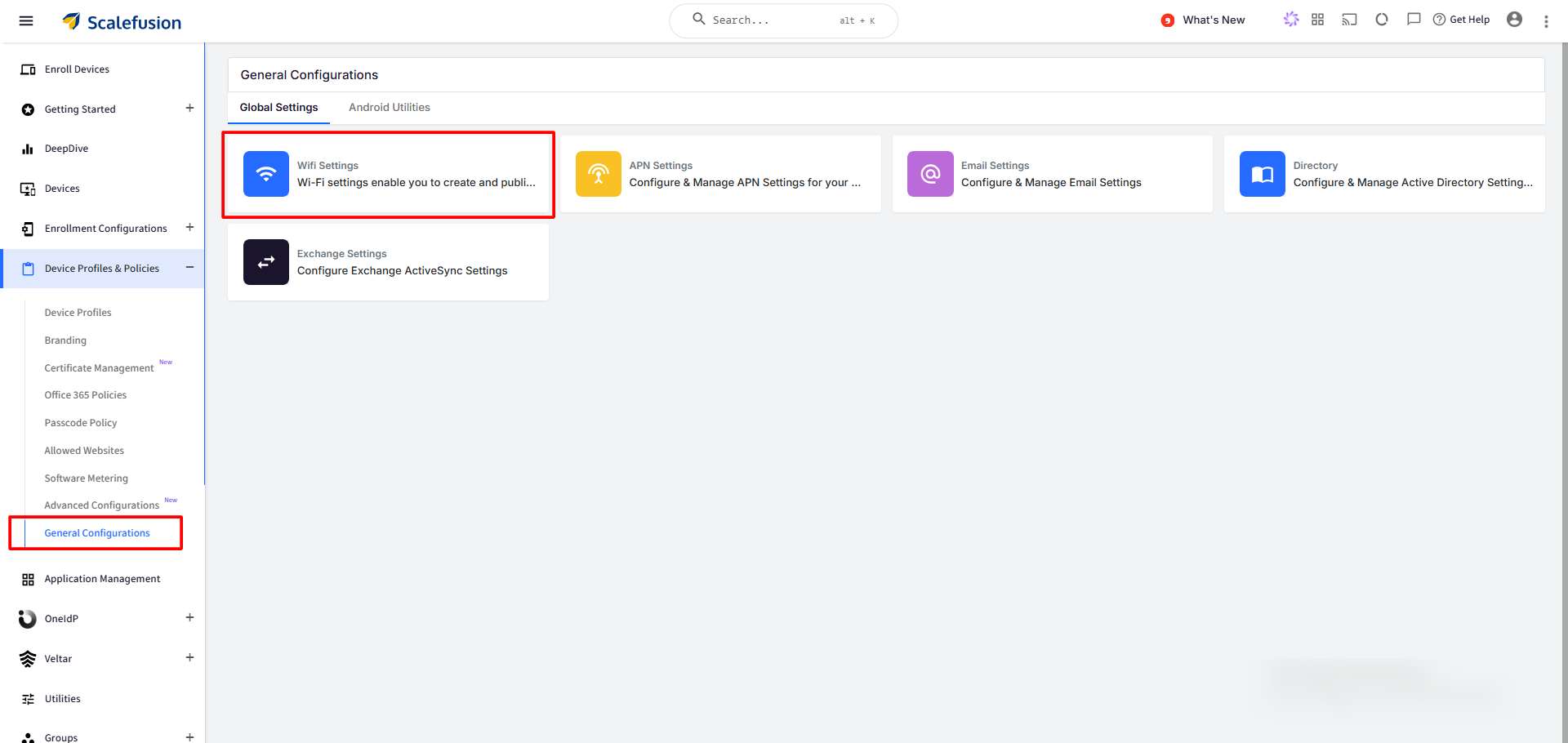
Navigate to Device Profiles & Policies > General Configurations.
Under Global Settings, click on Wifi Settings.
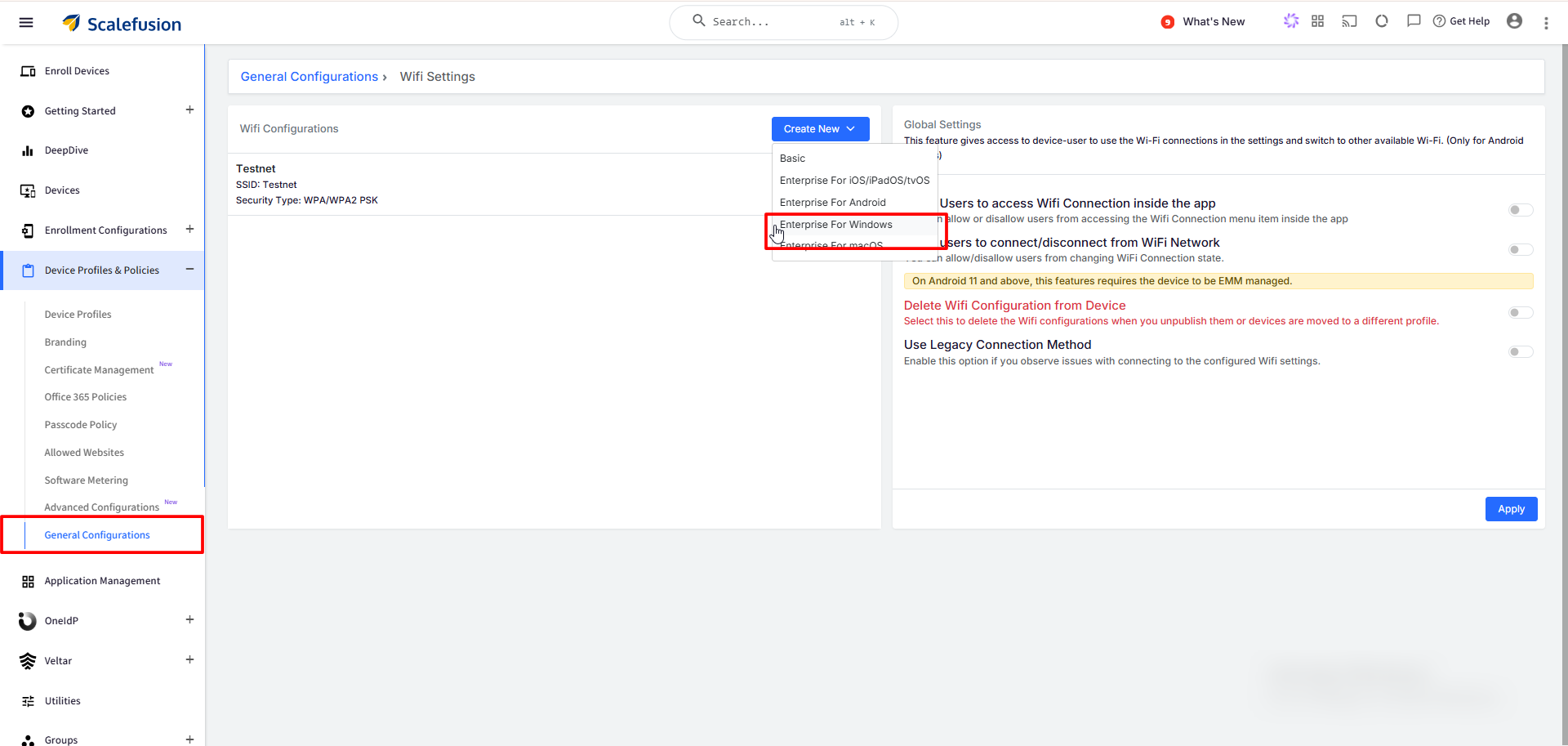
Click on the Create New button and select Enterprise for Windows.
Enter the following details in the Add Wifi Configuration window:
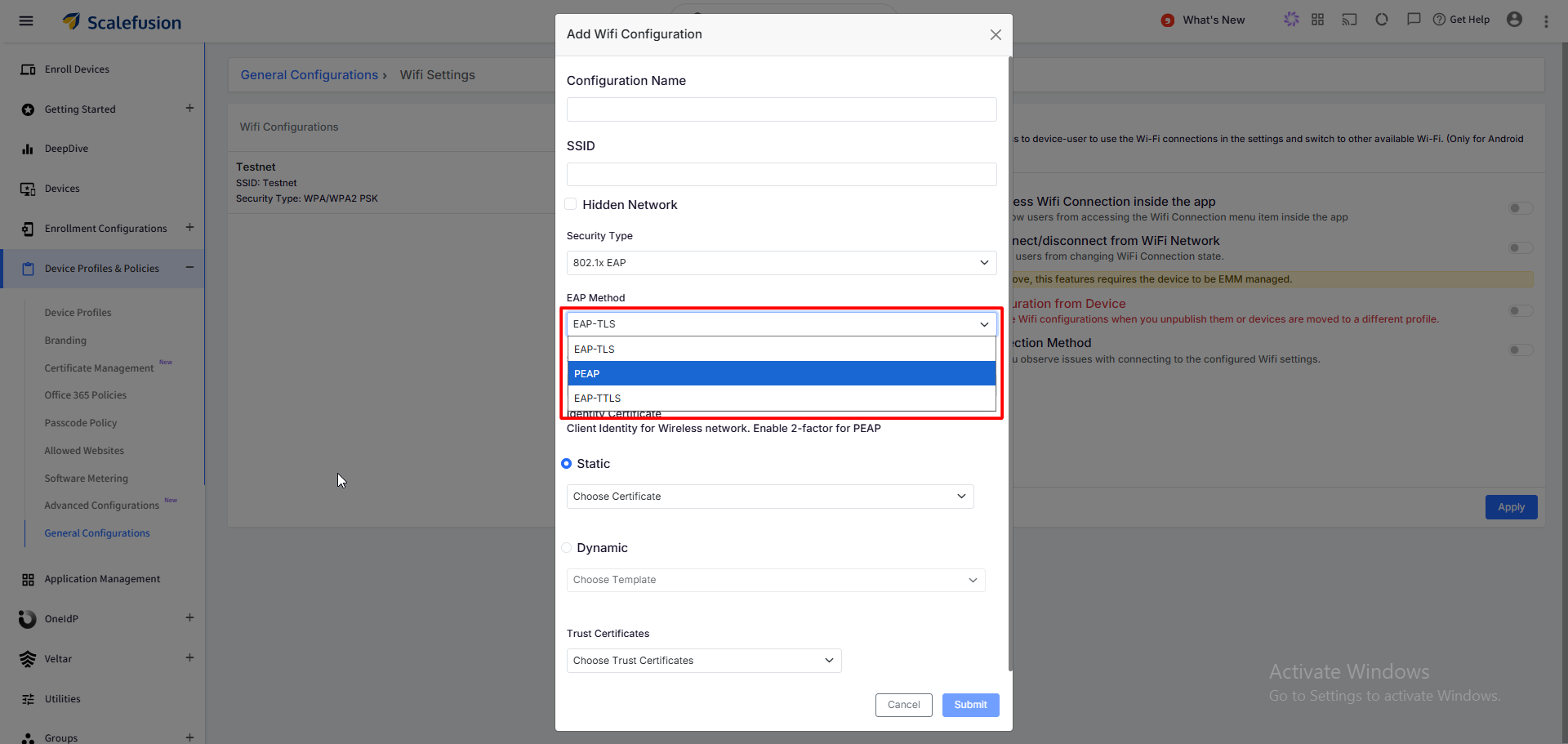
Configuration Name: Provide a name for this configuration.
SSID: Enter the SSID name of the Wi-Fi network.
Hidden Network: Enable this if the network is hidden.
Security Type: This will be 802.1x EAP.
EAP Method: Choose one of the following — EAP-TLS, PEAP, or EAP-TTLS.
The fields that follow change depending on the EAP Method selected, as described below.
EAP-TLS
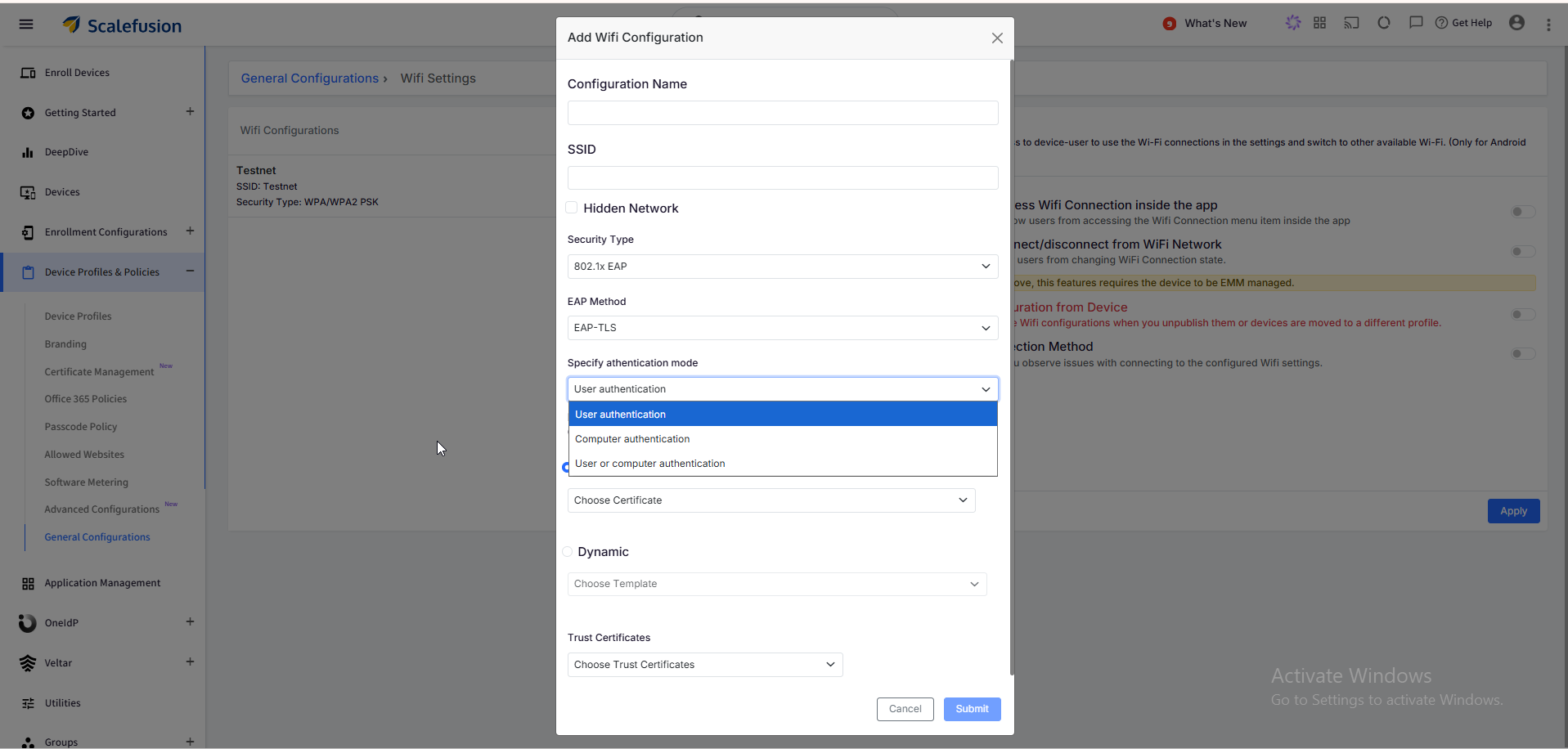
Specify authentication mode: Choose from which location the certificates should take up to authenticate to the network:
User authentication
Computer authentication (Recommended)
User or computer authentication
Identity Certificate: Used as the client identity for the wireless network.
Static: Select this and choose a previously uploaded certificate from the Choose Certificate dropdown.
Dynamic: Select this and choose a certificate template from the Choose Template dropdown.
Trust Certificates: Select the root/trust certificate(s) to be used from the Choose Trust Certificates dropdown.
(Note: If uses Dynamic, then select both RADIUS CA and SCEP CA cert)
PEAP
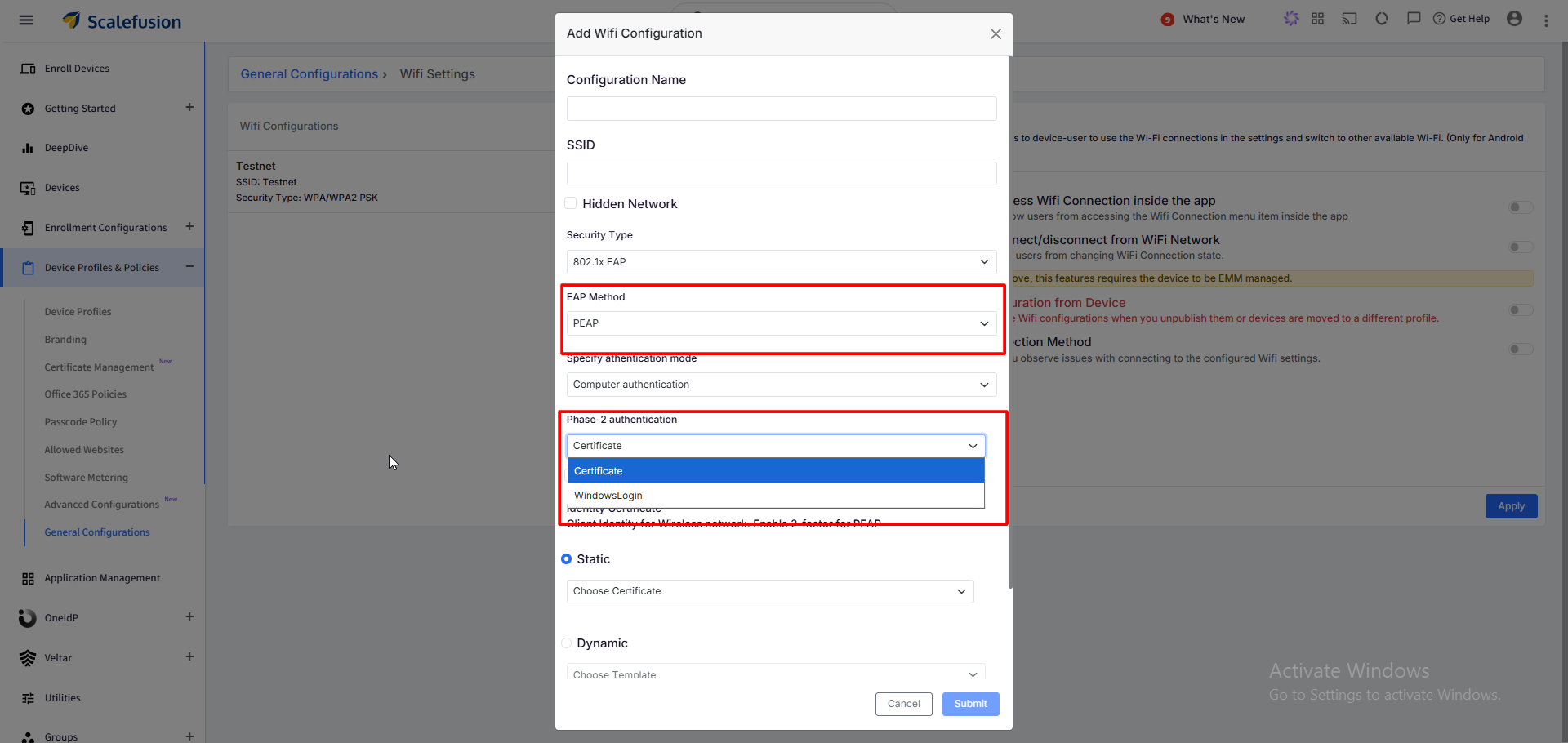
Specify authentication mode: Choose one of the following:
User authentication
Computer authentication
User or computer authentication
Phase-2 authentication: Select either Certificate or Windows Login.
Require Crypto Binding: Enable this if crypto binding should be enforced between phase 1 and phase 2 authentication.
Identity Certificate: Client identity for the wireless network. Enables 2-factor authentication for PEAP.
Static: Select this and choose a previously uploaded certificate from the Choose Certificate dropdown.
Dynamic: Select this and choose a certificate template from the Choose Template dropdown.
Trust Certificates: Select the root/trust certificate(s) to be used from the Choose Trust Certificates dropdown.
EAP-TTLS
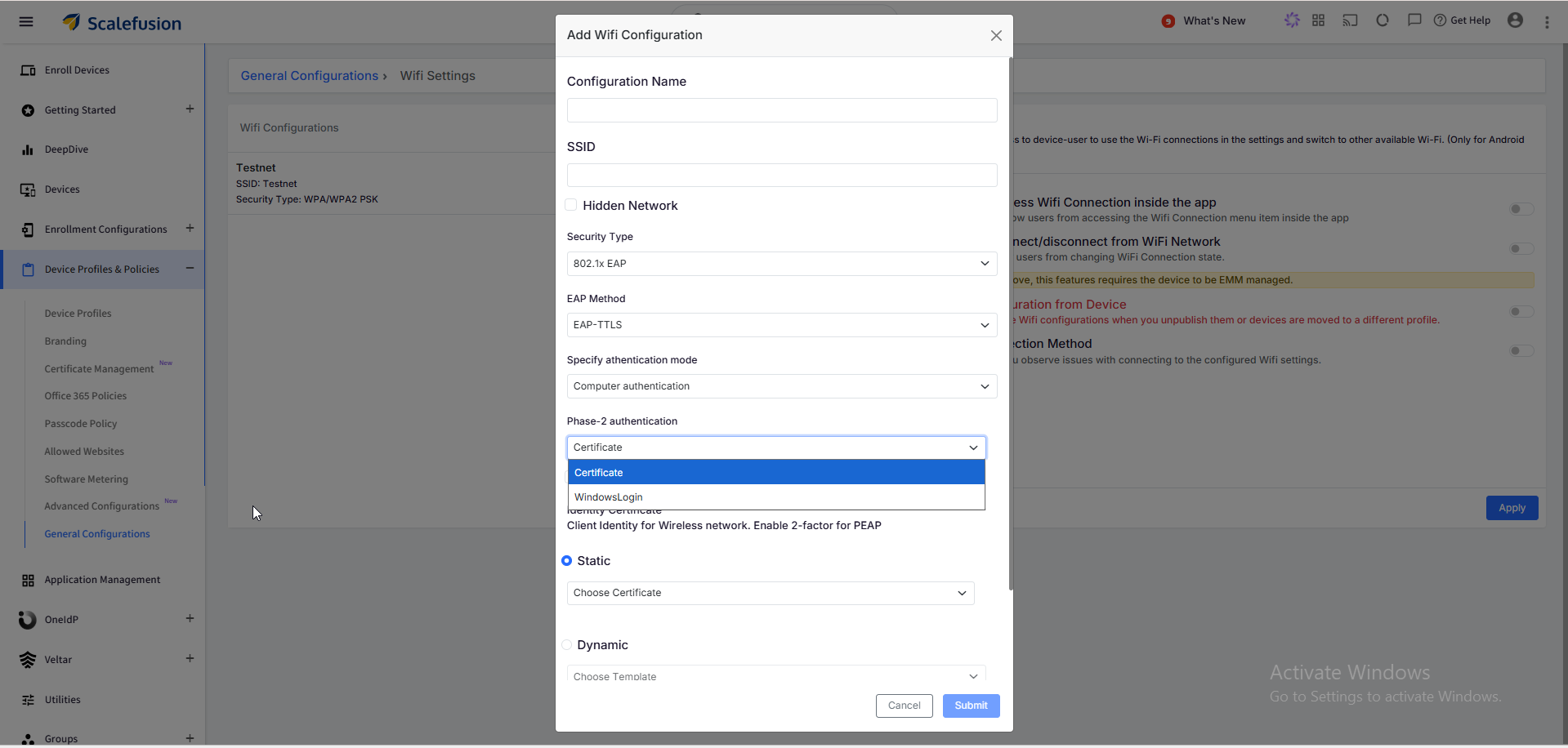
Specify authentication mode: Choose one of the following:
User authentication
Computer authentication
User or computer authentication
Phase-2 authentication: Choose one of the following: Certificate or WindowsLogin
Require Crypto Binding: Enable this if crypto binding should be enforced between phase 1 and phase 2 authentication.
Identity Certificate: Client identity for the wireless network.
Static: Select this and choose a previously uploaded certificate from the Choose Certificate dropdown.
Dynamic: Select this and choose a certificate template from the Choose Template dropdown.
Trust Certificates: Select the root/trust certificate(s) to be used from the Choose Trust Certificates dropdown.
Once you have entered the relevant details, click on Submit to save the configuration. The configuration will start appearing in the list of Wi-Fi configurations.
Additional Actions
You can perform the following actions once a Wifi Configuration is created:
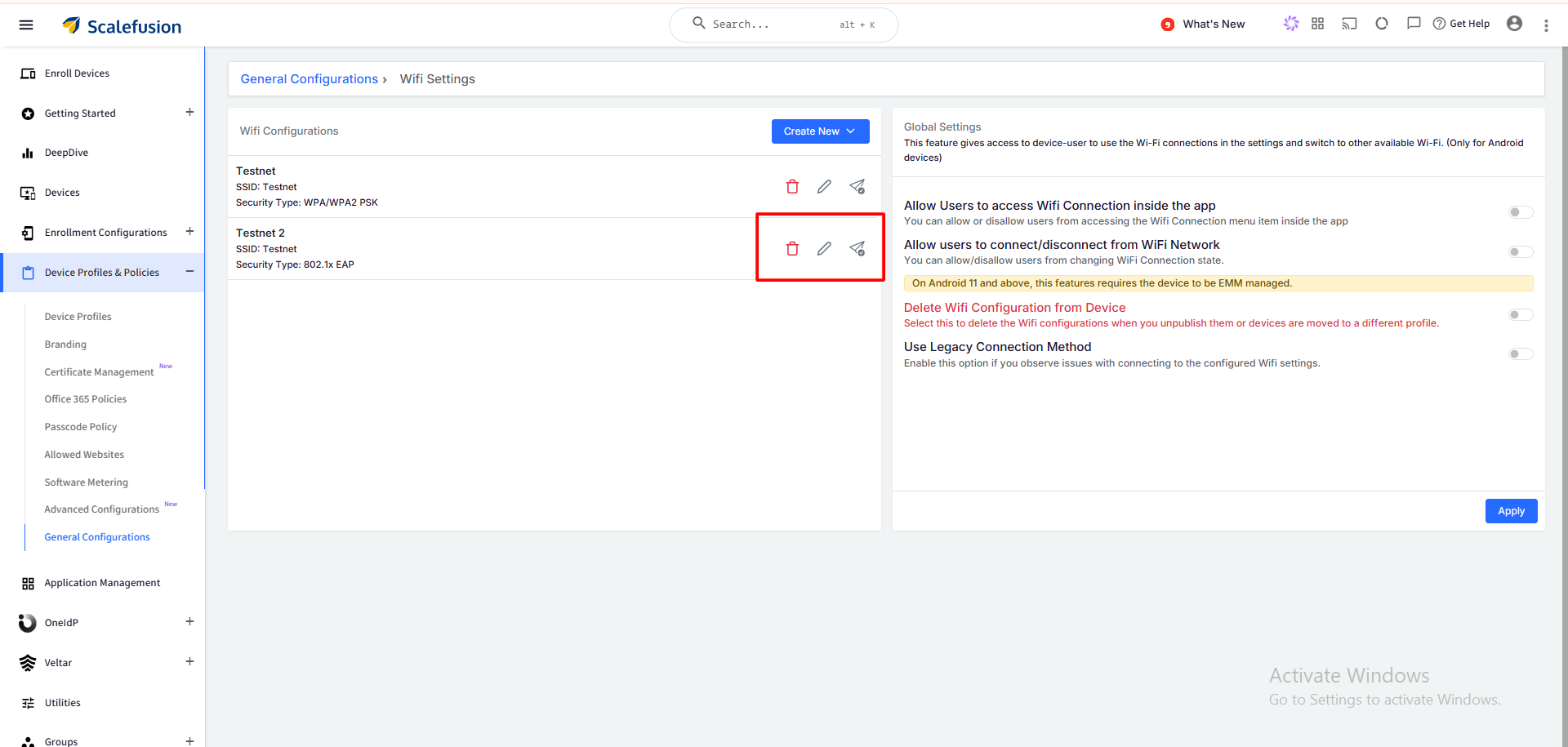
Publish: Click on the Publish button and select Windows Device Profiles and Devices to directly push the configuration.
Edit: This opens the "Update Configuration" window, where you can edit the existing configuration.
Delete: Deletes the Wifi Configuration.
Applying WiFi Configuration on a Windows Device Profile
Navigate to Device Profiles & Policies > Device Profiles.
Select the concerned Windows profile and click on the Edit button.
Go to the network settings section for Wi-Fi.
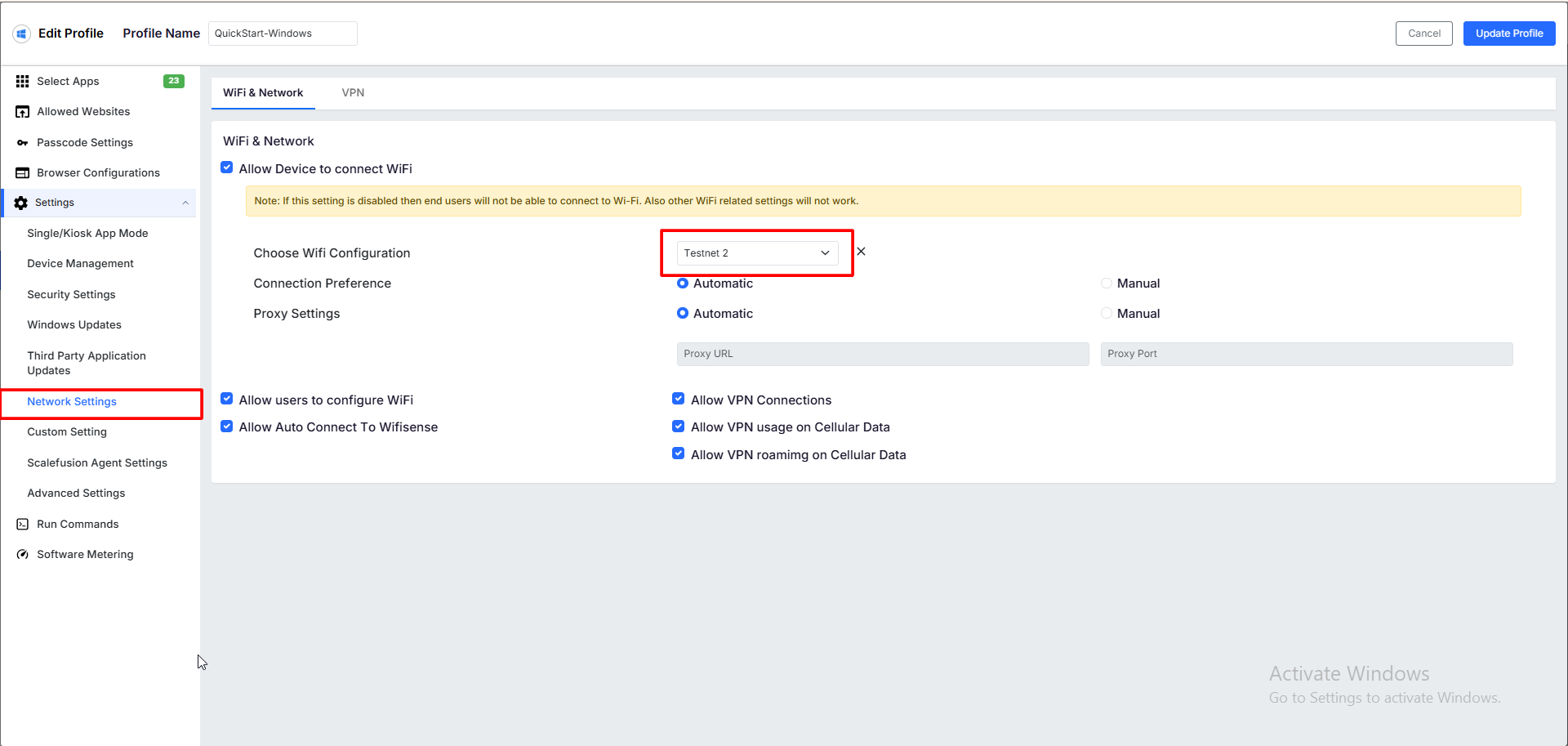
Select the Primary and additional Wi-Fi configurations on this page so that they are remotely configured on the device.
Click UPDATE PROFILE to save the changes to the device profile. The Wi-Fi configuration(s) will be applied to the devices on which this Device Profile is applied.