Scalefusion supports management of Sunmi devices, allowing organizations to remotely configure, monitor, and secure their devices from the Scalefusion dashboard. Sunmi devices may come with or without Google Mobile Services (GMS). The enrollment and application deployment process differs depending on the device type.
This document explains the supported device types and provides step-by-step guidance for deploying and enrolling Sunmi devices into Scalefusion.
Pre-requisites
Before you begin, ensure the following requirements are met:
Access to the Scalefusion Dashboard
Access to the Sunmi Partner Portal
The following applications available for deployment:
Scalefusion Agent for Android
Wingman Application
List of Sunmi device serial numbers that need to be managed
Coordination with the Sunmi team to register devices in the Partner Portal (for Non-GMS devices).
Overview
Sunmi devices supported by Scalefusion fall into two categories:
Device Type | Description | Enrollment Method |
|---|---|---|
GMS Devices | Devices with Google Mobile Services | Android Enterprise enrollment methods such as Zero-touch, 6-times tap and the like |
Non-GMS Devices | Devices without Google services | Deployment through Sunmi Partner Portal |
Enrollment for GMS Devices
If the Sunmi device supports Google Mobile Services, it can be enrolled using standard Android Enterprise methods supported by Scalefusion. Once enrollment is complete, the device will automatically install the Scalefusion agent and apply device management policies.
Alternatively, the non-GMS deployment workflow also works on GMS devices.
Deployment Process for Non-GMS Devices
For Non-GMS devices, the Scalefusion applications must first be deployed using the Sunmi Partner Portal. The deployment process consists of the following steps.
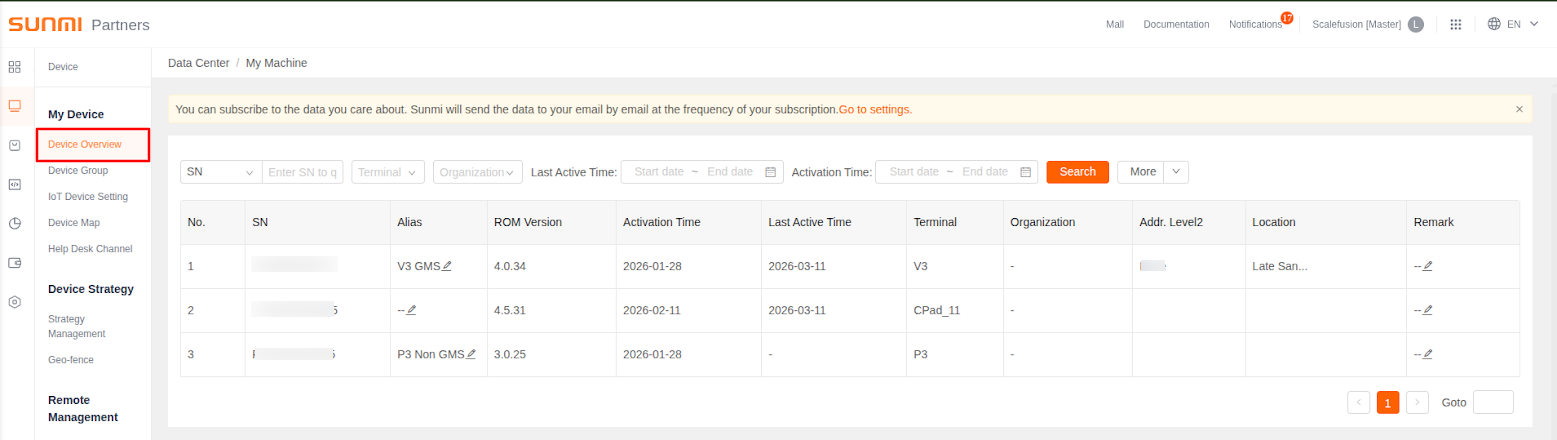
Step 1: Register Device Serial Numbers
To deploy applications to specific devices, the device serial numbers must be registered in the Sunmi Partner Portal.
Collect the serial numbers of the devices you want to manage.
Share the serial numbers with the Sunmi support team.
Sunmi will upload these devices to your Sunmi Partner Portal account.
Once registered, Scalefusion applications can be assigned to those devices.
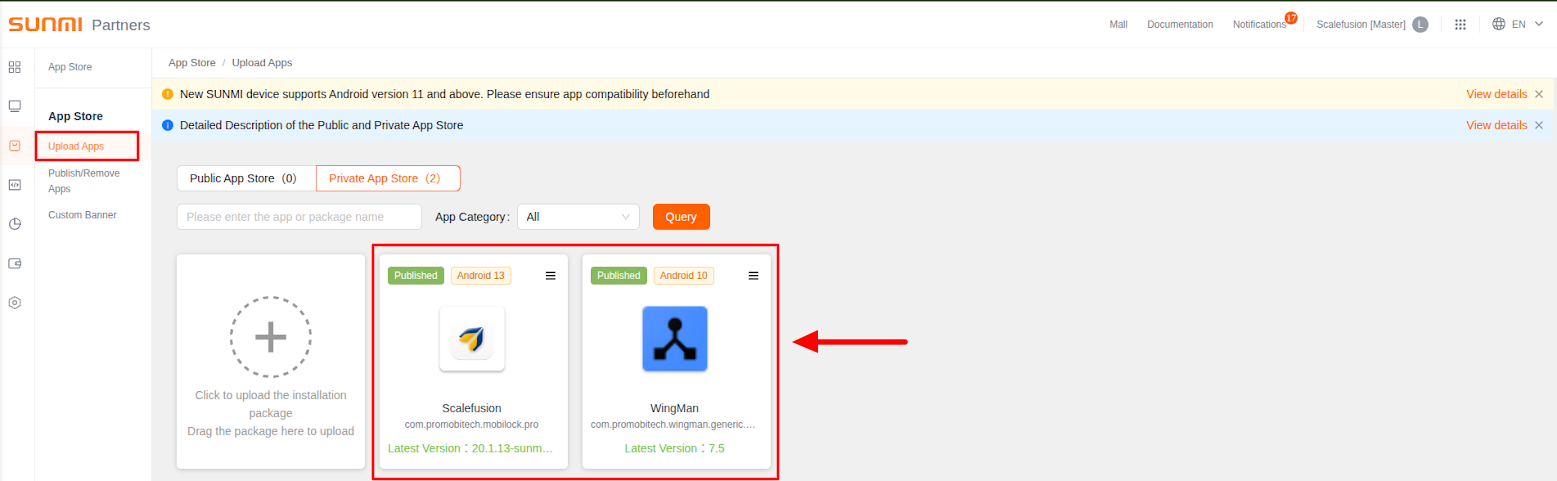
Step 2: Upload Scalefusion Applications
Upload the required Scalefusion applications to the Sunmi Partner Portal. Required applications:
Scalefusion Agent
Wingman Application
These applications enable device enrollment and allow Scalefusion to manage the device remotely.
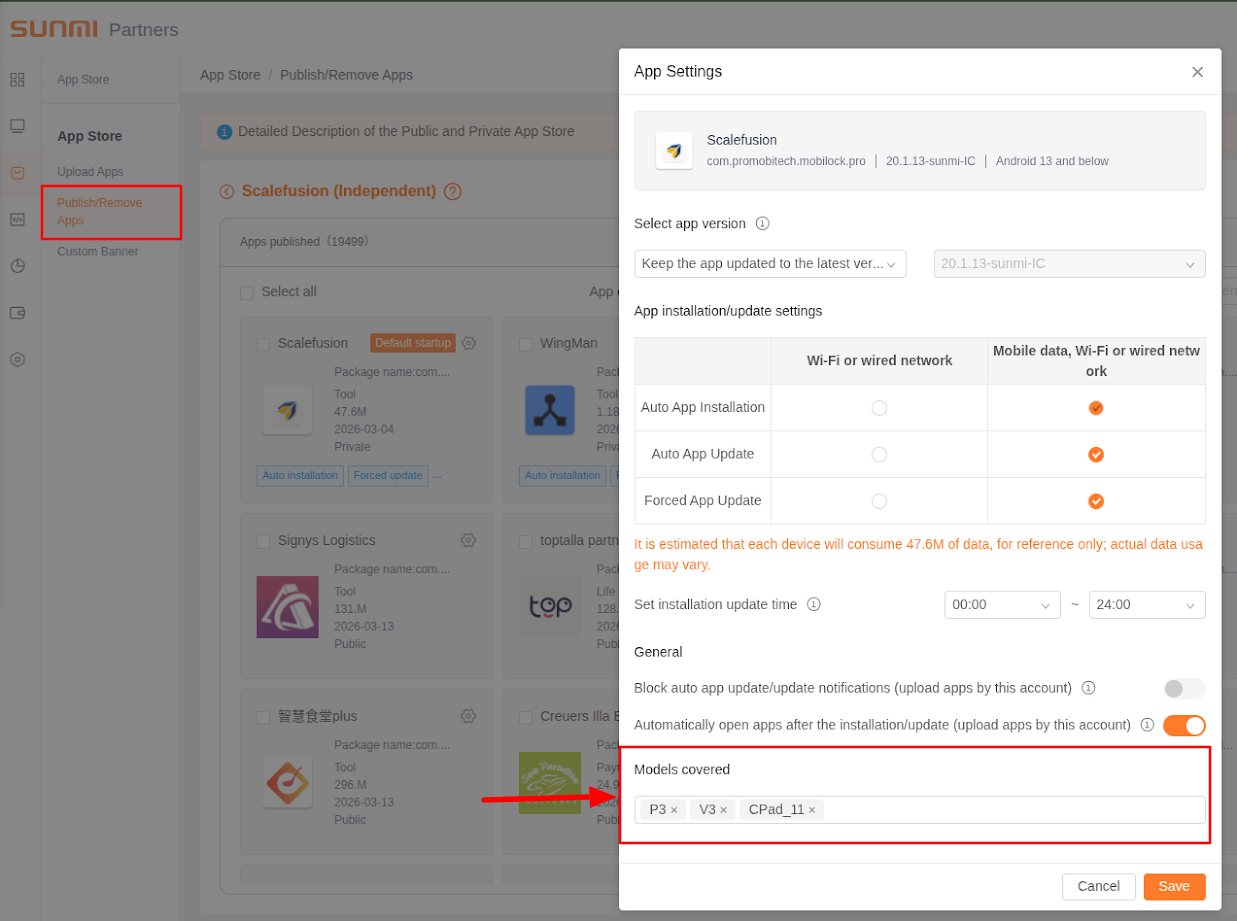
Step 3: Publish the Applications
After uploading the applications, publish them and assign them to the appropriate device models.
Once published, the applications will be automatically deployed to the registered device models.
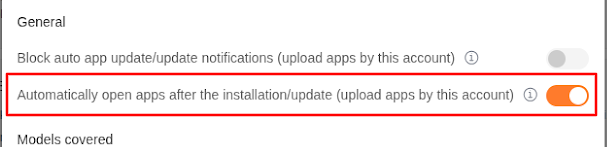
Step 4: Enable Automatic Application Launch
To streamline the enrollment process, configure the following policy:
Automatically open apps after installation/update
Enabling this setting ensures that the Scalefusion Agent launches automatically after installation, allowing the device to begin the enrollment process immediately.
The Sunmi App Store version 6.1.41 or higher is required to use this feature.
On Device
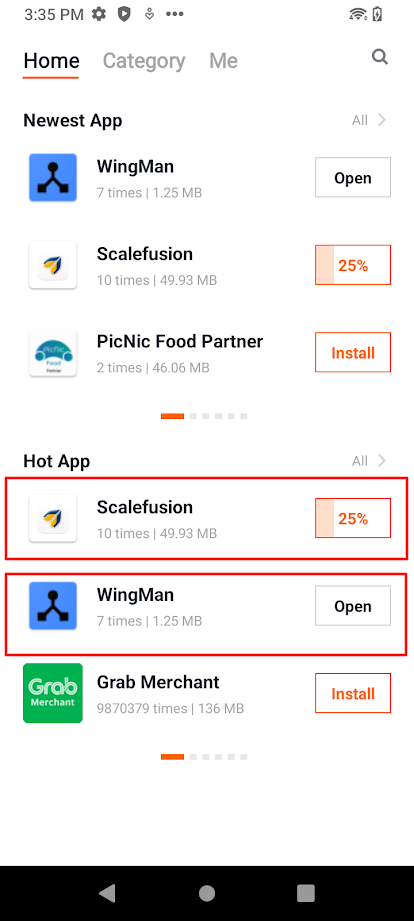
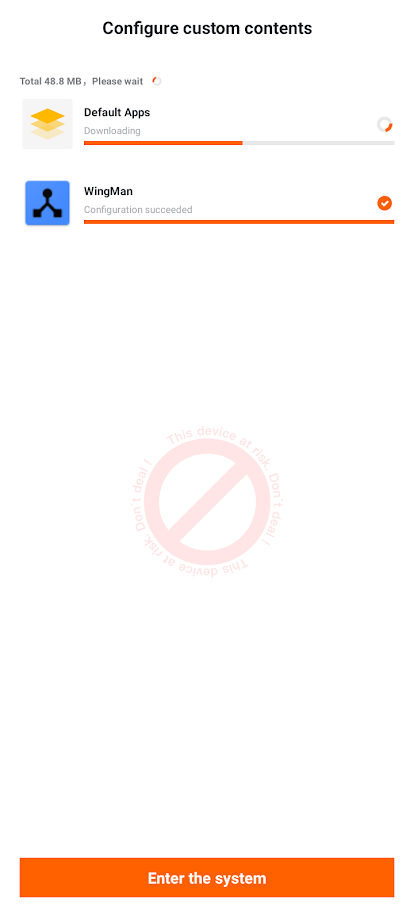
Once the setup is complete, the installation of Scalefusion / Wingman on the device begins.
GMS devices
Non-GMS devices
Post-Installation
After the installation is complete:
The Scalefusion Agent launches automatically.
The device connects to the Scalefusion Dashboard.
Device policies and configurations are applied.
Administrators can then manage the device from the Scalefusion console.
FAQ
Q: What happens if the Scalefusion app is deleted or uninstalled locally from the device?
A: If the Scalefusion app is deleted or uninstalled locally, the device must be factory reset and enrolled again.