Introduction
Custom Configuration is designed for administrators who need more control than what’s available through the standard Dashboard options. It allows you to apply Apple configuration payloads that are not natively exposed in the UI, giving you the flexibility to manage advanced or specialized device behaviors. Using Custom Configuration, you can:
Upload or define custom Apple configuration payloads.
Configure advanced, niche, or Apple-specific settings.
Extend device management beyond the predefined Dashboard controls.
Supported Platforms
iOS/iPadOS
macOS
tvOS
Creating the configuration
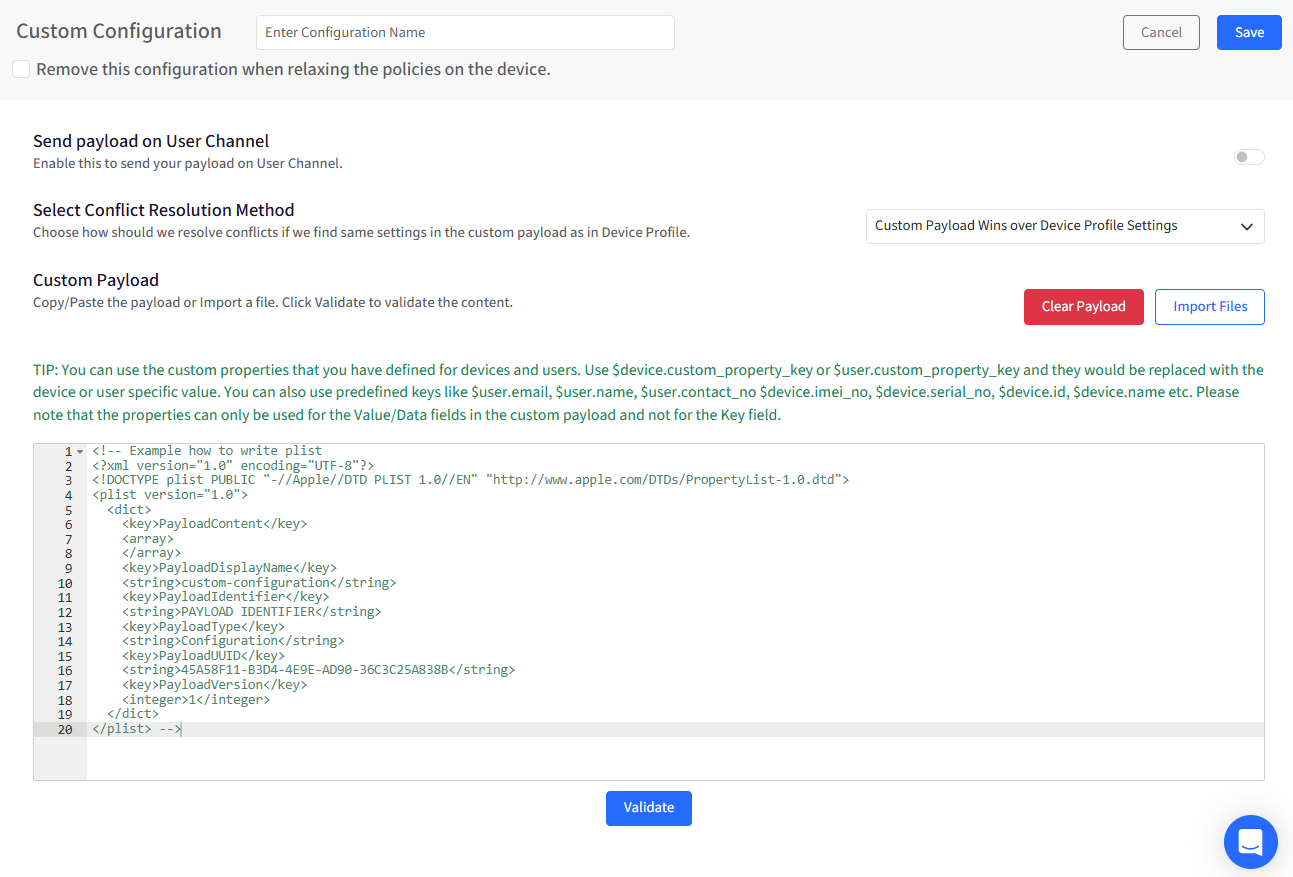
Provide a name to this configuration.
Remove this configuration when relaxing the policies on the device: When this option is enabled, the configuration will be automatically removed in the following scenarios: when policies are relaxed, or the device is unlocked via the dashboard, and when the device is deleted, all associated configurations and data will be cleared from the device.
Send payload on User Channel (Supported for macOS only): When enabled, the custom payload is delivered through the User Channel instead of the Device Channel. Leave this disabled for device-wide configurations. Use this option when:
The payload applies to user-specific settings.
The configuration requires a logged-in user context.
Leave this disabled for device-wide configurations.
It works only if the specific configuration supports User Channel.
Select Conflict Resolution Method: This setting determines how Scalefusion handles conflicts when the same setting exists in both the custom payload and the device profile.
Custom Payload Wins Over Device Profile Settings: Any setting defined in the custom payload will supersede the one configured in the device profile.
Device Profile Wins Over Custom Payload: When a setting is present in both the device profile and the custom payload, the device profile setting is enforced. The custom payload is still delivered, but the profile configuration takes priority. This helps avoid ambiguity when overlapping configurations are applied.
Custom Payload: This section is used to define the Apple configuration payload. You can:
Paste the payload directly in XML (plist) format.
Import files containing the payload.
Clear Payload to remove existing content.
Click Validate to verify that the payload syntax is correct before saving.
Using Custom Properties in Payloads
You can use dynamic placeholders in the payload that are replaced with device- or user-specific values at runtime. Supported examples include:
$device.custom_property_key
$user.custom_property_key
$user.email, $user.name, $user.contact_no
$device.serial_no, $device.imei_no, $device.id, $device.name
Note: Custom properties can be used only in Value/Data fields within the payload and not in Key fields.
Note:
Adding multiple payloads of the same type on the same profile can result in unexpected behaviours.