Setting up On-Prem Connector (OPC) in High-Availability (HA) mode helps ensure continued availability by allowing multiple OPC instances to work together behind a load balancer, web server, or reverse proxy. This helps reduce downtime if one OPC server becomes unavailable.
This article explains how to:
Create a copy of an existing OPC configuration
Use the copied configuration to set up additional OPC instances
Configure your HA software to work with multiple OPC servers
Using this setup, you can quickly deploy multiple OPC instances and improve reliability for your environment.
How it Works
In High Availability (HA) mode, OPC allows administrators to create a reusable configuration from an existing On-Prem Connector setup. This configuration can then be used to quickly set up additional OPC instances on separate Windows machines.
Once multiple OPC instances are configured, they can be connected through your HA software, load balancer, or reverse proxy to provide improved availability and failover support.
Pre-requisites
Complete the setup of On-Prem Connector using the Web-Server/Reverse proxy method on your primary OPC machine
Access to the machine where OPC is configured
Access to the machine where HA software is installed
Please note that the support for HA has been tested only with IIS, NGINX and HAProxy.
Important Points to Note:
The On-Prem Connector (OPC) is designed and tested for deployment on Windows Server environments. Native support for Linux distributions is not available. For best results, deploy OPC only on a Windows Server machine.
High-availability (HA) software can be installed on either Windows or Linux, depending on the compatibility and system requirements of your chosen HA solution.
Scalefusion provides limited guidance for configuring HA software to work with multiple OPC instances. Support is limited to OPC integration guidance only. Configuration, deployment, troubleshooting, and advanced setup of third-party HA software are outside the scope of Scalefusion support.
Step 1: Copy Configuration from the On-prem Connector
Administrators can create a reusable OPC configuration package and use it to configure another On-Prem Connector instance. This is useful when implementing a high-availability setup using a web server or reverse proxy architecture.
Create a Configuration Package
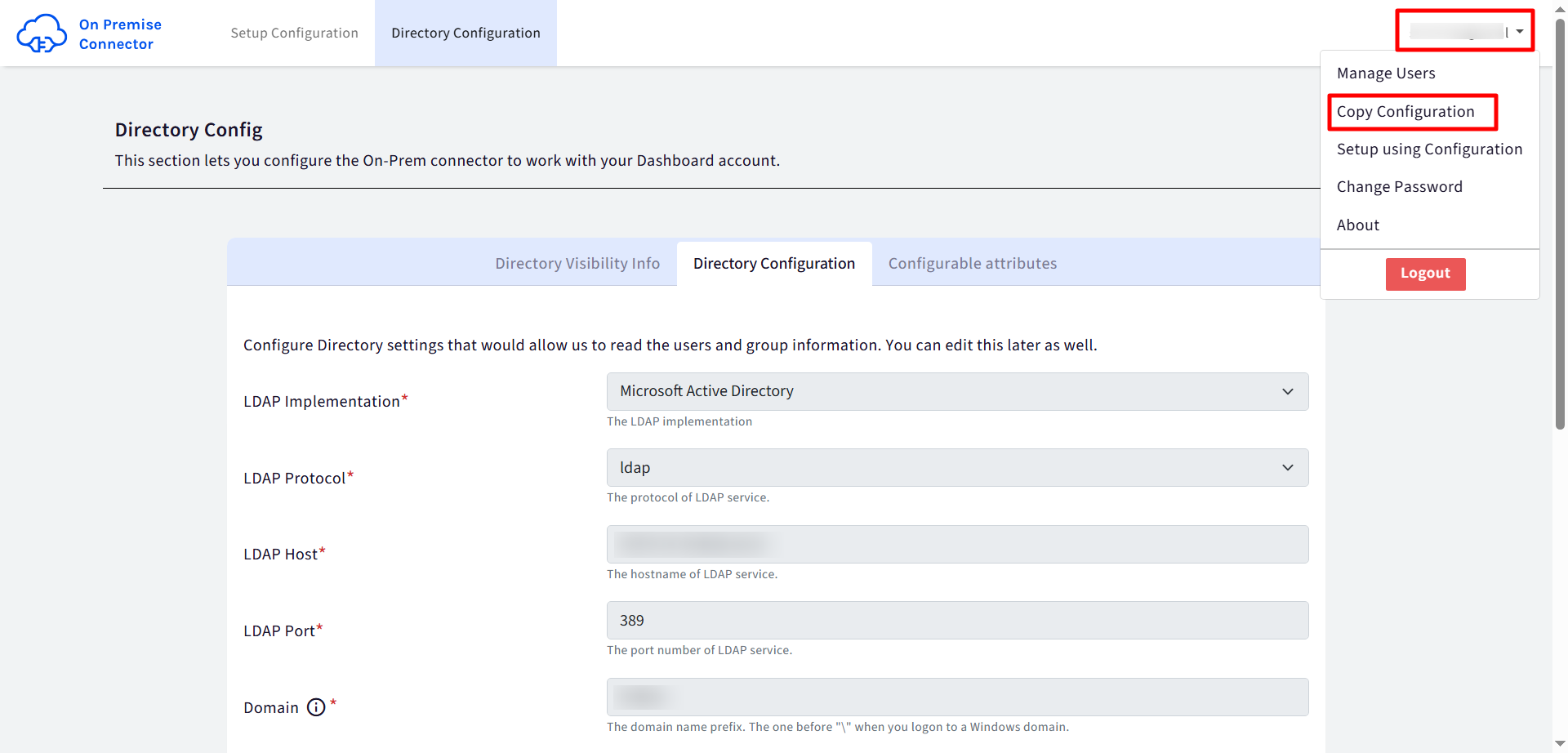
Open the user menu in the top-right corner of the OPC interface and click Copy Configuration.
Note: The Copy Configuration option is available from the user menu only after the OPC setup is complete.
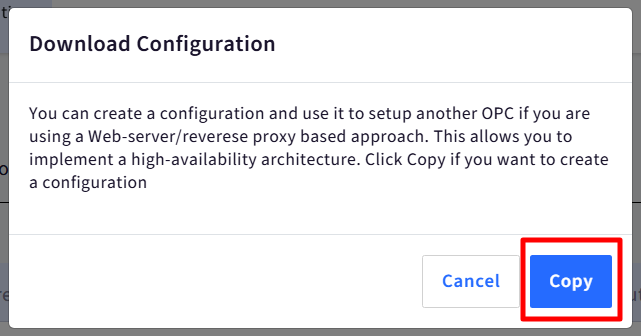
A dialog window appears with information about creating a reusable configuration package (as shown below).
Click Copy to begin generating the configuration package.
Once complete, the configuration file is downloaded to your Downloads folder with the name:
opc-configuration-dd-MM-YYYY-HH:MM.zipClick OK to close the dialog.
Step 2: Setup a new machine with Copied Configuration
When setting up a new OPC instance, administrators can import settings from an existing On-Prem Connector configuration file.
Install OPC on second server machine.
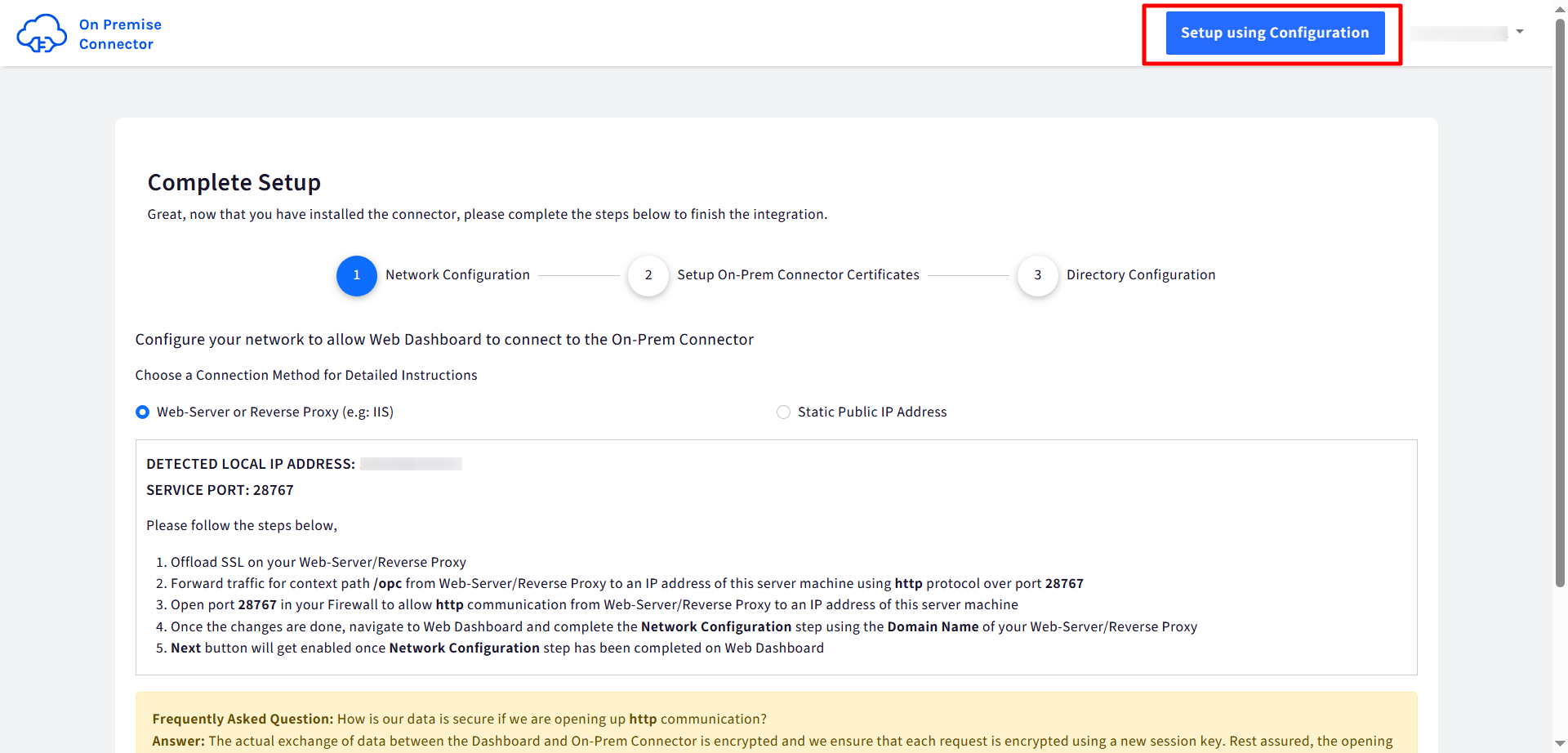
On the setup screen, click Setup using Configuration.
In the dialog window, click the file chooser and select a configuration
.zipfile created from a working On-Prem Connector instance (downloaded in Step #1) and click Upload ConfigurationCheck the box for overwriting existing configuration files
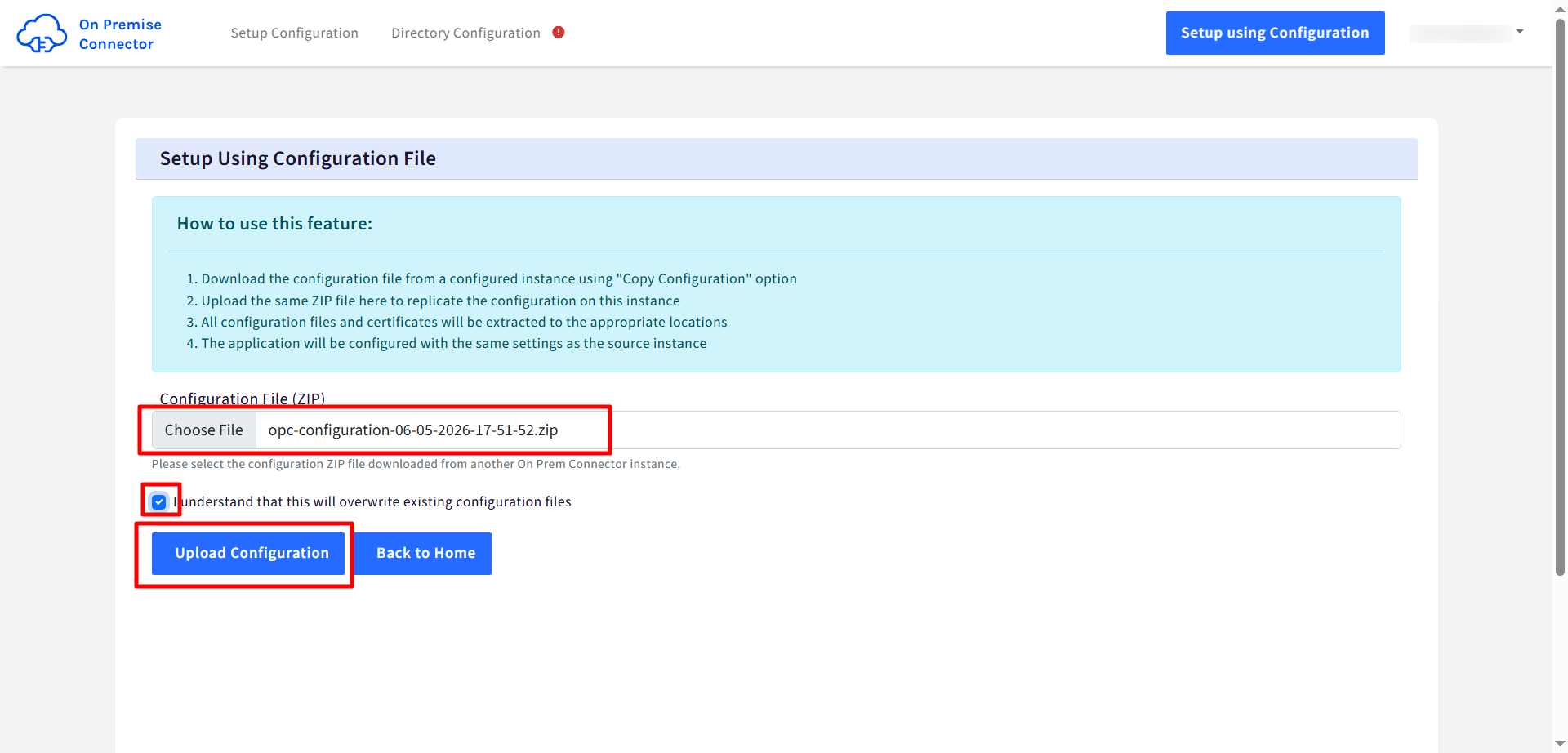
OPC validates the uploaded
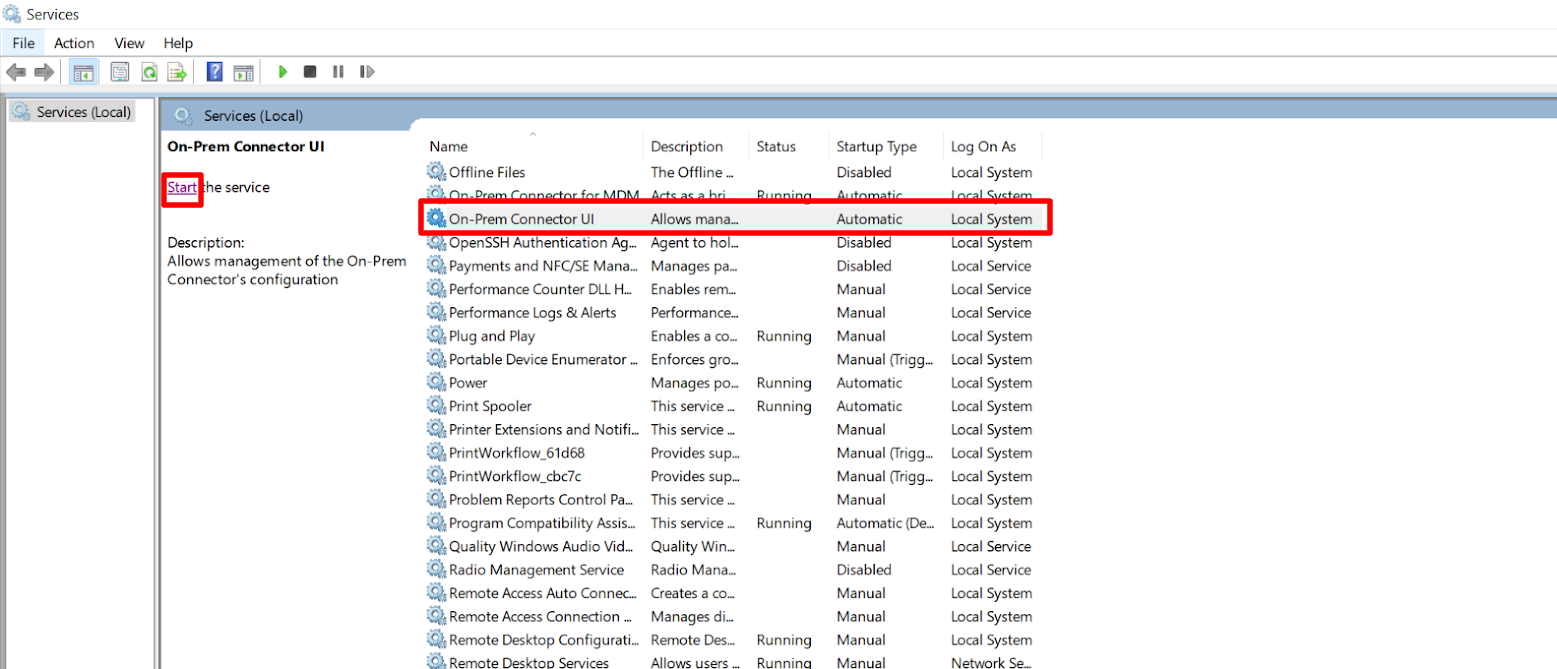
.zipfile to ensure all required configuration files are present.Now, go to Services to Start / Restart the On-Prem Connector UI.
Next, you will get the following screen on setup page. Click on Click here to re-login
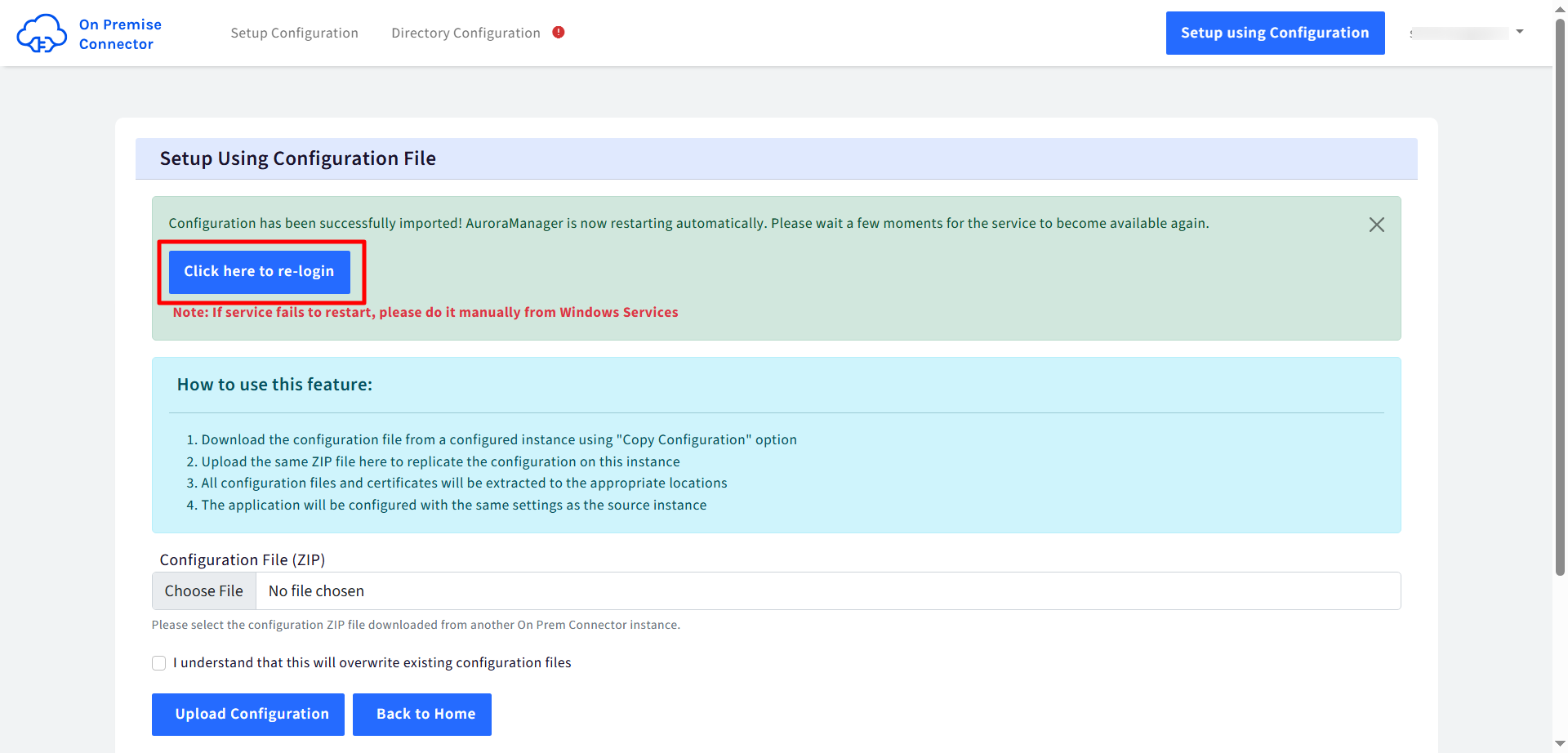
This completes the configuration process