First step towards managing your Printer devices is to complete the Printer setup on the Scalefusion dashboard by configuring Device Conductor.
Pre-Requisites
Device Conductor should be running on a machine which is accessible from the Scalefusion platform.
Valid User ID and password for accessing the Device Conductor APIs.
The DC should be installed on a Windows 10 or higher machine and should be in the same network as the printers.
Configuring the Connection
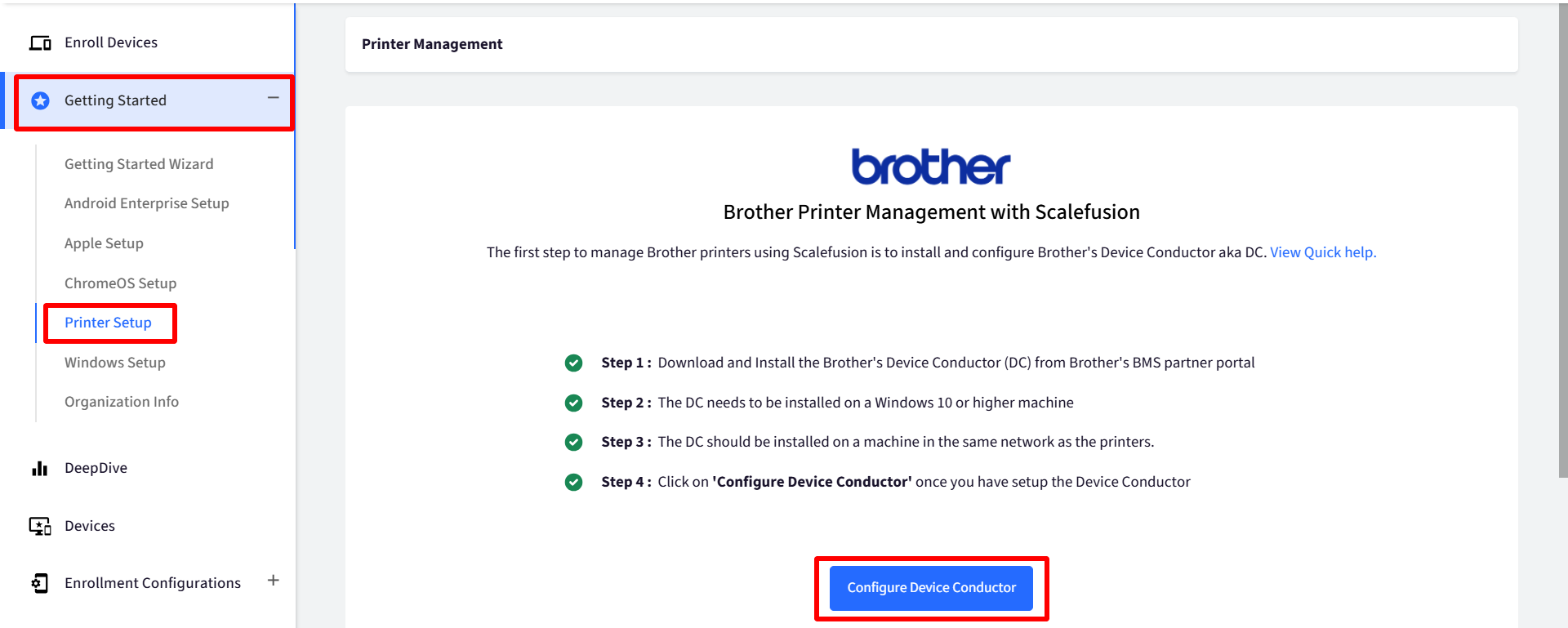
Navigate to Getting Started > Printer Setup section.
Click on Configure Device Conductor
Enter the following details and click Save Connection:
Public Domain or IP Address: Enter the public domain or IP address of the machine where Device Conductor is installed.
Configure DC Port: Enter the port number opened for communication.
Enter User ID: Enter the User ID used to access the Device Conductor APIs.
Enter Password: Enter the password used to access the Device Conductor APIs.
Upload Certificate: Upload the Device Conductor certificate for network connection (e.g.,
cacert.pem).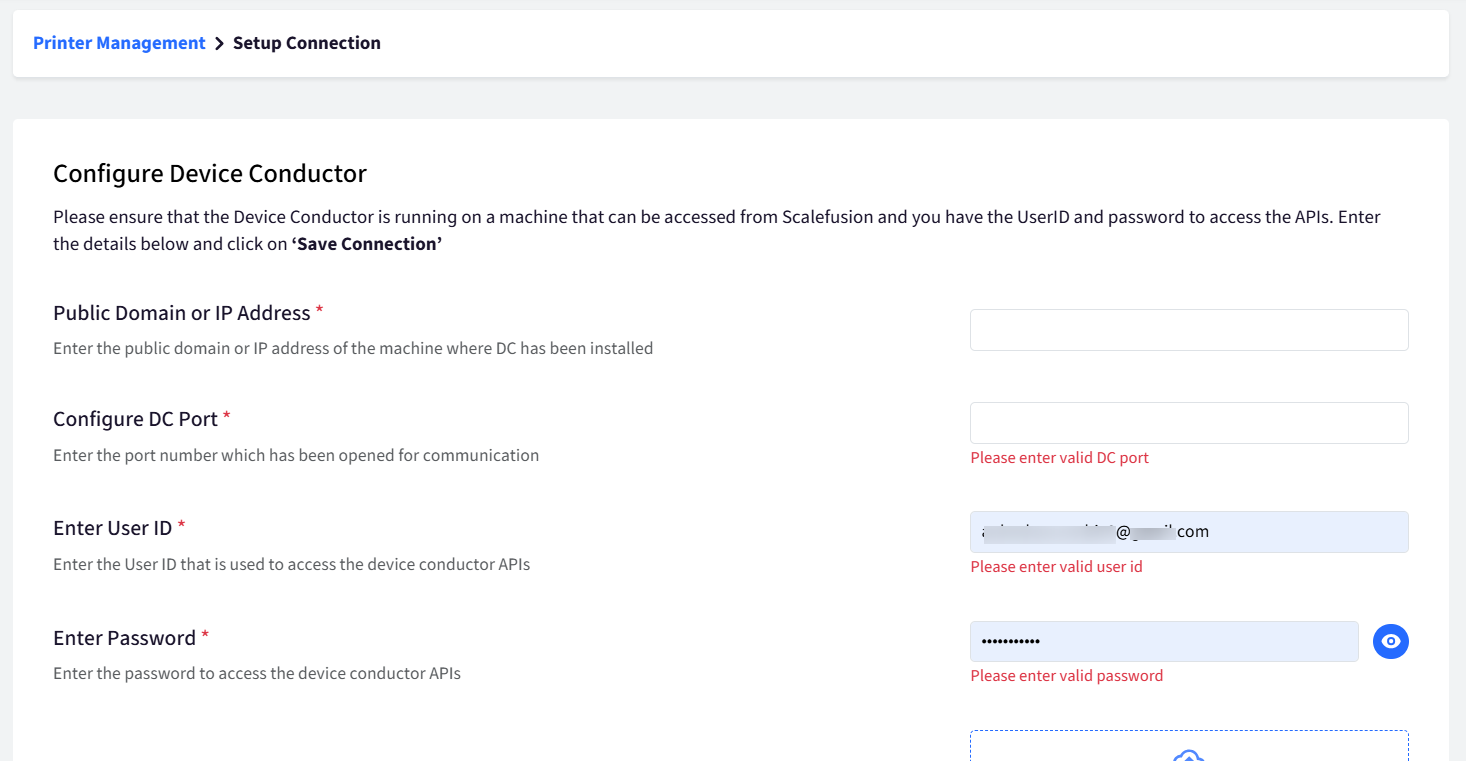
Once the connection is successful, you will be redirected to the Printer Management screen. A sync process will then begin to fetch printers based on your sync settings.
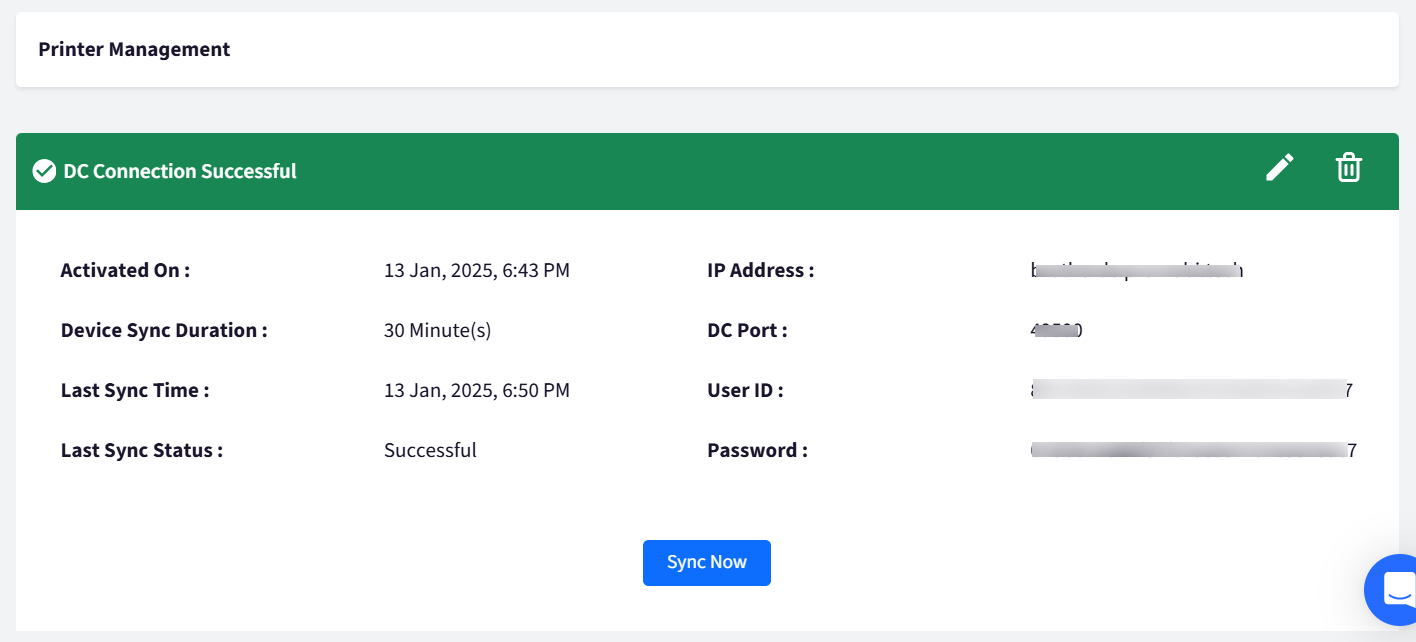
Only one Device Conductor can be configured under one Scalefusion account