By default, Secure Web Gateway (SWG) listens for traffic on port 8080. However, in many enterprise environments, administrators may need to change this port due to network policies, port conflicts, or security requirements. This guide provides instructions to verify the currently configured port, change it to a custom value, or revert it back to the default.
This flexibility allows IT teams to adapt SWG deployment to different network environments while maintaining consistent security and traffic handling across managed devices.
Applicable Tux Agent Versions
This configuration applies to the following tux agent versions:
tux-agent_3.6.1~20260210061818-0_armhf.debtux-agent-3.6.1~20260210055508-0.el8.aarch64.rpmtux-agent_3.6.1~20260210053924-0_arm64.debtux-agent-3.6.1~20260210052330-0.el8.x86_64.rpmtux-agent-3.6.1~20260210052405-0_amd64.deb
Default Configuration
Default Port:
8080
If no custom port is configured, SWG automatically listens on port 8080.
Verify the Current Listening Port
To verify the port currently used by SWG, run the following command on your terminal window:
nft list rulesetThis command displays the current firewall rules, including the port configured for SWG.
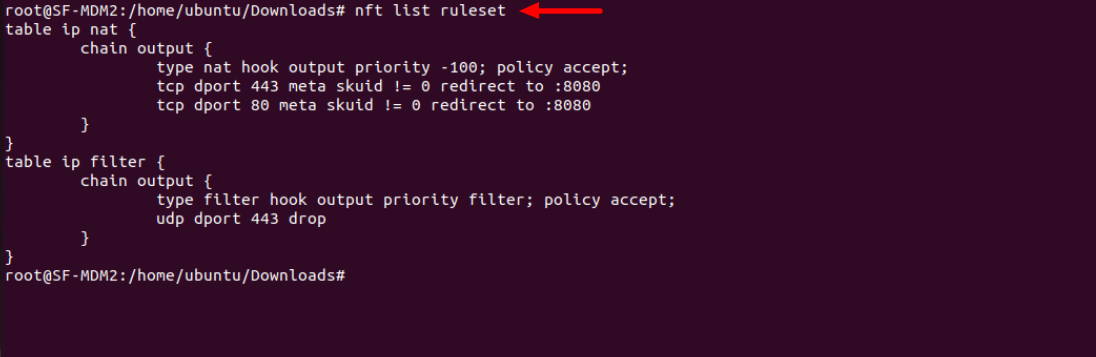
Change the SWG Listening Port
To configure a custom port for SWG, run the following script:
set-swg-port.sh <PORT_NUMBER>Example
set-swg-port.sh 3030This command configures the SWG service to listen on port 3030.

Revert to the Default Port
To remove the custom port configuration and revert to the default port (8080), run the script without any parameters:
set-swg-port.shRunning the script without arguments resets the SWG configuration to the default port.
