Introduction
Effortlessly provision and manage carrier profiles across your Android fleet without handling physical SIM cards. Scalefusion’s Android eSIM Management allows IT admins to remotely push, activate, and wipe eSIM profiles over-the-air, streamlining cellular connectivity and device deployment.
Supported On
eSIM Management is supported only on EMM-managed devices enrolled in Scalefusion- Company-Owned device (COD), Personally enabled device/ Bring Your own device (BYOD), or Company-Owned Personally Enabled devices (COPE/WPCO).
Android OS 15+
eSIM capable device.
Scalefusion license plan- Growth, Business and Enterprise 2025
Create a configuration
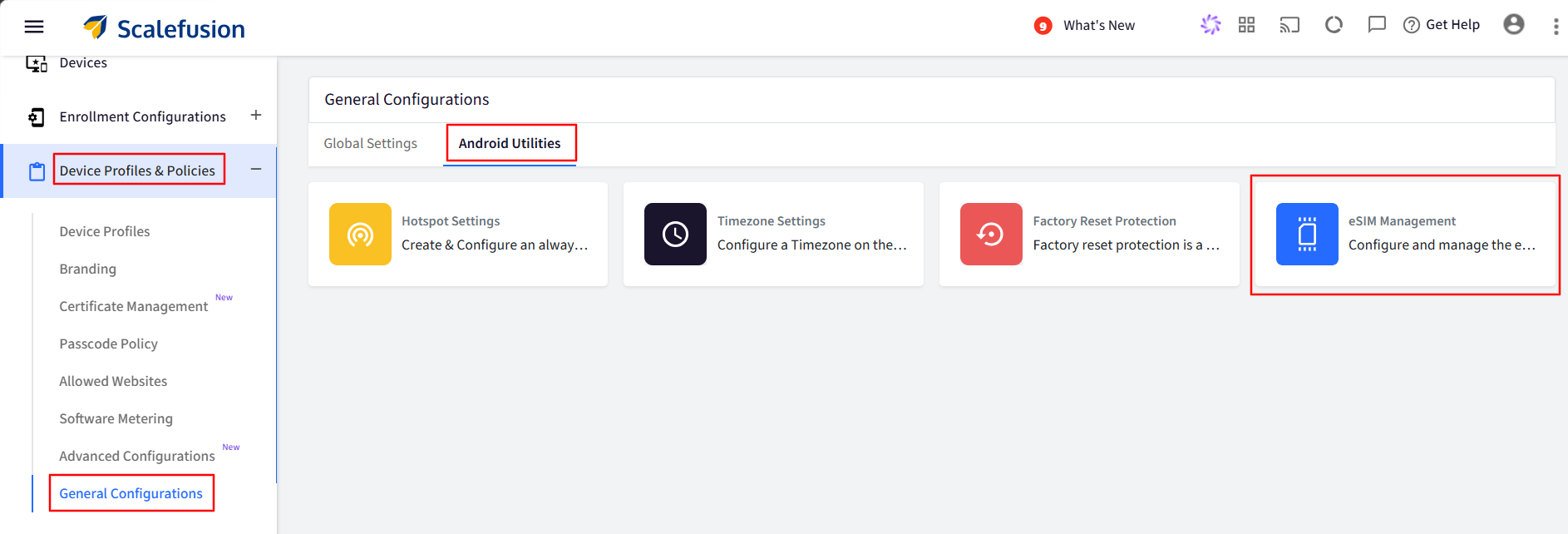
Navigate to Device Profile & Policies > General Configurations and go to Android Utilities.
Click on eSIM Management.
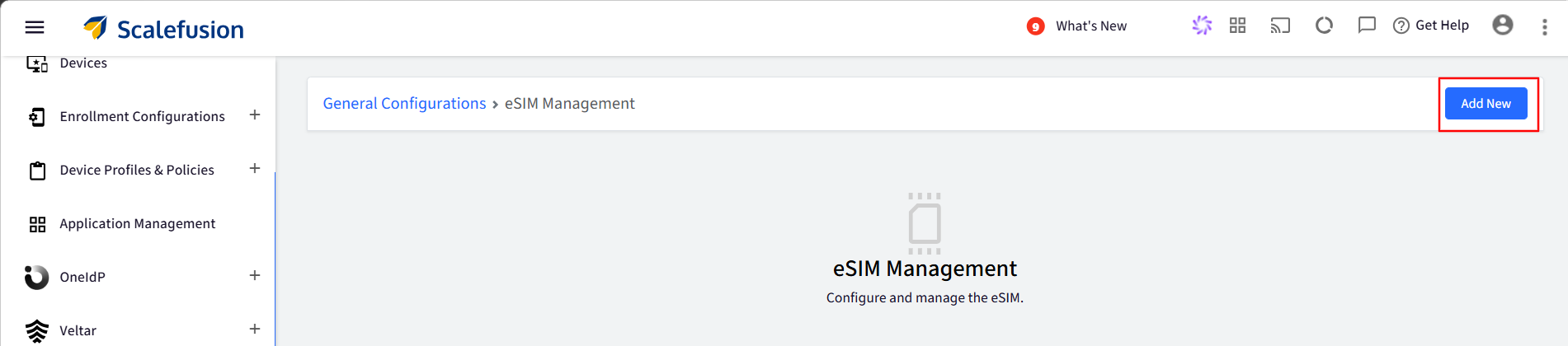
In the next page, click Add New button.
This will open a Configure eSIM window.
Provide a name to this configuration.
Download the Sample CSV and add the details like IMEI, Serial number, EID, ICCID number, device name. Make sure you enter the correct details in respective cells.
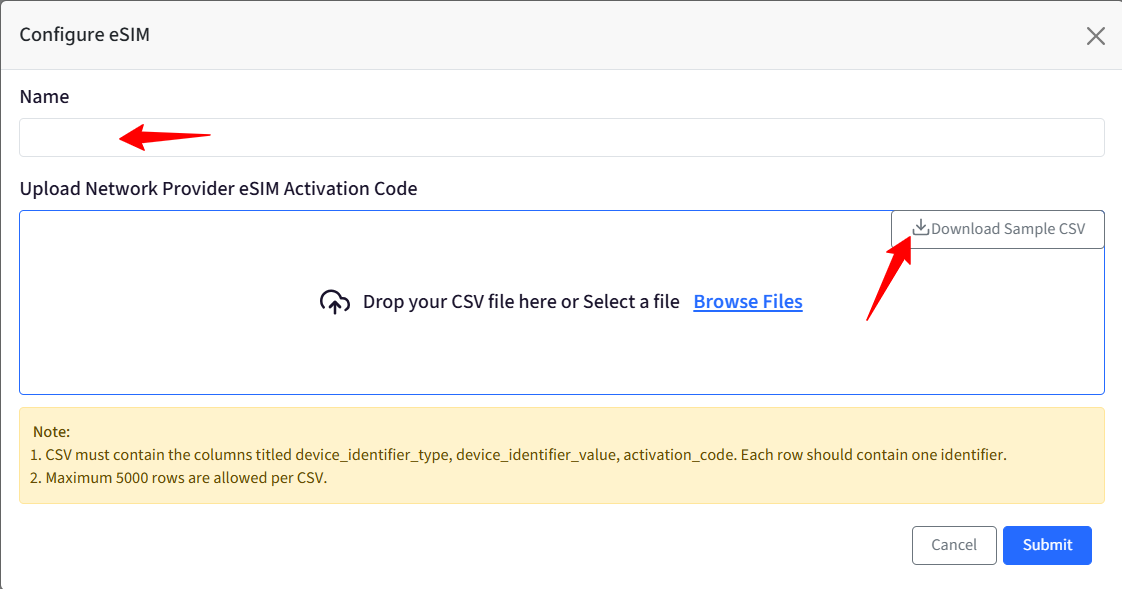
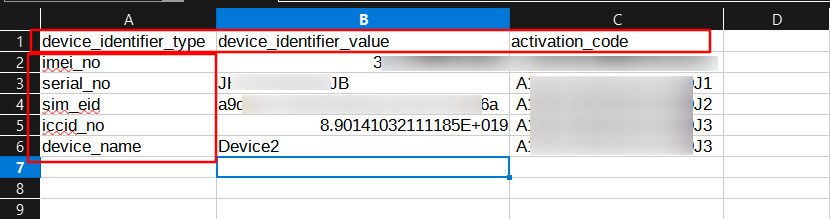
Once you have added the details, upload the CSV file and Submit it.
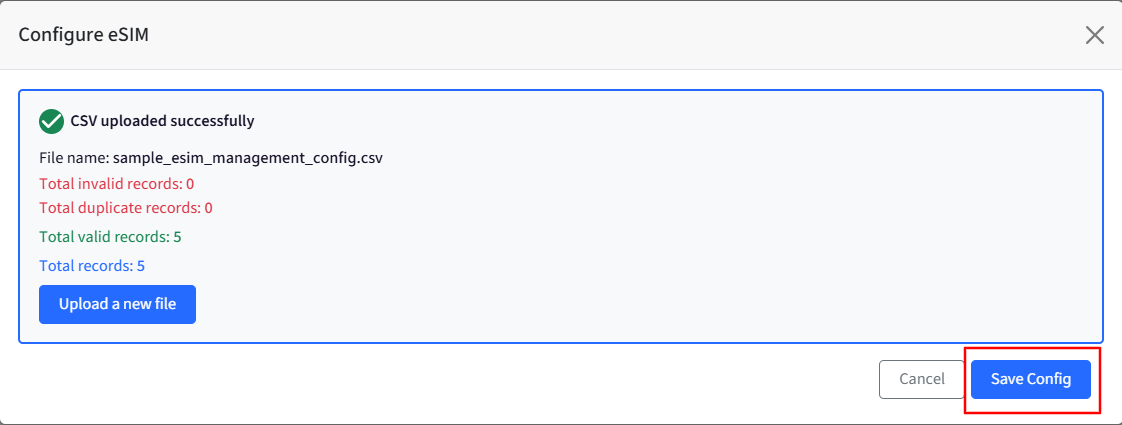
Next, click Save Config. This config will be published to all the enrolled devices automatically.
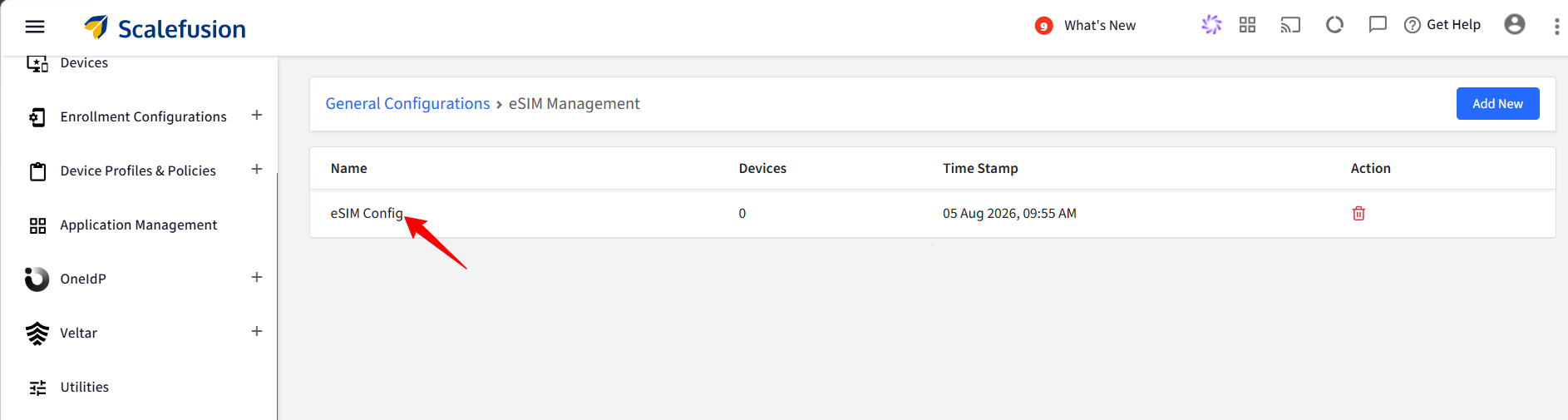
You will see your newly created config on the eSIM Management page.
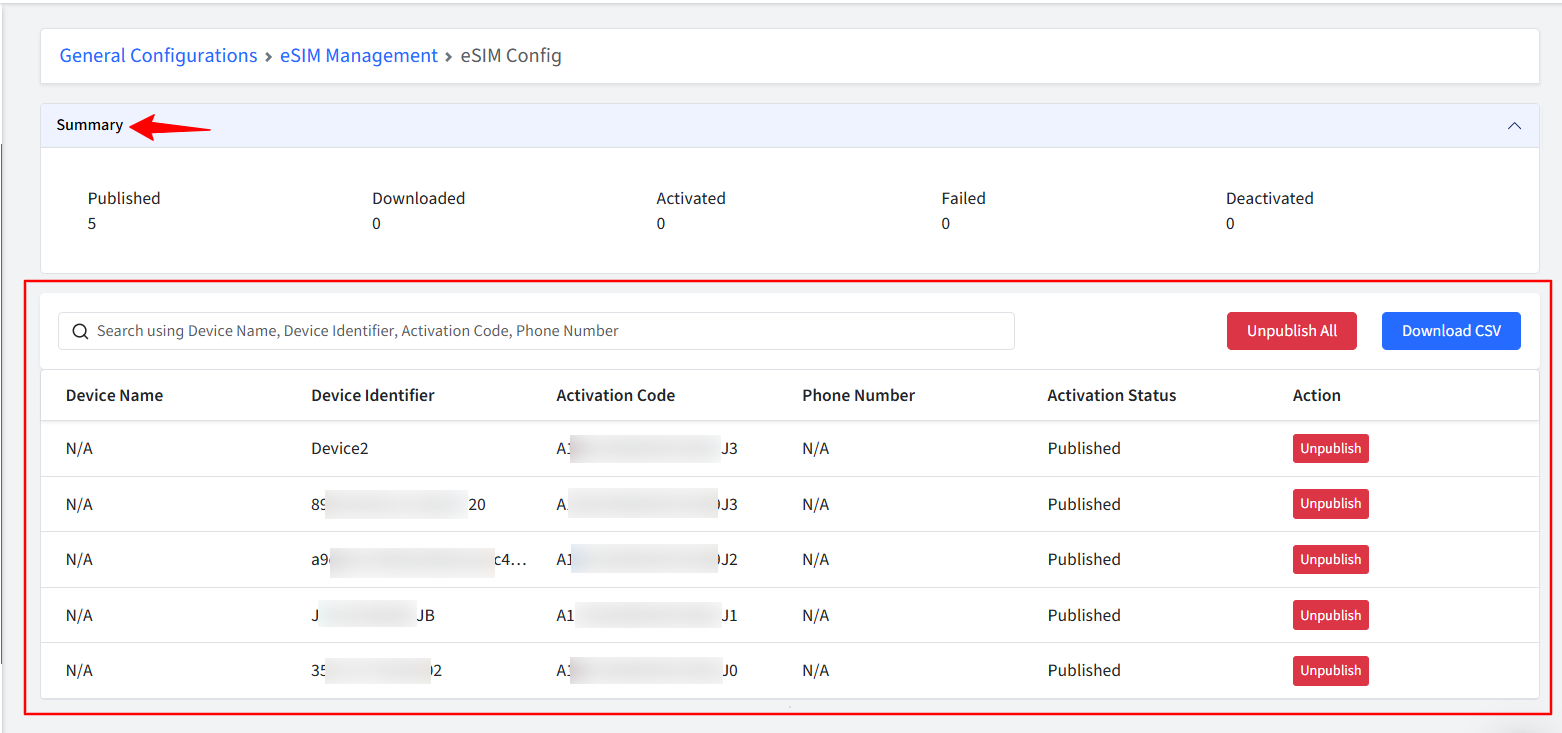
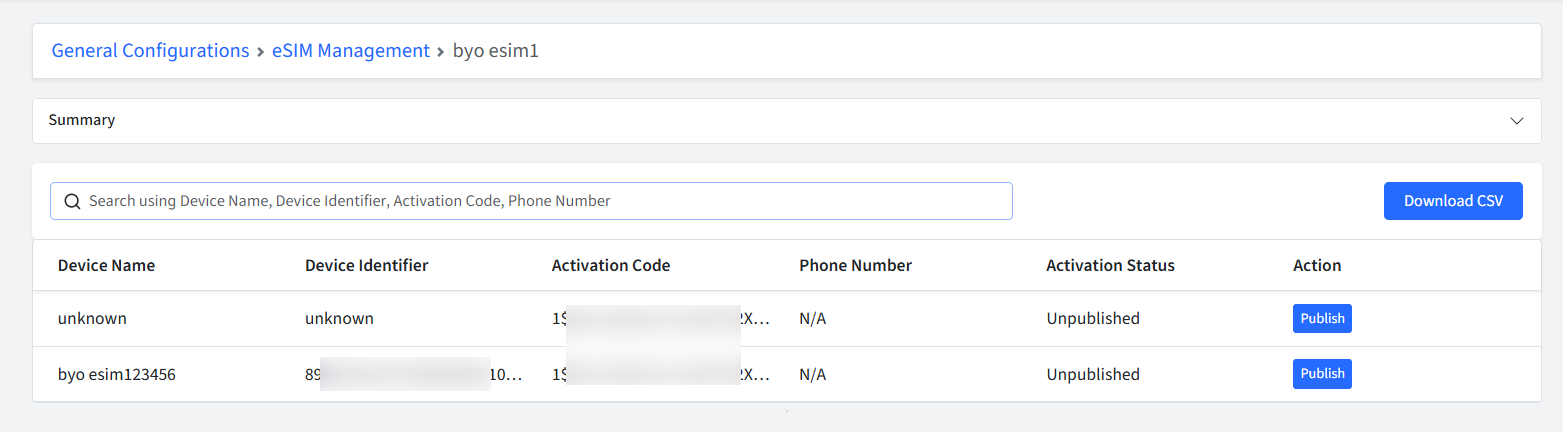
Clicking on the config name will show more details like Activation Status and a quick summary. You can also download these details in a CSV.
How it works?
Configuration & Validation
Configuration Creation: The admin creates an eSIM configuration.
CSV Upload: The admin uploads a CSV containing device identifiers and activation codes.
Validation Check: Is the CSV file valid or not?
No: The CSV must be fixed, requiring the creation of a new configuration.
Yes: The backend maps the CSV data to enrolled devices and pushes the configuration.
Profile Delivery & Download
Client Synchronization: The Scalefusion MDM client app receives the updated settings.
SM-DP+ Download: The client app downloads the profile from the SM-DP+ server.
Download Status Check: Is download, successful?
No (Failed): The error is synchronized back to the dashboard, and the status moves to Manage eSIM.
Yes: Profile status transitions to Downloaded.
Activation Process
Enrollment Mode Routing: What is the enrollment mode?
COD / COPE: Auto-activates the first eSIM.
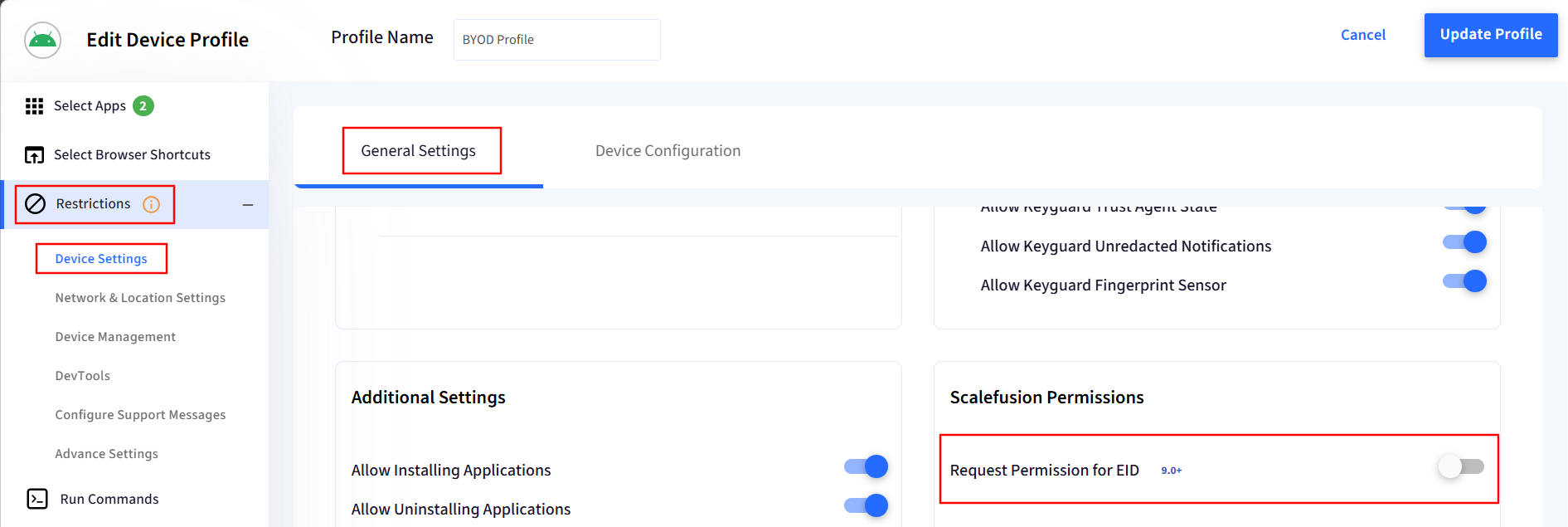
BYO (Bring Your Own Device): Make sure that the Request Permission for EID option is enabled in the BYO Profile on the dashboard. On the device eSIM config will only activate once the user manually gives permission to share EID. Refer to the section On the Device.
Completion: Once processed through either pathway, the status is marked as Activated.
Dashboard Sync: The system syncs the carrier, phone number, and ICCID back to the dashboard.
Unpublishing & Lifecycle Management
Admin Trigger: Admin unpublishes the eSIM configuration.
If previously was “Activated": Status changes to Unpublished/ Deactivated.
If previously was “Failed / Duplicated / Downloaded": Status changes to Unpublished Only.
Status Lifecycle
Status | Meaning |
|---|---|
Published | Activation code pushed from dashboard |
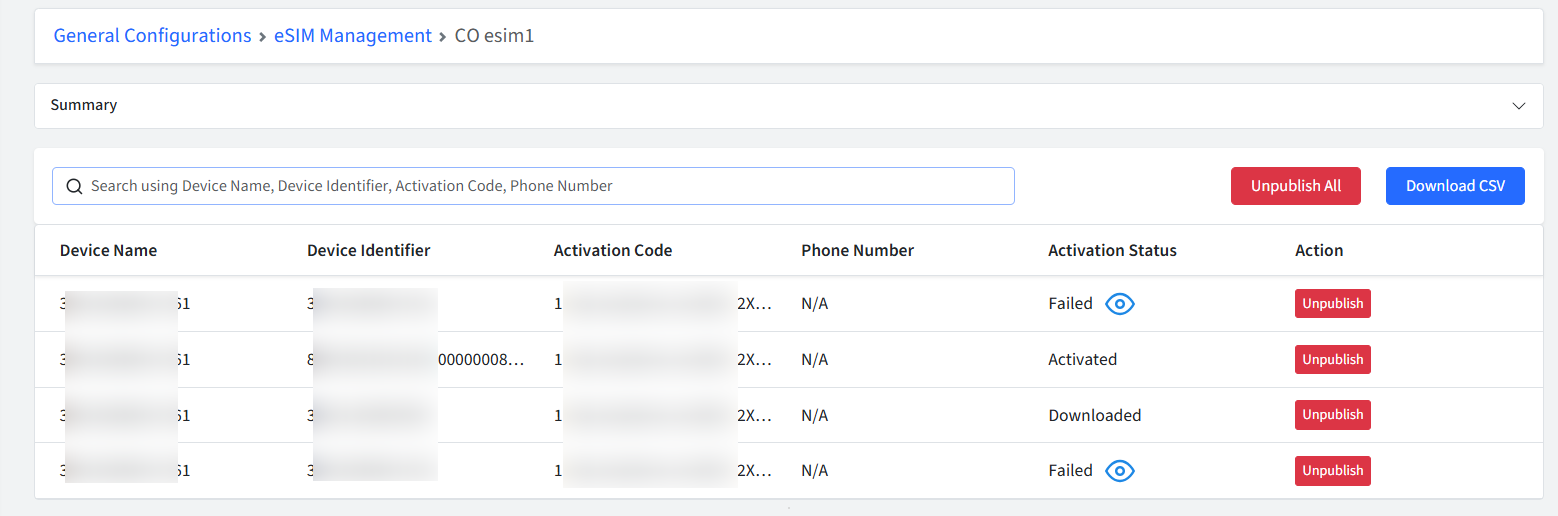
Downloaded | Profile downloaded from carrier |
Activated | Active on device (COD/COPE: auto; BYO: manual) |
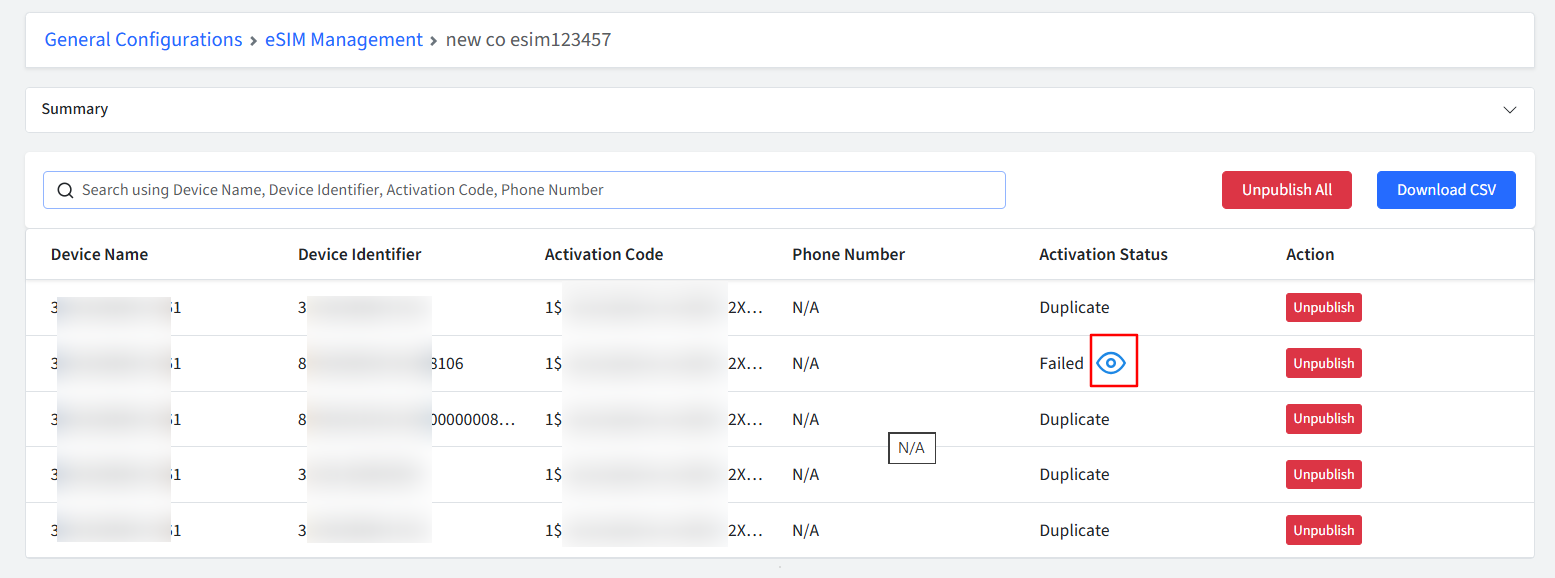
Failed | Error on dashboard + Manage eSIM (red text + RETRY) Click eye icon for more details. |
Duplicated | Duplicate config — fix CSV mapping |
Unpublished | Admin removed assignment |
Deactivated | On device — only after unpublishing an Activated eSIM |
Enrollment Mode Reference
Scenario | COD | BYOD | COPE |
|---|---|---|---|
Activation after download | Automatic | Manual — Manage eSIM | Automatic |
CSV identifiers (mapped) | All types |
| All types |
EID | Automatic | Request Sharing EID + Share EID post enrollment in Complete set up (Android OS 9+) | Automatic |
First of multiple eSIMs | Auto by | User activates each | Auto by |
Manage eSIM menu | Multiple eSIMs | Multiple eSIMs / BYO activation | Multiple eSIMs |
Unpublish removes profile | Yes | May not (Android Enterprise) | Yes |
Block end-user mobile network config | EMM policies | - | EMM policies |
Things To Keep in Mind
BYO checklist: Use
device_nameoreidin CSV → ifeid, enable Request Permission for EID in the Profile and confirm Share EID post enrollment (device must be Android OS 9+) → user opens Manage eSIM on the device to activate.COD / COPE: EID is synced automatically when using
eidin the CSV — no Share EID permission required.To disallow end users from changing mobile network configuration on device, apply the relevant restriction via EMM policies in Scalefusion. This applies to COD and COPE enrollment modes.
Safety Controls
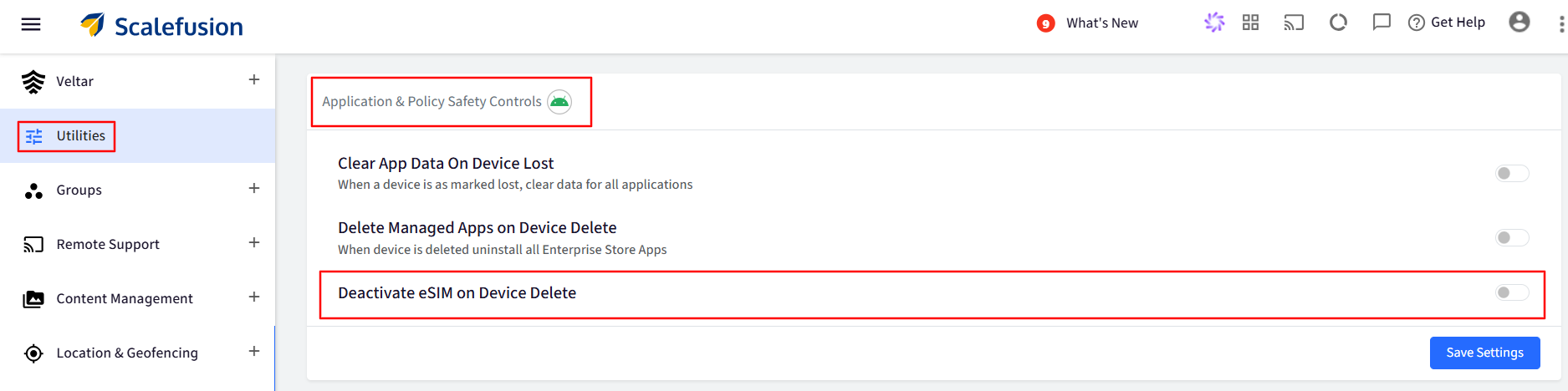
Deactivate eSIMs on Device Delete: Android Utilities → Global Settings → Android Settings → Application & Policy Safety Controls. By default, its Off. When on, Scalefusion MDM client removes eSIMs before device deletes.
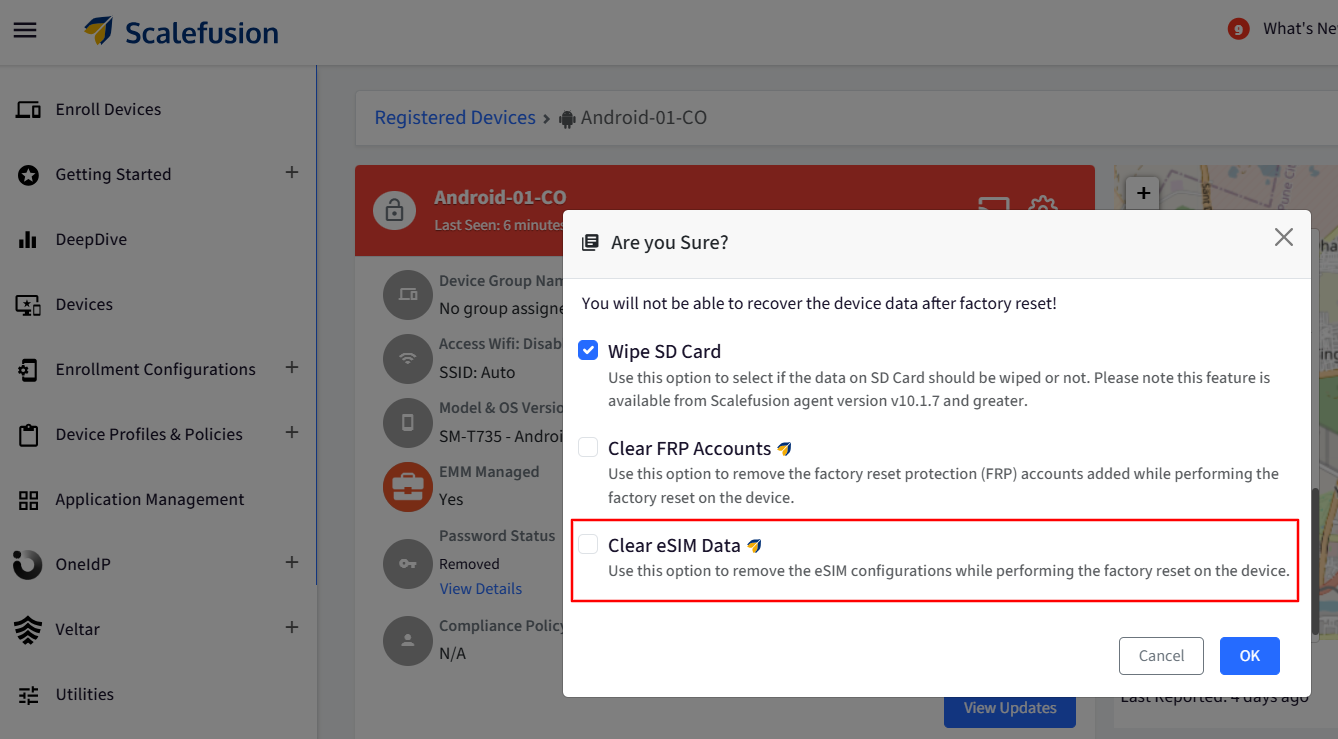
Clear eSIM Data: Devices → Factory Reset. By default, its Off. When on, eSIMs cleared before device factory resets. Note that this will come under Maker Checker purview, if enabled.
Request Permission for EID: BYOD Profile → Data Sharing. By default, its Off. Required for BYO provisioning by
eid.
On the Device
CO Devices
On the CO device, users can see the eSIM details by clicking on 3-dots menu > eSIM Management.
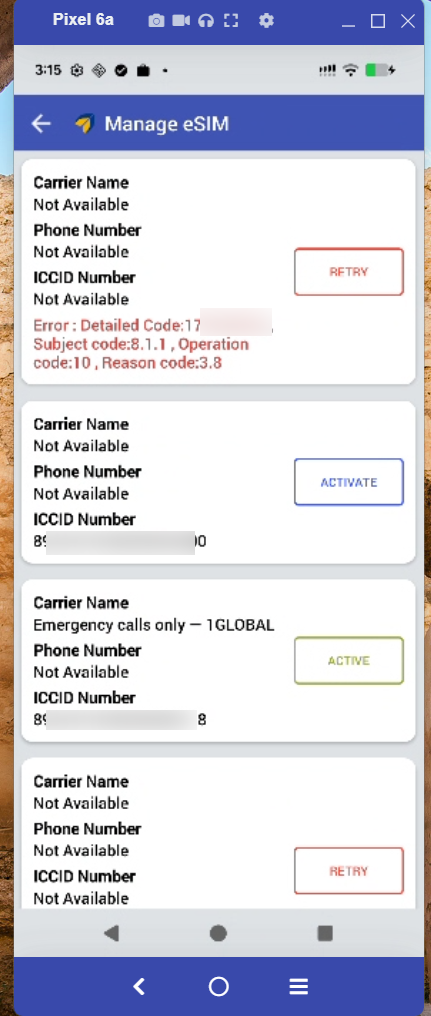
Active: Means eSIM has been successfully activated.
Activate: Means eSIM config is downloaded on the device and is waiting for activation (COD and COPE auto activation. BYOD- user manually activates).
Retry: Means there was a failure while activating the eSIM. The user can retry manually (we display the response given by the carriers API).
BYO Devices
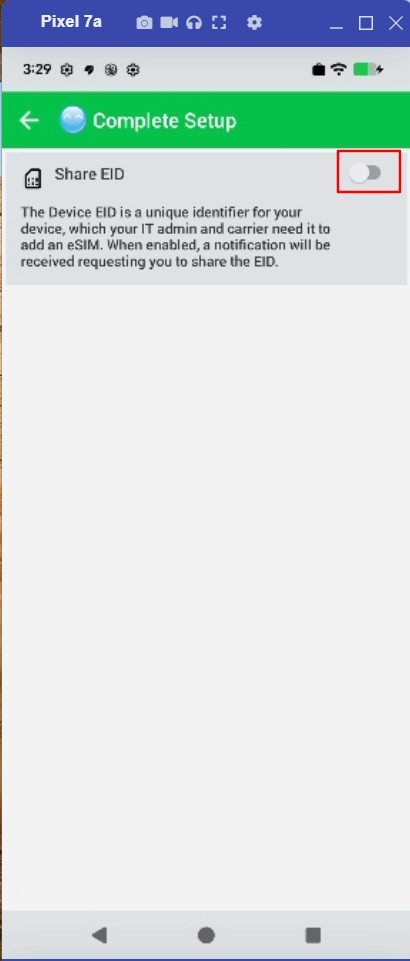
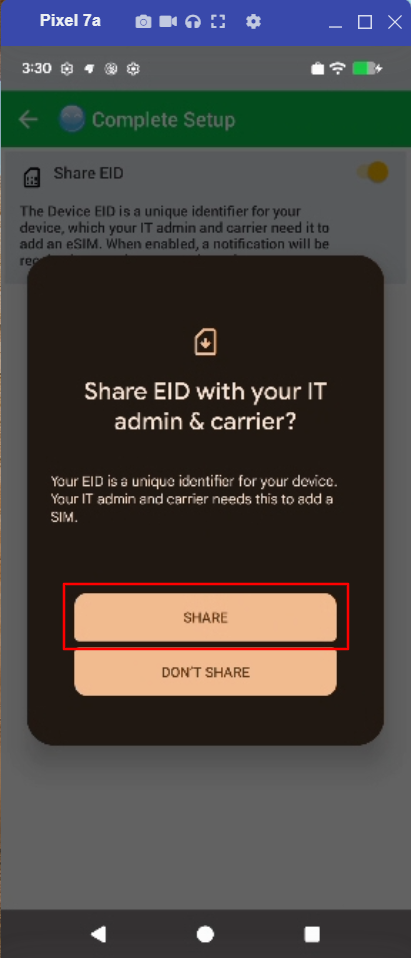
On a BYO device, users will have to manually enable share EID permission by clicking on 3 lines on the top left-hand side inside Scalefusion app on the work side and then clicking Share.
Reports
Device Inventory Report
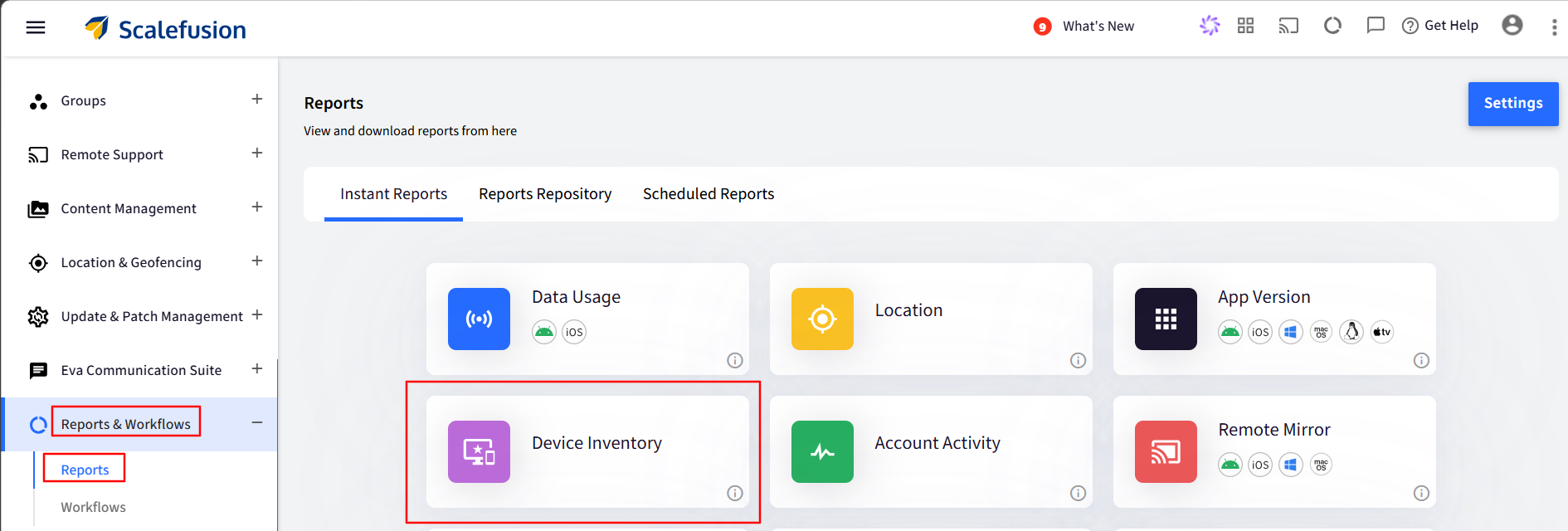
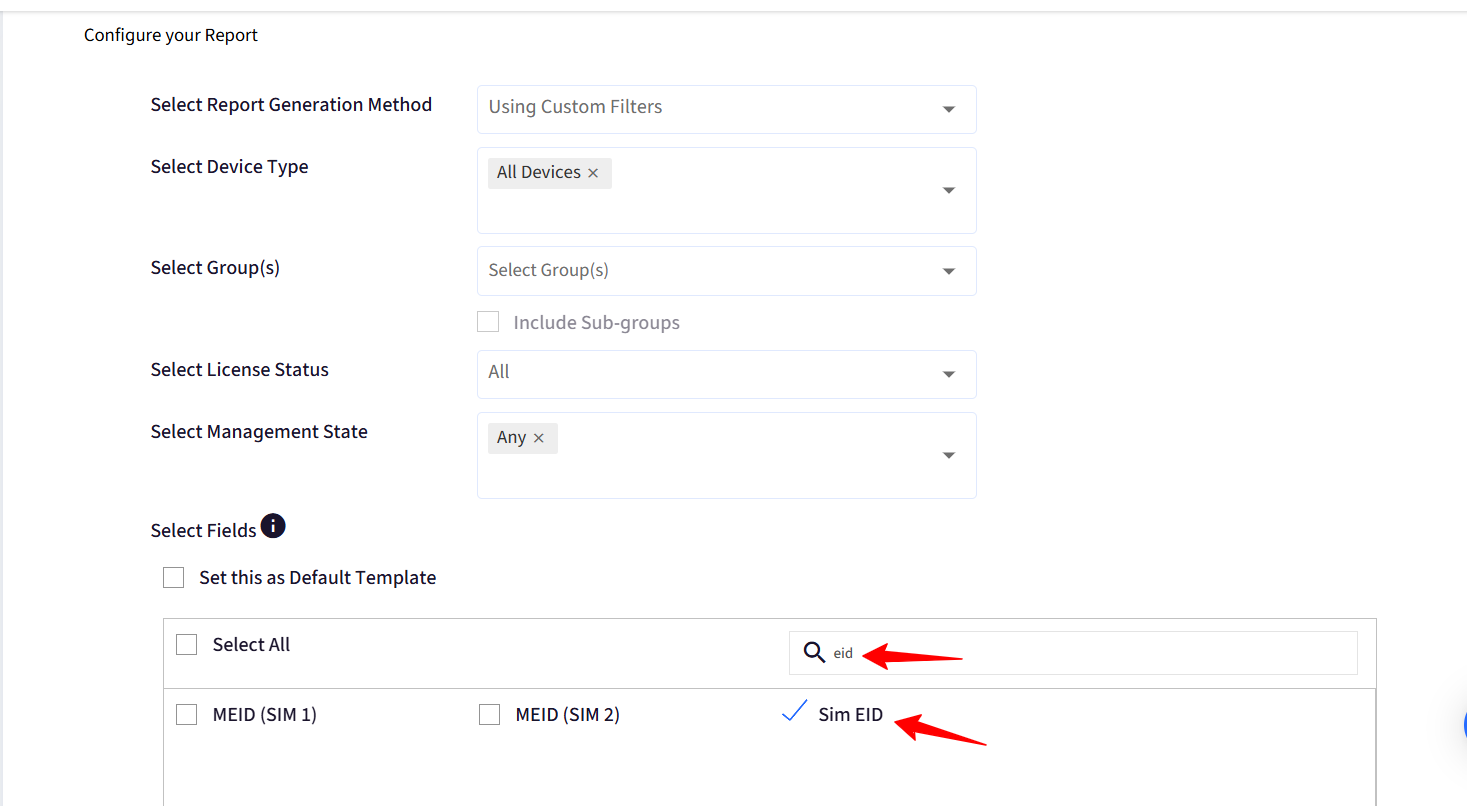
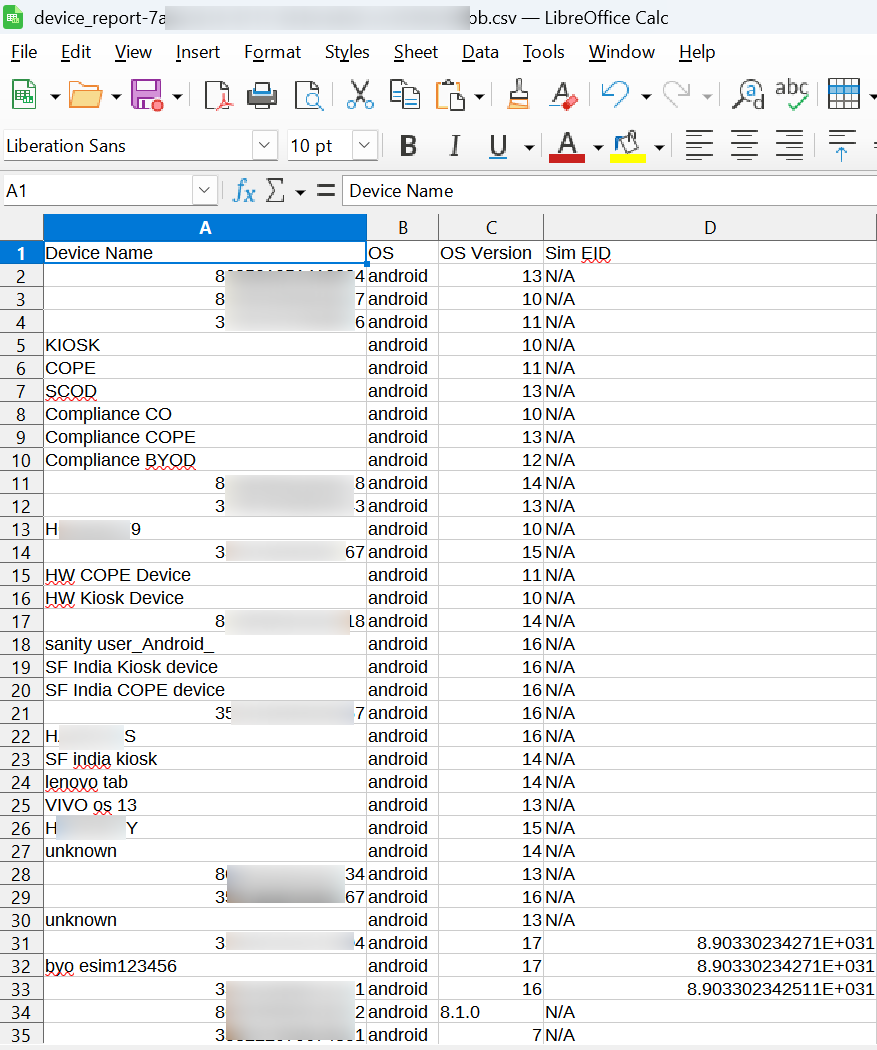
If admin needs eSIM related data, they can download a report from Device Inventory Report. Navigate to Reports & Workflows > Reports > Device Inventory.
Account Activity Report
In this report you will find the status of the eSIM config. Navigate to Reports & Workflows > Reports > Account Activity.
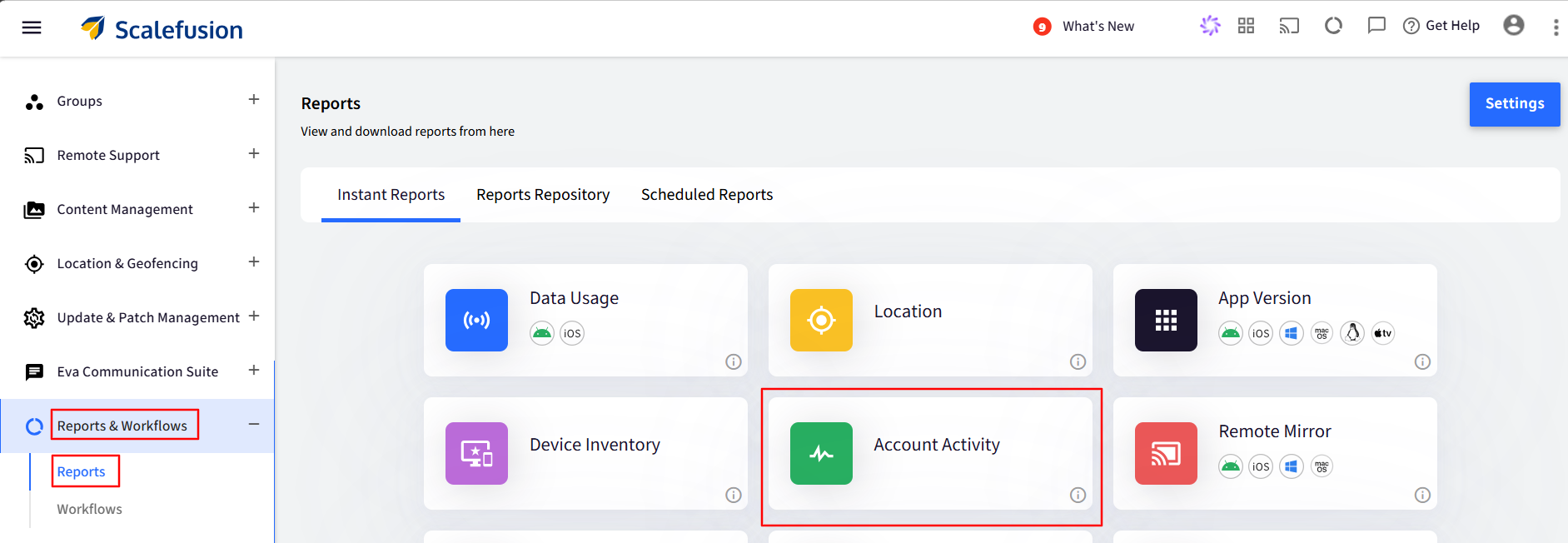
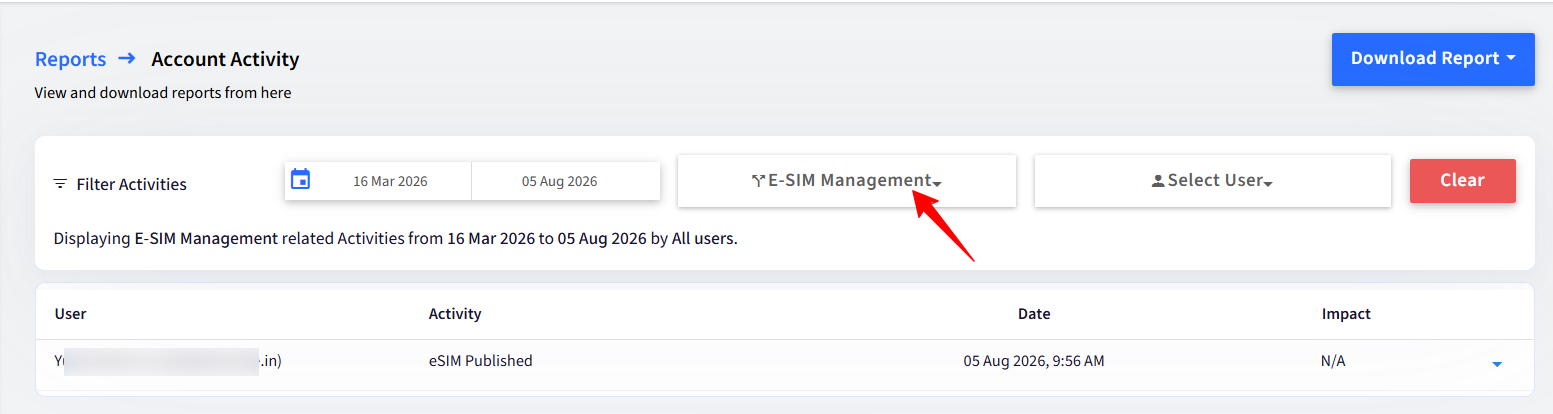


If the eSIM config is unpublished from multiple devices, you get the option to download a CSV for the same.

Developer API support
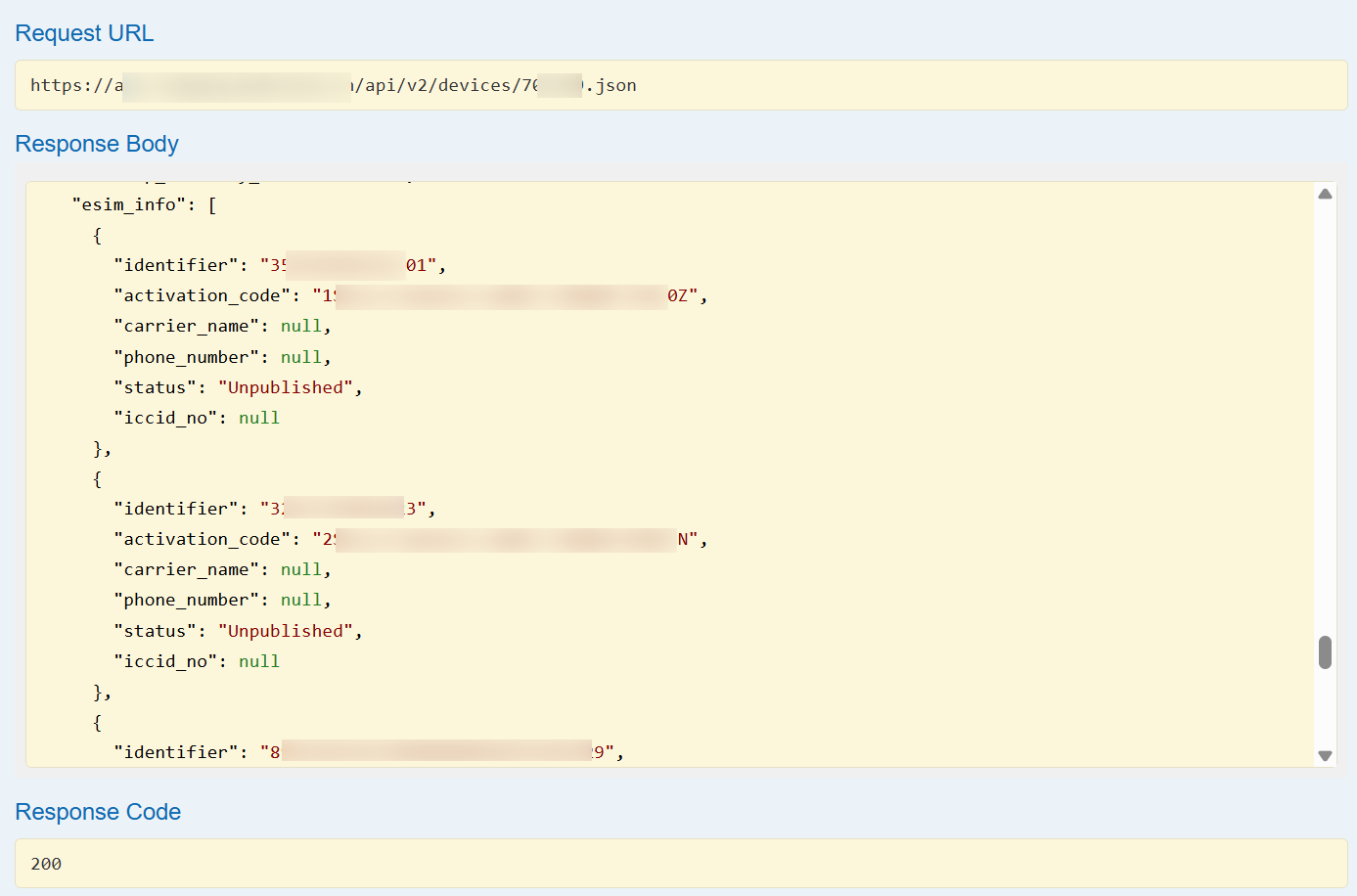
IT Admins can also request eSIM config data using the Device Management APIs:
/api/v2/devices.json
/api/v2/devices/{id}.json
Navigate to Integrations > Developer API and copy the API Key.
Click Read API Docs button.
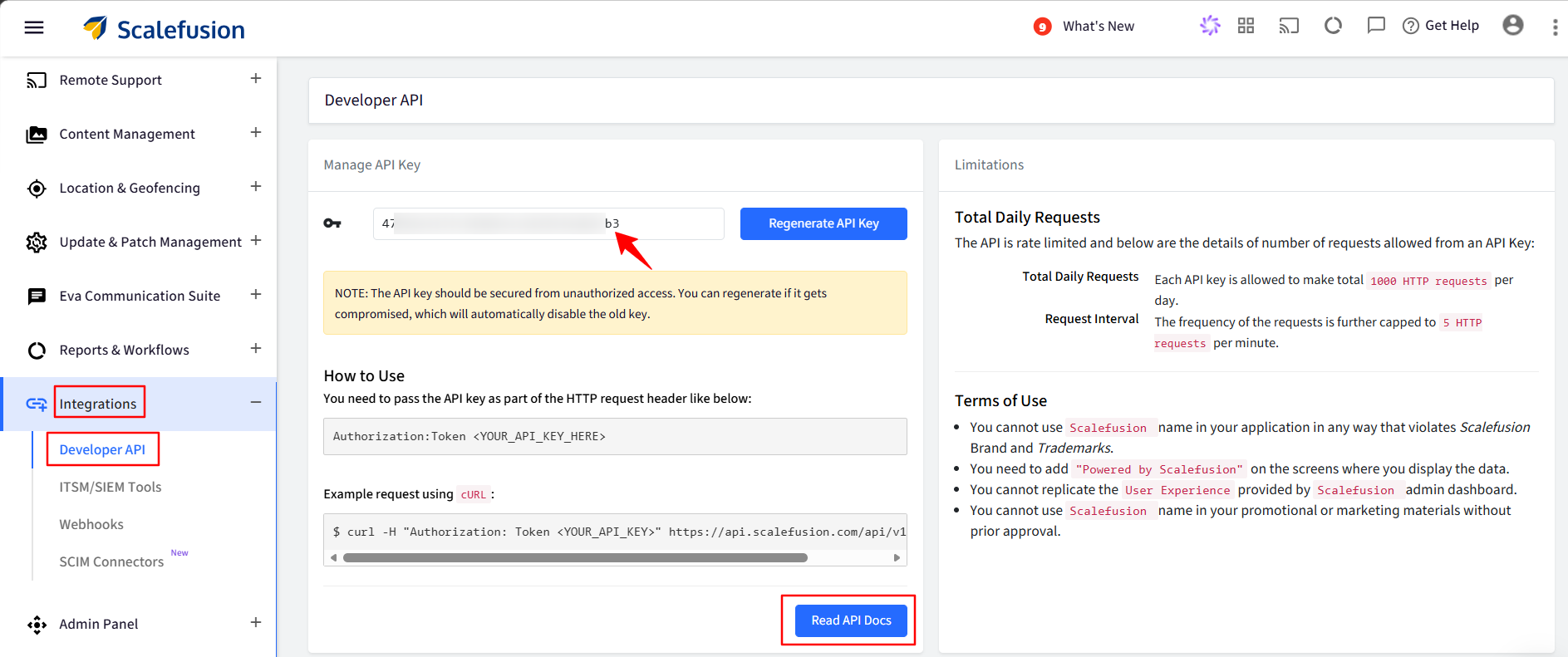
Enter the key and click Explore API Reponses.
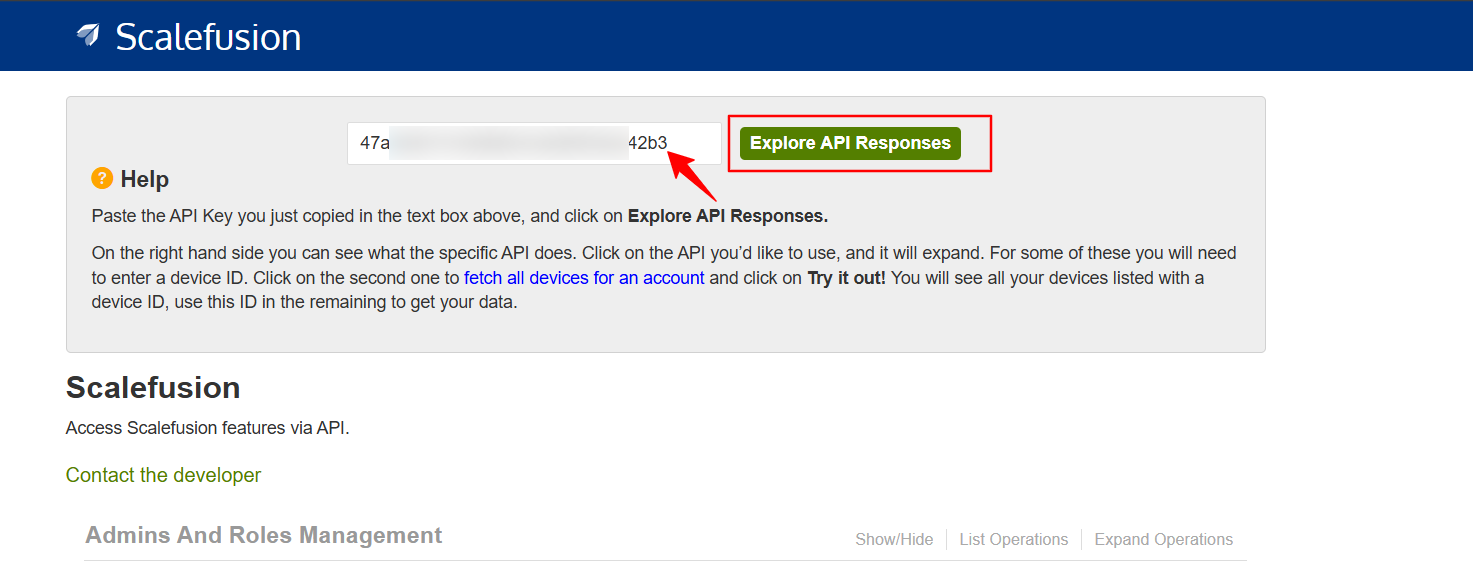
Scroll down to Device Management to view the API.

The response body will show the following details.