When corporate email is accessed on an iOS device, users may be able to copy and paste corporate information into personal applications or save email attachments, files, and photos to the device. This can potentially expose sensitive corporate data.
To help protect corporate information, administrators can configure iOS device restrictions to prevent copying corporate data to personal applications and restrict users from saving corporate email attachments or photos to the device.
This document outlines the steps IT Administrators can take to mitigate this platform limitation and help protect corporate data on iOS devices.
Pre-requisites
The iOS device must be enrolled in the Scalefusion dashboard.
In the iOS profile, go to Restrictions → Work Data Settings and verify that the following settings are configured as specified:
a) Enable Block Copy/Paste from Managed Apps to Unmanaged Apps.
b) Disable Allow Open From Managed to Unmanaged.
c) Disable Allow Open Documents From Unmanaged to Managed Apps.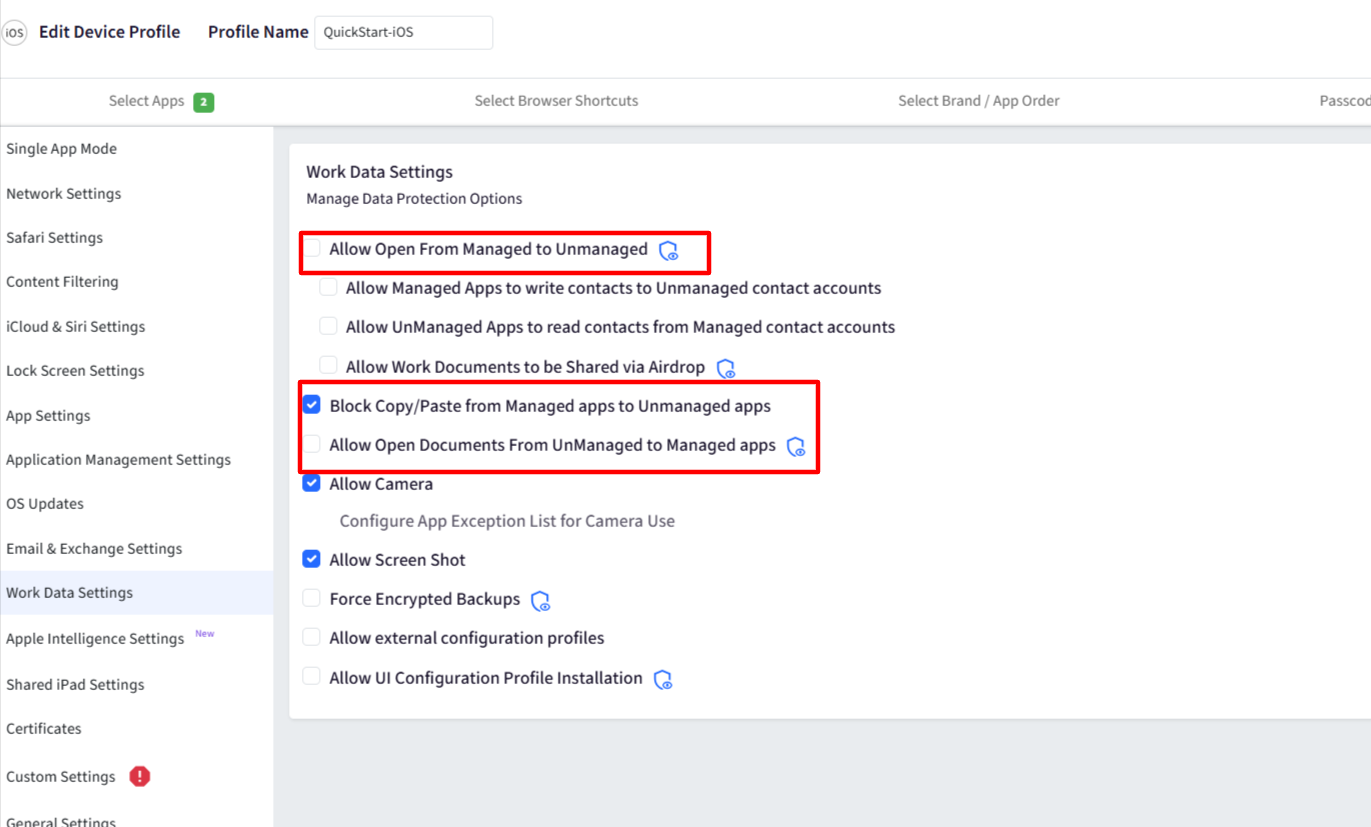
Steps to configure
On Scalefusion Dashboard, navigate to Device Profile & Policies → Advanced Configurations → Create Configurations → iOS → Custom Configuration
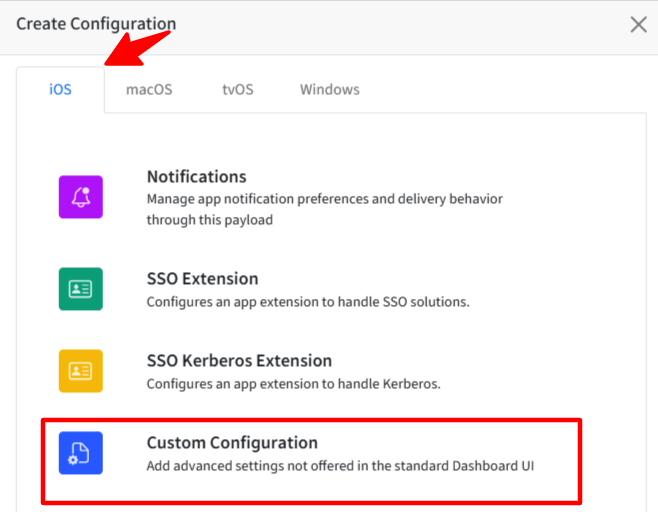
2. Copy and paste the payload below:
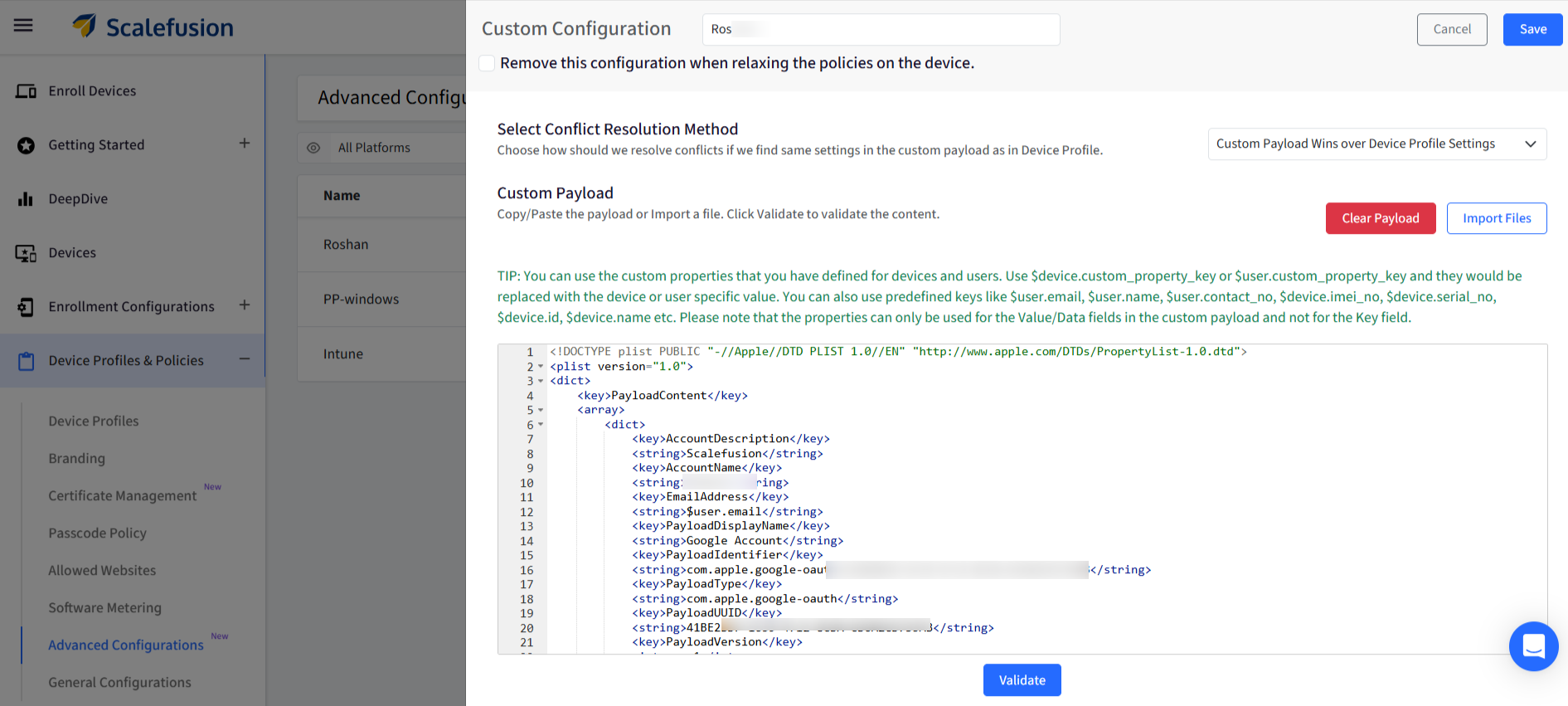
<!DOCTYPE plist PUBLIC "-//Apple//DTD PLIST 1.0//EN" "http://www.apple.com/DTDs/PropertyList-1.0.dtd">

        <plist version="1.0">

        <dict>

        <key>PayloadContent</key> <array>

        <dict>

        <key>AccountDescription</key> <string>Scalefusion</string>

        <key>EmailAddress</key>

        <string>$user.email</string>

        <key>PayloadDisplayName</key>

        <string>Google Account</string>

        <key>PayloadIdentifier</key>

        <string>com.apple.google-oauth.xxxxxx-xxxx-xxxx-xxxx-xxxxxxxxxx</string>

        <key>PayloadType</key>

        <string>com.apple.google-oauth</string>

        <key>PayloadUUID</key>

        <string>41BE2BDF-1659-4712-8CDA-CD6A2CD735AB</string>

        <key>PayloadVersion</key>

        <integer>1</integer>

    </dict>

</array>

<key>PayloadDisplayName</key>

<string>Untitled</string>

<key>PayloadIdentifier</key>

<string>com.scalefusion.promobitech.com.xxxxxxx-xxxx-xxxx-xxxx-xxxxxxxxx</string>

<key>PayloadOrganization</key>

<string>scalefusion</string>

<key>PayloadType</key>

<string>Configuration</string>

<key>PayloadUUID</key>

<string>xxxxxx-xxxx-xxxx-xxxx-xxxxxxxxxxx</string>

<key>PayloadVersion</key>

<integer>1</integer>

</dict>

</plist>
After Validate, save and publish the Configuration on the device profile.
Launch the Native Mail app and sign in with the corporate email account.
When prompted, tap Settings → Under Accounts, select Scalefusion, enter the corporate email password, and complete the setup.
Post Applying above configuration:
Users cannot copy or paste corporate email data into personal/unmanaged apps.
Users cannot save email attachments to files app.
Users can still save email attachments to the Photos app.