Once a macOS device is enrolled in Scalefusion, its Device Details page provides a centralized view of its health, configuration, security, inventory, and management status.
This article explains the Device Details page for macOS devices in Scalefusion. It provides an overview of the information available for an enrolled device, including hardware and software inventory, security status, network details, storage, compliance, applied policies, and other management information.
Pre-requisites
Device must be enrolled in Scalefusion.
You must either be subscribed to Enterprise 2025 plan or later, or have this feature enabled for your account.
Some advanced hardware and software inventory is available only on devices running Scalefusion macOS Agent 6.4.1 or later.
If the required agent version is not installed, certain sections display an upgrade message until the device is updated.
Extended Device Insights must be enabled.
Devices View
Once you log in to the Scalefusion dashboard, please click on the Devices tab to view the list of all devices. You can switch between the list view and the grid view based on your preferences.
By default, Scalefusion displays the basic information, but you can go ahead and customize the view using the 3 dots menu > Customize Table View option.
Access Device Details
On Scalefusion Dashboard, navigate to Devices section
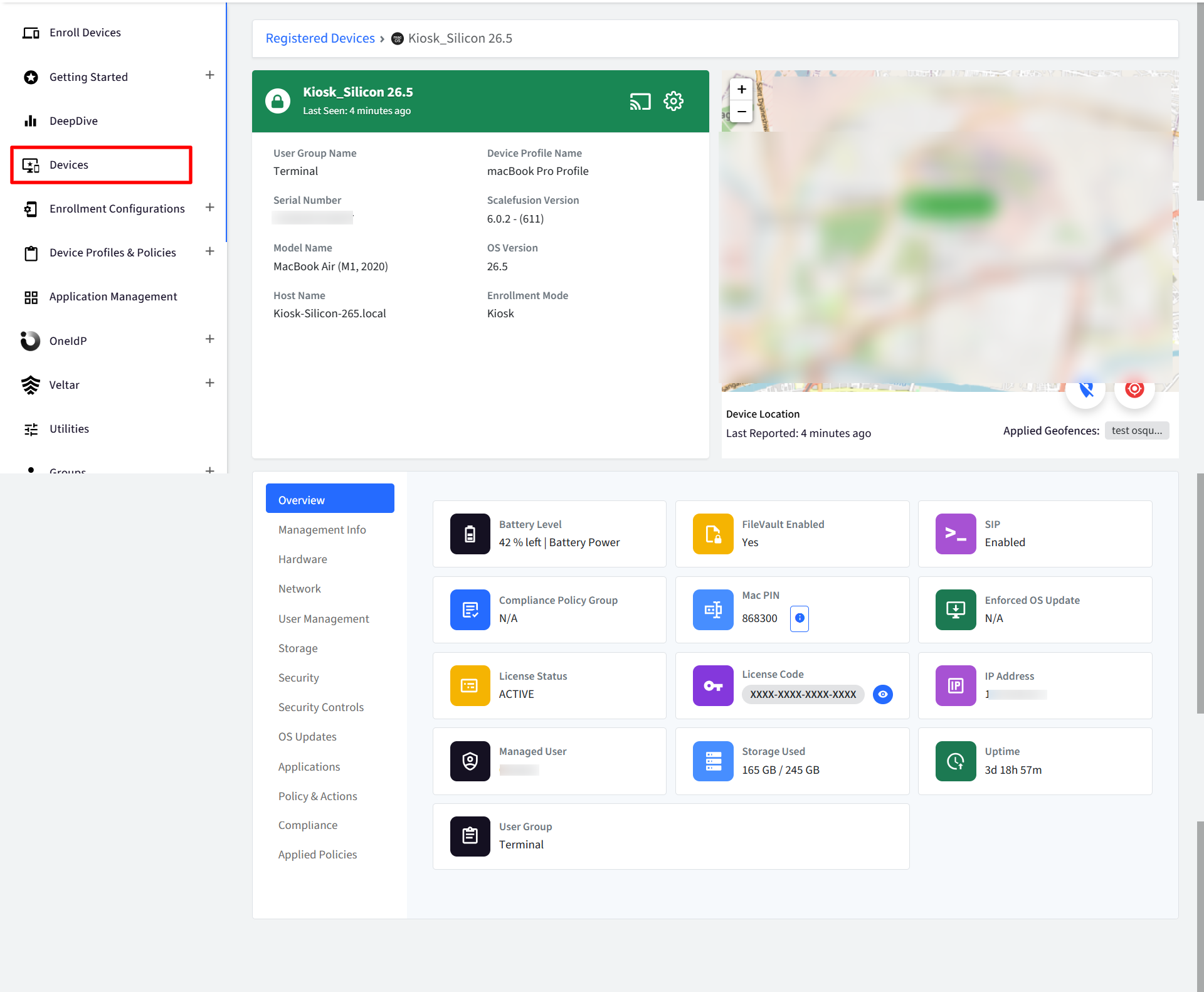
Click on the Device Name field in the list view or View Details in the grid view. This displays the device details. Each of the sections below provides you with device details categorized based on their group.
Device Details Page
The page consists of:
Device header
Device information panel
Location map
Left navigation pane
Device Information Sections
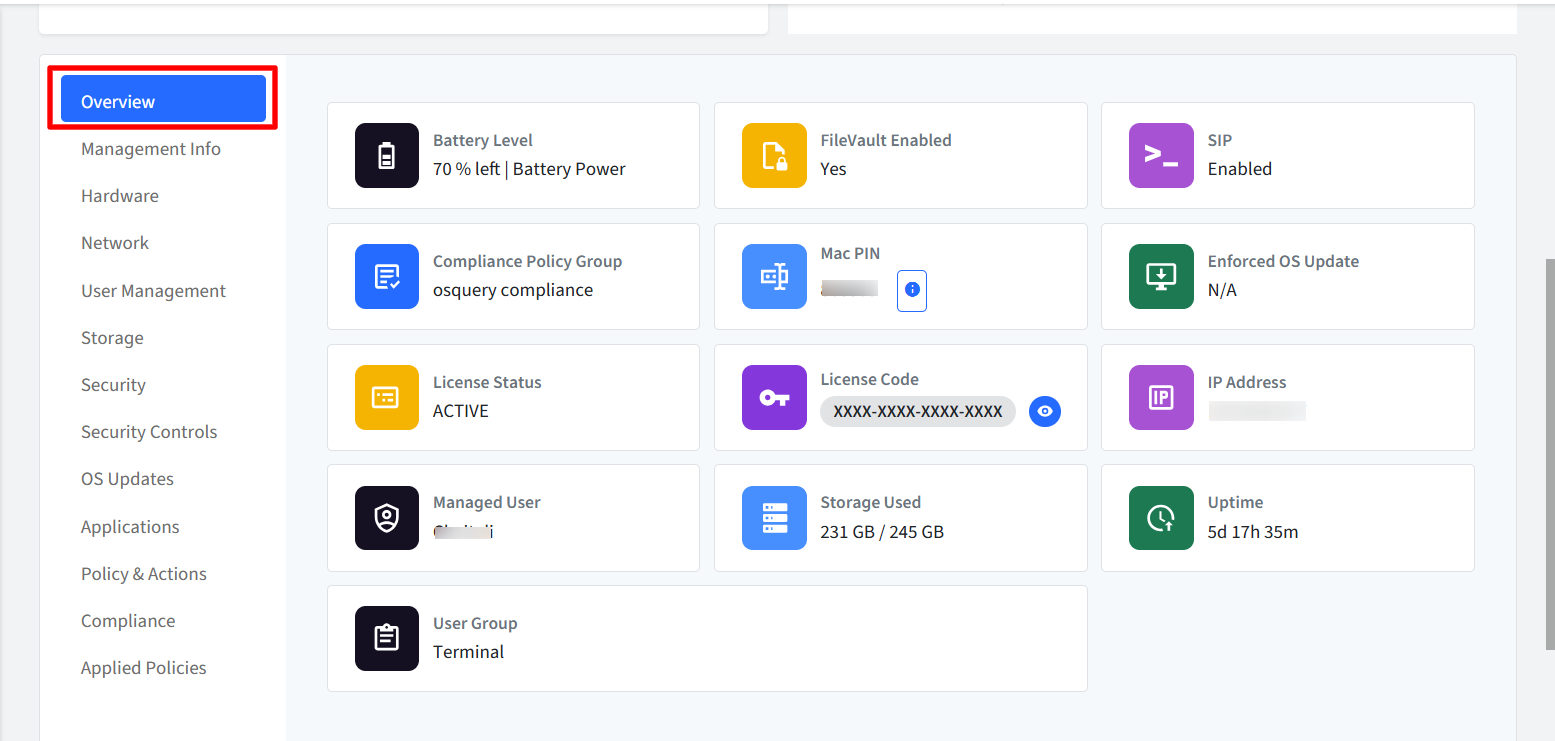
Overview
Displays a quick summary of the device, including battery, storage, compliance status, FileVault status, managed user, device profile, license information, uptime, and other commonly referenced information.
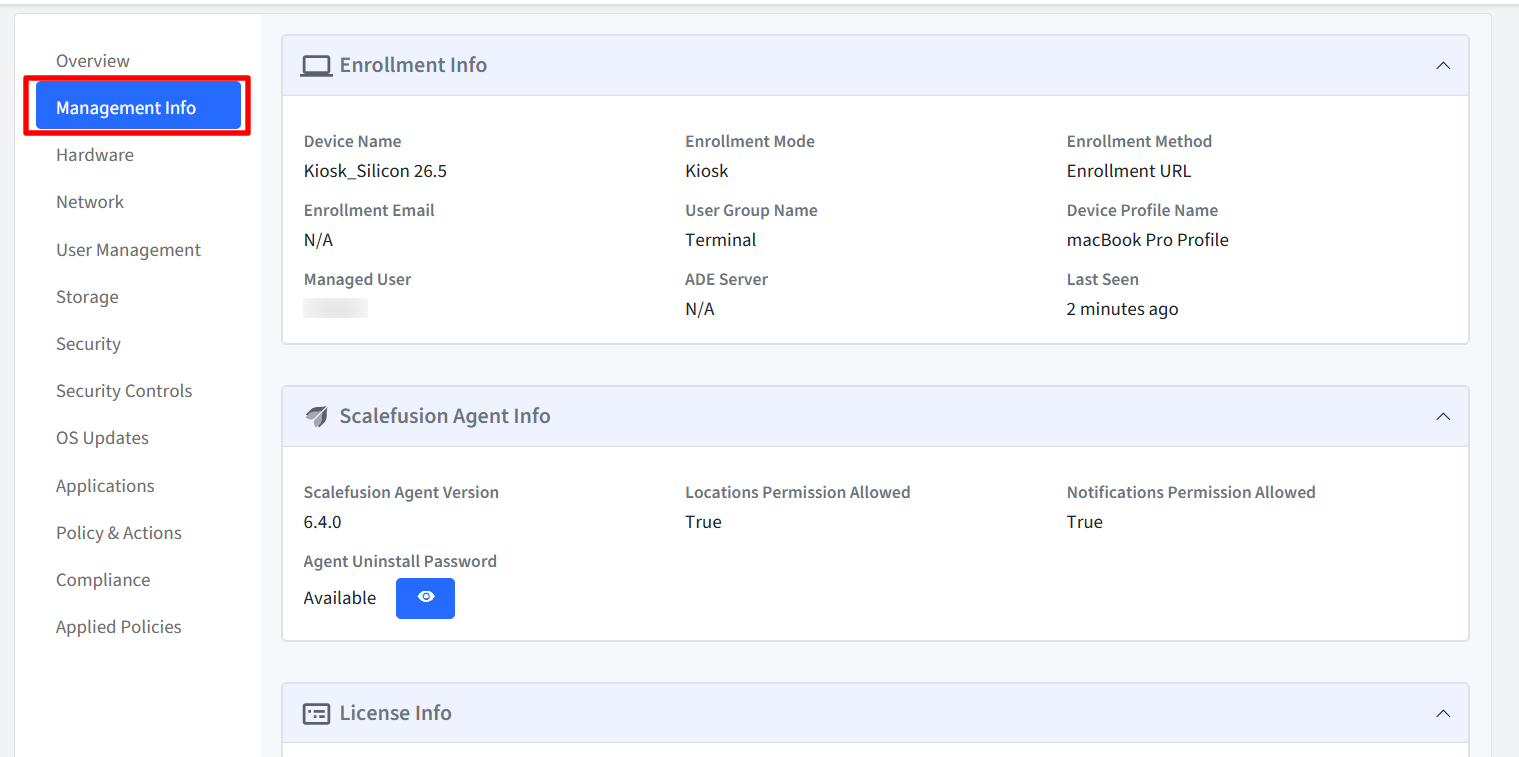
Management Info
Displays enrollment details, Scalefusion agent information, licensing information, custom properties, and administrator notes associated with the device.
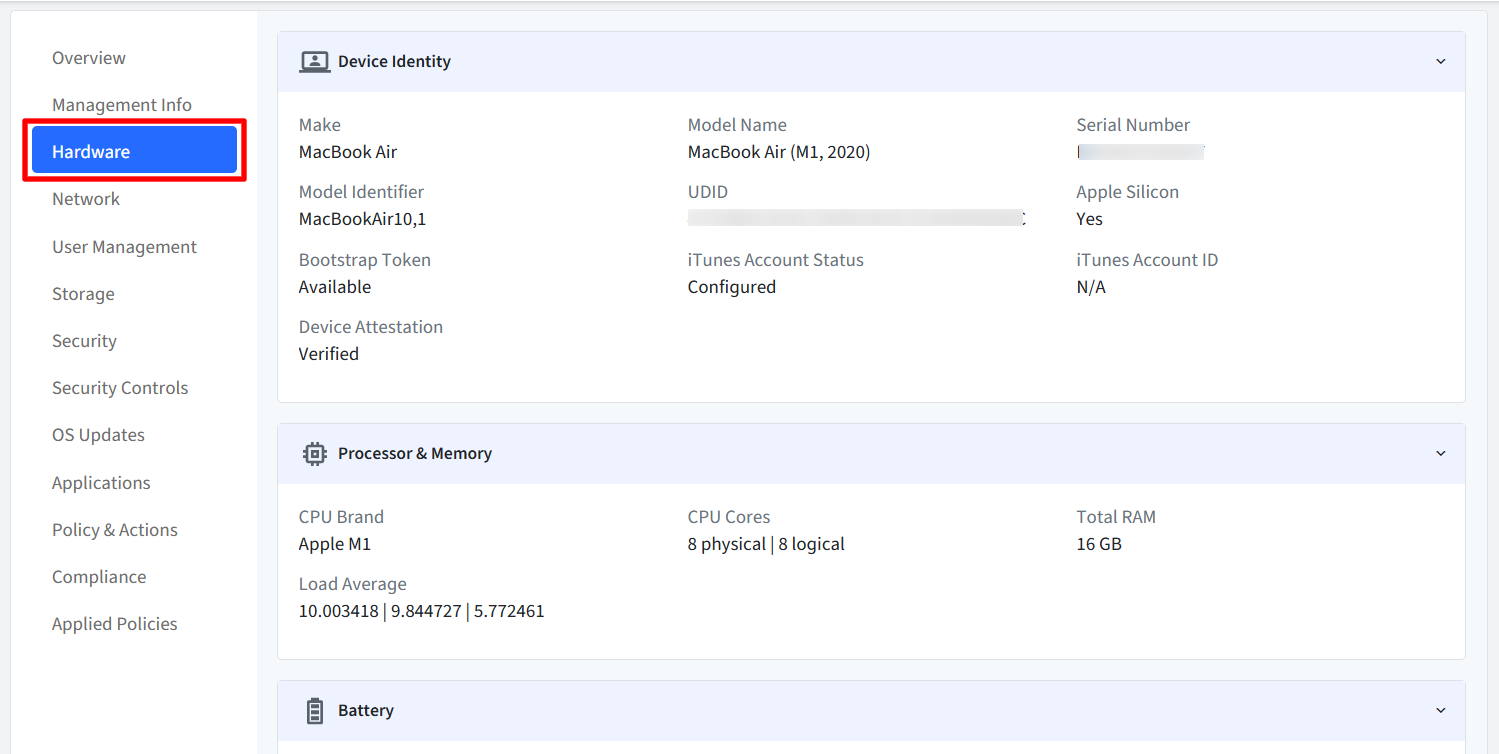
Hardware
Provides hardware inventory such as device identity, processor, memory, battery, runtime information, thermal sensors, and other hardware attributes.
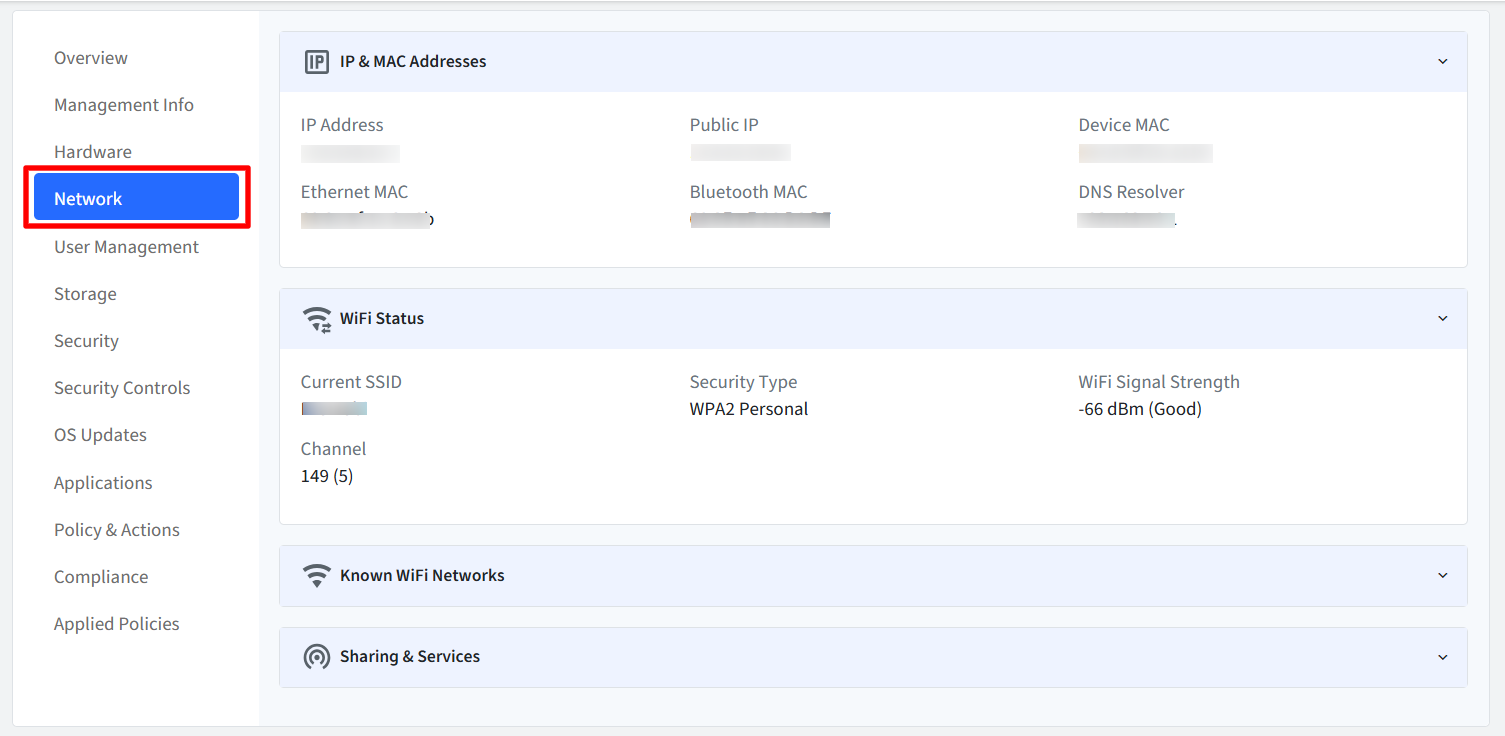
Network
Shows the current network configuration, including IP addresses, Wi-Fi information, known wireless networks, and sharing or network service settings.
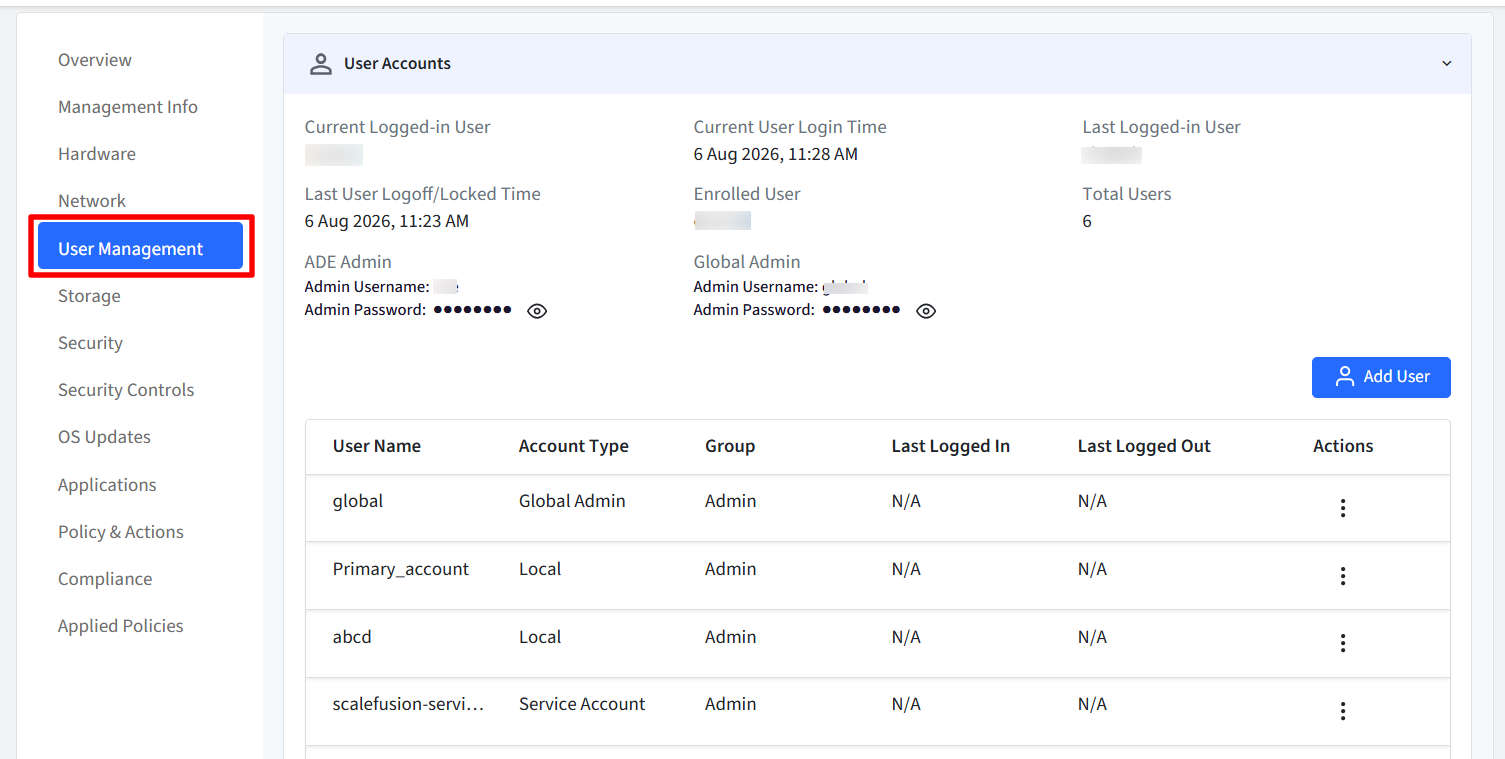
User Management
Displays the users configured on the device and provides the existing user management capabilities.
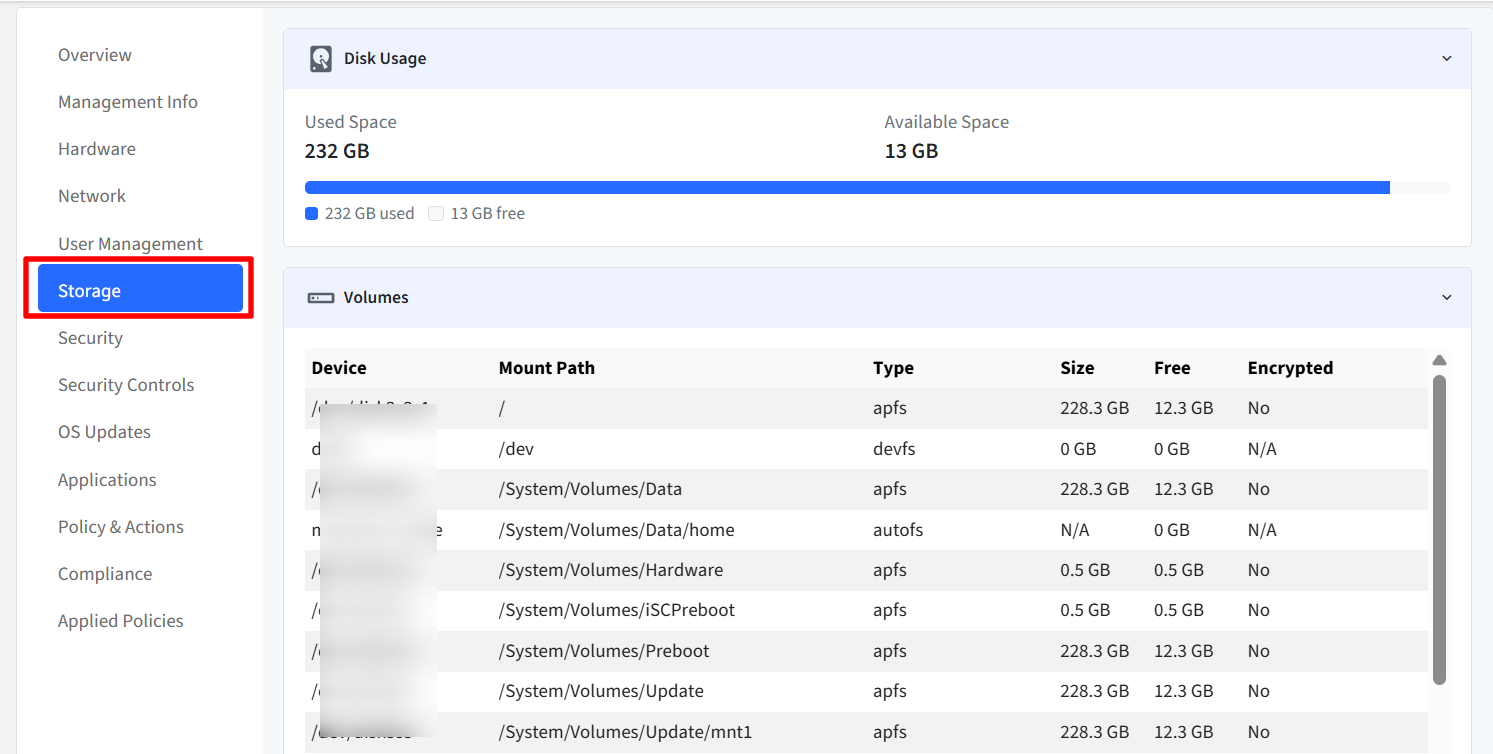
Storage
Provides storage utilization, mounted volumes, and Time Machine backup information to help monitor disk usage and backup status.
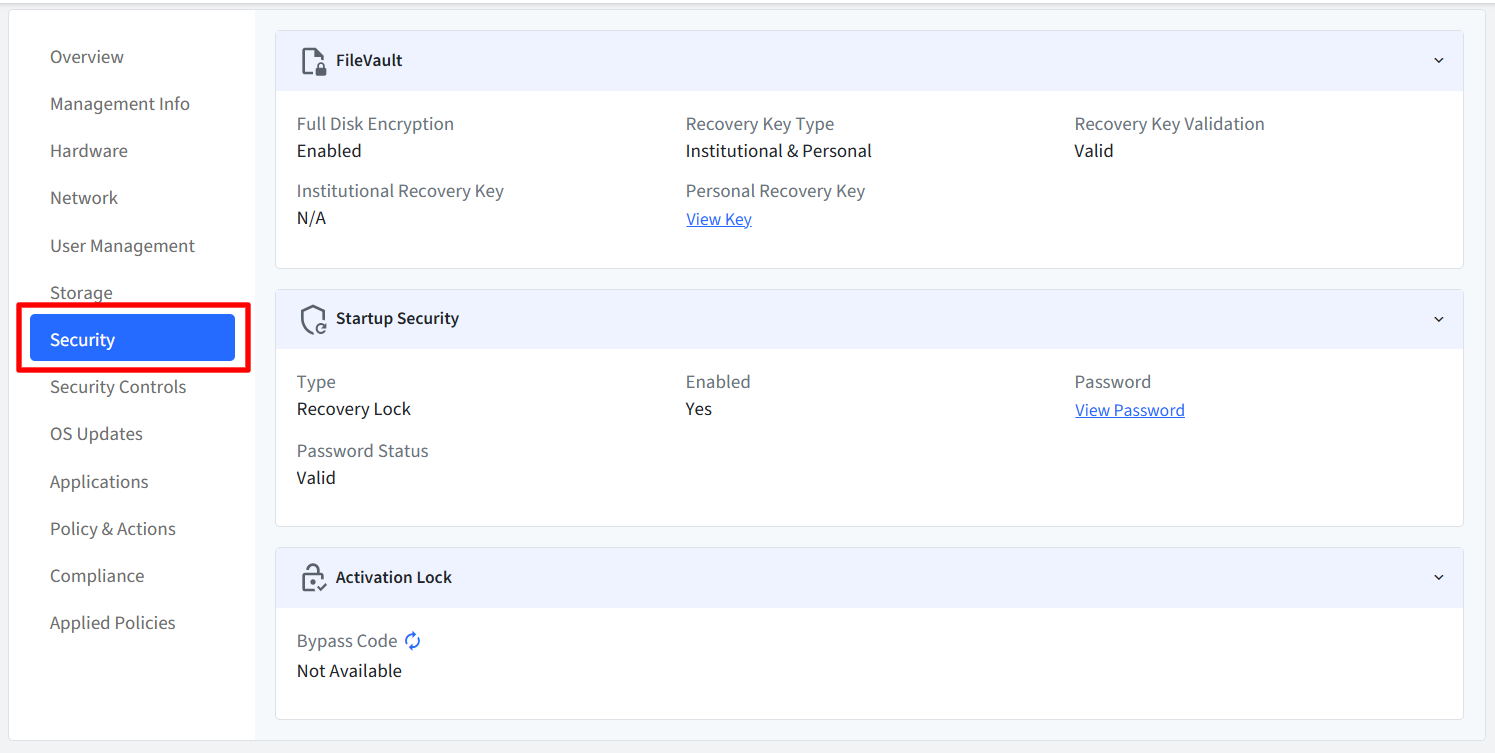
Security
Displays FileVault encryption status, recovery key information, startup security, and Activation Lock details.
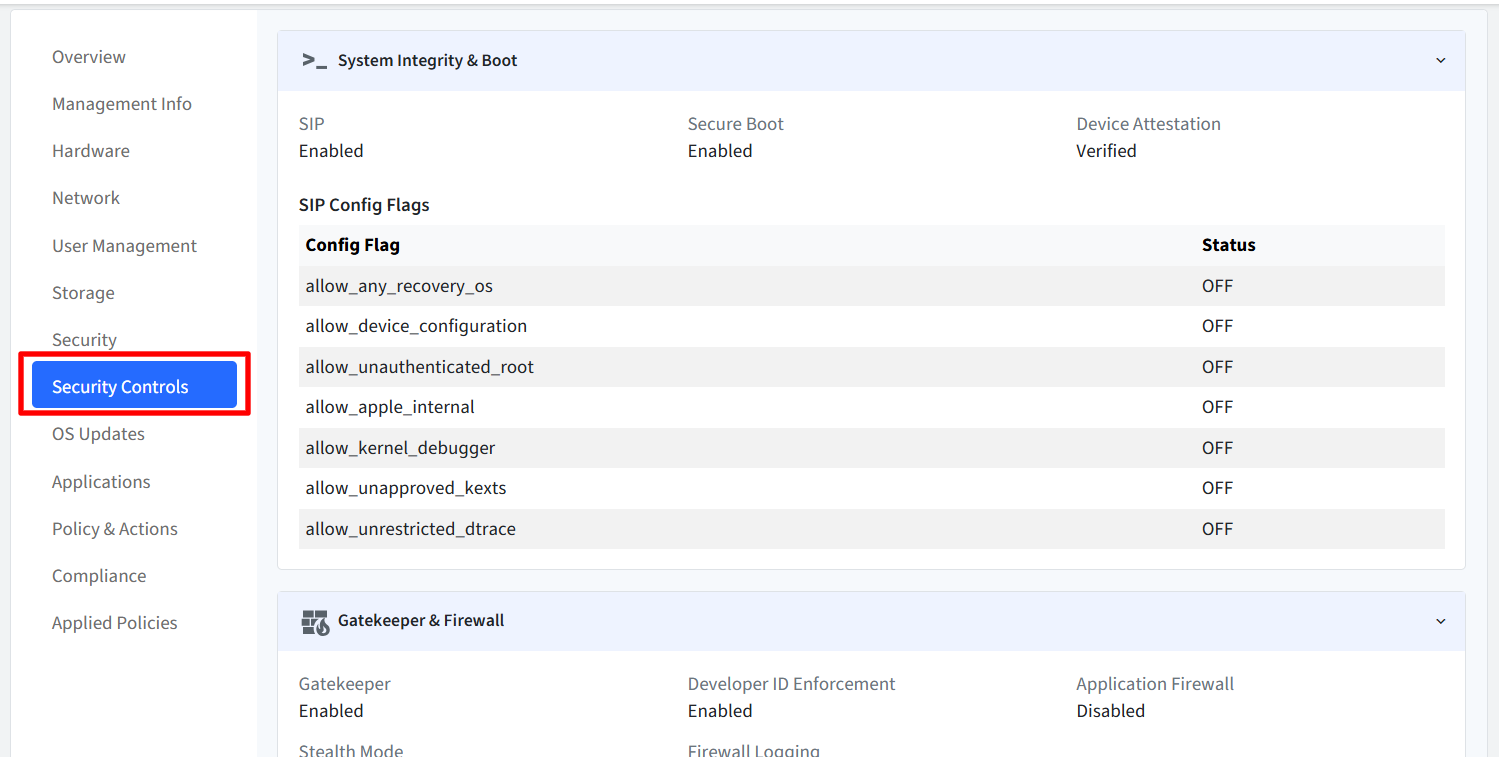
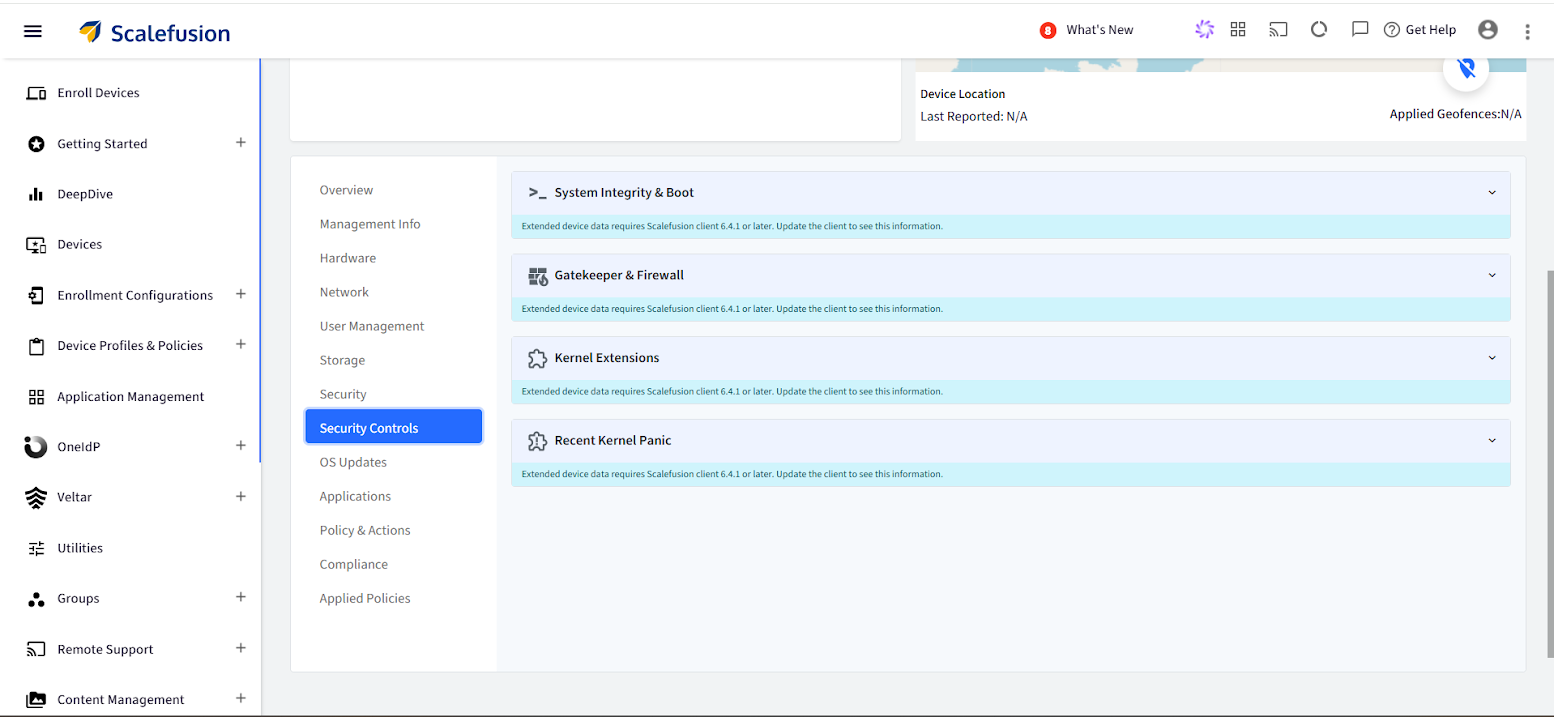
Security Controls
Shows the device security posture, including System Integrity Protection (SIP), Gatekeeper, Firewall, Secure Boot, screen lock settings, kernel extensions, and recent kernel panics.
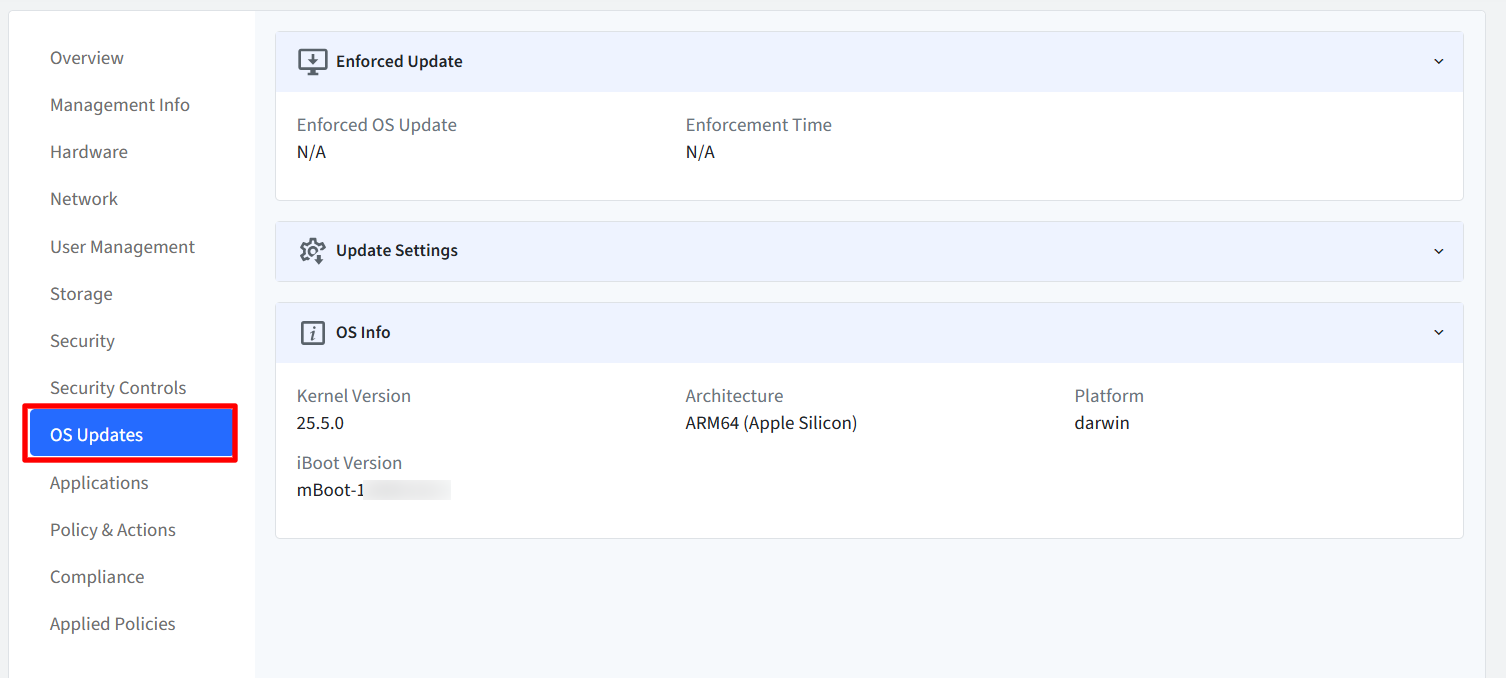
OS Updates
Displays enforced operating system updates, software update settings, and operating system information.
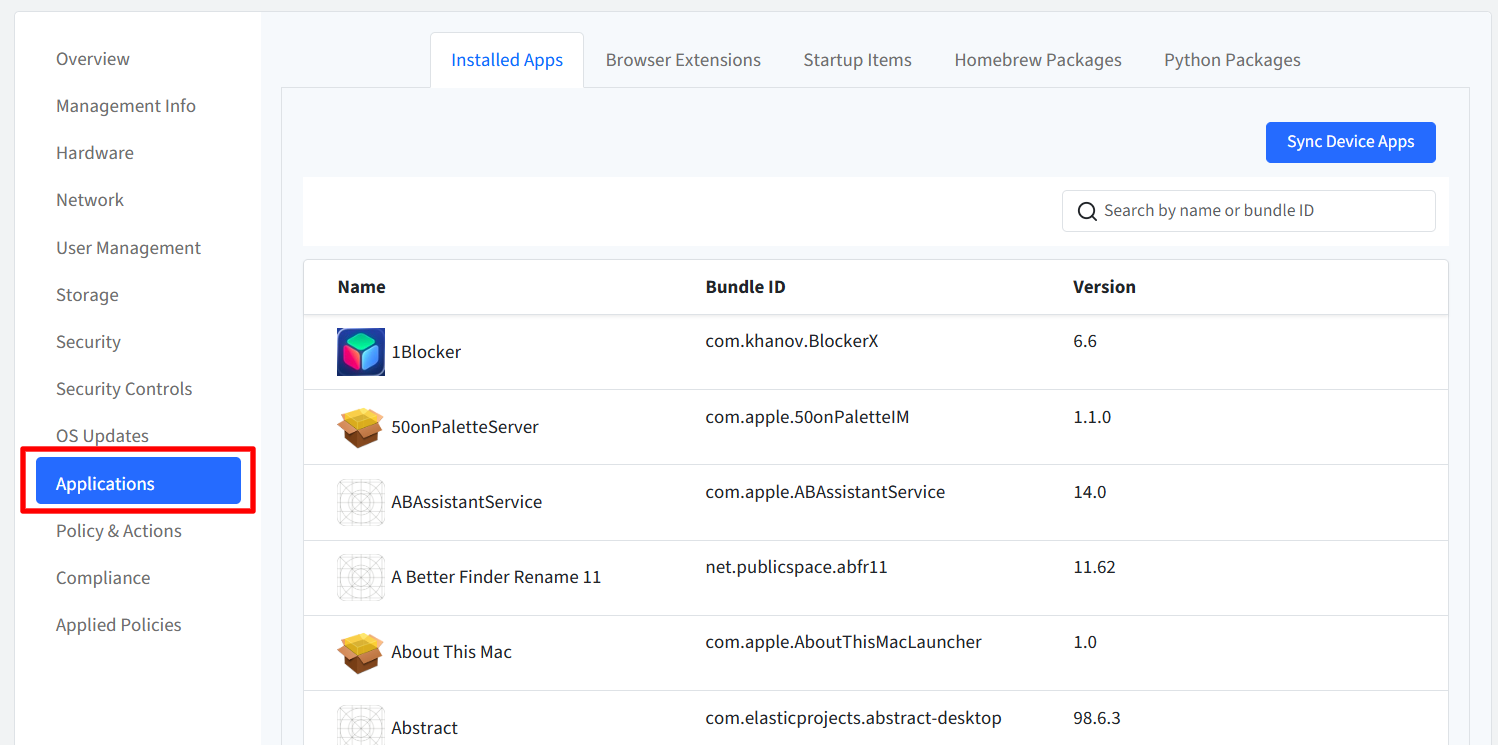
Applications
Lists installed applications and, where supported, browser extensions, startup items, Homebrew packages, and Python packages.
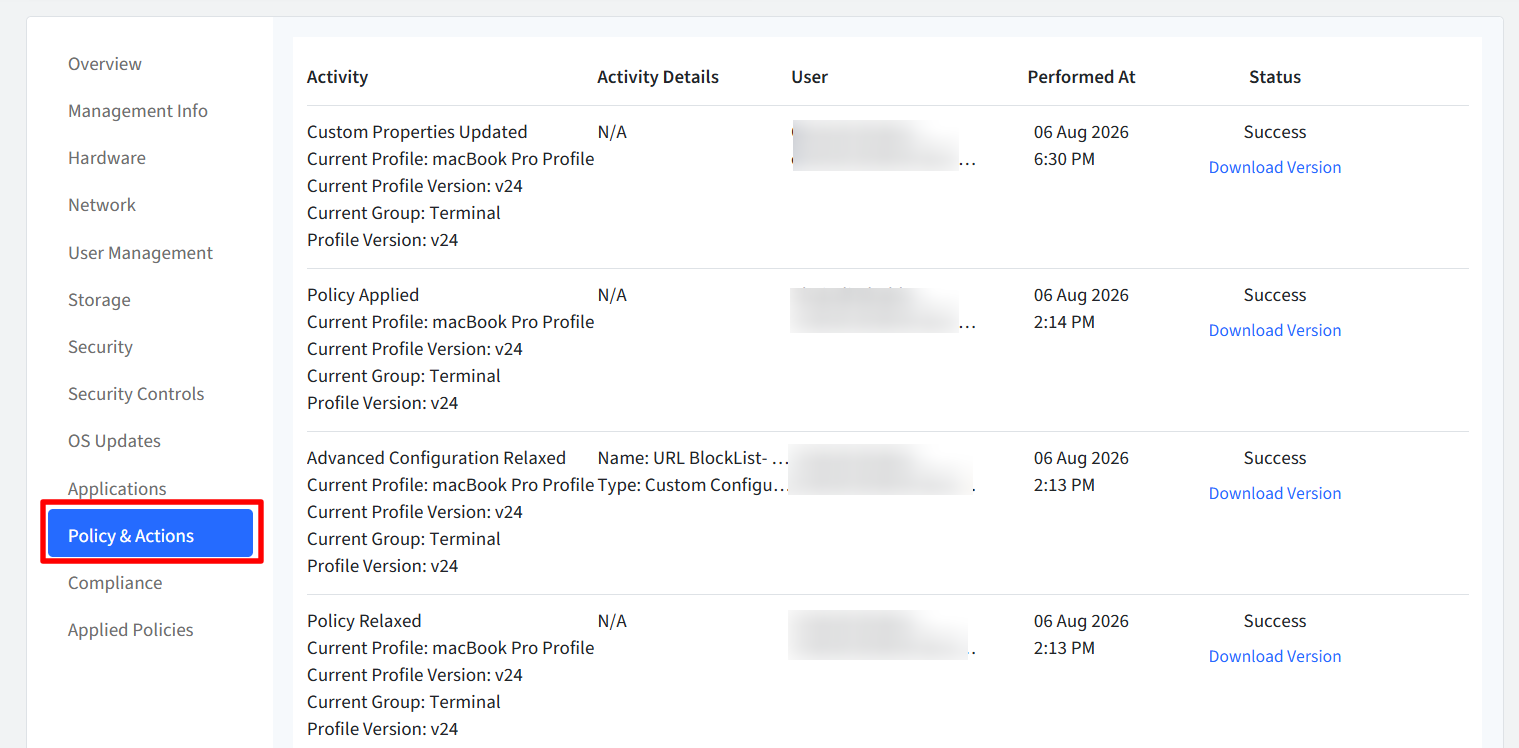
Policy & Actions
Displays the policies applied to the device and provides the available management actions.
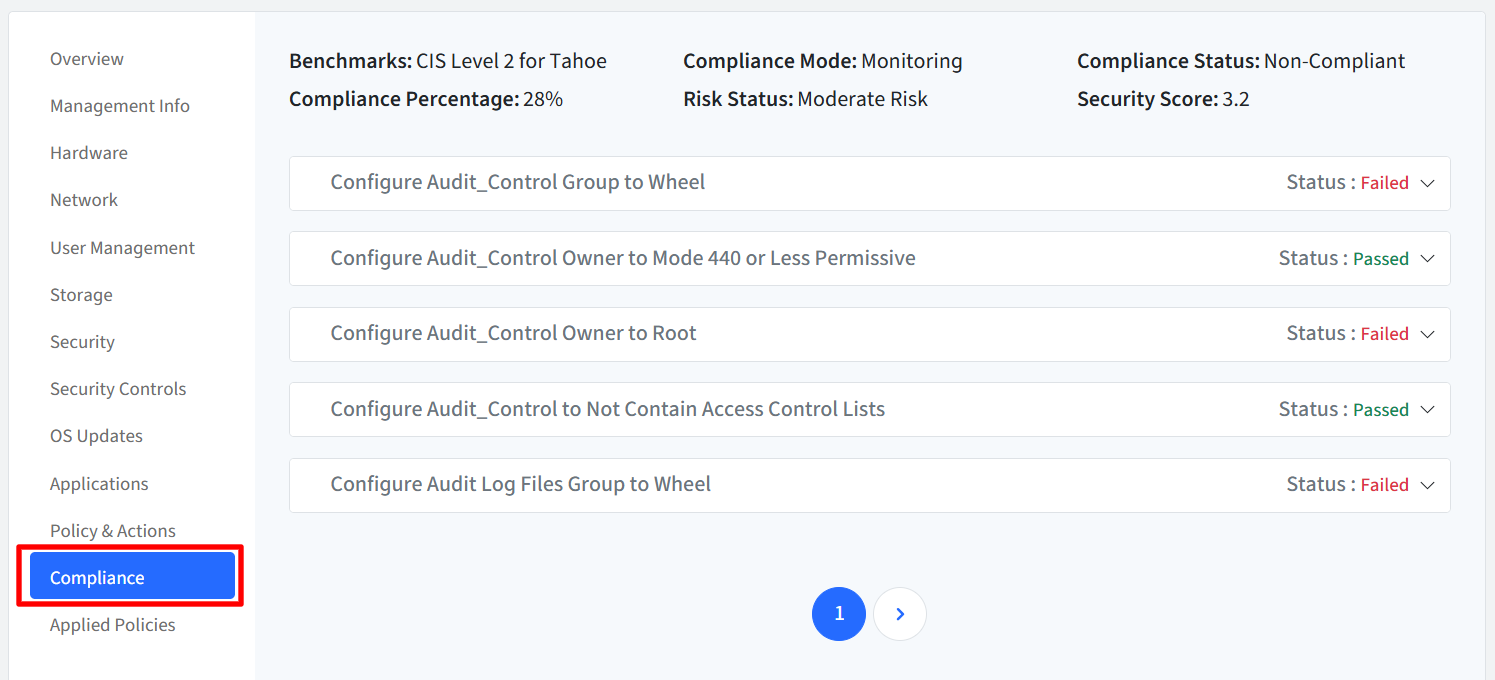
Compliance
Displays the device compliance status and compliance-related information.
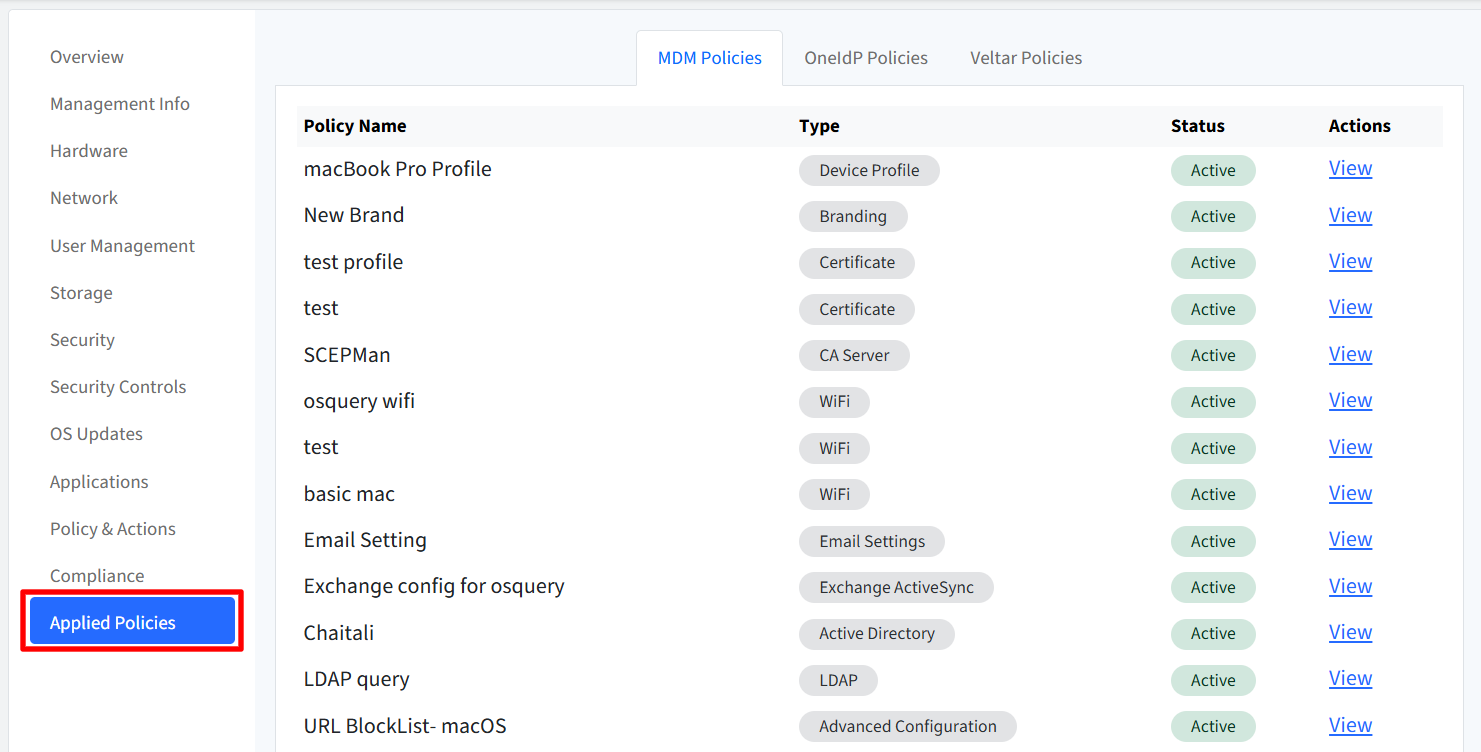
Applied Policies
Shows all policies currently applied to the device, grouped into:
MDM Policies
OneIdP Policies
Veltar Policies
You can view the policy status and navigate directly to the corresponding policy configuration by clicking on View.
Important Points to Note
Some inventory information is available only with Scalefusion macOS Agent 6.4.1 or later.
When advanced inventory is unavailable, the page displays an upgrade prompt for the affected sections.
Information displayed may vary depending on the device enrollment method and assigned policies.
Extended Device Insights Report
The Extended Device Insights report provides detailed insights into the hardware and software components connected to your managed Windows and macOS devices. This report helps IT administrators maintain accurate records and simplifies asset tracking and auditing.
You can access this report from the Reports section by selecting Extended Device Insights.
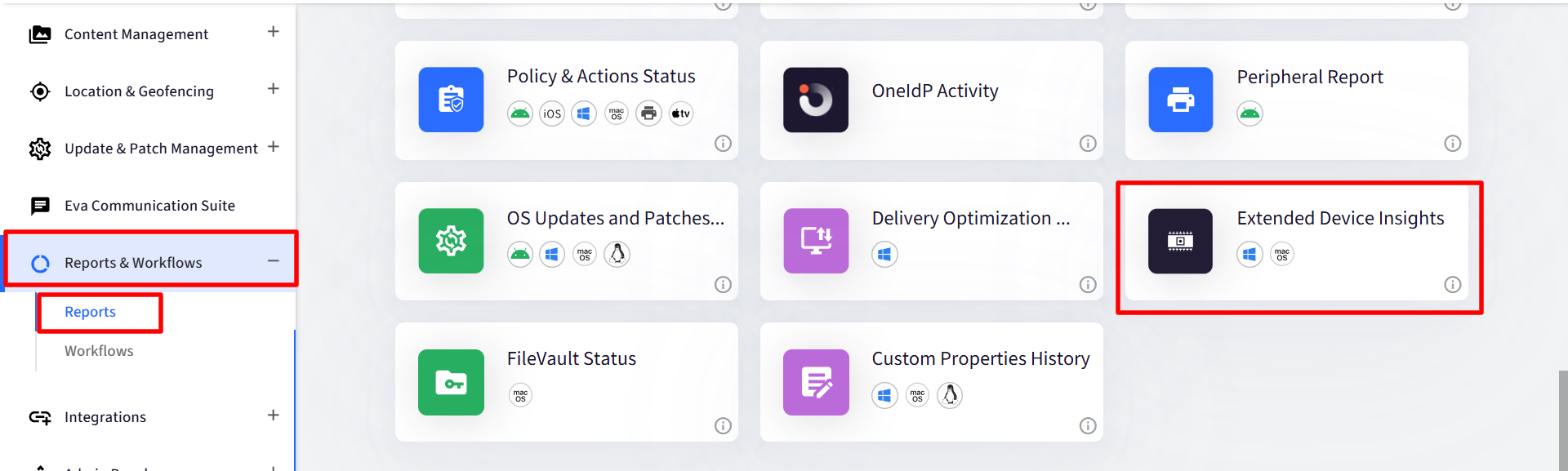
Configure the report
On the report configuration page, you can customize the report using the following options:
Select Platform: Select one platform (macOS)
Select Group(s): Choose a device group from the dropdown list.
Select Device(s):
All Devices
A specific device
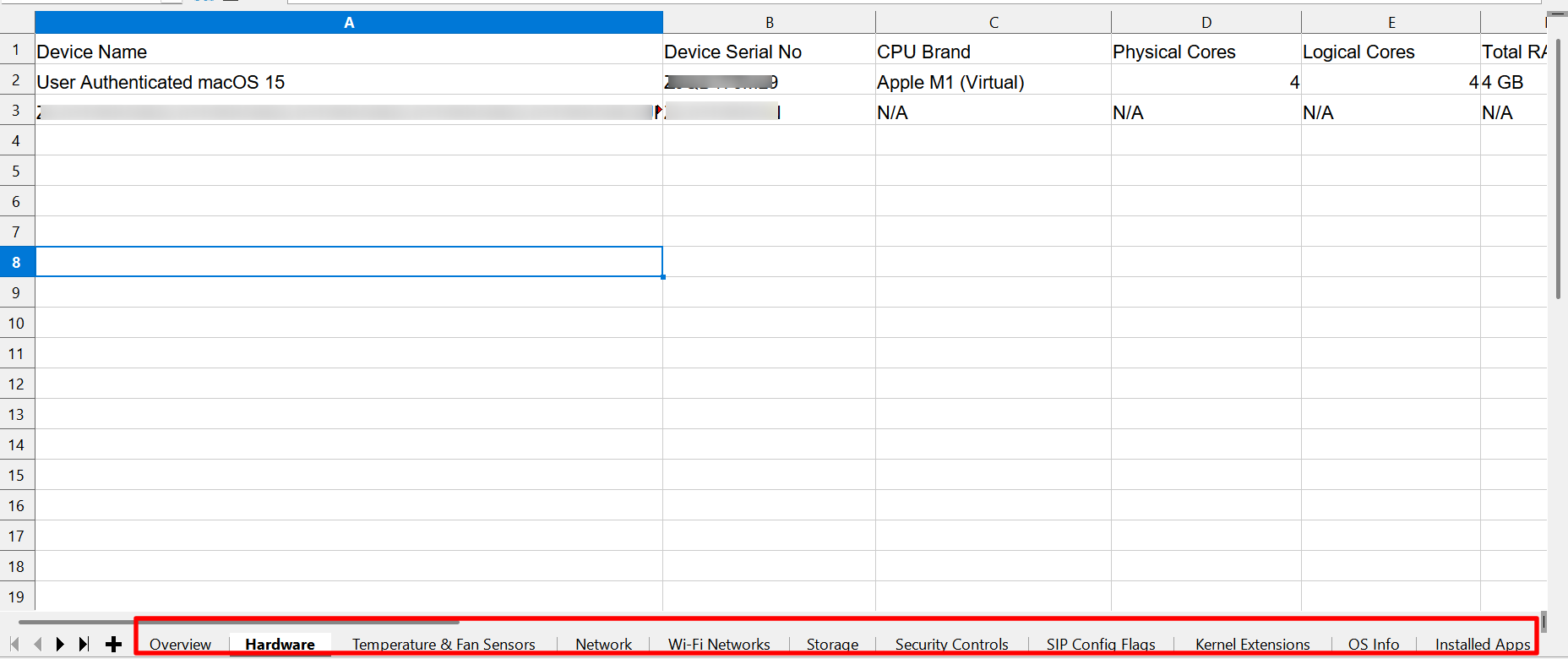
Click Download Report to export the report in XLSX format.
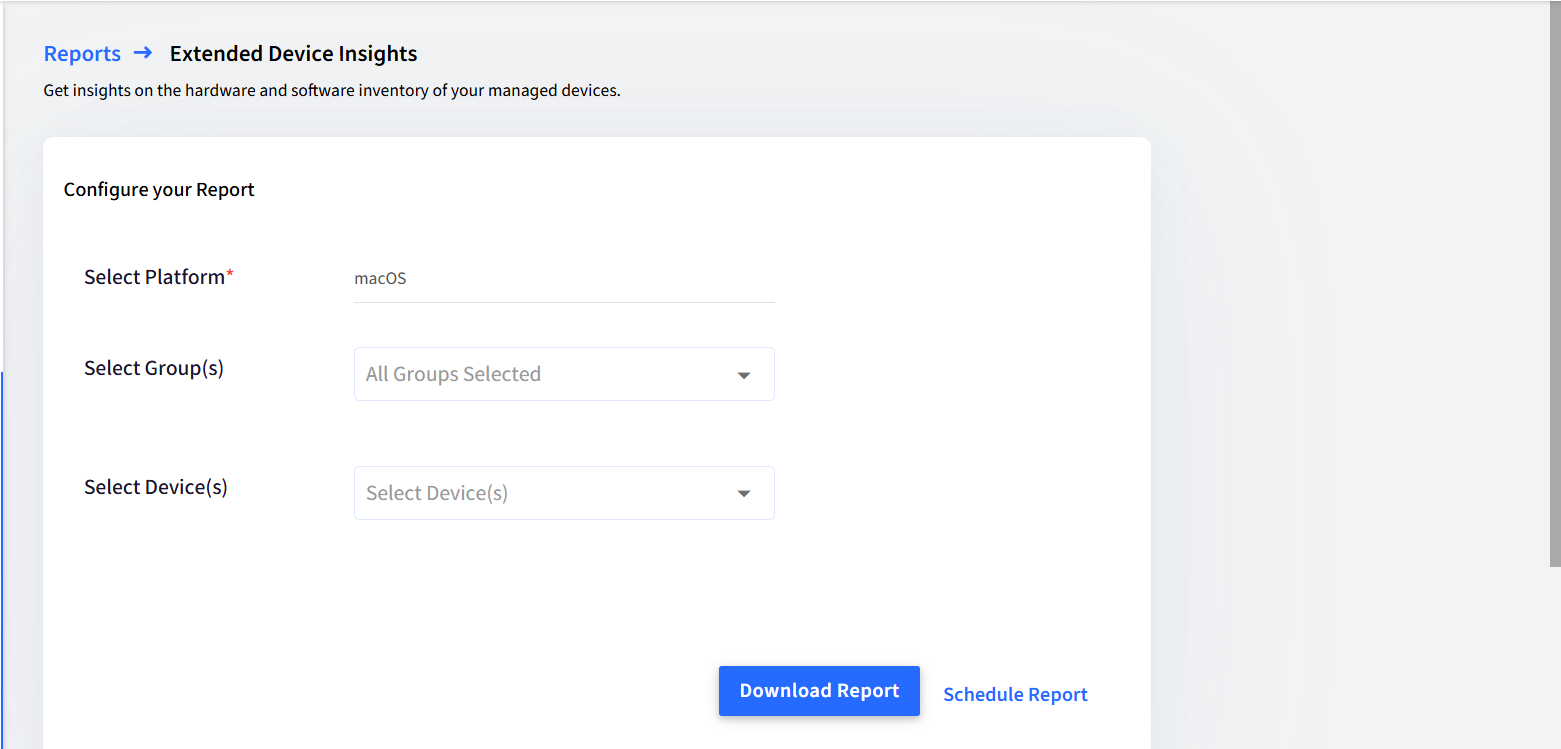
The report will be generated with information on each hardware component under separate tabs.