In this Global Settings section, you can configure various settings for Linux devices. They are described below.
How to Access
On the Scalefusion Dashboard, navigate to Utilities > Global Settings.
Navigate to the Linux Settings tab.

Settings Description
Configure Linux Shutdown Settings
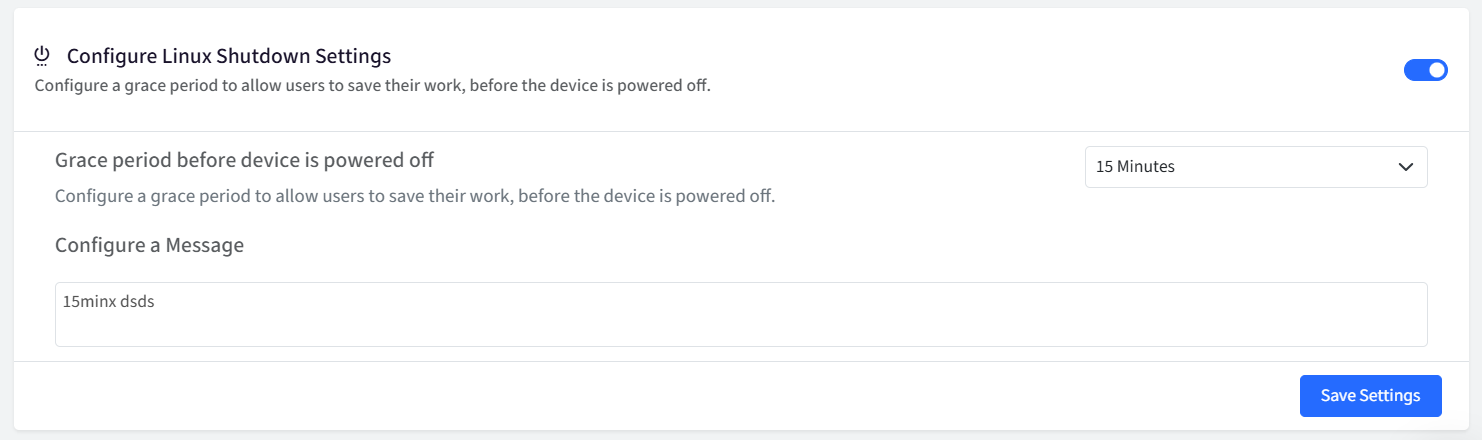
With this setting, you can configure a grace period to allow users to save their work before the device is powered off. To do so,
Toggle on the setting Configure Shutdown settings which enables the following:
Setting
Description
The grace period before the device is powered off
Specify a time period from the following options. This is a grace period which allows users to save their work before the device is powered off:
2 Minutes (default)
5 Minutes
10 Minutes
15 minutes
Configure a Message
Here you can compose a message that will be displayed to the end users and alert them that the device will be powered off.
Click on Save settings
Create Admin Account
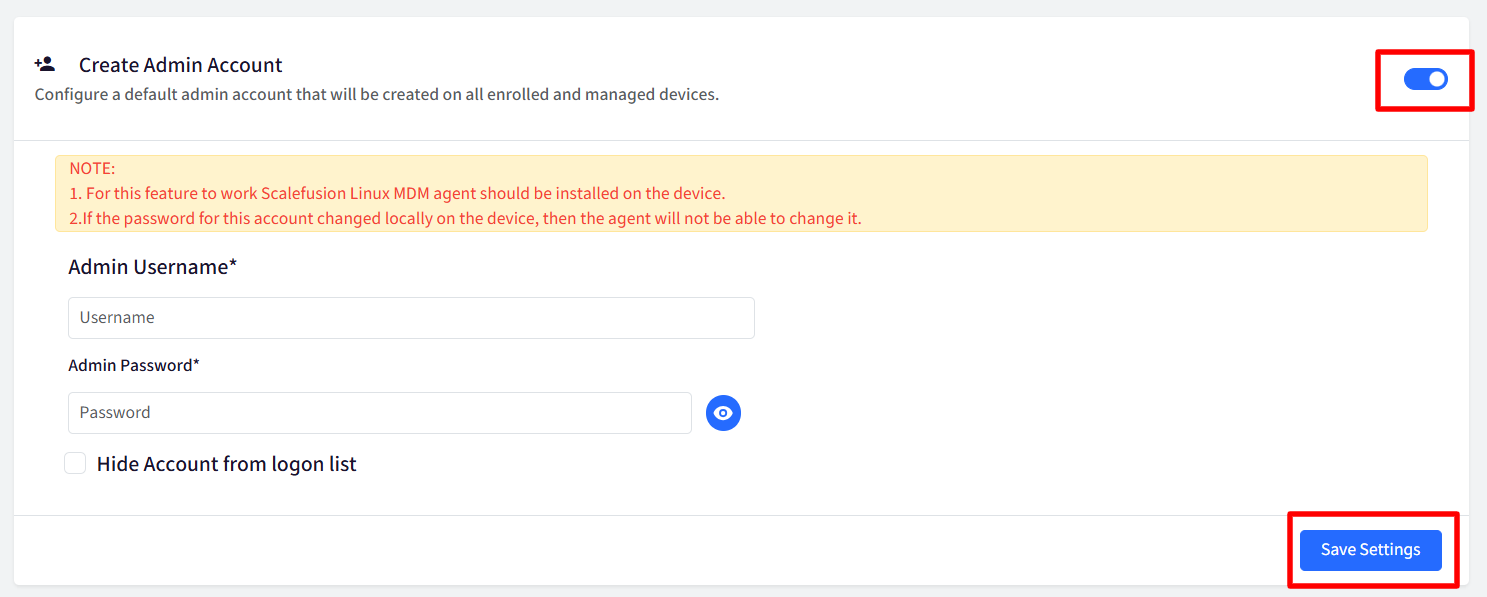
With this utility, IT Admins can configure a default admin account on all enrolled and managed devices. This account can be used to perform various administrative tasks. To do so:
Toggle on the setting Create Admin Account. This will enable the following:
Admin Username: Enter username. Allows up to 20 characters
Admin Password: Enter password. Allows up to 32 characters
Hide Account from Logon list: Enabling this will hide the admin account from the login list.
After adding the details, click Save settings.
Important Points to note:
For this feature to work, the latest Scalefusion Linux agent v5.3.0 or above should be installed on the device.
If the password for this account is changed locally on the device, then you will not be able to change it again through the Linux agent.
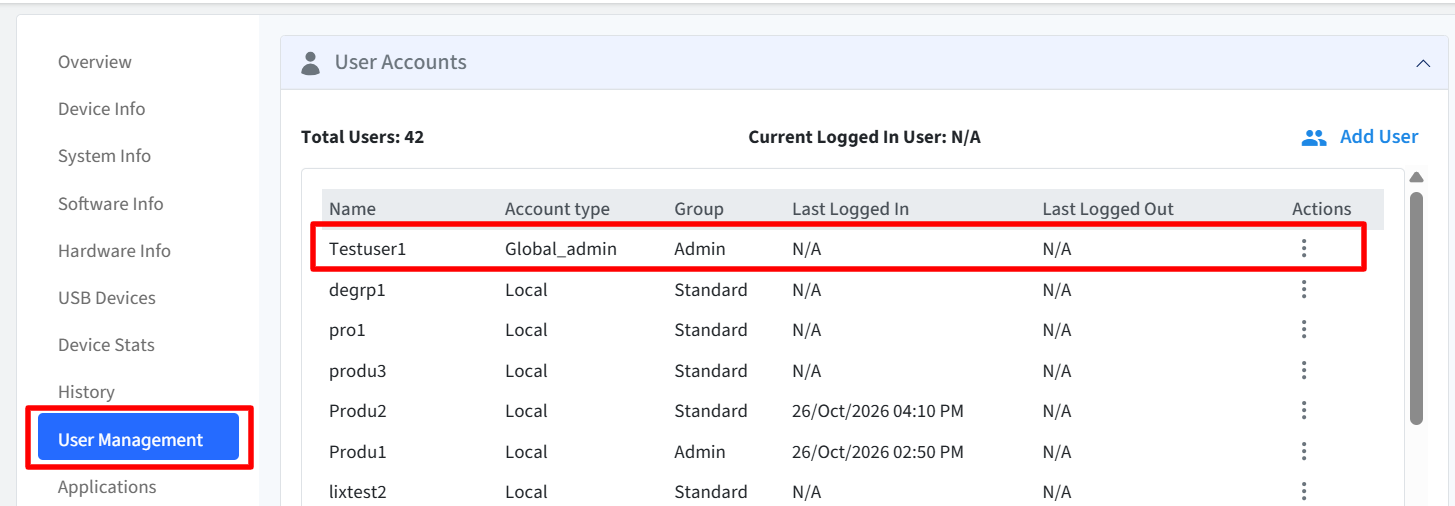
The account created will reflect in Device Details (Linux) in User Management with Account Type as Global Admin