Enrollment configurations help you generate enrollment URLs that can be used to enroll your devices. They are an easy way to automatically assign a profile or a group to the devices that are enrolled so that the devices are applied a policy right after enrollment.
Follow the steps below to generate an enrollment configuration to start enrolling your Linux devices.
Prerequisites
- Create a Linux Device Profile
- Optionally you can also create a Device Group & associate a Linux device profile.
Steps
- Navigate to Enrollment Configurations, click on QR Code configurations and click Create Config
 You can also click on the 3 dots menu on an existing config and Edit the config.
 - In the configuration wizard, follow the steps below to create a configuration,
- Basic:
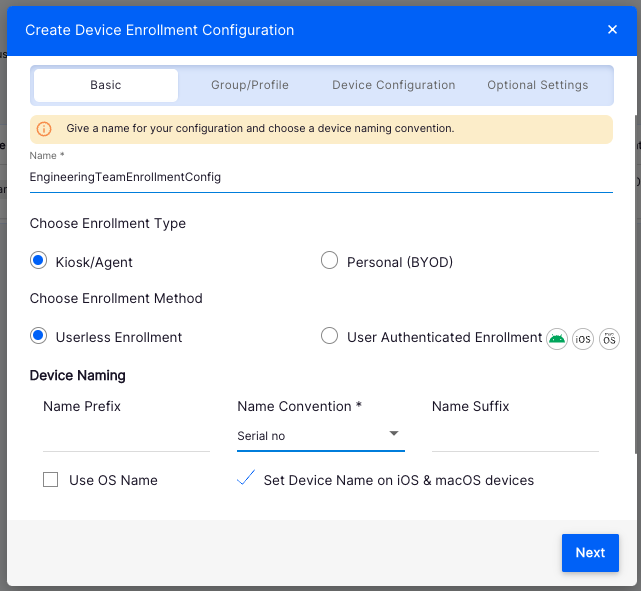
- Name: Enter a name for the configuration
- Choose Enrollment Type: Select Kiosk/Agent
- Choose Enrollment Method: Select Userless Enrollment
- Device Naming: Enter a Prefix, choose a naming convention and enter a suffix
- Serial no & Auto incremented numbers are the supported naming conventions
- Click Next
- Group/Profile
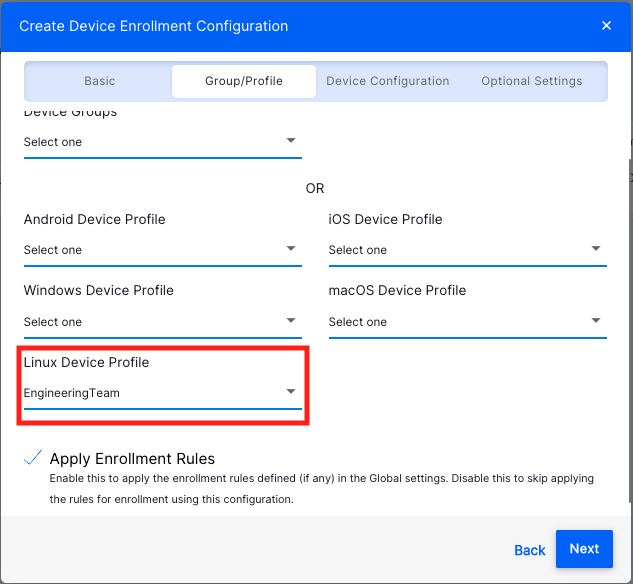
- Select the Group that has a Linux profile or a Linux profile
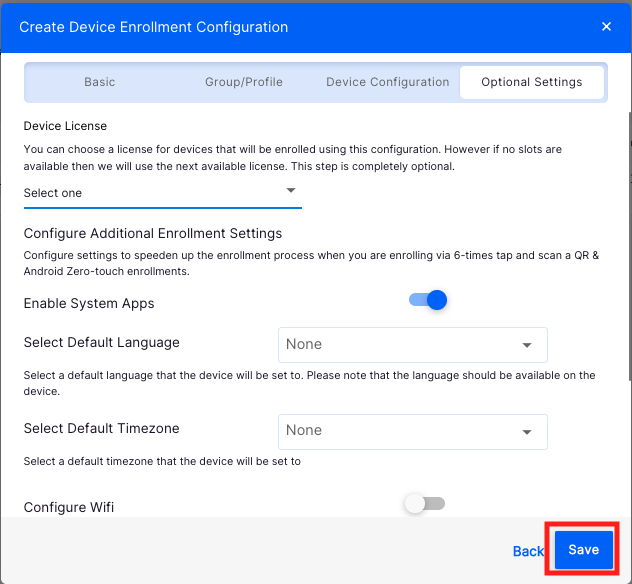
- Click Next > Next to reach the last tab, as the Device Configuration and Optional Settings tabs do not apply to Linux device management.
- Save: Click Save to save the configuration.
- Basic:
- Once a configuration is saved, it appears in the list of configurations.
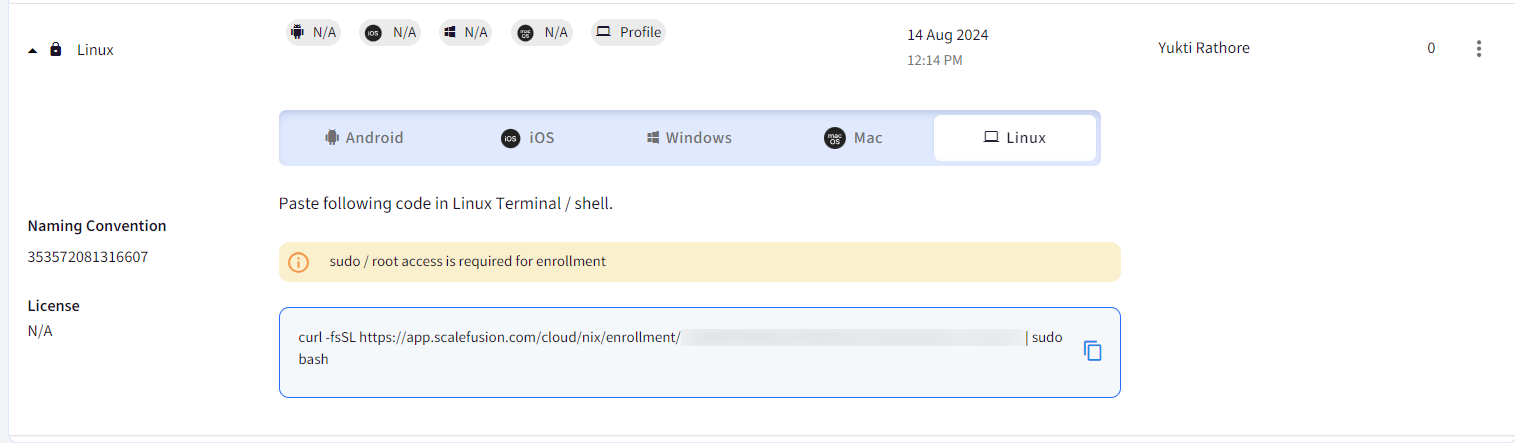
- Click on the Linux tab and copy the Enrollment URL
- You can also click on the 3 dots menu on the right-hand side and perform the following actions,
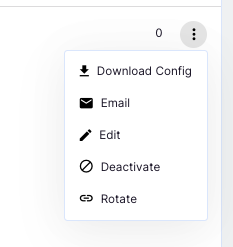
- Email: Send a copy of enrollment instructions to your email or additional emails
- Edit: Edit the enrollment configuration. Note that any changes to the configuration do not impact the already enrolled device.
- Deactivate: Deactivate this config so that this URL can no longer be used.
- Rotate: Use this option to generate a new enrollment URL for this configuration. Once rotated, the old enrollment URL will no longer work.
Next Steps
Once you have created an enrollment configuration, copy/email the enrollment URL and proceed to Enroll your Linux devices.