Use this script to download an image from a Google Drive and automatically set it as desktop wallpaper on Linux machines.
Copy and save the contents below to a UTF-8 editor like notepad++ OR Sublime Text in Windows or gedit in Ubuntu.
If you are using notepad++ then use the bottom right panel to change the type to Unix (LF).
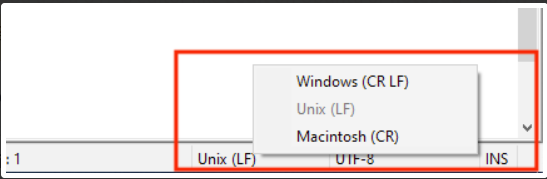
Or click here to download the file.
#!/usr/bin/env bash
set -euo pipefail

# ===== CONFIG =====
IMAGE_URL=""https://drive.google.com/uc?export=download&id=YOUR_FILE_ID_HERE""
IMAGE_NAME="mdm_wallpaper.jpg"

STATUS="UNKNOWN"

log() {
  echo "[WALLPAPER] $1"
}

# ===== DETECT ACTIVE SESSION =====
ACTIVE_SESSION=$(loginctl list-sessions --no-legend | awk '{print $1}' | head -n1 || true)

if [[ -z "$ACTIVE_SESSION" ]]; then
  log "No active user session found. Wallpaper NOT set."
  STATUS="NO_ACTIVE_SESSION"
  exit 0
fi

ACTIVE_USER=$(loginctl show-session "$ACTIVE_SESSION" -p Name --value)
USER_ID=$(id -u "$ACTIVE_USER")
USER_HOME=$(getent passwd "$ACTIVE_USER" | cut -d: -f6)

if [[ -z "$ACTIVE_USER" || -z "$USER_HOME" ]]; then
  log "Active session detected but user details could not be resolved. Wallpaper NOT set."
  STATUS="SESSION_USER_UNRESOLVED"
  exit 0
fi

log "Active user detected: $ACTIVE_USER"

# ===== PREPARE DESTINATION =====
DEST_DIR="$USER_HOME/Pictures"
DEST_PATH="$DEST_DIR/$IMAGE_NAME"

mkdir -p "$DEST_DIR"

# ===== DOWNLOAD IMAGE =====
log "Downloading wallpaper image..."
if ! curl -fL --retry 3 --retry-delay 2 -o "$DEST_PATH" "$IMAGE_URL"; then
  log "Image download failed. Wallpaper NOT set."
  STATUS="DOWNLOAD_FAILED"
  exit 0
fi

chown "$ACTIVE_USER:$ACTIVE_USER" "$DEST_PATH"

# ===== VERIFY DBUS =====
DBUS_PATH="/run/user/$USER_ID/bus"

if [[ ! -S "$DBUS_PATH" ]]; then
  log "DBus session not available for user $ACTIVE_USER. Wallpaper NOT set."
  STATUS="DBUS_NOT_AVAILABLE"
  exit 0
fi

# ===== SET WALLPAPER =====
log "Setting wallpaper for user $ACTIVE_USER..."

if sudo -u "$ACTIVE_USER" \
  DBUS_SESSION_BUS_ADDRESS="unix:path=$DBUS_PATH" \
  gsettings set org.gnome.desktop.background picture-uri "file://$DEST_PATH"; then

  sudo -u "$ACTIVE_USER" \
    DBUS_SESSION_BUS_ADDRESS="unix:path=$DBUS_PATH" \
    gsettings set org.gnome.desktop.background picture-uri-dark "file://$DEST_PATH" 2>/dev/null || true

  log "Wallpaper successfully set."
  STATUS="SUCCESS"
else
  log "gsettings command failed. Wallpaper NOT set."
  STATUS="GSETTINGS_FAILED"
fi

log "Final status: $STATUS"
exit 0
In the script, replace the following placeholder:
Please make sure that the image file is accessible to all.
Add the File ID in the script.
# Google Drive sharing link for the imageimage_path_link="https://drive.google.com/uc ?export=download&id=YOUR_FILE_ID_HERE"
To obtain the file ID for a file hosted on Google Drive, follow these steps:
Open Google Drive: Go to Google Drive and log in to your Google account if you're not already logged in.
Locate the File: Find the file you want to share or download.
Get the File ID: Right-click on the file and select "Get link" from the menu. Alternatively, you can click on the file to open it, and then the file ID will be visible in the URL in the address bar of your browser. The file ID typically appears after the id= parameter in the URL.
For example,
https://drive.google.com/file/d/1AhzJz5y6v589WvexxxxxxxxxxxUhc48XfQD/view?usp=drive_linkFile ID is the alphanumeric string in the URL.
Follow our guide to upload & publish the script using Scalefusion Dashboard.
Note:
Some of the scripts and their contents are sourced from internet and yes, our new friend ChatGPT.
Please validate the scripts on a test machine before deploying them on all your managed devices.
Scalefusion has tested these scripts, however Scalefusion will not be responsible for any loss of data or system malfunction that may arise due to the usage of these scripts.