Organizations prefer to enforce a particular branding throughout the enterprise devices. Once your Linux devices are enrolled in Scalefusion, you can use the Branding option to upload your wallpapers and then apply them to the devices. In this document, we will see how to create and apply a Branding configuration.
Before You Begin
The device should be enrolled with Scalefusion.
Have a couple of wallpaper images stored on your local computer.
Minimum TUX agent versions:
.deb: 4.3.0-20260604050610
.rpm: 4.3.0-20260604052848Supported Operating Systems: All except the following:
Raspberry Pi
Create a Branding
Navigate to Device Profiles & Policies > Branding. Click on CREATE NEW BRAND.

Enter a name for your Branding so that you can refer to it when required.
Lock Screen Message: Enter a message that will be displayed on device’s lock screen. You can also use custom properties here.On Ubuntu 18, lock screen message updates take effect only after a device reboot due to operating system limitations.
Lock screen message is not supported on Nobara and Mxlinux
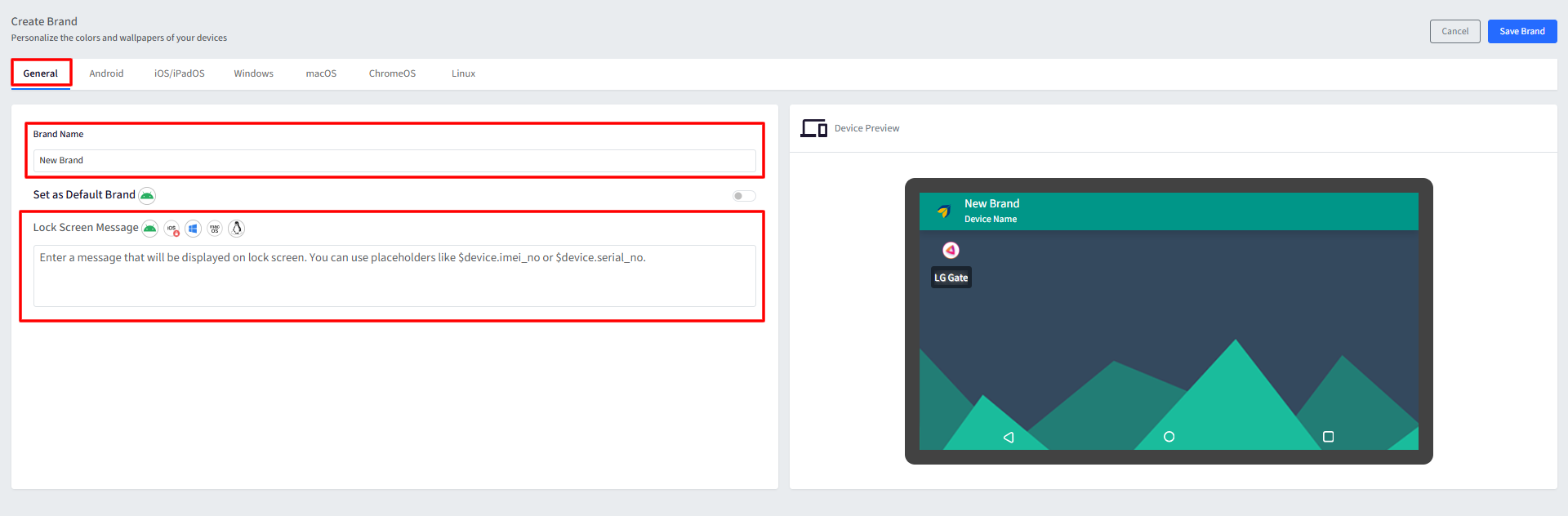
Next, move to Linux tab. Within the Linux tab, you’ll see the section from where you can upload the wallpaper for your home screen
The settings you configure here are visible on the sample device on the right, giving a preview of how it will reflect on the device.
Upload Requirements
Supported formats: .jpg, .jpeg, .png
Recommended size: 1920 × 1080
Maximum file size: 10 MB
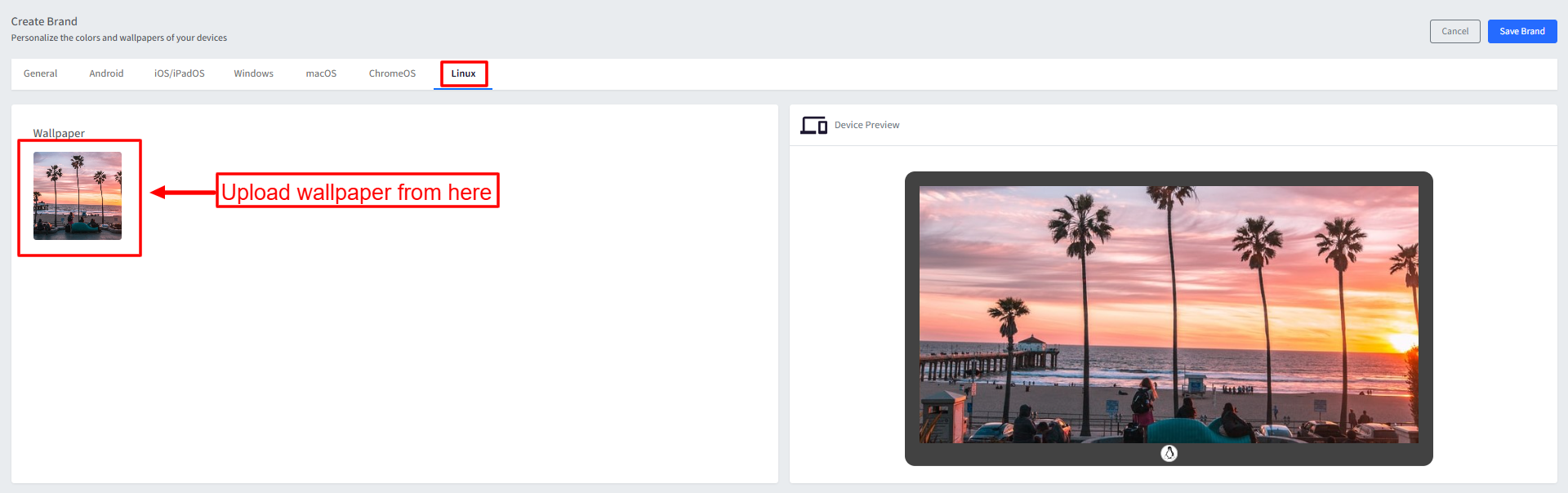
4. Once you have reviewed your changes, click on the SAVE BRAND button to save the brand. Once the brand is saved, it will start appearing in the list of brands.

Publishing/Applying a Branding
The next step is to apply the newly created brand to your devices. To do so, click on the Apply Brand option on the branding card,

From the list, select the device profile(s) where you want to publish this brand. Once you have selected the profiles, click on Apply Brand.
Note: Linux branding cannot be published at the individual device level. Linux devices will not appear in the Devices tab during publishing.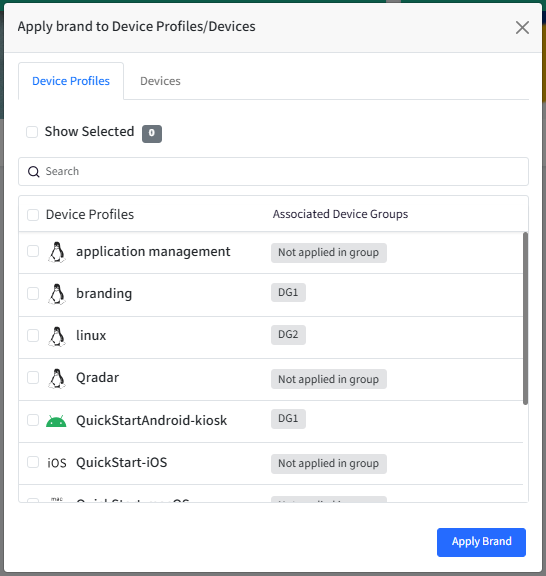
The Brand will be applied to the device.
Branding can also be applied to devices through a Device Profile. To apply branding using a Device Profile:
a. Navigate to Device Profiles & Policies → Device Profiles.
b. Select the Linux device profile and click Edit.
c. From the left panel, go to the Branding section. This displays all the available brands.
d. Select the desired brand from the list of brands where the Linux brand is set, then update the profile.

Other actions
The following actions can be performed over the Brands from the Dashboard:
From the Branding card
Edit
Delete
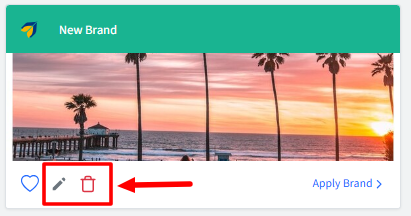
Others
Search and Filter Brands: Search by typing in the Brand name, which will filter the brands
