As of June 15, Microsoft updated how Conditional Access policies targeting All Resources/All Applications handle baseline scopes.
Previously, when an application was excluded from an All Resources policy, baseline scopes such as User.Read were also excluded from Conditional Access evaluation. With this update, baseline scopes are now treated as directory access and are evaluated against Conditional Access policies, even if the application itself is added to the exclusion list.
In the case of Scalefusion Intune Partner Compliance, the Scalefusion Device Attestation application requests the User.Read baseline scope. Therefore, even when the application is excluded from the Conditional Access policy, the request is evaluated as access to the Windows Azure Active Directory resource and can be blocked by the policy.
To ensure the Intune Partner Compliance integration and Scalefusion Device Attestation work correctly with Conditional Access policies targeting All Resources, IT administrators must make the following changes:
Login to https://entra.microsoft.com/
Step 1: Registering a New Application
Navigate to the the App Registrations page and follow the instructions below
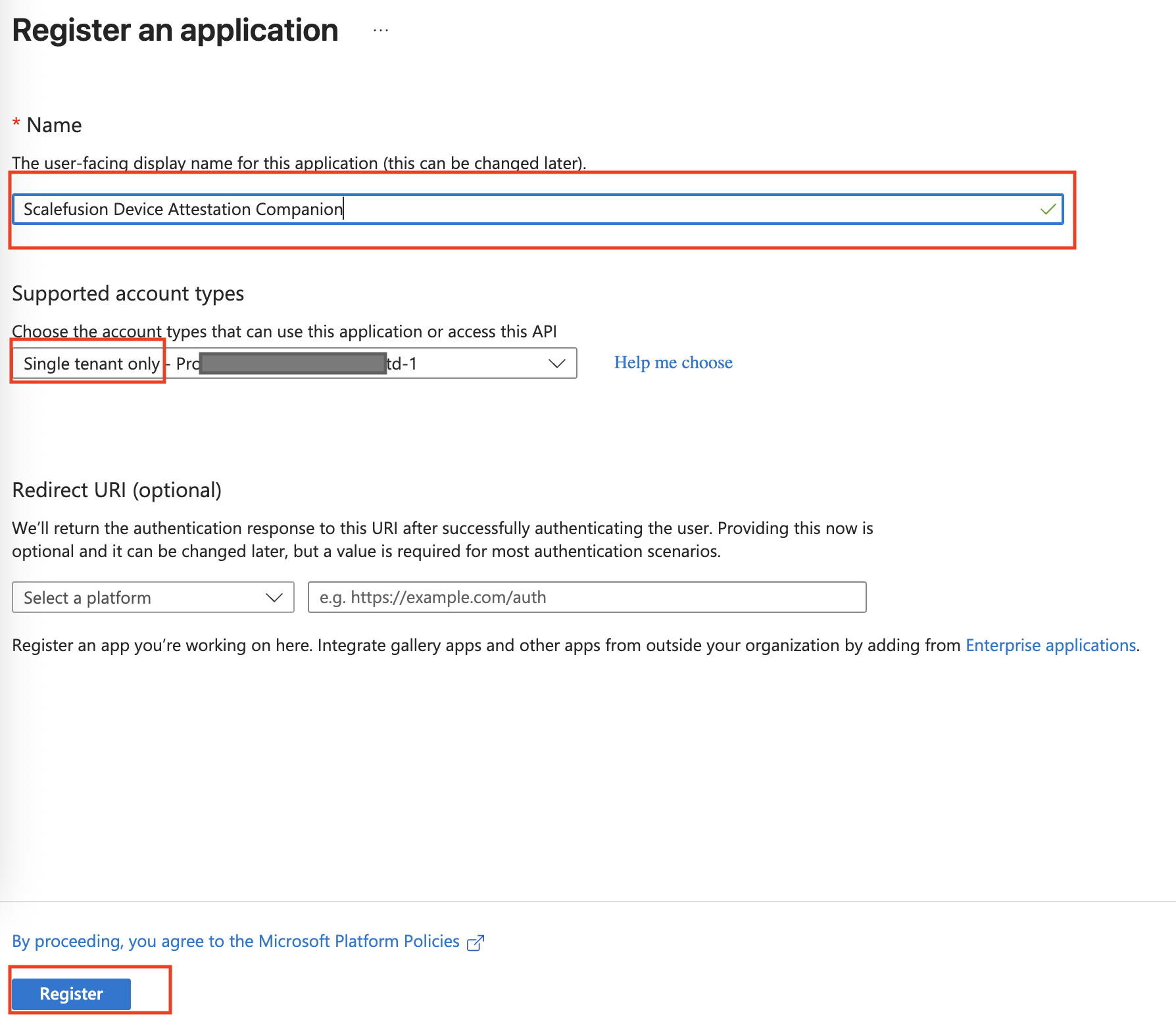
Register a new App by clicking on the New Registration option

Enter a name for the Application and click Register
Application Name: Scalefusion Device Attestation CompanionAccount Types: Single tenant only
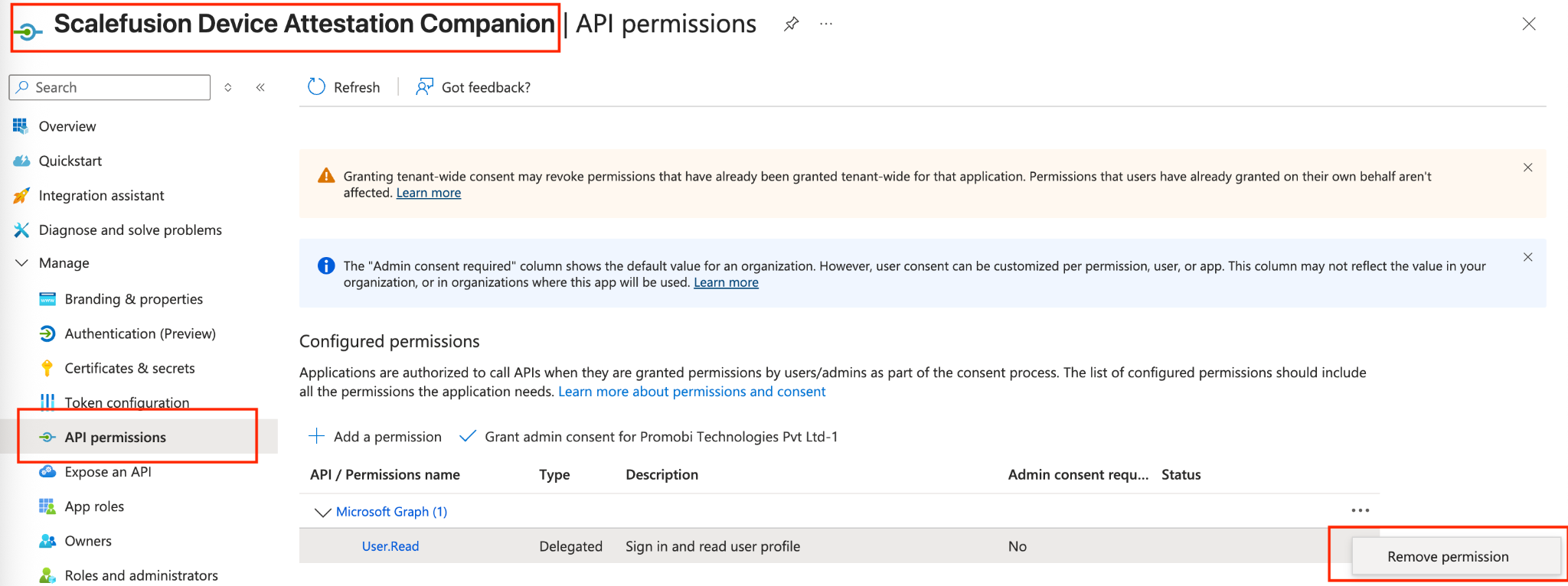
Once the application is created, navigate to the API Permissions section of the newly created application and remove the User.Read permission.
Step 2: Updating the Baseline Scopes Configuration
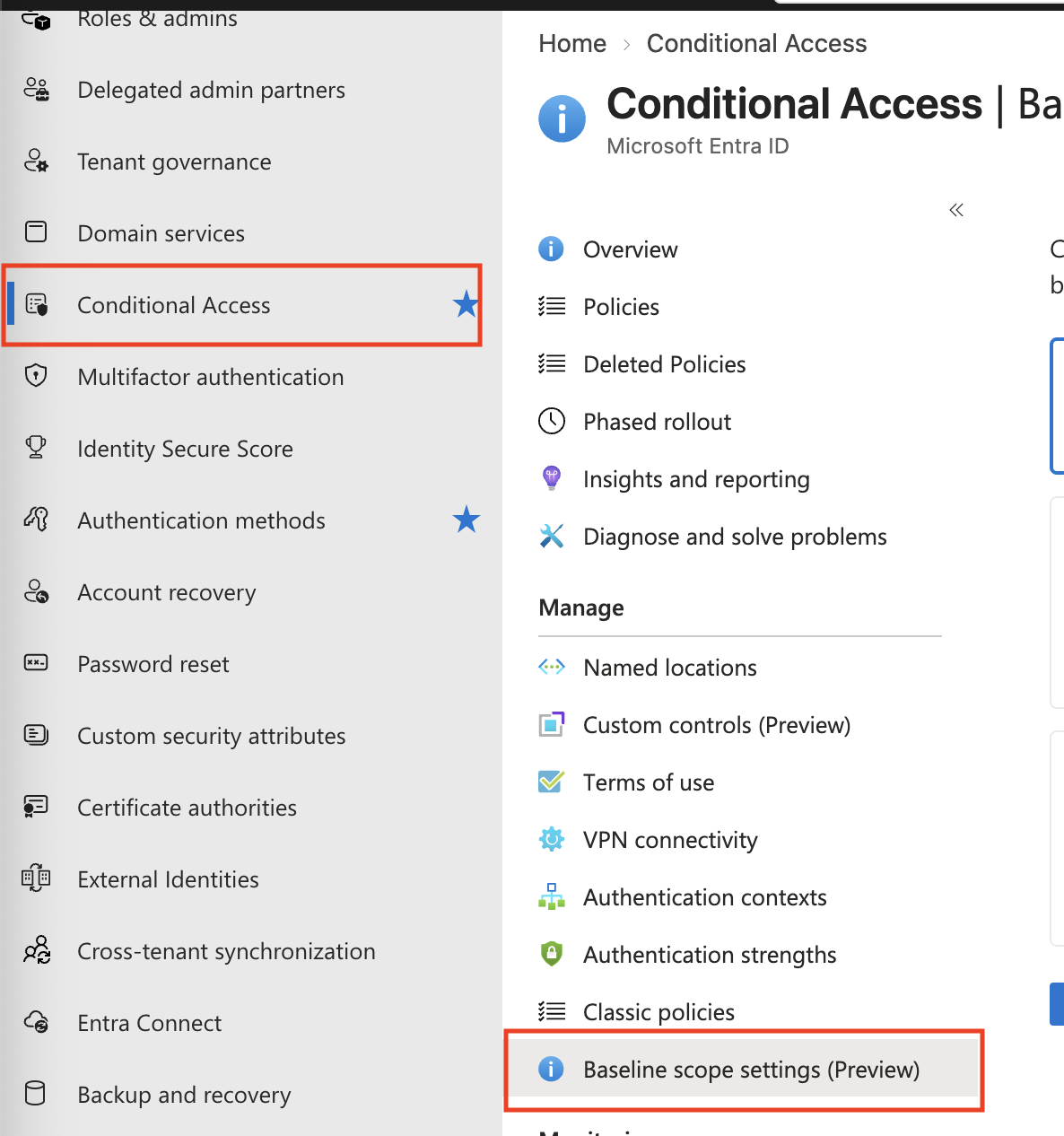
Now navigate to the newly added section of Baseline Scopes using the link https://aka.ms/BaselineScopesSettingsUX or clicking on Conditional Access → Baseline Scopes
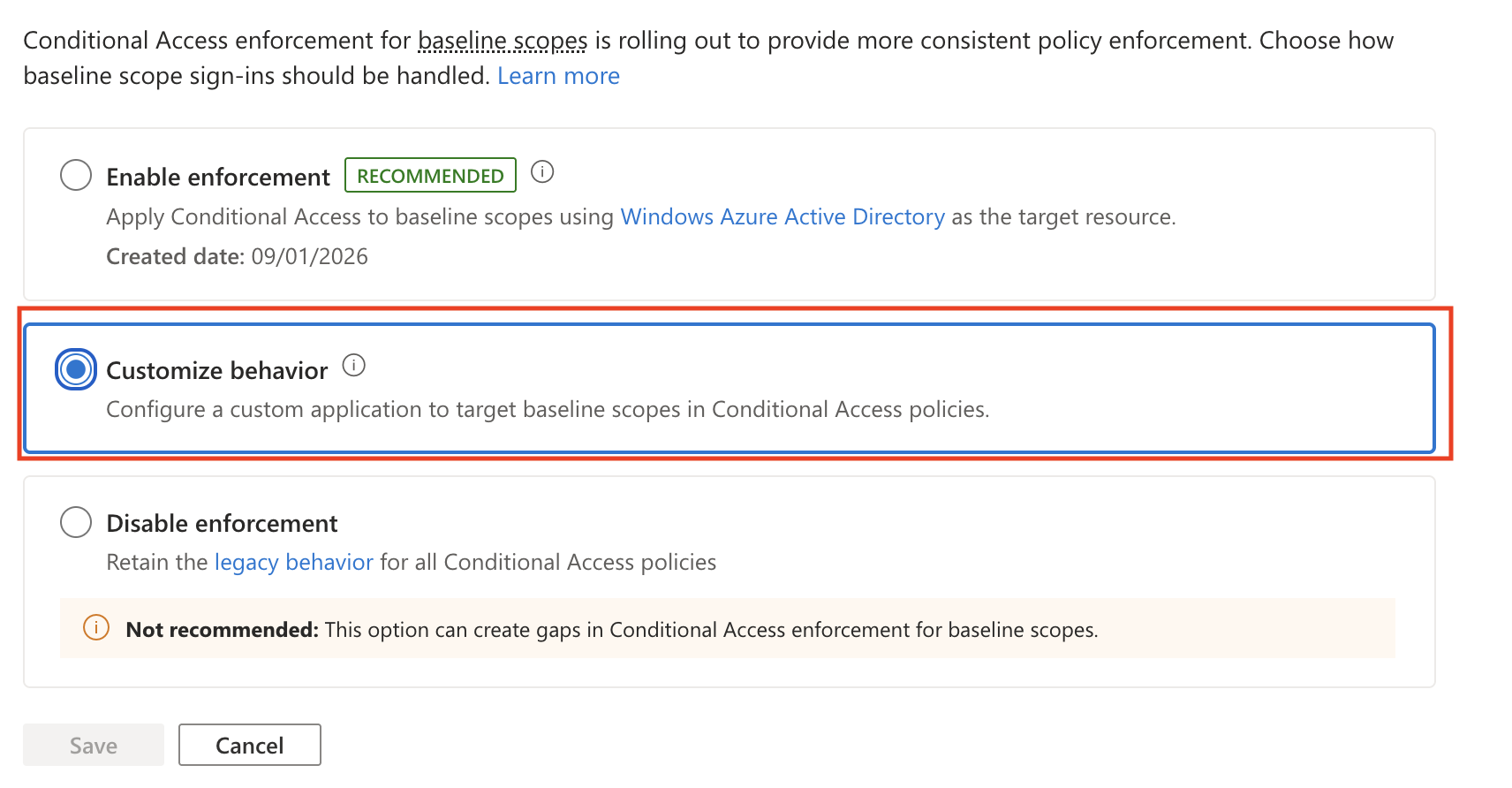
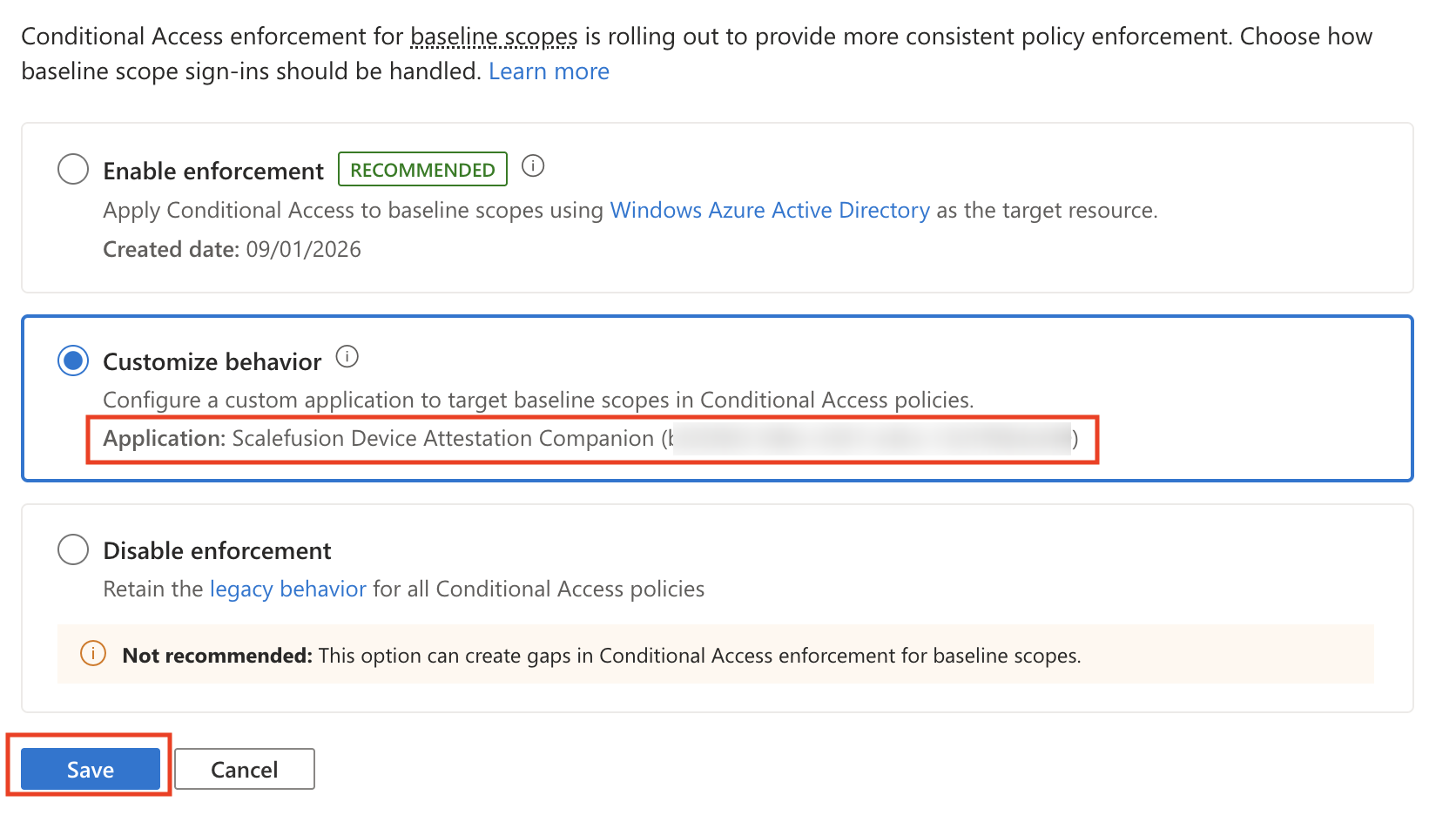
From the enforcement policies select Customize Behavior
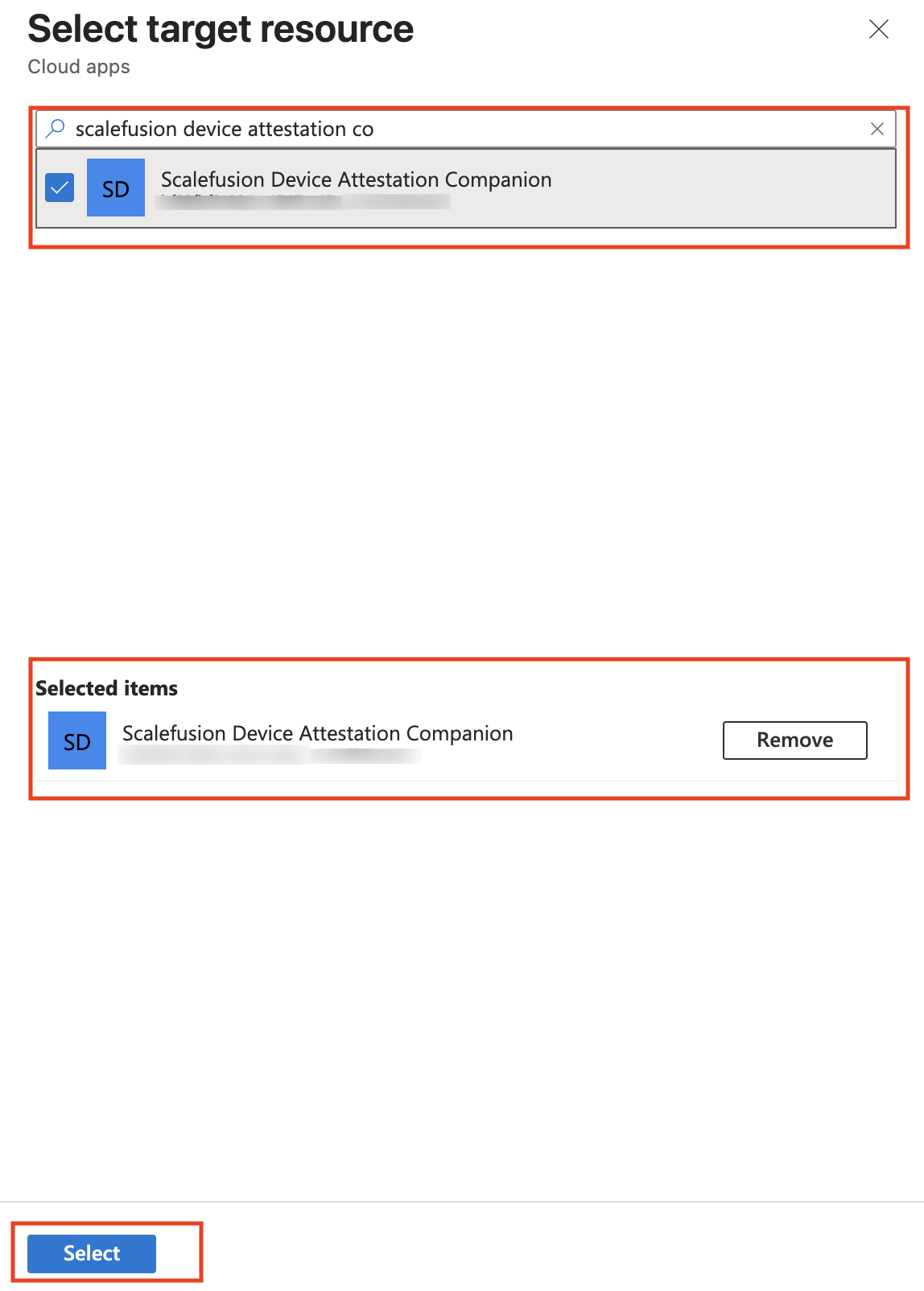
Search for the newly registered app Scalefusion Device Attestation Companion app and after selecting it (checkbox) click Select
Note: If the app is not getting displayed while searching, then scroll down to Scalefusion Device Attestation Companion app
Click Save on the Baseline Scopes configuration screen
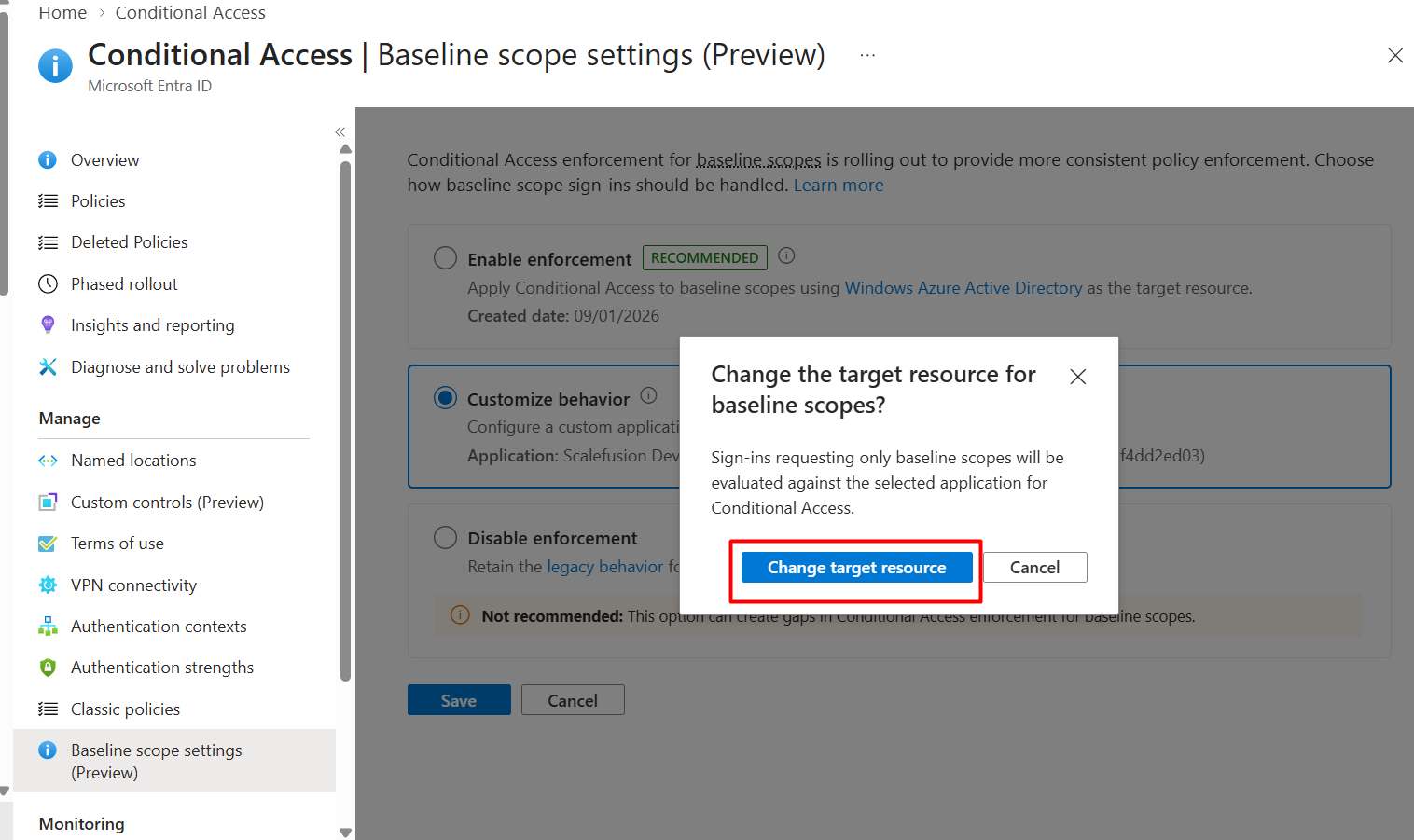
Click on Change Target resource on the “Change the target resource for baseline scopes? “ popup window.
Step 3: Updating the Conditional Access Policies
For each Conditional Access Policy that applies to the users which are added as Targets for Scalefusion Intune Partner Compliance, add the Scalefusion Device Attestation Companion as an exclusion. The steps here demonstrate exclusion in one policy.
Navigate to the Conditional Access Policies → Policy created for Scalefusion Intune Compliance and edit each policy that targets the user,
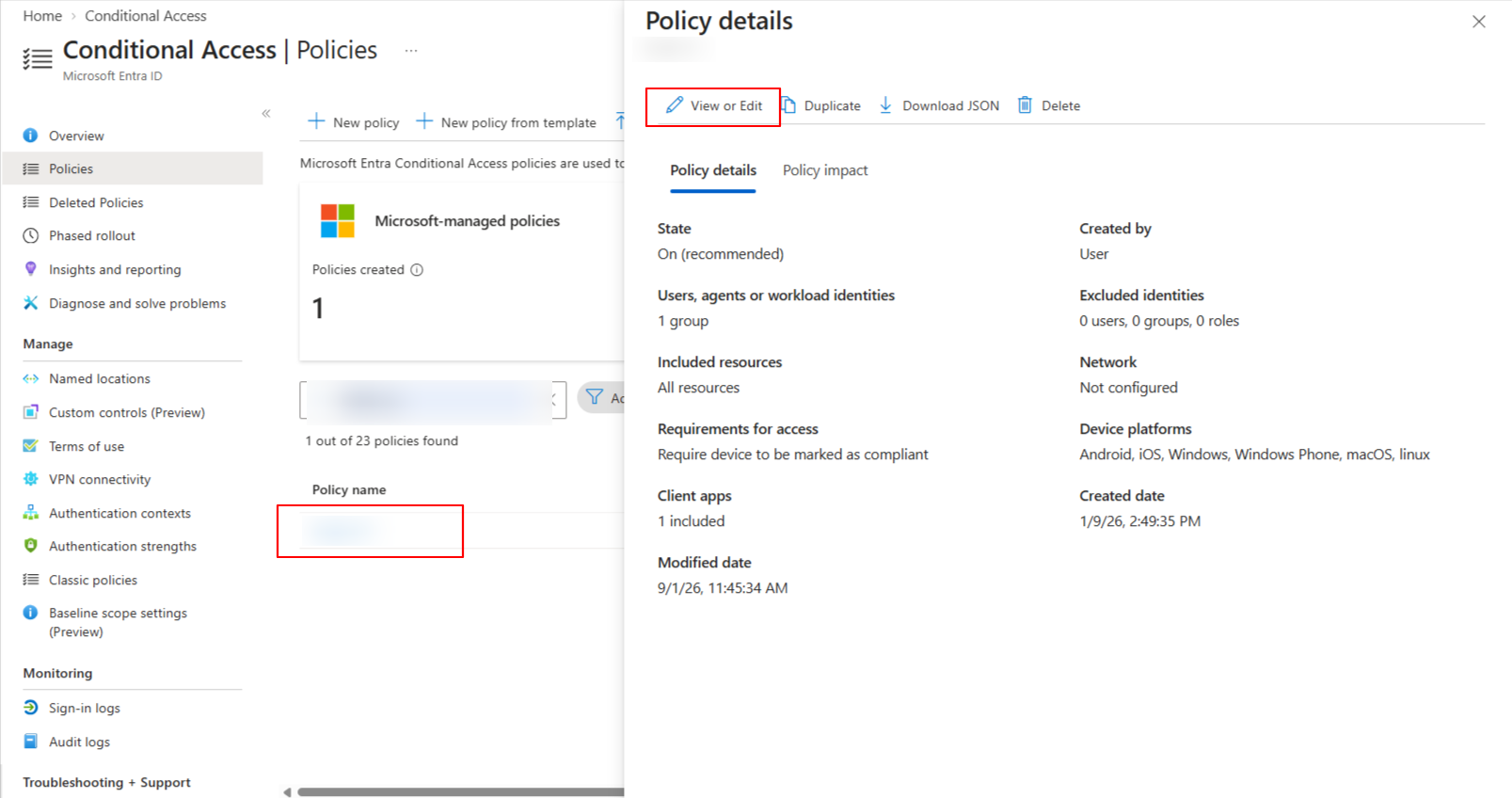
Navigate to Target Resources → Exclude. Click on Select specific resources and the newly created app Scalefusion Device Attestation Companion
a. Search for Scalefusion Device Attestation Companion
b. Click on the Checkbox so that the app gets added to the Selected section
c. Click on the Select
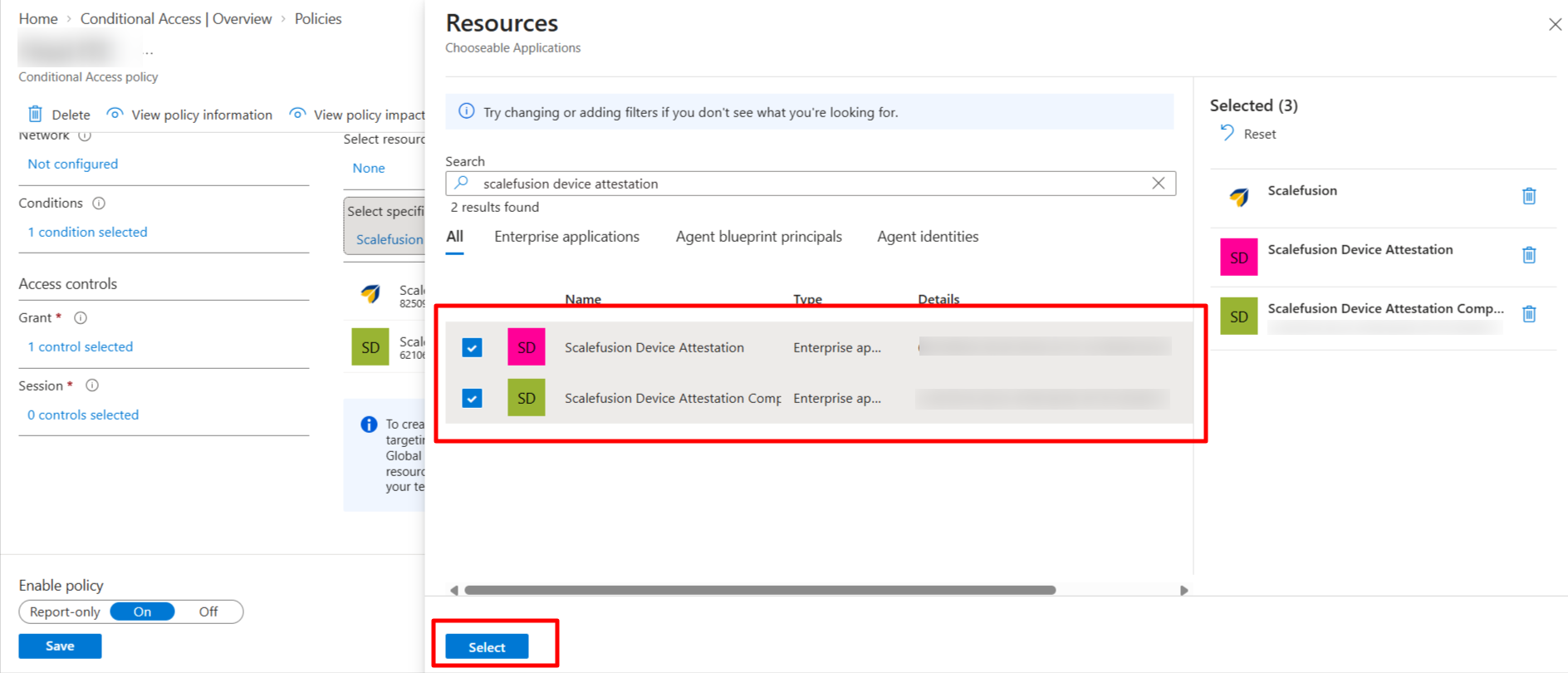
Once the application has been added to the exclusion, verify that all 3 Scalefusion applications are in the exclusion list.
a. Scalefusion
b. Scalefusion Device Attestation
c. Scalefusion Device Attestation Companion
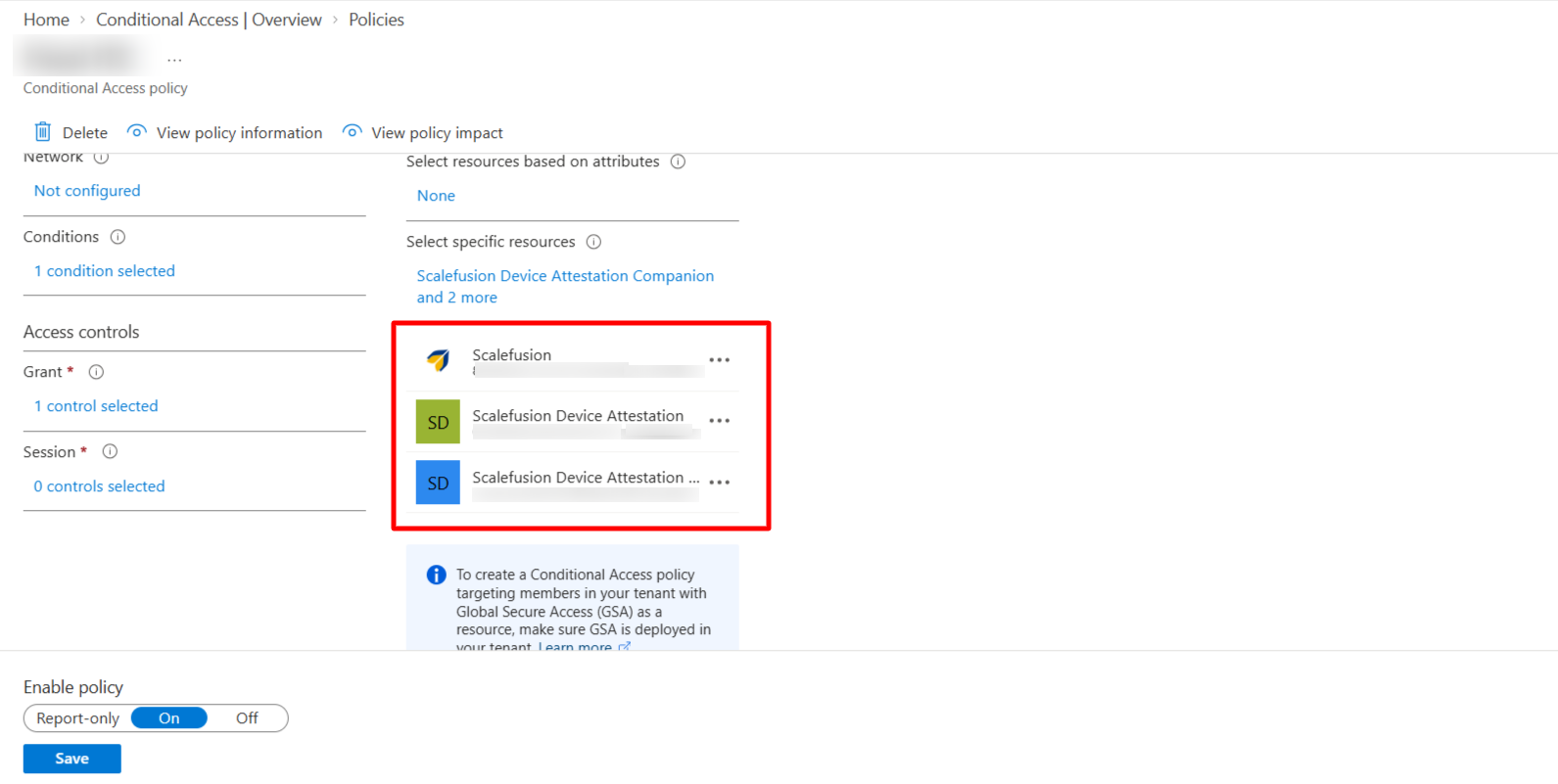
Enable the Policy and Click on the Save at the bottom of the form/wizard to save the updates to conditional access policies.