Scalefusion allows a user to belong to multiple user groups while maintaining a single Primary Group. This enables administrators to organize users across different groups for identity management, and SCIM provisioning without duplicating user accounts. To understand how this works, it is important to understand what is a user's Primary Group and what are Associated Groups:
Primary Group: The main group to which a user belongs. A user can have only one primary group at a time, and the user's devices receive their profile and policies from this group.
Associated Groups: Additional groups with which a user is associated. These associations allow the user to be part of group-based operations such as SSO assignments, SCIM provisioning, and exceptions without changing the user's primary group or the policies applied to their devices.
Using associated groups, administrators can:
Assign users to multiple groups.
Manage associated group memberships independently.
Change a user's primary group when required.
Synchronize memberships across multiple groups using SCIM.
Group Membership Limits
Membership Type | Minimum | Maximum |
|---|---|---|
Primary Group (The main group to which a user belongs) | 0 | 1 |
Associated Groups (Additional groups with which a user can be associated) | 0 | No limit |
This article explains how to add and manage associated users, switch a user's primary group, remove user associations, and understand how associated groups work with SSO, group exceptions, and SCIM provisioning.
Pre-Requisites
User Group should exist on Scalefusion Dashboard
Adding Users as Associated Users
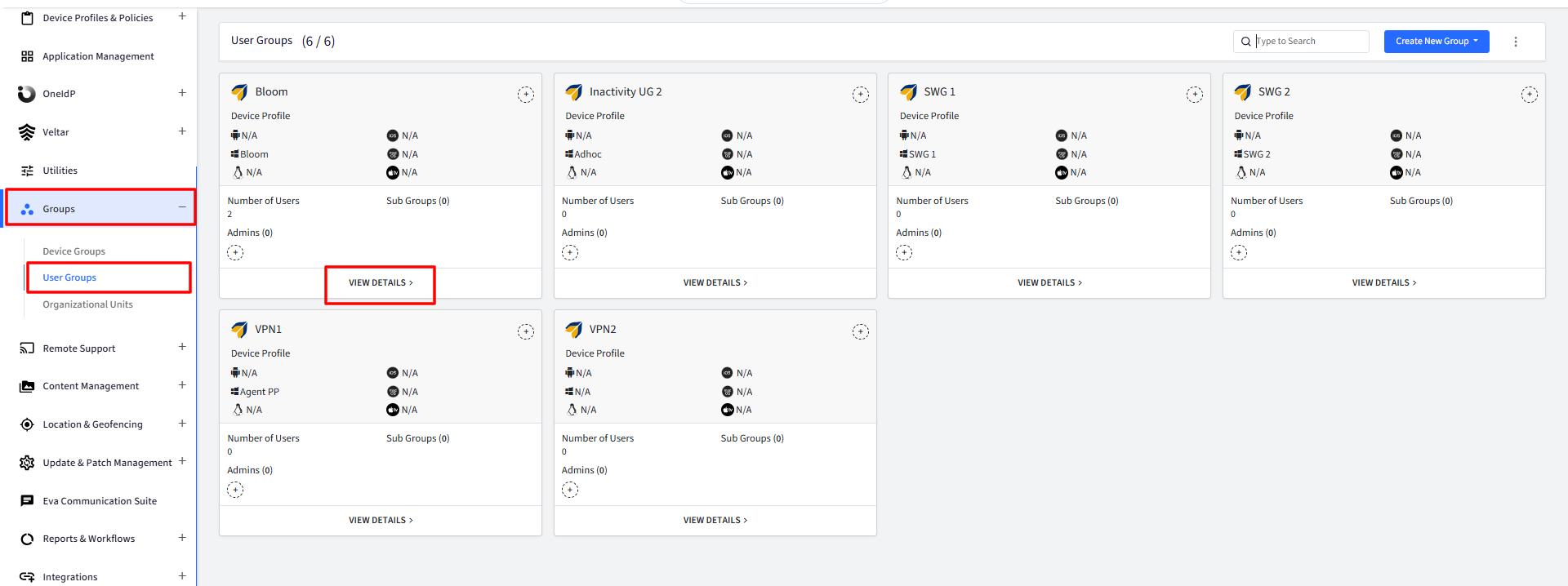
On Scalefusion Dashboard, navigate to Groups > User Groups and click on View Details over the group under which you want to add associated users.
Under Associated Users tab, click on Add Users
The user's devices will get the profile from the Primary group only.

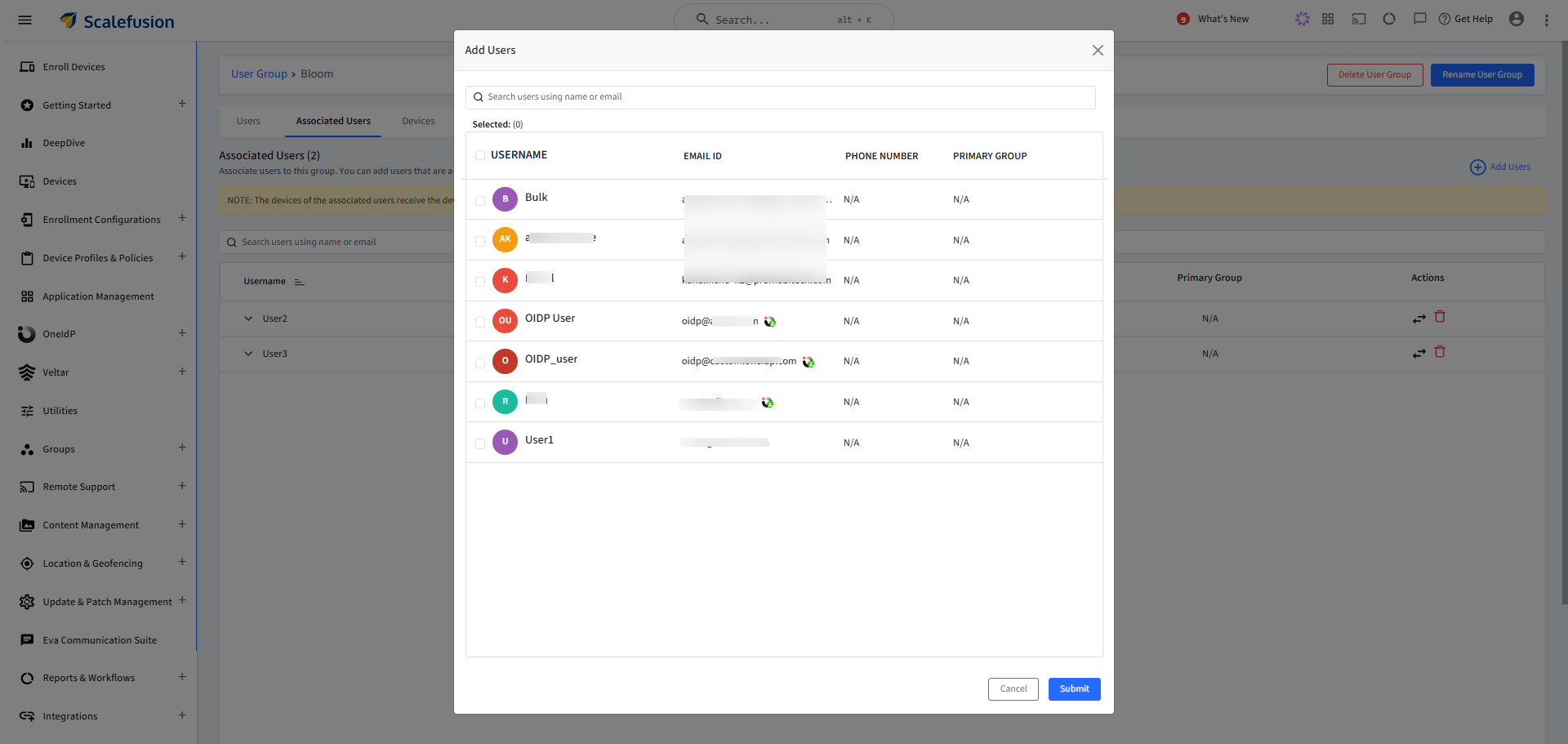
This will bring up Add Users dialog. Select the users you want to add as associated users and click Submit
Note: If a user is also part of a primary group, the primary group name will be displayed corresponding to the username
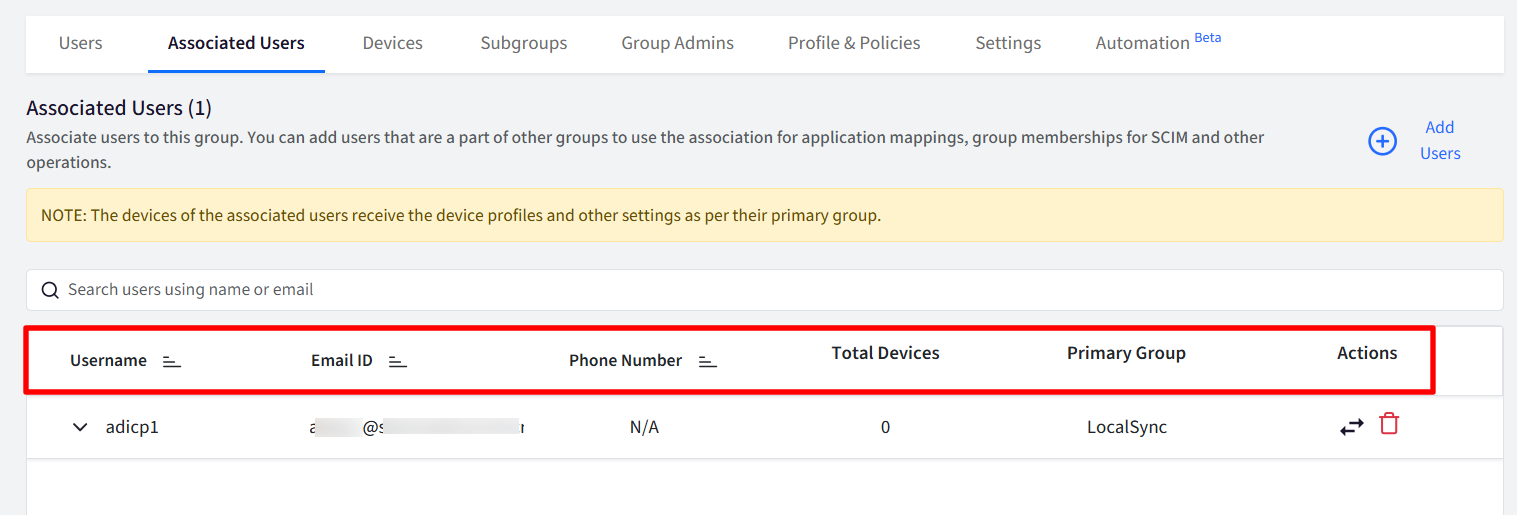
The associated user(s) with additional details will be displayed under the following heads:
Username
EmailID
Phone Number
Total Devices
Primary Group: If the user has a primary group else it will display as N/A
Actions on Associated Users
From the actions menu, you can take following actions on any associated user:
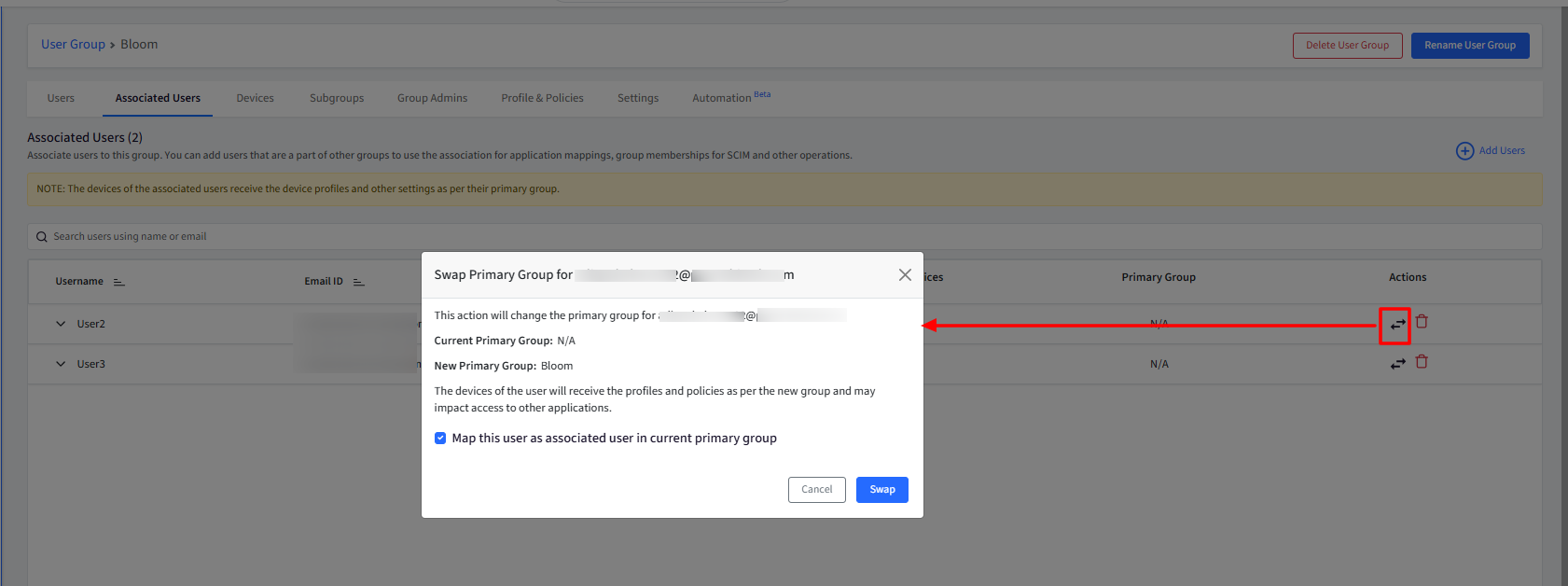
Swap: Allows you to change user’s primary group and updates the primary group of user to the current group. Click on the swap icon under Actions. Following dialog will be displayed. Here,
Map this user as associated user in current primary group: Enabling this flag keeps the user associated with their current primary group after the swap.
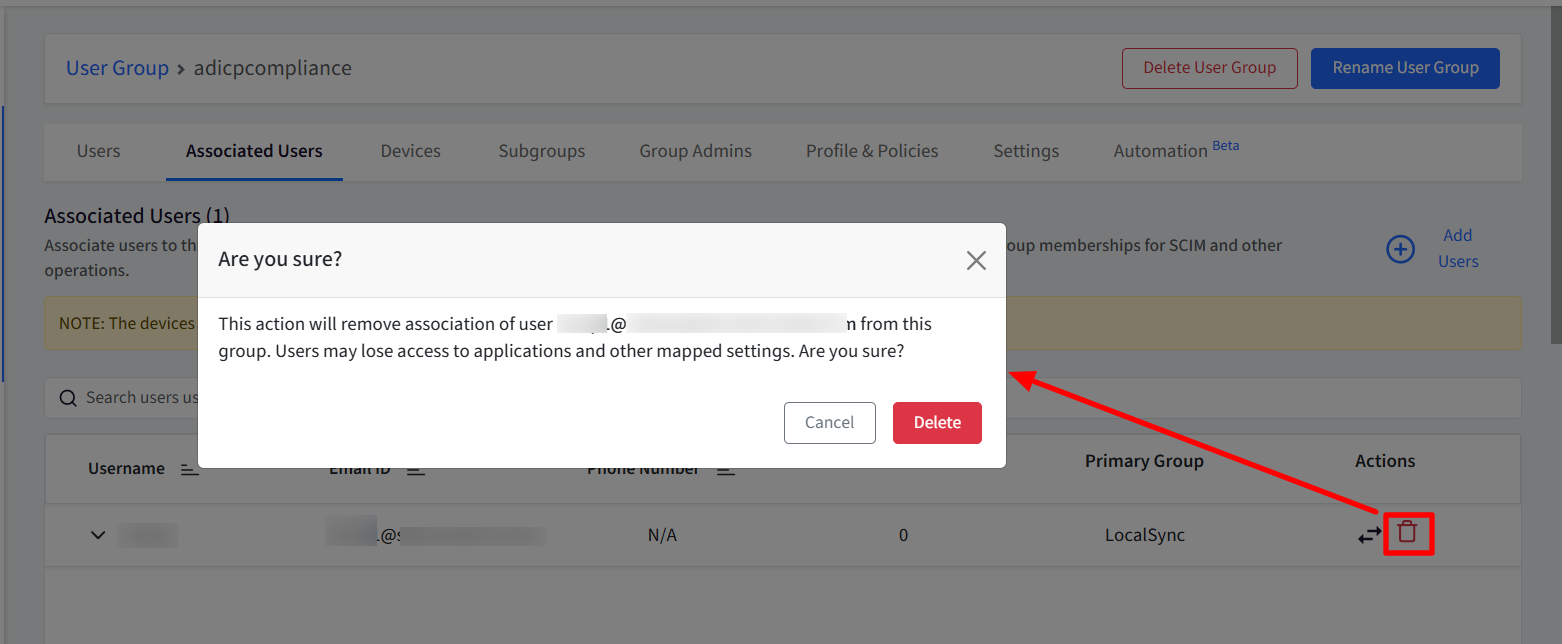
Delete: This will remove association of user from this group. Users may lose access to applications and other mapped settings. Click on the delete icon. It will bring up the following confirmation pop-up:
Audit Logs
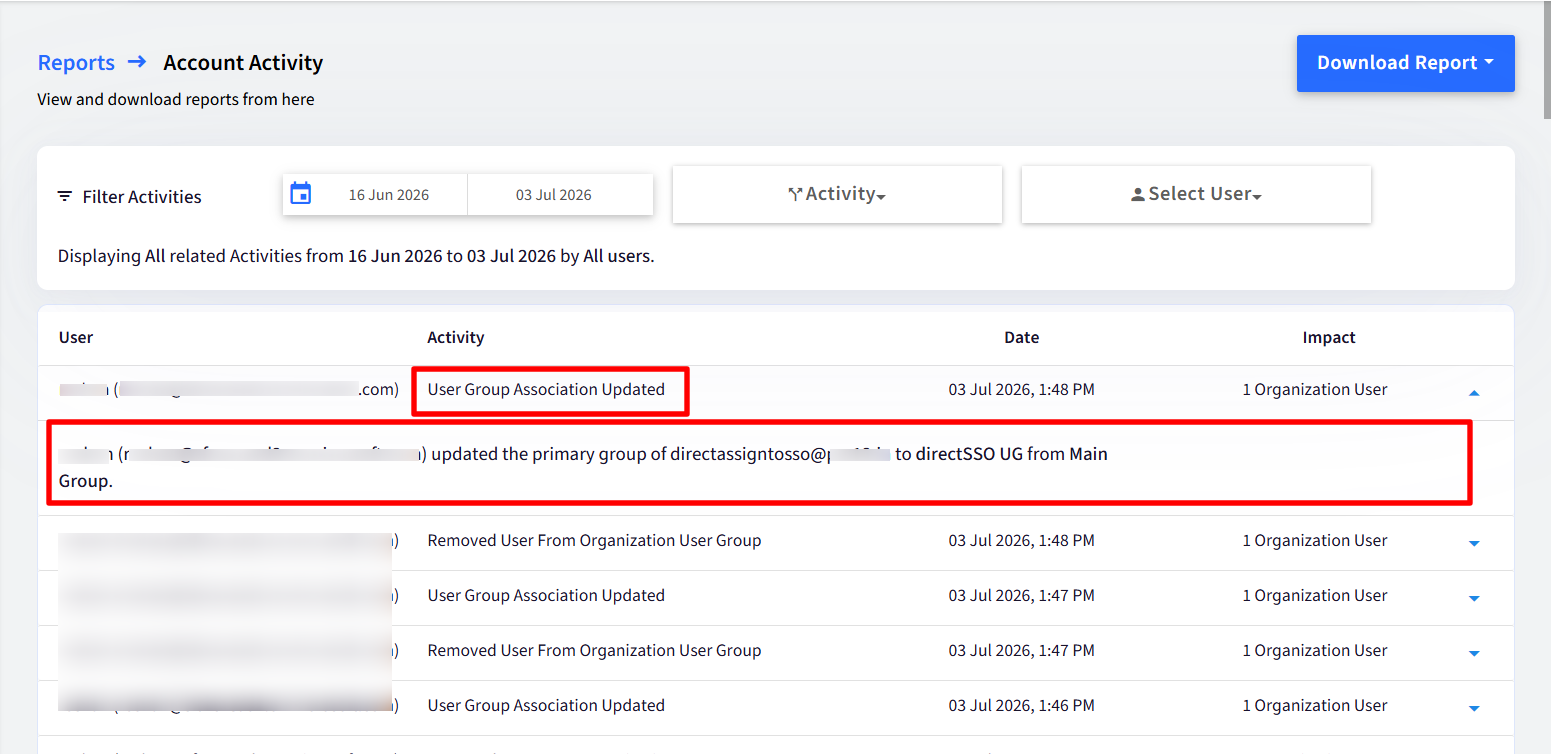
All actions performed here, such as addition, removal or swapping of associated users, are recorded and can be viewed in the Account Activity Report for audit and tracking purposes.
FAQ
Does an associated user inherit the group's SSO configuration?
Yes. If an SSO configuration is assigned to a user group, all associated users of that group are automatically assigned the same SSO configuration.
Are associated users included in group exceptions?
Yes. If a user group is added as an exception, all associated users of that group are automatically included in the exception list.
How do associated users work with SCIM?
If SCIM is enabled for a user group, all associated users of that group are provisioned through SCIM, and changes to associated group memberships are synchronized with the SCIM provider.
SCIM Inbound: If the same user belongs to multiple groups in the SCIM provider’s console, the user is created as the primary user in one group and as an associated user in the remaining groups within Scalefusion. This applies to Entra, Google Workspace, OPC (Active Directory).
SCIM Outbound: If a user belongs to multiple groups in Scalefusion, the user is provisioned to all corresponding groups that have been created on the SCIM provider’s console.
What happens if a user already exists in a Scalefusion group during a SCIM sync?
If the user already belongs to a locally created group or an imported group in Scalefusion, the user's existing primary group remains unchanged. Any additional groups received during the next SCIM sync are added as associated groups.