Apple has a suite of features powered by artificial intelligence, collectively referred to as Apple Intelligence. These settings allow you to control which of these intelligent features are active and accessible. You can choose to turn off specific ones if you prefer not to use them. Following are the features available:
These features are supported from macOS 15 onwards
Navigate to Device Profiles & Policies > Device Profiles section.
Launch the Device Profile Wizard by clicking on Create New Profile or select a Mac Device Profile and Edit it from the action panel.
Navigate to Apple Intelligence Settings on the left bar. Following features are available:
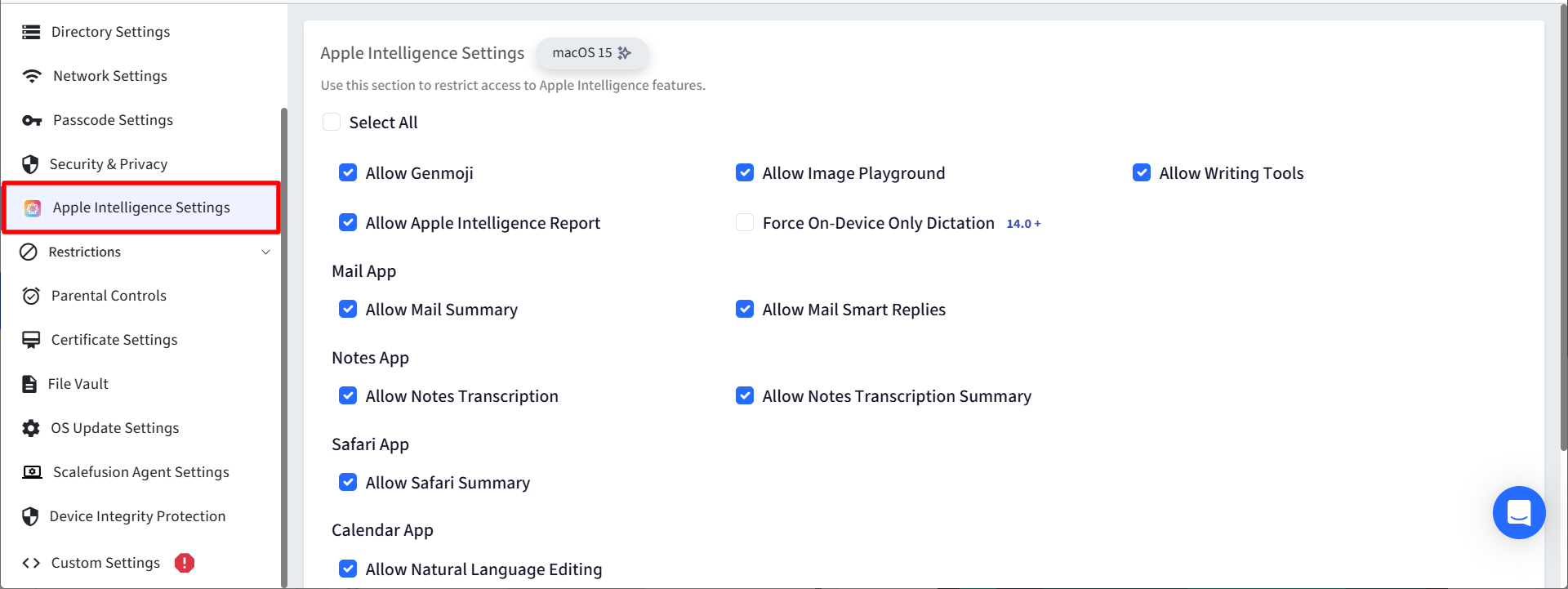
Feature | Description | Supported OS version |
Allow Genmoji | This feature lets you generate unique emojis based on text descriptions. |
|
Allow Image Playground | This feature lets you create unique images by combining various elements such as text descriptions, people from your photos etc. |
|
Allow Writing Tools | This controls access to a suite of AI-powered features designed to enhance your writing across various Apple apps (like Mail, Messages, Notes, and Safari) |
|
Force On-Device Only Dictation | Allows administrators to require Dictation to be processed only on the device, without using server-based processing. | macOS 14 onwards |
Allow Mail Summary | This feature condenses long email threads into concise summaries, highlighting the key points and important information. Instead of having to scroll through numerous replies, you can quickly get the gist of the conversation. | macOS 15.1 onwards |
Allow External Intelligence Integrations | This feature controls whether Siri can use external, cloud-based AI services to process and respond to your requests. | macOS 15.2 onwards |
Allow External Intelligence Integrations Sign-In | This feature controls whether Siri can use your signed-in accounts with external AI providers to personalize responses and provide more relevant information. | macOS 15.2 onwards |
Allow Apple Intelligence Report | Controls whether users can send Apple Intelligence usage and performance data to Apple. | macOS 15 onwards |
Allow Safari Summary | Controls access to AI-generated webpage summaries in Safari. | macOS 15 onwards |
Allow Natural Language Editing | Allows administrators to control whether users can use natural language editing capabilities in the Calendar app. | macOS 27 onwards |
Allow Notes Transcription | Controls whether users can use AI to transcribe audio recordings in the Notes app. | macOS 15 onwards |
Allow Notes Transcription Summary | Controls whether users can generate summaries of transcribed notes using Apple Intelligence. | macOS 15 onwards |
Allow Mail Smart Replied | Controls access to Smart Reply in Mail, which suggests AI-generated draft replies based on message content. | macOS 15 onwards |
Allowed External Intelligence Workspace ID | Allows administrators to specify the workspace ID permitted for external intelligence integrations. | macOS 15.3 onwards |
Note: Apple Intelligence settings are applied based on the macOS version of the device. Scalefusion uses the appropriate Apple device management framework to apply these settings.