---
title: "Updating custom properties using Scripts"
slug: "updating-custom-properties-using-scripts"
updated: 2026-02-13T06:42:36Z
published: 2026-02-13T06:42:36Z
canonical: "help.scalefusion.com/updating-custom-properties-using-scripts"
---
> ## Documentation Index
> Fetch the complete documentation index at: https://help.scalefusion.com/llms.txt
> Use this file to discover all available pages before exploring further.
# Updating custom properties using Scripts
Custom Properties help you store device- or user-specific information such as department, office, asset tag, or other attributes. While these properties can be updated manually or through bulk uploads, many admins prefer using **scripts** especially on desktop platforms.
This guide explains how, from Scalefusion Dashboard you can update custom properties automatically using scripts on:
- Windows
- macOS
- Linux
It also walks you through script requirements, supported limits, how values are detected, and where you can view results and reports.
## Pre-requisites
1. Your account is on the Enterprise 2025 plan
2. The feature is enabled for your account
3. Custom properties you want to update are already created in the dashboard
4. You have permission to upload and manage scripts
5. The script should be verified
> [!WARNING]
> Custom properties that are linked to a script cannot be updated manually, via bulk upload, or via API.
## How It Works
### 1. Writing Scripts That Update Custom Properties
To update a custom property, your script must output a specific tag format:
```plaintext
value
value
```
**Examples**
```plaintext
Finance
NYC-MAC-1234
```
The system scans the script output, detects these tags, validates the values, and updates the corresponding custom properties.
### 2. Using Custom Properties Inside Scripts
You can also read existing custom properties inside scripts using:
```plaintext
%$device.property_name%
%$user.property_name%
```
These values are dynamically replaced at runtime for each device or user.
### 3. Supported Limits
To ensure reliable updates, scripts and values must stay within these limits:
| Platform | Max Output |
| --- | --- |
| Windows | 5000 characters |
| macOS | 5000 characters |
| Linux | 5000 characters |
**Value Limits**
- **String**: up to 8,384 characters
- **Integer**: must be a valid number
- **Boolean**: `t/T` or `f/F`
- **Email**: must be valid format
If limits are exceeded, values are ignored.
## Steps: Uploading a Script That Updates Custom Properties
### Step 1: Upload the Script
**macOS**
1. On Scalefusion Dashboard, navigate to **Application Management > Enterprise Store**
2. Click on **Upload New App >** **Upload macOS app > Upload Shell Script** 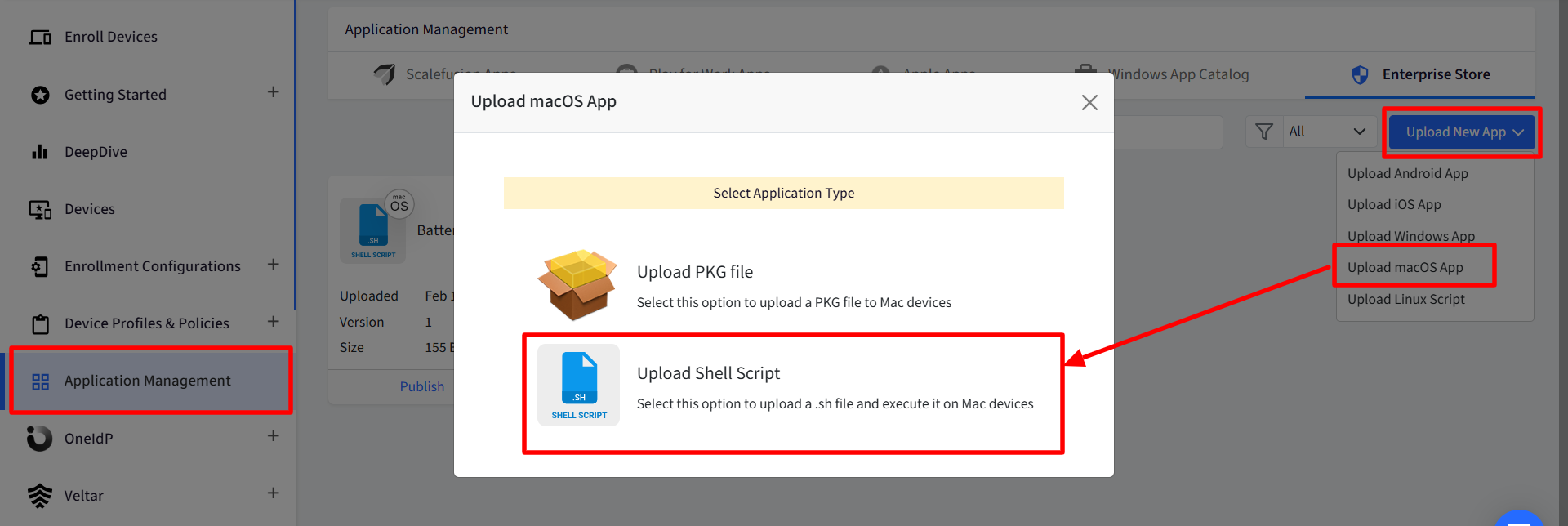
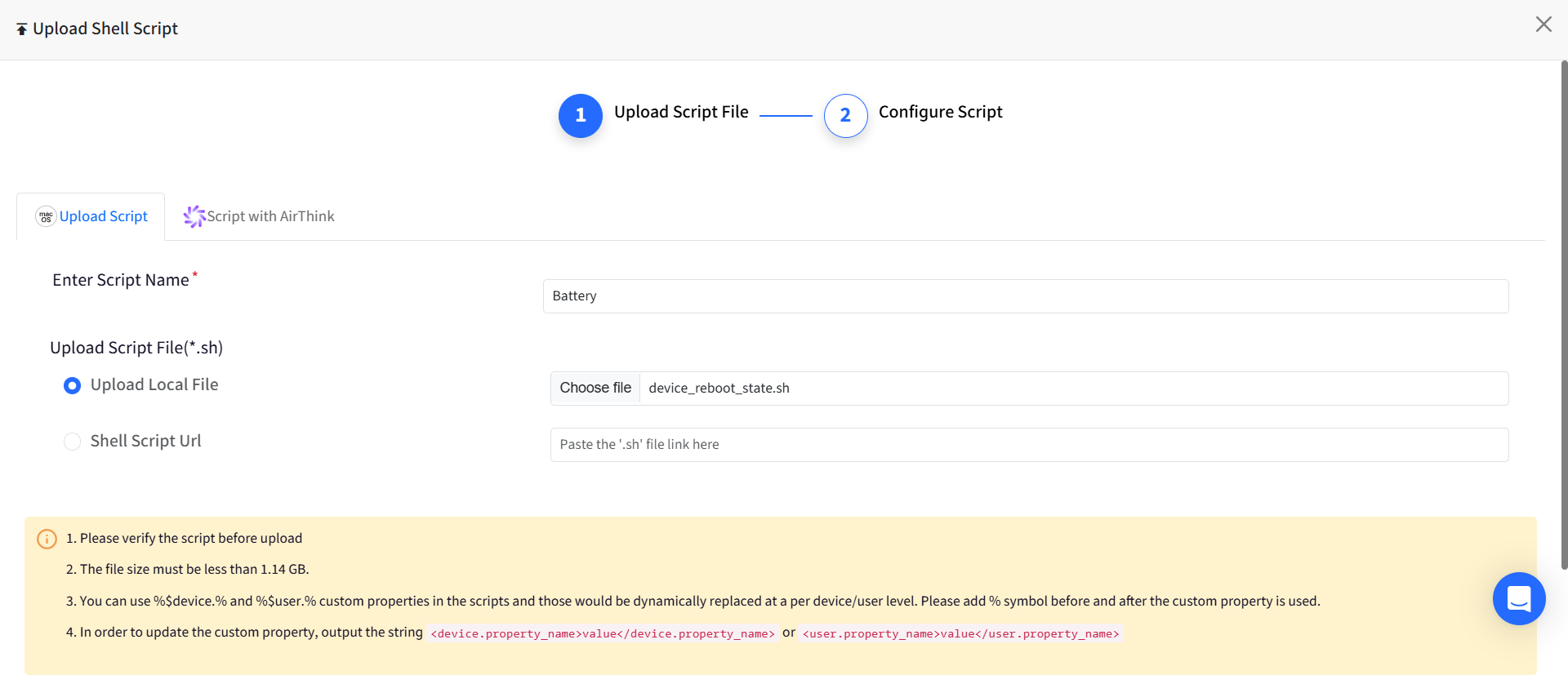
3. Upload your script file and click **Next**
**Windows**
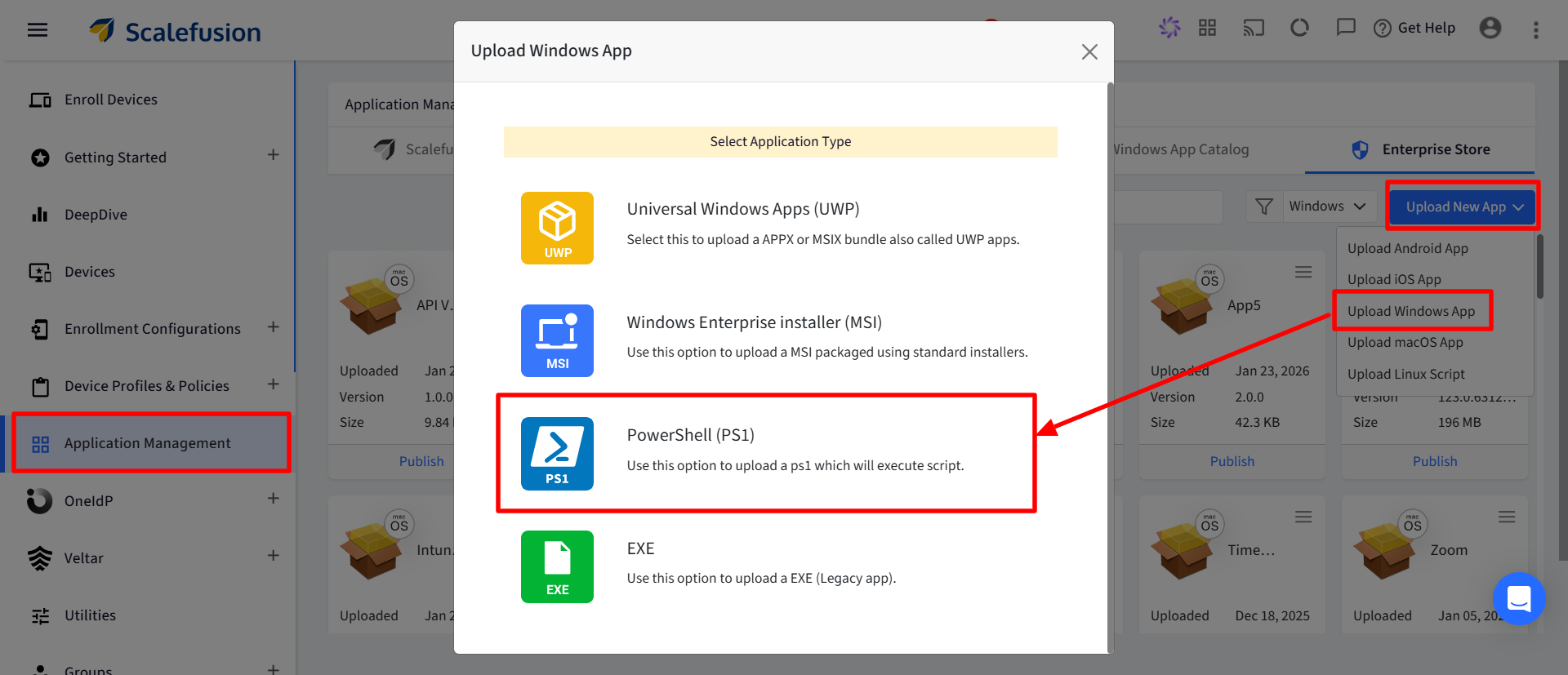
1. On Scalefusion Dashboard, navigate to **Application Management > Enterprise Store**
2. Click on **Upload New App > Upload Windows app > PowerShell**
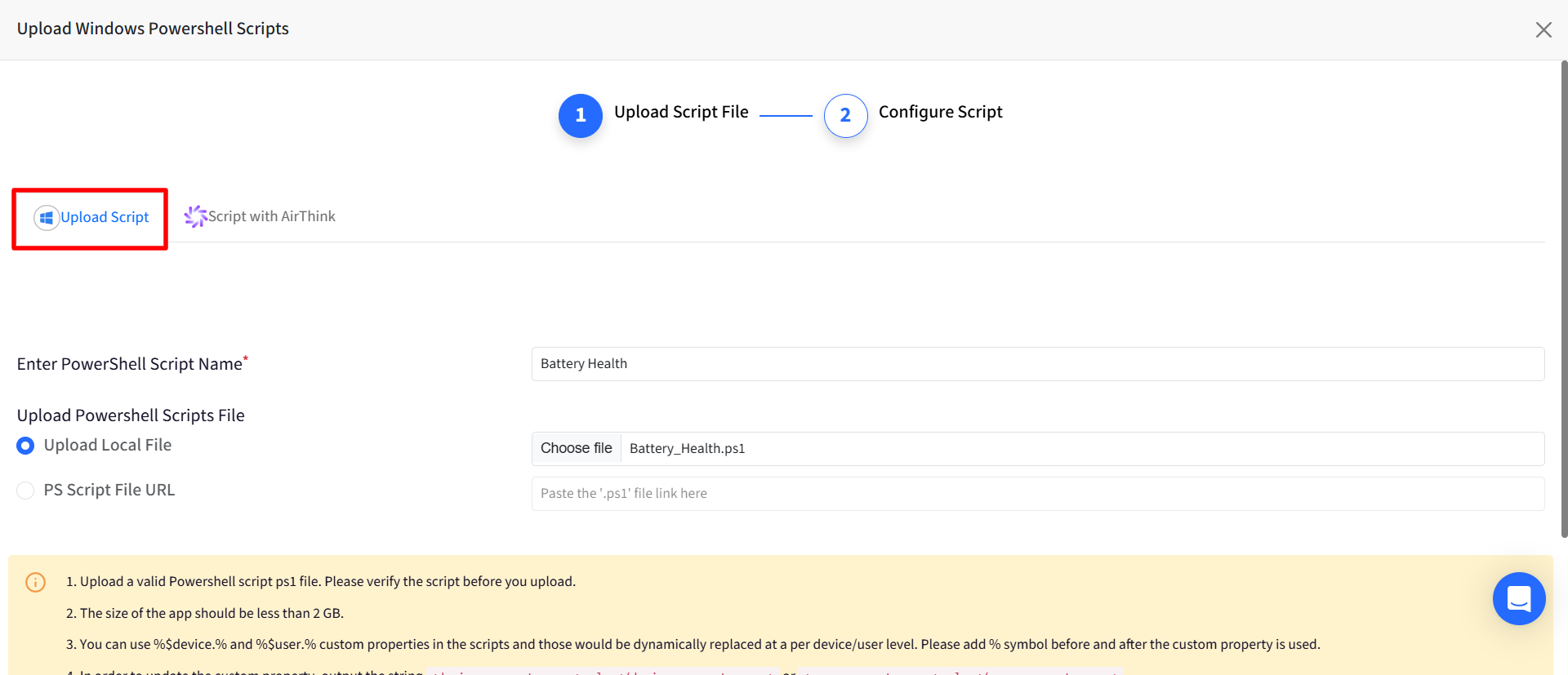
3. Upload your script file and click **Next**
**Linux**
1. On Scalefusion Dashboard, navigate to **Application Management > Enterprise Store**
2. Click on **Upload New App > Upload Linux script**
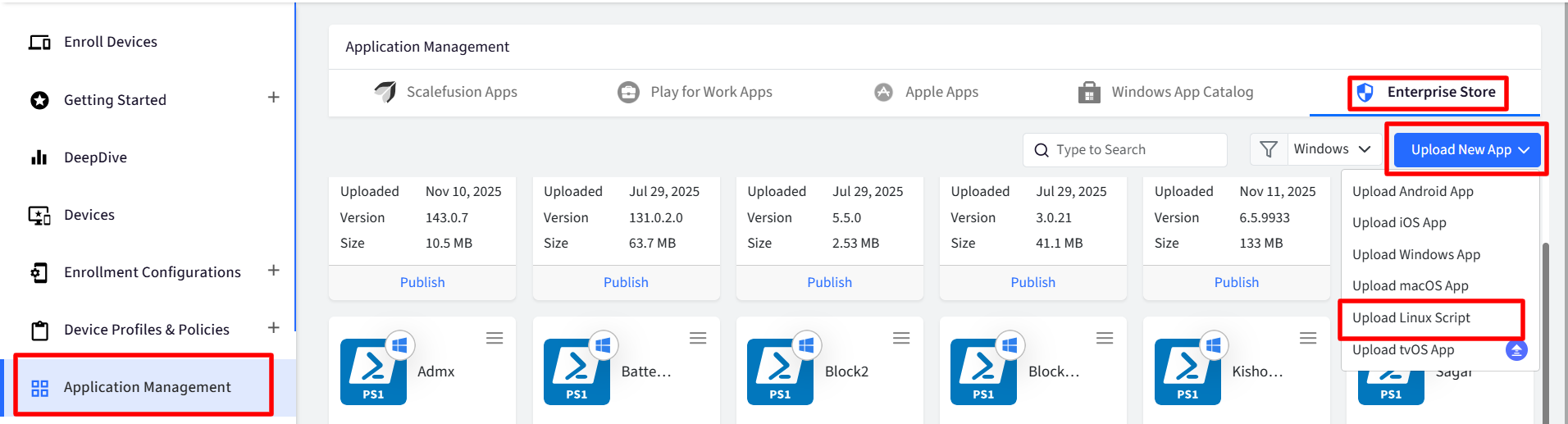
3. Upload your script file and click **Next**
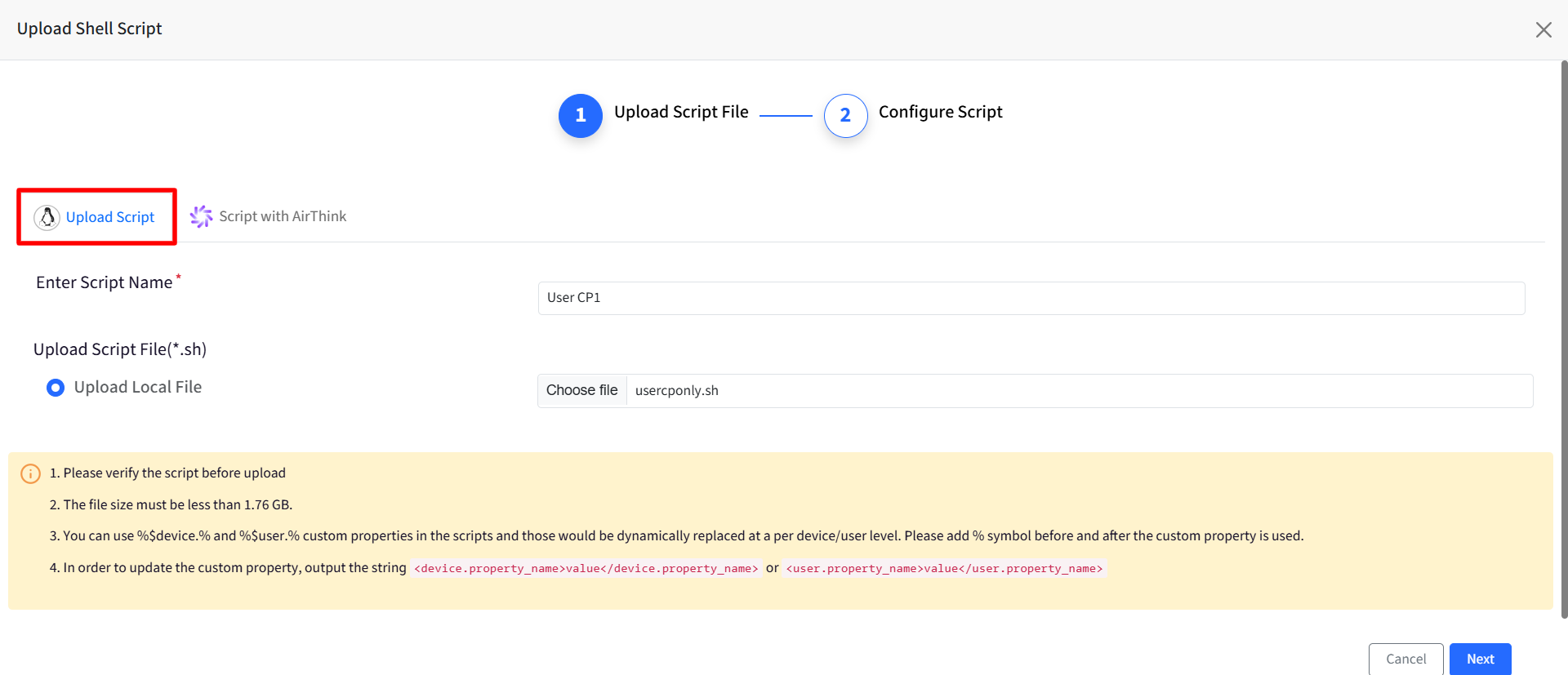
> [!NOTE]
> Review the on-screen notes about:
>
> 1. File size (under 1.8 GB)
> 2. Supported custom property syntax
### Step 2: Configure Script Settings and Custom Properties
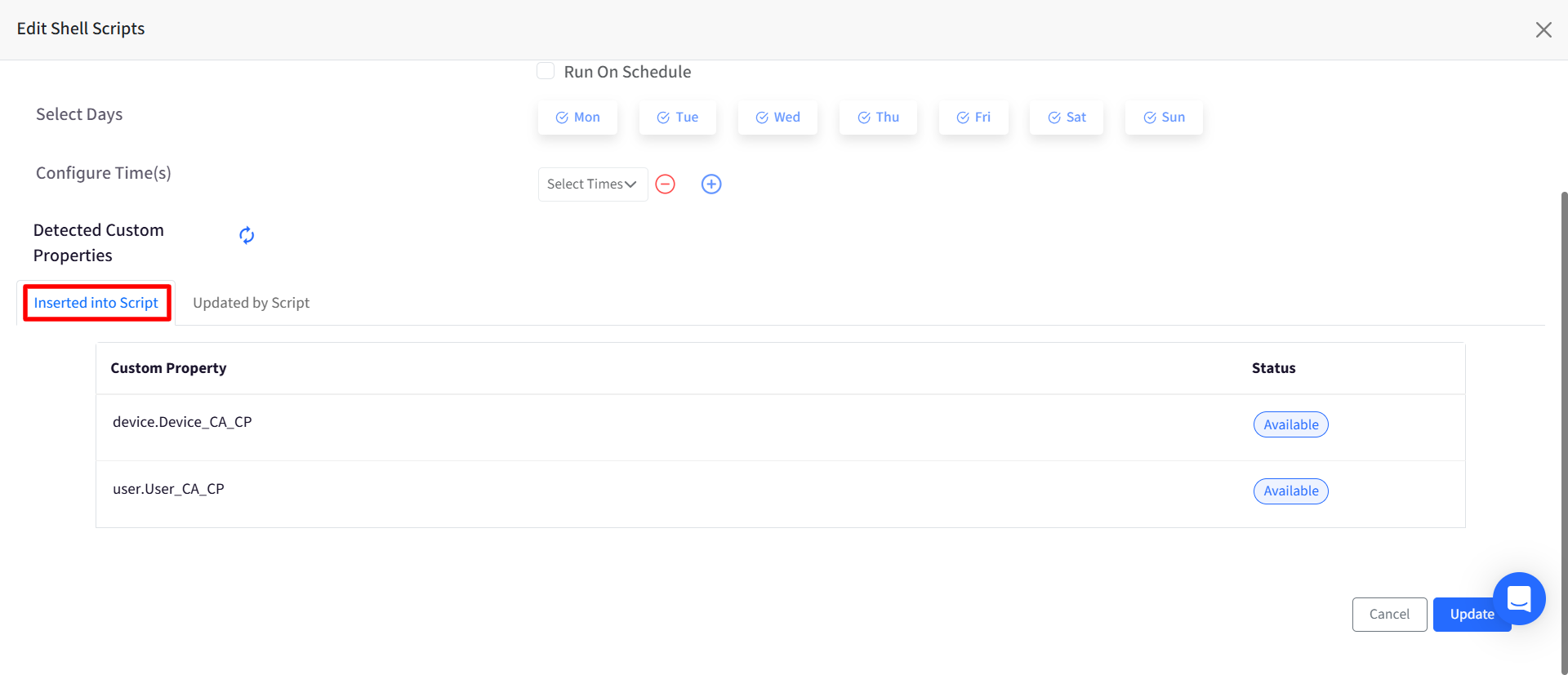
In this step, the system scans your script and detects custom properties. You’ll see two sections:
#### A. Inserted into Script
These are properties used as inputs inside the script. Each property shows:
- **Available**: Property exists
- **Missing**: Property does not exist
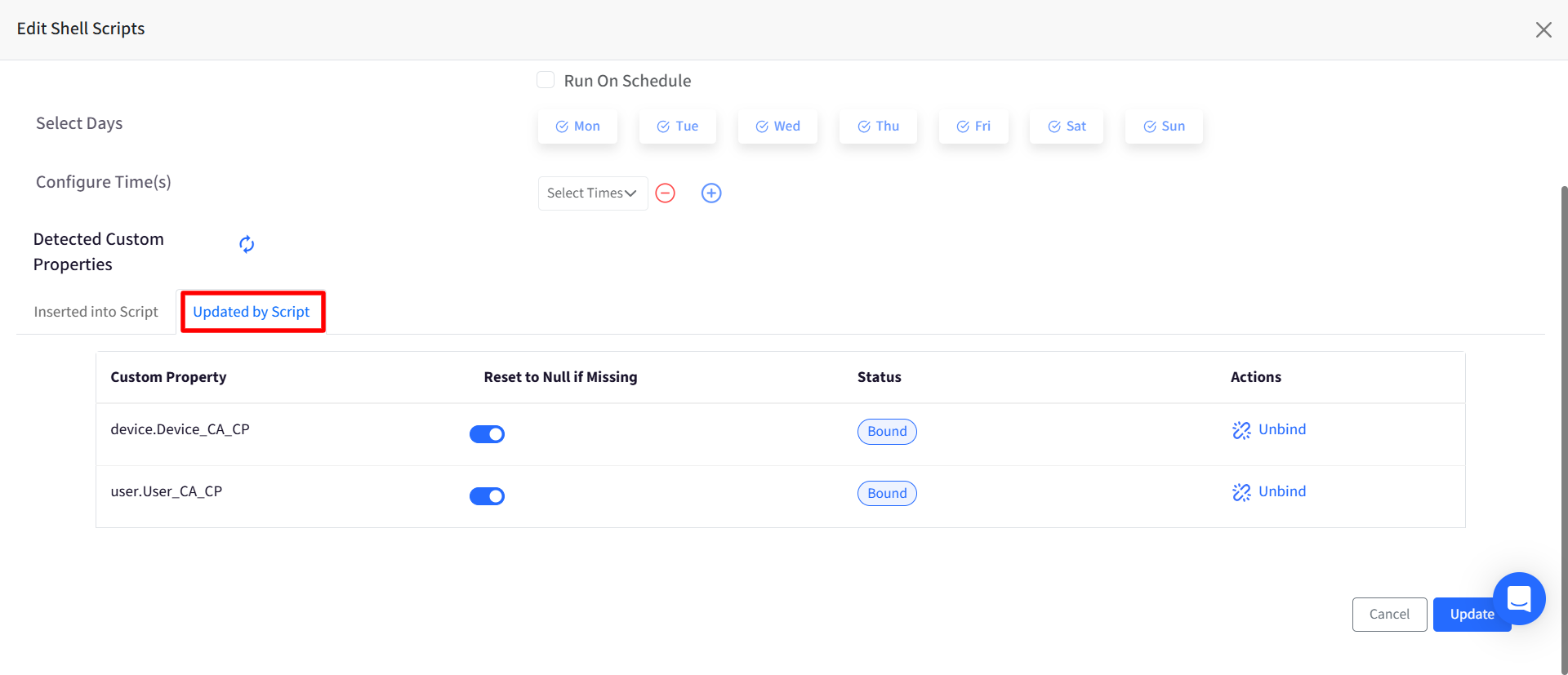
#### B. Updated by Script
These are properties updated by the script output. For each property, you can:
- Bind or unbind it from the script (from Actions)
- Choose whether to reset the value to `Null` if no value is found
- See if it’s already bound to another script (in Status)
> [!NOTE]
> A custom property can be bound to one script per platform.
Click **Save** to finish.
> [!WARNING]
> Restrictions on Updating Custom Properties
>
> If a custom property is linked to a script:
>
> - It cannot be edited from:
> - Device details
> - User details
> - Bulk upload
> - Developer APIs
>
> You must remove the script binding first.
## Step 3: Publish the Script
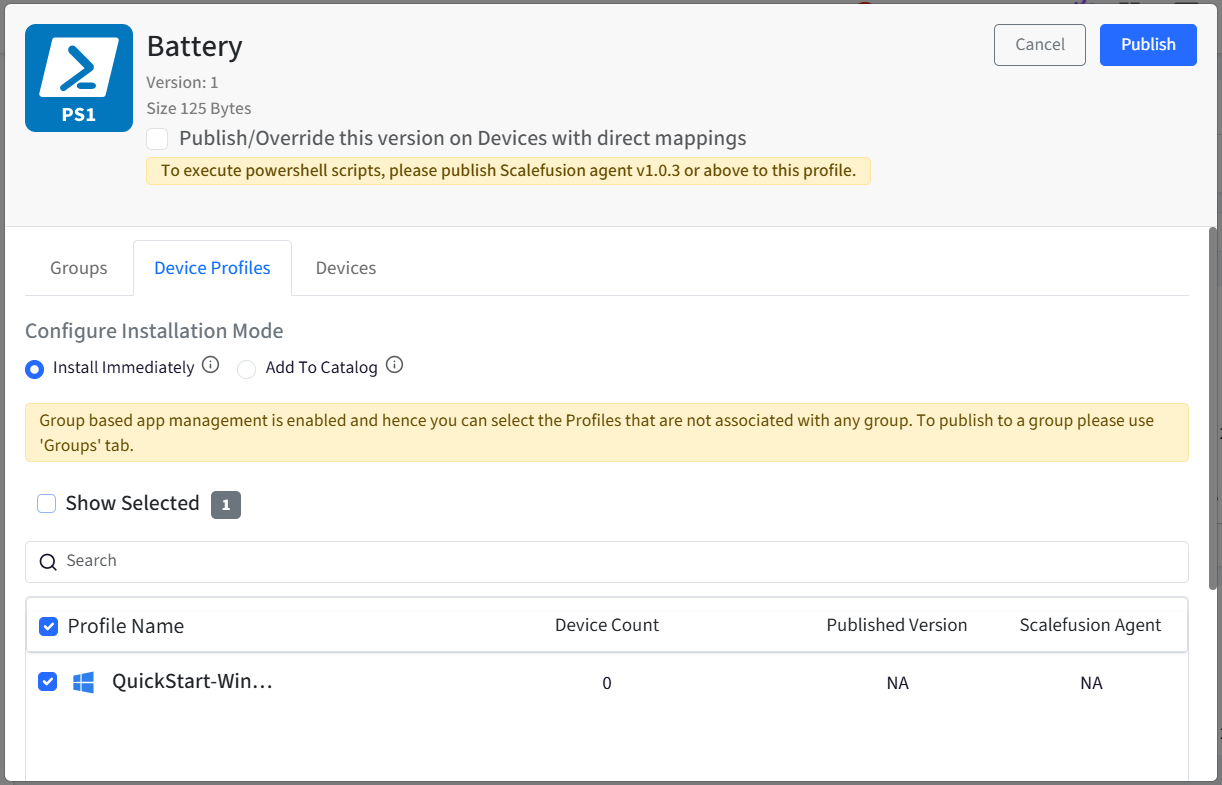
1. On saving, the Publish dialog box will appear.
2. Select the Device Profiles / Groups / Devices on which you want to publish the script.
3. Click **Publish**
## Viewing Script Results and Property Status
### View Linked Custom Properties
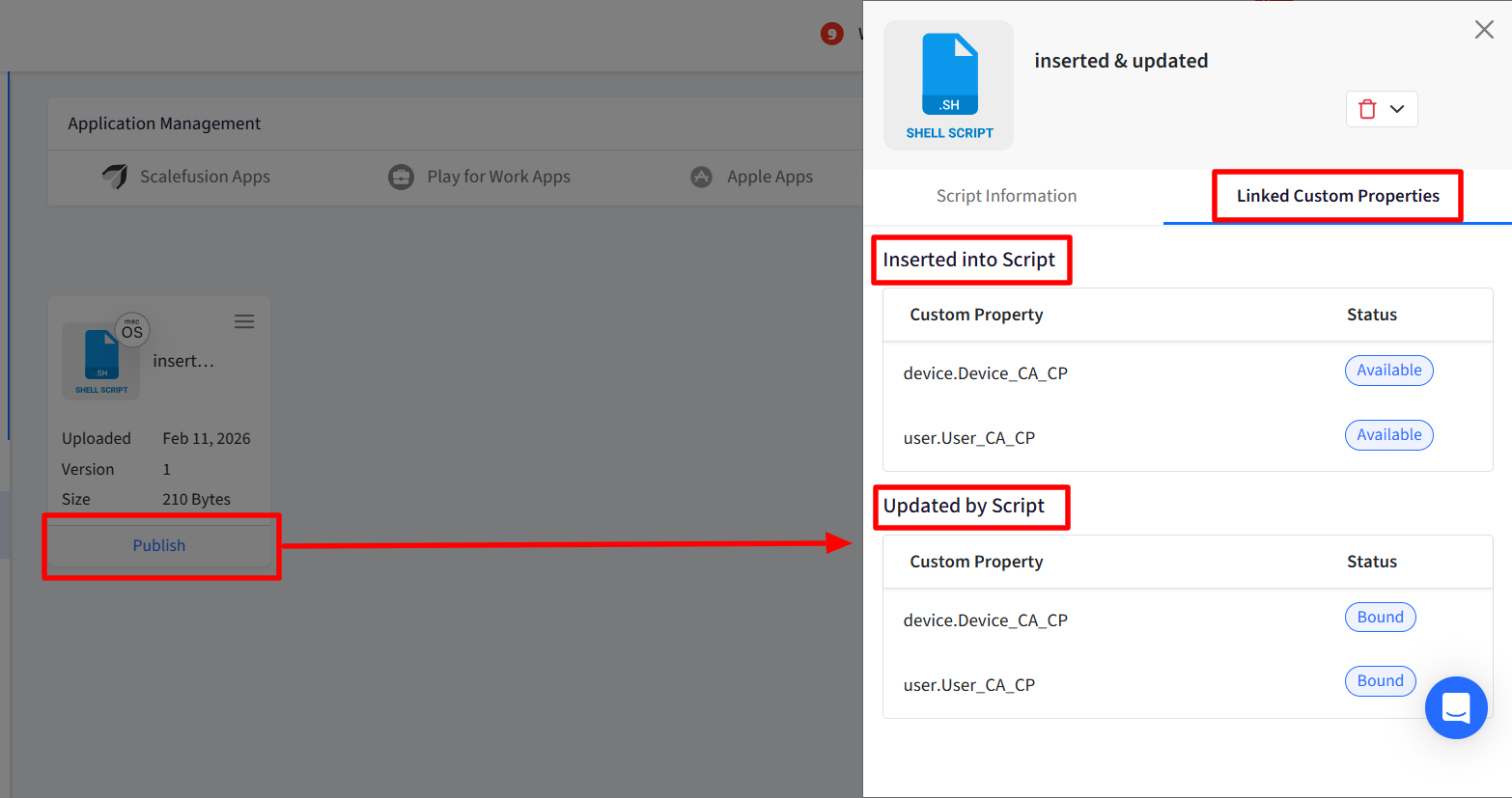
From the script’s **Publish** screen, you can view:
- Properties inserted into the script
- Properties updated by the script
- Whether each property is available, bound, or missing (Status)
### View Script Output and Update Status
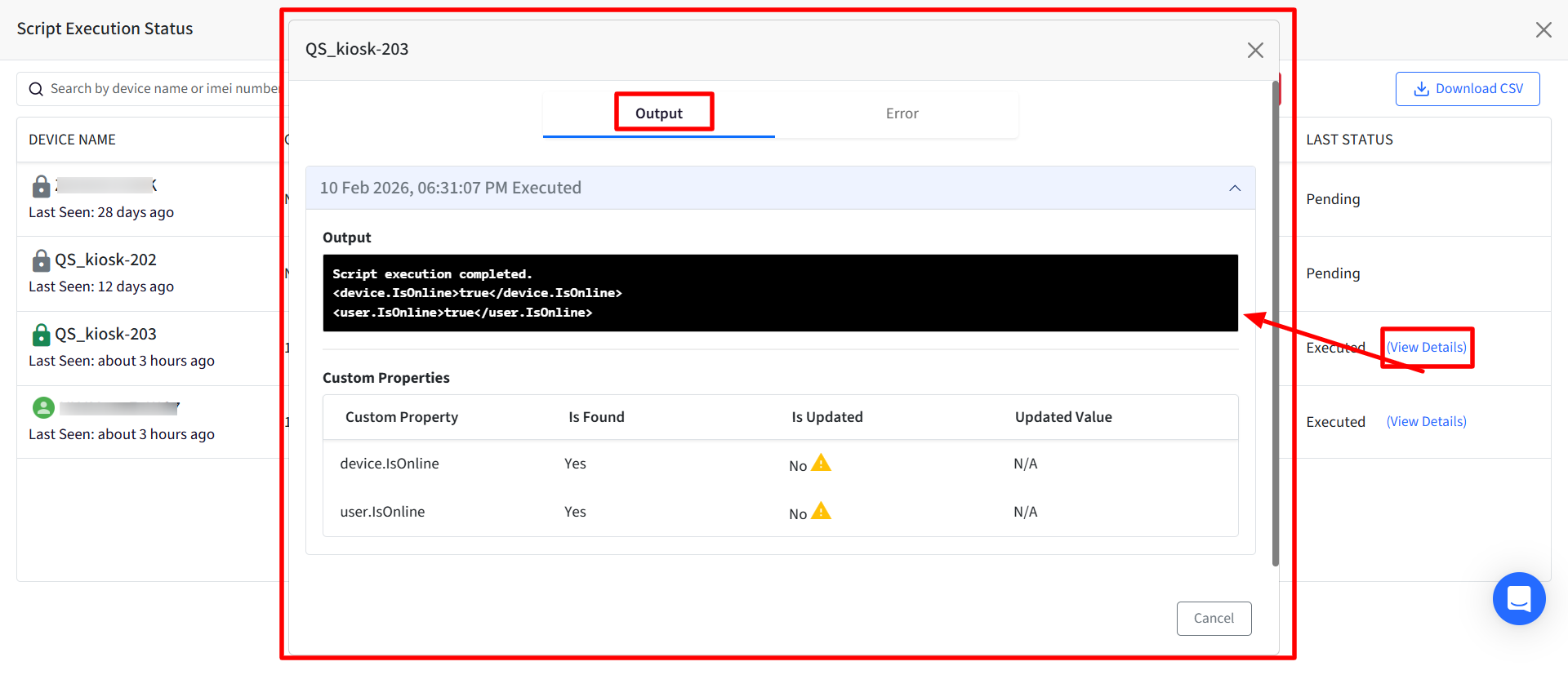
Click on **View Status** on the right side panel. When viewing script execution details, you’ll see:
- Raw script output
- A table showing:
- Whether each property was found
- Whether it was updated
- The updated value
Warnings are shown if:
- The value type is invalid
- The value is too large
- A user property is updated but no user is assigned
## Editing Scripts
When you edit a script:
- Detected custom properties are re-evaluated
- You can rebind or unbind properties
- New properties are only detected during **edit or upload**
## Managing Script Associations for Custom Properties
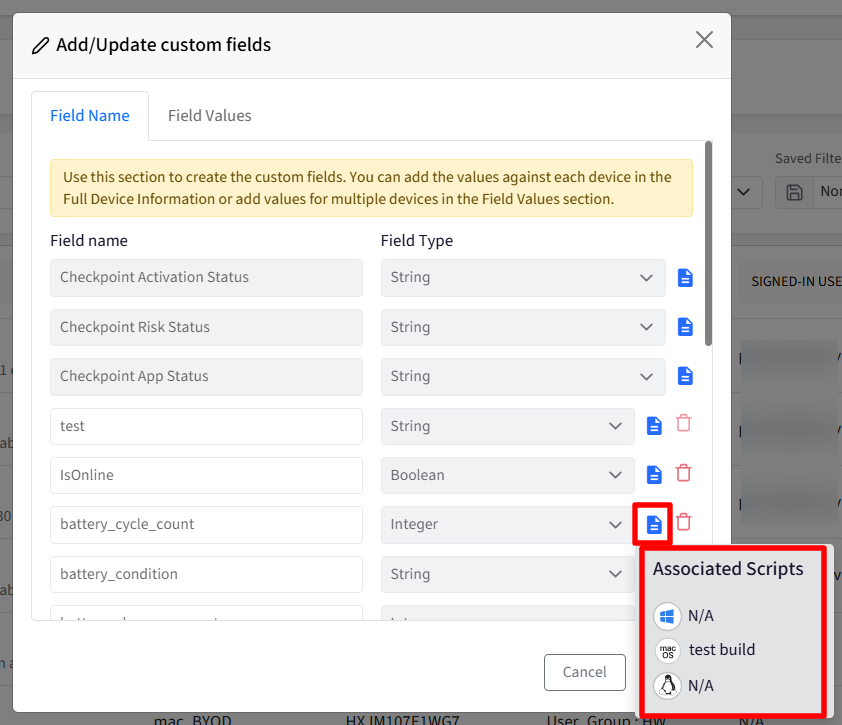
When a custom property is linked to a script, you can view which scripts are associated with it directly from the Custom Properties page.
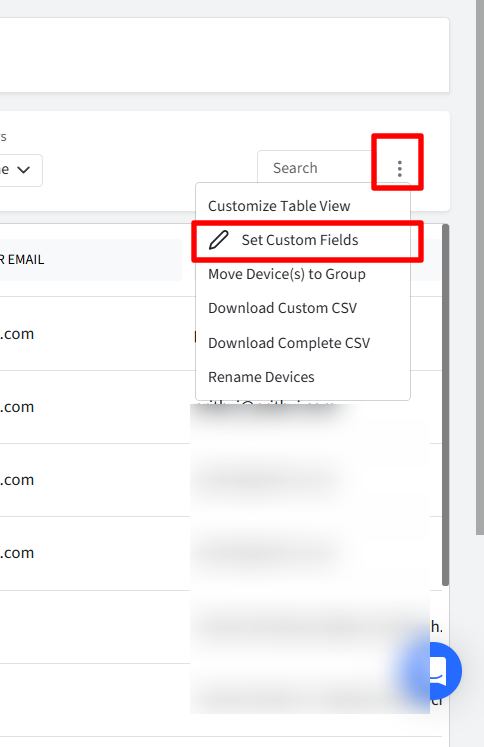
1. Go to Devices section and under three dots menu click on **Set Custom Fields**
2. Locate the custom property
3. Click the **script association icon** (displayed before the Delete icon). This opens a tooltip showing the associated scripts for each platform:
- **Windows Script**: Displays the linked Windows script name
- **macOS Script**: Displays the linked macOS script name
- **Linux Script**: Displays the linked Linux script name
If no script is linked for a platform, it will show N/A
### Deleting a Custom Property
If a custom property is associated with one or more scripts:
- You **cannot delete** the property
- The Delete option will show a message:
> “You have assigned a script to this custom property, please remove the mapping and try again.”
To delete the property:
1. Go to the linked script
2. Remove (unbind) the custom property
3. Save the script
4. Return and delete the property
## Custom Properties History Report
This report lets you track when and how custom properties were updated by scripts. To view the report:
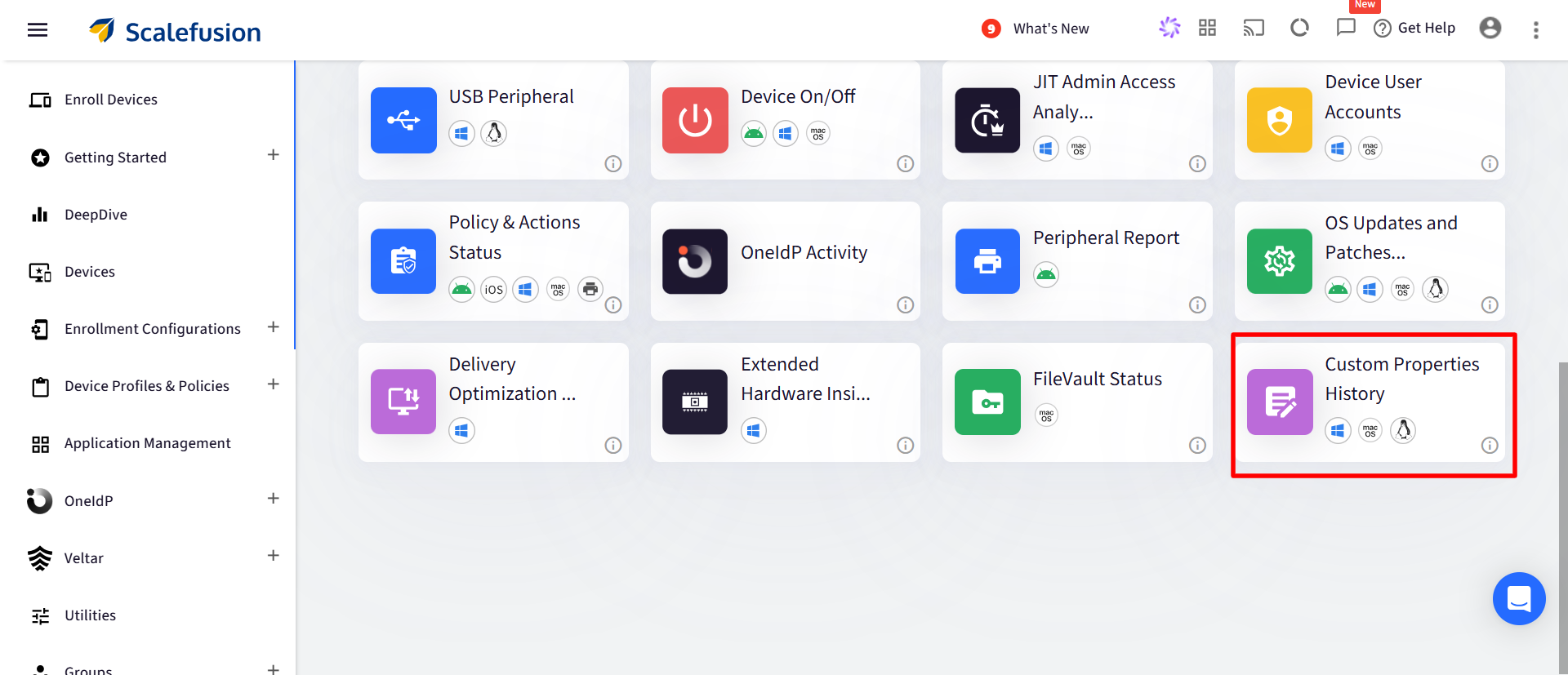
1. Navigate to **Reports** section on Scalefusion Dashboard and click on **Custom Properties History Report**
2. You can filter by:
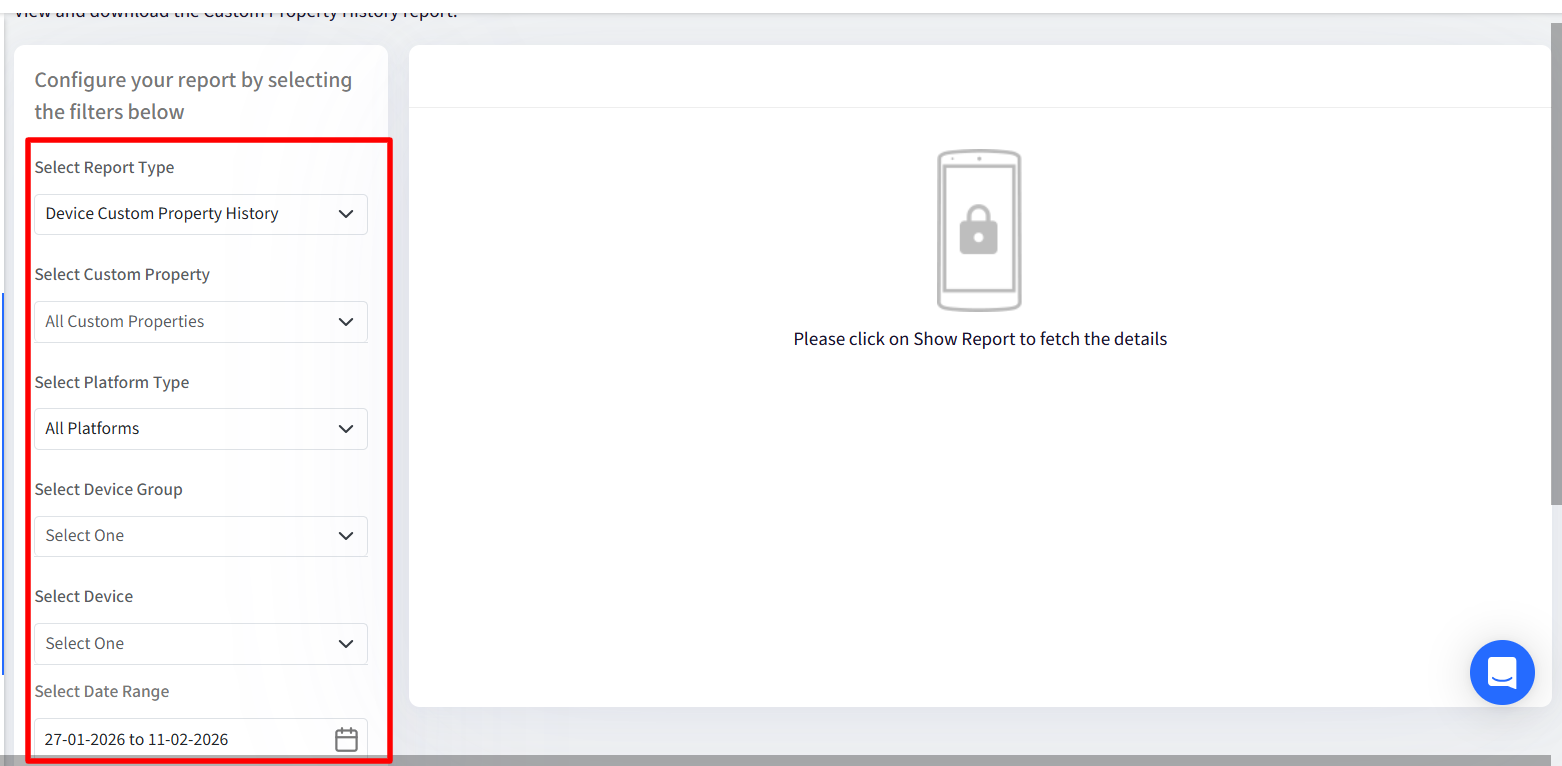
- Device or User properties
- Specific custom properties
- Device groups or user groups
- Individual devices or users
- Date range (up to 60 days)
3. Report Includes
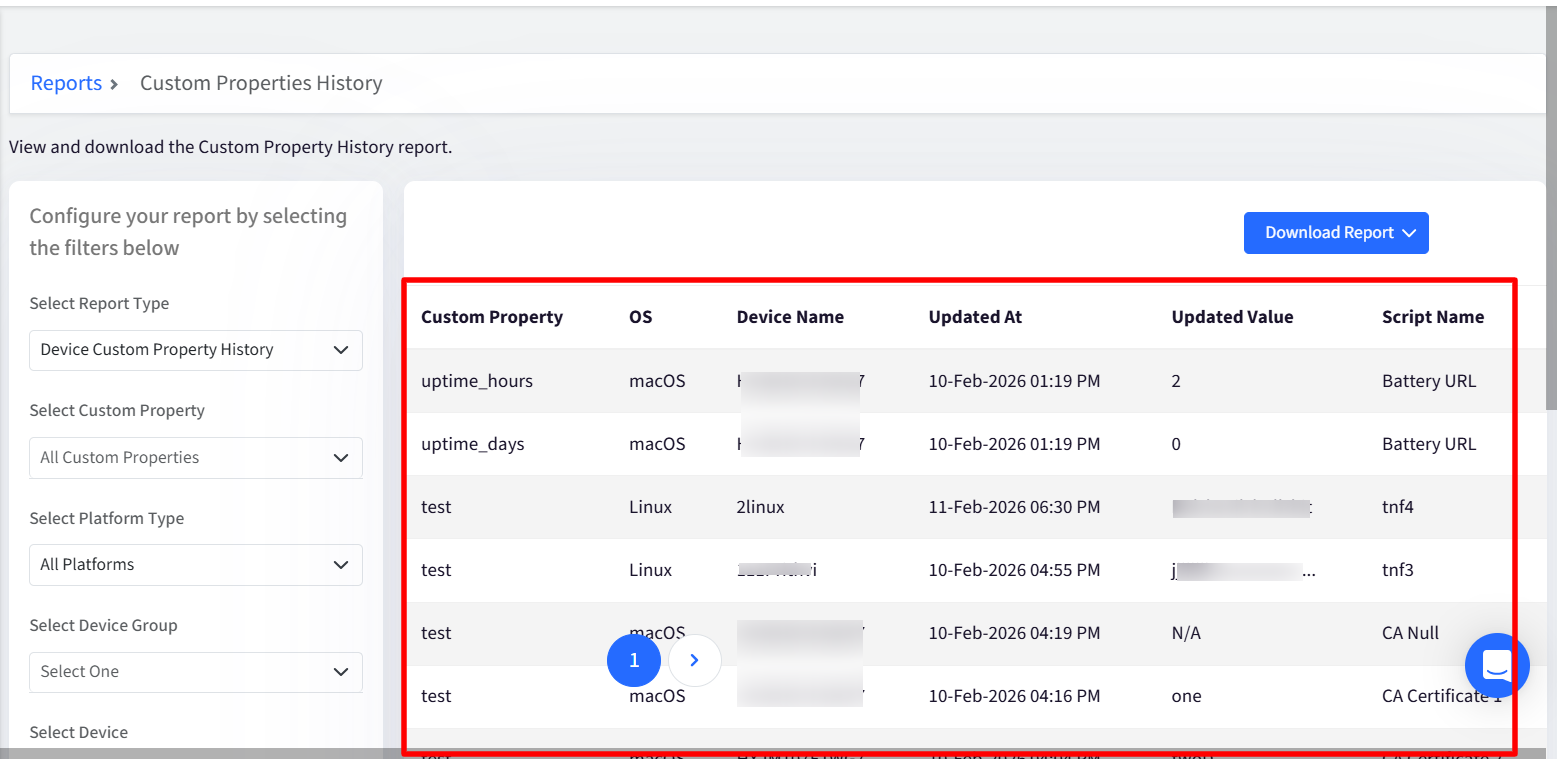
- Custom Property name
- Device or User name
- Updated value
- Script name
- Execution timestamp
- Executing device (for user properties)
4. Reports can be **downloaded as CSV** and **XLSX** format
> Events older than 60 days are automatically deleted.
