Custom Properties help you store device- or user-specific information such as department, office, asset tag, or other attributes. While these properties can be updated manually or through bulk uploads, many admins prefer using scripts especially on desktop platforms.
This guide explains how, from Scalefusion Dashboard you can update custom properties automatically using scripts on:
Windows
macOS
Linux
It also walks you through script requirements, supported limits, how values are detected, and where you can view results and reports.
Pre-requisites
Your account is on the Enterprise 2025 plan
The feature is enabled for your account
Custom properties you want to update are already created in the dashboard
You have permission to upload and manage scripts
The script should be verified
Custom properties that are linked to a script cannot be updated manually, via bulk upload, or via API.
How It Works
1. Writing Scripts That Update Custom Properties
To update a custom property, your script must output a specific tag format:
<device.property_name>value</device.property_name>
<user.property_name>value</user.property_name>
Examples
<device.department>Finance</device.department>
<user.asset_tag>NYC-MAC-1234</user.asset_tag>
The system scans the script output, detects these tags, validates the values, and updates the corresponding custom properties.
2. Using Custom Properties Inside Scripts
You can also read existing custom properties inside scripts using:
%$device.property_name%
%$user.property_name%
These values are dynamically replaced at runtime for each device or user.
3. Supported Limits
To ensure reliable updates, scripts and values must stay within these limits:
Platform | Max Output |
|---|---|
Windows | 5000 characters |
macOS | 5000 characters |
Linux | 5000 characters |
Value Limits
String: up to 8,384 characters
Integer: must be a valid number
Boolean:
t/Torf/FEmail: must be valid format
If limits are exceeded, values are ignored.
Steps: Uploading a Script That Updates Custom Properties
Step 1: Upload the Script
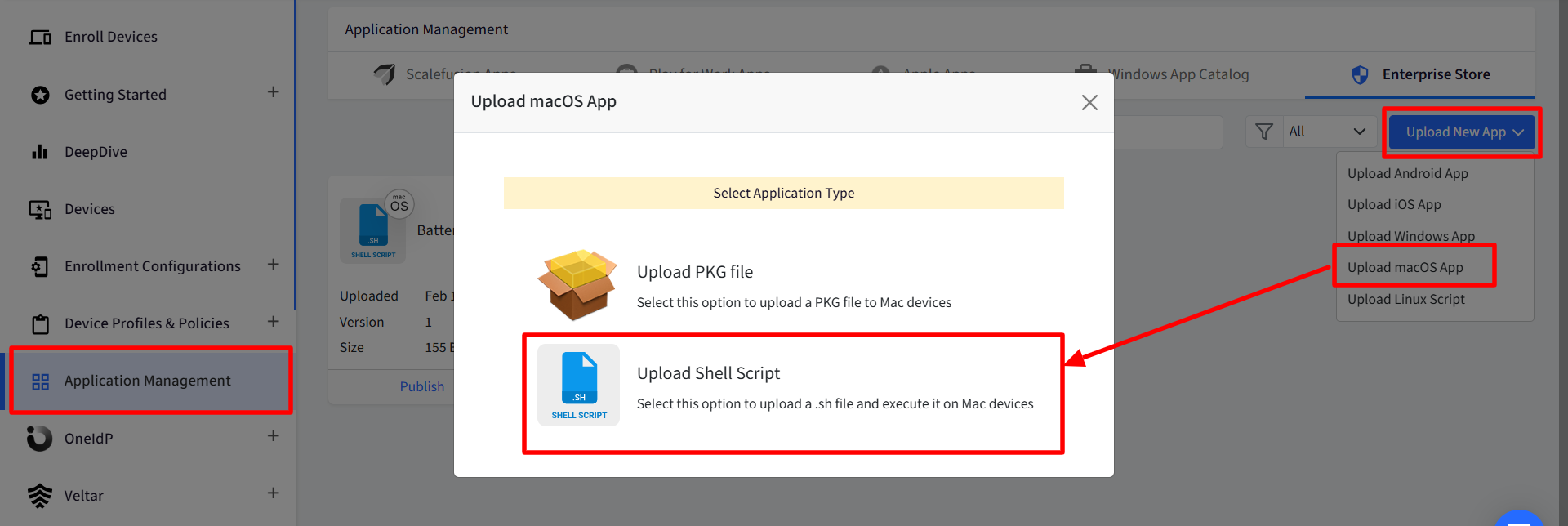
On Scalefusion Dashboard, navigate to Application Management > Enterprise Store
Click on Upload New App > Upload macOS app > Upload Shell Script
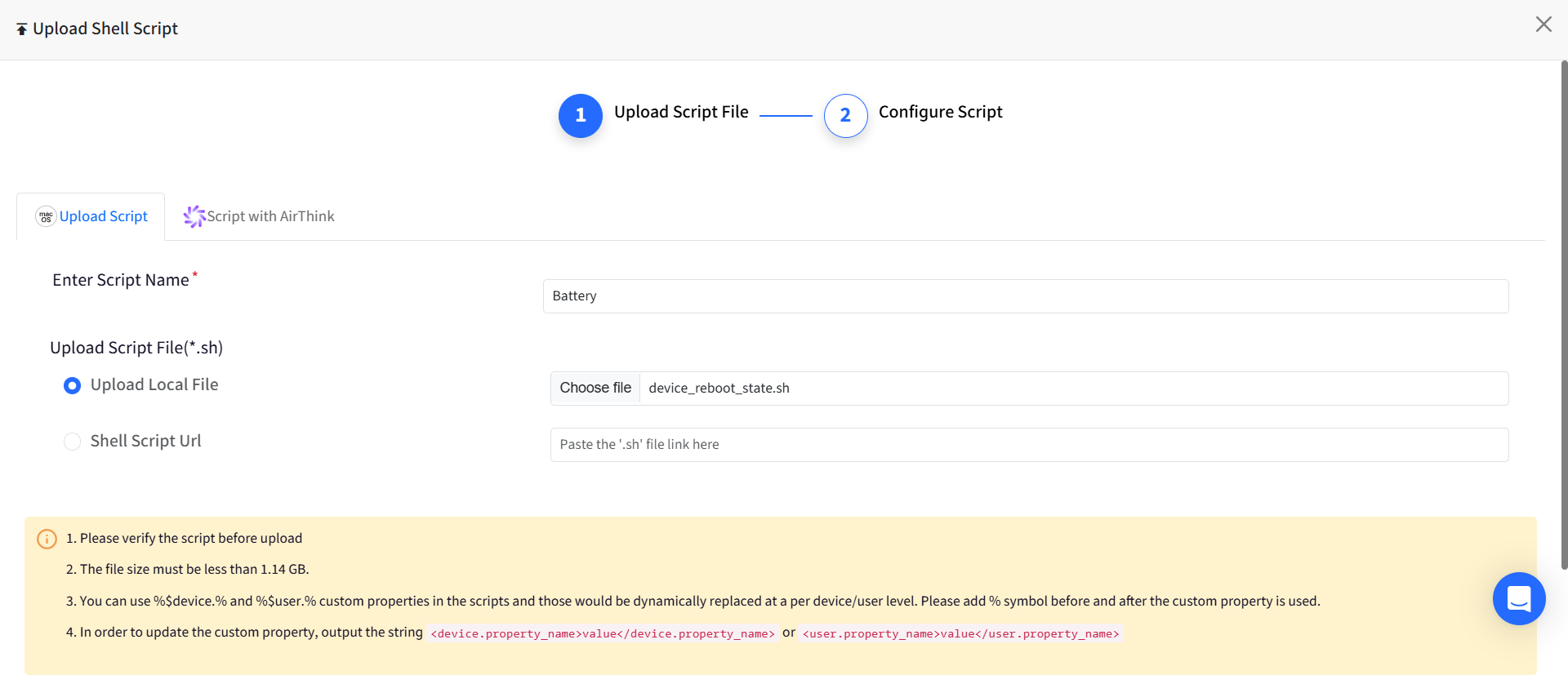
Upload your script file and click Next
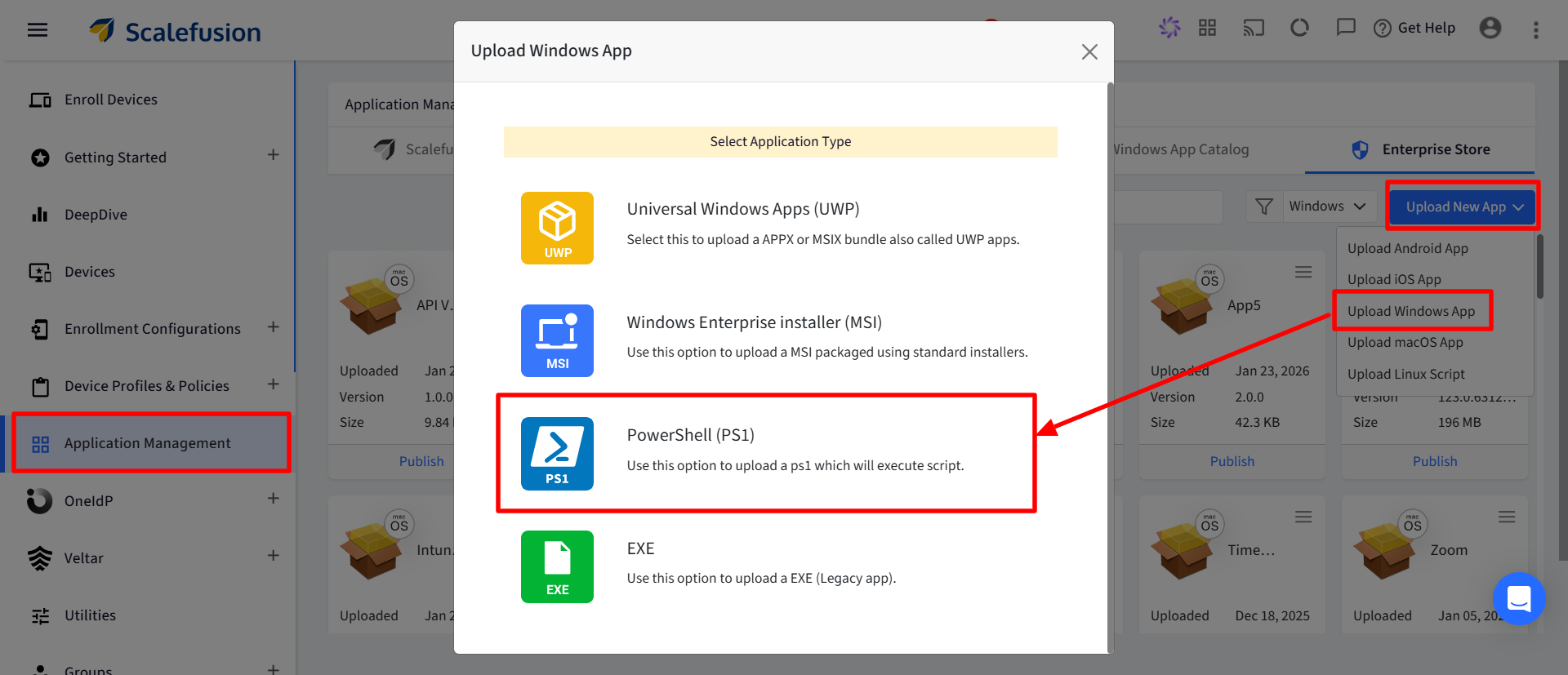
On Scalefusion Dashboard, navigate to Application Management > Enterprise Store
Click on Upload New App > Upload Windows app > PowerShell
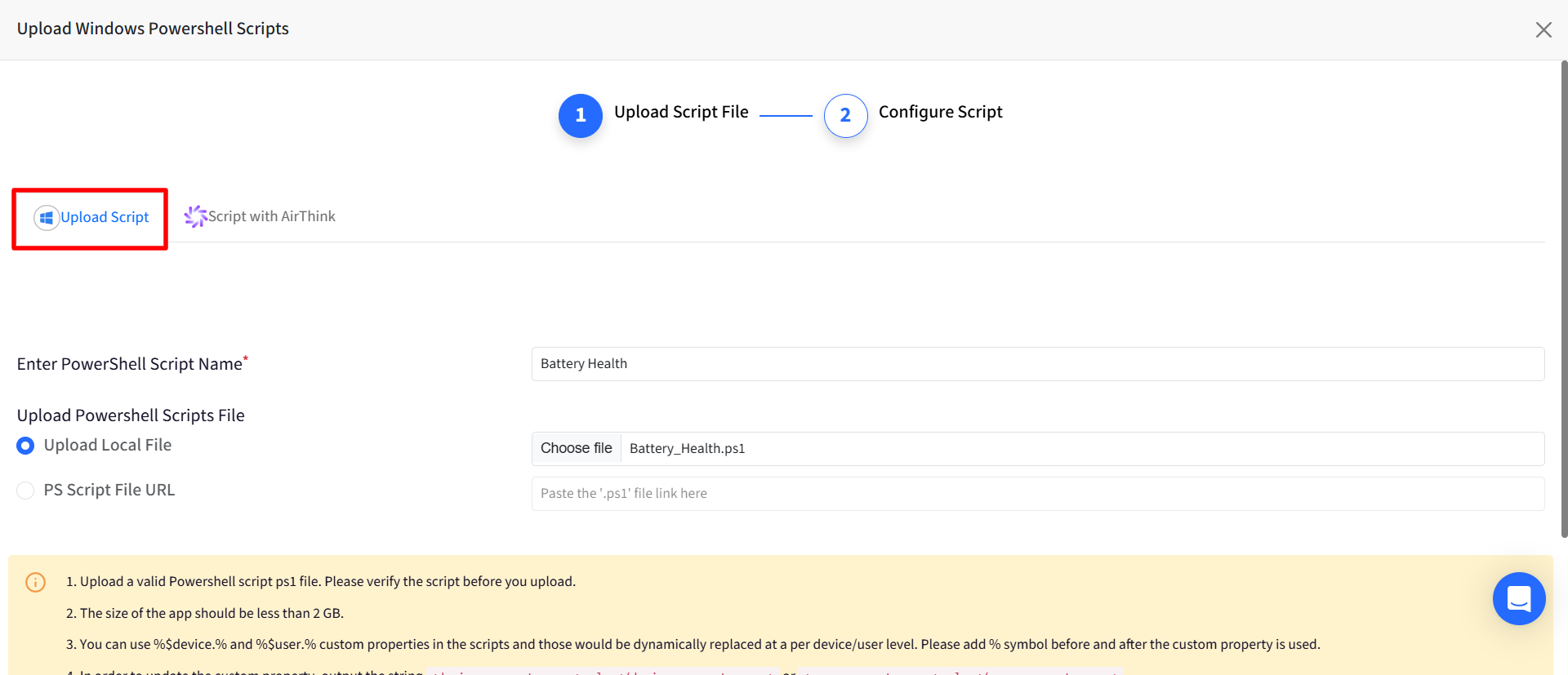
Upload your script file and click Next
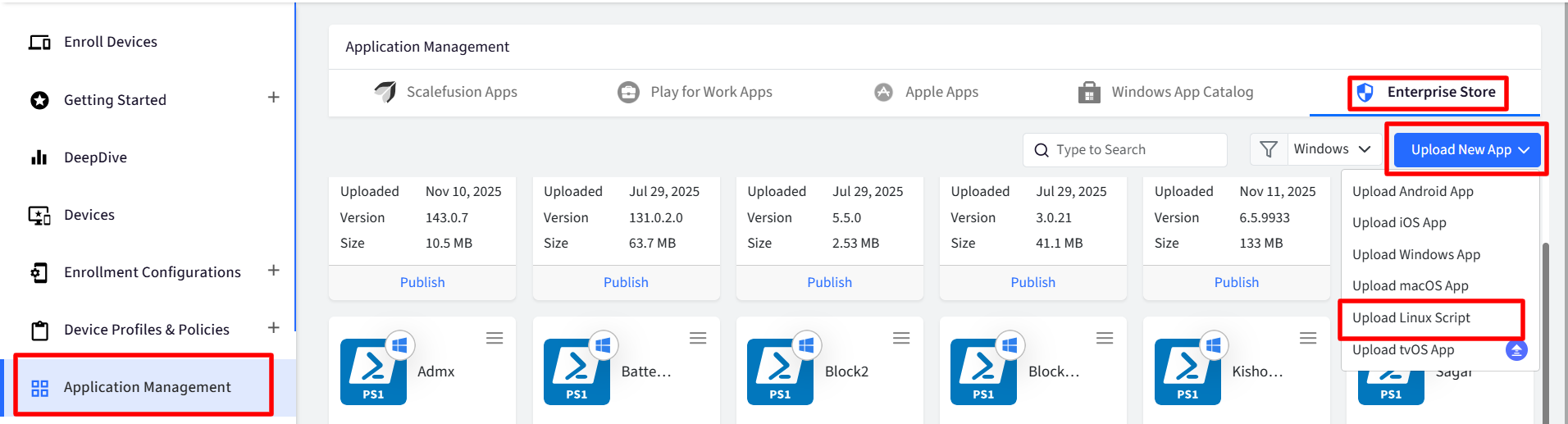
On Scalefusion Dashboard, navigate to Application Management > Enterprise Store
Click on Upload New App > Upload Linux script
Upload your script file and click Next
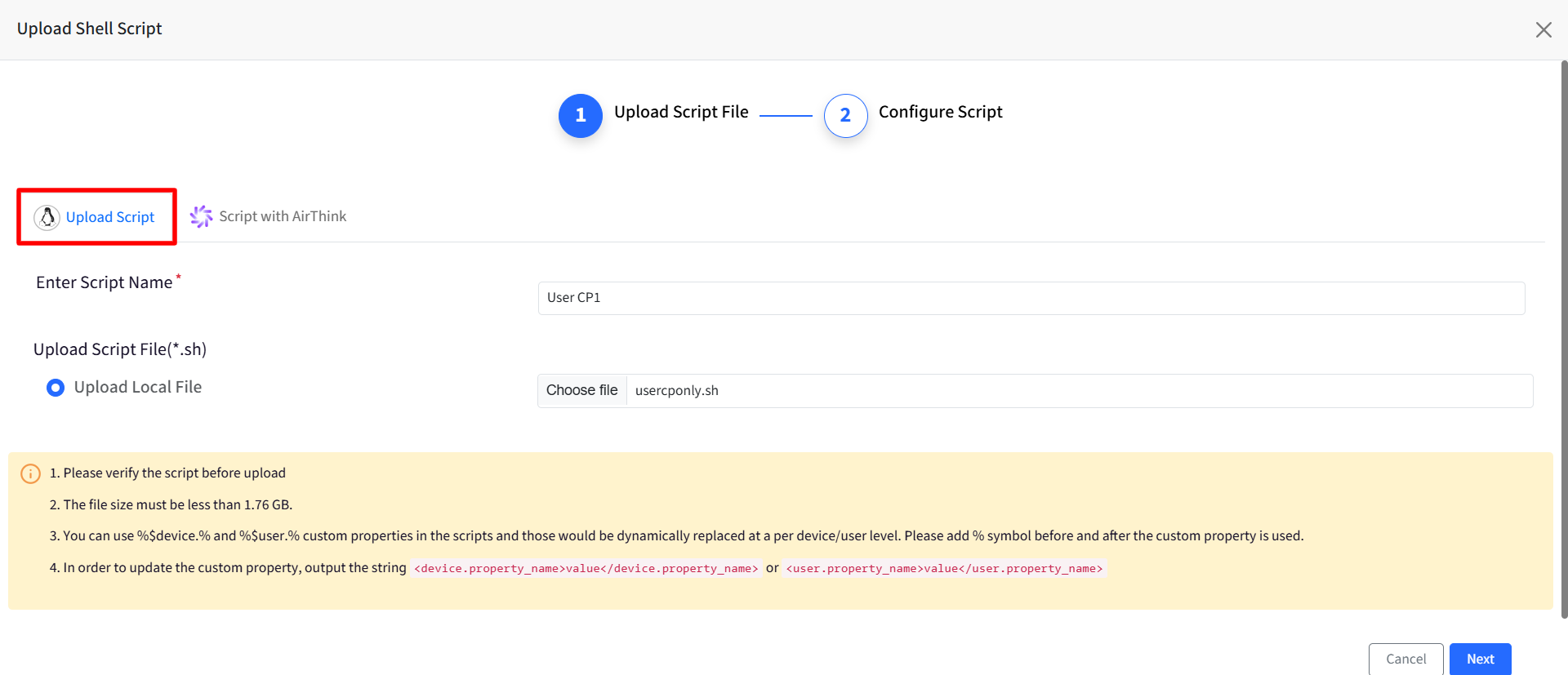
Review the on-screen notes about:
File size (under 1.8 GB)
Supported custom property syntax
Step 2: Configure Script Settings and Custom Properties
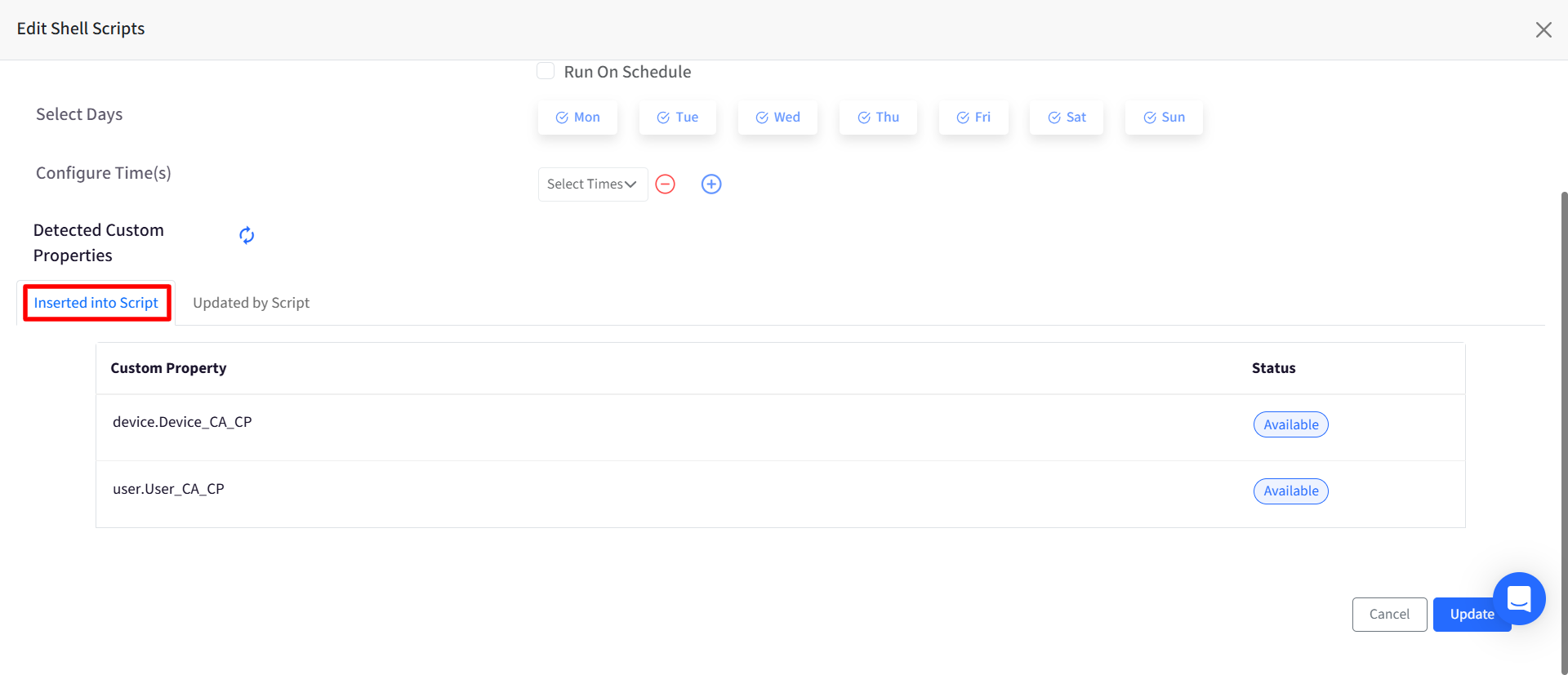
In this step, the system scans your script and detects custom properties. You’ll see two sections:
A. Inserted into Script
These are properties used as inputs inside the script. Each property shows:
Available: Property exists
Missing: Property does not exist
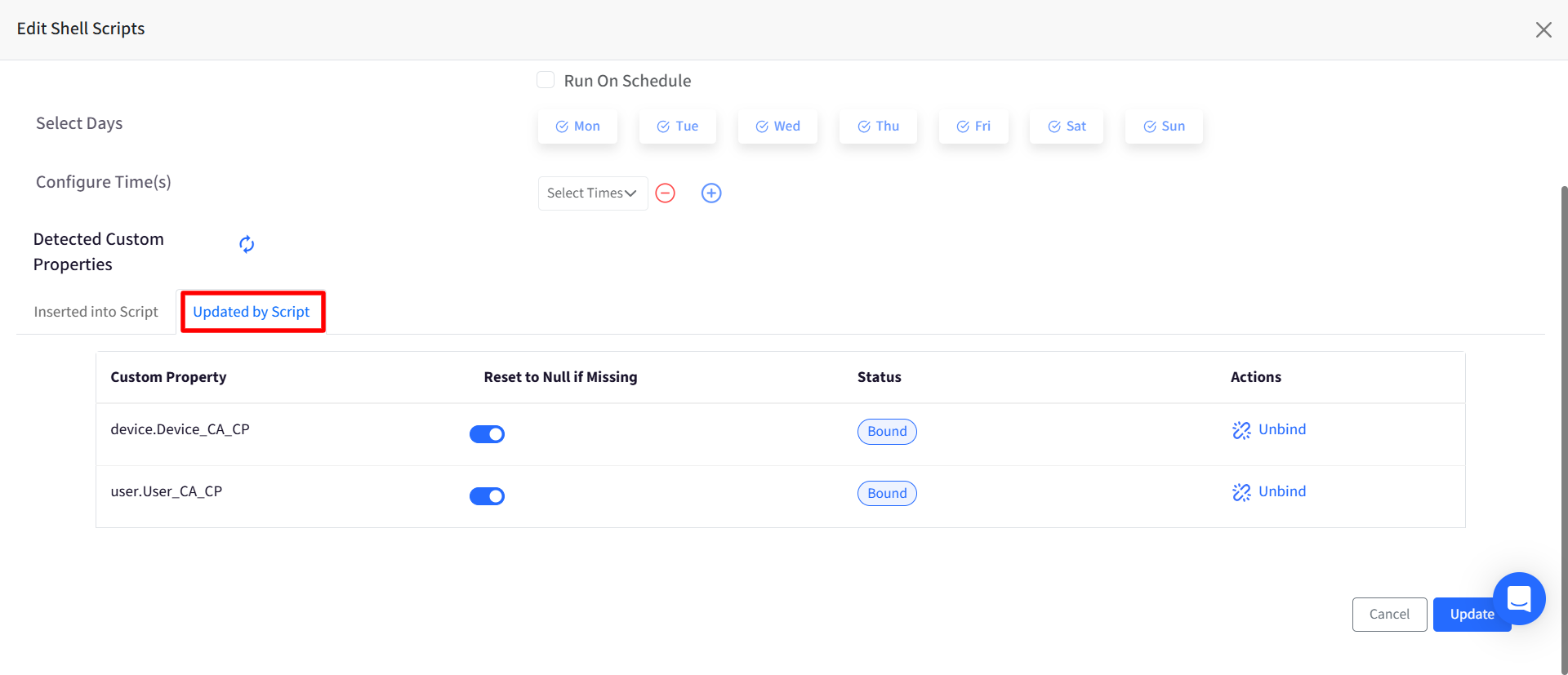
B. Updated by Script
These are properties updated by the script output. For each property, you can:
Bind or unbind it from the script (from Actions)
Choose whether to reset the value to
Nullif no value is foundSee if it’s already bound to another script (in Status)
A custom property can be bound to one script per platform.
Click Save to finish.
Restrictions on Updating Custom Properties
If a custom property is linked to a script:
It cannot be edited from:
Device details
User details
Bulk upload
Developer APIs
You must remove the script binding first.
Step 3: Publish the Script
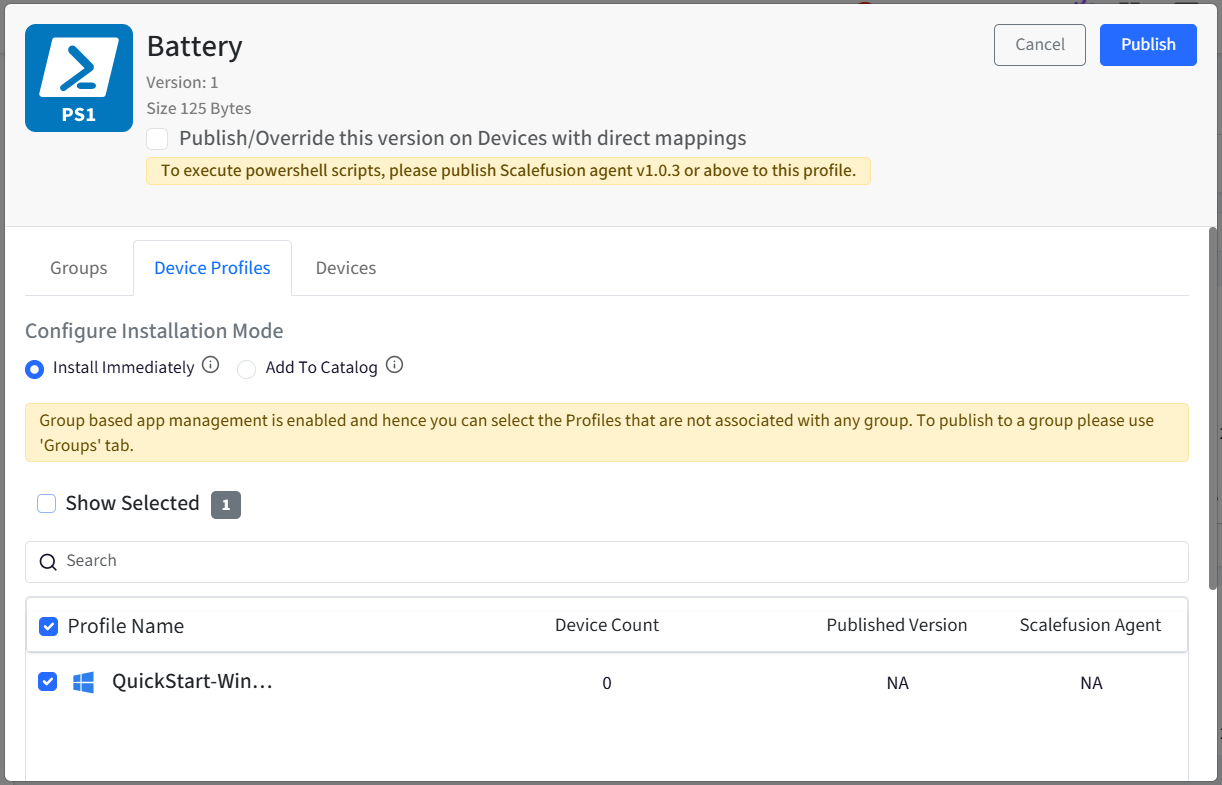
On saving, the Publish dialog box will appear.
Select the Device Profiles / Groups / Devices on which you want to publish the script.
Click Publish
Viewing Script Results and Property Status
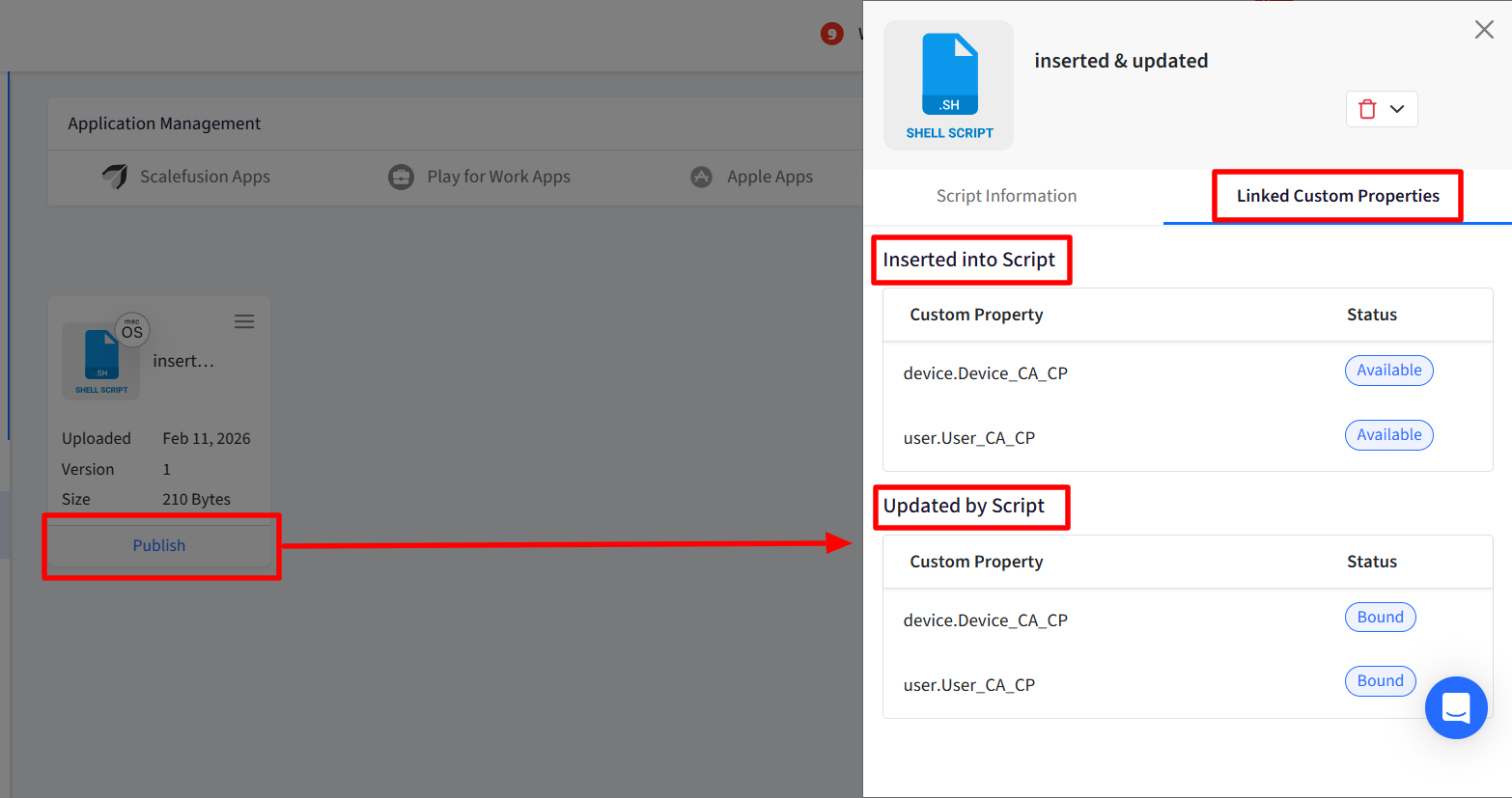
View Linked Custom Properties
From the script’s Publish screen, you can view:
Properties inserted into the script
Properties updated by the script
Whether each property is available, bound, or missing (Status)
View Script Output and Update Status
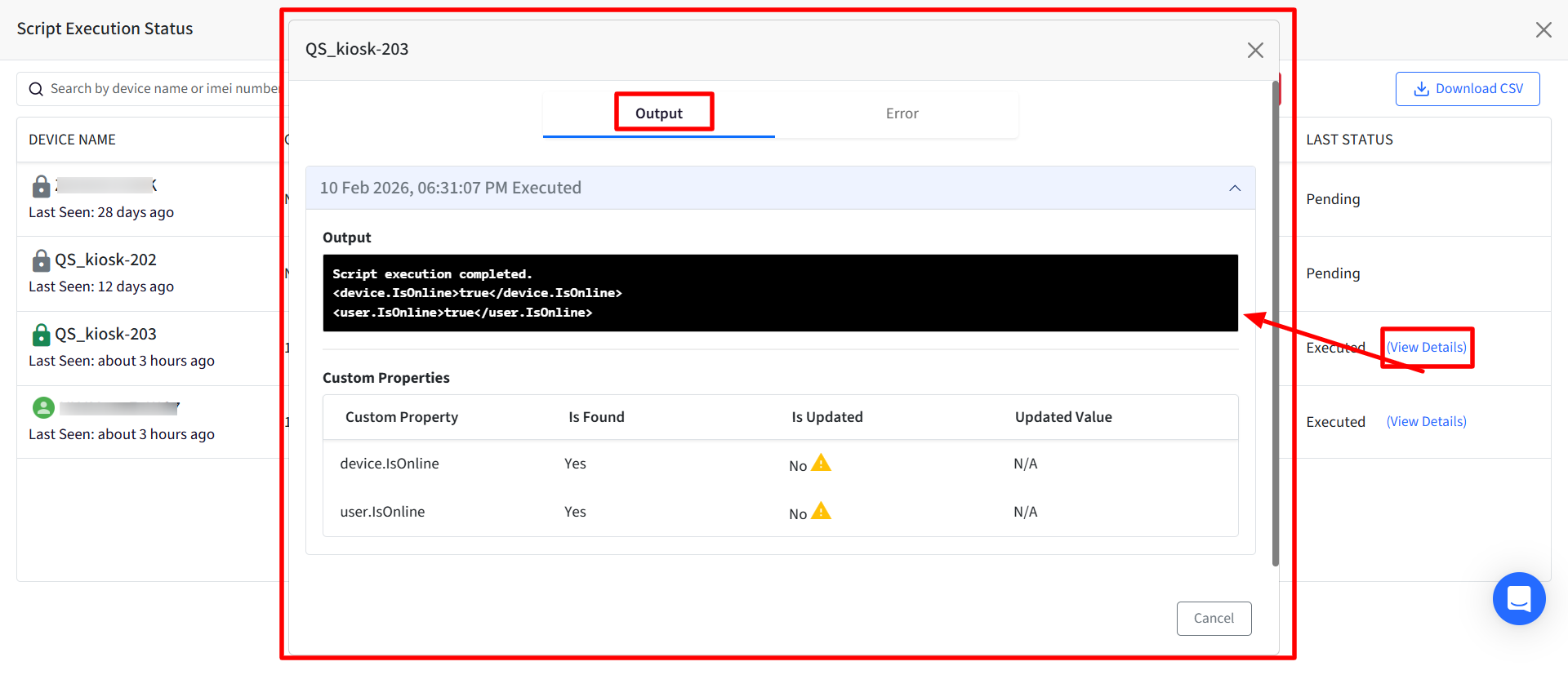
Click on View Status on the right side panel. When viewing script execution details, you’ll see:
Raw script output
A table showing:
Whether each property was found
Whether it was updated
The updated value
Warnings are shown if:
The value type is invalid
The value is too large
A user property is updated but no user is assigned
Editing Scripts
When you edit a script:
Detected custom properties are re-evaluated
You can rebind or unbind properties
New properties are only detected during edit or upload
Managing Script Associations for Custom Properties
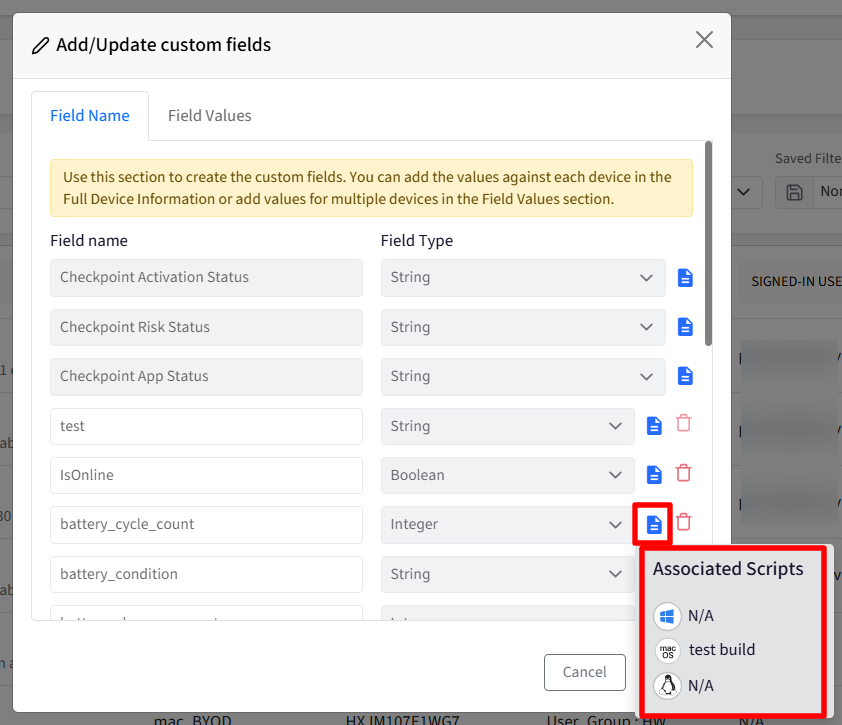
When a custom property is linked to a script, you can view which scripts are associated with it directly from the Custom Properties page.
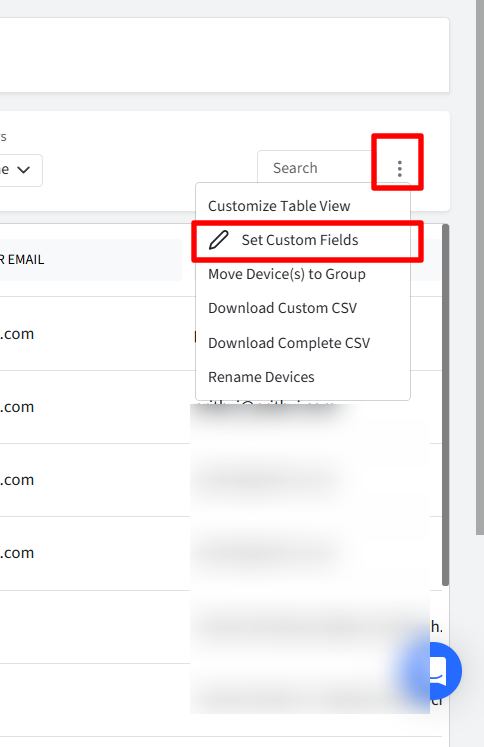
Go to Devices section and under three dots menu click on Set Custom Fields
Locate the custom property
Click the script association icon (displayed before the Delete icon). This opens a tooltip showing the associated scripts for each platform:
Windows Script: Displays the linked Windows script name
macOS Script: Displays the linked macOS script name
Linux Script: Displays the linked Linux script name
If no script is linked for a platform, it will show N/A
Deleting a Custom Property
If a custom property is associated with one or more scripts:
You cannot delete the property
The Delete option will show a message:
“You have assigned a script to this custom property, please remove the mapping and try again.”
To delete the property:
Go to the linked script
Remove (unbind) the custom property
Save the script
Return and delete the property
Custom Properties History Report
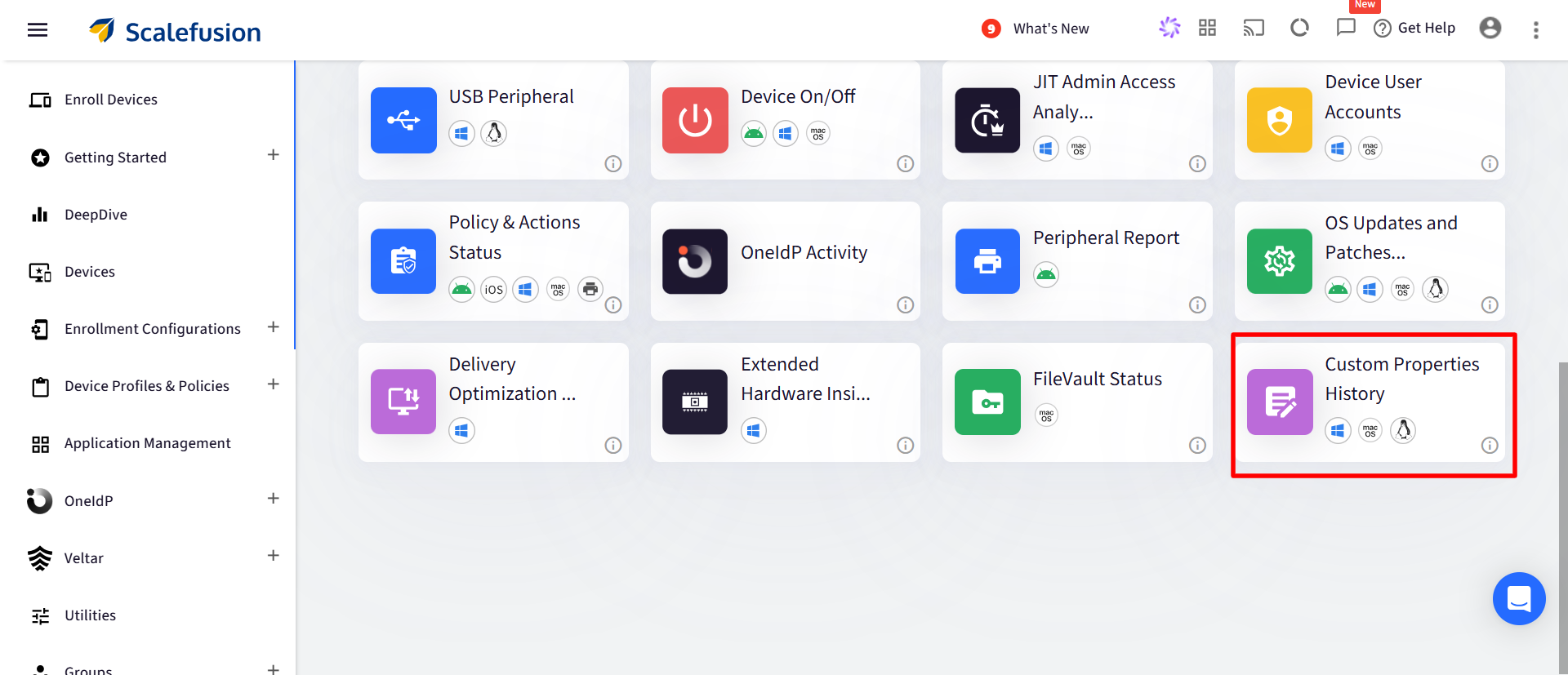
This report lets you track when and how custom properties were updated by scripts. To view the report:
Navigate to Reports section on Scalefusion Dashboard and click on Custom Properties History Report
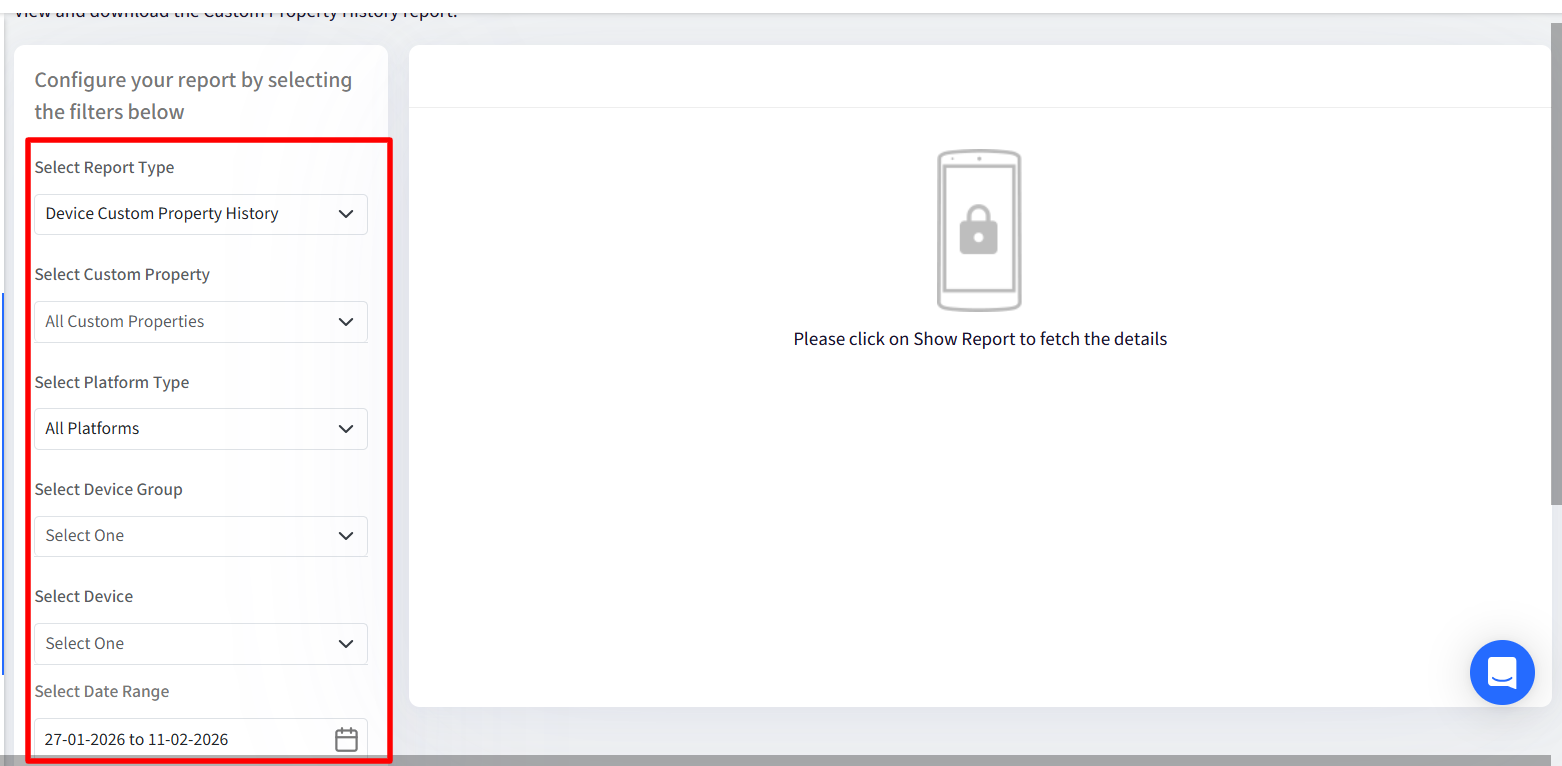
You can filter by:
Device or User properties
Specific custom properties
Device groups or user groups
Individual devices or users
Date range (up to 60 days)
Report Includes
Custom Property name
Device or User name
Updated value
Script name
Execution timestamp
Executing device (for user properties)
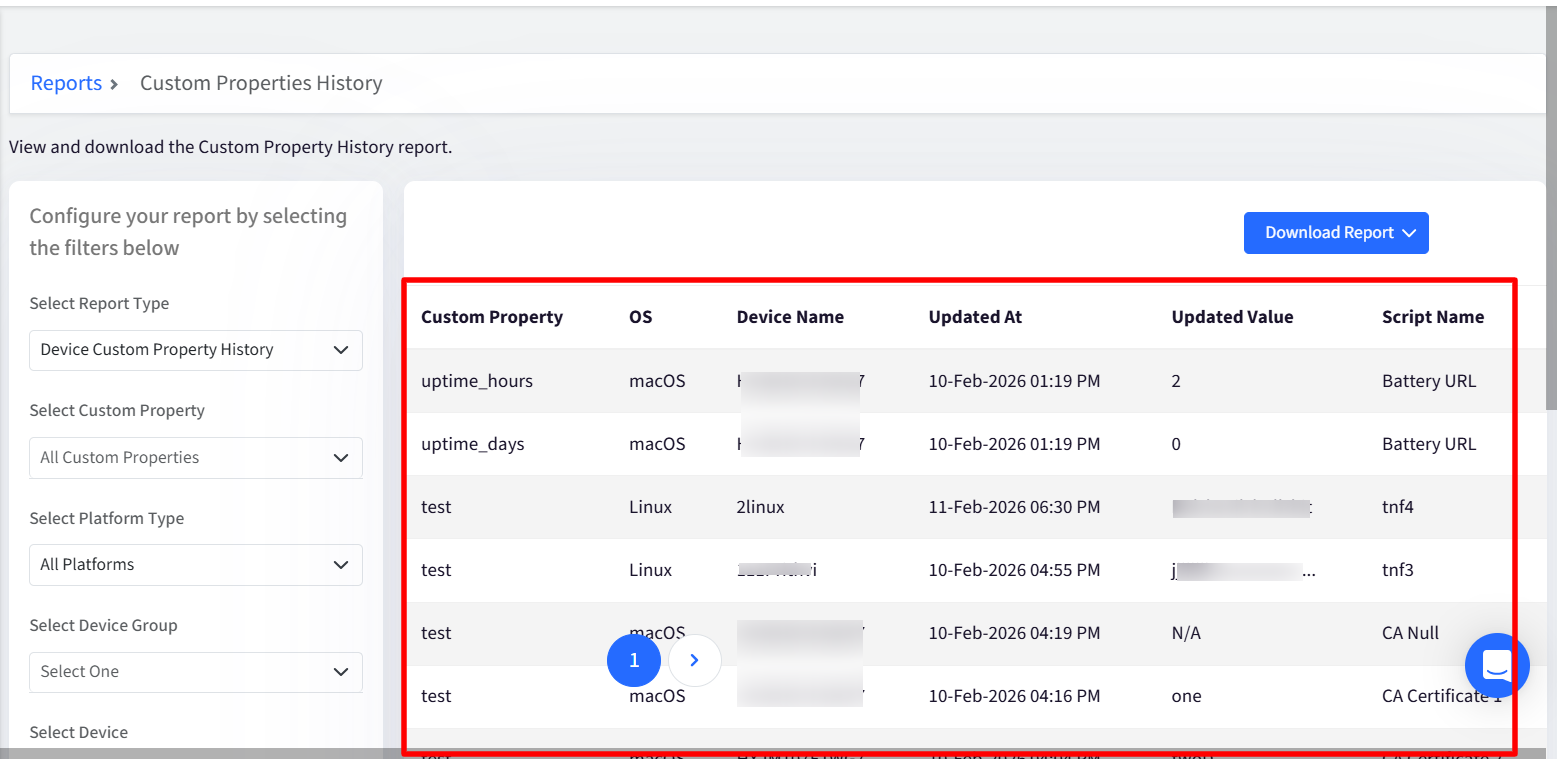
Reports can be downloaded as CSV and XLSX format
Events older than 60 days are automatically deleted.
